Membership Type is an organizational feature that allows you to categorize your membership templates. This article will guide you through configuring and utilizing membership-type labels, including how to assign labels to new and existing memberships.
Things to Know:
- The configuration for this feature is controlled by a hidden setting that only the MyTime team can enable. To enable the hidden setting, please contact our Support Team at support@mytime.com.
- After the hidden setting is enabled, refresh the membership page to see the "Membership Type" dropdown in the interface. This field is available for both new and existing memberships.
- For franchise businesses with global memberships, membership categorization is managed at the parent account level.
- The ability to create memberships is governed by the 'Memberships' access control setting.
- Membership type labels for global memberships are configured at the parent level
- For more details on how to configure memberships, learn here
Contents:
Assigning Membership Types
Navigate to Business Setup / Location Setup > Memberships tab
Use the location filter to select where the membership will be available for purchase.
Choose one of the following:
Click + Add New Membership to create a new membership, or
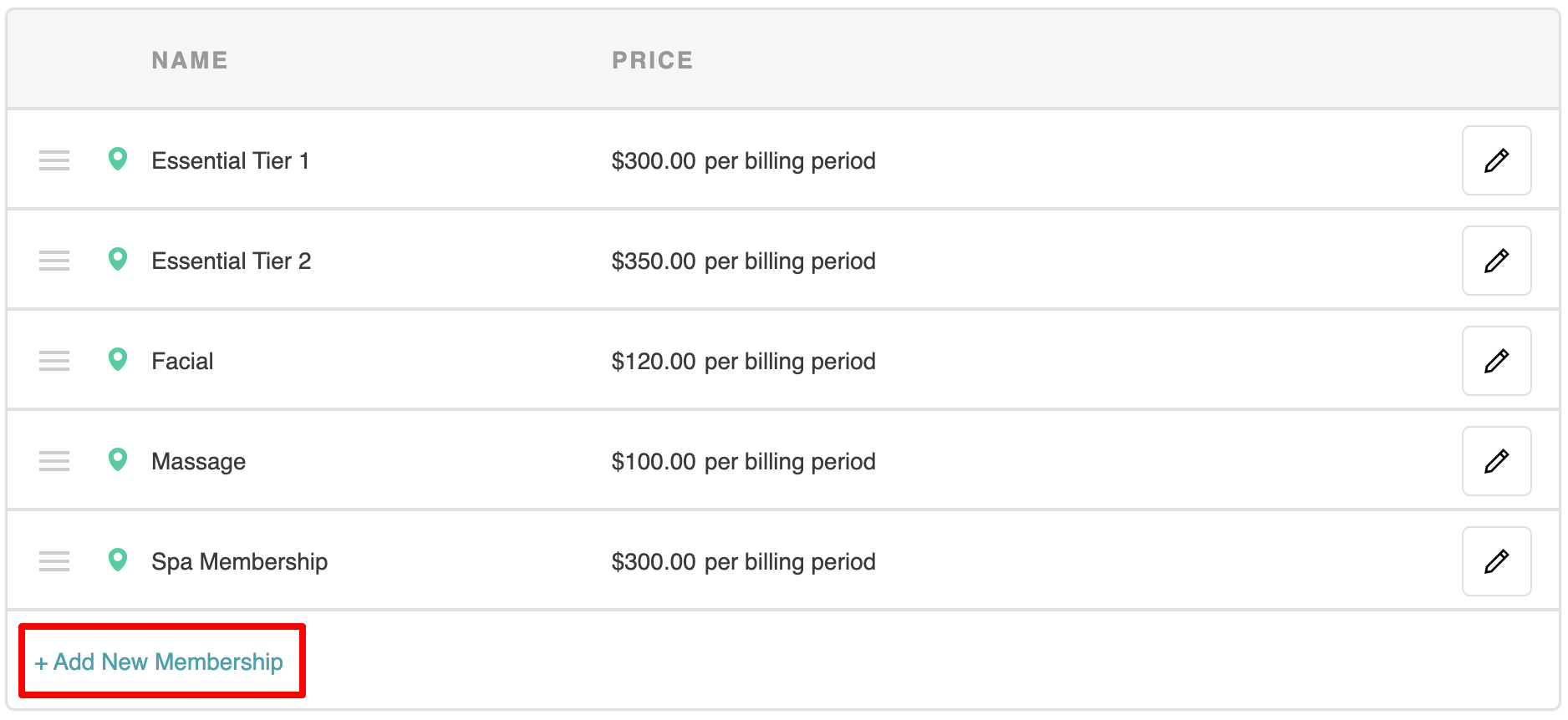
Click the edit icon next to an existing membership to update it

You will be taken to the General Settings page. Scroll to the bottom to find the Membership Type field.
- Click the dropdown menu to view and select from the membership type labels configured via the hidden setting.
- After selecting a membership type and completing the general settings, proceed to the Price tab to continue setup. For detailed guidance on configuring memberships, click here.


Viewing Membership Types on Client Profiles
When a client purchases a membership with a membership type assigned, the selected type will appear in the Membership Details section of their profile in read-only format.

For more information, contact us at support@mytime.com.
Related Articles:
Indefinite Membership Configuration
Upgrading or Downgrading Memberships
Updating Existing Client Memberships
Membership Cancellation Reasons
Freezing and Unfreezing Memberships
Commission on Membership Sales
Commission on Appointments and Products in Membership
Membership Value Credits vs Membership Item Credits
Selling Memberships for Clients in POS
Selling Memberships for Family Members in POS
Selling Memberships for Pets in POS
Selling Memberships Online through Booking Widget
Selling Products, Gift Cards, Memberships and Packages on Scheduler App
Reconciliation for Memberships
Was this article helpful?
That’s Great!
Thank you for your feedback
Sorry! We couldn't be helpful
Thank you for your feedback
Feedback sent
We appreciate your effort and will try to fix the article