In this article, we will walk through the steps on how to sell memberships for pets via POS.
Things to Know
- The ability to sell memberships in POS is controlled by the "Creating Ticket" access control setting.
- In order to be able to sell memberships, you must have a membership subscription. For franchise businesses, please contact your account manager or support@mytime.com
- On the membership configuration page:
- If "Individual Pet" is selected - This means that the membership can only be used by the selected pets at the time of purchase
- If "All Pets" is selected - This means that the purchased membership can be used by all pets on a client's profile
- If a client profile contains only one pet, that pet is automatically included by default. You can also choose to select the primary client from the member list or add a new Pet.
- For clients with multiple pet memberships, all charges scheduled for the same day will be combined into a single ticket.
- The “Require Payment Method On File To Purchase Membership” setting determines whether a saved payment method (such as a credit card or bank account) is required when purchasing a membership. By default, this setting is enabled but it can be disabled if a saved payment method is not required.
- When a client purchases a membership with a credit card, the “Save card on file” checkbox is always selected and cannot be unchecked. This ensures the client’s card is securely stored for recurring billing, regardless of the setting above.
- The locations displayed in the location dropdown when creating a new ticket in POS depend on the following access control settings:
- Create Tickets for Their Location(s) and Block for All Locations:
- If the staff member is assigned to one location, only that location will appear
- If assigned to multiple locations, all associated locations will appear. The default will be the location they last filtered to, but they can select a different one if needed
- Block/Create Ticket for Their Location(s) and Create Tickets for All Locations:
- All locations will appear in the location filter
- The default will be the location the staff member last filtered to
- A commission rate does not need to be configured on a staff member's profile for them to appear in the commission dropdown on a POS ticket. Service providers, location managers, support staff, and custom roles can all be selected to receive commissions for membership sales. However:
- If the Track Compensation checkbox is not selected on their profile, they will not appear in compensation reports
- If no commission rate is set, no commission amount will be calculated or displayed in reports for that sale
- By default, payment buttons may lack visual prominence, making it difficult for staff to quickly identify the primary payment method. This can lead to selecting incorrect options or improper transaction processing. You can request a layout change that reorders the buttons and highlights the primary action in blue for better visibility.
- Default Display:
- No Card on File: [Key In Card] [Swipe Card]
- Card on File: [Visa ****1234] [Key In Card] [Swipe Card]
- Enhanced Display (High Visibility):
- No Card on File: [Swipe/Tap Card] (Highlighted) [Manual Entry]
- Card on File: [Visa ****1234] (Highlighted) [Swipe/Tap] [Manual Entry]
- Important: This is controlled by a hidden setting that must be enabled by the MyTime team. If you would like to switch to the high-visibility payment buttons, please contact us at support@mytime.com
- On the Take Payment page, a "Max" button is available next to the Other Payment field. Clicking this button automatically fills the field with the remaining balance due. Example: If a client’s total is $100 and $60 has already been paid by credit card, clicking "Max" will automatically enter the remaining $40 in the Other Payment field.
To sell memberships for pets in POS:
- Navigate to POS > New Ticket
- Select the desired location (if you have access to multiple locations)
- Add a client to the ticket
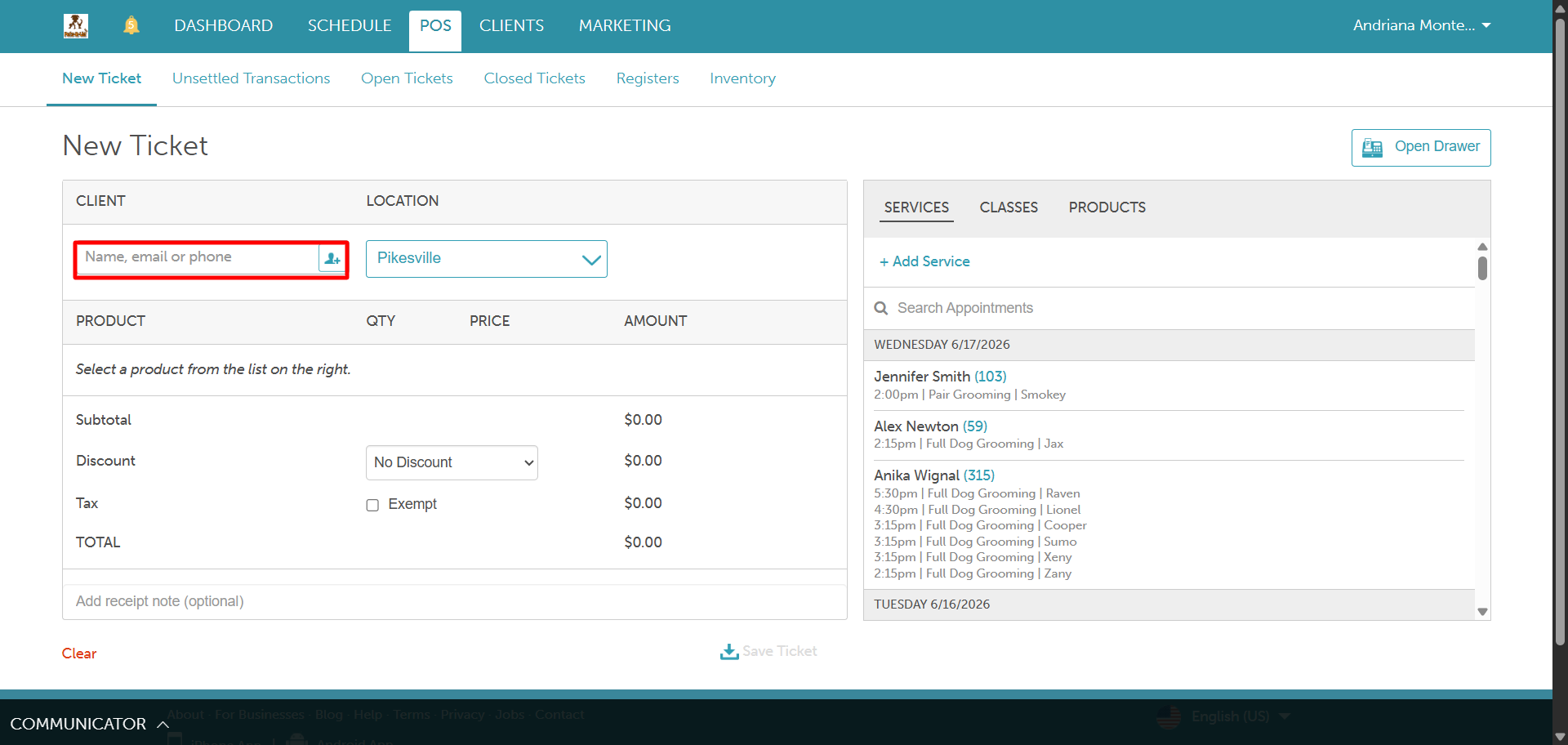
- Go to the Products tab and expand the Memberships menu
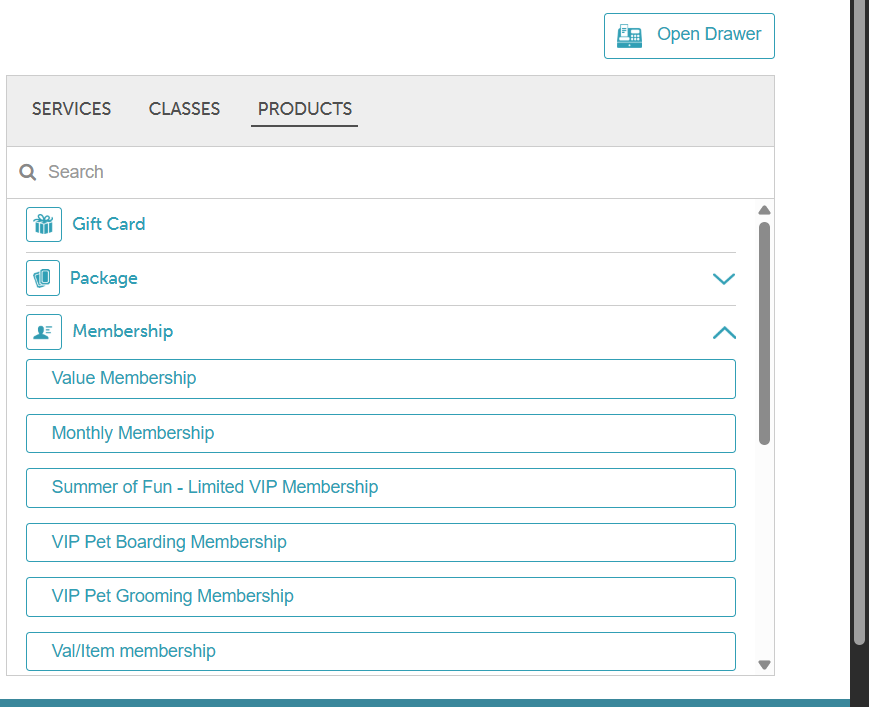
- Select the desired membership
- When the membership is added to the ticket, if the account already has a pet, you can select an existing pet from the 'Member' dropdown or add a new one
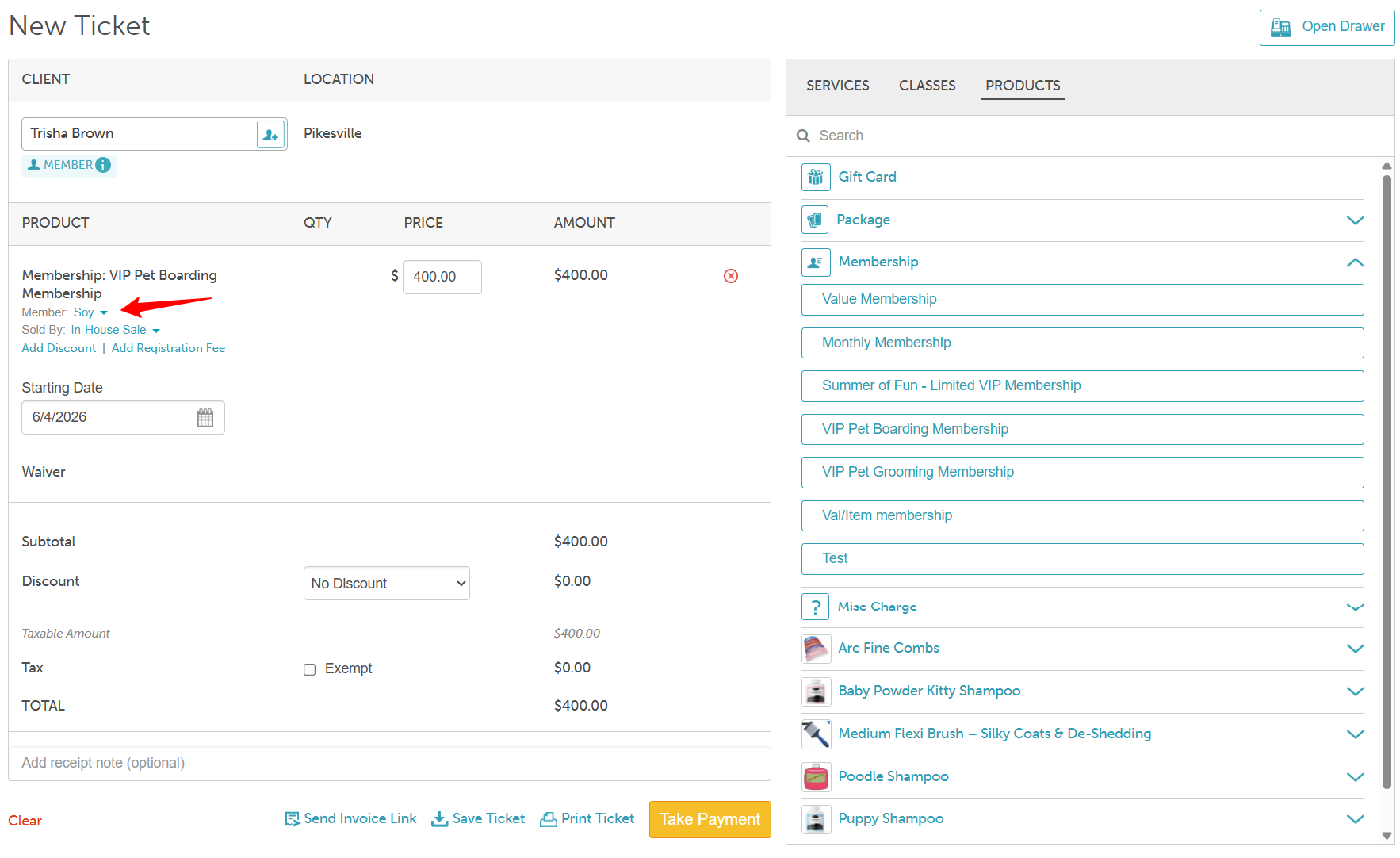
- Select the dropdown next to 'Sold By' to add the staff member who should receive a commission for the membership sale
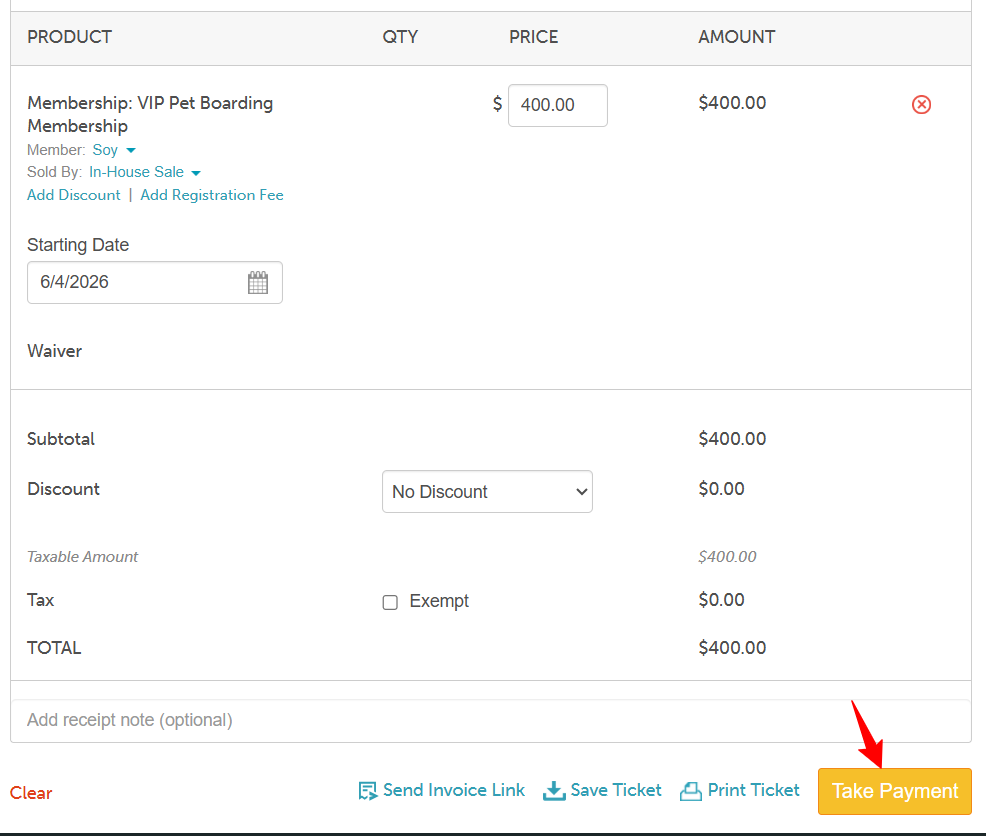
- Take payment and close the ticket
Client Profile
From the client's profile, the membership will be displayed under the "Memberships" section
For more information contact us at support@mytime.com.
Related Articles:
- Selling Memberships for Family Members in POS
- Selling Memberships for Clients in POS
- Selling Memberships Online through Booking Widget and Express Checkout
- Purchase and Apply Package / Membership Benefits on the Same Ticket
- Purchasing Client Memberships Online
- Purchasing Memberships for Pets Online
- Purchasing Memberships for Family Members Online
Was this article helpful?
That’s Great!
Thank you for your feedback
Sorry! We couldn't be helpful
Thank you for your feedback
Feedback sent
We appreciate your effort and will try to fix the article