Once your widget is configured to include memberships, your clients can purchase memberships for specific family members online through an embeddable widget on your website or through the express checkout page. This article will outline the steps your clients need to follow to purchase a membership online for a family member.
Things to know:
- To configure your account for membership purchases, learn more here
- To enable online purchases for memberships, the following steps must be completed:
- You must have an active membership subscription. For franchise businesses, please contact your account manager or email support@mytime.com for assistance.
- A payment account must be set up to process card payments. If you do not have a payment account, please email processing@mytime.com for help.
- Your account must be live.
- Online booking must be enabled. Learn more here
- In the membership template, ensure that "Yes" is selected for the "Enable Online Purchase" setting.
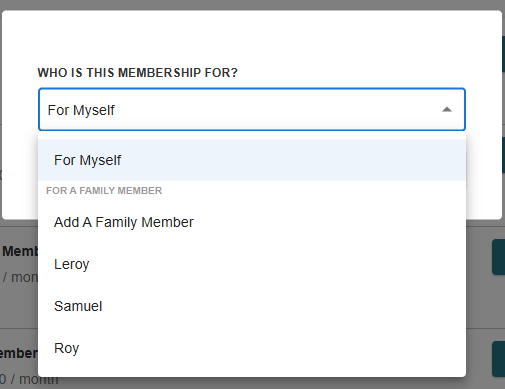
- For memberships configured for individual family members, clients will be asked to select who the membership is for. If they only have themselves on their account, the membership will be automatically assigned to them.
- When checking out on the booking widget, if the "Store Clients' Credit Cards?" setting is set to "Yes, but don't require them to schedule appointments," selecting the "how we use your payment information" hyperlink will display the following reason: "This makes it easier to manage your active membership by automatically processing recurring membership charges."
- When clients purchase memberships online through the booking widget, express checkout page, or your custom guest app and enter their card details, the option to save their card on their profile in-store and in their online user account will automatically be checked and cannot be unchecked.
- Purchasing memberships online can also be paid for using a bank account. This option is controlled by the “Enable ACH Payments” hidden setting, which can only be activated by the MyTime team. To enable this feature, please contact support@mytime.com. Learn more here
If the "Default Commissionable Employee for Product and Prepaid Sales" company setting is configured as either "Logged in user" or "In-House Sale," any membership purchased online will display "In-House Sale" in the "Sold By" field on the ticket.
The ability for clients to remove applied gift cards or promo codes (via an 'X' icon) during online checkout, the "Separate promotion and gift card codes" hidden setting must be enabled. If this feature is not currently active on your account, please contact the MyTime Support team to have it enabled.
Defined-Term Memberships: The membership end date will only be displayed on the checkout and confirmation pages if the membership is configured with a specific, defined term.
Indefinite Memberships: If the membership is configured as an indefinite membership, no end date will appear on either page.
- How Privacy Protection Works
- Automatic Opt-Out (GPC): If a client uses a privacy-focused browser (such as Brave or DuckDuckGo) or has Global Privacy Control (GPC) turned on (e.g., in Firefox), MyTime automatically detects the signal and opts them out immediately upon page load.
- One-Click Manual Opt-Out: Visitors can opt out at any time by selecting "Do Not Sell or Share My Personal Information" in the footer of any booking step or express checkout. Once clicked, the text immediately updates to confirm: "Opt-Out Request Honored."
- Remembered Across Browsers & Devices:
- Browser Storage: The opt-out choice is saved locally on the visitor's device/browser for one year across all booking widgets.
- Cross-Device Syncing: When a client signs into their consumer account, their opt-out status syncs and applies across any device where they log in. (Note: This applies to consumer accounts only; it does not sync for staff or business logins).
- Marketing Trackers Blocked vs. Analytics Retained:
- Blocked: Third-party advertising and marketing trackers—including the Meta/Facebook Pixel (fbevents.js), Google Tag Manager (gtm.js), and Google ad conversion tracking—are completely blocked from loading.
- Retained: Essential performance reporting through standard Google Analytics continues to operate normally, and required functional scripts (such as Facebook Social Login) remain available so clients can still sign in.
- Full Operational Continuity: Appointments, express checkouts, purchases, payment processing, and transactional notifications function seamlessly without disruption.
- Global Privacy Control: MyTime automatically honors consumer privacy preferences across booking widgets, express checkouts, and client-facing pages to comply with privacy regulations without interrupting your operations. Learn more here.
Depending on how you configured the widget, your membership will be a stand-alone item or your clients will have to:
- Navigate to your booking widget
- Select the desired location (if the account has multiple locations)
- Select the Memberships tab
- Click on the "Buy" button next to desired membership
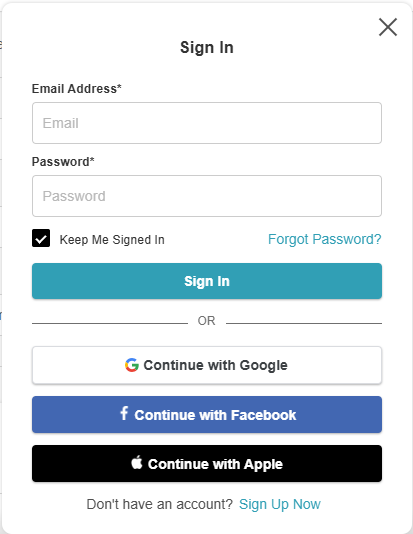
- They can sign in using their email and password, or log in via a Facebook, Google, or Apple account, or create a new account.
- If the client has family members listed on their account, a popup will appear with options to select For myself, For a family member, or Add a family member. If the client only has themselves on their account, the membership will automatically be assigned to them without requiring a selection.
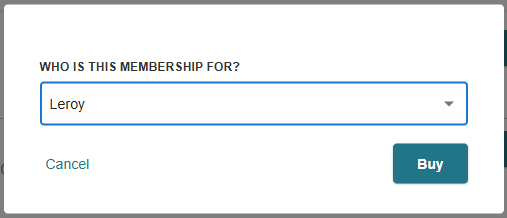
- Click "Buy"
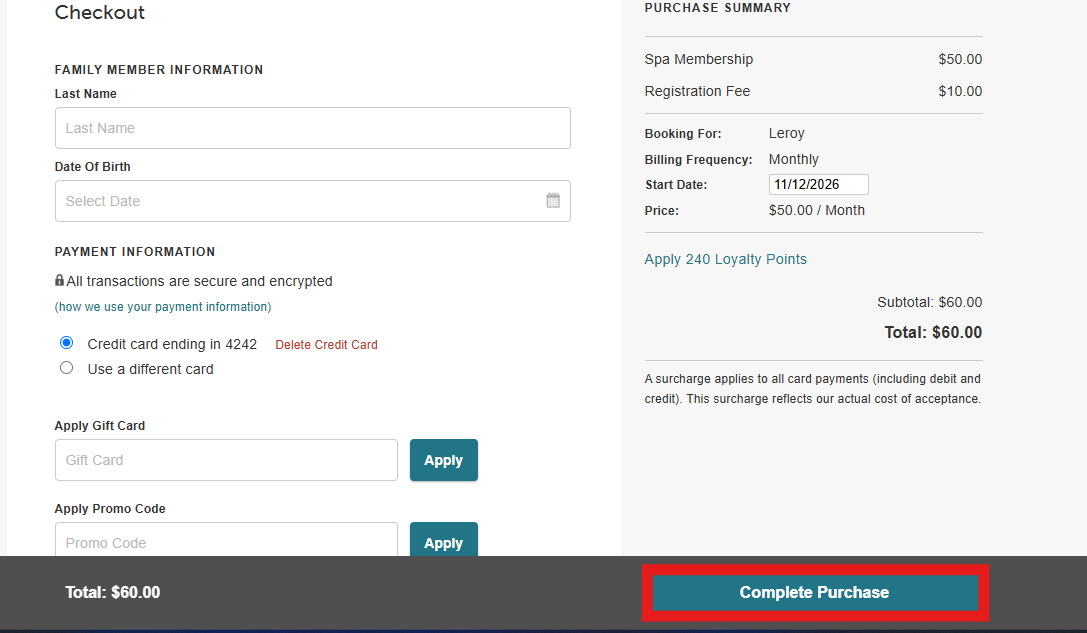
- The membership will be added to the client's cart and they will be redirected to the Checkout page. The membership information, such as membership name, family member's name, billing frequency, start date, end date, and price, will be displayed for review
- Next, complete any required intake form and payment details via card, Google Pay/Apple Pay (if applicable), and select the “Complete Purchase” button


Related Articles:
Was this article helpful?
That’s Great!
Thank you for your feedback
Sorry! We couldn't be helpful
Thank you for your feedback
Feedback sent
We appreciate your effort and will try to fix the article