In this article, we will walk through setting up a promotion for membership.
Things to know:
- The ability to create a promotion is governed by the "Accessing Promotions" access control setting.
- When configuring promotions at the parent level, only items created at the parent level (such as services, products, classes, etc.) will be available for selection.
- Promotion Rules & Application Logic:
Item Trigger vs. Discount Conflict: When creating Buy X, Get Y style promotions, the triggering items must be different from the items receiving the discount. If the same item appears in both the "Qualified Items" and "Discounted Items" lists, the promotion conditions will conflict and fail to apply. Example: If you offer a free Facial membership when a client purchases two Essential memberships, the Facial must not be added to the triggering/qualified items list.
Item Cost Prioritization: By default, promotions apply to the least expensive eligible item on a ticket. To prioritize higher-value items instead, enable “Apply Promotions in Order of Highest to Lowest Item Cost” under Business Setup > Settings (managed at the parent level for franchises).
Quantity Grouping: Promotions are grouped and applied based on the "Must Purchase" quantity. For a Buy One, Get One offer, the discount triggers when a second eligible item is added. If multiple qualifying packages are added to the ticket, the promotion automatically multiplies across those items.
No Manual Overrides for Auto-Apply: For promotions configured to auto-apply, the option to enter the promotion code manually—either online or in-store—will be disabled.
- POS & Checkout Behavior:
POS Naming Format: In the Point of Sale, promotions display as [Promo Code]: [Promotion Name] (e.g., NEWYEAR15: New Year Sale 15% Off). If the code and the name are exactly identical, only the code will display.
Ticket-Level vs. Item-Level Discounts: If a promotion is configured to apply to the entire ticket, clicking the "Add Discount" link under individual line items will not work. You must select the promotional code from the main Discount dropdown menu at the bottom of the POS screen.
Mass-Removing Manual Promos: After selecting a manual promotion from the main POS Discount dropdown, clicking "Remove" will clear it from all line items simultaneously and recalculate the total. This does not apply to auto-applied promotions.
Quantity Matching for Manual Promos: Manual promotions will only appear as selectable options in the POS for line items that have already met the required quantity threshold in the cart.
Error Messaging for Clients: If a client attempts to use a restricted promo code online (e.g., the "Can be used for Online Bookings and Purchases" restriction is unchecked on the promotion), the system will display a specific explanation, such as "The X promo code cannot be used for online payments."
- Discount Stacking & Safeguards:
Preventing Duplicate Stacking: By default, the system allows the same manual promotion to be stacked multiple times on a single item. To prevent over-discounting, you can enable the “Apply Manual BOGO Only Once” hidden setting, which enforces the following rules:
Once applied to an item, that specific promo is hidden from that item's "Add Discount" list.
It can still be applied to other unique items on the same ticket.
Applying it at the item level hides it from the ticket level to prevent double-discounting.
If the discount is removed or voided, it becomes available for selection again.
- Online Promotion Checkout Sequence: Online promotions automatically apply in the exact same sequence as your in-store POS system, ensuring consistent pricing across all booking channels:
Flash Sale Discounts: Applied first. These take absolute precedence and override all other active promotions.
Membership Discounts: Applied second. These will only apply if no flash sale is active on the selected item.
Auto-Promotions & BOGOs: Applied last.
Note: The final, calculated discount will be visible to clients early in the booking journey on the “Pick a Time” page, as well as during final checkout.
- Best-Fit Auto-Apply Logic: You can optimize your account to automatically calculate and apply the absolute highest savings option based on the number of items or pets on a ticket. This is controlled by the “BOGOs: Apply Best Discount First” hidden setting (contact support@mytime.com to enable).
- Date, Search, & Code Maintenance
End Date Validity: Promotions with a specified end date remain active through the entirety of that calendar date. For example, a promotion ending on June 30 remains completely valid until 11:59 PM on June 30 and expires on July 1.
Code Reusability: A promotional code can be reused in a brand-new promotion once the original promotion using that code has been deleted. Deleting a code at the child/location level immediately frees it up for use at the parent level.
Multi-Page Search: If your promotions page spans multiple pages, use the search field to instantly locate a specific promotion by typing either its Name or Promo Code.
- Benefit Settings Calculation Rule
When setting up promotions requiring a specific number of identical items, the system utilizes two distinct types of logic depending on your Benefit Settings:
Applied to "Each Item in Criteria": Used when the discount applies directly to the items that triggered the promotion (e.g., "Buy 3 of the same item, get all 3 for 10% off"). The discount activates only when the required threshold of identical items is hit.
Applied to "Different Qualified Items": Used for "Buy X, Get Y" scenarios where purchasing an item triggers a discount on an entirely different membership or service listed in your Benefits section.
- Stacking promotions or discounts on a single item or purchase is a common practice in retail, and it can be implemented in various ways. There are various use cases for how manual and auto-applied discounts are added to POS tickets. For details, learn more here.
Contents:
- Creating Membership Promotions
- Membership Promotion Scenarios
- Membership Registration Promotion Setup
- Setting Promotion Item Priority & Benefits
- Checkout Behavior Matrix
Creating Membership Promotions
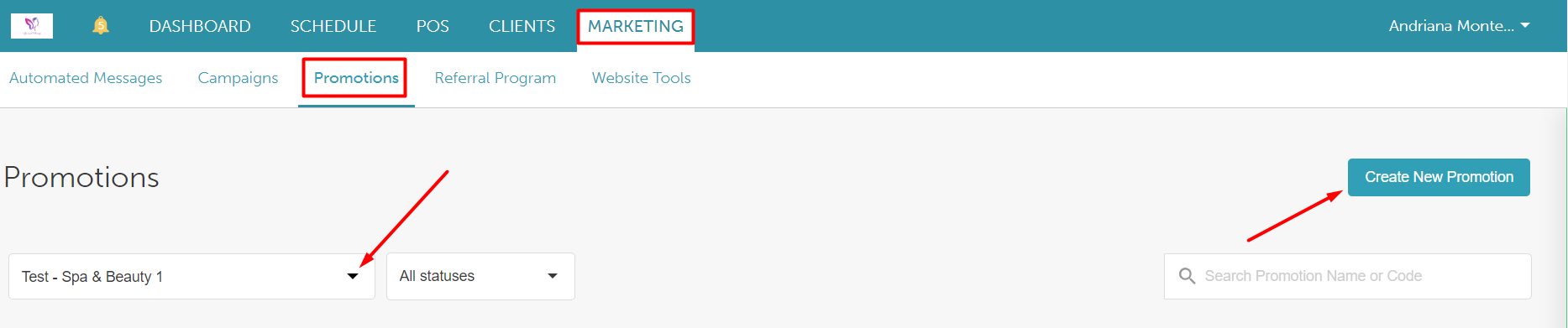
- Navigate to Marketing > Promotions
- Select your location
- Click on the "Create New Promotion" button
- Under the General Settings tab, complete the details. Please see the breakdown in the table below:
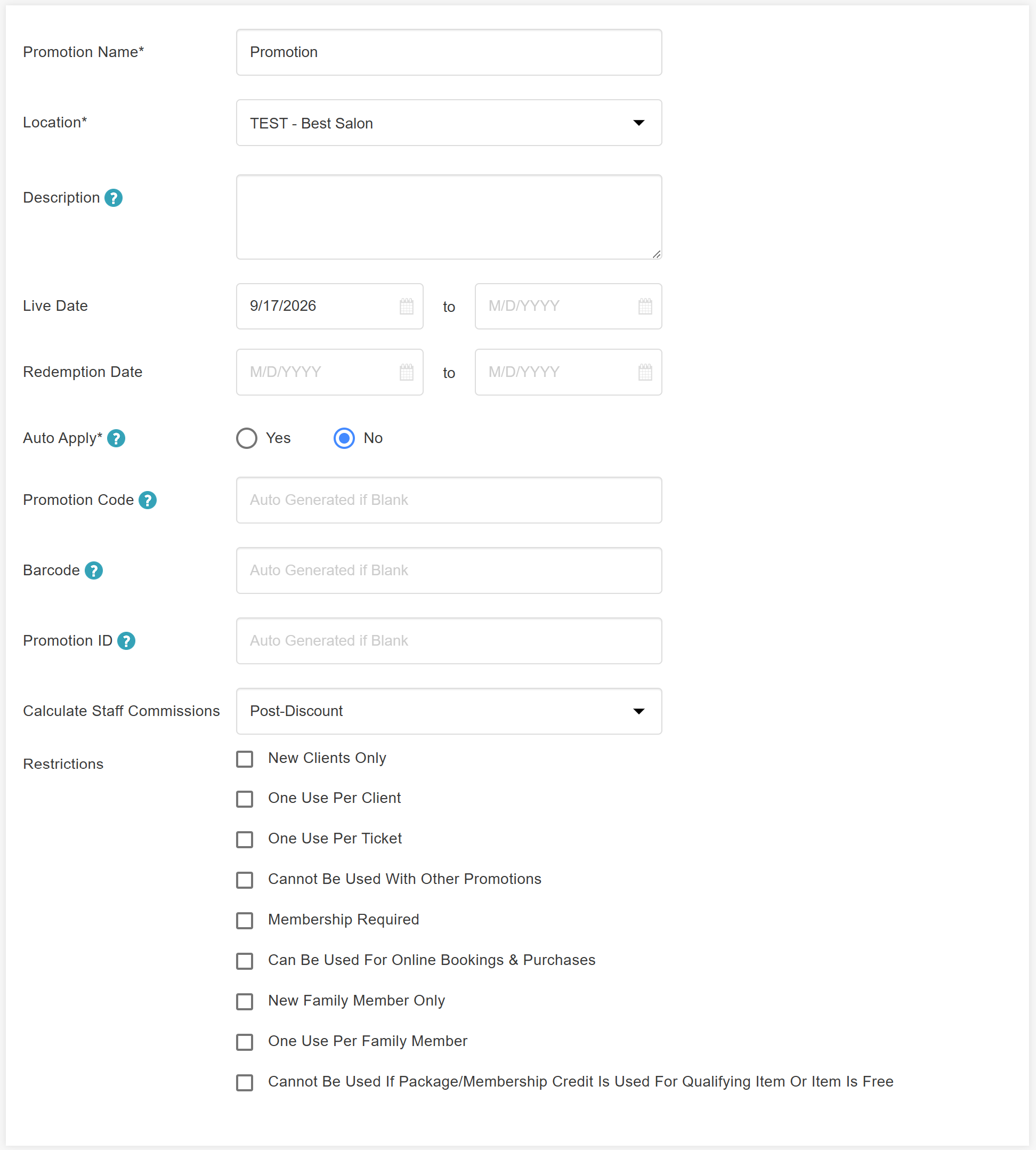
General Setting Description Promotion Name The name of the promotion Location Locations where the promotion would be applicable. If you want this promotion to be applied to every location, choose "All." Description This is a description field for your internal reference Live Date (Booking/Purchase Window) The date range during which the promotion is actively running. This can differ from the Redemption Date.
Example: A promotion can be "Live" (available for purchase) for the entire month of December, but its actual usage window might be restricted to a shorter period.Redemption Date (Usage Window) The specific date range during which a client is permitted to actually redeem their promotion code or discount at checkout.
For memberships, a promo is applied only if the purchase date falls within the configured 'Redemption Date' range; any purchase outside this range will not receive the promo.Auto Apply If set to Yes, the option to add a promotion code or barcode will be disabled.
Promotion Code Enter a code to be used for promotion redemption online and in-store. You can create your own code or leave it blank. If left blank, the system will autogenerate one for you
Barcode Promotion ID This is an optional field that can be used when the promotion needs to reference an external ID or tracking number from another system. If left blank, the system will autogenerate one for you.
Calculate Staff Commissions Pre-Discount - Calculate the staff member's commission before the promotion is applied
Post-Discount - Calculate the staff member's commission after the promotion is applied
Restrictions You can set your restrictions for the promotions here. You can select one or more from the list given:
New Clients Only - The promotion will only be applied to new clients
One Use Per Client - This promotion can only be used once per client
One Use Per Ticket - This promotion can only be used once on any one ticket
Cannot Be Used With Other Promotions - This option will prevent any other promotion from applying to the ticket
Membership Required - Only clients with a membership will receive this promotion
Can Be Used For Online Bookings & Purchases - This restriction determines whether the promotion is applicable for online use.
New Family Member Only - This option is available for family accounts and will apply exclusively to tickets where it is the first transaction for the selected family member. It can be applied either manually or automatically. If you attempt to apply this promotion to a family member who has already been included in a previous ticket, an error message will appear: "The (Promotion name) promotion can only be used for new family members."
New Pet Only - This option is available for pet accounts and will apply exclusively to tickets where it is the first transaction for the selected pet. It can be applied either manually or automatically. If you attempt to apply this promotion to a pet who has already been included in a previous ticket, an error message will appear: "The (Promotion name) promotion can only be used for new pets."
- Click Next to go to the Criteria and Benefits section. From here you can configure the following:
Promotion Criteria and Benefits Description Requirements If you set requirements for the promotion, then certain criteria must be met before the promotion can be applied. By default, promo codes are automatically applied to all services and products. If you'd like the code to only apply to certain items or groups of items, you can choose a type from the Qualified Items section. Number of Qualified Items The minimum number of items from a basket of qualified items that must be on the ticket before the promotion can be used. For example, if set to 2, at least two items must be added to the ticket for the promotion to be applied. Number of Identical Qualified Items The minimum number of identical items from a basket of qualified items that must be on the ticket before the promotion can be used (note: mixing and matching of different items from the list of qualified items would not count). For example, if set to 2, the promotion will only apply if two of the same item (service, product, etc.) are added to the ticket. Value of Qualified Items The minimum monetary value of items from a pre-determined basket of qualified items must be on the ticket before the promotion can be used. For example, if set to $100, the value of the item (service, product, etc.) added to the ticket must also be $100 for the promotion to apply.
In POS, the value of qualified items promotion takes the total value of all the qualified items into account to determine if the ticket meets the requirements for the promotion. Promotions are then sorted and applied from larger to smaller, so the larger ones are applied first if qualified.
Must Purchase The number of items that need to be purchased for the promotion to be applied. Qualified Items Specify the items that trigger this promotion by selecting Include or Exclude. You can refine your selection by choosing a broad category or picking specific items for more precise control. Promotion Benefits - Discount type - this can be a percentage, dollar amount, free or you can have the price set to a specific value
- Apply to - Select whether the benefits should be applied to the promotion criteria or other items
- Publish promotion


Membership Promotion Scenarios
Promotion Name - BUY A MEMBERSHIP & GET A FACIAL SERVICE FREE
Promotion Criteria Setup
- Requirement - Number of Qualified Items
- Must Purchase - 1
- Qualified Items - Memberships
Promotion Benefit Setup
- Benefit - Free
- Apply to - Different Qualified Items
- Up to - 1
- Qualified item - Facial Service

When the benefit is applied to the ticket, you will see that the facial service has been discounted.

Promotion Name - BUY A MEMBERSHIP & GET A PRODUCT FREE
Promotion Criteria Setup
- Requirement - Number of Qualified Items
- Must Purchase - 1
- Qualified Items - Memberships
Promotion Benefit Setup
- Benefit - Free
- Apply to - Different Qualified Items
- Up to - 1
- Qualified item - All Products

When the benefit is applied to the ticket, you will see that the product has been discounted.

Promotion Name - BUY A MEMBERSHIP & GET A PRODUCT AT 50% OFF
Promotion Criteria Setup
- Requirement - Number of Qualified Items
- Must Purchase - 1
- Qualified Items - Memberships
Promotion Benefit Setup
- Benefit - 50%
- Apply to - Different Qualified Items
- Up to - 1
- Qualified item - All Products

When the benefit is applied to the ticket, you will see that the product has been discounted.

Promotion Name - BUY A MEMBERSHIP & FACIAL SERVICE TO GET 10% OFF A PRODUCT
Promotion Criteria Setup
- 1st Requirement - Number of Qualified Items
- Must Purchase - 1
- Qualified Items - Membership
- 2nd Requirement - Number of Qualified Items
- Must Purchase - 1
- Qualified Items - Facial Service
Promotion Benefit Setup
- Benefit - 10%
- Apply to - Different Qualified Items
- Up to - 1
- Qualified item - All Products

When the benefit is applied to the ticket, you will see that the product has been discounted.

Promotion Name - BUY A MEMBERSHIPS VALUED AT $100 & GET A PRODUCT AT $40
Promotion Criteria Setup
- Requirement - Value of Qualified Items
- Must Purchase - $100
- Qualified Items - Memberships
Promotion Benefit Setup
- Benefit - Set Price to $40
- Apply to - Different Qualified Items
- Up to - 1
- Qualified item - All Products

When the benefit is applied to the ticket, you will see that the product has been discounted.

Promotion Name - BUY A MEMBERSHIP VALUED AT $80 AND GET $10 OFF
Promotion Criteria Setup
- Requirement - Value of Qualified Items
- Must Purchase - $80
- Qualified Items - Membership
Promotion Benefit Setup
- Benefit - $10
- Apply to - Each Item in Criteria
- Up to - 1

When the benefit is applied to the ticket, you will see that the membership has been discounted.

When there is more than one promotion available and the auto-apply setting is enabled, the following flow is expected:
Case 1 - Location has two promotions live - One gives $30 off for over $200 spent on Memberships, and another gives $50 off for over $400 spent on Memberships
- For memberships above $200 but less than $400, the $30 off promotion will be applied
- For multiple memberships that total above $200 but less than $400, the $30 off promotion will be applied to the least expensive membership on the ticket
- For memberships above $400, the $50 promotion will be applied
- For multiple memberships that total above $400, the $50 off promotion will be applied to the least expensive membership on the ticket
Case 2 Location has two promotions live- One gives 10% off for over $150 spent on Memberships, and another gives 20% off for over $400 spent on Memberships
- For memberships above $150 but less than $400, the 10% off promotion will be applied
- For multiple memberships that total above $150 but less than $400, the 10% off promotion will be applied to the least expensive memberships on the ticket
- For memberships above $400, the 20% promotion will be applied
- For multiple memberships that total above $400, the 20% off promotion will be applied to the least expensive membership on the ticket
Membership Registration Promotion Setup
Things to know:
- The ability to configure a membersp registration promotion is controlled by the "Promotions apply to membership registration fee" hidden setting that can only be enabled by the MyTime team. To enable this setting, please contact support@mytime.com
- Membership registration promotions cannot be auto-applied on the booking widget if they are configured with different criteria and benefits. These types of promotions can only be manually applied by clients during online checkout. Additionally, if a promotion is set to auto-apply, and a client manually enters the promo code online, the discount will not be applied. For the promotion to work online when manually entered, it must be configured not to auto-apply.
To create a membership registration promotion:
- Navigate to Marketing > Promotions
- Select your location
- Click on the "Create New Promotion" button
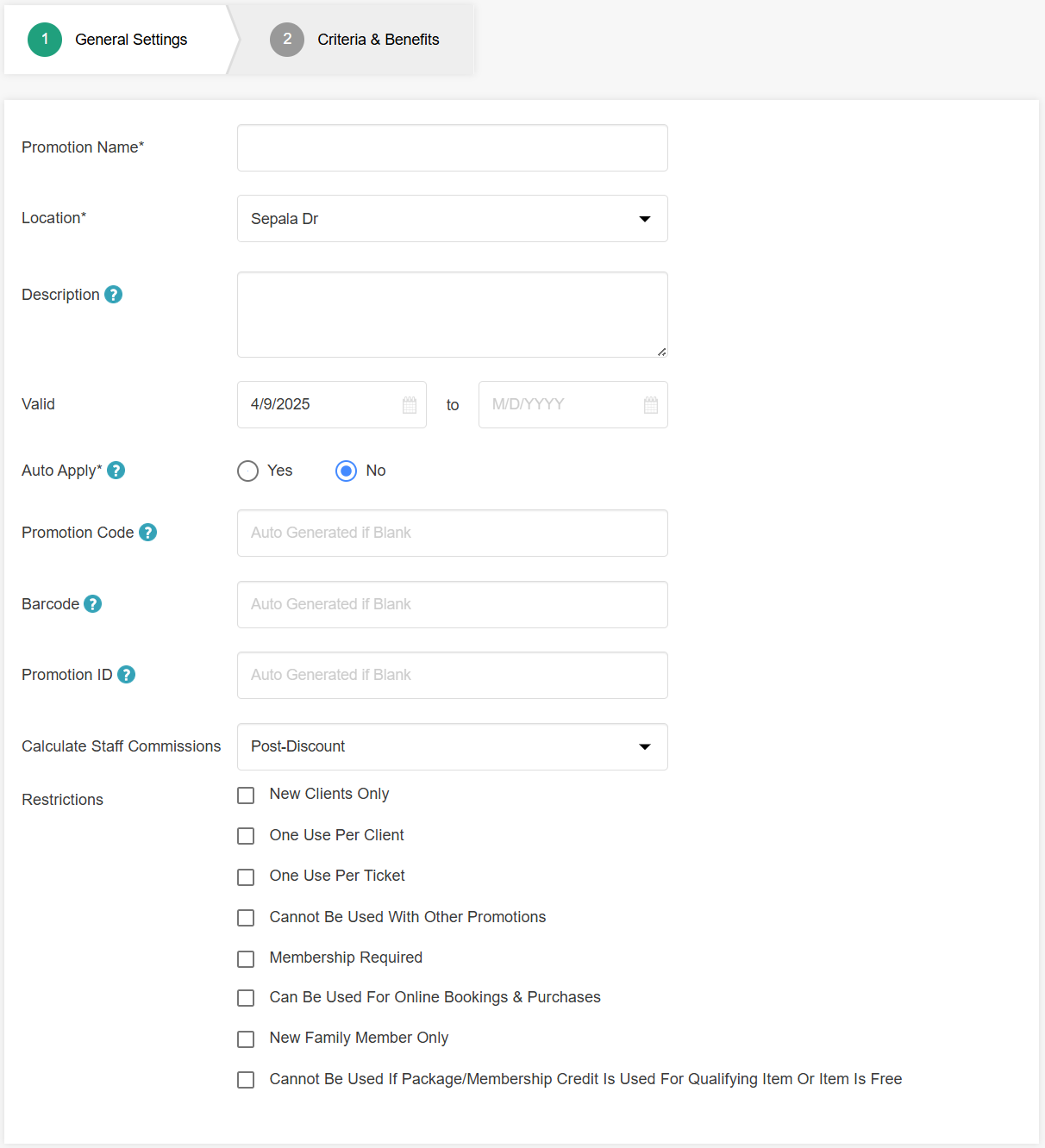
- Under the General Settings tab, complete the details. For a breakdown, view Creating Membership Promotions above
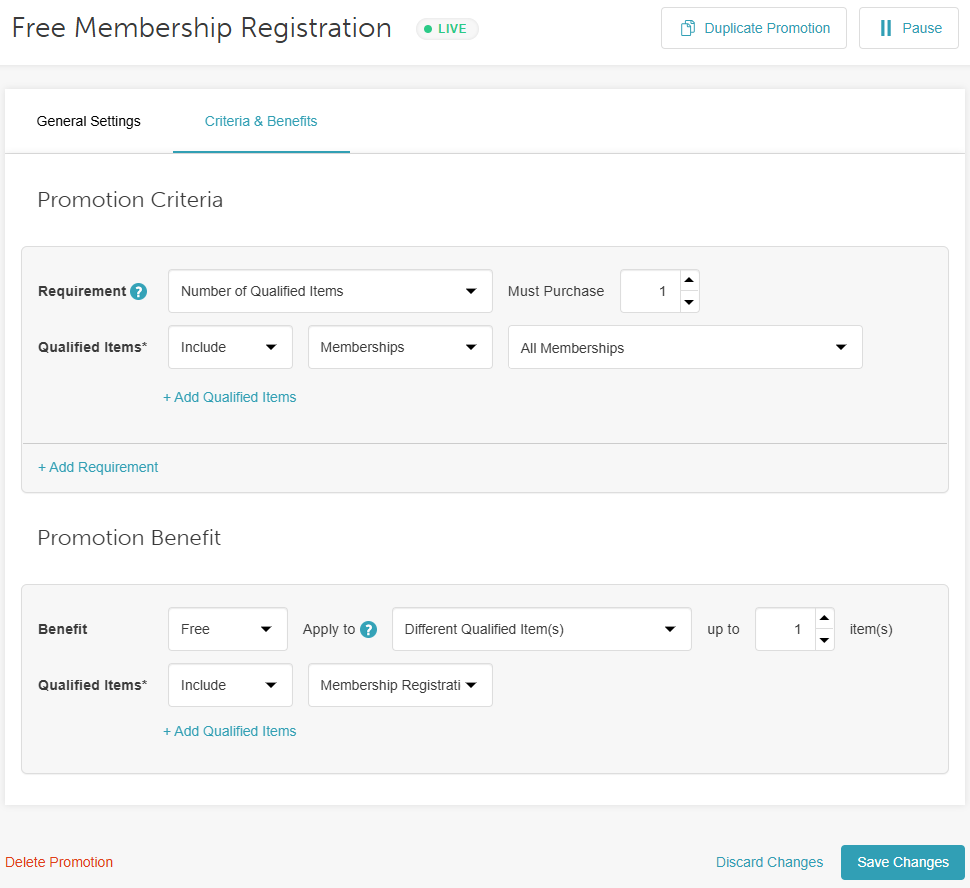
- Click Next to go to the Criteria and Benefits section. From here you can configure the following:
- Requirements set to:
- Number of Qualified Items
- Must Purchase: 1
- Qualified Items: All Membership/Individual Memberships
- Promotion benefits set to:
- Benefits: Your preference of being free, a dollar, or a percentage discount
- Applies to: Different Qualified Items
- Up to: Your preference of 1 or more
- Qualified Items: Includes - Membership Registration Fees
- Requirements set to:
- Publish promotion
When selling an eligible membership to a client, the associated benefit, whether applied automatically or manually, will be reflected directly on the ticket. Depending on how the benefits are configured, the membership’s registration fee will either be discounted or waived entirely.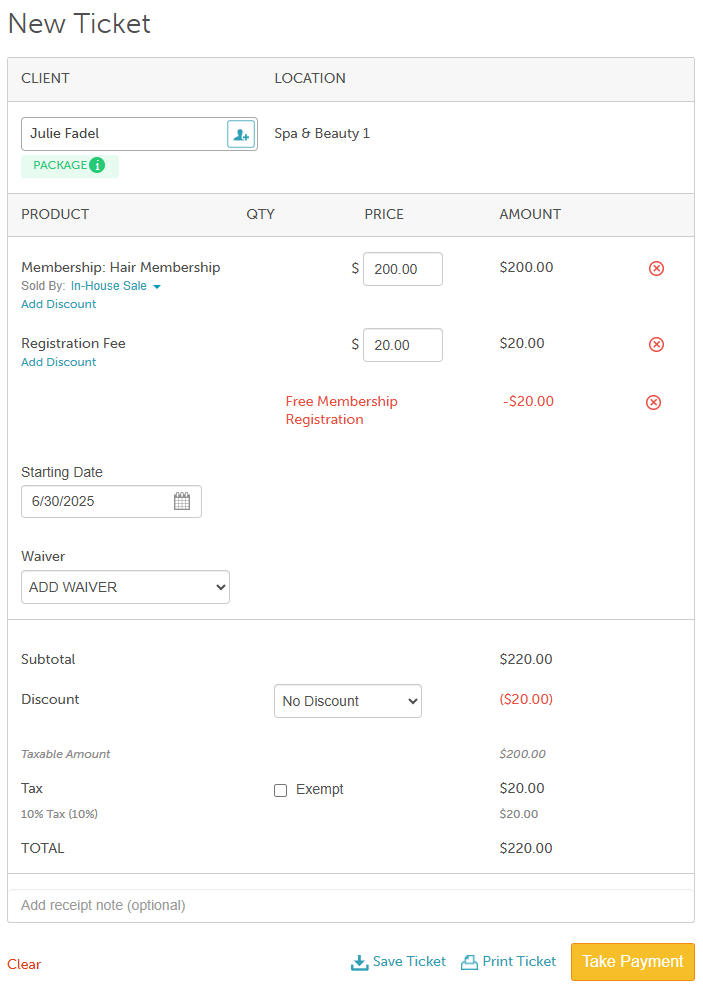
Setting Promotion Item Priority & Benefits
A promotion benefit is the discount or special offer customers receive when they meet your promotion criteria. When multiple items in a transaction qualify for a promotion, MyTime allows you to control which specific item(s) receive the discount first using the Item Priority setting.
Things to know
- Customizing Item Priority per promotion requires the "Bogos: Allow a per-promotion item apply order" hidden setting. Contact support@mytime.com to enable this feature.
- Your overall default behavior is governed by the company setting "Apply Promotions in Order of Highest to Lowest Item Cost" (managed at the Parent level for franchises). If per-promotion Item Priority is disabled, all promotions revert to this company default.
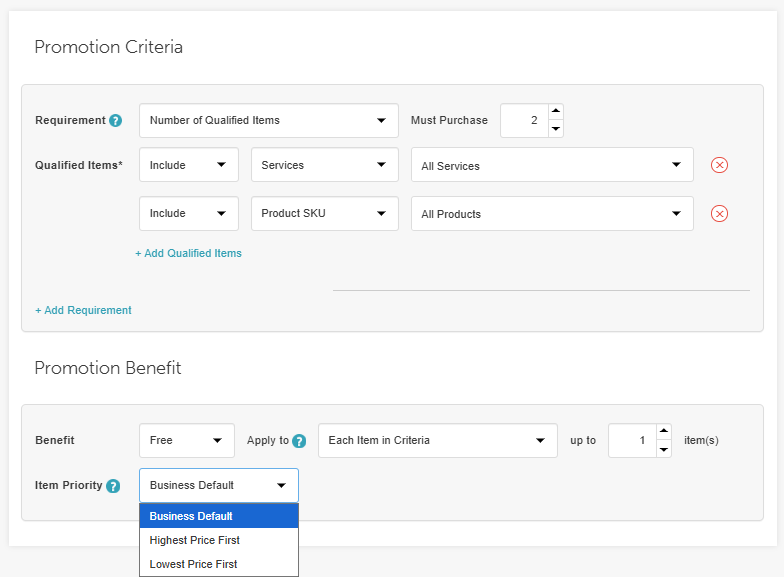
When creating or editing a promotion under Marketing > Promotions (Criteria & Benefits tab), select one of the following from the Item Priority dropdown:
Business Default: Follows your standard company-wide setting.
Highest Price First: Applies the discount to the most expensive qualifying item on the ticket.
Lowest Price First: Applies the discount to the cheapest qualifying item on the ticket.
Examples
Single Promotion Example
A salon offers "Buy 2 memberships, get 10% off 1 membership." A client purchases a $50 membership and a $20 membership:
Highest Price First: The 10% discount applies to the $50 membership ($5.00 off).
Lowest Price First: The 10% discount applies to the $20 membership ($2.00 off).
Multiple Promotions on One Ticket
If a client qualifies for two active promotions on a single ticket—one set to Lowest Price First and another to Highest Price First—the system evaluates eligible items independently and applies each discount to its designated priority item.
How to Configure It:
- Go to Marketing > Promotions.

- Click Create New or edit an existing promotion.
- Open the Criteria & Benefits tab.
- Locate the Item Priority dropdown and select Business Default, Highest Price First, or Lowest Price First.
- Click Publish Promotion.
Checkout Behavior Matrix
The table below shows how the Per-Promotion Setting interacts with your Company Default Setting at checkout:
| Company Setting (Highest to Lowest) | Promotion Item Priority Selected | Discount Applied To |
| Enabled | Business Default | Highest-priced qualifying item |
| Enabled | Lowest Price First | Lowest-priced qualifying item (Overrides company setting) |
| Disabled | Business Default | Lowest-priced qualifying item |
| Disabled | Highest Price First | Highest-priced qualifying item (Overrides default behaviour ) |
For more information contact us at support@mytime.com.
Related Articles:
Promotion General Settings & Restrictions
Promotion Criteria and Benefits
Stackable vs. Non-Stackable Discounts
Was this article helpful?
That’s Great!
Thank you for your feedback
Sorry! We couldn't be helpful
Thank you for your feedback
Feedback sent
We appreciate your effort and will try to fix the article