In this article, we will walk you through the process of deleting a promotion.
Things to Know:
- The ability to delete promotions is governed by the "Accessing Promotions" access control setting
- You can delete a promotion in one of two ways:
- From the Promotions page: Select the Delete icon next to the desired promotion
- From the Promotion template: Select the Delete Promotion hyperlink located at the bottom of the page
- Historical data for deleted promotions will still appear in the Promotions report
- If a promotion was applied to a closed ticket and later deleted, the discount will still be reflected on that ticket as well as on any closed tickets where the promotion was used. However, the promotion’s name and code will no longer be displayed.
- If a promotion is deleted after being added to a saved ticket, the promotion name and code will no longer appear on that ticket. However, the discount will remain applied, and the ticket revenue will stay the same.
- For franchise businesses, promotions can only be deleted at the parent level.
To delete a promotion:
- Navigate to Marketing > Promotions
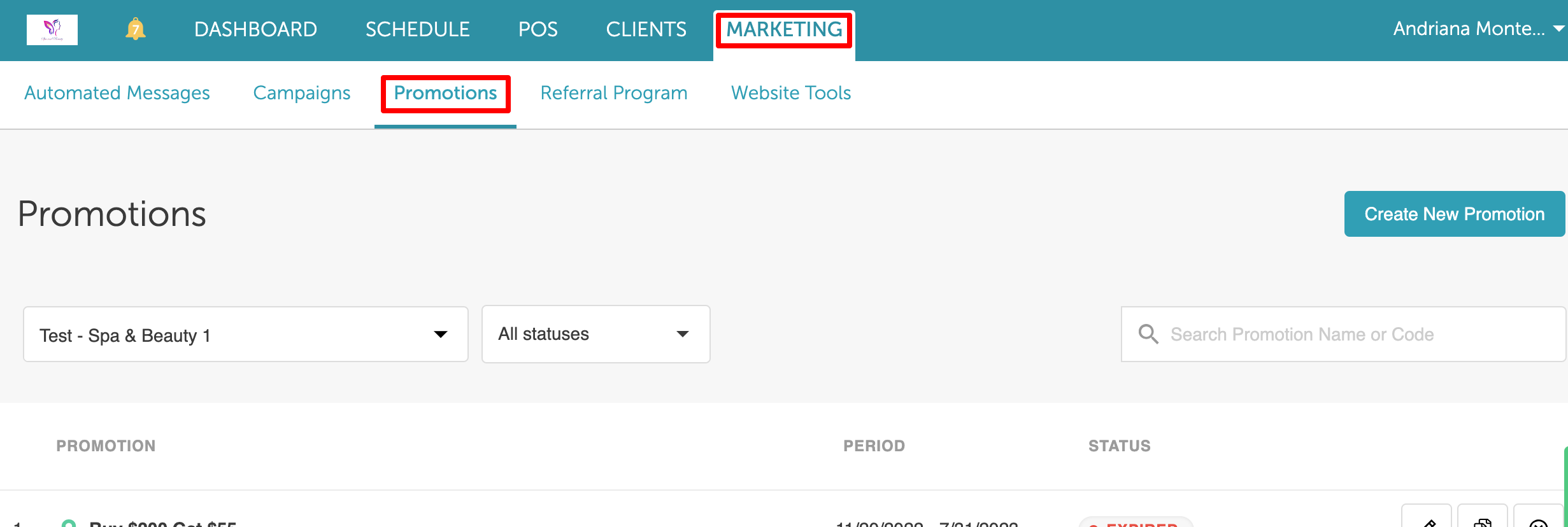
- Locate the promotion you want to delete
- Click the Delete icon

- In the pop-up, confirm the action by typing delete
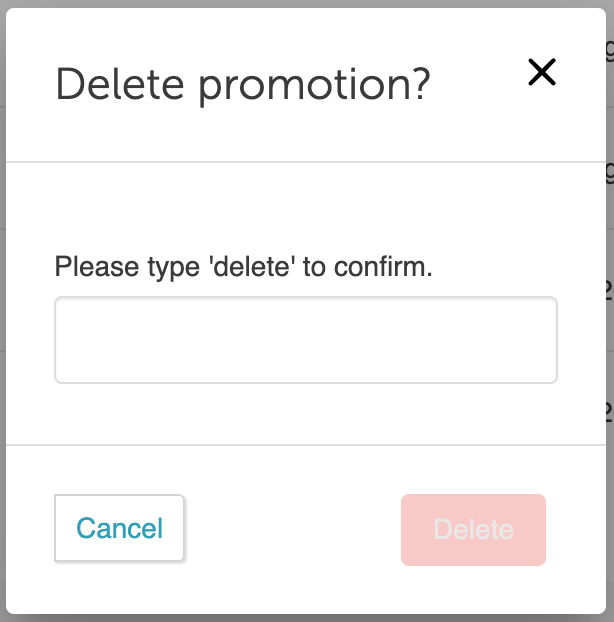
- Click Delete to remove the promotion
For more information contact us at support@mytime.com.
Related Articles:
Was this article helpful?
That’s Great!
Thank you for your feedback
Sorry! We couldn't be helpful
Thank you for your feedback
Feedback sent
We appreciate your effort and will try to fix the article