You can pause seasonal or limited-time promotions once their active period has ended. This article walks you through the steps to pause a promotion.
Things to know:
- The ability to pause promotions is controlled by the "Accessing Promotions" access control setting
- Once a promotion is paused, it can no longer be used online or in-store
- For franchises using global promotions, promotions cannot be paused at the child level. To pause a global promotion, the change must be made at the parent level.
To pause a promotion:
- Navigate to Marketing > Promotions
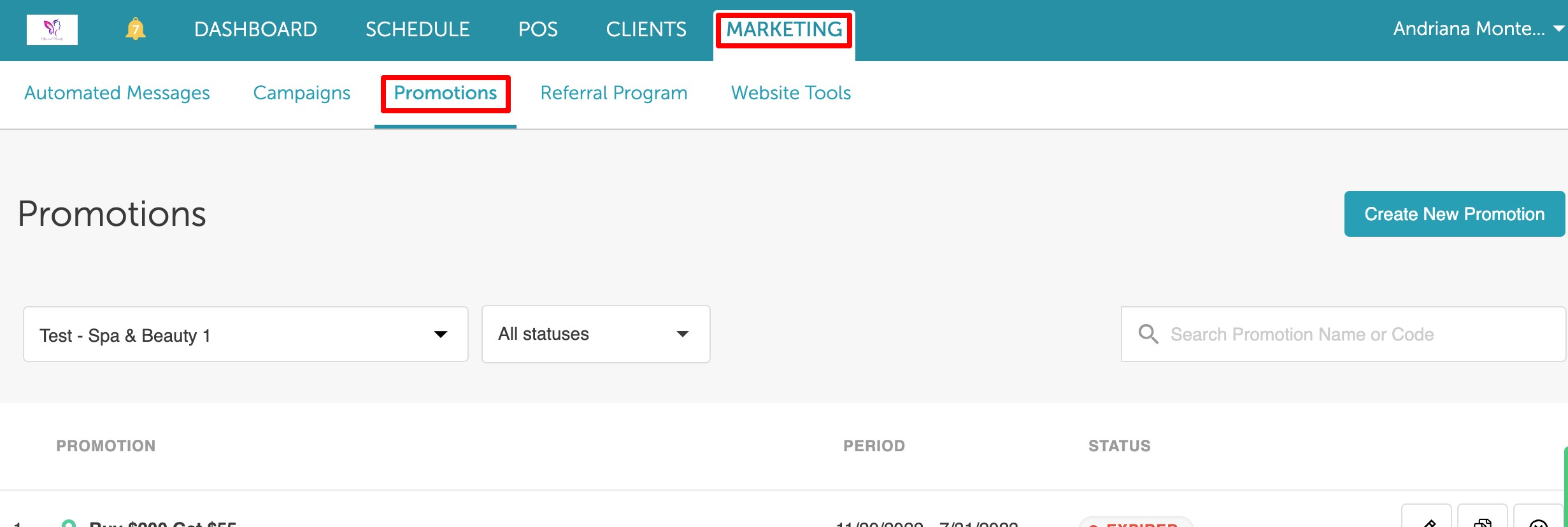
- Locate the promotion you want to pause and click the Edit icon
- Click the Pause button next to the Duplicate Promotion button
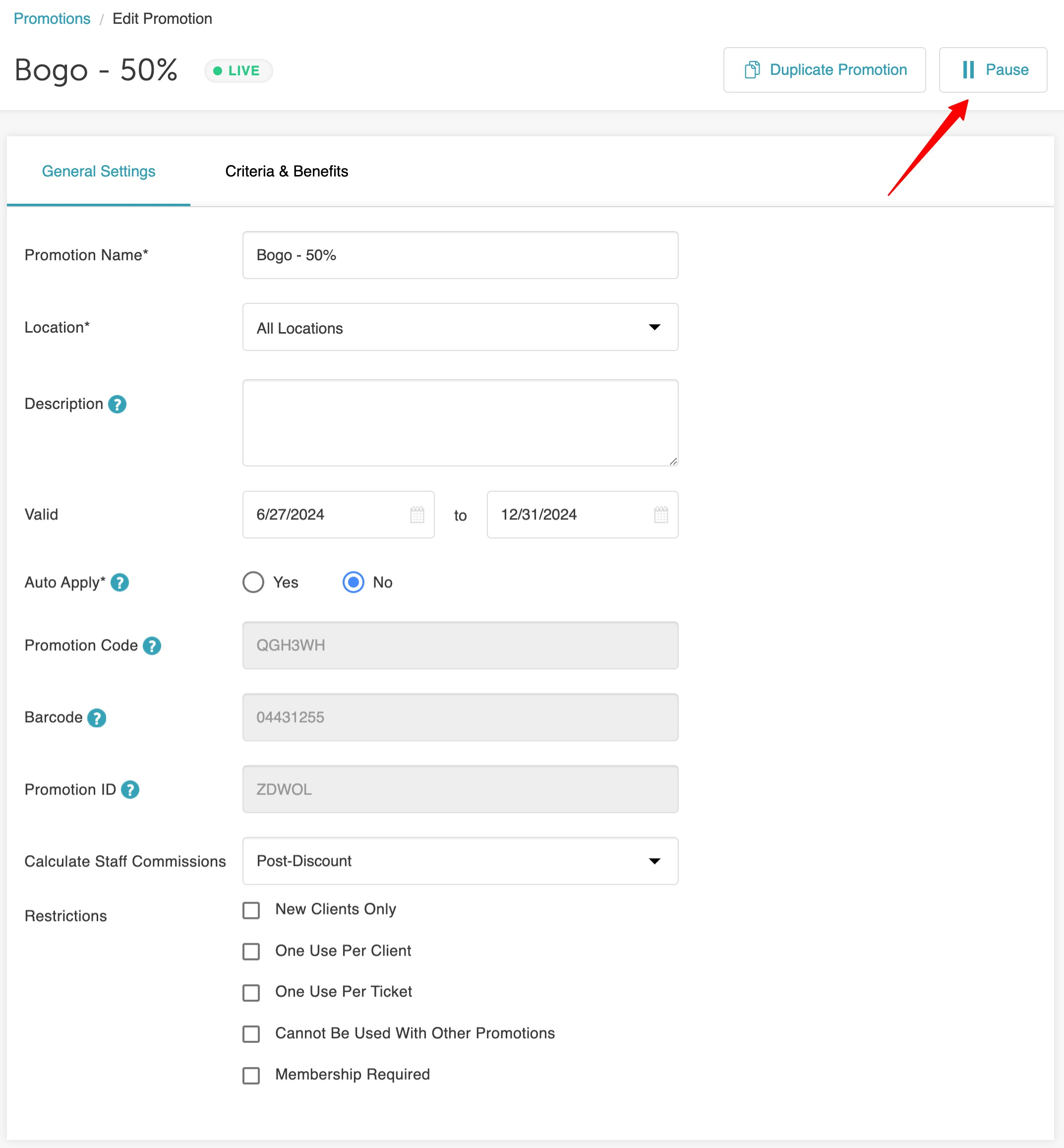
- The promotion will enter a Pending Pause status until you save it

- Click Save Changes
- Once saved, the promotion will be paused and display a Paused status

For more information contact us at support@mytime.com.
Related Articles:
Was this article helpful?
That’s Great!
Thank you for your feedback
Sorry! We couldn't be helpful
Thank you for your feedback
Feedback sent
We appreciate your effort and will try to fix the article