Allowing customers to temporarily freeze their memberships helps improve retention by giving them the flexibility to pause payments without canceling. This article explains how to freeze a membership and how to reactivate it when the customer is ready to return.
Things to know:
- The ability to freeze or unfreeze client memberships is governed by the "Accessing Memberships" access control setting.
- Clients have the option to freeze their membership if they will not be using it for a period of time and do not wish to cancel. This option is also available for clients who are temporarily unable to pay the membership fee but want to avoid cancellation.
- You can modify the freeze duration for memberships directly from the client record. Changing the duration incurs no charges for the client and is restricted to the maximum freeze length setting configured on the Business Setup > Settings page.
- The maximum freeze length per year setting controls the total number of months a membership can be paused within a single calendar year, regardless of how many separate freeze requests the client submits.
- Cumulative Limit: The system tracks used freeze duration across all requests in a single year to enforce this limit.
- Pro-Rated Remaining Balance: Any unused months roll over to a remaining pool for the rest of that year.
- Example: If your maximum freeze length is set to 3 months and a client freezes their membership for 2 months, they will have 1 month of freeze time remaining to use later in that same year.
- The start date of a membership freeze is always based on the most recent successful charge or the next scheduled charge date. This applies to both standard billing dates and custom charge dates. Example: If a membership normally bills on the 1st of each month, that billing event becomes the freeze start date.
- If the membership uses a custom charge date, that custom date becomes the freeze start date instead.
- If you freeze a membership on the same day it is charged (whether on the 1st or on a custom charge date), the freeze period will begin on that charge date, as it is the most recent billing event.
- A membership will automatically reactivate on the date the freeze period ends. However, the next charge depends on whether a custom charge date is set.
- If no custom charge date is set, the membership will be charged on the date it reactivates.
- If a custom charge date is set after the freeze end date, the membership will not be charged until that custom charge date.
- You may also manually unfreeze the membership at any time, and the next charge will still follow the scheduled custom charge date. For example, a membership is frozen from March 1 to June 31:
The membership will automatically reactivate on June 31, and without a custom charge date, it will be charged on June 31.
If the merchant sets a custom charge date of July 10, the membership will not be charged on June 31. Instead, the next charge will occur on July 10.
If the merchant manually unfreezes the membership early—e.g., on June 2—the membership becomes active immediately, but the client will still not be charged until July 10, the scheduled custom charge date. - Unfreezing a membership during an active freeze period triggers an immediate charge and updates the next charge date.
- If a freeze fee is configured, it will be automatically charged each week, bi-week, or month on the membership’s billing date for memberships that are billed monthly. This charge continues throughout the freeze period. However, for memberships paid upfront, no freeze fee is charged during the freeze period. Example:
- A monthly membership is billed on the 10th of each month and has a $10 freeze fee. If the membership is frozen on March 5th, a $10 freeze fee will be charged on March 10th and again on April 10th if the membership is still frozen.
- A 12-month upfront membership with the same $10 freeze fee will not incur any freeze fees, even if it is frozen for several weeks.
- You have the option to extend your clients' membership contract by the duration of the freeze. This feature is managed through the "Should Membership Contract Be Extended by Freeze Duration?" setting. Learn more here.
- During the freeze period, clients will not receive new membership credits. However, they can use their remaining item or value credits based on how your account is configured.
- Membership discounts are valid for one year and can apply to eligible items if the account is configured to allow the use of membership discounts during the freeze period. Learn more here.
Contents:
Enable Membership Freeze Setting
To activate the freeze setting, follow these steps:
- Navigate to Business Setup > Settings
- Locate the Membership section
- Toggle the "Allow freezing memberships?" setting to YES
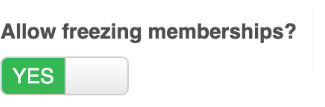
- Enter your preferred value in the "Maximum freeze length per year" field, where the value should be x months
- Save

Freeze Membership
To freeze a membership:
- Open the profile of the desired client
- Scroll down to the "Memberships" section
- Expand the arrow on the right next to the membership status
- Select the "Freeze" link
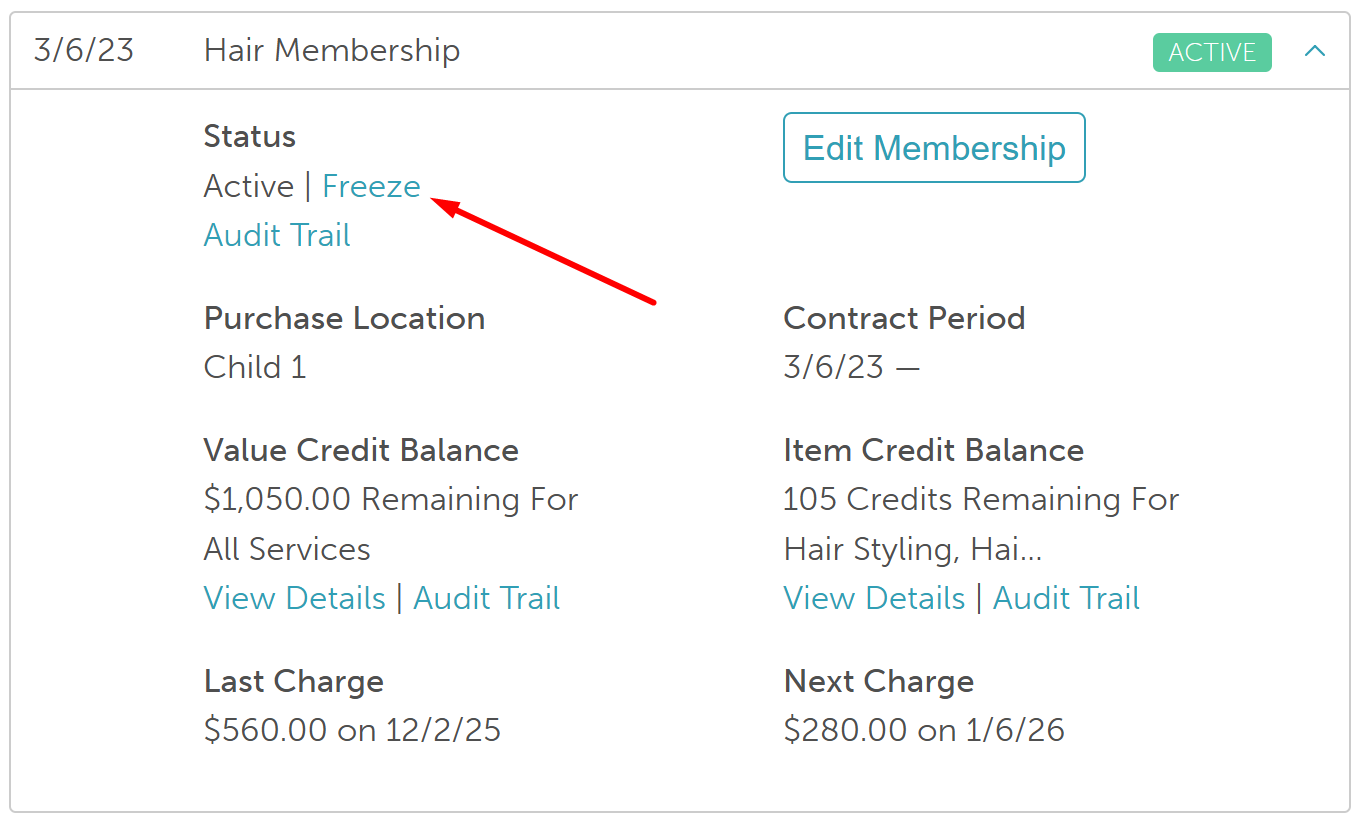
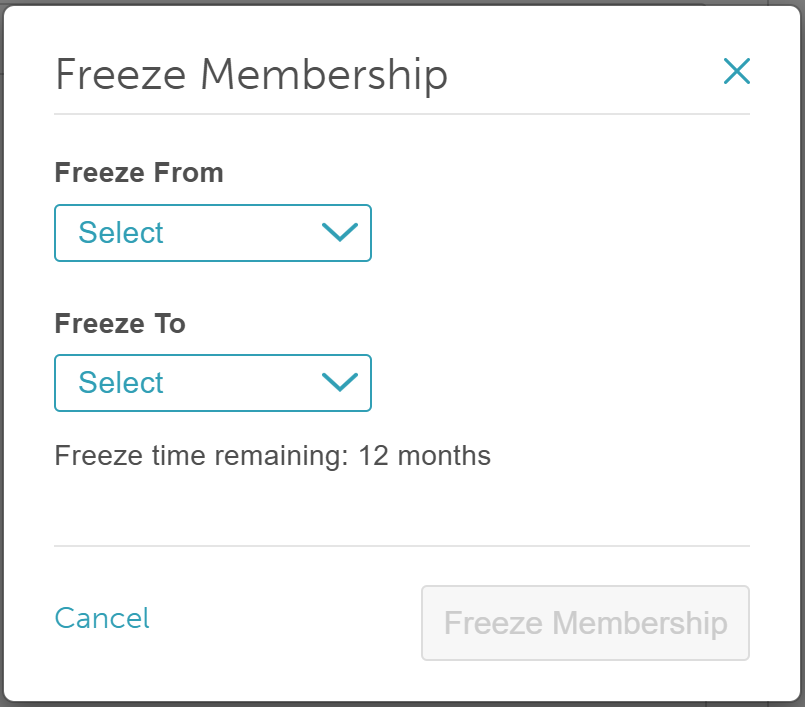
- Choose the freeze period, specifying the start and end dates
- Confirm the action
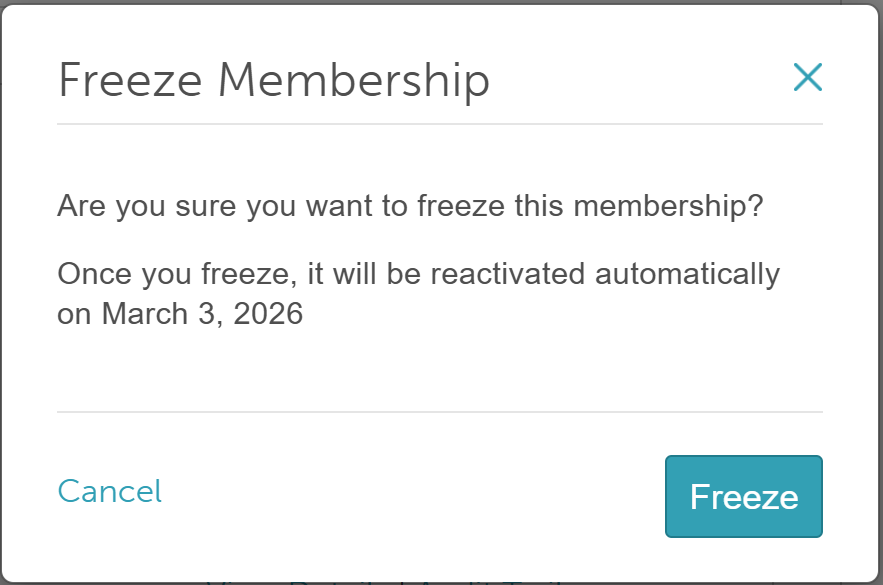
- The status will be updated to "Frozen"
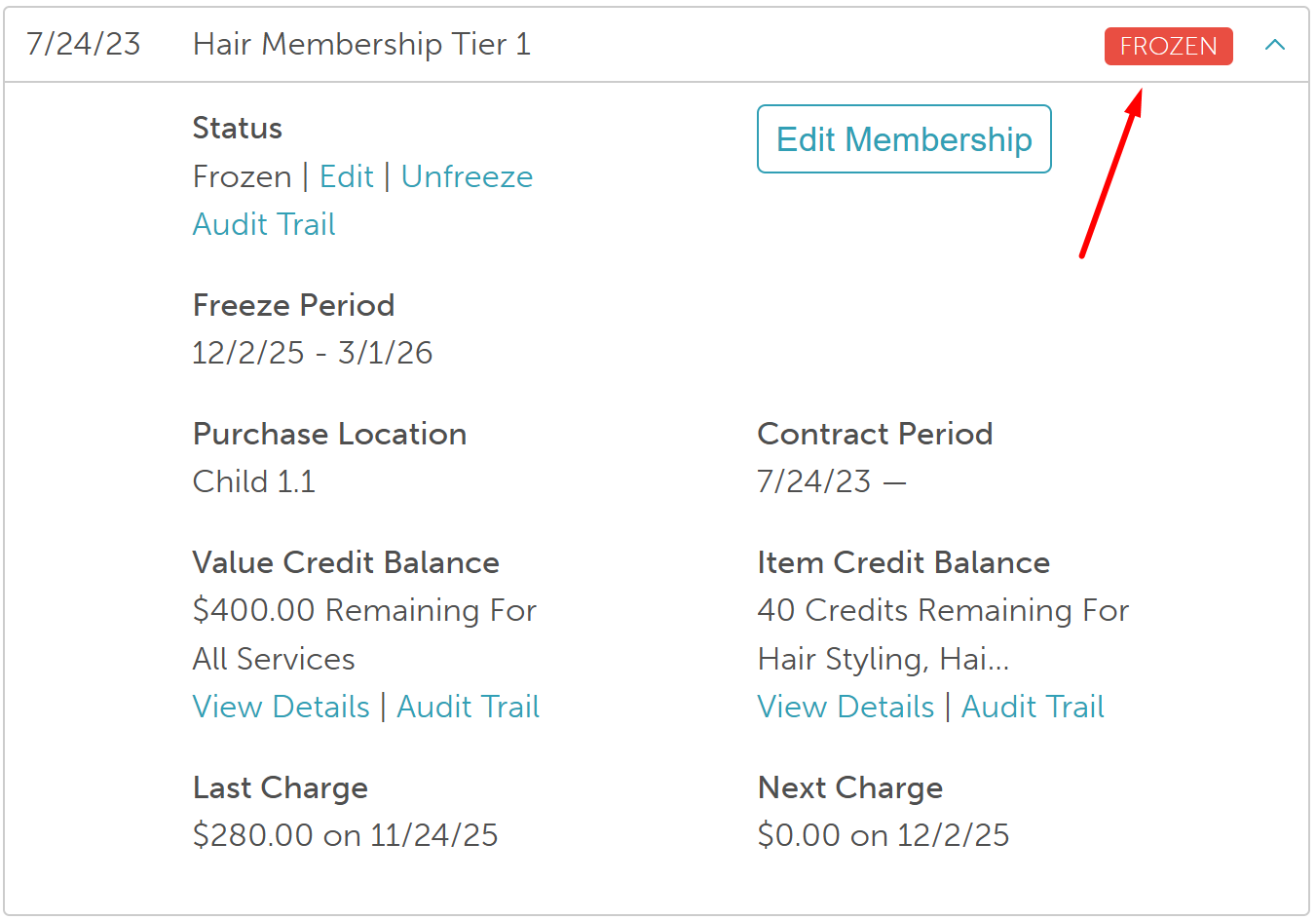
Edit Freeze Period
To modify the freeze period on a client's profile:
- Select the "Edit" link
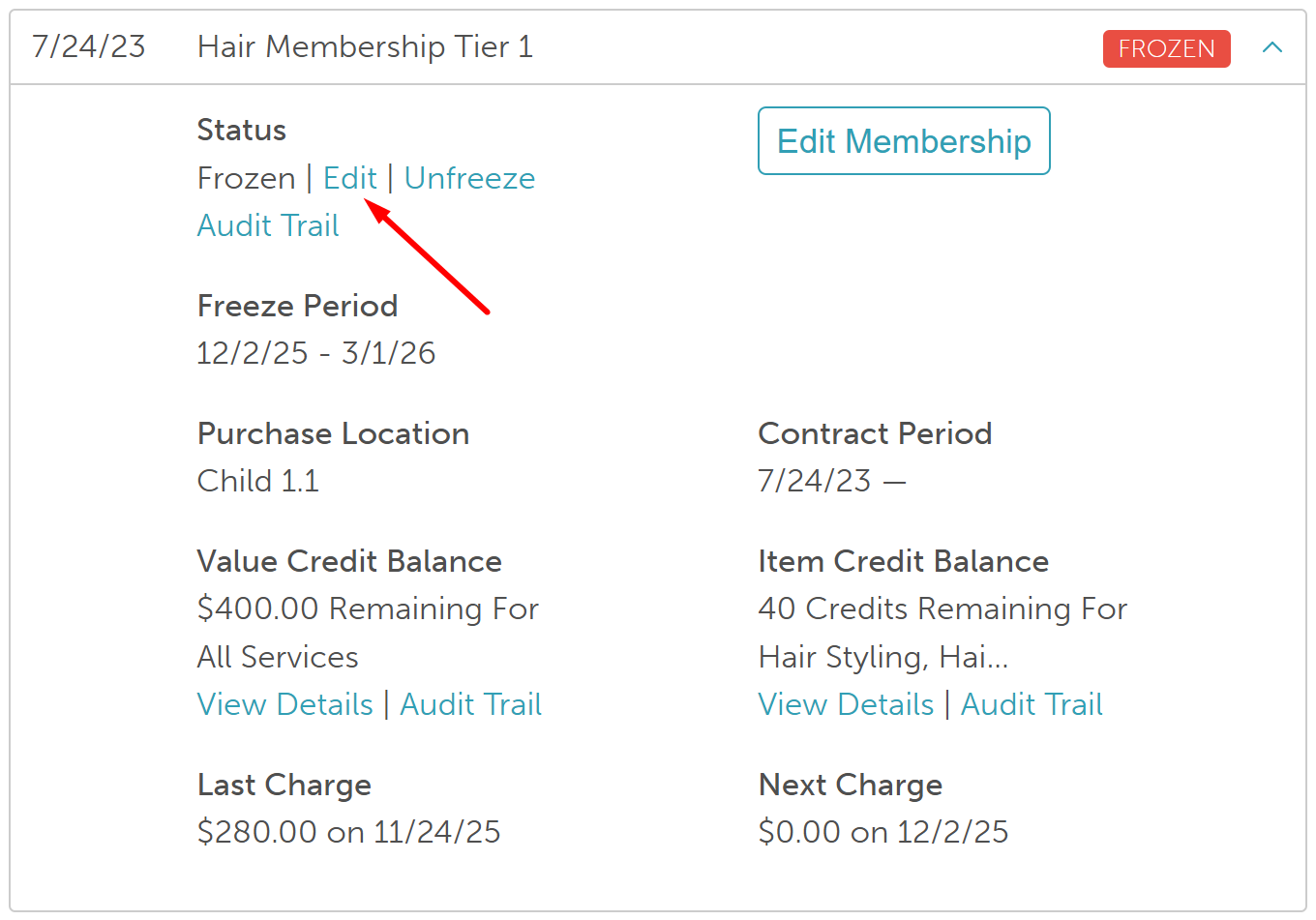
- Adjust the freeze end date
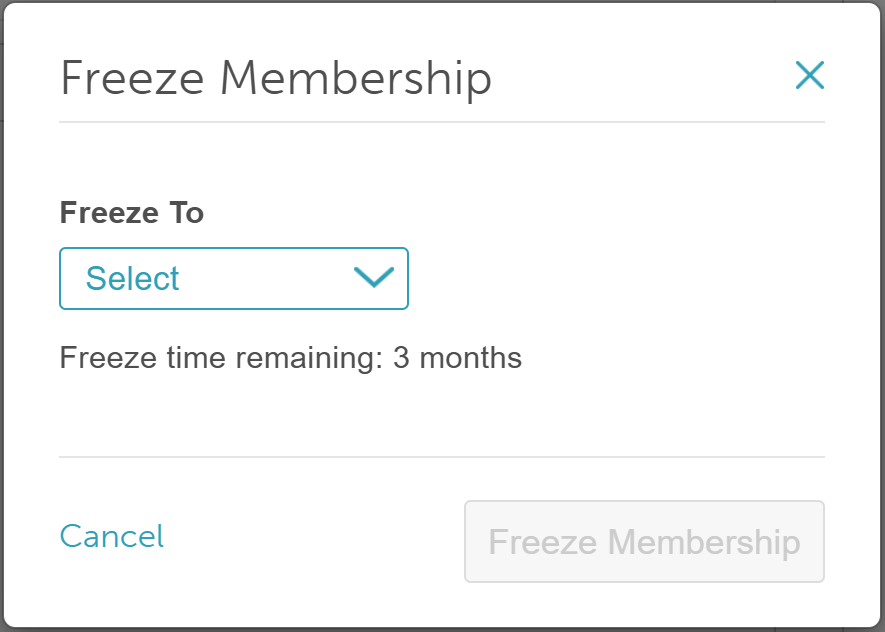
- Click on the "Freeze Membership" button
- The freeze period will be updated
Unfreeze Membership
To unfreeze membership:
- Select the Unfreeze link
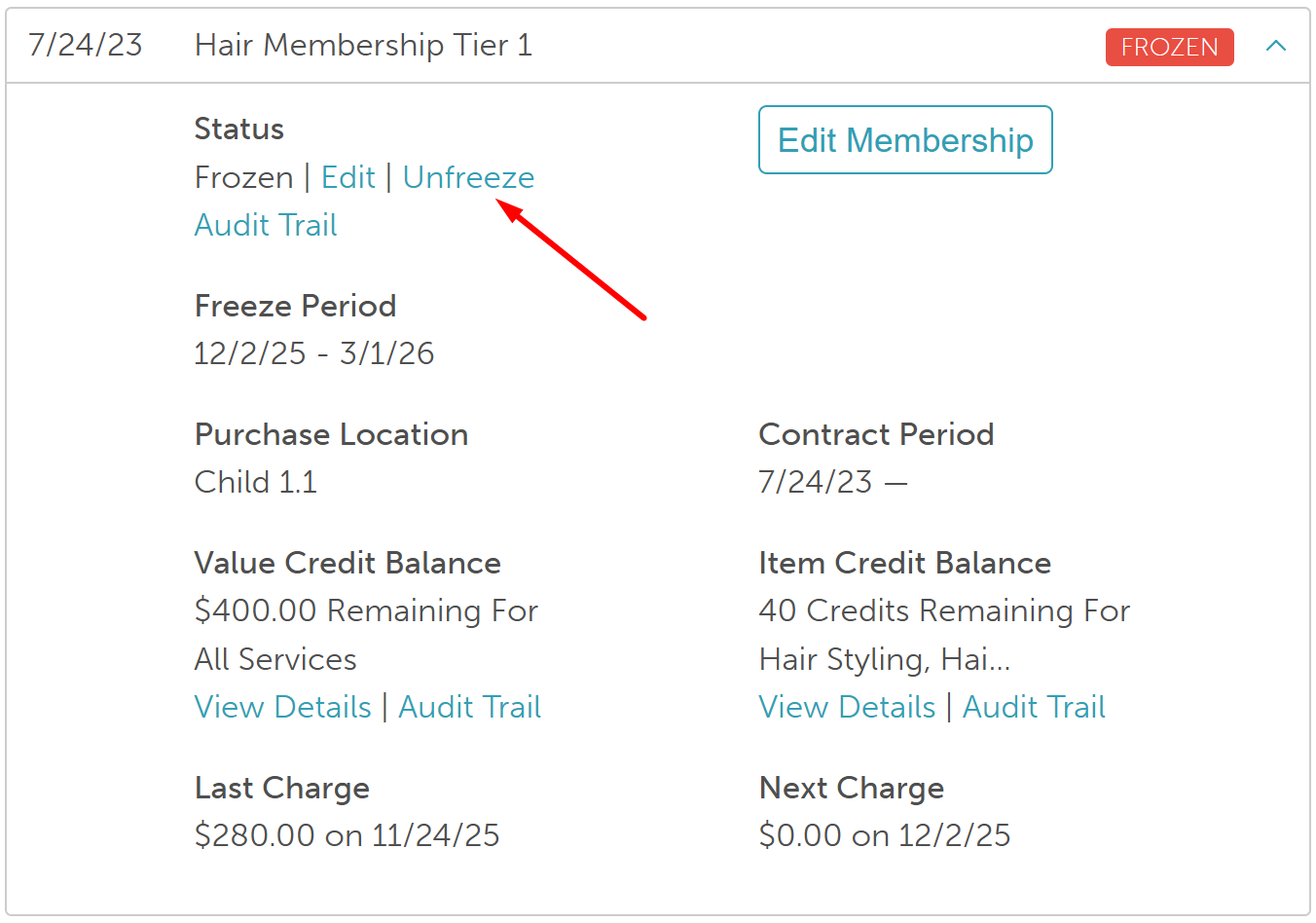
- Confirm that you want to unfreeze the membership and charge for the current week/bi-week/month

For more information, contact us at support@mytime.com or (385) 233-6964.
Related Articles:
Upgrading or Downgrading Memberships
Updating Existing Client Memberships
Changing Associated Family Member on Existing Memberships
Canceling Memberships In-Store
Was this article helpful?
That’s Great!
Thank you for your feedback
Sorry! We couldn't be helpful
Thank you for your feedback
Feedback sent
We appreciate your effort and will try to fix the article