Membership cancellation reasons help businesses track why clients choose to cancel their memberships. This feature allows you to create a list of standardized reasons that staff must select when processing a membership cancellation. It can provide valuable insights for improving retention strategies. In this article, we'll explain how to create and use membership cancellation reasons.
Things to know:
- The ability to configure membership cancellation reasons is governed by the "Accessing Account Settings" access control setting.
- For franchise businesses, cancellation reasons can be set at both the parent and child account levels:
- If configured at the parent level, the reasons will automatically apply to all child accounts and will override any reasons previously set at the child level.
- Once enabled, a cancellation reason must be selected before a membership can be canceled.
- The first reason added will appear as the default selection, but staff can choose any reason from the list when canceling a membership.
- The option to select a membership cancellation reason will appear in the Cancel Membership modal after selecting the “Cancel Membership” link.
- Membership cancellation reasons are only displayed in-store.
- The setup option displayed in the top-right user menu depends on how you access the account and your assigned role:
- When navigating from the Parent Account (Location Management tab):
- Admin: Displays Business Setup when viewing the location account.
- Login As: Displays Location Setup when viewing the location account.
- When logged in directly at the Location Level:
- Location Owners & Location Managers: Display Location Setup.
- Service Providers & All Other Roles: Display Profile Setup.
Follow these steps to set up membership cancellation reasons:
- Navigate to Business Setup / Location Setup > Settings
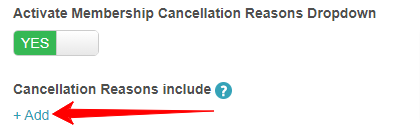
- In the Membership section, locate the "Activate Membership Cancellation Reasons setting and toggle to YES

- Once enabled, click the +Add link to begin adding cancellation reasons. These will appear as options in the drop-down menu when selecting a reason for cancellation.
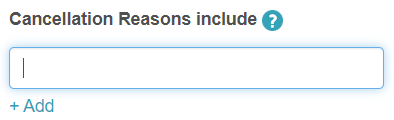
- Enter the reason in the provided field. To add additional reasons, click "+Add" once more and repeat the process
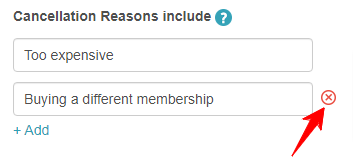
- To delete a reason, click the red "x" next to it
- After you've added your reasons, scroll to the bottom of the page and click Save
Once you have saved your cancellation reasons, your staff members will be prompted to select a reason when canceling memberships. Learn more about cancelling memberships here.
For more information, contact us at support@mytime.com.
Related Articles:
Membership Cancellations Report
Indefinite Membership Configuration
Updating Existing Client Memberships
Upgrading or Downgrading Memberships
Freezing and Unfreezing Memberships
Commission on Membership Sales
Commission on Appointments and Products in Membership
Membership Value Credits vs Membership Item Credits
Selling Memberships for Clients in POS
Selling Memberships for Family Members in POS
Selling Memberships for Pets in POS
Selling Memberships Online through Booking Widget
Selling Products, Gift Cards, Memberships and Packages on Scheduler App
Reconciliation for Memberships
Was this article helpful?
That’s Great!
Thank you for your feedback
Sorry! We couldn't be helpful
Thank you for your feedback
Feedback sent
We appreciate your effort and will try to fix the article