Membership cancellations are an inevitable occurrence in business, and while regrettable, they do occur. Some businesses may choose to extend the option for customers to utilize the item and value credits they have accrued for a specified period following the termination date. Whether you opt for an immediate cancellation or schedule it for a later date, this article will guide you through the process of terminating a client's membership.
Things to know:
- The ability to cancel memberships on client profiles is governed by the "Accessing Memberships" access control setting.
- Memberships set to cancel immediately will be canceled once the Cancel Membership button is selected. On the other hand, memberships with future cancellation dates will be terminated at the outset of the specified cancellation date.
- You can only charge a membership cancellation fee if the client has a card on file. Once you set up a cancellation fee on a membership, initiating a cancellation from the client's profile will trigger a pop-up asking if you want to charge the client the cancellation fee. If you agree, the system will automatically charge the fee to the client’s card on file.
- Once a membership has been canceled, restoration is not possible. In such cases, clients would need to add a new membership to their account if they wish to continue their membership.
- Unused credits from canceled memberships will be applied first before any credits from newly added memberships. Credits are applied on a first-in, first-out basis to ensure proper usage order.
- While membership is in Pending Cancellation status:
- The benefits will continue to be applicable
- The credit expiration date will initially align with the membership cancellation date until the membership is officially canceled. Subsequently, it will be updated based on the configured time frame specified in the "How long should item credits be valid after membership termination?" and "How long should value credits be valid after membership termination?" settings. As an example, if today is January 8, 2024, and the membership cancellation date is scheduled for January 20, 2024, the expiration date will be shown as January 20, 2024, until the membership is canceled. After the cancellation, assuming a 30-day validity period based on the settings, the credit expiration will be revised to February 19, 2024.
- After the membership is canceled, the item and value credits will remain usable for the duration specified in the settings labeled "How long should item credits be valid after membership termination?" and "How long should value credits be valid after membership termination?"
- As an example, if the configured setting is for 5 days and the membership is canceled on December 20th, the credits will maintain their validity until December 25th, 23:59:59, adhering to the business's timezone.
- Appointments scheduled within this specific timeframe (X days) will qualify to receive credit.
To cancel a client’s membership:
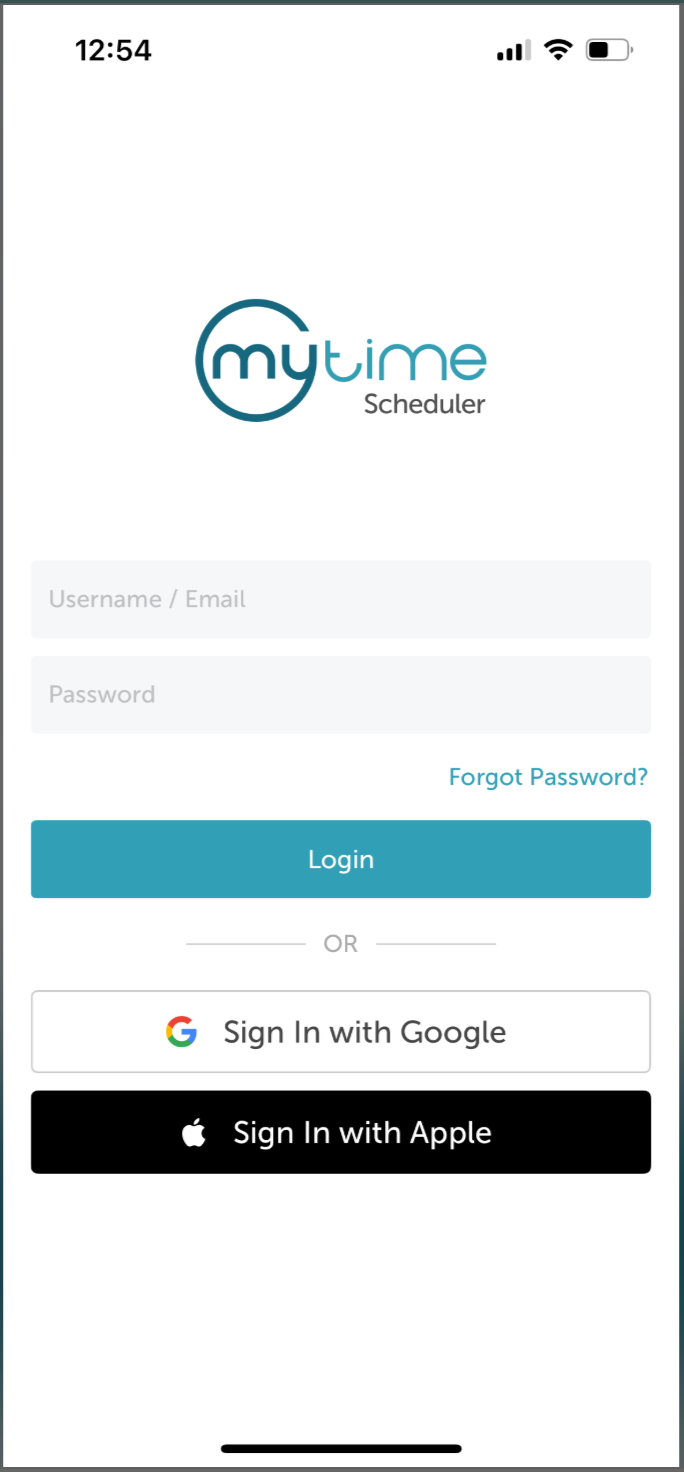
- Launch the MyTime Scheduler app on your device
- Choose your login method:
- Standard: Enter your registered email address and password, then tap 'Sign In'
- Social Login: Select 'Continue with Google' or 'Continue with Apple' to use your existing credentials for a faster login experience. For detailed instructions, learn more here
- After signing in, you will be directed to the Schedule by default
- Tap the Clients icon at the bottom of the screen
- Search for the client by entering their name in the Search field, or select them from the client list
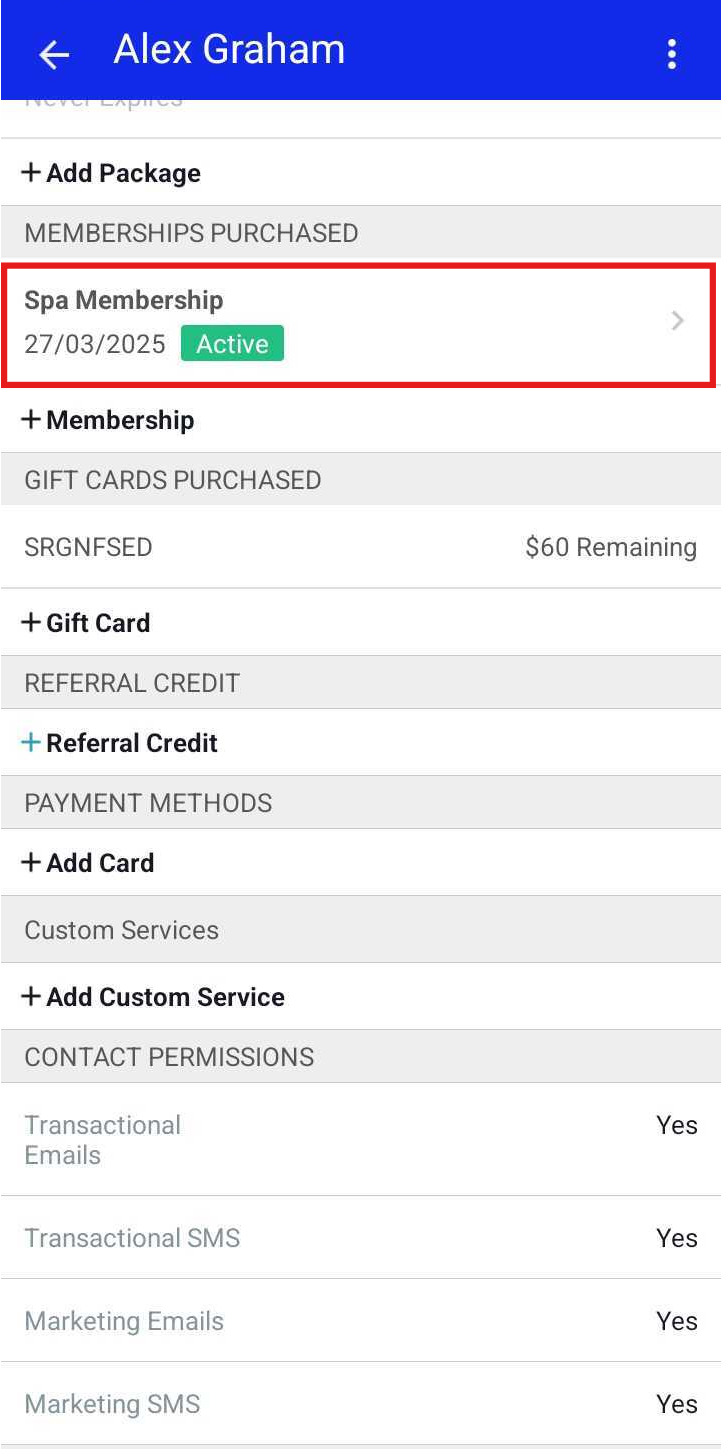
- On the client’s profile, scroll to the Memberships Purchased section
- Locate and tap the membership you want to cancel
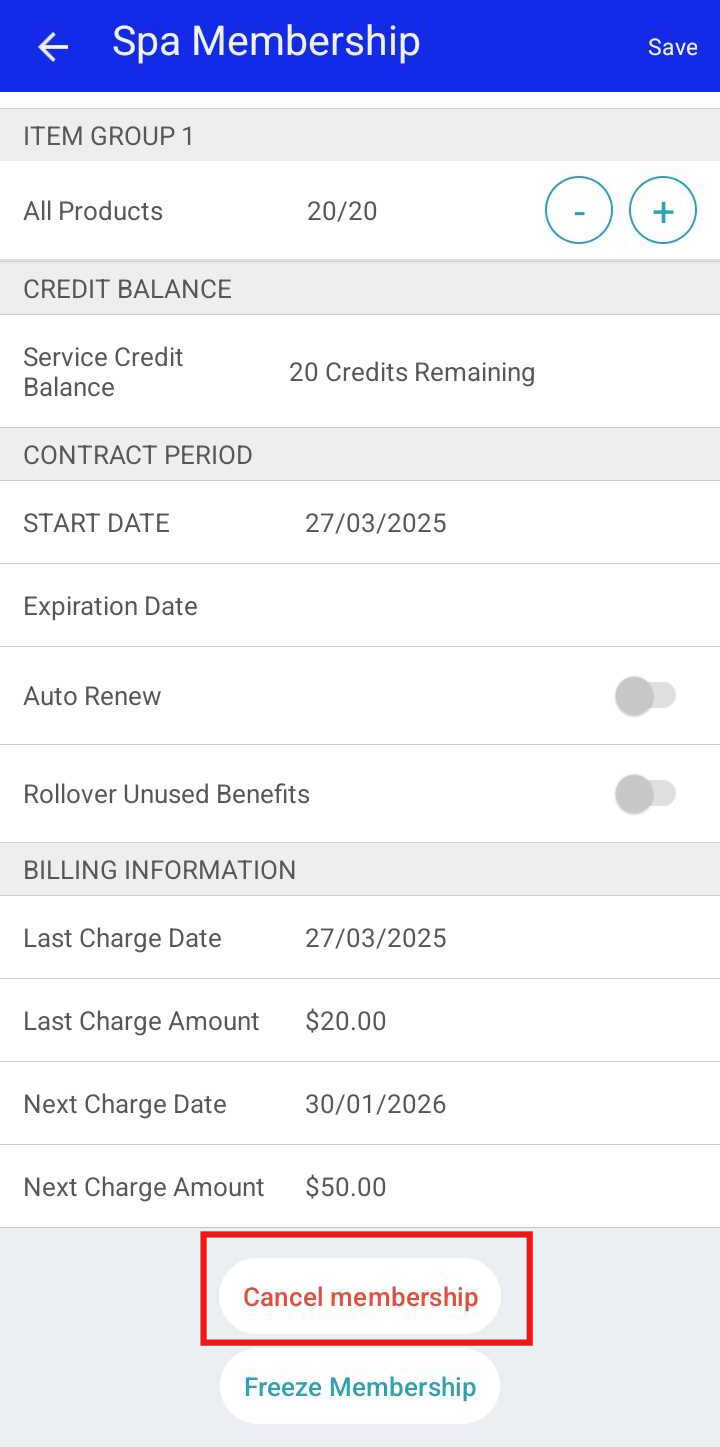
- Scroll to the bottom of the screen and tap Cancel Membership
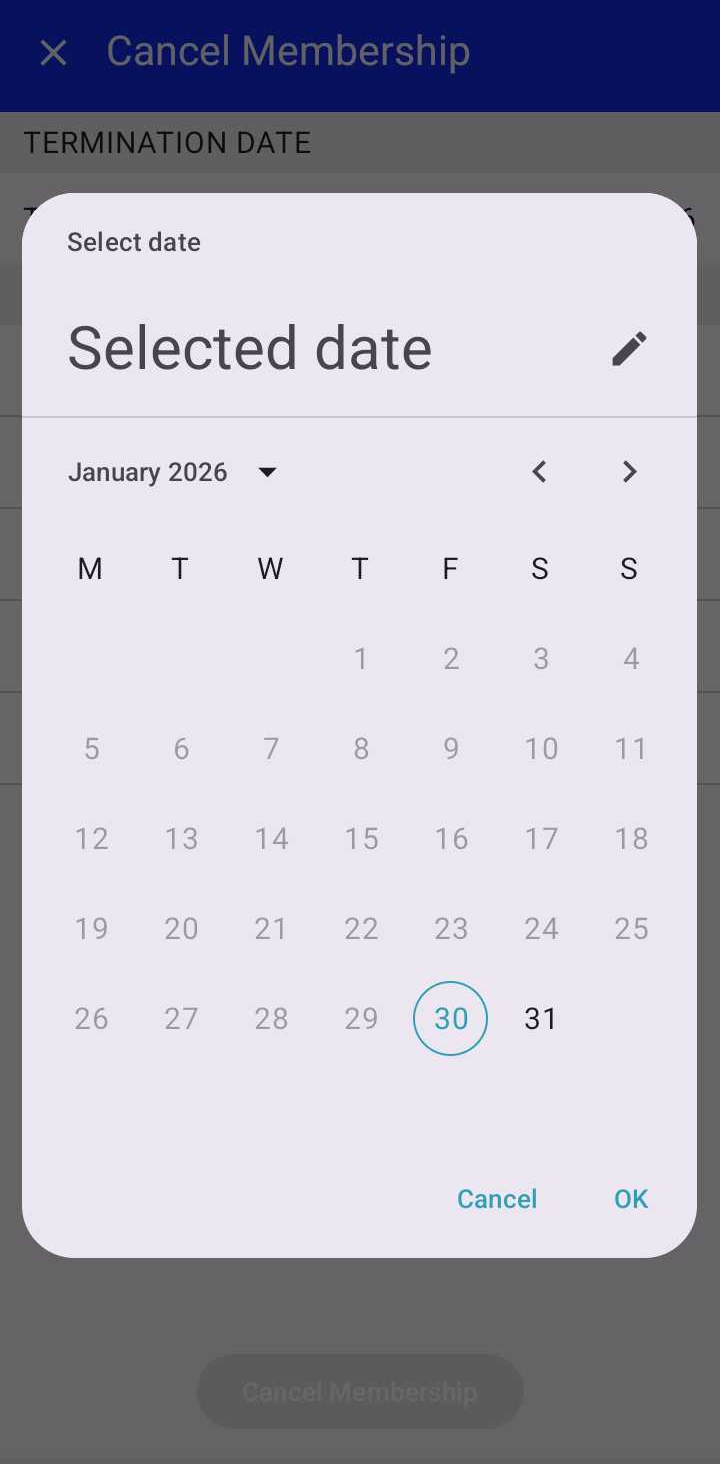
- Under Termination Date, tap Terminates on and select the end date (this is set to the current date by default)
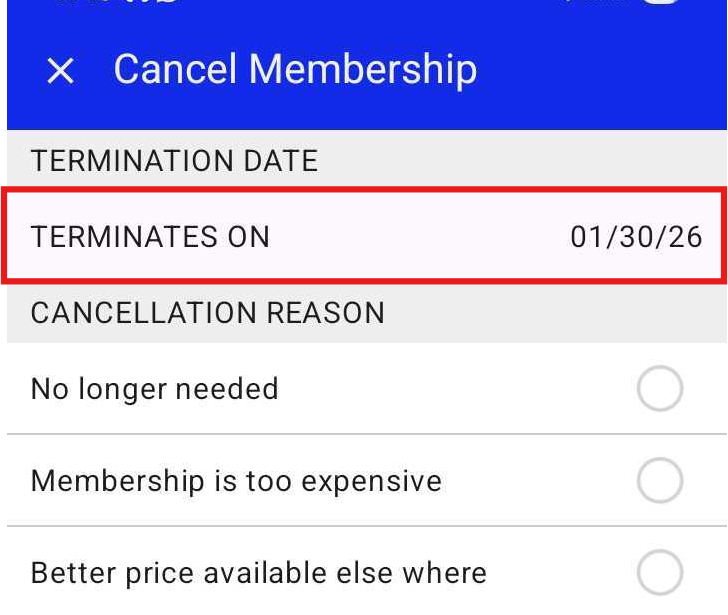
- Tap OK to confirm the termination date
- Select a cancellation reason, based on your account configuration
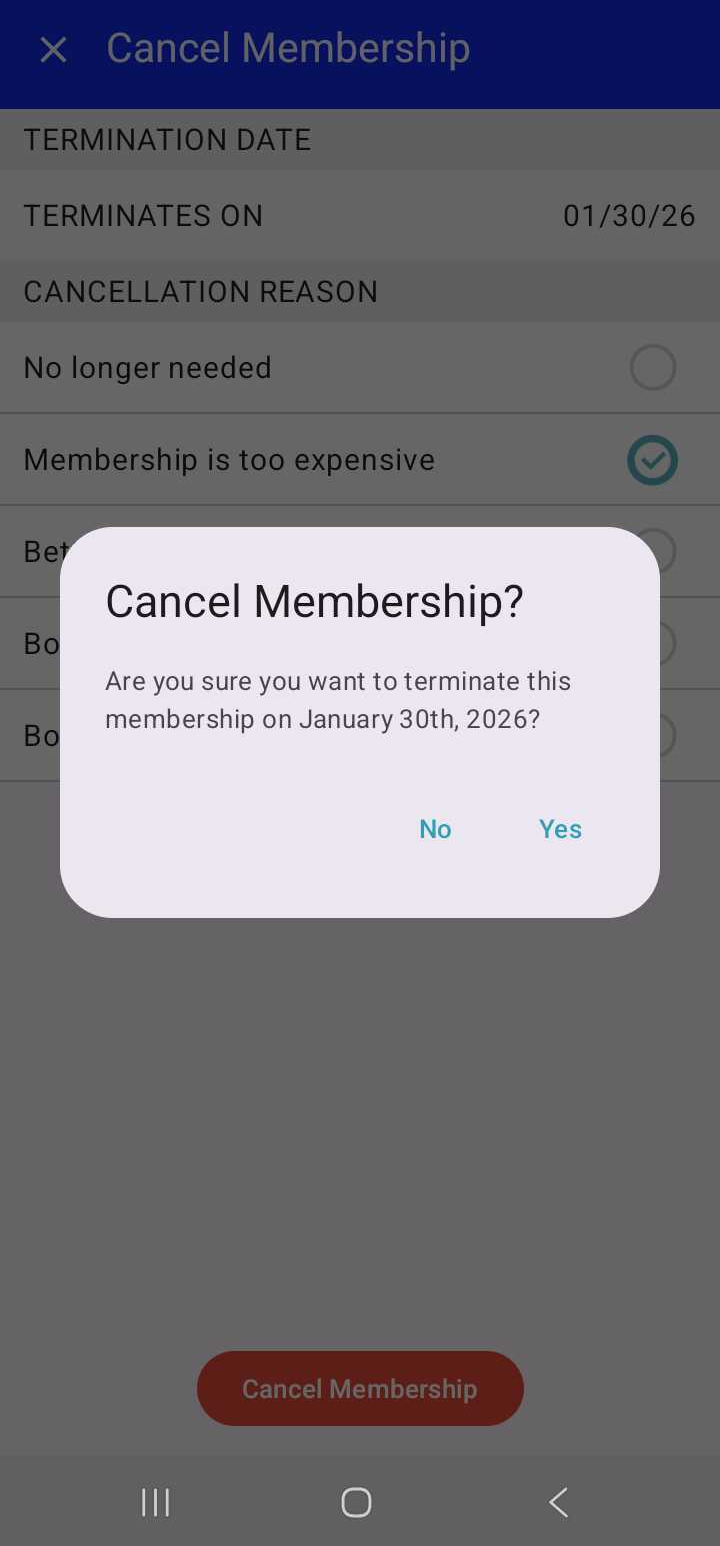
- Tap Cancel Membership

- Confirm the cancellation when prompted
For more information, contact us at support@mytime.com or (385) 233-6964.
Related Articles
Installing MyTime on Scheduler App (Android and iOS)
Signing into MyTime on Scheduler App (Android and iOS)
Canceling Memberships In-Store
Canceling Memberships and Membership Auto-Renewal Online
Membership Cancellation Reasons
Freezing and Unfreezing Memberships
Editing Memberships on Client Profiles
Upgrading or Downgrading Memberships
Was this article helpful?
That’s Great!
Thank you for your feedback
Sorry! We couldn't be helpful
Thank you for your feedback
Feedback sent
We appreciate your effort and will try to fix the article