Membership Pre-Sales allow you to sell memberships and collect upfront deposits before your location or program officially opens. Clients can sign up and securely save payment details early, but recurring billing is deferred until launch day, helping you build a client base and generate early revenue. This article guides you through configuring membership pre-sales and managing client purchases.
Things to know:
- To sell memberships, your account must have an active memberships subscription. For franchise accounts, please contact your account manager or support@mytime.com.
- To configure your account for membership purchases online, learn more here
- Access Control Permissions:
- Creating Templates: Governed by the Memberships access control setting.
- Selling in POS: Governed by the Creating Ticket access control setting.
- This feature is controlled by the "Enable Membership Pre-Sales' hidden setting that can only be enabled by the MyTime team. To enable this setting, please contact support@mytime.com.
- For franchise businesses, pre-sale memberships configured at the parent level automatically push to all child locations. While individual locations can set custom pricing, the membership template itself applies across all child accounts.
- When pre-sale memberships are configured, a clear breakdown displays across POS, online checkout, and client profiles:
- Initial Checkout: The membership itself shows as $0, since the full price isn’t charged until launch. The client pays only the pre-sale deposit and any registration fee. The start date fills in automatically with the launch date you set on the membership template and can’t be edited at checkout.
- Client Record & Billing: Purchased pre-sales remain in Pending status until launch day. The client's Next Charge automatically reflects the full membership price minus the deposit collected at sale.
- Automated Launch Day Billing: On the launch date, pending memberships automatically switch to Active status and charge the remaining first-month balance to the payment method on file.
- Bulk Launch Date Updates: Updating a pre-sale template's start date automatically shifts the start date, billing schedules, and credit expiration terms for all previously sold pending memberships.
- Pre-Launch vs. Post-Launch Sales:
- Pre-Launch Sales: Selling a pre-sale membership before its launch date sets the membership charge to $0 on the POS ticket, billing only the Registration Fee and Pre-Sale Deposit. The membership start date defaults to the upcoming launch date.
- Post-Launch Sales: Selling on or after the launch date automatically bypasses pre-sale logic and processes the purchase as a standard recurring membership.
- Modifying the pre-sale launch date automatically updates all associated pending pre-sale memberships across your business:
- Immediate Realignment: Updating the launch date instantly shifts all pending pre-sale memberships to the new date, regardless of selections made in the Existing Memberships window. Clear messaging confirming this automatic update is displayed in both the selection window and the confirmation message.
- Scheduled Updates & Audit Logging: Each date adjustment is recorded under the membership's Scheduled Updates tab, and an entry is added to the Audit Trail detailing which memberships were updated.
- Credit Date Adjustments: Expiration dates for any associated membership credits automatically shift to align with the new launch date.
- Staff can increase the upfront payment by entering an amount on the membership line item in POS:
- Both the membership line payment and the pre-sale deposit are credited toward the remaining balance charged on the launch date.
- Registration Fees: Registration fees are non-creditable and do not reduce the launch-day charge.
- Closing a ticket for a pre-sale membership strictly requires a saved payment method on file so future balance charges can process on the launch date. This restriction overrides the "Require payment method on file to purchase membership" setting if disabled.
- Pre-sale deposit transactions are recorded across several reports:
- Membership Payments & Prepaid Sales Detail Reports: Each deposit appears as its own distinct line item with the payment type Pre-Sale Deposit.
- The "Hide Previous Payments" filter is enabled by default on these reports, which hides historical transactions and displays only the latest payment for each membership. To view the initial deposit for a membership that has already started, disable the Hide Previous Payments toggle in report filters.
- Daily Compensation Report: Pre-sale deposits are credited to the staff member who sold the pre-sale membership and are included in their total performance and commission totals on the original sale date.
Contents:
- Pre-Sale Membership Configuration
- Selling Pre-Sale Membership via POS
- Purchasing Pre-Sale Membership Online
- Client Record & Status
Pre-Sale Membership Configuration
Once you have added a membership subscription and the hidden setting is enabled, you are now ready to configure your pre-sale membership:
- Go to Business Setup / Location Setup > Memberships tab
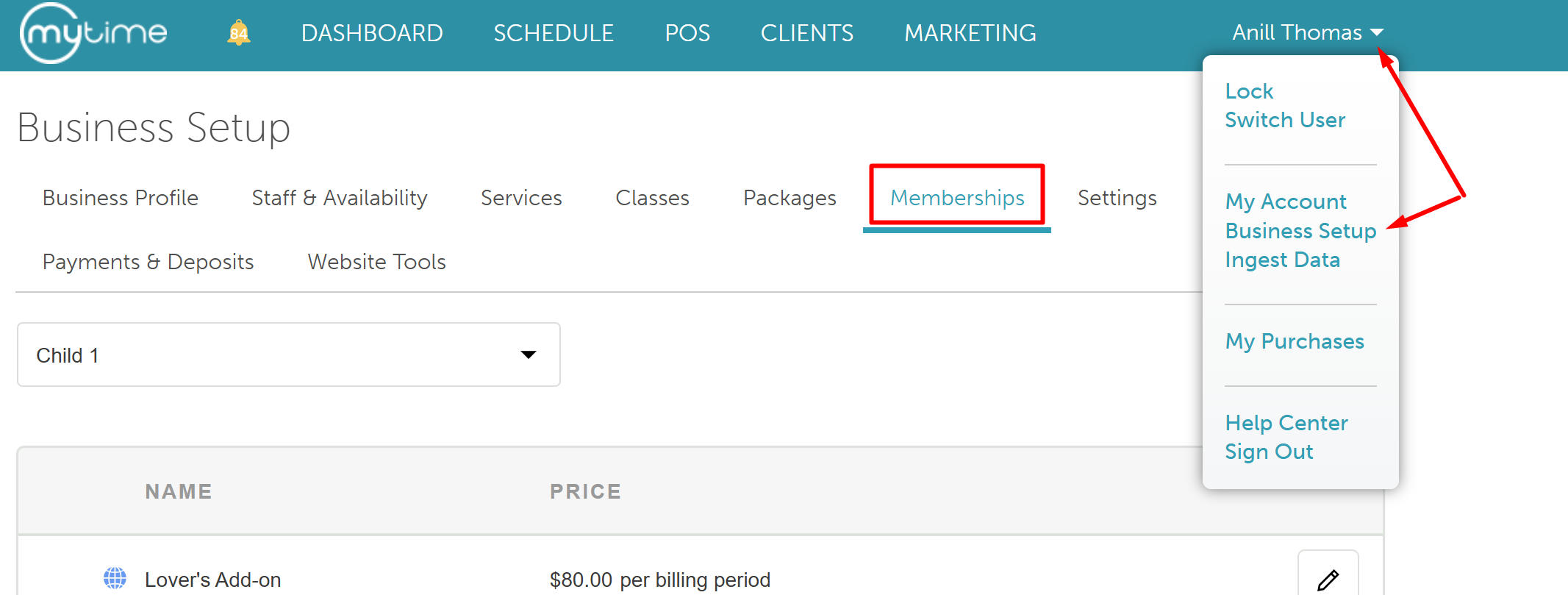
- Select the location where you want the membership to be sold in the location filter
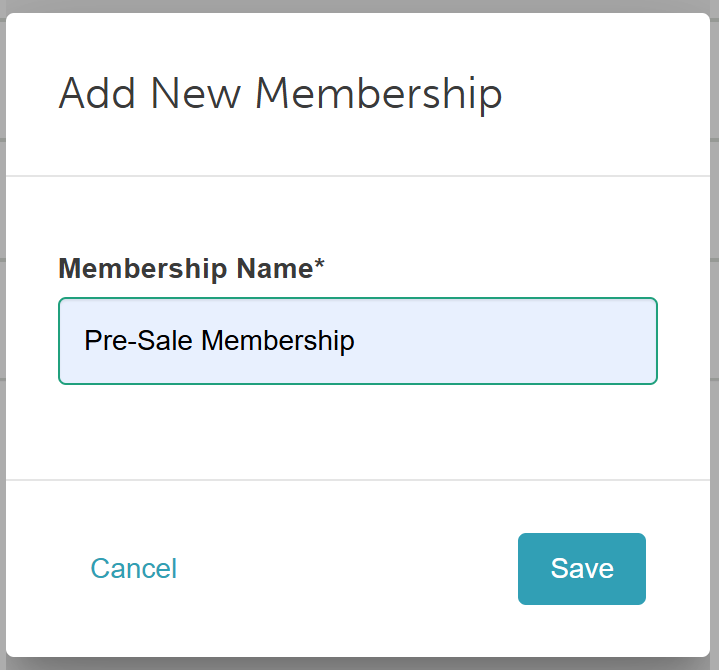
- Click '+Add New Membership'

- Enter the membership's name and click 'Save'
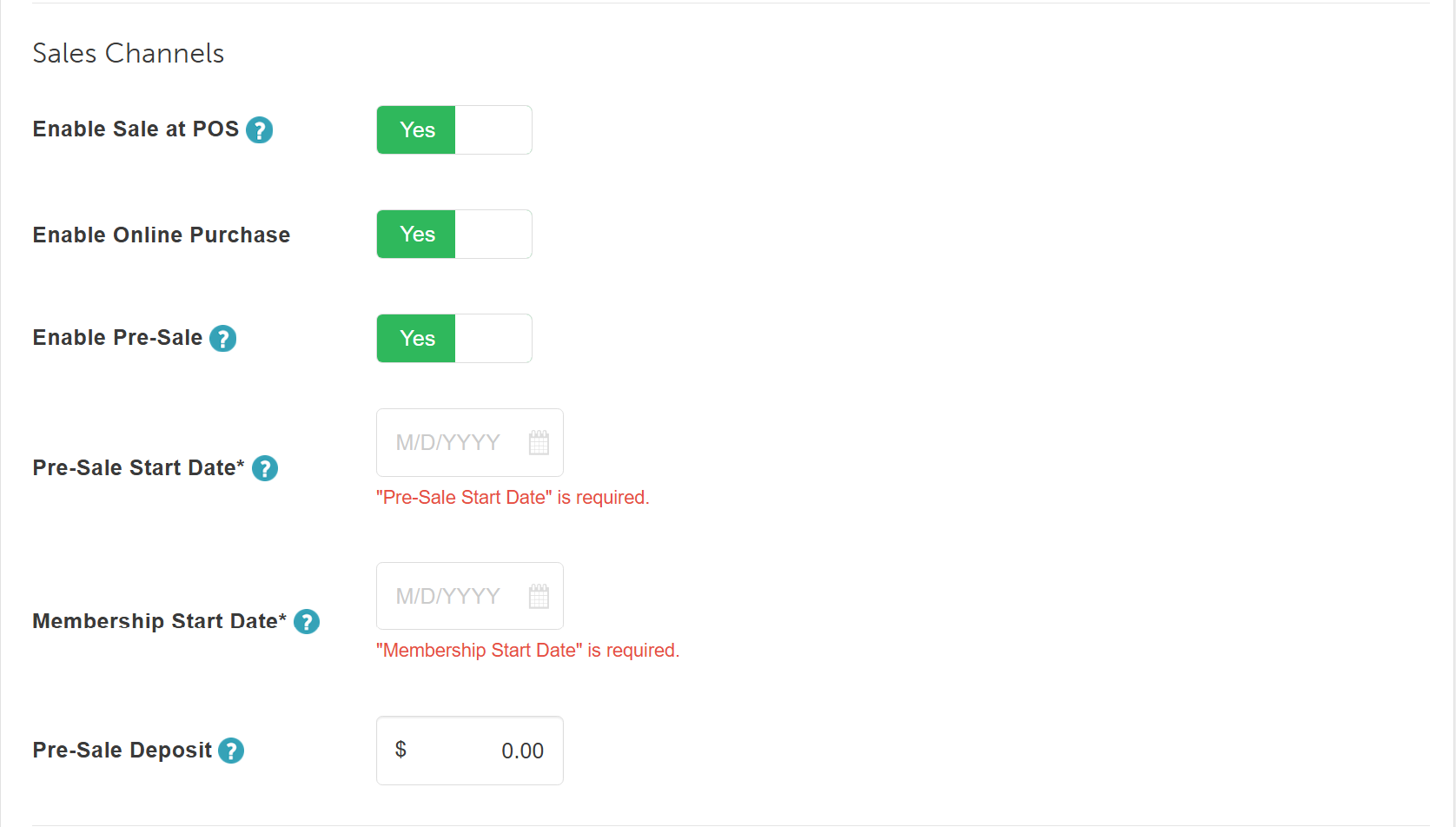
- On the General settings page, locate and configure the following key pre-sale options:
- Enable Sale at POS: Allows you to have this membership sold in-store via POS. If set to 'No,' the membership will not be visible in POS
- Enable Pre-Sale: Set to 'Yes' to activate pre-sale behavior. Enabling this displays three additional required fields:
- Pre-Sale Start Date (Required): The earliest date this membership can be sold. Prior to this date, the membership is hidden across the POS, booking widget, and Express Checkout, and any direct purchase attempts via the API are blocked.
- Membership Start Date (Required): The date the membership officially becomes active. Prior to this date, purchased memberships remain in a 'Pending' status.
- Pre-Sale Deposit (Optional): Enter an upfront deposit to collect when a client purchases during the pre-sale window. If left blank or set to $0, the client is not charged immediately, but a valid card on file is required. Any collected deposit is automatically deducted from the first recurring charge on the official launch date.
Deposit Cap: The deposit cannot exceed the lowest membership price tier (e.g., "The pre-sale deposit cannot be higher than the lowest membership price of $60.00").
Price Floor: A membership price tier cannot be set lower than the configured deposit amount (e.g., "A membership price cannot be lower than the pre-sale deposit of $20.00").
- Configure the rest of your membership settings as follows:
- Membership Name: This is the name that will be displayed throughout the software, including in the POS, client profiles, reports, and online.
- Description: Any details you want to add about the membership.
- Contract Period: Indicates whether the membership is indefinite (no expiration date) or it is just for a certain term/period.
Selling Pre-Sale Membership via POS
To sell pre-sale memberships via POS:
- Navigate to POS > New Ticket
- Select the desired location (if you have access to multiple locations)
- Add a client to the ticket
- Go to the Products tab and expand the Memberships menu
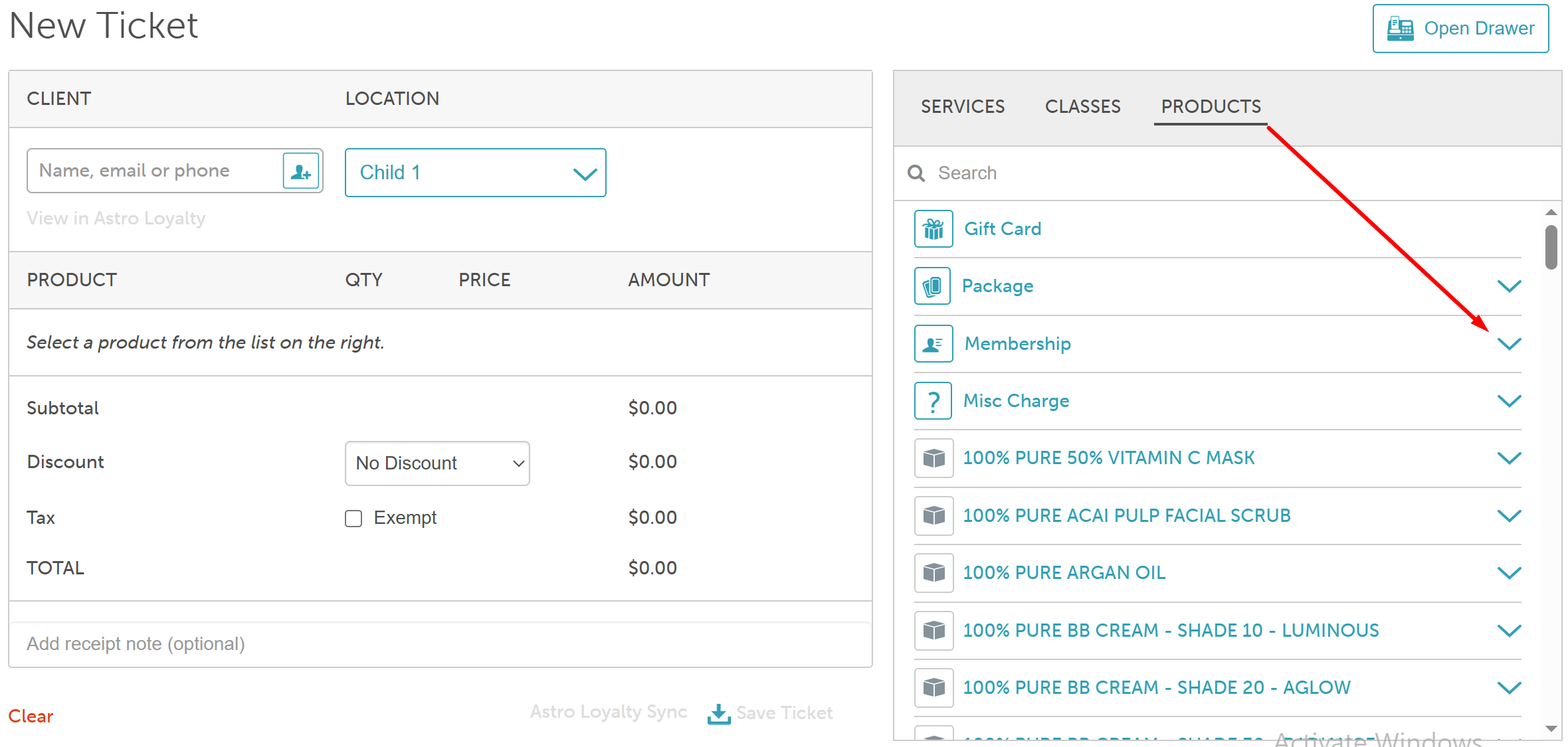
- Select the desired membership
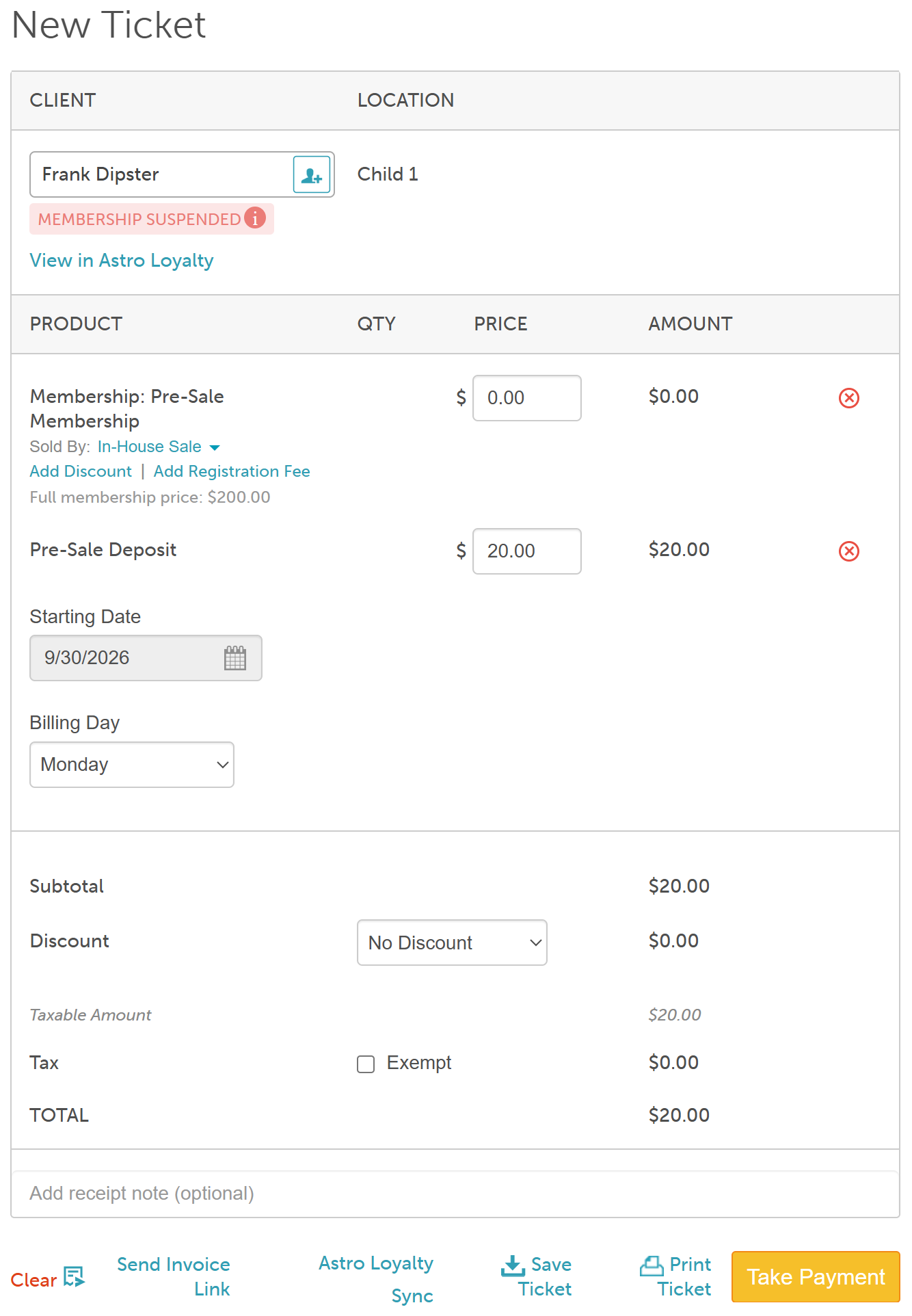
When a pre-sale membership is added to a ticket in the POS, the checkout screen will display the following details:
- Membership Name & Full Price:
- The membership name will appear with grey subtext stating "Full membership price: $X" to indicate the standard cost deferred until launch.
- Line Item Price ($0): The initial line item price reflects $0 because recurring billing is deferred.
- Pre-Sale Deposit / Fee: If configured, the pre-sale deposit amount appears below the membership line item. This is the only amount charged at checkout.
- Starting Date: The Starting Date date picker automatically pre-fills with the date configured in the Membership Pre-Sale Start Date setting and cannot be edited.
- Billing Day:
- The recurring billing day displays according to your configured billing cycle settings
- Take payment for the deposit amount and close the ticket
Purchasing Pre-Sale Membership Online
Depending on how you configured the widget, your memberships will be a stand-alone item, or your clients will have to:
- Navigate to your booking widget
- Select the desired location (if the account has multiple locations)
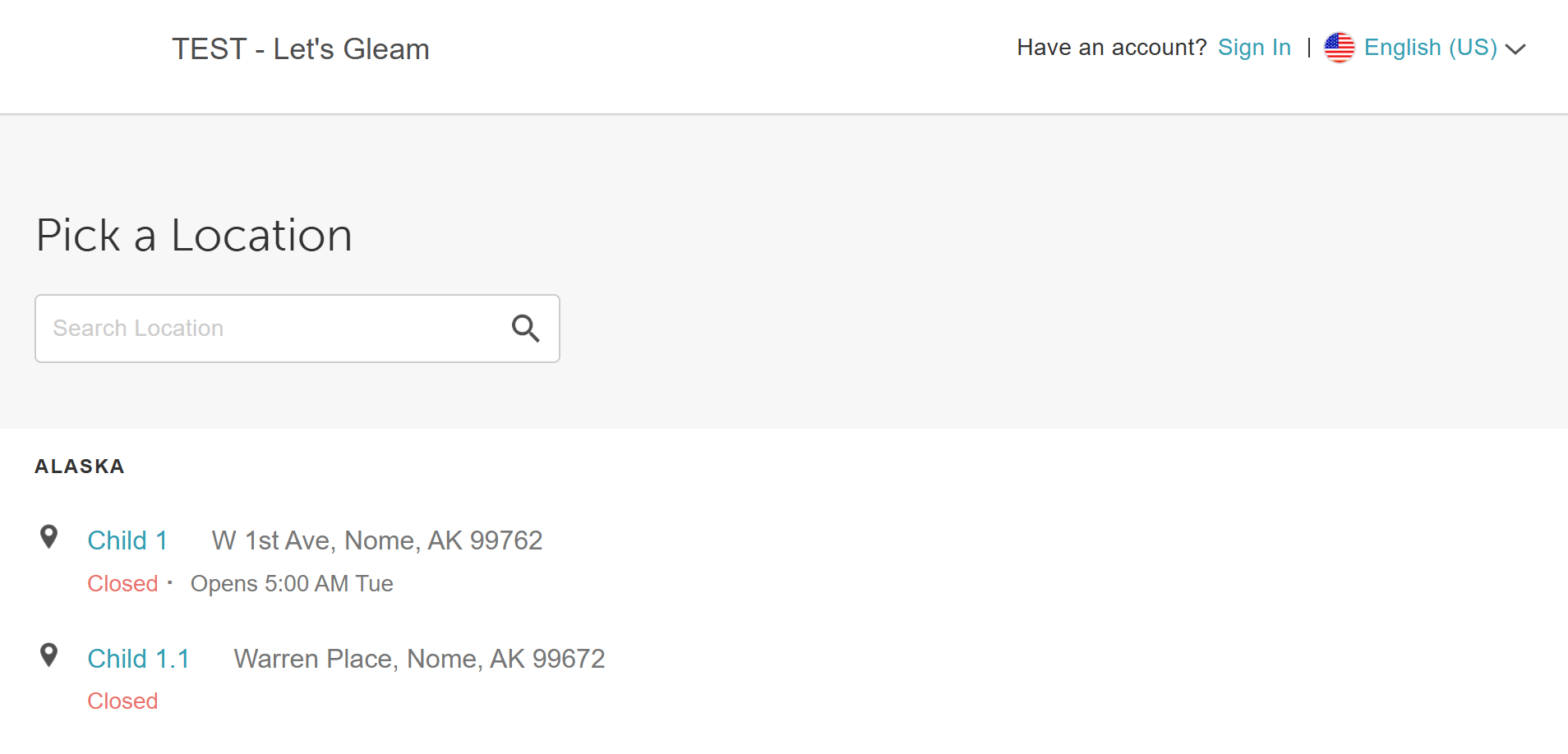
- Click the "Sign In" button at the top of the page
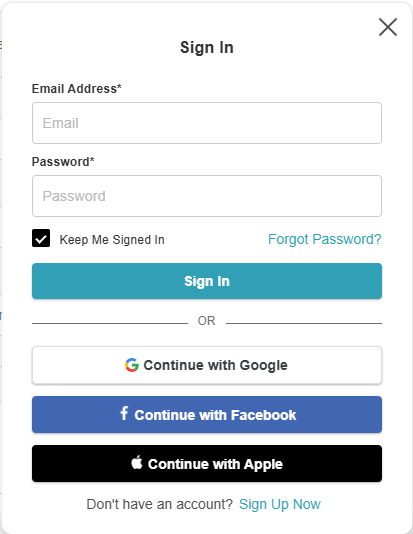
- Choose their login method:
- Standard: Enter their registered email address and password, then click 'Sign In'
- Social Login: Select 'Continue with Google,' 'Continue with Apple,' or 'Continue with Facebook' to use their existing social media credentials
- Select the Memberships tab
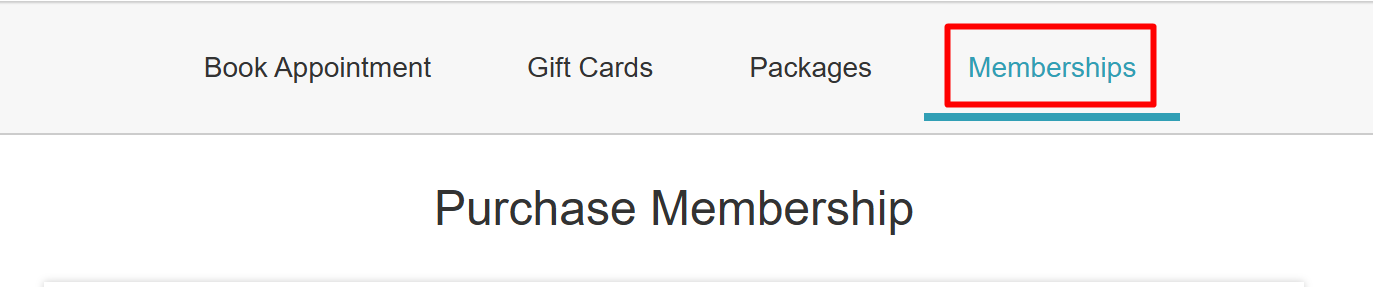
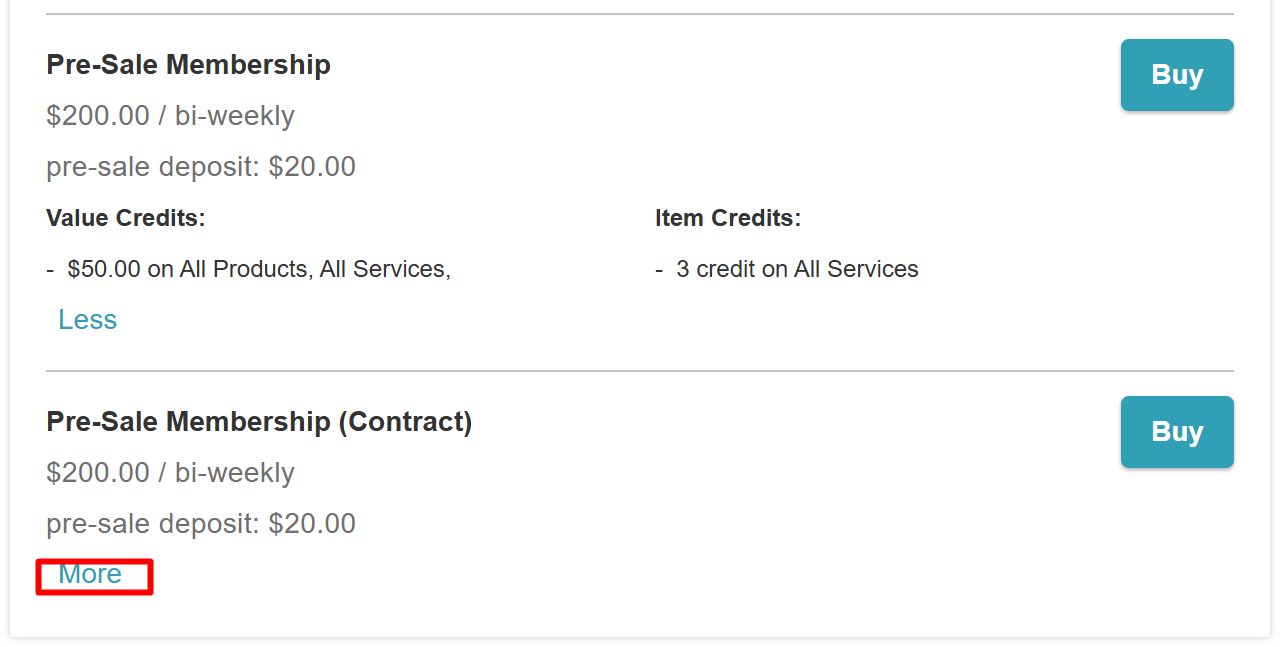
- Locate the membership and click the "More" hyperlink to view the credits available with the membership. The membership will display the pre-sale deposit under the price
- Click 'Buy'
- On the checkout page, the following will be displayed:
- Membership Name & Price: Displays the membership template title with a $0.00 line item amount.
- Pre-Sale Deposit: Appears as a separate line item displaying the required deposit amount (if configured).
- Registration Fee: Displays the one-time registration fee amount (if configured).
- Billing Frequency: Indicates the configured recurring billing cycle (e.g., monthly, weekly, biweekly).
- Start Date: Locked to the date configured under the "Membership Pre-Sale Start Date" setting.
- Price: Displays the recurring amount that will be charged after the launch date based on the selected billing frequency.
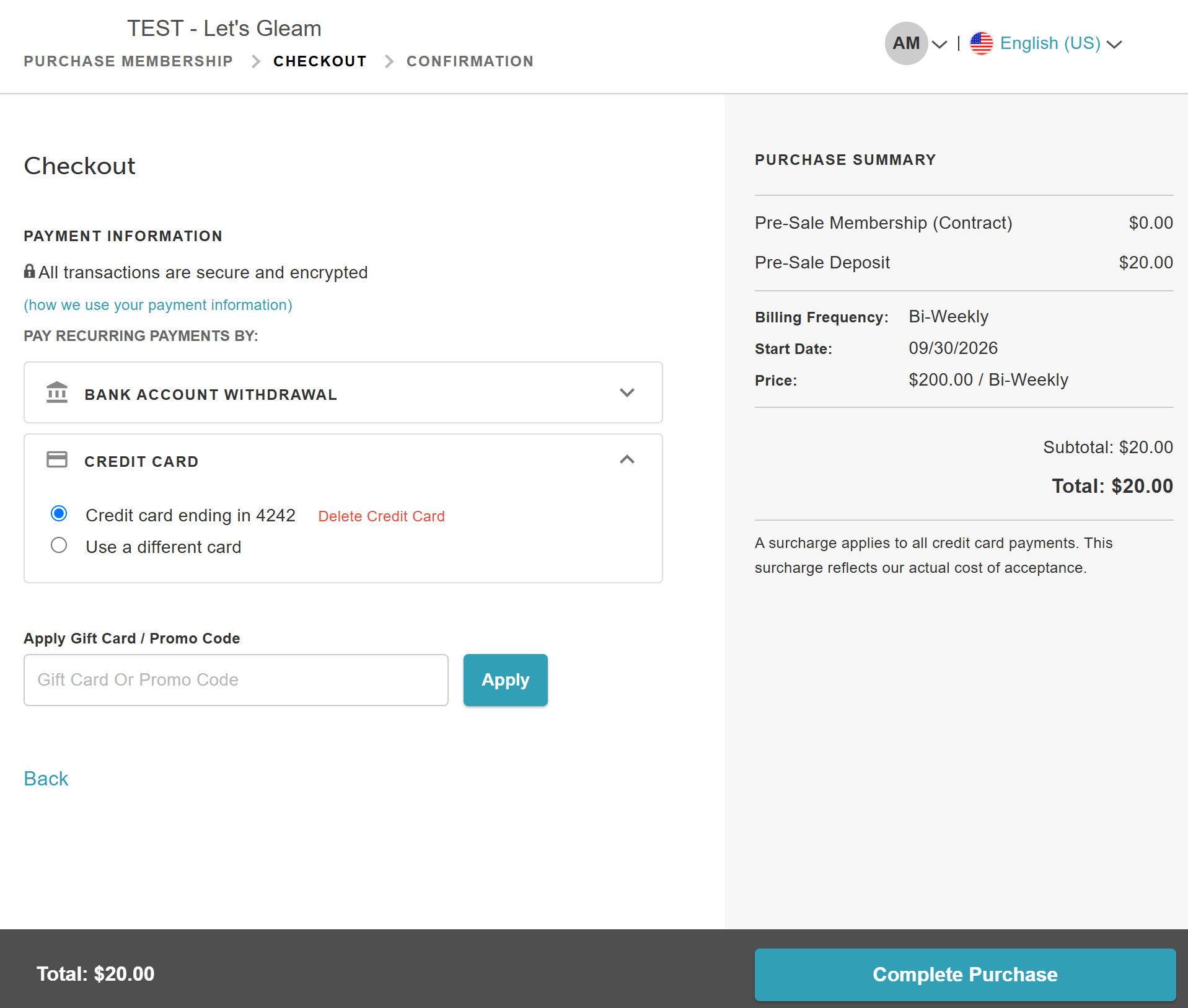
- Select a credit card or bank account for the deposit payment, then click Complete Purchase.
Client Record & Status
Once the pre-sale membership is purchased, whether in-store or online, it will be in a pending state on the client profile. To view this:
- Navigate to the Clients tab
- Search and open the client's profile
- Scroll to the membership section of the page and click the arrow to the right to expand
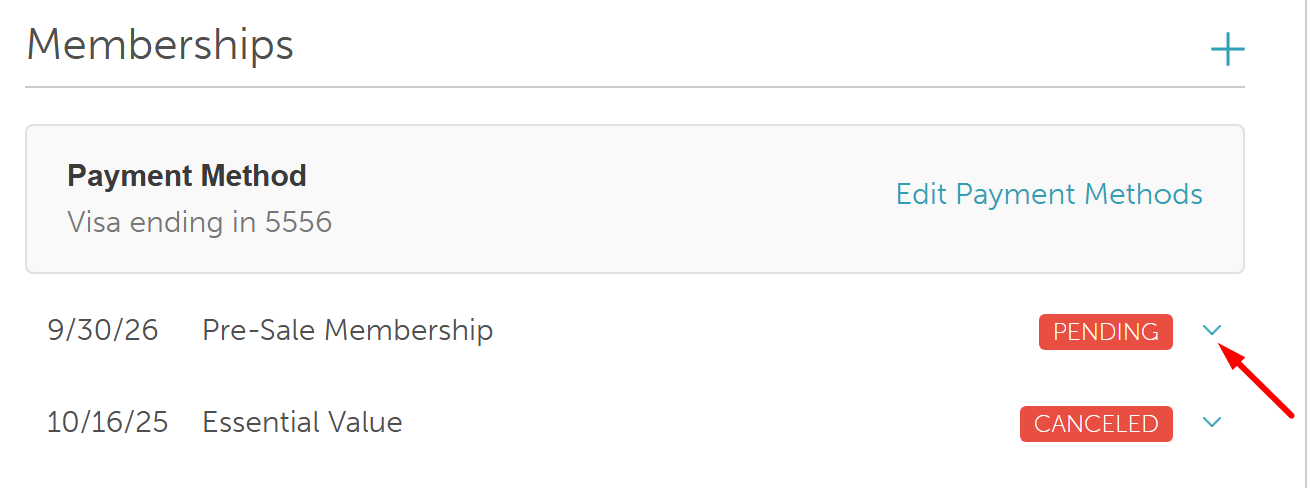
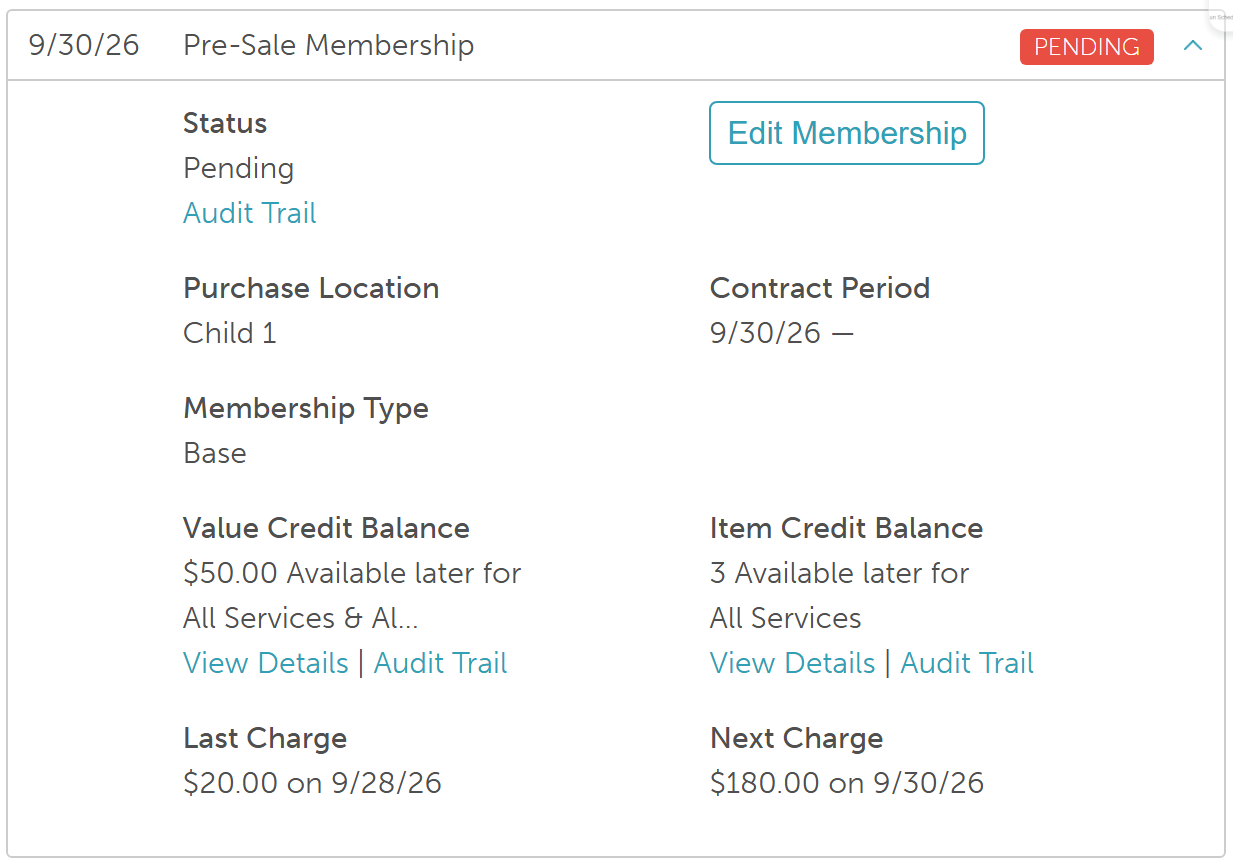
- The membership will display the following:
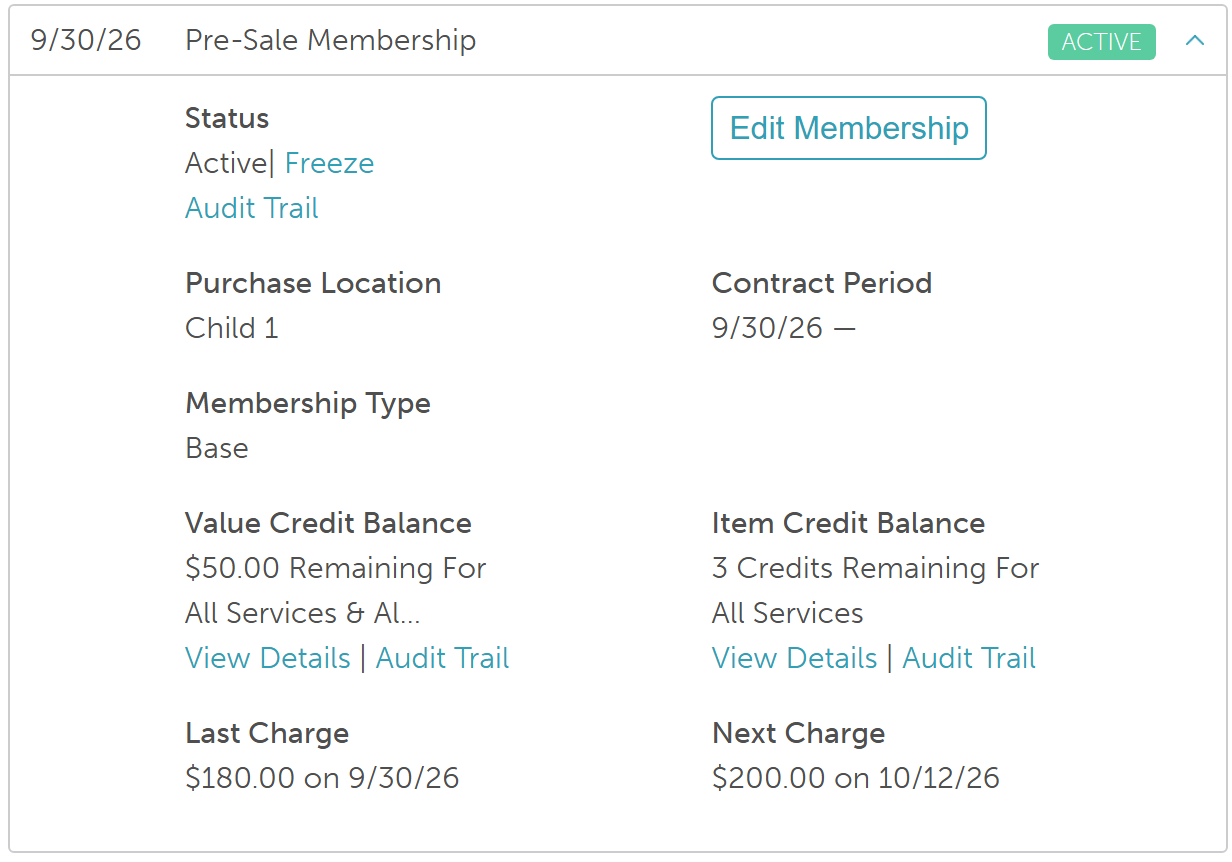
- The status will display 'Pending' as the membership start date has not been reached
- The 'Contract Period' will display the start date of the membership and end date if the membership is a contract membership or just a dash if it is an indefinite membership
- The 'Last Charge' date will show the date the membership was purchased, and the next charge will show the start date of the membership with the membership price. (Full Monthly Price minus Pre-Sale Deposit). Example: On a $20/month membership with a $10 deposit, Next Charge displays $10.00.
- Once the membership is charged, the membership will become active and follow the set billing cadence. If that charge fails, the membership is suspended like any failed membership charge.
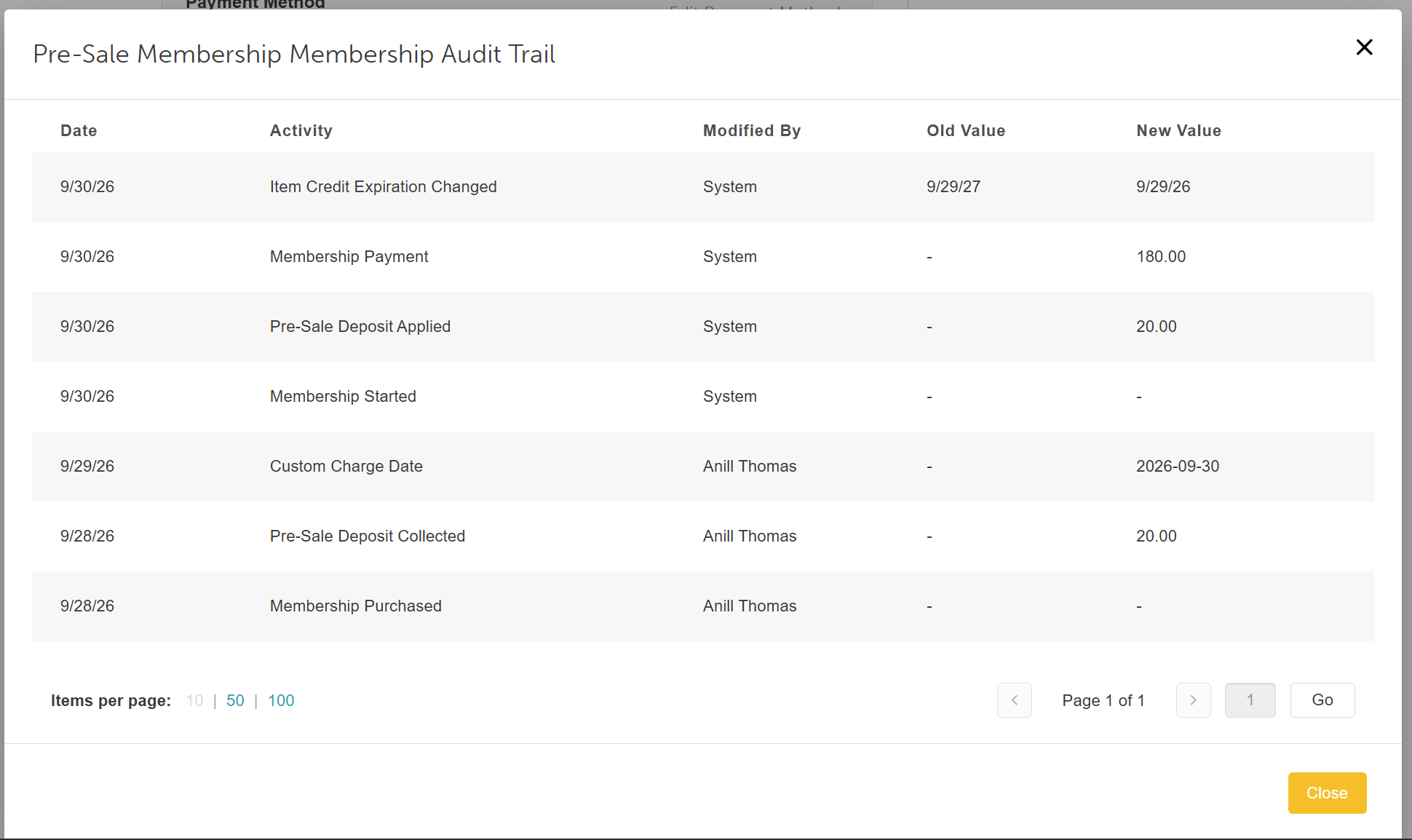
- The membership audit log tracks pre-sale deposit events at two key milestones: "Pre-Sale Deposit Collected" is logged upon initial purchase, and "Pre-Sale Deposit Applied" is logged on the launch date when the deposit is applied toward the subscription balance.
For more information, contact us at support@mytime.com or (385) 233-6964.
Related Articles:
Indefinite Membership Configuration
Updating Existing Client Memberships
Upgrading or Downgrading Memberships
Membership Cancellation Fee
Membership Cancellation Reasons
Membership Statuses
Editing Memberships
Deleting Memberships
Refunding Memberships
Reorder Memberships
Freezing and Unfreezing Memberships
Cancelling Memberships
Classes in Membership
Appointments in Membership
Products in Membership
Commission on Membership Sales
Commission on Appointments and Products in Membership
Membership Value Credits vs Membership Item Credits
Membership Promotion Setup
Selling Memberships for Clients in POS
Selling Memberships for Family Members in POS
Selling Memberships for Pets in POS
Selling Memberships Online through Booking Widget
Selling Products, Gift Cards, Memberships and Packages on Scheduler App
Reconciliation for Memberships
Membership Payments Report
Membership Roster Report
Membership Item Credits Report
Membership Value Credits Report
Was this article helpful?
That’s Great!
Thank you for your feedback
Sorry! We couldn't be helpful
Thank you for your feedback
Feedback sent
We appreciate your effort and will try to fix the article