Configure Indefinite Memberships With Monthly Payment
Once you have added a membership subscription, you are now ready to configure your indefinite membership. Here are the steps:
- Go to Business Setup / Location Setup > Memberships tab
- Select the location where you want the membership to be sold in the location filter
- Click on the +Add New Membership link
- Enter the Membership name
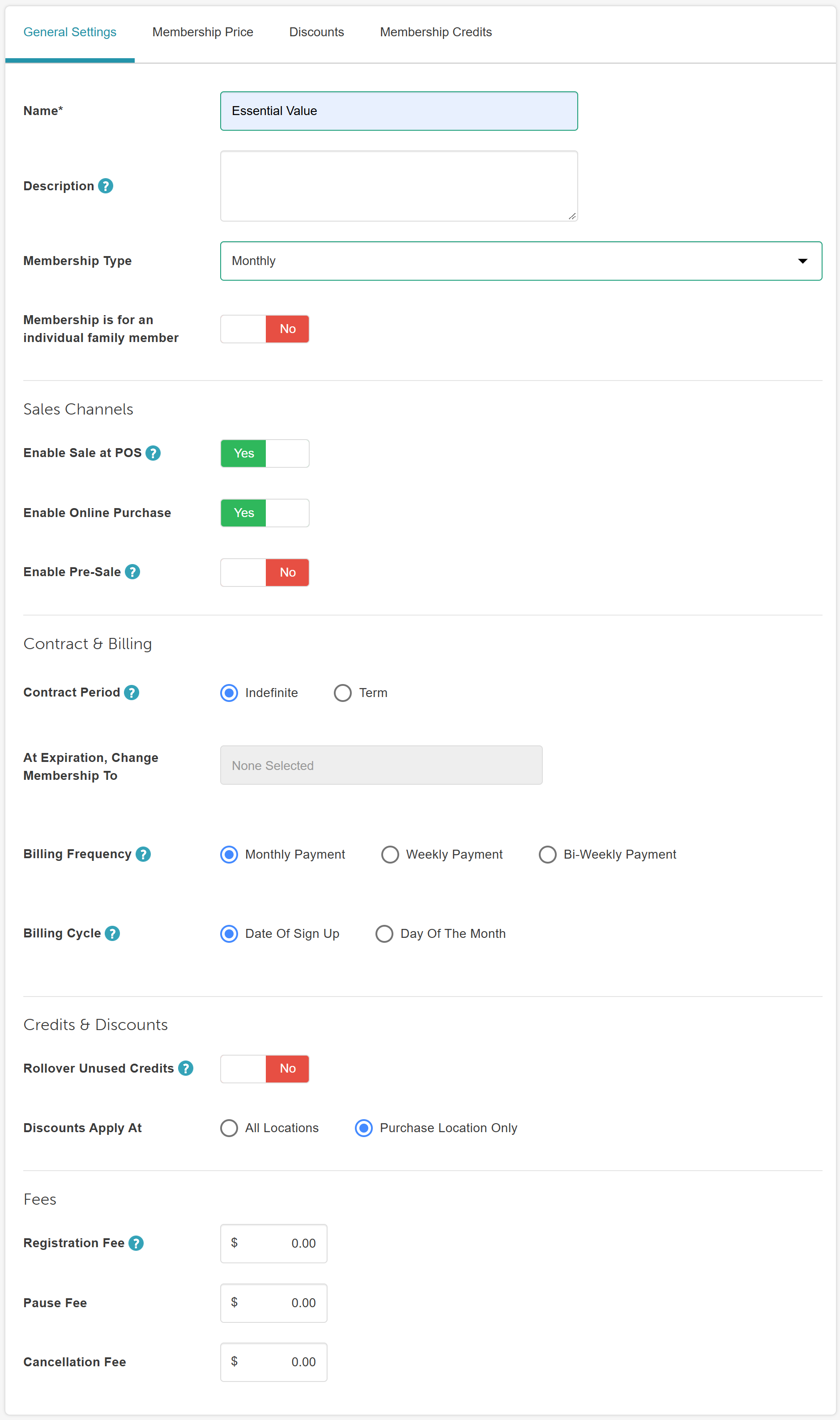
- Once you have entered the membership name and clicked Save, you will be directed to the General Settings page. Configure the following fields:
- Basic Details:
- Membership Name: The public- and internal-facing name displayed across the system, including the POS, client profiles, reports, and online booking.
- Description: Add any internal or client-facing notes explaining the membership details and perks.
- Membership Type: Choose a category to organize your membership templates. Learn more here
- Membership Validity (Membership is for an individual family member/pet): (Applies to family or pet-based businesses) Determine whether the membership applies to an individual pet/family member or covers all profiles under that account. Note: If set to individual validity, the membership cannot be configured to issue value-based credits.
- Sales Channels:
- Enable Sale at POS: Allows you to have this membership sold in-store via POS. If set to 'No,' the membership will not be visible in POS.
- Enable Online Purchase: Toggle on to allow clients to buy this membership online via your booking widget or dedicated membership purchase page.
- Enable Pre-Sale: Set to 'Yes' to activate pre-sale behavior. Learn more here
- Contract & Billing:
- Contract Period: Indicates whether the membership is indefinite (no expiration date)
- At Expiration, Change Membership To: Automatically transition the client to a different membership once this contract ends (e.g., converting an introductory promo plan to standard pricing).
- The current plan is marked as expired, and the new plan automatically activates.
- If the plan is canceled early, this transition is canceled.
- Note: This dropdown only appears if Auto-Renew is set to No.
- Billing Frequency: Choose how often the card on file is charged:
- Monthly: Charges fees on a recurring monthly schedule throughout the term.
- Billing Cycle: Determine whether recurring charges run on a set calendar day each month or anchor to the initial purchase date.
- Credits & Discounts:
- Rollover Unused Benefits: Choose whether unredeemed item or value credits carry over into the next billing cycle or expire at the end of the period.
- Discounts Apply At: Set location restrictions for associated discounts:
- All Locations: Applies the discount across any location enabled in the Discounts tab.
- At Purchase Location Only: Restricts discounts exclusively to the location where the membership was originally purchased.
- Fees:
- Registration Fee Amount: A one-time setup fee charged at initial sign-up.
- Pause Fee Amount: A recurring monthly fee charged while a membership is placed on hold or frozen. It bills automatically on the normal billing date. Learn more here
- Cancellation Fee Amount: A fee applied when terminating a membership early. When a cancellation is initiated via the client profile, a prompt will confirm whether to charge this fee to the credit card on file. Learn more here
- Basic Details:


Configure Indefinite Memberships With Weekly Payment
Once you have added a membership subscription, you are now ready to configure your indefinite membership. Here are the steps:
- Go to Business Setup / Location Setup > Memberships tab
- Select the location where you want the membership to be sold in the location filter
- Click on the +Add New Membership link
- Enter the Membership name
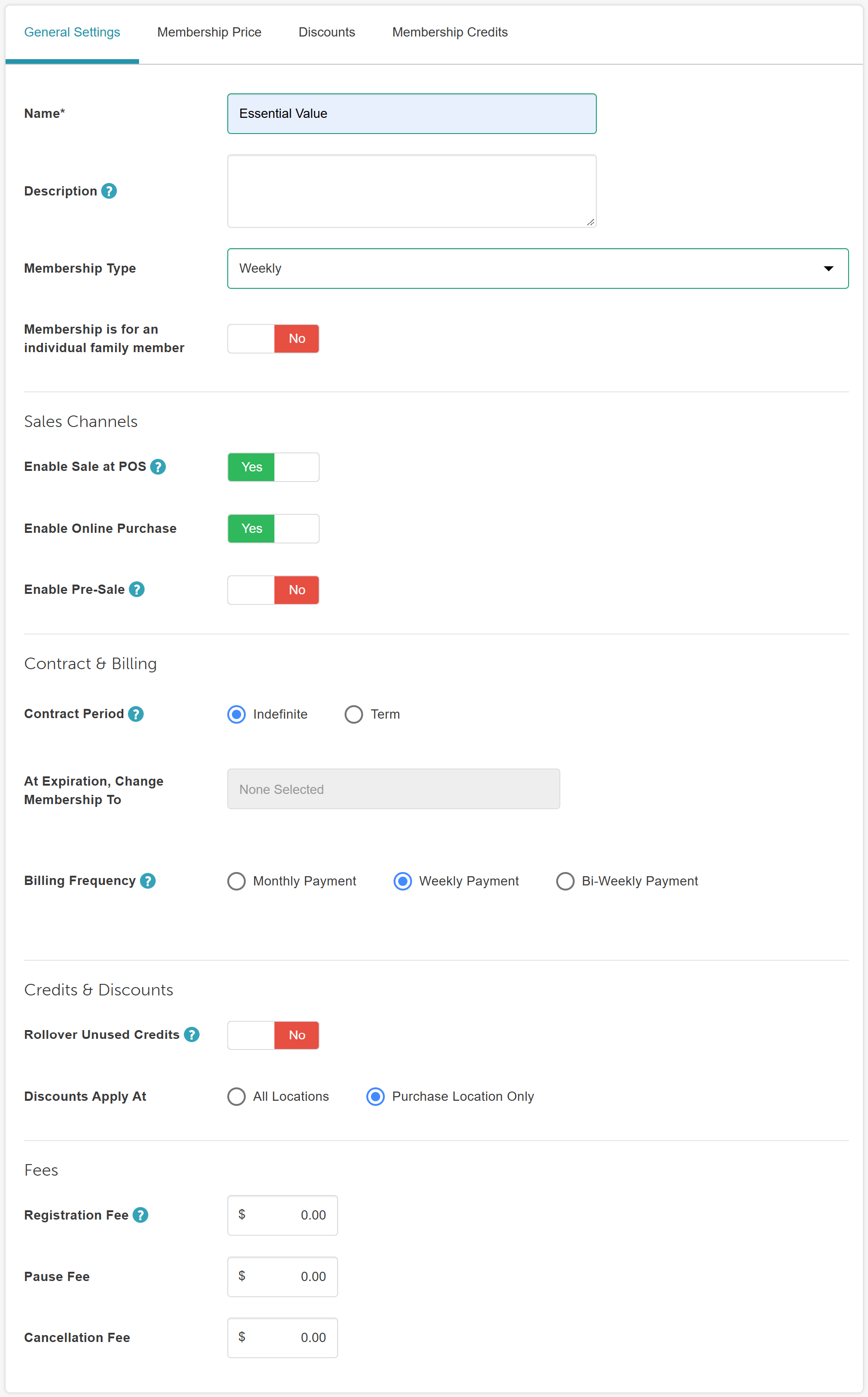
- Once you have entered the membership name and clicked Save, you will be directed to the General Settings page. Configure the following fields:
- Basic Details:
- Membership Name: The public- and internal-facing name displayed across the system, including the POS, client profiles, reports, and online booking.
- Description: Add any internal or client-facing notes explaining the membership details and perks.
- Membership Type: Choose a category to organize your membership templates. Learn more here
- Membership Validity (Membership is for an individual family member/pet): (Applies to family or pet-based businesses) Determine whether the membership applies to an individual pet/family member or covers all profiles under that account. Note: If set to individual validity, the membership cannot be configured to issue value-based credits.
- Sales Channels:
- Enable Sale at POS: Allows you to have this membership sold in-store via POS. If set to 'No,' the membership will not be visible in POS.
- Enable Online Purchase: Toggle on to allow clients to buy this membership online via your booking widget or dedicated membership purchase page.
- Enable Pre-Sale: Set to 'Yes' to activate pre-sale behavior. Learn more here
- Contract & Billing:
- Contract Period: Indicates whether the membership is indefinite (no expiration date)
- At Expiration, Change Membership To: Automatically transition the client to a different membership once this contract ends (e.g., converting an introductory promo plan to standard pricing).
- The current plan is marked as expired, and the new plan automatically activates.
- If the plan is canceled early, this transition is canceled.
- Note: This dropdown only appears if Auto-Renew is set to No.
- Billing Frequency: Choose how often the card on file is charged:
- Weekly - Select weekly payment to charge the membership fee weekly during the membership period.
- For weekly payments, credits will be received every week after a successful charge. Eg: If the membership is configured to provide 2 credits, the client will receive 2 credits each week
- Credits & Discounts:
- Rollover Unused Benefits: Choose whether unredeemed items or value credits carry over into the next billing cycle or expire at the end of the period.
- Discounts Apply At: Set location restrictions for associated discounts:
- All Locations: Applies the discount across any location enabled in the Discounts tab.
- At Purchase Location Only: Restricts discounts exclusively to the location where the membership was originally purchased.
- Fees:
- Registration Fee Amount: A one-time setup fee charged at initial sign-up.
- Pause Fee Amount: A recurring monthly fee charged while a membership is placed on hold or frozen. It bills automatically on the normal billing date. Learn more here
- Cancellation Fee Amount: A fee applied when terminating a membership early. When a cancellation is initiated via the client profile, a prompt will confirm whether to charge this fee to the credit card on file. Learn more here
- Basic Details:

Configure Indefinite Memberships With Bi-Weekly Payment
Once you have added a membership subscription, you are now ready to configure your indefinite membership. Here are the steps:
- Go to Business Setup / Location Setup > Memberships tab
- Select the location where you want the membership to be sold in the location filter
- Click on the +Add New Membership link
- Enter the Membership name
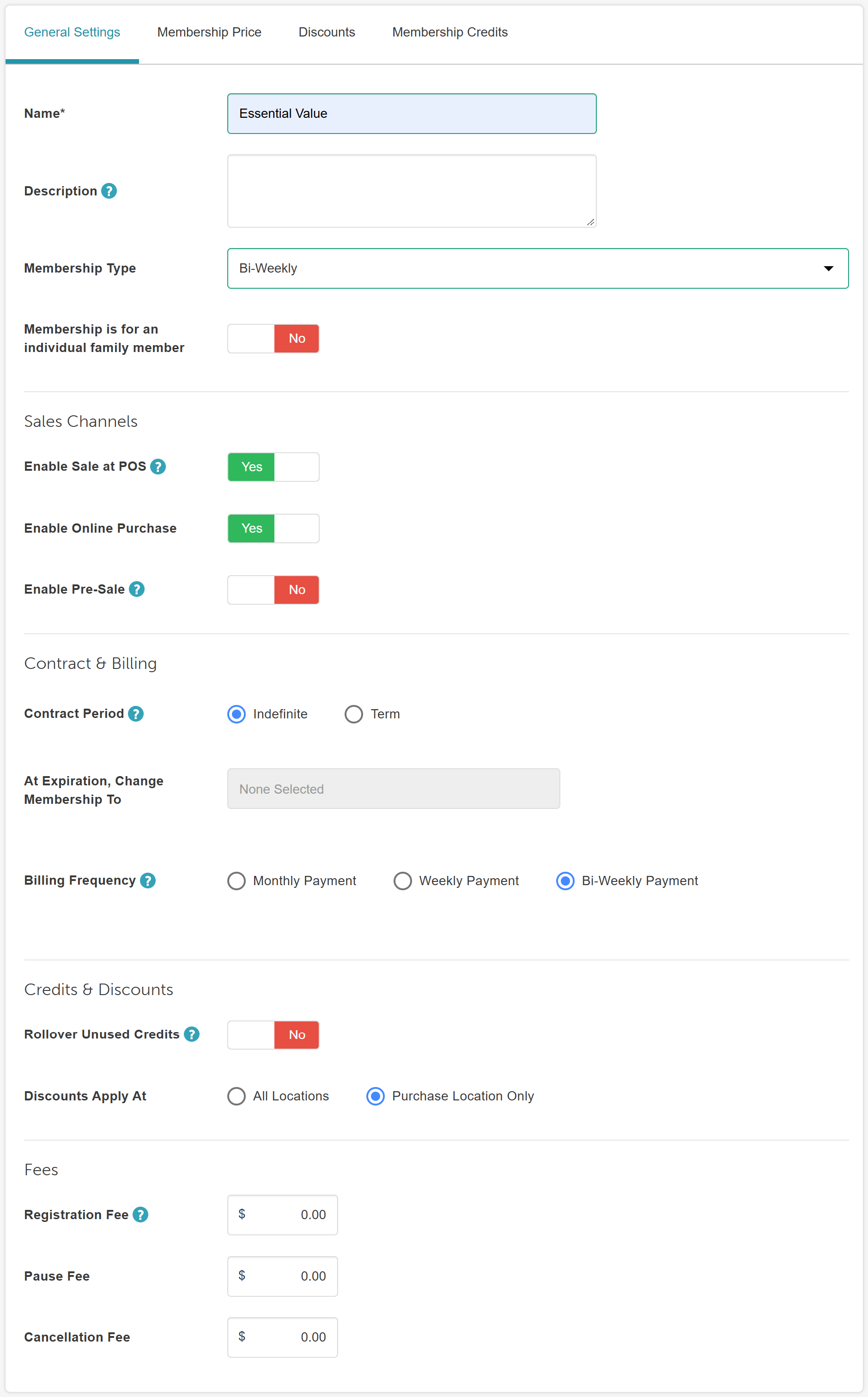
- Once you have entered the membership name and clicked Save, you will be directed to the General Settings page. Configure the following fields:
- Basic Details:
- Membership Name: The public- and internal-facing name displayed across the system, including the POS, client profiles, reports, and online booking.
- Description: Add any internal or client-facing notes explaining the membership details and perks.
- Membership Type: Choose a category to organize your membership templates. Learn more here
- Membership Validity (Membership is for an individual family member/pet): (Applies to family or pet-based businesses) Determine whether the membership applies to an individual pet/family member or covers all profiles under that account. Note: If set to individual validity, the membership cannot be configured to issue value-based credits.
- Sales Channels:
- Enable Sale at POS: Allows you to have this membership sold in-store via POS. If set to 'No,' the membership will not be visible in POS.
- Enable Online Purchase: Toggle on to allow clients to buy this membership online via your booking widget or dedicated membership purchase page.
- Enable Pre-Sale: Set to 'Yes' to activate pre-sale behavior. Learn more here
- Contract & Billing:
- Contract Period: Indicates whether the membership is indefinite (no expiration date)
- At Expiration, Change Membership To: Automatically transition the client to a different membership once this contract ends (e.g., converting an introductory promo plan to standard pricing).
- The current plan is marked as expired, and the new plan automatically activates.
- If the plan is canceled early, this transition is canceled.
- Note: This dropdown only appears if Auto-Renew is set to No.
- Billing Frequency: Choose how often the card on file is charged:
- Bi-Weekly - Select bi-weekly payment to charge the membership fee bi-weekly during the membership period.
- For bi-weekly payments, credits will be received every two weeks after a successful charge. Eg: If the membership is configured to provide 2 credits, the client will receive 2 credits every two weeks
- Credits & Discounts:
- Rollover Unused Benefits: Choose whether unredeemed items or value credits carry over into the next billing cycle or expire at the end of the period.
- Discounts Apply At: Set location restrictions for associated discounts:
- All Locations: Applies the discount across any location enabled in the Discounts tab.
- At Purchase Location Only: Restricts discounts exclusively to the location where the membership was originally purchased.
- Fees:
- Registration Fee Amount: A one-time setup fee charged at initial sign-up.
- Pause Fee Amount: A recurring monthly fee charged while a membership is placed on hold or frozen. It bills automatically on the normal billing date. Learn more here
- Cancellation Fee Amount: A fee applied when terminating a membership early. When a cancellation is initiated via the client profile, a prompt will confirm whether to charge this fee to the credit card on file. Learn more here
- Basic Details:

Once you have completed all the necessary fields, you can continue by adding the price, discount, and credits.
Configure Membership Price
On the Membership Price page, you will be able to set the amount the client will pay for the membership. If you have multiple locations, you can set the membership price per location or location group.
Things to know:
- Location groups can be found on the membership price page in the location dropdown
- Global membership prices are only editable from the parent level
- When saving a membership at the location group level, it will override the prices at all of the location group’s locations
- When saving a membership at the location level, it will only affect the price at that location
- When a location is added to a location group, it will inherit the location group’s membership pricing
To get started:
- Click on the Membership Price tab and then click the +Add Membership Price link
- Enter the price and then select the location where the price should be applicable. To add multiple prices, you can select the +Add Membership Price link again to add the price for another location or location group
- Once you are satisfied with the pricing option for each location, you can go ahead and select the Discount tab


Configure Membership Discounts
The next step is to add membership discounts. This can be done on the Discounts page; however, it is not a required step to take. Your membership can be created without discounts.
- On the Discounts tab select the +Add Discount link
- Here you can set up membership $ and % discounts that can be applied to services, products, and classes. As well as determine if staff commission should be calculated on the pre or post-discounted value:
- Discount Name: The name that will be displayed in POS whenever this discount is applied.
- If no discount name is configured, the discount will be displayed as "Membership Discount - x% or x$ Off."
- If a discount name is configured, it will be displayed as "Membership Discount - [Discount Name]."
- Qualified Items - Choose whether the discount is applicable to services only, classes only, products only, or a mixture. You can also select the service variation, class variation, or SKU.
- Location - Select whether the discount should apply to all locations or a specific location.
- Discount Value - The discount can be a flat dollar value ($) or a percentage (%).
- Calculate Staff Commissions - Determine if staff commissions should be calculated on the pre-discount or post-discount value. This will override the general company setting 'Calculate service/product commission post discount' on the Settings page. Learn more here
- Discount Name: The name that will be displayed in POS whenever this discount is applied.
- You can also add multiple discounts for each membership and you can do this by clicking the +Add Discount link


Once you are satisfied with your changes, click on the Credits tab.
Configure Membership Credits
Membership credits can be configured on the Membership Credits page. You can set value credits and/or item credits for your memberships.
- On the membership credits page, click the +Add Value Credits or the +Add Item Credits link
- To add value credits, choose the relevant item type, the corresponding category, and the specific items to which the value credits will apply. Next, enter the quantity of value credits that will be included in this membership:
- Value credits can be applied to product purchases and appointments in POS before or after sales tax. Learn more here.
- If the value credit applies to products only, membership value credit will only show up if a product is on the ticket. It will say Product Credit on the payment screen in POS.
- If the value credit applies to services only, membership value credit will only show up if an appt is on the ticket. It will say Service Credit on the payment screen in POS.
- If the value credit applies to both services and products, membership value credit will show up if an appointment OR product is on the ticket. It will say Service and Product Credit on the payment screen in POS.
- To add item credits, select the applicable item type, the category for these item types, and the individual items. Then, specify the quantity of item credits that this membership will provide:
- Item credits refer to items a member can receive as part of their membership and they can get X amount of services/classes/products for free each month
- The Reconciliation Price is a fixed dollar value used for internal accounting. It determines how much the source location (where a membership was sold) pays the destination location (where a service is redeemed), ensuring revenue is accurately distributed across franchise locations.
- When you enter a total value in the Reconciliation Price field, the system automatically calculates the unit cost and displays it as a Per Item value. Example: Entering $150.00 for 10 sessions will display: Per Item: $15.00
- The system applies the Per Item value based on your configuration:
- When “Use service/class/product price from location where membership is being used” is enabled:
- The system uses the price configured at the location where the service is redeemed. If no reconciliation price is set for that location, it falls back to the location’s retail price.
- When this setting is disabled:
- The system always uses the price from the location where the membership was originally purchased, regardless of where the service is redeemed.

- You can set a price for staff commissions by setting a price for each item, location, or staff. We will use the price set to base the percentage of staff commissions. If no price is set, we will use the regular retail price to calculate staff commissions. This means for services in membership, we will use the price set on the service menu, and for products in membership, we will use the price set in inventory.
- To set the price for staff commissions, select the 'Set price for Staff commissions' link below item credits. The "Price for Staff Commissions" modal will appear, which allows you to select the + Add Commission Price link
- An additional modal will appear, and here you can add the following:
- Item: Select the item variation based on what was previously selected for the item credit. Eg: If the item credit is set for services only, then this item dropdown will only include services
- Staff: Select the staff you wish to set this price for
- Price: Enter the price that should be used to calculate the commission for items covered by the membership
- Location: Select the location(s) this price should be applied to
- To set the price for staff commissions, select the 'Set price for Staff commissions' link below item credits. The "Price for Staff Commissions" modal will appear, which allows you to select the + Add Commission Price link
- Save
- Once you are satisfied with your changes, select the Publish Membership button at the bottom of the page.


You're all set. Now you can start selling memberships!
For more information, contact us at support@mytime.com or (385) 233-6964.
Related Articles:
Term Membership ConfigurationUpdating Existing Client Memberships
Upgrading or Downgrading Memberships
Membership Cancellation Fee
Membership Cancellation Reasons
Membership Statuses
Editing Memberships
Deleting Memberships
Refunding Memberships
Reorder Memberships
Freezing and Unfreezing Memberships
Cancelling Memberships
Classes in Membership
Appointments in Membership
Products in Membership
Commission on Membership Sales
Commission on Appointments and Products in Membership
Membership Value Credits vs Membership Item Credits
Membership Promotion Setup
Selling Memberships for Clients in POS
Selling Memberships for Family Members in POS
Selling Memberships for Pets in POS
Selling Memberships Online through Booking Widget
Selling Products, Gift Cards, Memberships and Packages on Scheduler App
Reconciliation for Memberships
Membership Payments Report
Membership Roster Report
Membership Item Credits Report
Membership Value Credits Report
Was this article helpful?
That’s Great!
Thank you for your feedback
Sorry! We couldn't be helpful
Thank you for your feedback
Feedback sent
We appreciate your effort and will try to fix the article