In this article, we will explore the process for pet companies to delete pet profiles.
Things to know:
- The ability to delete pets is governed by the "Deleting Pets" access control setting.
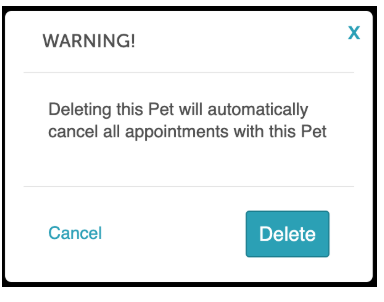
- When a pet is deleted, past appointments are retained, but any future appointments associated with that pet are automatically canceled
- Once a pet profile is deleted, it cannot be reactivated. You will need to create a new profile.
- You can review historical data for a deleted pet in reports and on past appointments. However, in the reports, the pet name column will show "No Name" for the deleted pet instead of the original pet name.
- Deleted pets will still appear on the client profile, but will be greyed out and labeled “(Deleted)”.
- Automated notifications and campaign messages will not be sent for deleted pets—only active pets will receive communications.
- Packages:
- Packages configured for an individual pet and previously assigned to that pet are not lost. These benefits remain active on the account; however, they become unassigned and cannot be accessed or redeemed until they are reassigned to another pet. Example: Sarah has a client profile with two pets, Sam and Rex. Rex has a “10-Pack Grooming Membership” assigned to his profile. If Rex’s profile is deleted, the package remains active in the system but becomes unassigned. To use the remaining credits, the package must be reassigned to Sam or another pet.
- Memberships:
- Memberships assigned specifically to the deleted pet will be canceled and removed from membership reports.
- Memberships configured for all pets will remain active, and the benefits can be used by other pets on the account.
- When attempting to delete a pet with an active membership, the following warning message will appear: “This pet has an active membership. Are you sure you want to delete this pet and terminate the membership?”
To delete pets:
- Navigate to the Clients tab
- Locate and open the client's profile
- Click the edit icon to open the pet profile
- Click the "Delete" link at the bottom left of the edit pet modal
- Confirm by clicking the Delete button


Client's profile
The pet's profile will be removed from the client's profile; however, any past appointments for the deleted pet will still be visible under Past Bookings.

Schedule
Past appointments for the deleted pet will remain but the pet's name will not be visible on the appointment modal

Reports
Historical data for the deleted pet will remain in reports but the deleted pet's name will not be visible in reports

For more information, contact us at support@mytime.com.
Related Articles:
- Adding/Editing Pet Breeds
- Deleting Pet Breeds
- Adding Pets Manually
- Importing Pets
- Exporting Pets
- Merging Pets
- Editing Pet Profiles
- Scheduling Appointment for Pets
- Adding Pets to Class Sessions
- Manage Pet Profile Online
- Manage Pet Profile on Guest App
- Booking Appointments Online for Pets
- Configure Memberships for Pets
- Changing Associated Pet on Existing Memberships
- Configure Packages for Pets
- Adding Packages for Pets on Client Profile
- Changing Associated Pet on Existing Packages
Was this article helpful?
That’s Great!
Thank you for your feedback
Sorry! We couldn't be helpful
Thank you for your feedback
Feedback sent
We appreciate your effort and will try to fix the article