MyTime makes it easy to add multiple pet profiles at once. This article provides a step-by-step guide to help you import pet profiles quickly and seamlessly into your MyTime account.
Things to know:
- The ability to import pets is controlled by the "Manage Client Setup" access control setting.
- Do not delete or reorder any columns in the spreadsheet, except for the custom field columns.
- For a successful import, ensure the file is in CSV format
- All changes to custom field columns in the import template must be entered in lowercase letters; otherwise, the import will fail. For example, if you rename 'custom_field1' to represent hair texture, it should be entered as 'hair_texture'.
- For franchise accounts that share clients, the client_id column (or external_id) in your CSV import file is unique to each individual location, not across the entire franchise network.
- Location-Specific IDs: When importing client files at a child location level, ensure the client_id values belong strictly to that specific child account.
- Avoid Cross-Location Collisions: If you assign a client_id that already exists under a sibling location or parent account, the system may overwrite or update the existing client profile instead of creating a new one.
Contents:
Import Pet List
To import pets:
1. Navigate to the Clients tab
2. Select the ‘Manage Clients’ drop-down menu > Import Pets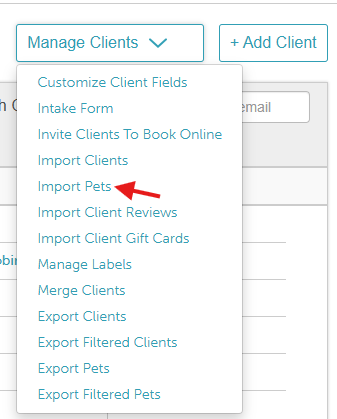
3. The screen below will appear. Download the MyTime Pets Import Template 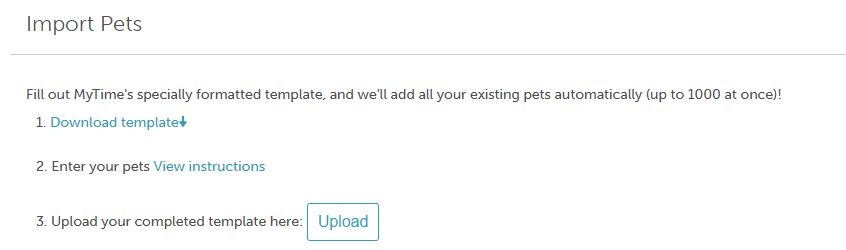
4. Find the downloaded Excel spreadsheet on your computer and open it using Microsoft Excel or any compatible spreadsheet software
5. Enter the pet information into the designated columns. Verify the accuracy and completeness of the data to ensure a seamless import process
6. After completing the entry of your pet information in the MyTime Pets spreadsheet, save the Excel file as a CSV
7. Return to the Import section and then click the "Upload" button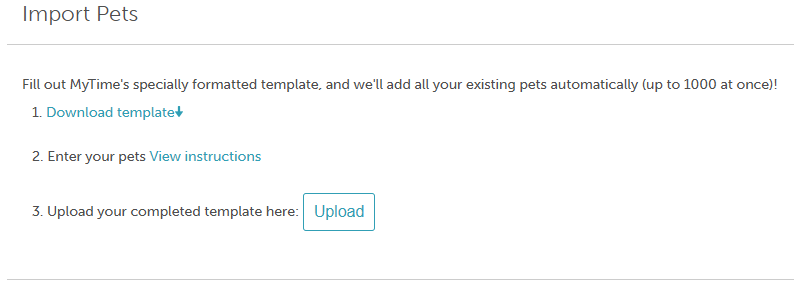
8. Select the CSV file from the download list. Once your file has been uploaded, click the "Import" button 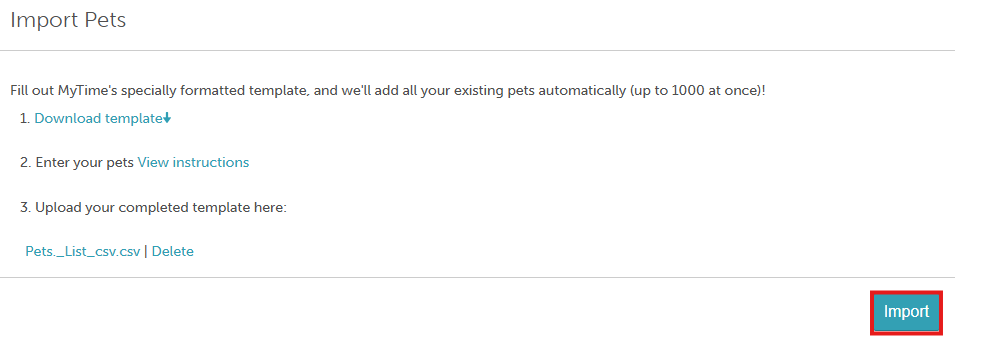
Congratulations! You've successfully imported pets into MyTime using a CSV file.
Column Descriptions
| Column | Description |
child_id | A unique ID for the pet. This is required for new pets. If you don’t already have one, generate a unique ID. |
client_id | A unique ID for the client. Required for new clients and used to link each pet profile to the correct client. If you don’t have one, generate a memorable ID (e.g., a simple number sequence). |
| mytime_child_id | The internal MyTime ID for the pet. Automatically generated by MyTime for existing pet profiles. Leave this field blank when importing a new pet. |
| mytime_client_id | The internal MyTime ID for the client. Automatically generated by MyTime for existing client profiles. Leave this field blank when importing a new client. |
| deleted | Indicates whether the pet profile should be deleted. Enter FALSE to keep the profile or TRUE to delete it. |
| custom_field X | The UUID for a custom field. You can include any number of custom fields, such as gender, age, pet_name, first_name, vet_name, etc. Replace X with the appropriate field reference in all lowercase letters. |
For more information, contact support@mytime.com.
Related Articles:
Was this article helpful?
That’s Great!
Thank you for your feedback
Sorry! We couldn't be helpful
Thank you for your feedback
Feedback sent
We appreciate your effort and will try to fix the article