Pet businesses can refine their breed lists by removing outdated or unnecessary options. This article explains how to delete pet breeds and outlines what to expect once a breed has been removed.
Things to Know:
- The ability to delete or modify pet breeds is governed by the "Manage Client Setup" access control setting
- For franchise businesses that share clients, pet breeds can only be modified or deleted at the parent level
- Once a breed is deleted, it is removed from the selection list for all future profiles. However, any existing records or historical data associated with that breed will remain unchanged.
- Deleting the entire Pet Breed custom field removes all breed configurations across your account not just individual breeds. If the full field is deleted (rather than a single breed), the following will occur:
- Breeds: All individual breeds in your breed list will be removed and will no longer appear in any dropdown menus across the platform.
- Price by Breed Pricing: All price-by-breed pricing rules configured on your services will be removed. The "Price and Duration by Pet Breed" section will no longer appear in any service modal on your service menu.
- Pet Profiles: All breed assignments stored on pet profiles will be removed. The breed field will appear blank when viewing or editing any pet profile.
- Online Booking: Clients will no longer see or be able to select a breed during the booking process.
Contents:
- Delete a Specific Pet Breed
- Delete the Entire "Pet Breed" Custom Field
- Impact of Pet Breed Deletion on Pricing and Profiles
Delete a Specific Pet Breed
To delete a specific pet breed:
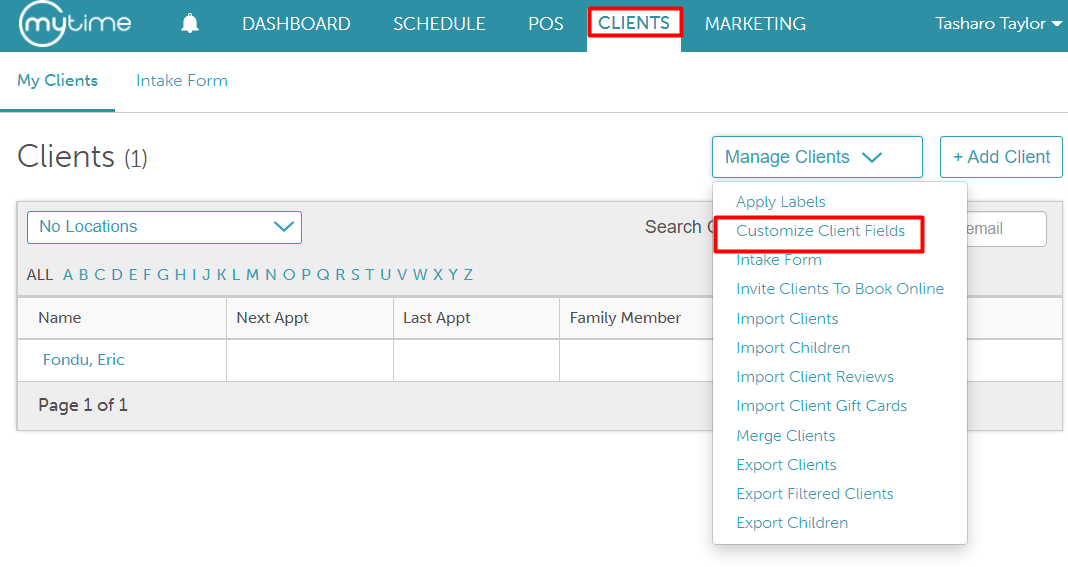
- Go to the Clients tab and expand the "Manage Client Setup" dropdown menu
- Click on "Customize Client Fields"
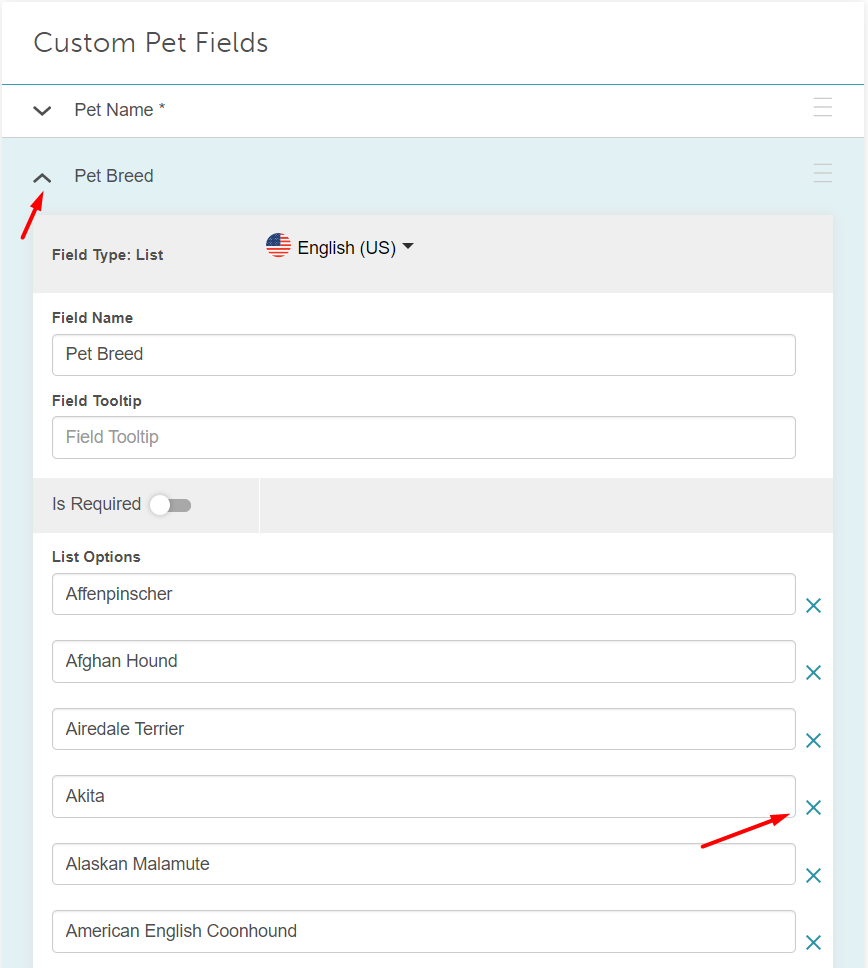
- Scroll down to the "Custom Pet Fields" section and click the arrow to expand the Pet Breed field
- Search for the specific breed you wish to remove. Once located, click the "X" icon next to the breed name
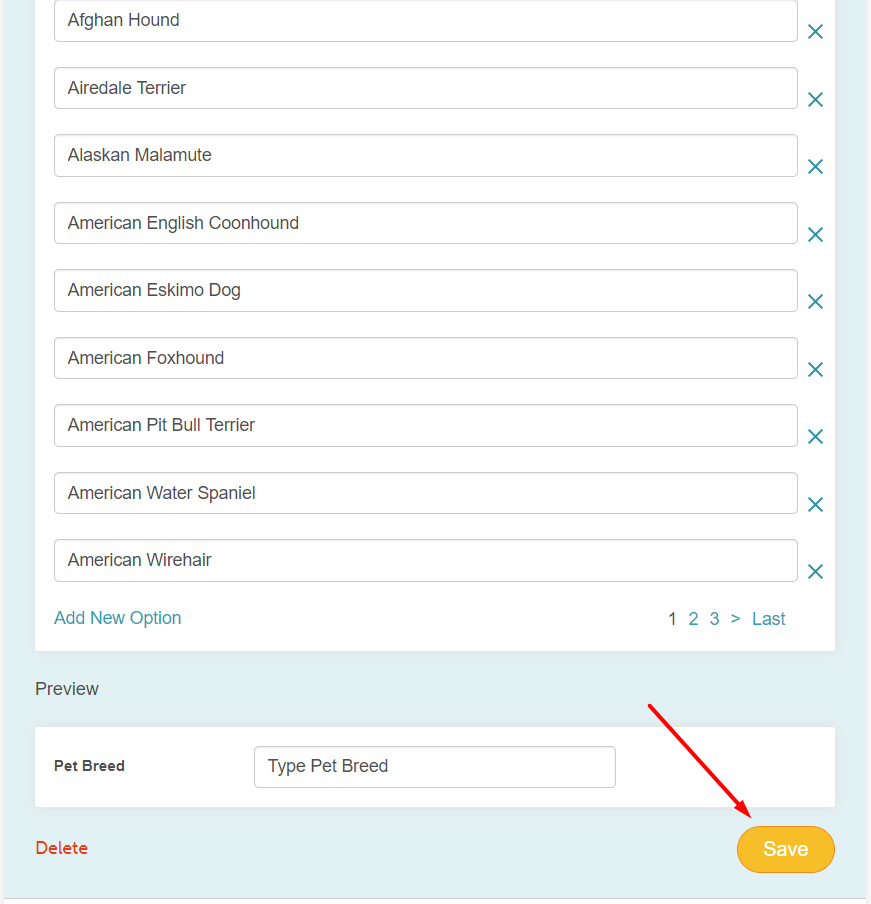
- Confirm the deletion and click Save
Delete the Entire "Pet Breed" Custom Field
If you no longer wish to track pet breeds at all, you can delete the entire custom field.
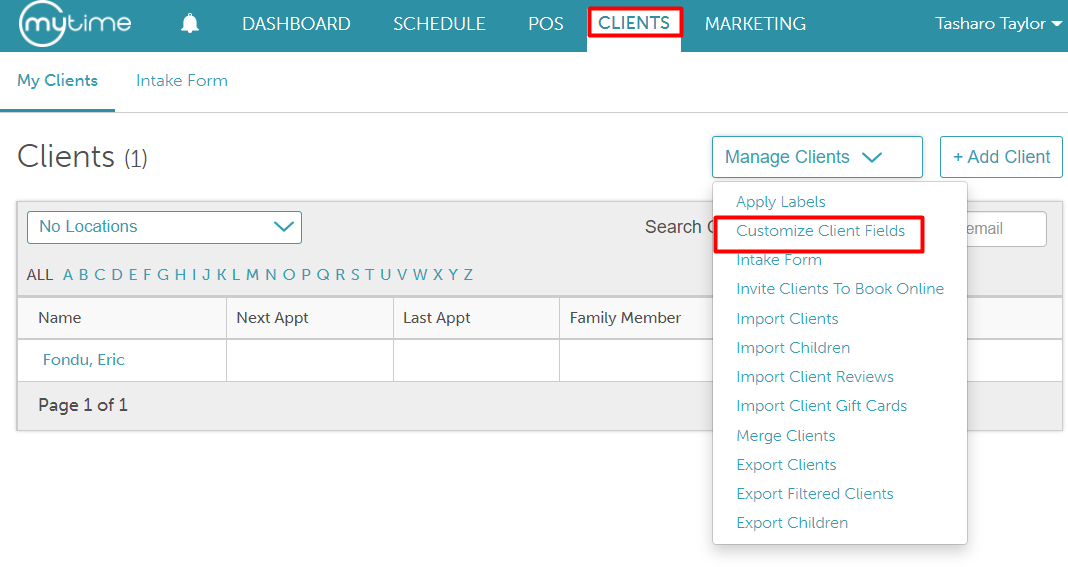
- Go to the Clients tab and expand the "Manage Client Setup" dropdown menu
- Click on "Customize Client Fields"
- Scroll down to the Custom Pet Fields section and find the Pet Breed field
- Click the arrow next to Pet Breed, then select the "Delete " option located at the bottom left of that field
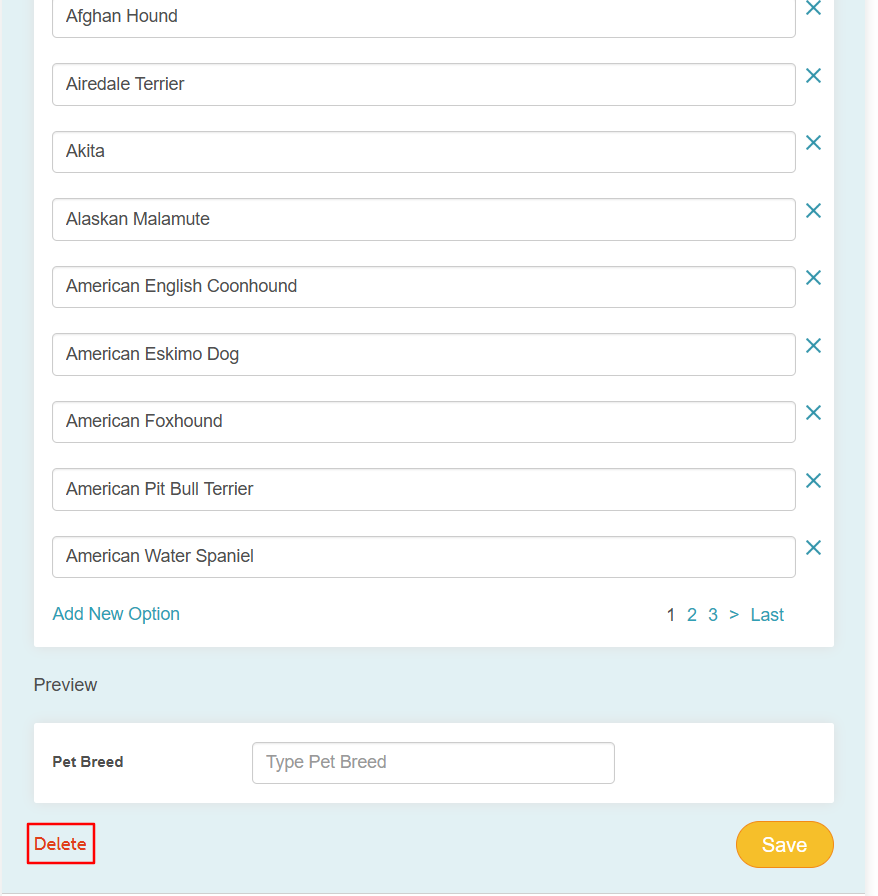
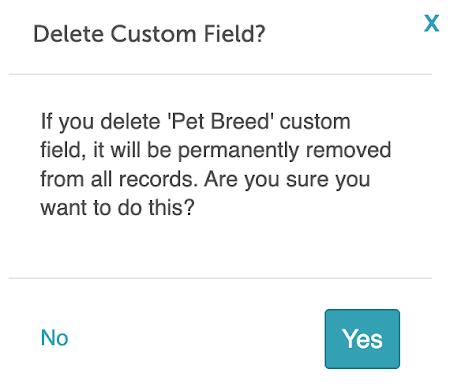
- Confirm the deletion in the pop-up prompt to remove the field entirely
Impact of Pet Breed Deletion on Pricing and Profiles
Deleting a pet breed cleans up your dropdown menus without losing historical data or disrupting current operations. Below is a breakdown of how the system handles different scenarios after a breed is removed.
| Scenario | Result |
| Regular service pricing is set, and the associated pet breed is deleted | Deleting the pet breed does not affect regular service pricing. All existing pricing is retained. The only change is that the deleted breed will no longer appear in breed dropdown lists when scheduling appointments for new pets |
| Regular service price is updated after the pet breed is deleted | When the service price is updated, existing pets will receive the updated pricing. The deleted breed will not appear in breed dropdown lists for new pets. |
| Price by breed is set, and the associated pet breed is deleted | Deleting the breed does not affect pricing or duration for existing pets. The configuration is retained, and the breed will still appear in the Price by Breed section on the service menu. However, it will no longer be selectable in dropdown lists. |
| Price by breed is updated after the pet breed is deleted | When the breed-specific price is updated, existing pets will receive the updated pricing. The deleted breed will not appear in breed dropdown lists for new pets. |
| Custom pricing is set on the pet profile, and the pet breed is deleted | Deleting the breed does not affect custom pricing for existing pets. The only change is that the breed will no longer appear in dropdown lists for new pets. |
| Custom pricing on the pet profile is updated | When the custom price is updated, existing pets will receive the updated pricing. The deleted breed will not appear in breed dropdown lists for new pets. |
| A pet breed linked to existing appointments is deleted | Existing appointments will remain unchanged. The breed name will continue to display as it did at the time of booking, and reports will still reflect the deleted breed name. |
| Scheduling an appointment for a pet with a deleted breed | The deleted breed will still appear next to the pet’s name during scheduling (both in-store and online), as long as it was previously assigned to the pet. However, it cannot be selected for new pets. |
| A client views or edits a pet profile after the breed is deleted | The breed will still be displayed when viewing the pet profile. However, when editing, the Pet Breed field will appear blank, and the deleted breed will no longer be available in the dropdown menu. |
For more information, contact us at support@mytime.com.
Related Articles
Service Pricing & Duration by Pet Breed
Service Pricing & Duration by Breed for Location Group
Was this article helpful?
That’s Great!
Thank you for your feedback
Sorry! We couldn't be helpful
Thank you for your feedback
Feedback sent
We appreciate your effort and will try to fix the article