In this article, we will look at the meaning of each setting under the POS section on the Settings page.
| Setting | Description |
Allow Purchasing And Using Packages And Memberships On The Same Ticket | This setting lets clients purchase a membership or package and immediately apply its credits to pay for a service/class or product within the same transaction. Learn more here |
Allow Membership Item Credits / Package Items Be Usable For Different Clients On The Same Ticket | This setting allows a single client’s membership or package credits to be applied to services, products, or classes for multiple guests on the same ticket. Learn more here |
Enable Gift Card Purchase
| This setting enables the sale of physical or digital gift cards through the POS. Learn more about selling gift cards in-store here and online here. |
Enable Gift Card Expiration 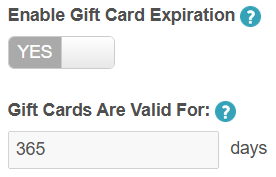 | This setting is available only if "Enable Gift Card Purchase" is enabled. Once activated, it allows you to set expiration dates for gift cards. Learn more here Note: For franchise businesses using global gift cards, this setting is controlled at the parent account level. Once enabled, it cannot be disabled. |
Enable Refund to Gift Card  | This setting is available only if Enable Gift Card Purchase is enabled. Once turned on, it allows staff to refund any transaction directly to a gift card. Learn more here |
Apply Promotions in Order of Highest to Lowest Item Cost | By default, promotional codes are applied to the least expensive item first. However, this setting, when enabled, allows promo codes to be applied to the most expensive item first rather than the least expensive. Learn more here. |
Require Payment Method On File To Purchase Membership | This setting determines whether a saved payment method (such as a credit card or bank account) is required when purchasing a membership. By default, this setting is enabled but it can be disabled if a saved payment method is not required. Learn more here. |
Prompt for membership agreement signature when selling memberships in POS | This setting automatically prompts clients to sign a waiver at checkout when a membership is added to a ticket. Note: For the prompt to appear, a waiver must be configured and linked to an intake form that includes the membership being purchased. Learn more here |
Enable invoicing clients 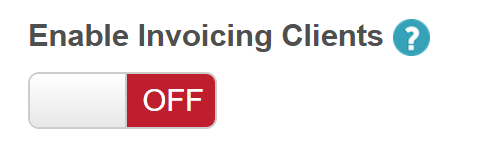 | This setting allows staff to send invoices that clients can pay at a later time. Invoices can be shared via email, SMS, or a shareable link. Learn more here Additionally, it includes options for automated reminders. Learn more here |
Choose Payment Methods | This setting lets you select which payment options (e.g., Cash, Check, Gift Card) are available on the POS checkout screen. Learn more about hiding payment methods here. |
Enable Card Surcharging 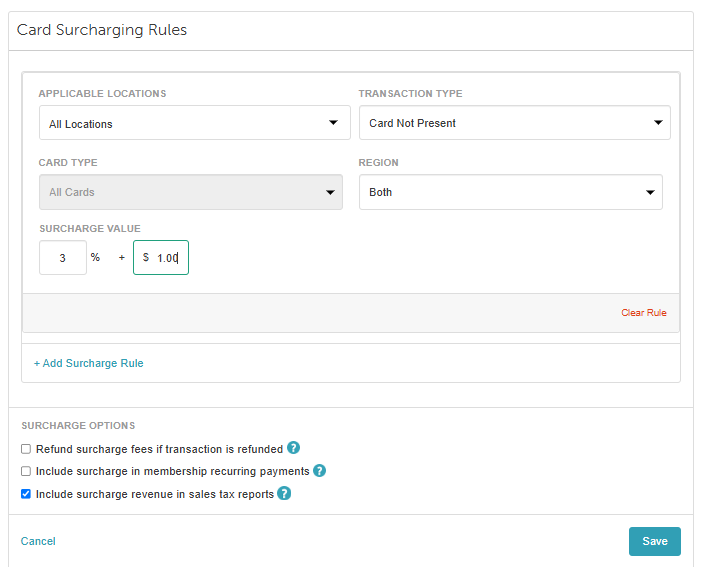 | This setting allows the business to pass credit card processing fees onto clients. Once enabled, staff must review and accept the terms and conditions before configuring any card surcharging fees. Please note: Global Payments (TSYS) users must complete an enrollment form 30 days before enabling the surcharge feature. Learn more here |
Enable Surcharge for Location Groups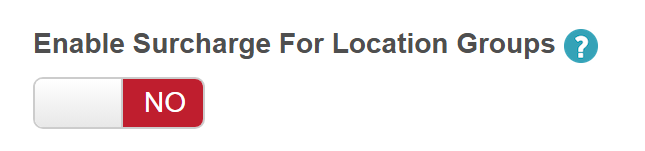 | This setting, when enabled, allows you to configure credit card surcharging fees by location groups. |
Enable Direct Debit Payments | This setting allows you to configure your account to accept bank account transfers for bookings and purchases both online and in-store. Learn more here |
| Enable Direct Debit Payments for Memberships Only | When enabled, clients can use their bank account as a payment method strictly for membership purchases and recurring membership charges. Note: Pay by bank account cannot be used for standalone appointments, single classes, packages, gift cards, or product purchases. All other transactions must be completed using your other accepted payment methods (such as credit/debit card). Learn more here. |
Activate Refund Reasons Dropdown | When enabled, this setting allows you to create unlimited custom refund reasons.
|
Require Open Register to Take Payment | This setting prevents staff from processing transactions unless a cash register session has been officially opened. Learn more about opening registers here |
Automatically Open Cash Drawer When Change Is Due With Cash Payment  | |
Always default "Save Card on File" checkbox in credit card dialogs to unchecked  | If enabled, the checkbox will default to unchecked unless a membership is being purchased. If set to NO, the checkbox will default to checked if it was checked the previous time; otherwise, it will be unchecked |
Automatically Close Ticket When Full Payment Is Taken By Credit Card | This setting automatically closes a ticket once the full balance is paid via a credit card. Automatic closure will not occur for:
Learn more here. |
Automatically Close POS Ticket if 100% Deposit or Pre-payment Collected | When enabled, POS tickets automatically close as soon as an online class or appointment (for current or future dates) is completed with a 100% deposit or full pre-payment at the time of booking. Bookings made with partial deposits will remain open and require manual ticket closure once the final balance is collected. Note: The Automatically Close POS Ticket if 100% Deposit or Pre-payment Collected setting will only appear after the "Automatically Close Ticket When Full Payment Is Taken By Credit Card" setting is enabled. |
Prompt to add items at POS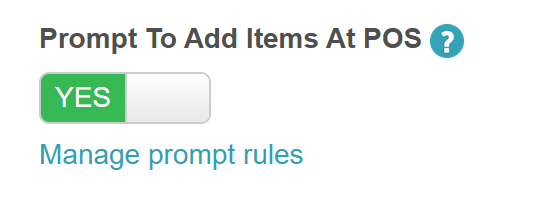 | Automatically prompts POS staff to suggest additional items or fees based on specific rules. For example, if a client checks out from a Daycare service after a designated time, the system will prompt staff to add a late checkout fee to the ticket. Learn more here |
Allow Returns Without Receipt | This setting allows the ability to process a return of a product even without a closed ticket. Learn more here. |
| Do not show the total row on Closed Tickets report | If enabled, the total row on the Closed Tickets report will be removed. |
Ignore AVS response for key-in/card not present transactions  | AVS is an abbreviation for Address Verification System, which is used to validate that the billing address provided by a client during debit and credit card transactions matches the billing address on file for the card. If set to YES (default), the system ignores zip code mismatches for keyed-in cards. Set to NO to decline transactions where the zip code doesn't match the bank's records. Learn more here |
Enable Fractional Quantities
| This setting allows inventory and service quantities to be tracked using up to two decimal places (e.g., 1.5 hours or 0.75 lbs). Learn more here |
Activate Inventory Reasons Dropdown | This setting requires staff to select a reason from a mandatory dropdown menu (e.g., damage, return) when adjusting inventory levels. Added reasons appear in a selectable list during inventory adjustments. Existing reasons can be deleted but cannot be edited. For more information, please see here. |
Limit Purchase Order Forecasting by Max | This setting ensures that forecasted amounts never exceed the SKU’s maximum; by default, these quantities are not capped. Learn more here |
Category Forecast Period | Visibility for this feature is controlled by two settings: Enable Purchase Order Items Auto Generation by Forecast and Enable Inventory Replenishment Forecasting. To enable these settings, please contact MyTime Support. Once enabled, this setting defines how many days of stock you want to keep on hand. The system uses this value—which can be configured by product category and location—to calculate order quantities when auto-generating purchase orders based on forecasted replenishment. Learn more here |
Allow Updating Cost of PO After Submission | This setting allows users with "Manage Purchase Orders" access permissions to edit purchase orders to change the cost after the purchase order is submitted. Learn more here. |
Send Purchase Order to Vendors via FTP Instead of Email  | This setting allows you to specify if a vendor is FTP enabled. When toggled to "Yes," you will get to add your host, port, username, and password. |
Enable Product Labels | This setting activates the ability to generate and print barcodes and price labels for retail items. The label contains key information such as the company name, price, SKU name and number, barcode, and barcode number. You can print product labels either for individual items or for multiple items at once, providing flexibility in managing your inventory. Learn more here. |
Allow refunding packages even after they have been used | This setting permits staff to process refunds for packages even after some or all of the credits have been redeemed. Learn more here. |
Use computer generated sounds for barcode scans | If enabled, when scanning barcodes, "success" and "fail" sounds are played from the computer's system audio. When the barcode is read, there is a "success" sound; if not, there is a "fail" beep. |
Payment Terminal Management  | This setting allows you to add your payment terminals and choose the location for your terminals. Learn more here. |
Display cart details on Ingenico Terminals 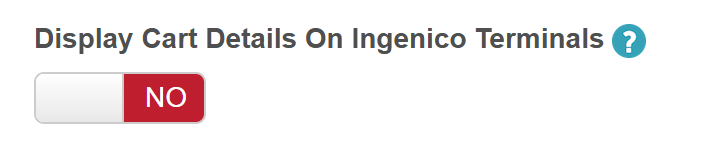 | This setting is available only to businesses with a Global Payments account. When enabled, it dynamically updates and displays cart details on Ingenico terminal screens, ensuring that each item’s price is clearly shown to the client as interpreted by the system. Learn more here |
Display cart details on Stripe Terminals 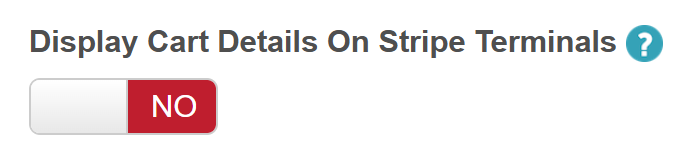 | This setting is available only to businesses with a Stripe account. When enabled, it dynamically updates and displays cart details on Stripe terminal screens, ensuring that each item’s price is clearly presented to the client as interpreted by the system. Learn more here |
Display Waiver on Terminal Screen Before Requesting Client Signature
| This setting, once enabled, will display full waiver details on our Ingenico Lane/8000, Lane/7000, and Move/5000 credit card terminals that request client signatures. Learn more here |
Star Device Management 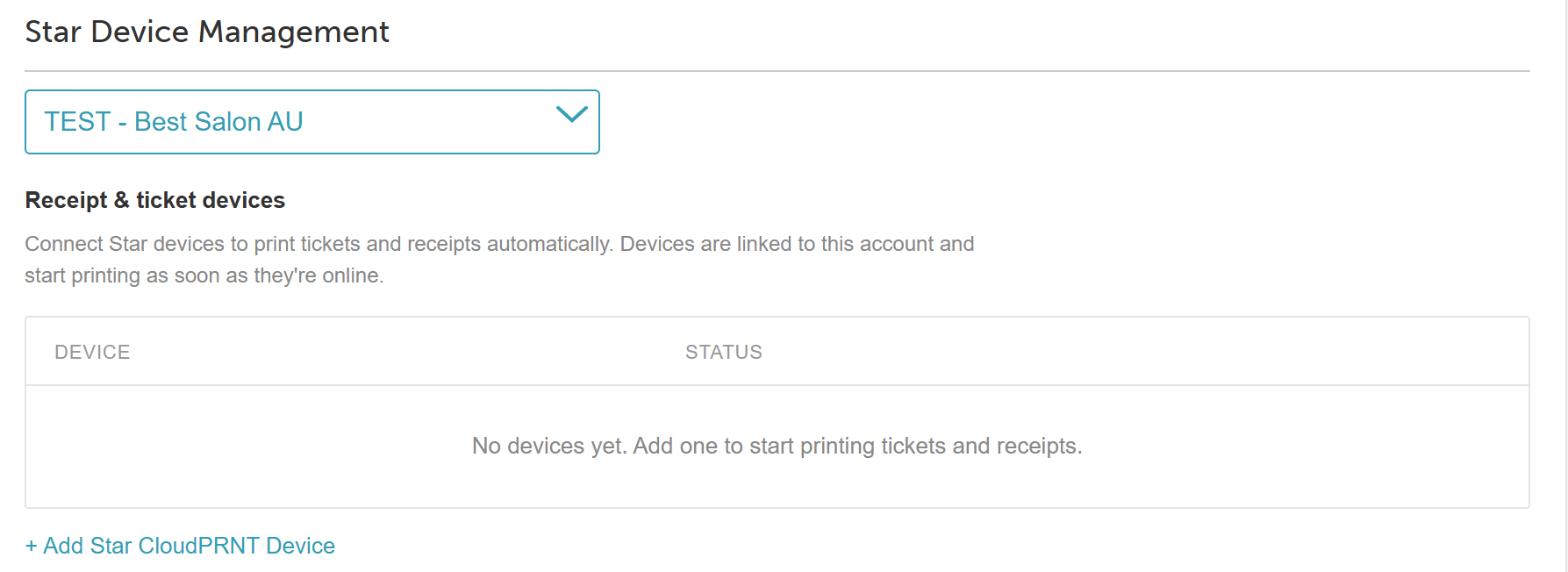 | This setting allows you to connect your StarPRNT device to your MyTime account. The visibility of this setting is controlled by the "Enable Star CloudPRNT" hidden setting, which can only be enabled by the MyTime team. To enable it, please contact support@mytime.com. Learn more here. |
Request Tips for $0 services | When enabled, tips can be collected through the credit card terminal for services that are fully covered by memberships or packages, as well as for services with a $0 balance. This feature is only available for merchants using Global Payments as their payment processor. Learn more here. |
Enable Auto Send Receipts By Email | This setting allows receipts to be automatically sent to clients via email after a ticket is closed, provided the Transaction Receipt automated message template is activated. Learn more here. |
Show Employee First And Last Name On Print Receipt | This setting enables the visibility of the employee's first and last name on printed receipts. Learn more here |
Show Client Phone Number On Printed Receipt  | This setting allows you to have your client's phone number visible on printed receipts. Learn more here. |
POS Receipt Footer Message
| This setting provides the ability to customize the information shown on your printed receipts. The information can be edited as many times as you'd like. Learn more here. |















Related Articles:
- Purchase and Apply Package / Membership Benefits on the Same Ticket
- Selling Gift Cards Online through Booking Widget and Express Checkout Link
- Gift Card Expiration
- Refunding to Gift Cards
- Promotion General Settings & Restriction
- Selling Memberships for Clients in POS
- Invoicing Clients Directly from POS
- Payment Methods on Payment Screen in POS
- Returns Without A Receipt
- Fractional Quantities
- Inventory Reasons
- Creating Purchase Orders
- Print Products Labels
- Refunding Package Purchases
- Add Payment Terminal
- Sign Waivers via Ingenico Terminal
- Automatic Receipts Via Email
- Printing Receipts
- Print Tickets From Appointment Modal
- POS Printed Receipt Footer Message
Was this article helpful?
That’s Great!
Thank you for your feedback
Sorry! We couldn't be helpful
Thank you for your feedback
Feedback sent
We appreciate your effort and will try to fix the article