The ticket will also close automatically when it has been fully paid using a credit card. In this article, we will guide you through the steps to configure your account so that POS tickets automatically close when a client pays for the ticket using a credit card.
Things to know:
- The ability to enable this feature is controlled by the "Access Account Settings" access control setting
- This behavior is managed by the "Automatically Close Ticket When Full Payment Is Taken By Credit Card" company setting.
- This setting automatically closes a ticket once the full balance is paid via a credit card. Automatic closure will not occur for:
- Partial payments
- Split payments
- Any non-credit-card payment method
- Prepaid appointments
- Online appointments that require a 100% deposit
- Tickets will not close automatically for prepaid appointments or for appointments booked online that require a 100% deposit.
- The setup option displayed in the top-right user menu depends on how you access the account and your assigned role:
- When navigating from the Parent Account (Location Management tab):
- Admin: Displays Business Setup when viewing the location account.
- Login As: Displays Location Setup when viewing the location account.
- When logged in directly at the Location Level:
- Location Owners & Location Managers: Display Location Setup.
- Service Providers & All Other Roles: Display Profile Setup.
Contents:
Configuring Automatic Closure for POS Tickets
- Navigate to Business Setup / Location Setup > Settings
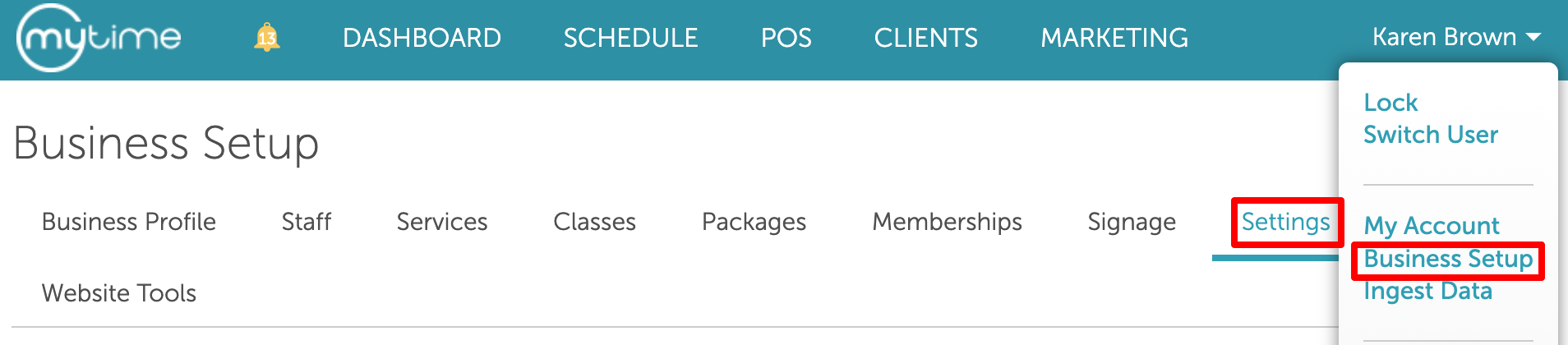
- Scroll to the POS section
- Locate the "Automatically Close Ticket When Full Payment Is Taken By Credit Card" setting
- Toggle the setting to "Yes"
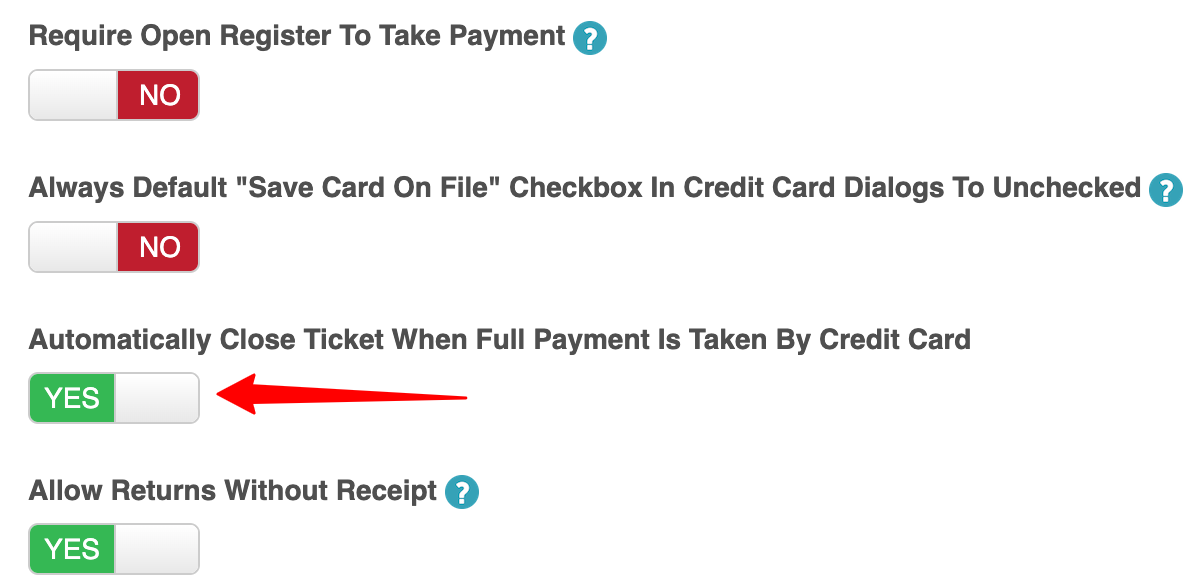
- Scroll to the bottom of the page and click "Save"
Scenario
A client has a $100 appointment scheduled from 8:00 AM to 9:15 AM. The client pays the full $100 using a credit card. Once the payment is completed, the ticket status will automatically update to Closed. No additional action is required from staff.

For more information, contact us at support@mytime.com or (385) 233-6964.
Related Articles:
Was this article helpful?
That’s Great!
Thank you for your feedback
Sorry! We couldn't be helpful
Thank you for your feedback
Feedback sent
We appreciate your effort and will try to fix the article