Clocked hours represent the total number of hours a staff member works during a shift, calculated between the time they clock in and clock out. In this article, we will walk you through the steps to edit clocked hours.
Things to know:
- The ability to edit clocked hours depends on both the “Do staff members need to clock in/out?” setting and the “Editing Clocked Hours” access control setting.
- You can now define the maximum number of days in the past during which a staff member’s clocked hours can be modified. For example, if configured to 7 days, staff can only edit shifts from within that window; any shifts older than 7 days will be locked and cannot be modified.
Only users assigned the Support or Service Provider roles are permitted to clock in and out
Any updates made to recorded clock hours will appear in the Time Tracking, Compensation, and Staff Productivity reports.
To view a detailed history of all changes made to clock entries, refer to the Clocked Hours Audit Trail found within the Time Tracking report. Learn more here.
- The setup option displayed in the top-right user menu depends on how you access the account and your assigned role:
- When navigating from the Parent Account (Location Management tab):
- Admin: Displays Business Setup when viewing the location account.
- Login As: Displays Location Setup when viewing the location account.
- When logged in directly at the Location Level:
- Location Owners & Location Managers: Display Location Setup.
- Service Providers & All Other Roles: Display Profile Setup.
Contents
Enable Clocking In and Out
- Navigate to Business Setup / Location Setup > Settings
- Under the Staff section, locate the setting “Do staff members need to clock in/out?”
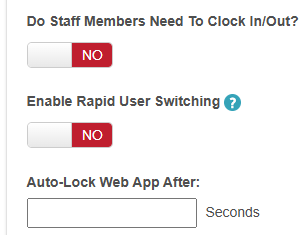
- When the toggle is set to Yes, an additional field appears where you can specify how many days prior clocked hours can be edited.

- Click Save to apply your changes.
Editing Clock Hours
- Go to your schedule
- Click the staff member’s name whose hours you want to edit
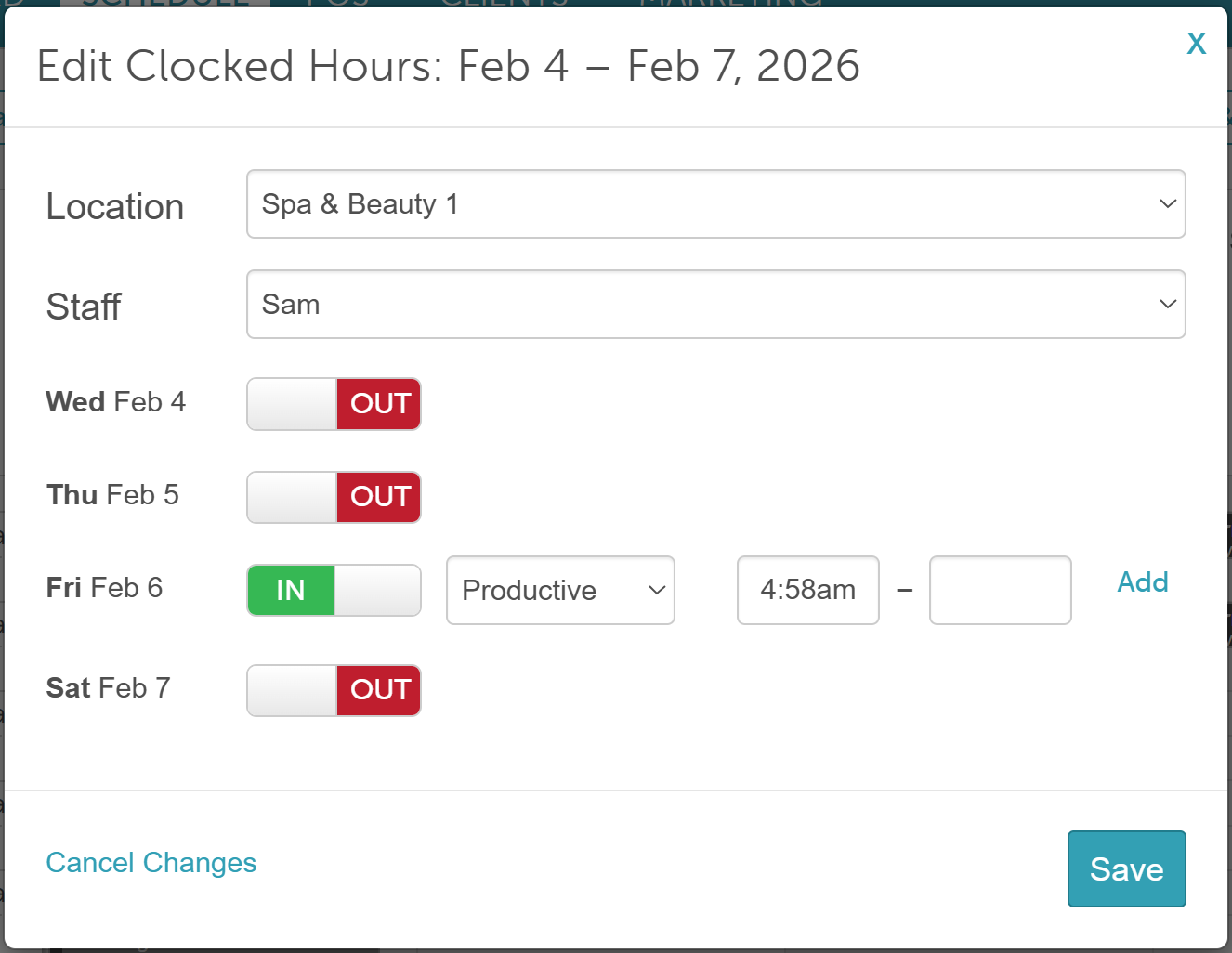
- From the dropdown menu, select Edit Clocked Hours
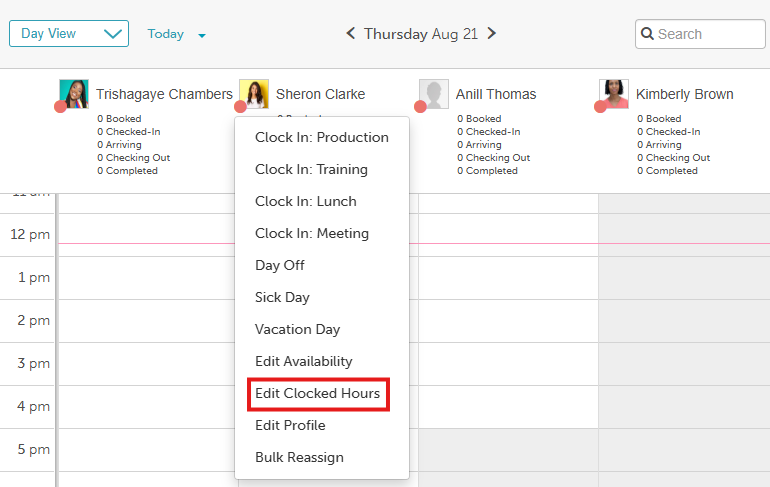
- Choose the date you want to edit, then adjust the clock-in/clock-out times
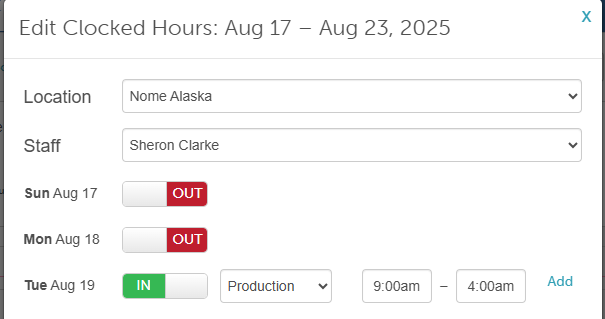
- You can also update the Work Type if there are multiple available.
- Save
Scenario
To understand how the “Allow editing of clocked hours up to days prior” setting works, consider the following example where the limit is set to 3 days:
It is Friday afternoon, and a manager realizes an employee forgot to log their shifts for earlier in the week.
- Outside the 3-Day Limit (Tuesday): When navigating to Tuesday’s schedule and selecting the staff member's name, the "Edit Clocked Hours" option is unavailable. Because Tuesday falls outside the three-day window, the record is locked for security and payroll integrity.
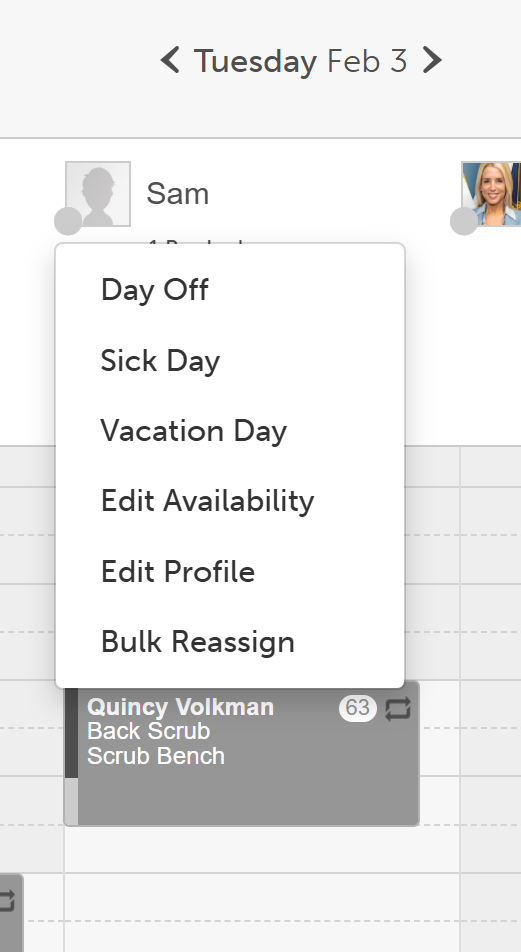
- Within the 3-Day Limit (Wednesday): For Wednesday’s shift, the "Edit Clocked Hours" option remains visible in the dropdown menu. Since this day falls within the allowed timeframe, the manager can open the modal and successfully update the hours.
For more information, contact us at support@mytime.com.
Related Articles:
- Clocking In and Out on Web
- Clock In and Clock Out on Scheduler App
- Enter Clocked Hours Manually on the Schedule
- Automatically Clock-out Staff Members
- Managing Hourly Work Types
- Compensation (by Pay Cycle) Report
- Daily Compensation Report
- Staff Productivity Report
- Time Tracking Report
Was this article helpful?
That’s Great!
Thank you for your feedback
Sorry! We couldn't be helpful
Thank you for your feedback
Feedback sent
We appreciate your effort and will try to fix the article