In MyTime, users have the flexibility to clock in and out at their discretion, selecting from various work types established by the business. This article will guide you through the process of clocking in and out using the Scheduler app.
Things to know:
- The ability to clock in and out is governed by the " Do staff members need to clock in/out?" company setting and the "Clock In/Clock Out" access control setting.
- Only users with 'Support' and 'Service Provider' roles can clock in and out.
- If a staff member works at multiple locations, they must select the correct location when clocking in to ensure accurate time tracking.
- If a staff member is clocked into a work type not eligible for commissions, no commission will be paid for services or sales made during that time.
- Only service providers can clock in under the productive work type. All other roles can only clock in under non-productive or rest work types and cannot select productive work types.
- The "Restrict staff from clocking in early" setting allows businesses to control how far in advance staff members can clock in for their scheduled shifts. When enabled, staff cannot clock themselves in earlier than the configured buffer time (the default setting is 15 minutes before the scheduled shift).
- If a staff member attempts to clock in before this allowed window, the system blocks the action and displays the following message: “Error: You can't clock in more than X minutes before your scheduled shift”
- Important Rules & Exceptions
- Self-Clock-Ins Only: This restriction applies exclusively when staff members clock themselves in. Any staff member with the Clocking In/Out permission set to “Allow Clocking In / Out” for “Their Location(s)” or “All Locations” can clock in another staff member, even if the early clock-in restriction applies to that staff member.
- Unscheduled Staff: If a staff member is not scheduled on the calendar for that day, they are not subject to the restriction and can clock in normally.
- Multiple / Split Shifts: For staff with multiple shift intervals on the same day (e.g., a split shift with a break):
- The early clock-in restriction applies only to the first shift interval of the day.
- Staff can clock in early without restriction when returning for any subsequent shift intervals later that day.
- Rest Time work types (e.g. breaks, lunch) become visible after clocking in.
- If a break type is selected when clocking out:
- The staff member will be clocked out, but the system will continue tracking the break duration
- The break ends automatically when they clock back in.
- Time entries can be edited using the Edit Clocked Hours modal, available from both the schedule and the Time Tracking Report
- IP Restrictions:I By default, staff members can view their schedule and clock in or out from any location. If IP restrictions are enabled, staff on unauthorized networks can still view their schedule on the mobile app, but attempting to clock in or out will be blocked. (Note: Enforcing strict blocking vs. view-only access depends on your company's IP restriction settings). Learn more about IP restrictions here.
- GPS Restrictions (Geofencing): To ensure staff members are physically present within a defined radius of the store location when tracking their time, you can implement GPS validation. This feature is controlled by a hidden setting that can only be enabled by the MyTime team. To request this feature for your business, please contact support@mytime.com. Once the setting is enabled, you must specify a radius (in meters).
- App Enforcement: Employees will only be able to clock in or out via the Scheduler app when they are within this designated range. If an employee attempts to clock in or out outside of the radius, they will receive a "Not within Clock-In Area. Please move within XX meters of the store to clock in or out" error.
- By default, if a staff member does not clock out by midnight, the clock-out option becomes unavailable and their hours must be adjusted manually by a manager. However, you can request a hidden setting to be enabled that allows staff to stay clocked in past midnight seamlessly.When this feature is active, an employee who clocks in before midnight will remain clocked in and can simply click Clock Out from the schedule the following morning without requiring a manual update.
- Overnight Shifts Supported: The system looks back 24 hours to locate open shifts. This keeps the Clock Out buttons and the green "clocked-in" status dot perfectly visible to the employee the next morning.
- Strict 24-Hour Time Limit: A single shift cannot exceed 24 consecutive hours. If an employee leaves a shift open past this 24-hour limit, the clock-out buttons and green status dot will automatically disappear.
- Unresolved Shifts & Reporting: If a staff member fails to clock out within the 24-hour window, the total hours will display as blank (-) on the Time Tracking Report. Additionally, the Edit Clocked Hours modal will show a blank out-time that a manager must resolve manually.
- Starting New Shifts: Employees must actively clock out of their current overnight shift before they can start a new shift the following day.
Contents:
- IP Login Restriction
- GPS Restrictions (Geofencing)
- Clocking In/Out of a Productive Work Type On The Scheduler App
- Clocking In/Out of a Rest Work Type On The Scheduler App
IP Login Restriction
When the IP restriction setting is enabled and an authorized IP address is configured, staff members attempting to log in from an unauthorized IP address (such as home Wi-Fi or cellular data) will be blocked. They will receive the following error message: "You are not authorized to login from this location."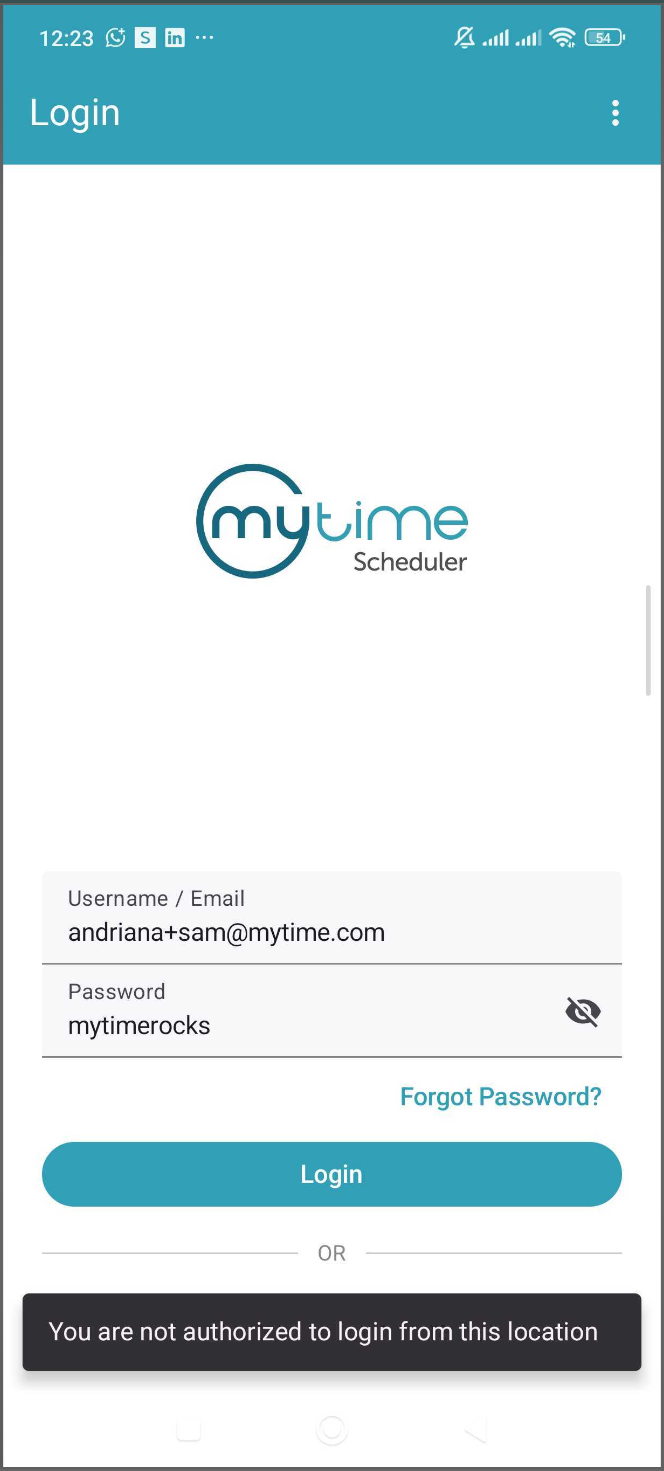
GPS Restrictions (Geofencing)
Once the GPS Restriction (Geofencing) hidden setting is enabled:
Staff members attempting to clock in or out without location services enabled will receive the following message: “Location Required. Location Services are turned off. Please enable them to clock in/out.”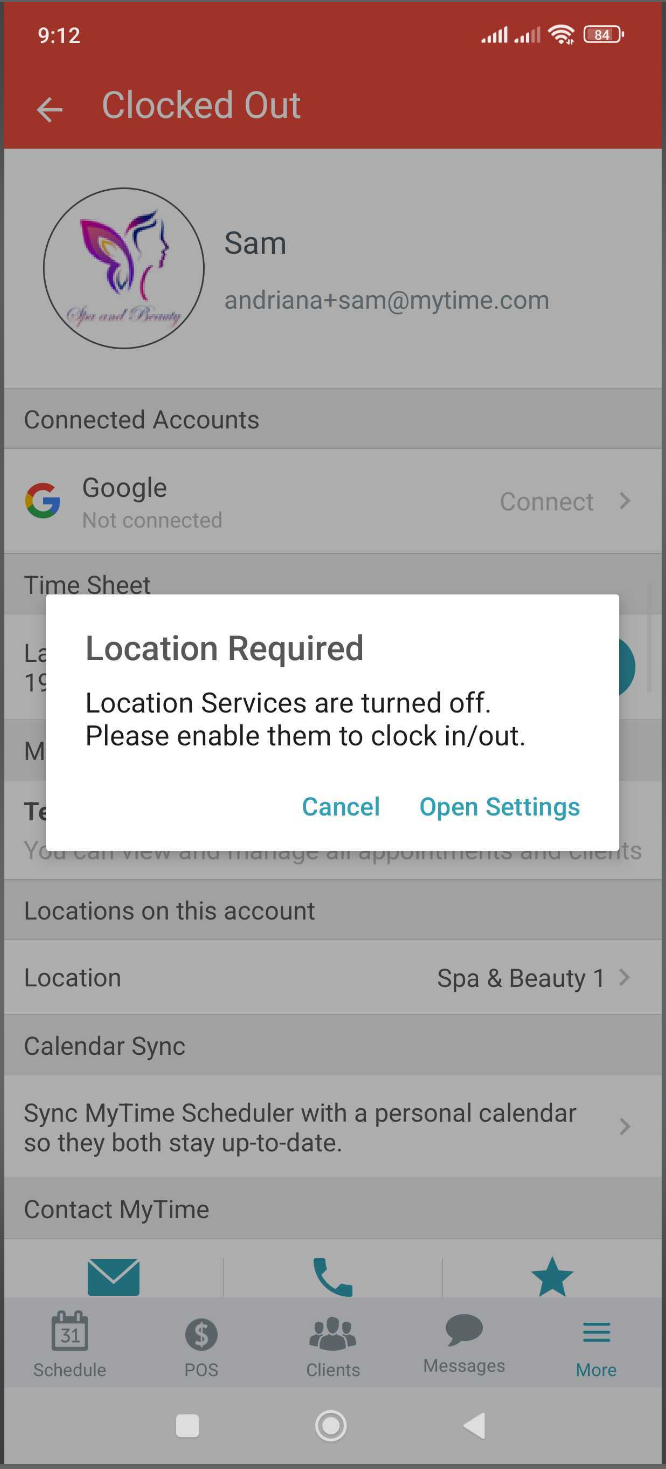
Staff members attempting to clock in or out outside the configured radius will receive the following error message: “Not within Clock-In/Out Area. Please move within XX meters of the store to clock in or out.”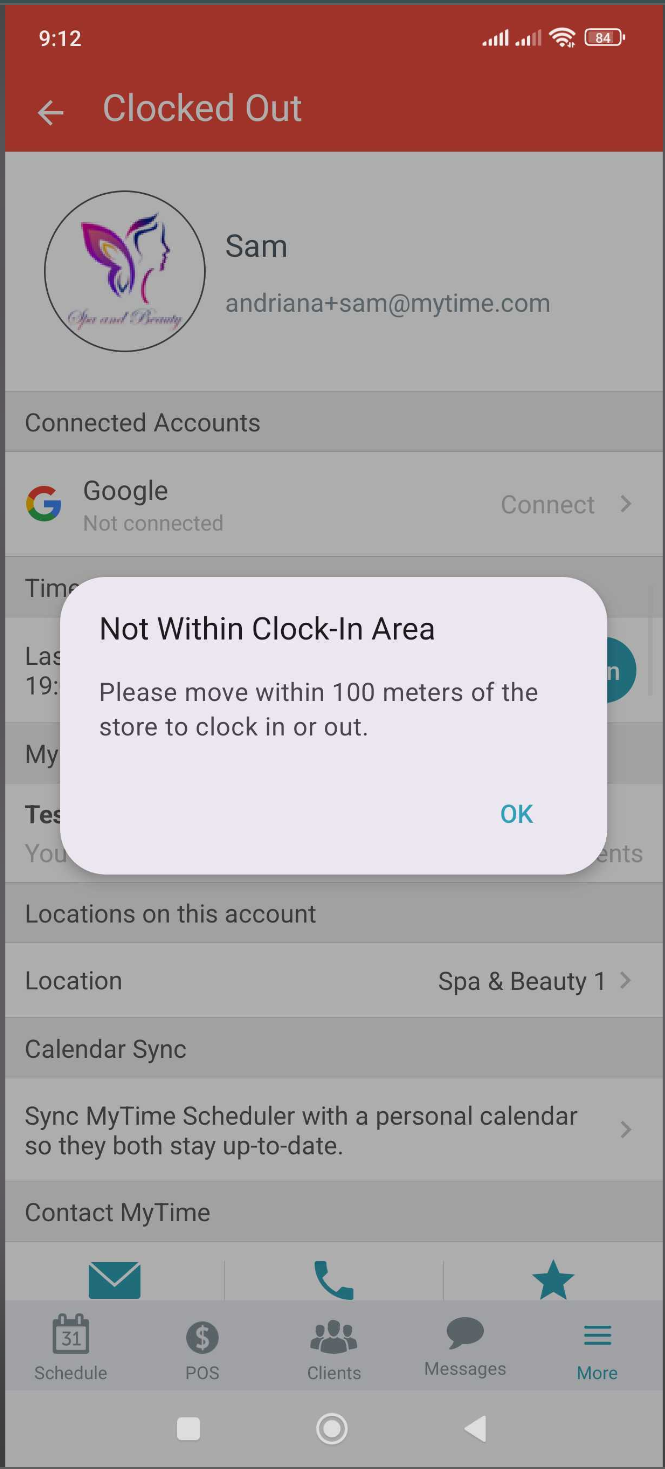
Clocking In/Out of a Productive Work Type On The Scheduler App
- Launch the MyTime Scheduler app on your device
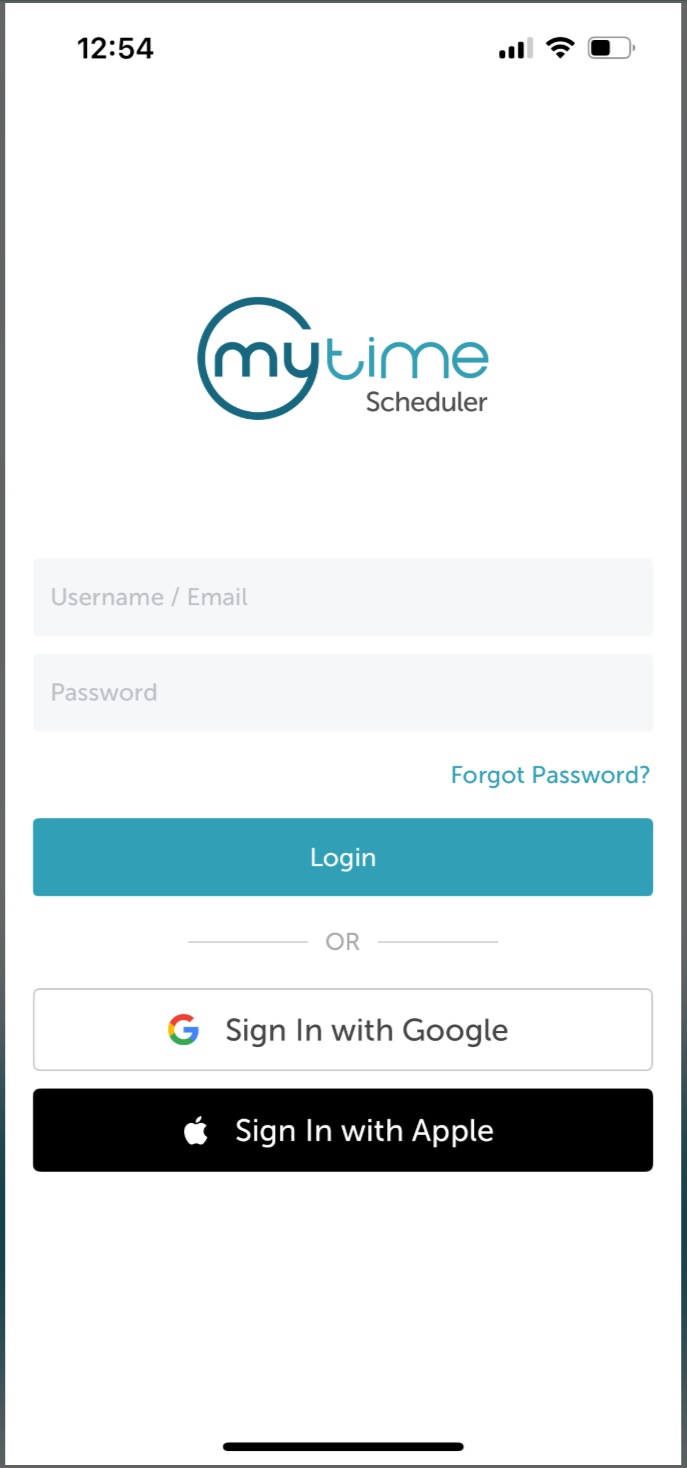
- Choose your login method:
- Standard: Enter your registered email address and password, then tap 'Sign In'
- Social Login: Select 'Continue with Google' or 'Continue with Apple' to use your existing credentials for a faster login experience. For detailed instructions, learn more here
- Once signed in, you will be directed to the schedule by default
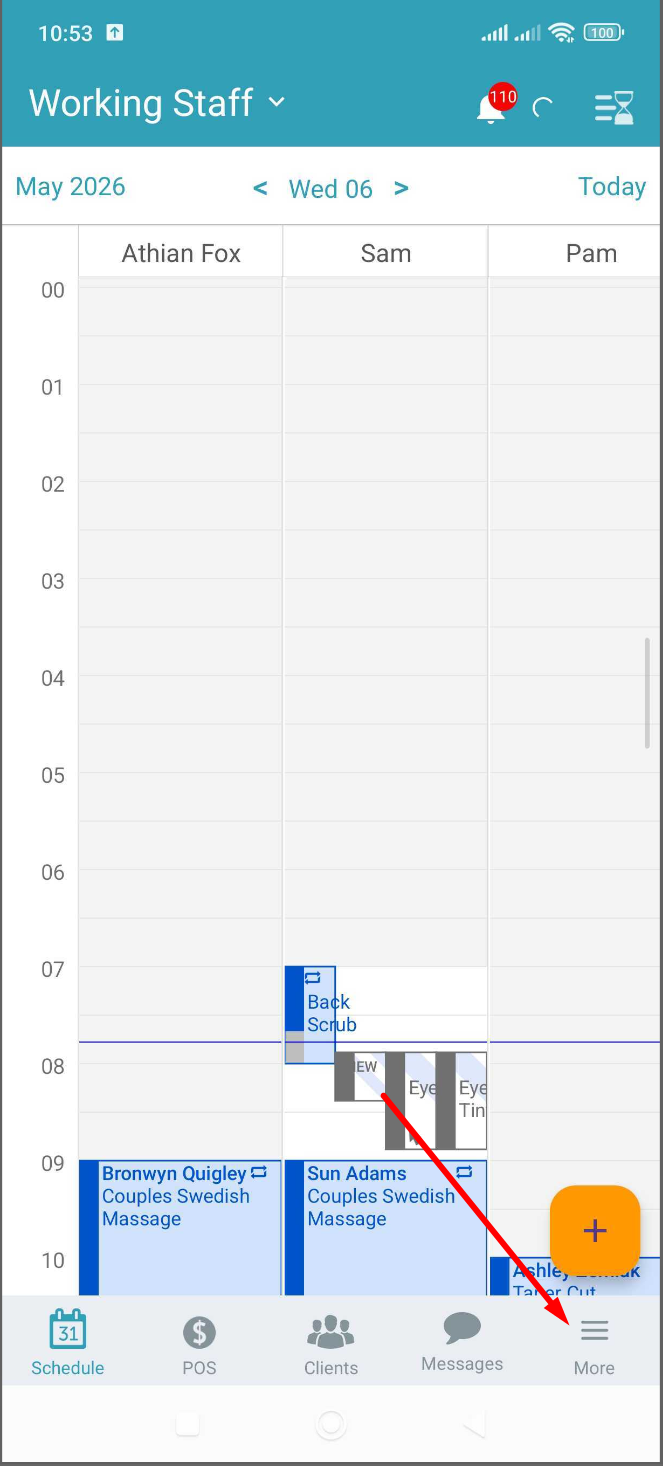
- Select the "More" tab located at the bottom right of the screen
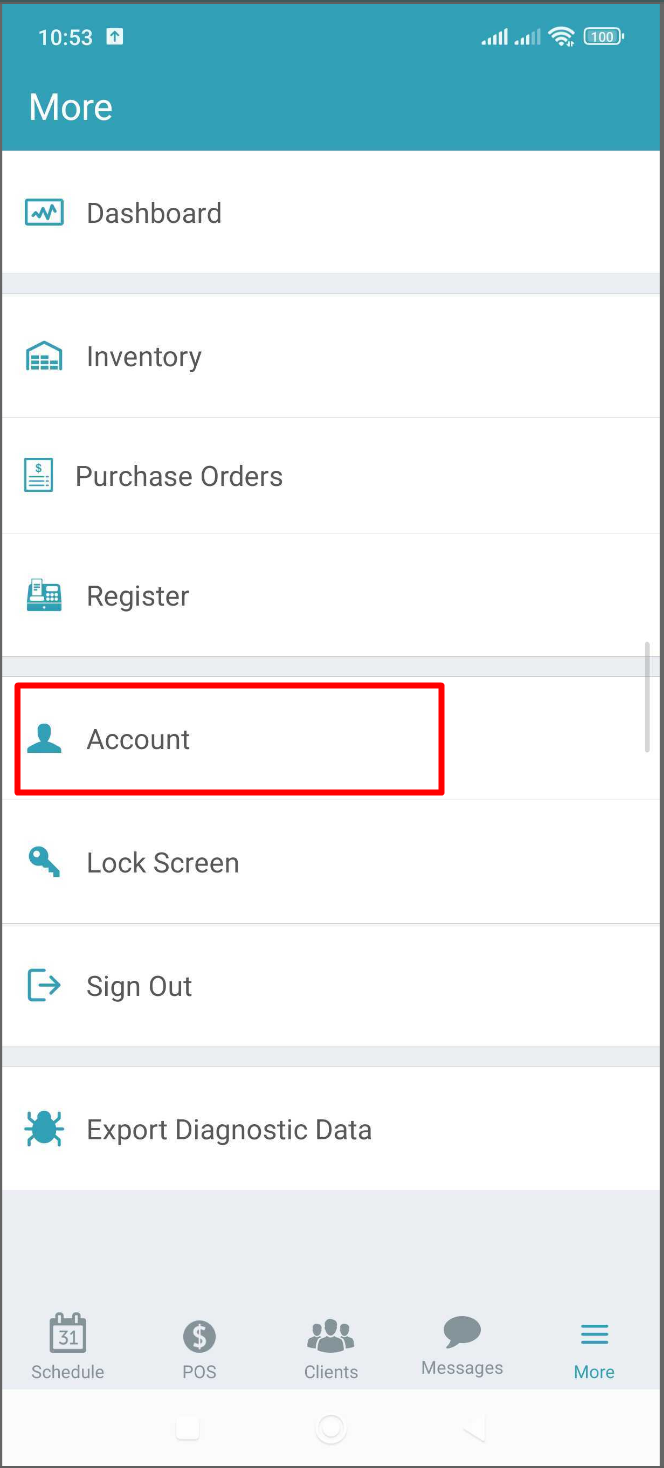
- Tap on "Account"
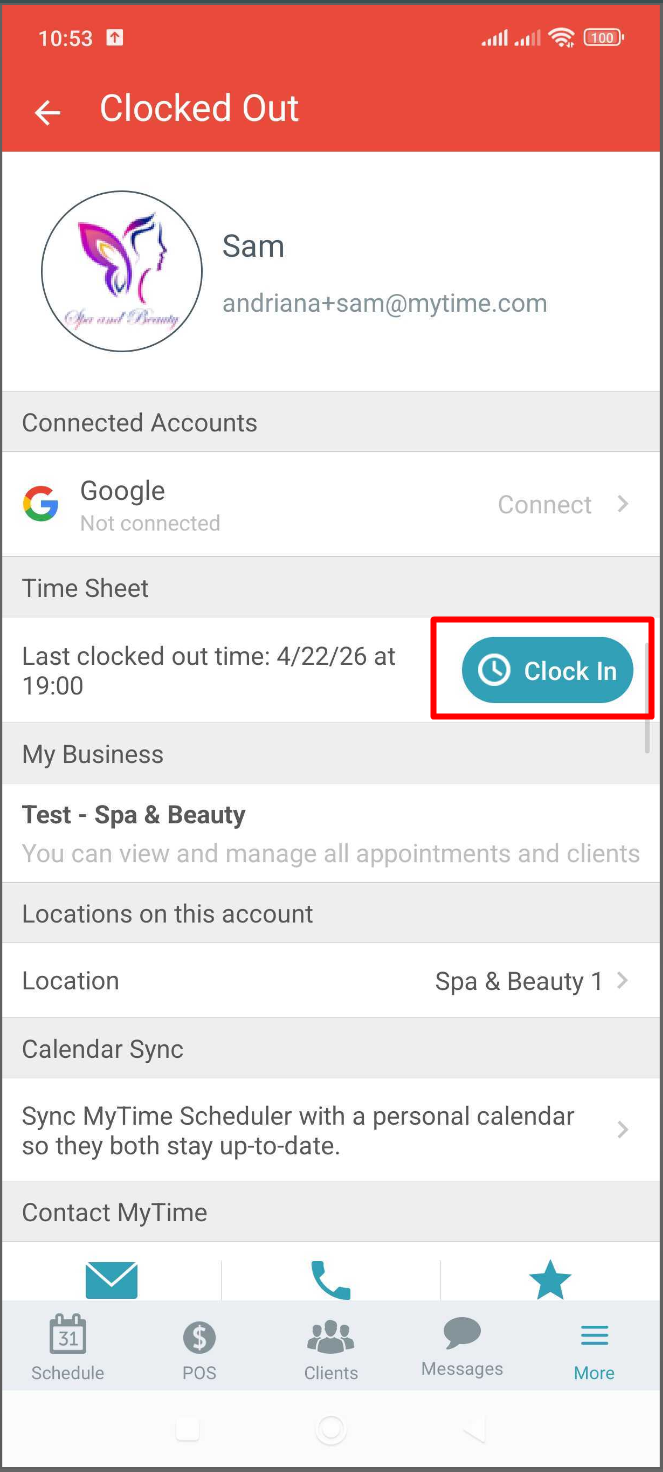
- Select the "Clock In button"
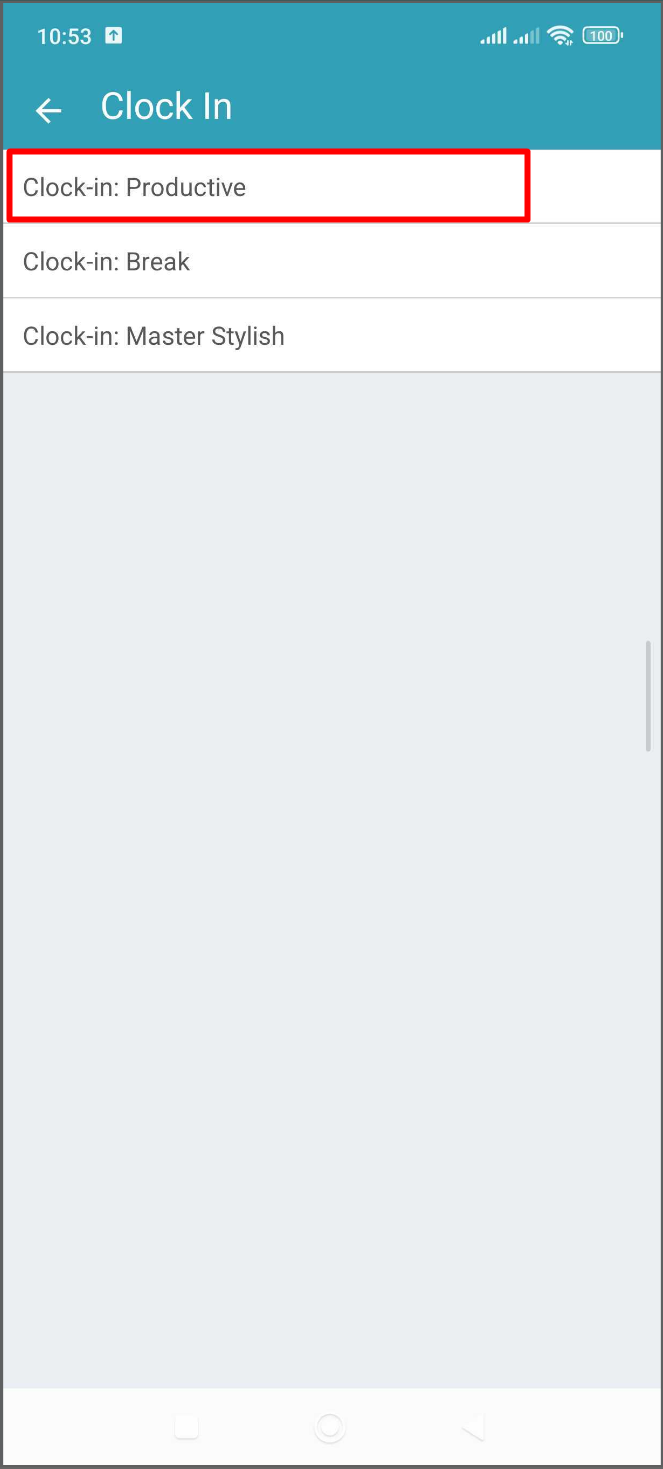
- Choose the desired work type
To clock out or clock into a rest work type, follow steps 1-4 outlined above, and then click on the "Clock Out" button. 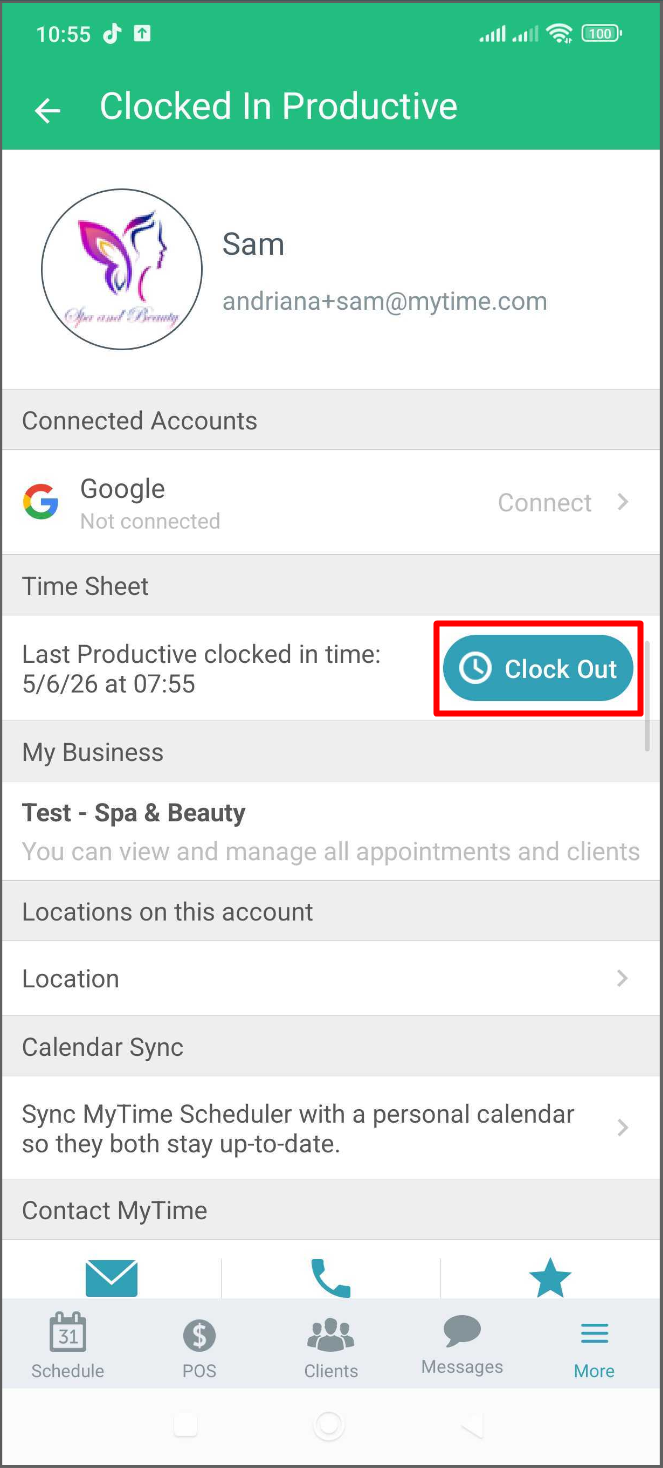
Clocking In/Out of a Rest Work Type On The Scheduler App
To take a break (e.g. lunch or break):
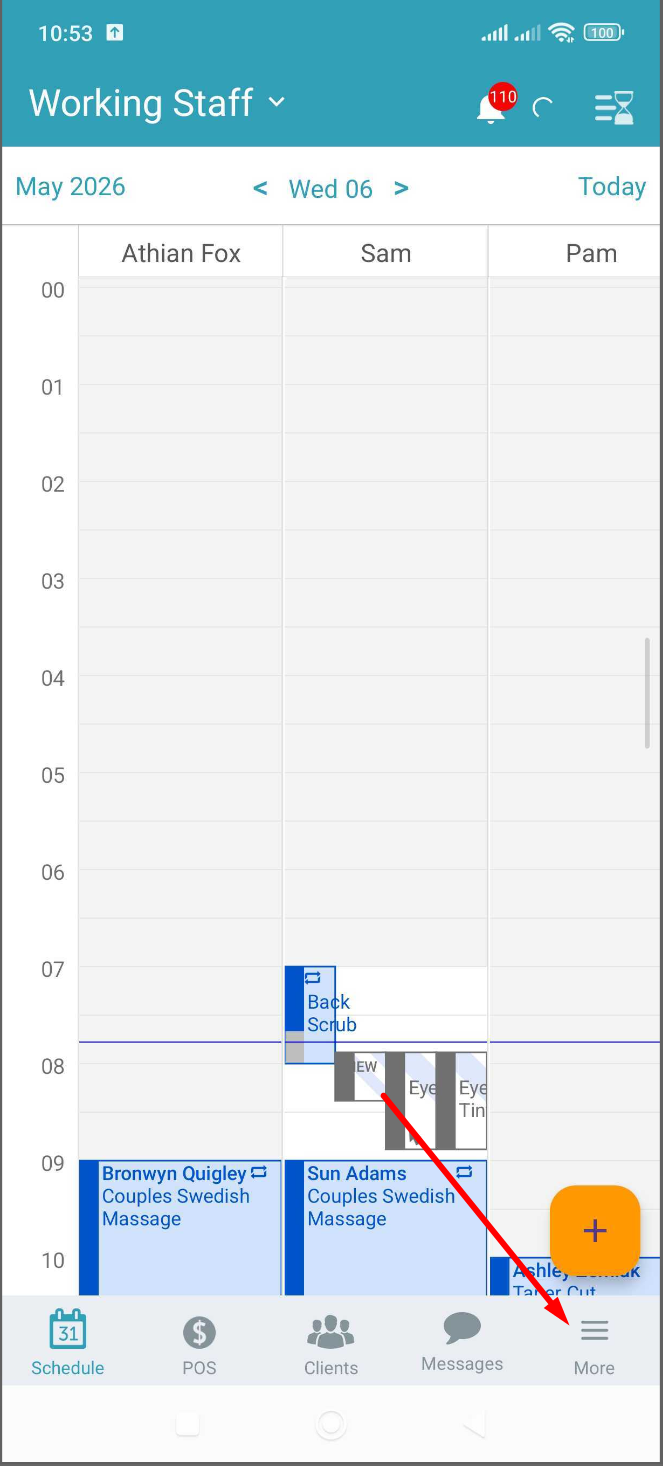
- Select the "More" tab located at the bottom right of the screen
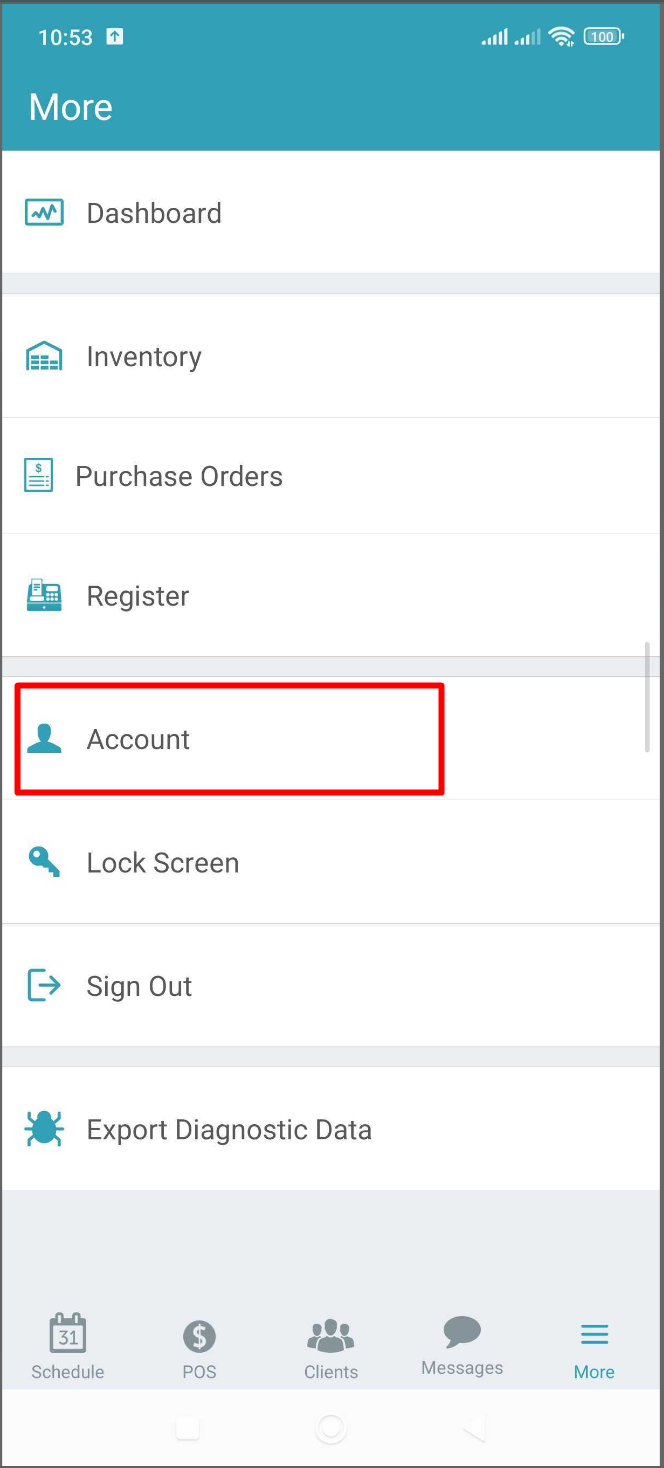
- Tap on "Account"
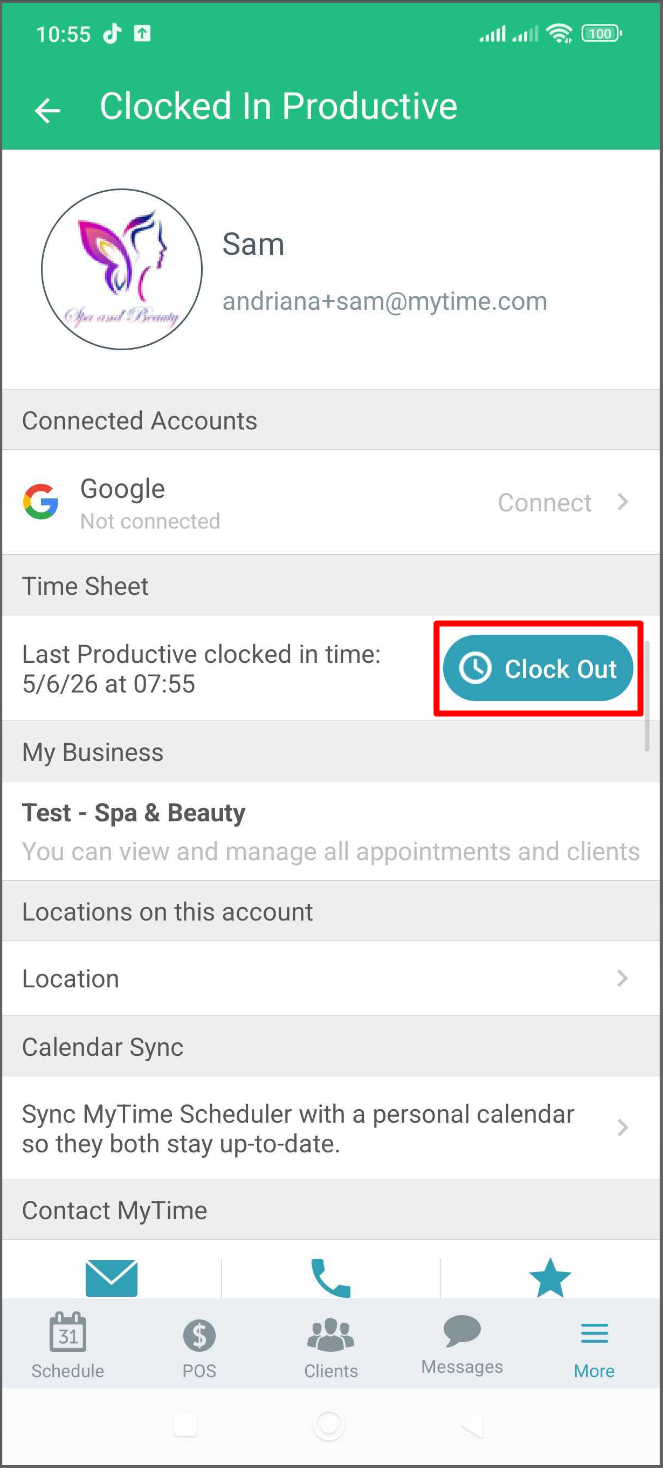
- Select the "Clock Out" button
- Click the "Clock In" button
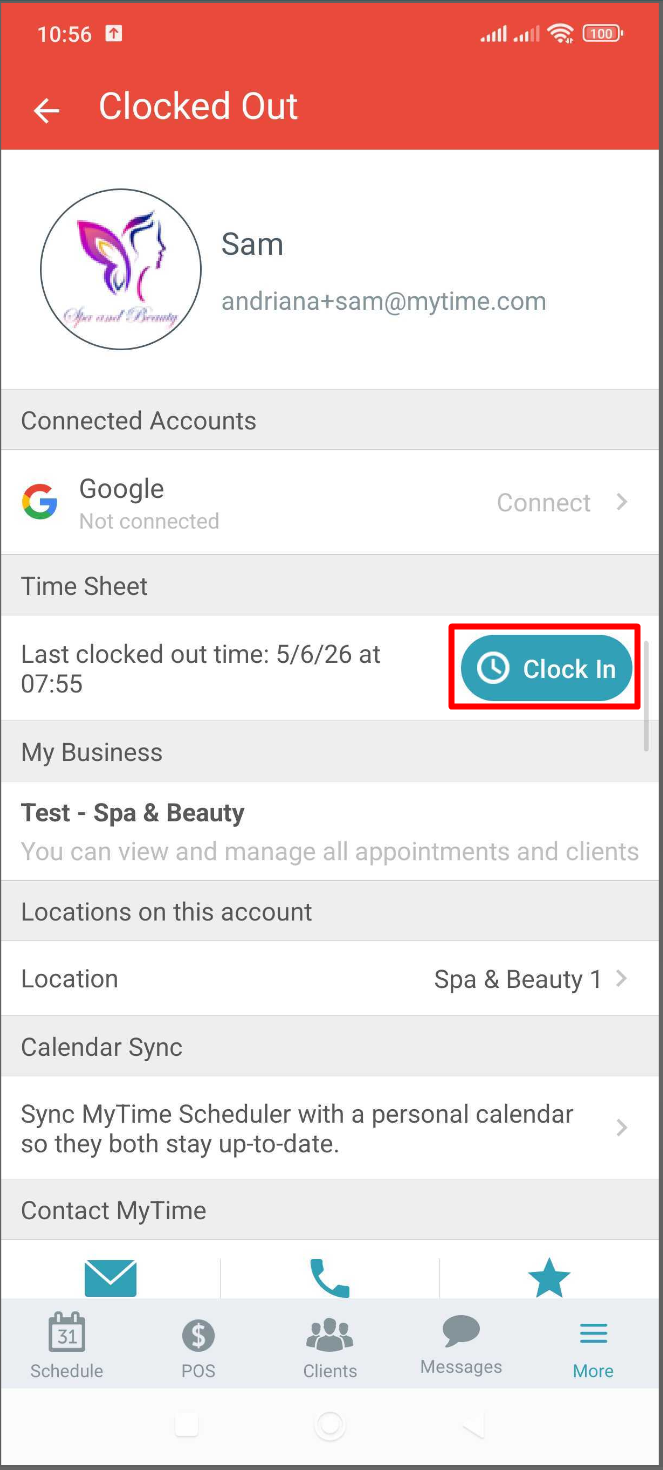
- Select Clock In: [Rest Work Type]
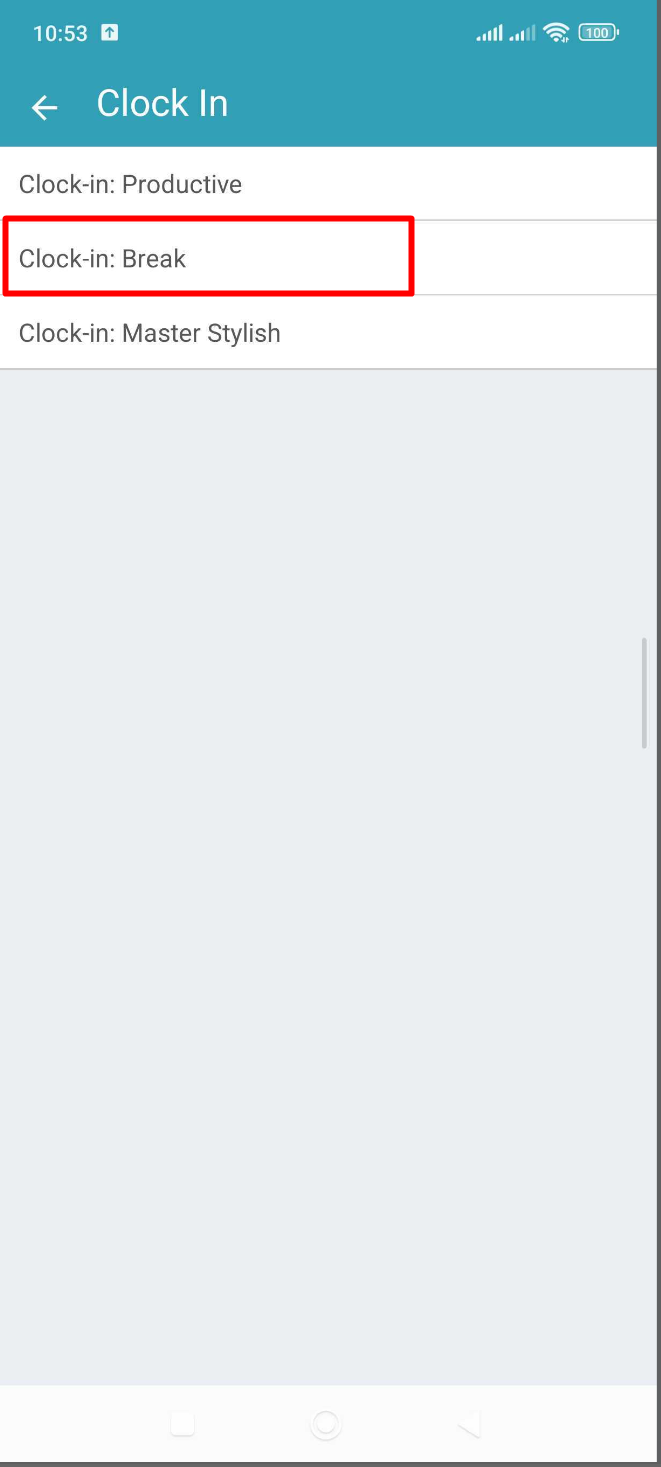
To end the break and resume productive work:
Repeat the steps above and choose Clock In: [Productive Work Type]. The system will end your break and begin tracking time under the selected work type. 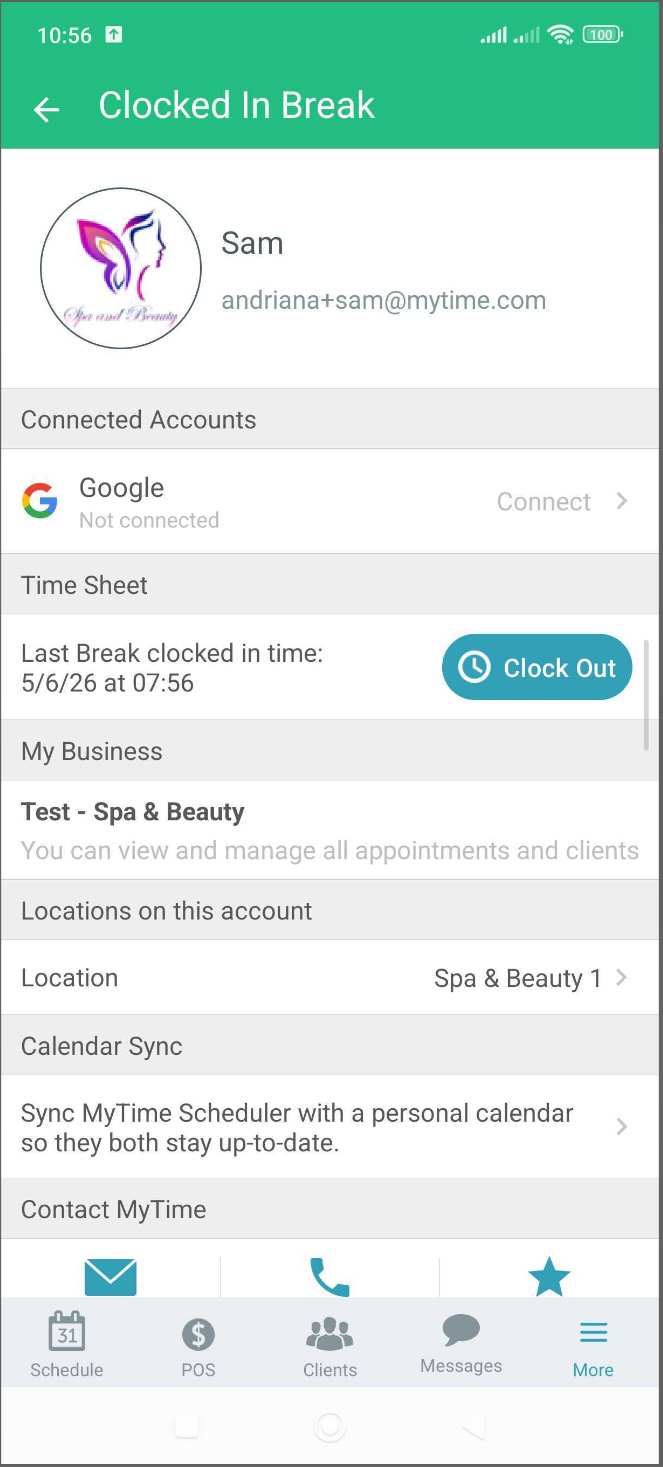
If you have any questions, please contact our support team at support@mytime.com.
Related Articles:
Installing MyTime on Scheduler App (Android and iOS)
Was this article helpful?
That’s Great!
Thank you for your feedback
Sorry! We couldn't be helpful
Thank you for your feedback
Feedback sent
We appreciate your effort and will try to fix the article