Managing staff access across multiple locations requires tools that are both secure and simple to use. Staff and owners can use their existing Google or Apple account to sign in to MyTime on the web and through the MyTime Scheduler mobile app. This article will walk you through the process of installing the app and signing in on both Android and iOS devices.
Things to know:
- A staff member cannot sign in until a staff profile has been created. A profile must be established using either standard credentials (unique username/email and password) or social accounts (Google or Apple integration).
- Signing in with Existing Accounts via Google or Apple:
- If you select Continue with Google or Continue with Apple and MyTime detects an existing account under that same email address, you will see the following prompt: "You already have an account with [XEmail.com]. Enter your password and we’ll connect your [Google/Apple] account automatically."
- Your email address will be pre-filled on the login screen. Simply enter your existing password to sign in, and MyTime will automatically link your Google or Apple account. For all future logins, clicking Continue with Google or Continue with Apple will sign you in instantly.
- If a staff member forgets their password, they can trigger a reset by selecting "Forgot Password" on the sign-in screen.
- For iOS users, a reCAPTCHA verification will be triggered after three unsuccessful login attempts to protect your account from unauthorized access.
- If your business operates across multiple sites, you can customize your view:
- By default, the app displays up to three locations.
- If you need to view more than three locations simultaneously, please contact support@mytime.com to enable this feature.
- The “Auto-lock Mobile After” setting improves security by automatically locking the app after a period of inactivity, requiring users to reauthenticate.
- You can configure this setting on the web by navigating to Location Setup > Settings (access depends on the “Accessing Account Settings” permission).
- If no value is set for “Auto-lock Mobile After”, the system will default to the value defined in “Auto-lock Web App After”, if one is set.
Contents:
- Signing In on the App Using Email and Password
- Signing In on the App Using Google
- Signing In on the App Using Apple ID
- Signing in with a Dedicated Server on an Android Device
- Signing in with a Dedicated Server on an iOS Device
- Connecting and Disconnecting Your Social Sign-In Profiles
Signing In on the App Using Email and Password
- Launch the MyTime Scheduler app on your device
- Enter your registered email and password
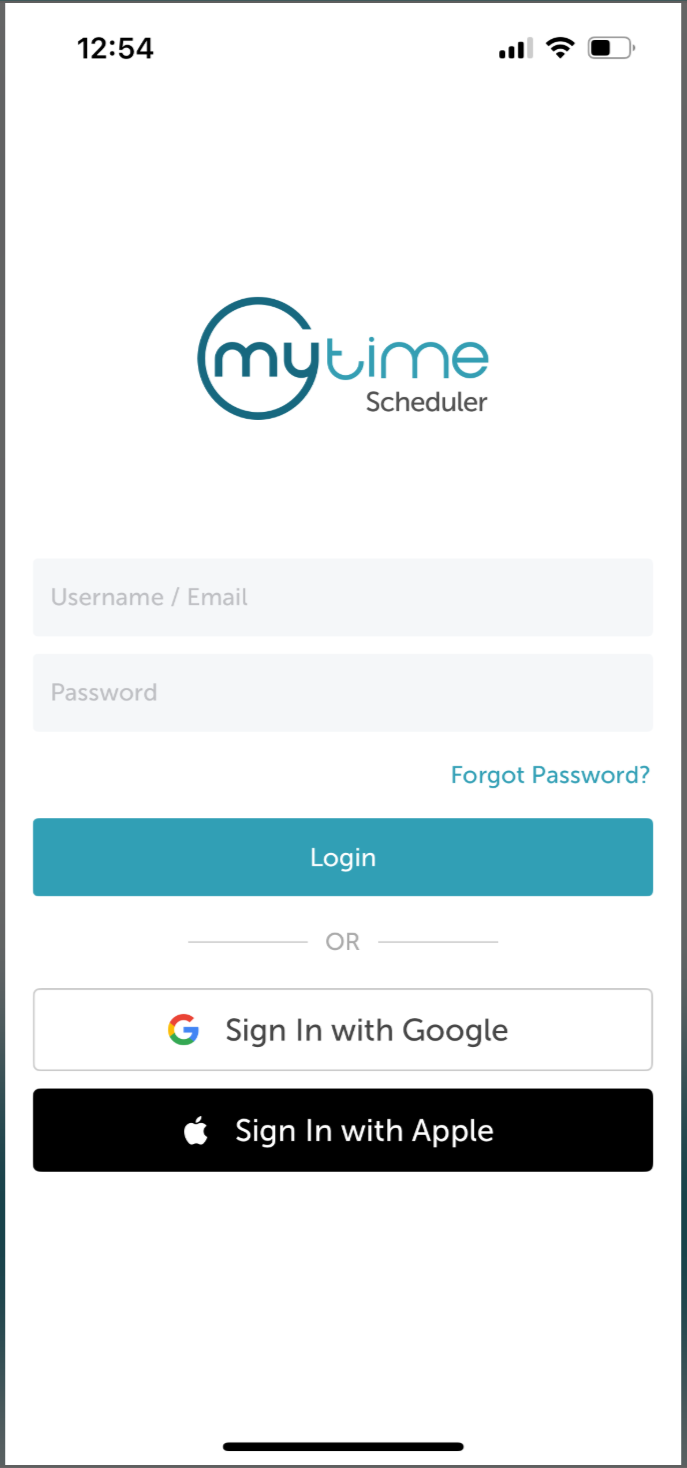
- Tap 'Login'
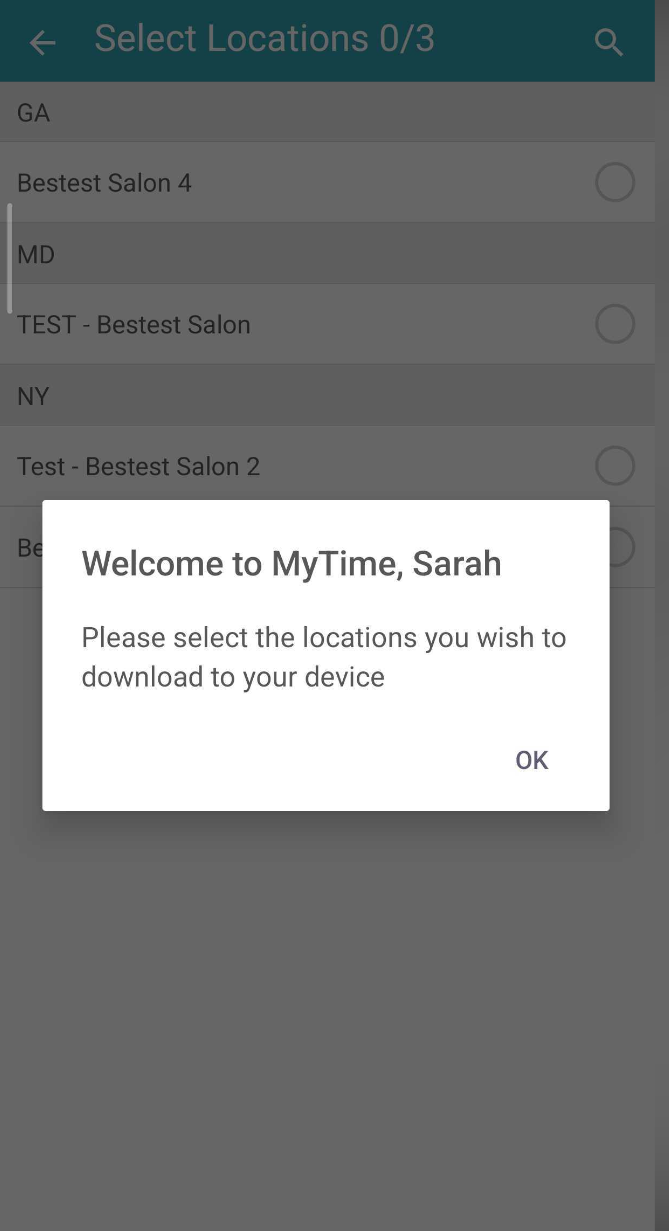
- A welcome message will appear—tap OK to proceed
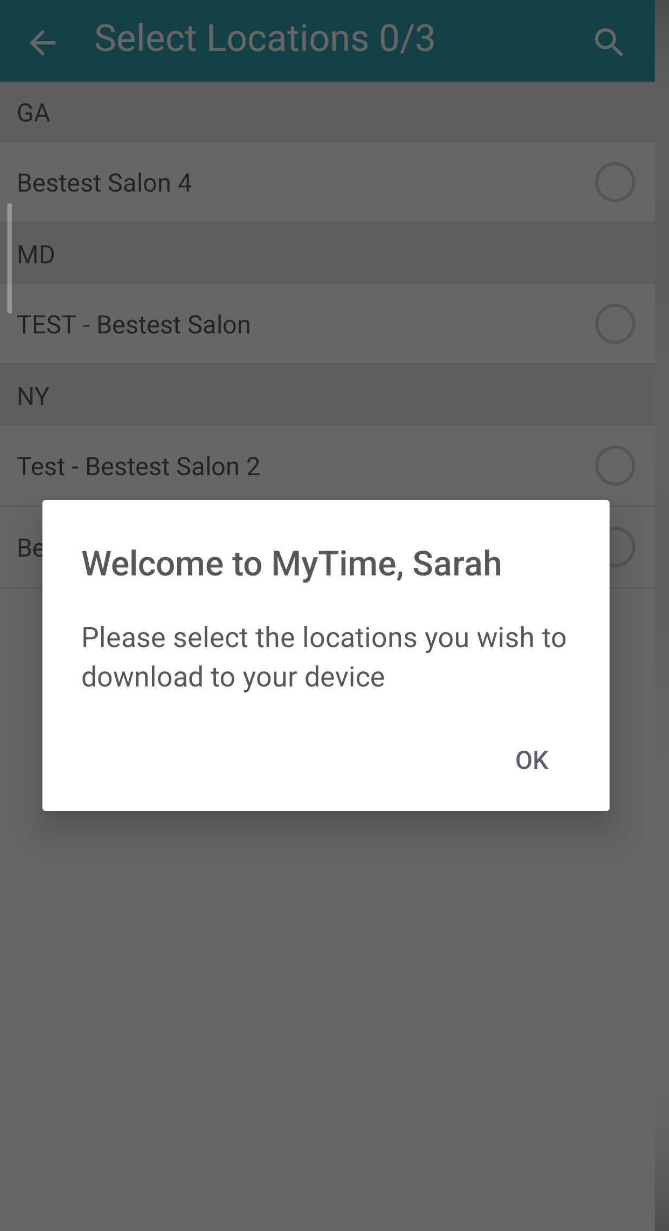
- If your account has multiple locations, you will be prompted to select which locations should be downloaded to the app
- By default, up to three locations can be viewed at a time. To increase this limit, contact the MyTime Support Team at support@mytime.com
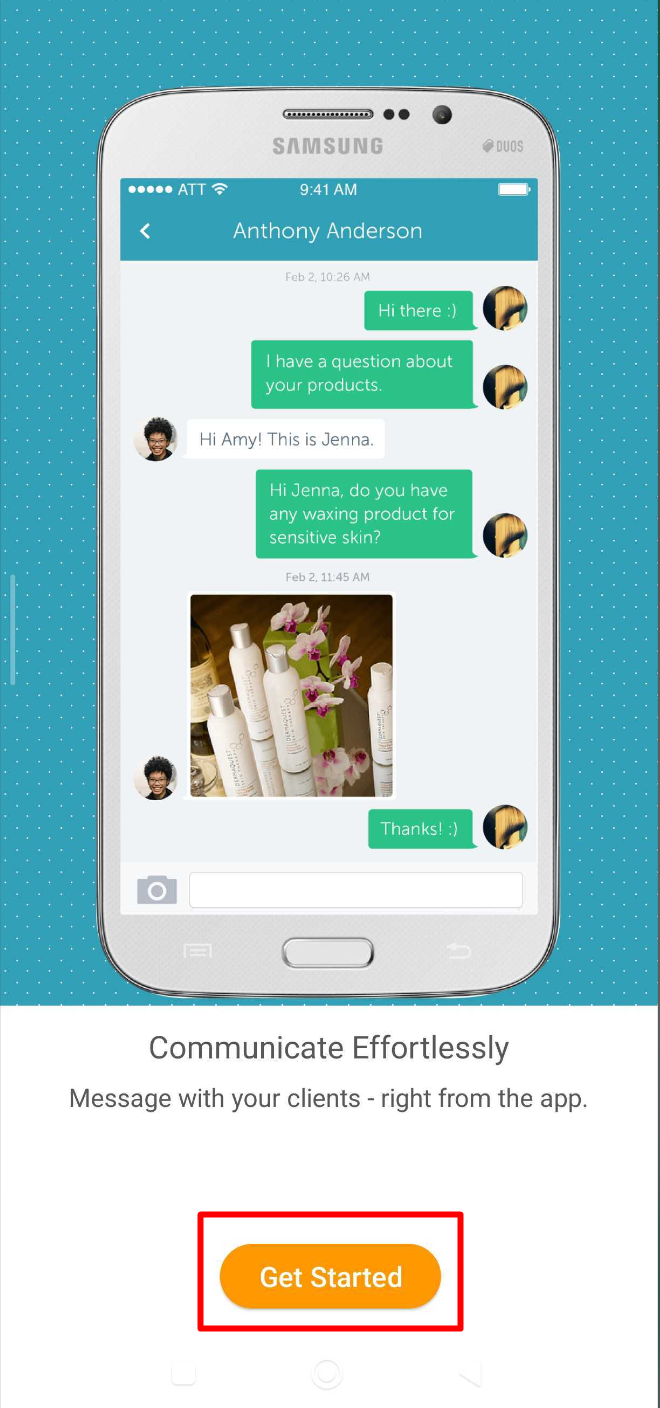
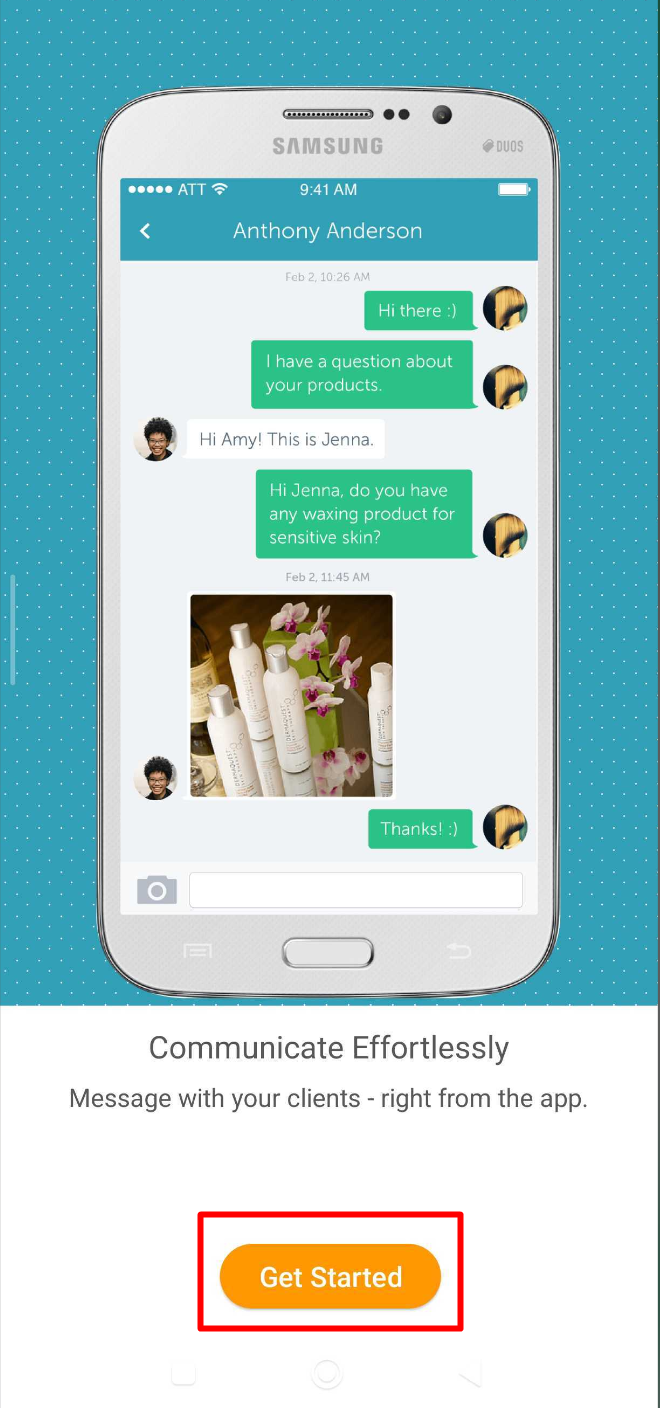
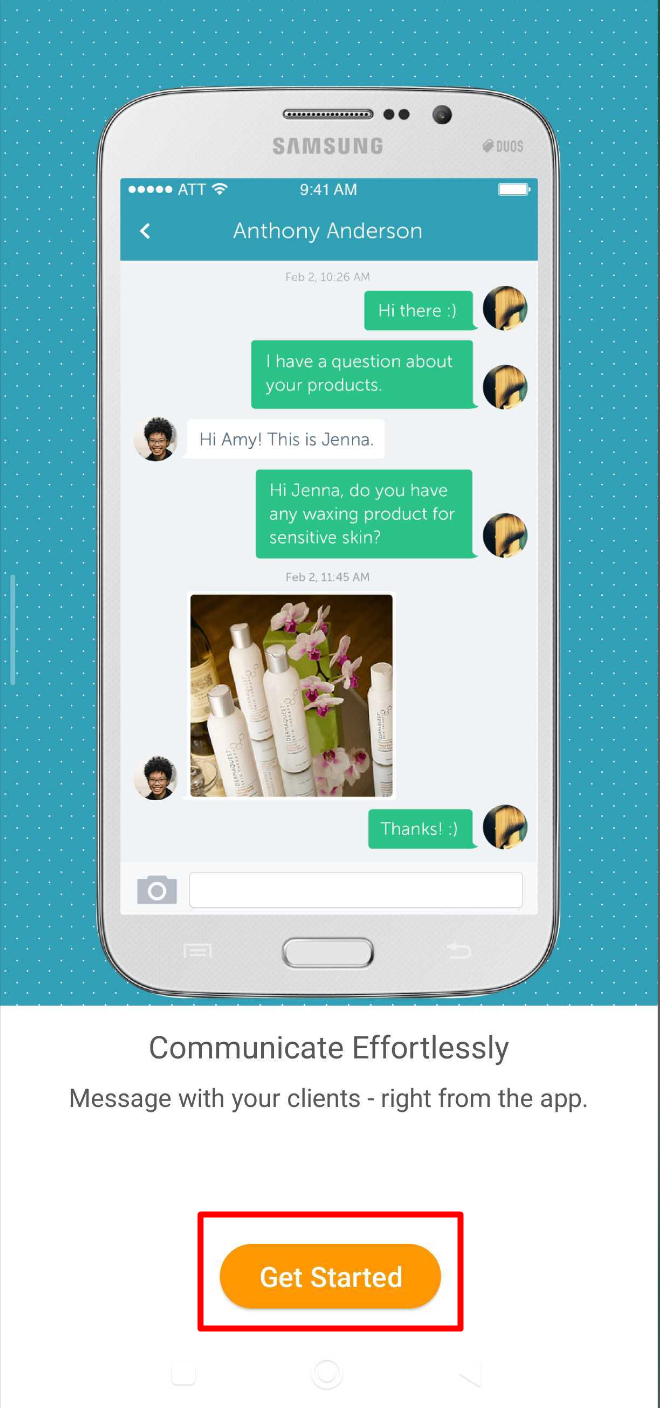
- Complete the setup guide, then tap "Get Started" to access the Scheduler
Signing In on the App Using Google
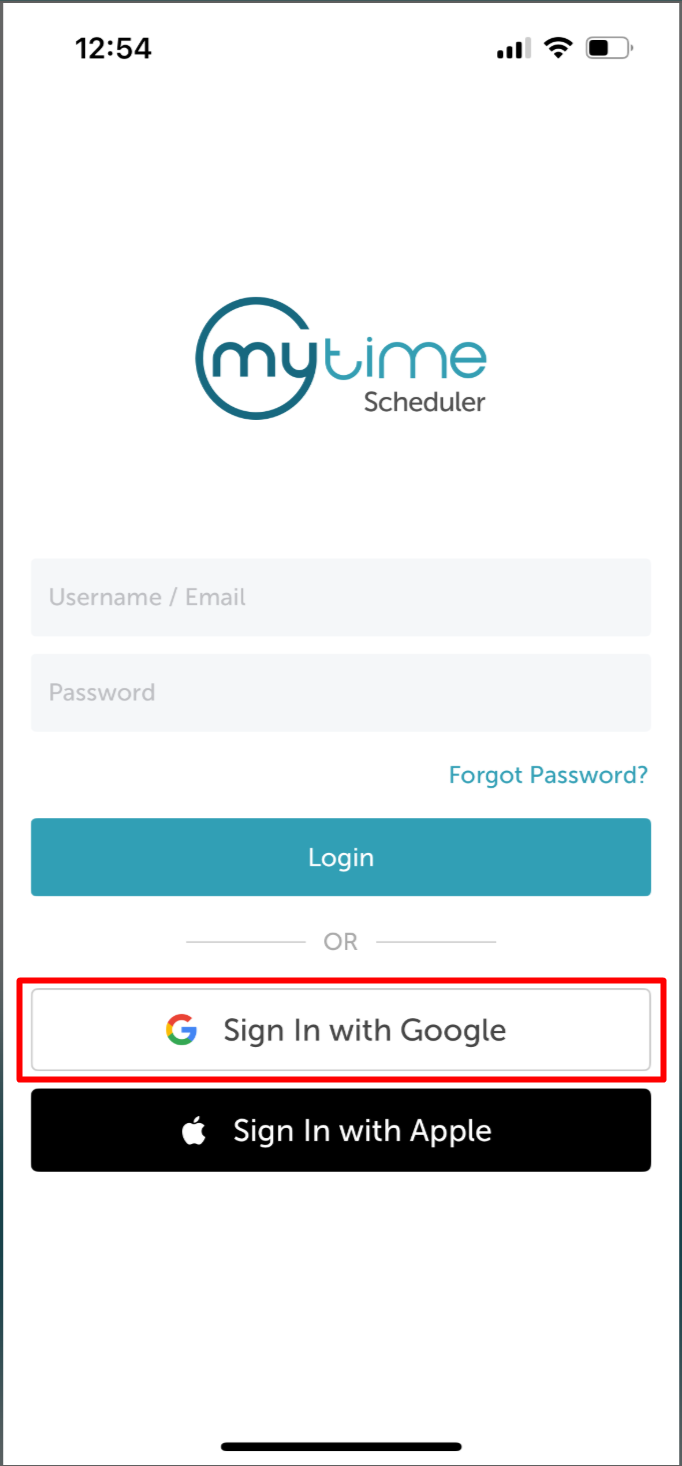
- Launch the MyTime Scheduler app on your device
- Tap 'Continue with Google'
- Enter your Google email address and click 'Next.'
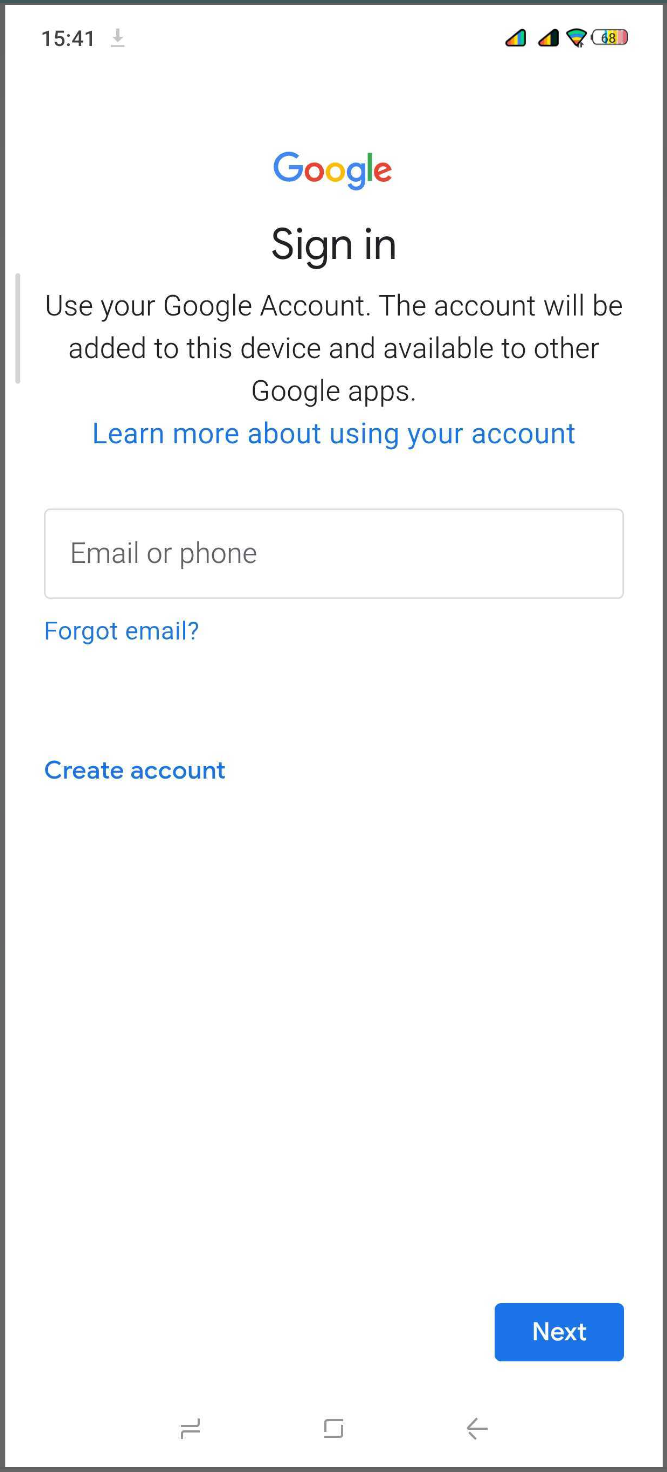
- Enter your Google password and click 'Next.
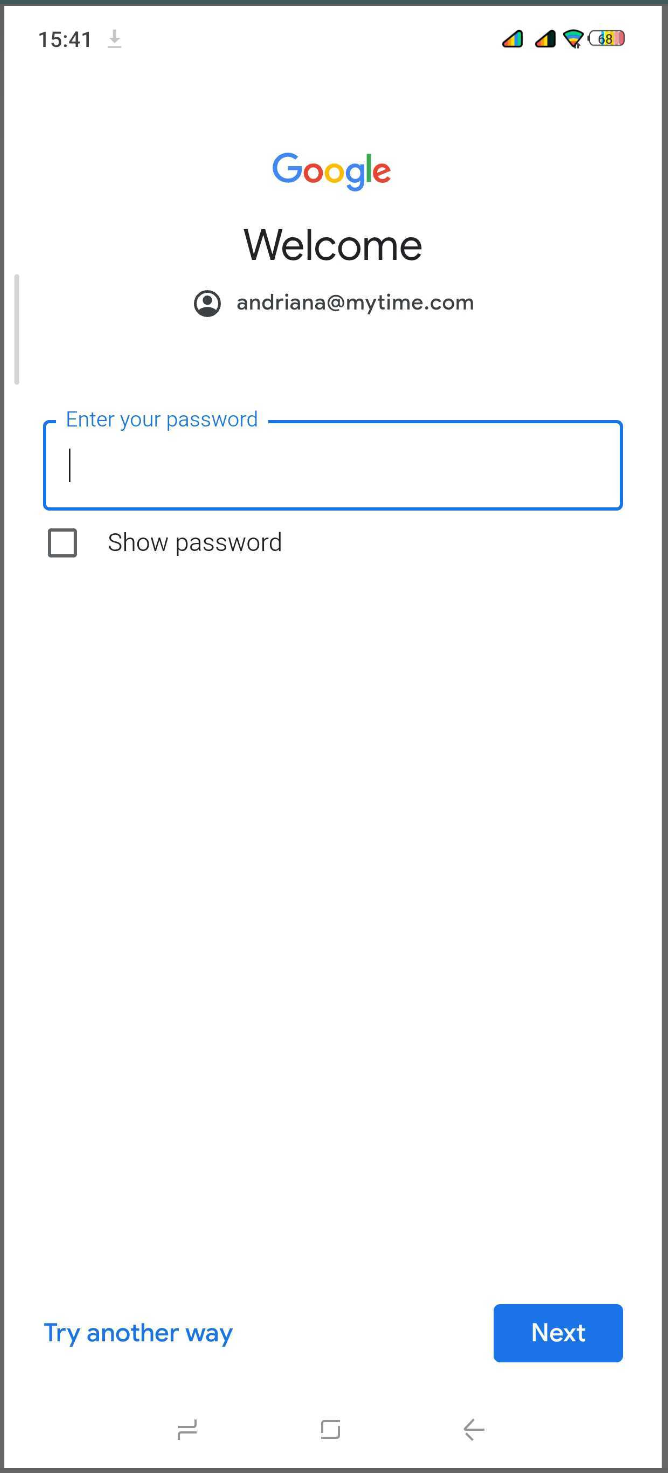
- Tap 'Agree and Share' to provide the necessary permissions.
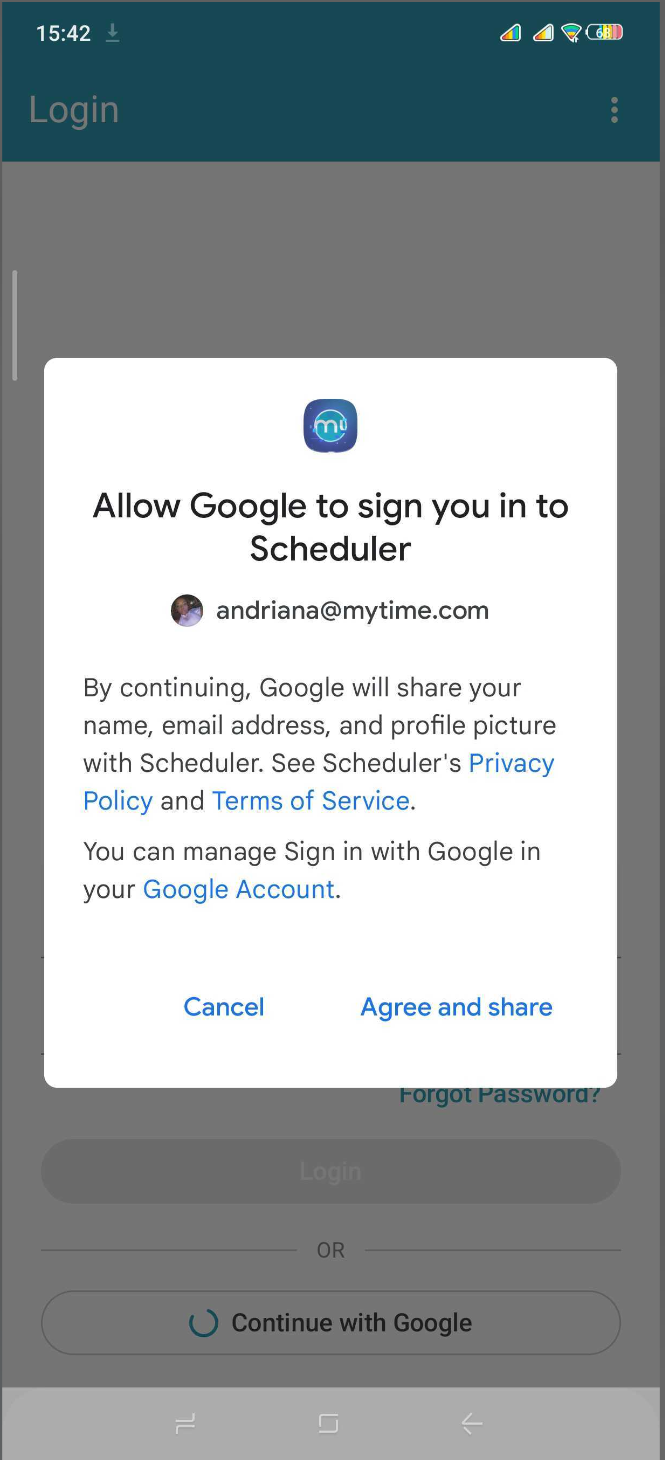
- A welcome message will appear—tap OK to confirm and proceed
- If your account has multiple locations, you will be prompted to select which locations should be downloaded to the app
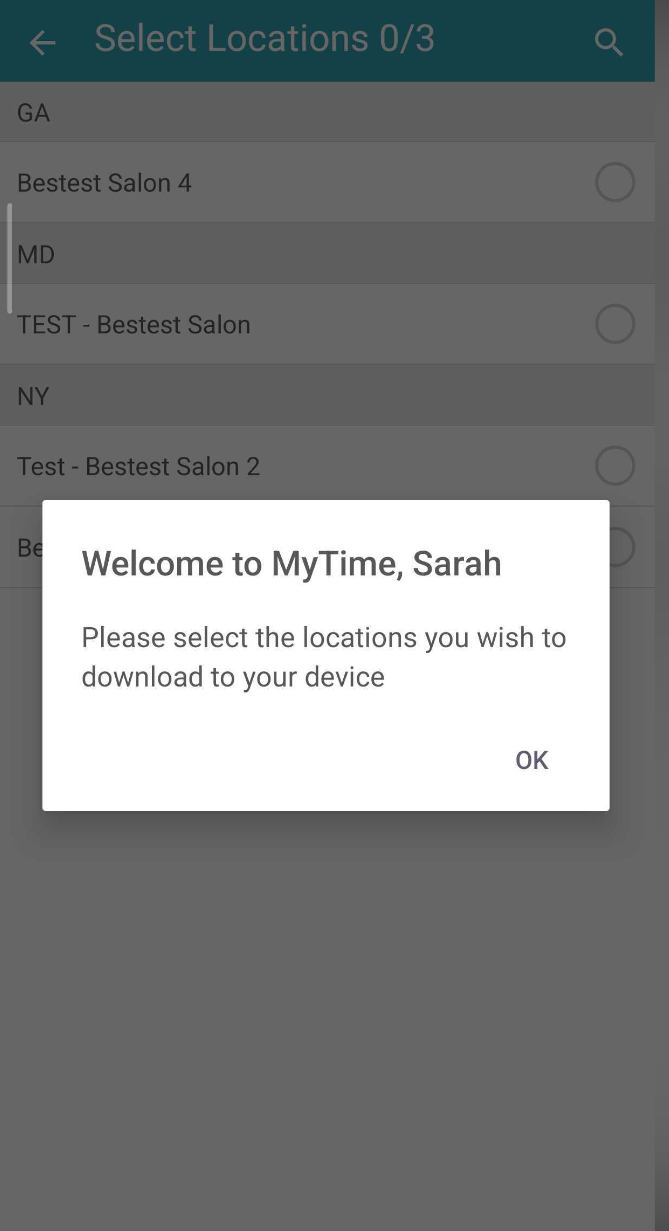
- By default, up to three locations can be viewed at a time. To increase this limit, contact the MyTime Support Team at support@mytime.com
- Complete the setup guide, then tap "Get Started" to access the Scheduler
Signing In on the App Using Apple ID
- Launch the MyTime Scheduler app on your device
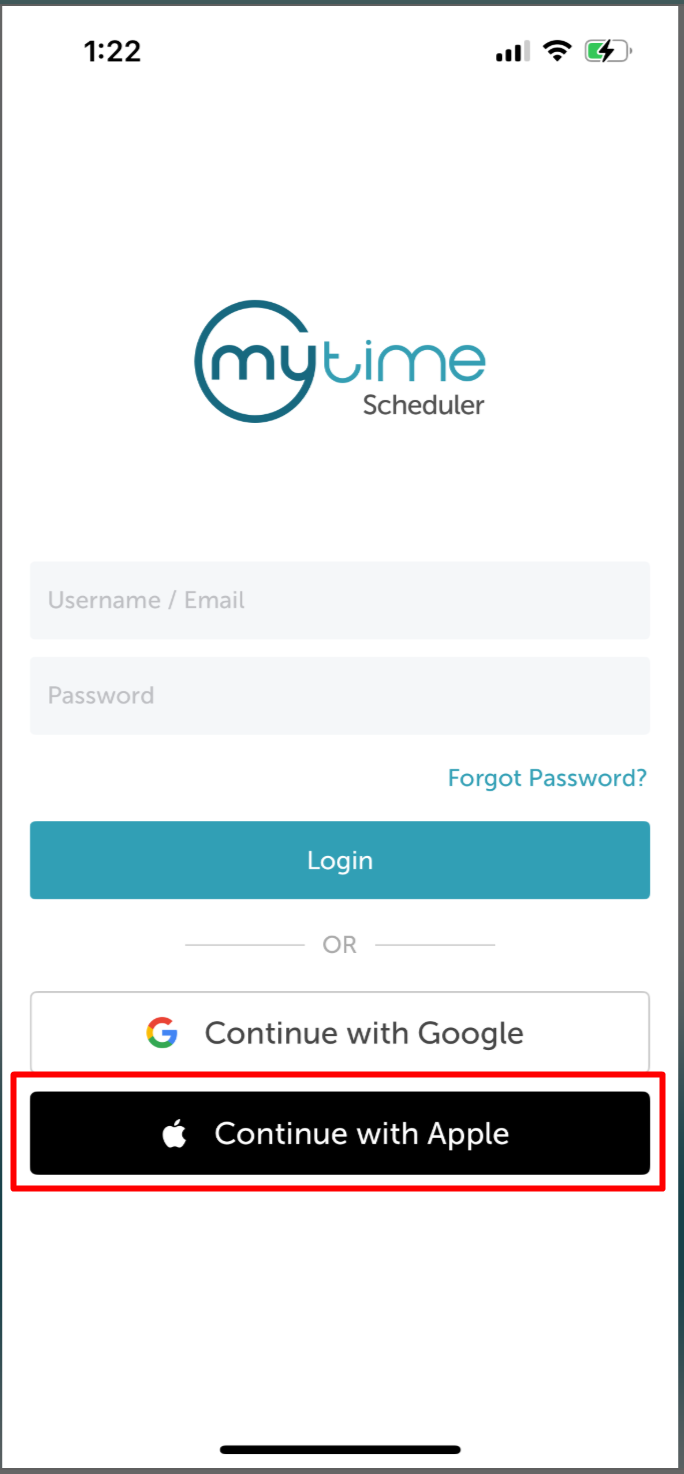
- Tap 'Continue with Apple'
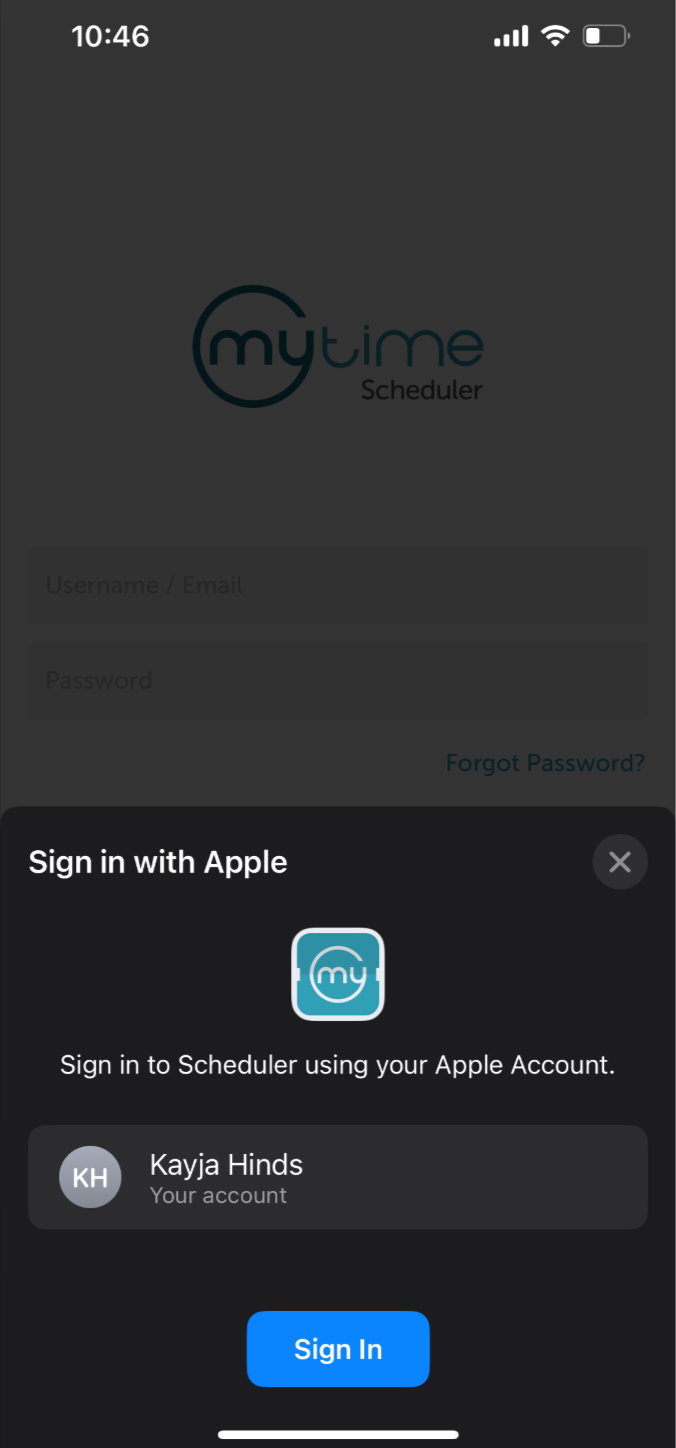
- Select the apple account you wish to use
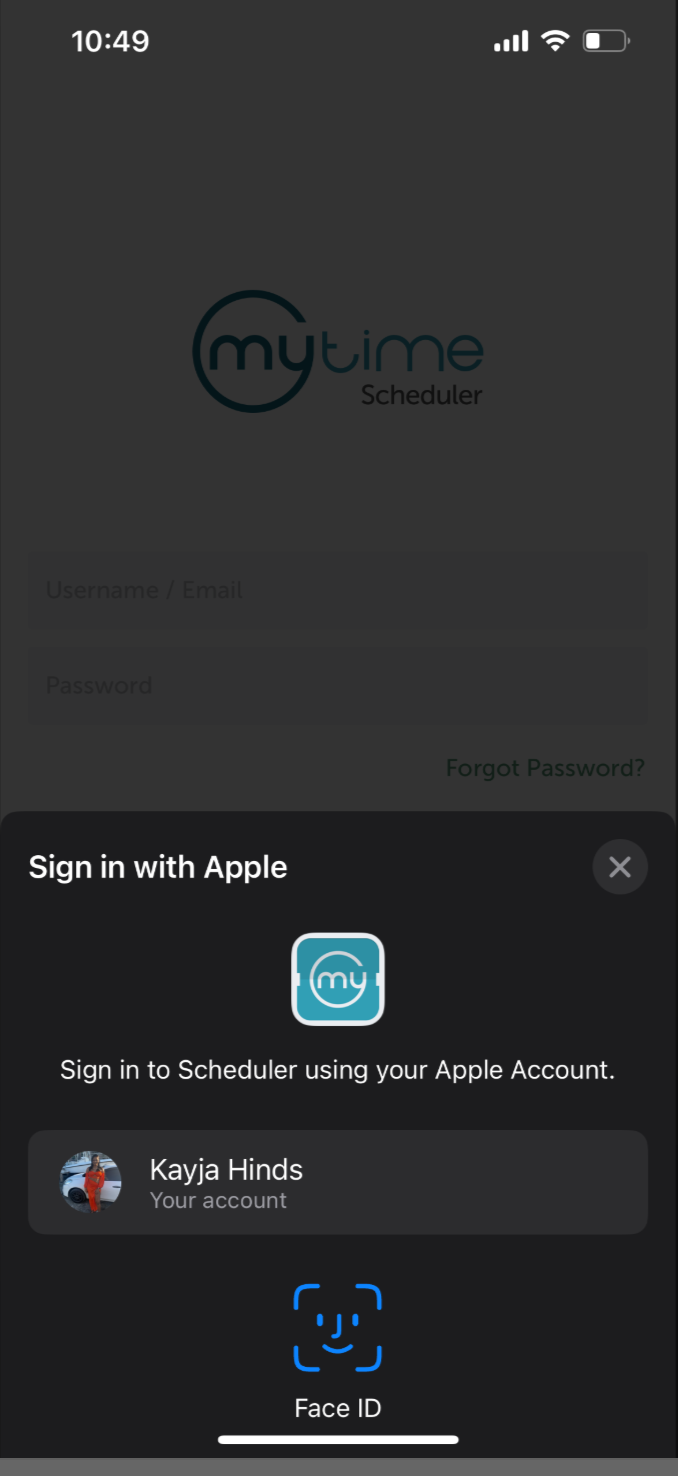
- Confirm your identity using your password, FaceID, or TouchID
- A welcome message will appear—tap OK to confirm and proceed
- If your account has multiple locations, you will be prompted to select which locations should be downloaded to the app
- By default, up to three locations can be viewed at a time. To increase this limit, contact the MyTime Support Team at support@mytime.com
- Complete the setup guide, then tap "Get Started" to access the Scheduler
Signing in with a Dedicated Server on an Android Device
If your account uses a dedicated server, follow these steps after installing the app:
- Launch the MyTime Scheduler app
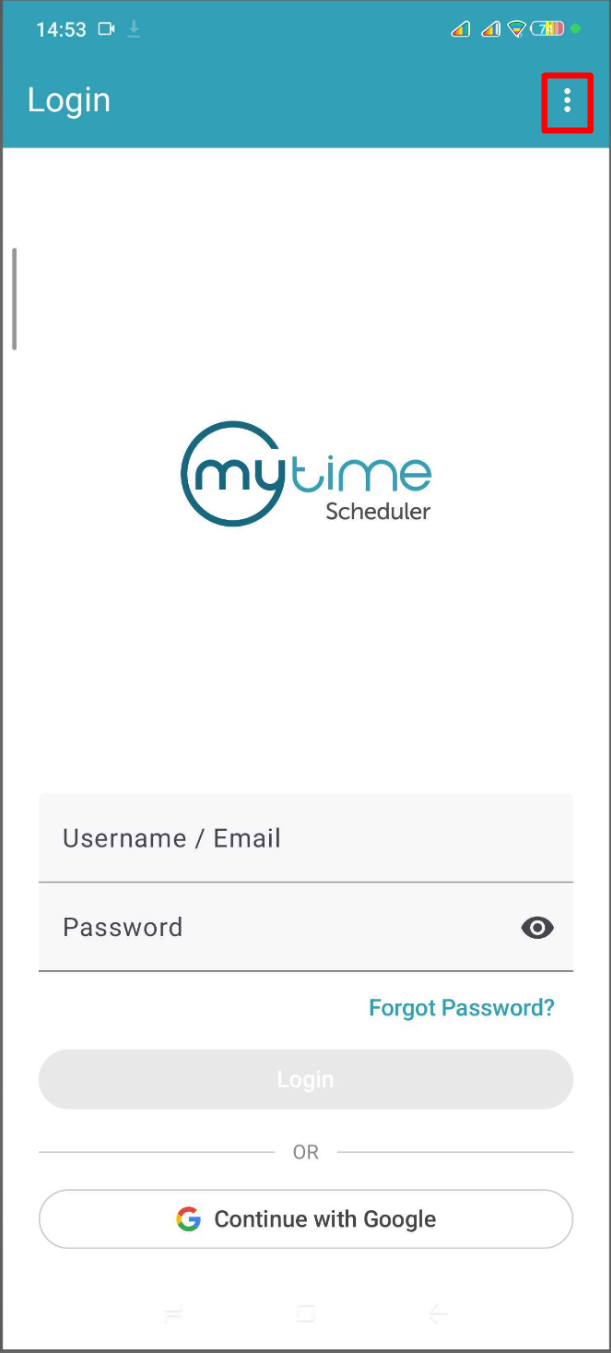
- On the login screen, tap the three dots in the top-right corner
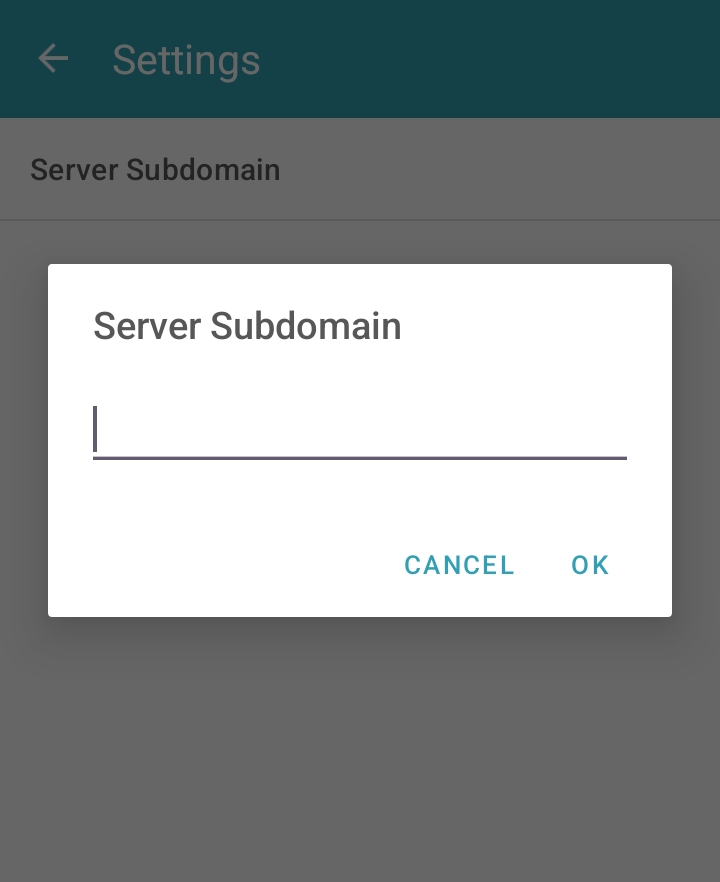
- Tap Server Subdomain
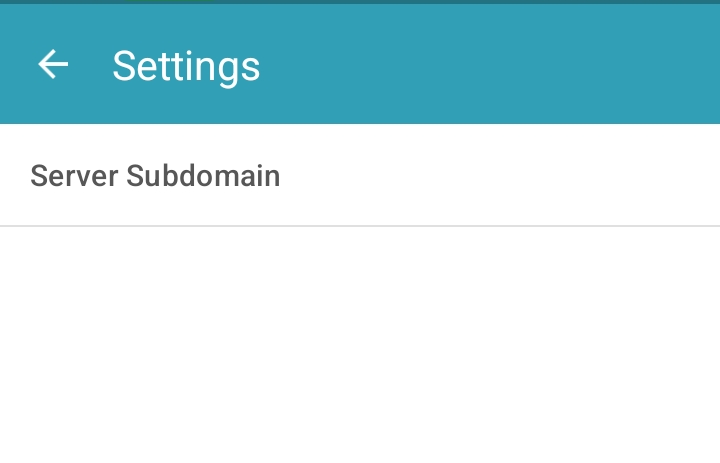
- Type in your specific server subdomain and tap OK
- You will be redirected back to the login page—Follow the steps above to login
Signing in with a Dedicated Server on an iOS Device
If your account uses a dedicated server, follow these steps after installing the app:
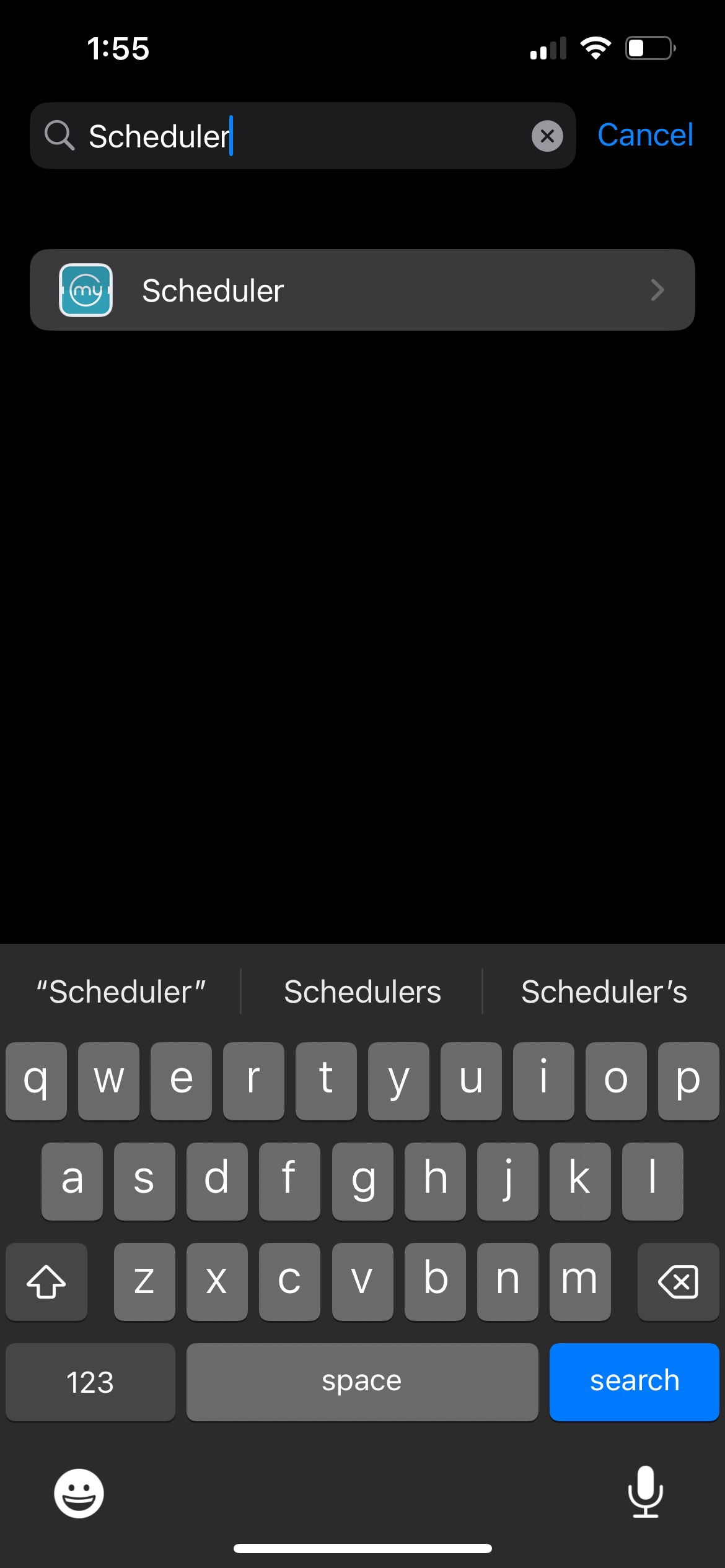
- Navigate to Settings > Apps
- Locate the Scheduler app
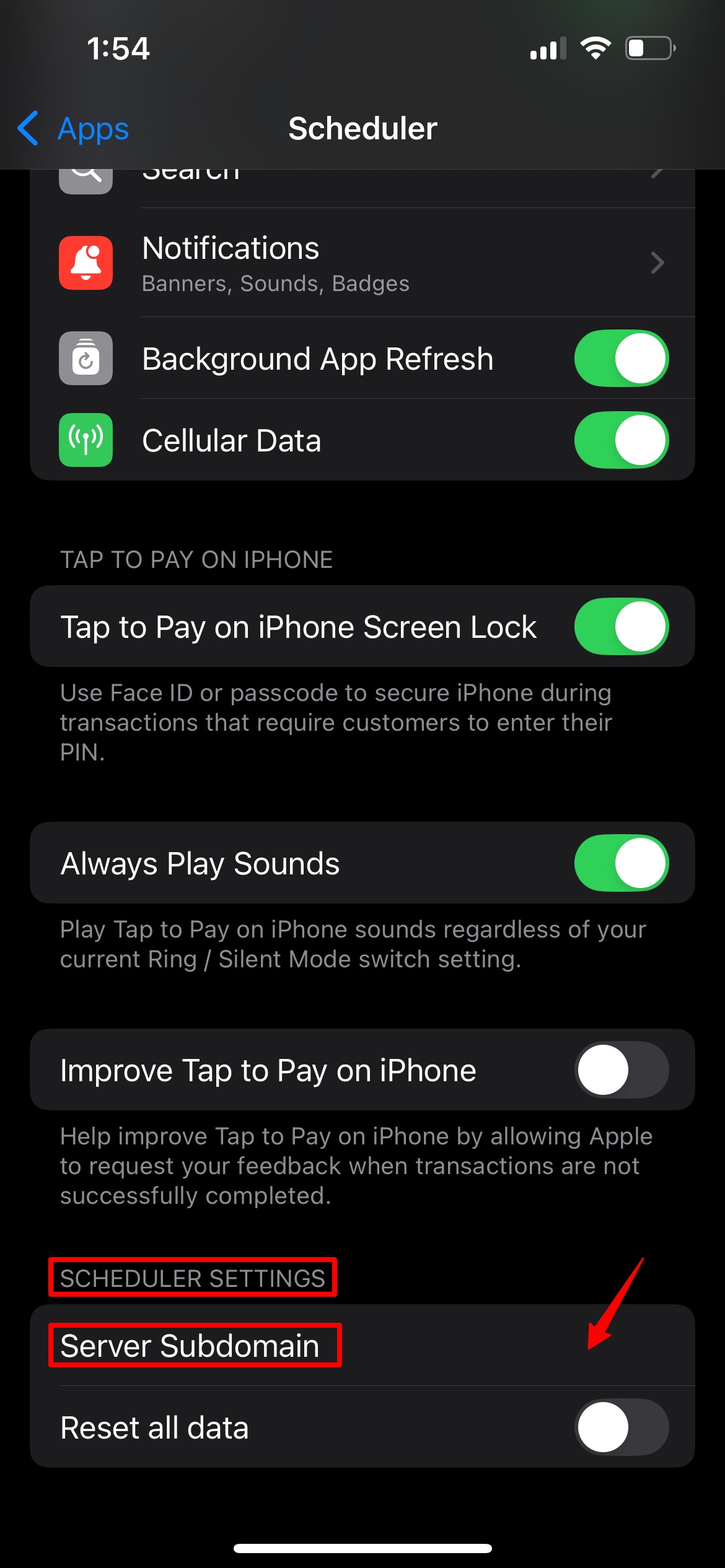
- Scroll down to the Scheduler Settings section and enter your server subdomain
- Exit Settings
Connecting and Disconnecting Your Social Sign-In Profiles
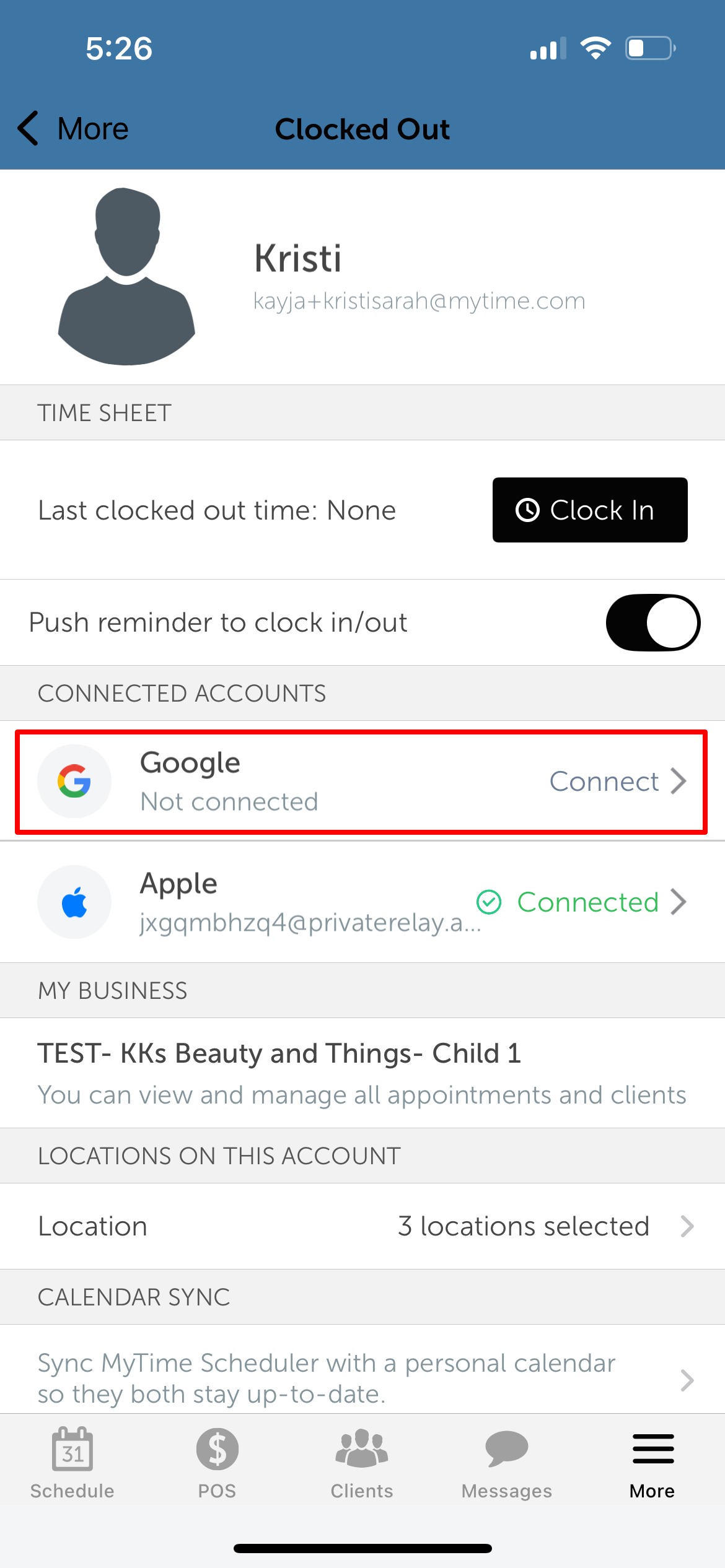
Once signed in, you can manage your social media connections directly through your account settings. Follow these steps to connect or disconnect your profiles:
1. Tap 'More' at the bottom right of the screen 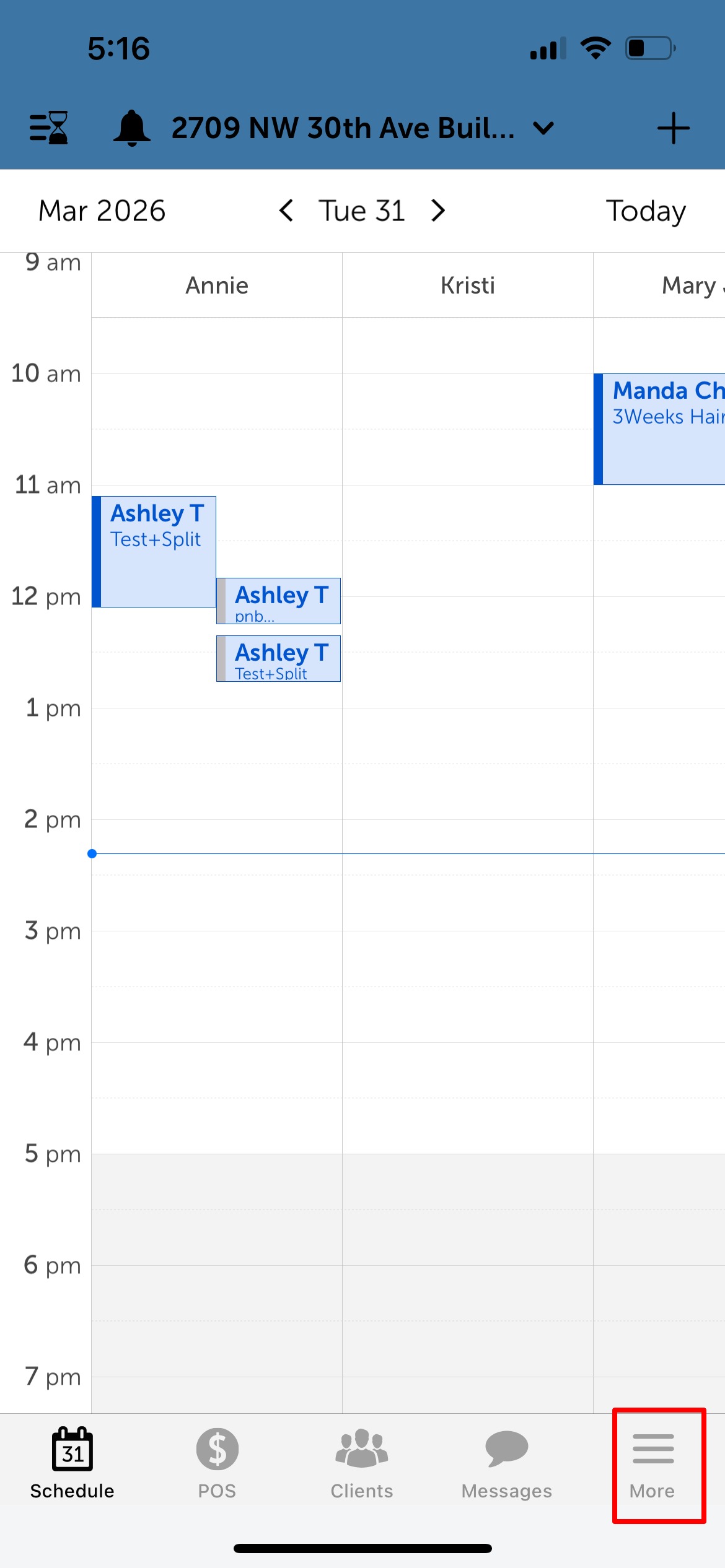
2. Select 'Account' 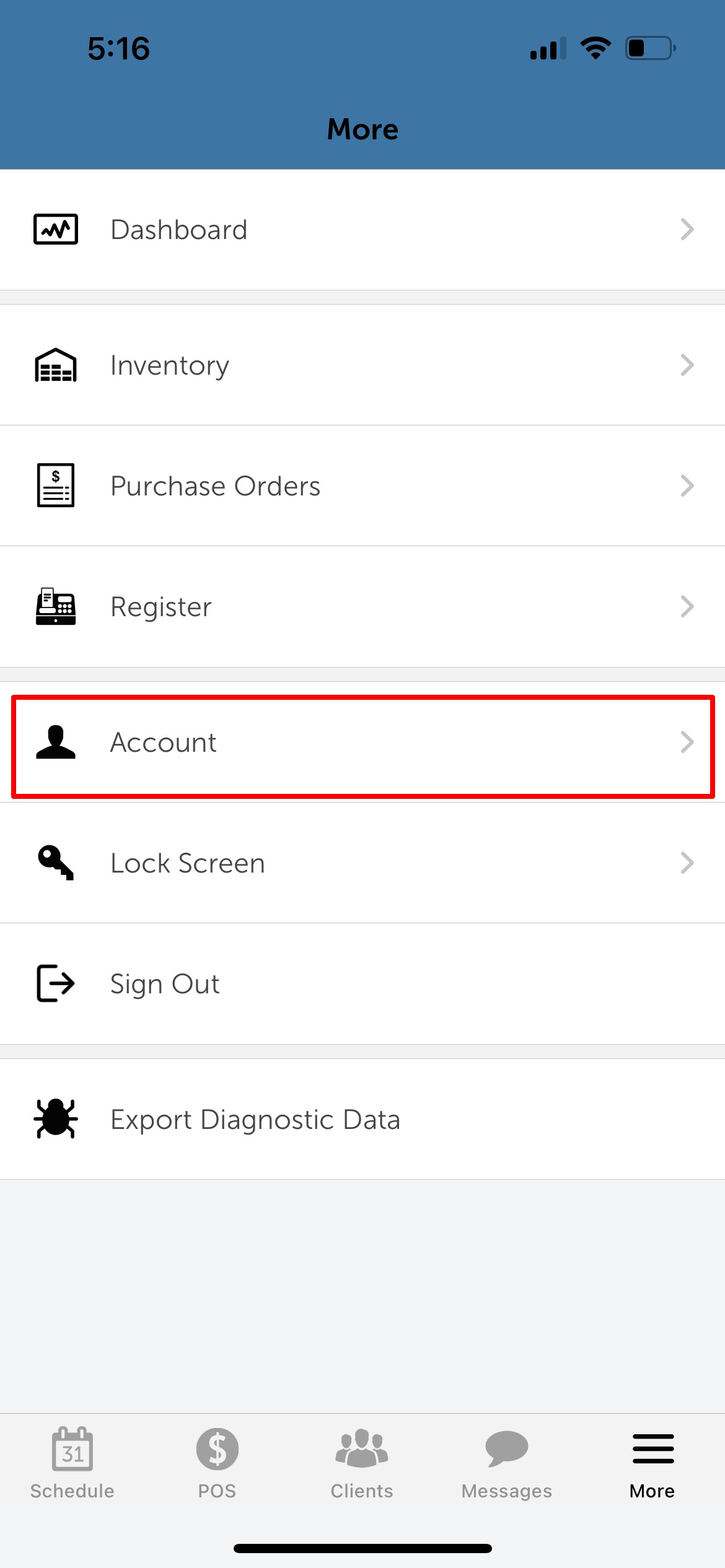
3. To connect a social profile:
- Tap the preferred option labeled 'Connect'
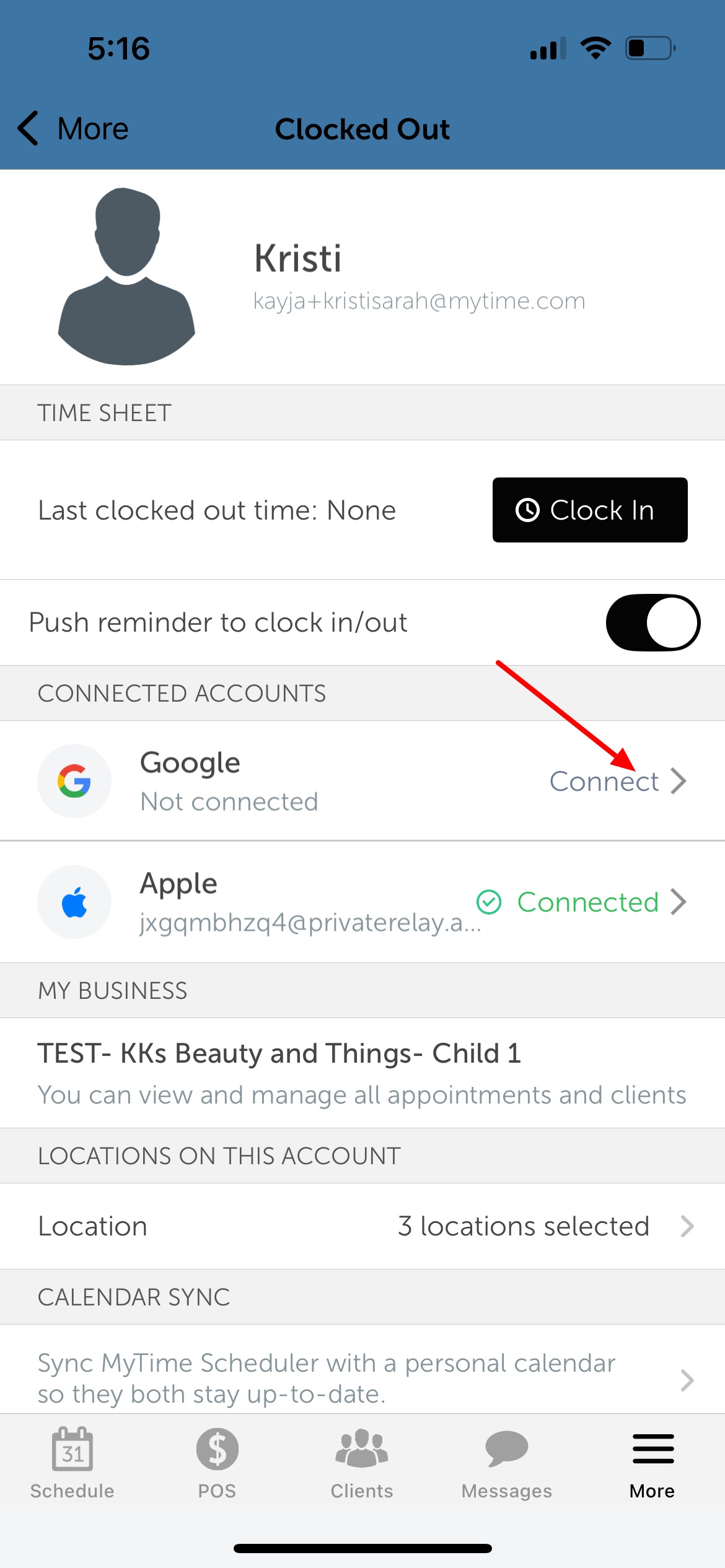
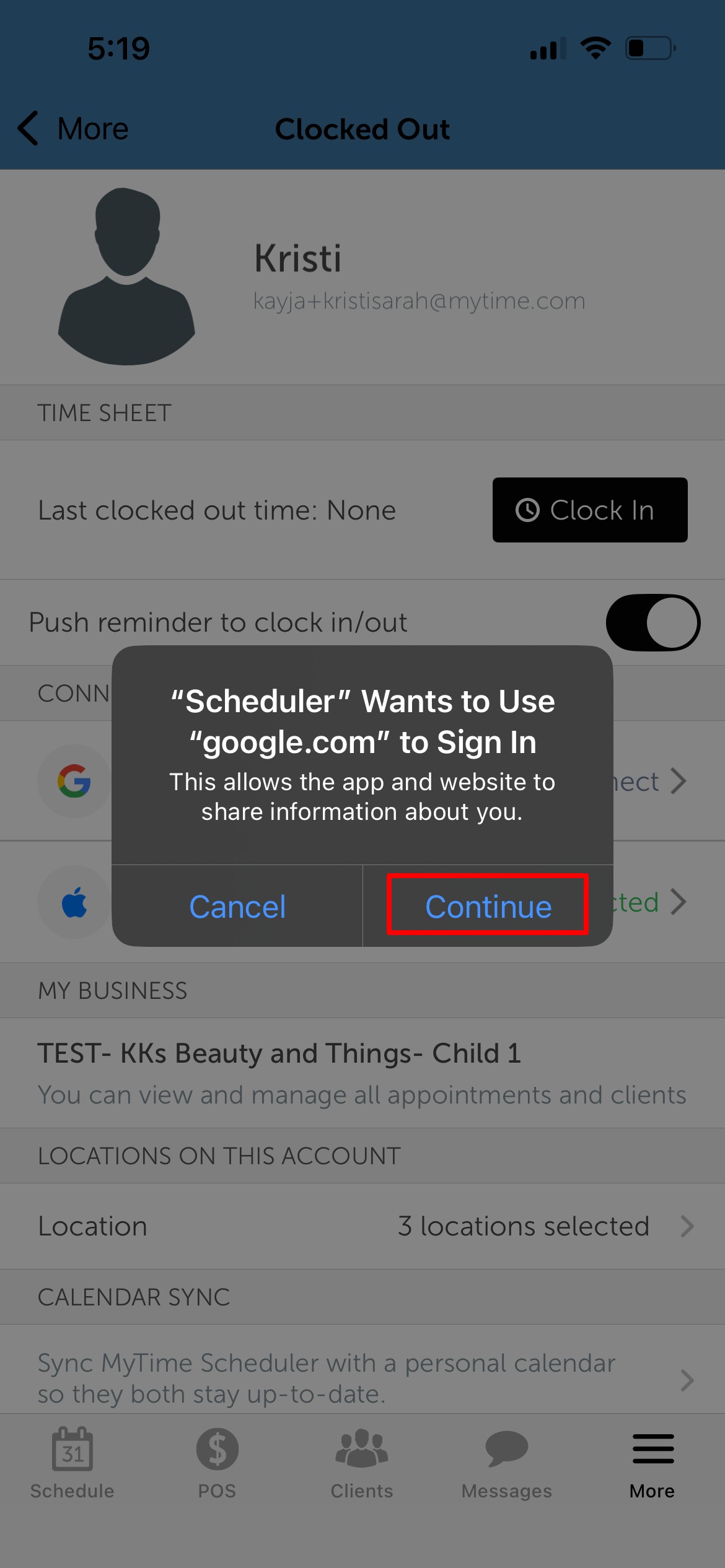
- When the confirmation appears, tap 'Continue'
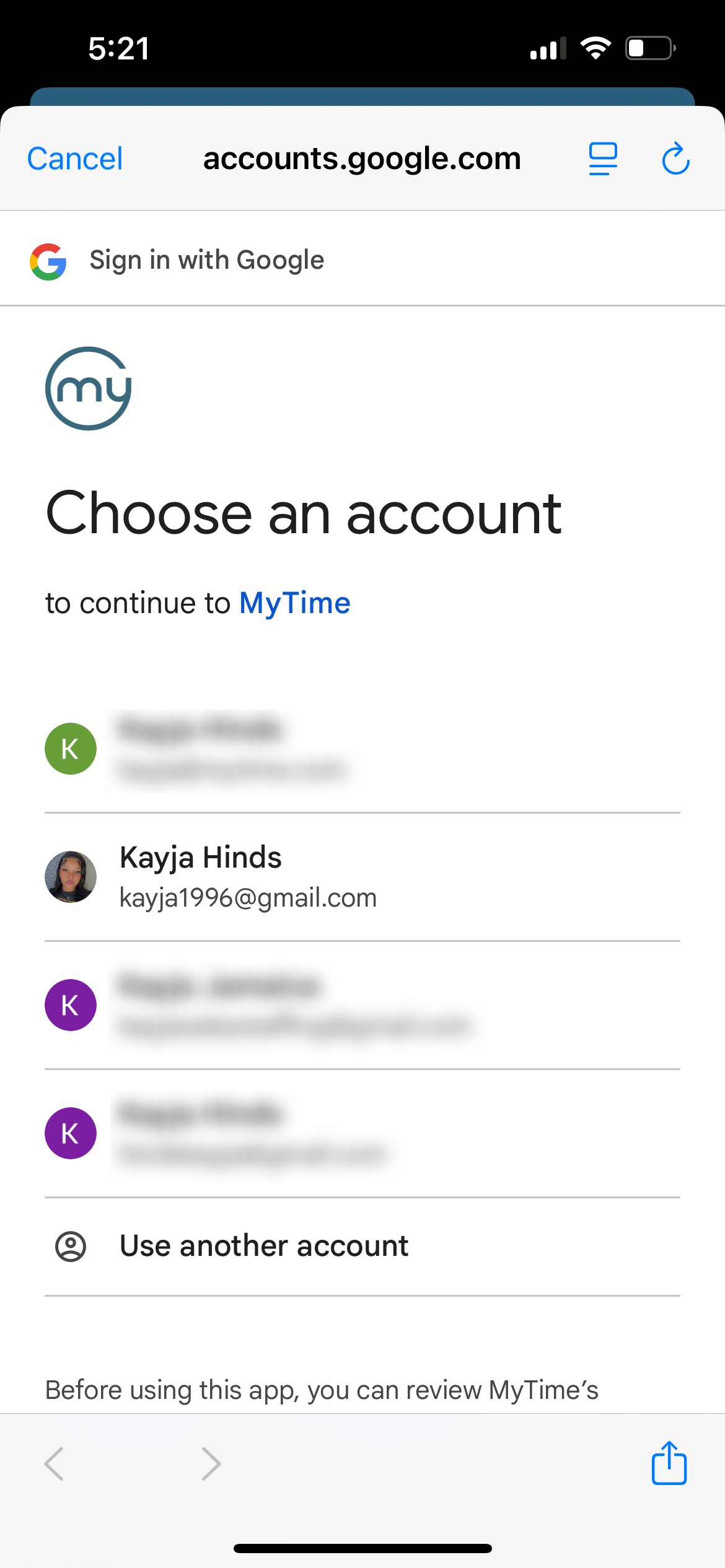
- Select the specific social profile you wish to link
- Once finalized, your profile will show as "Connected"
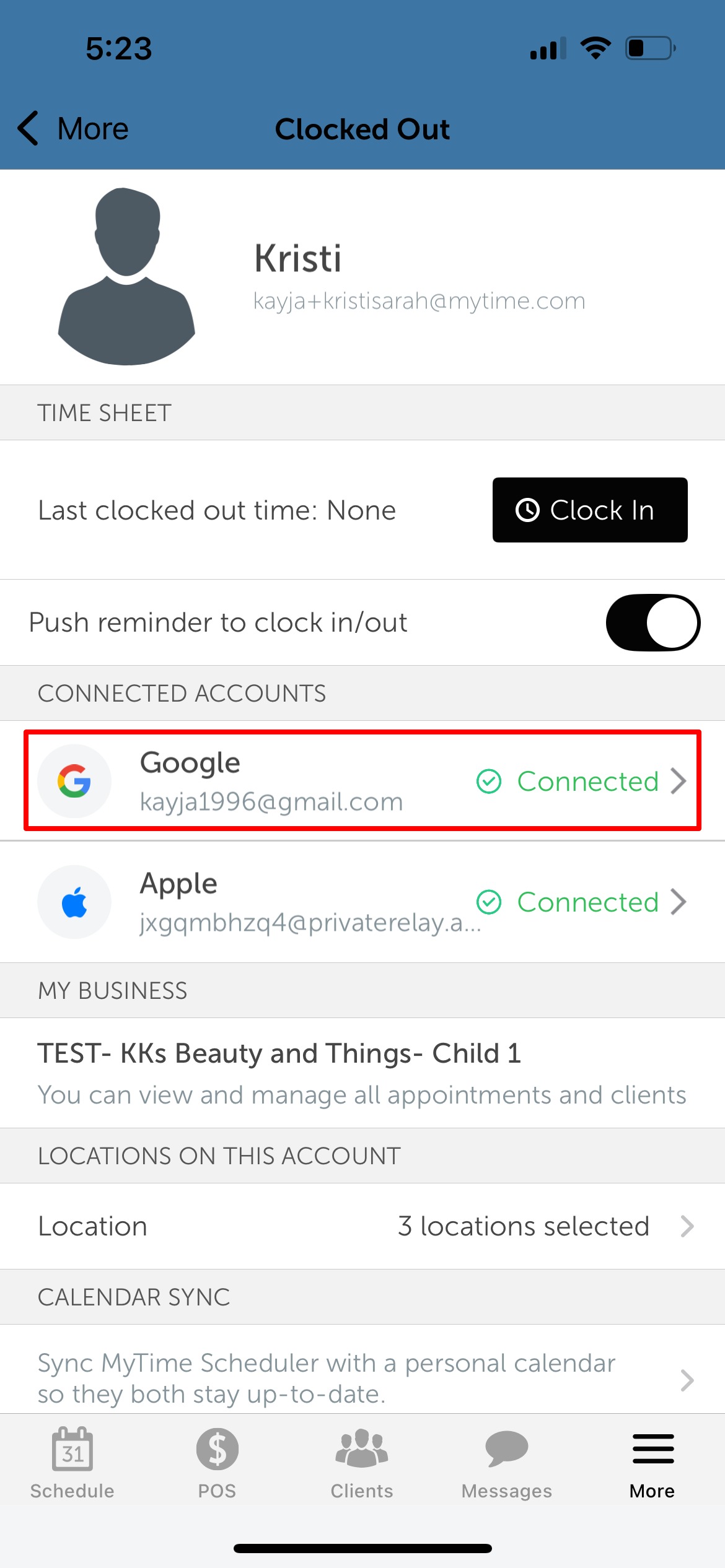
4. To disconnect a social profile:
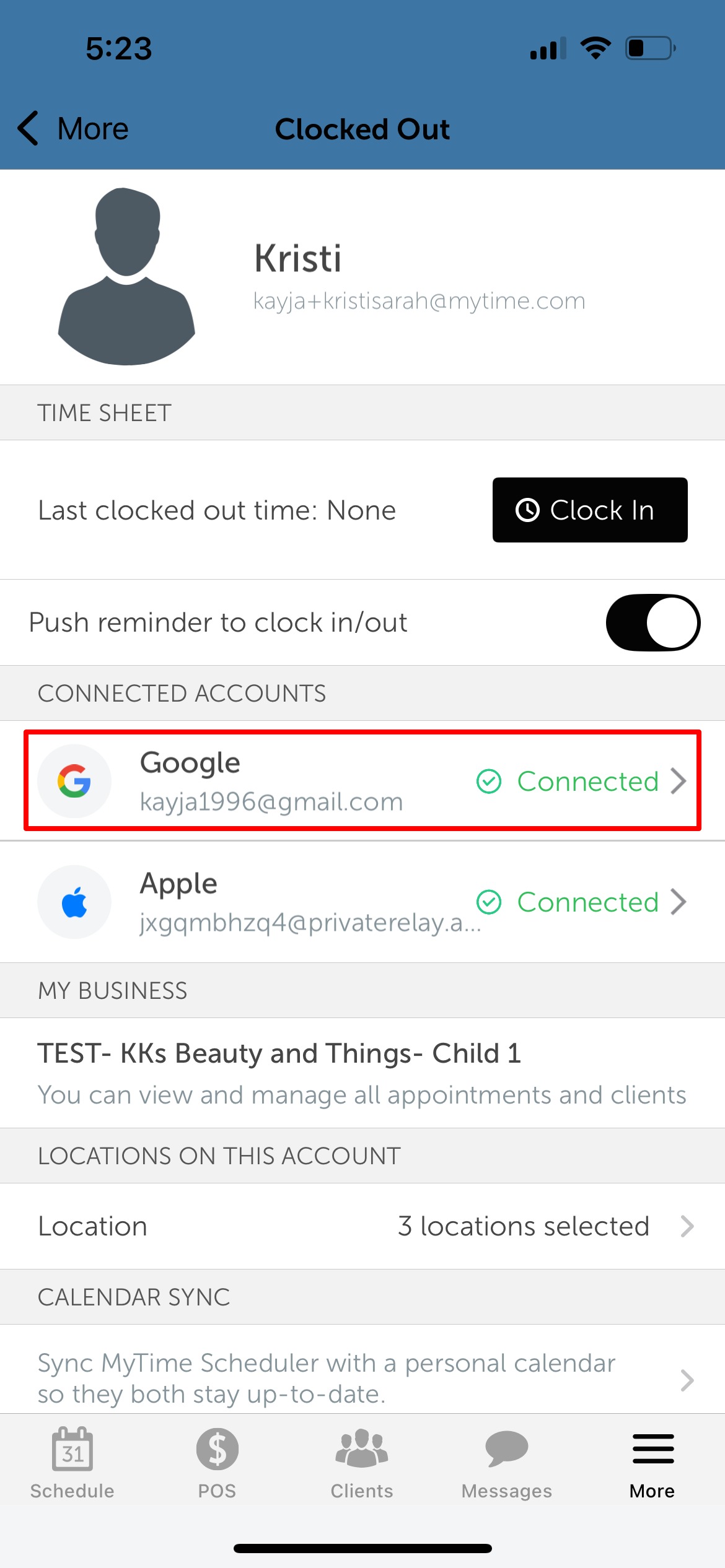
- Tap the option currently labeled Connected
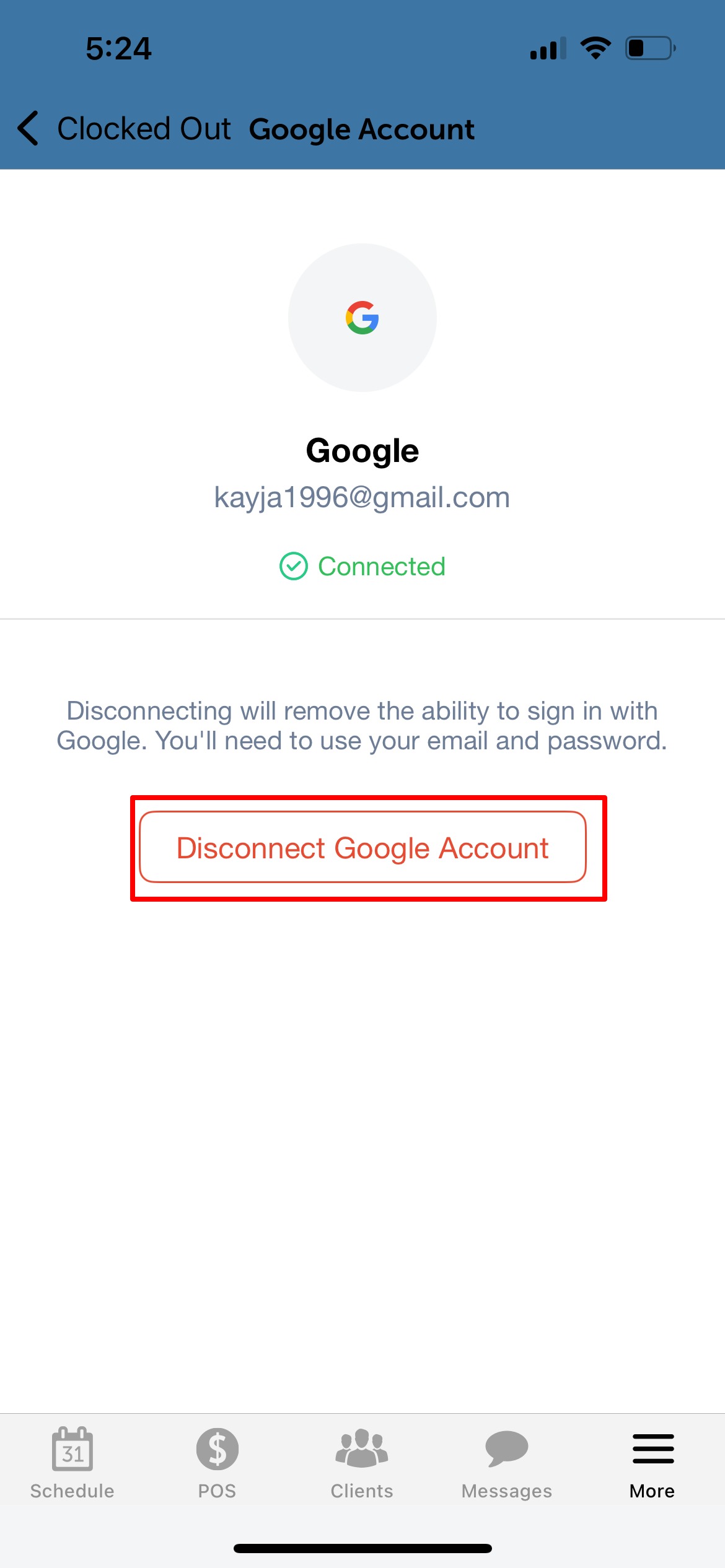
- Select Disconnect [Social Media] Account
- When the confirmation appears, tap OK
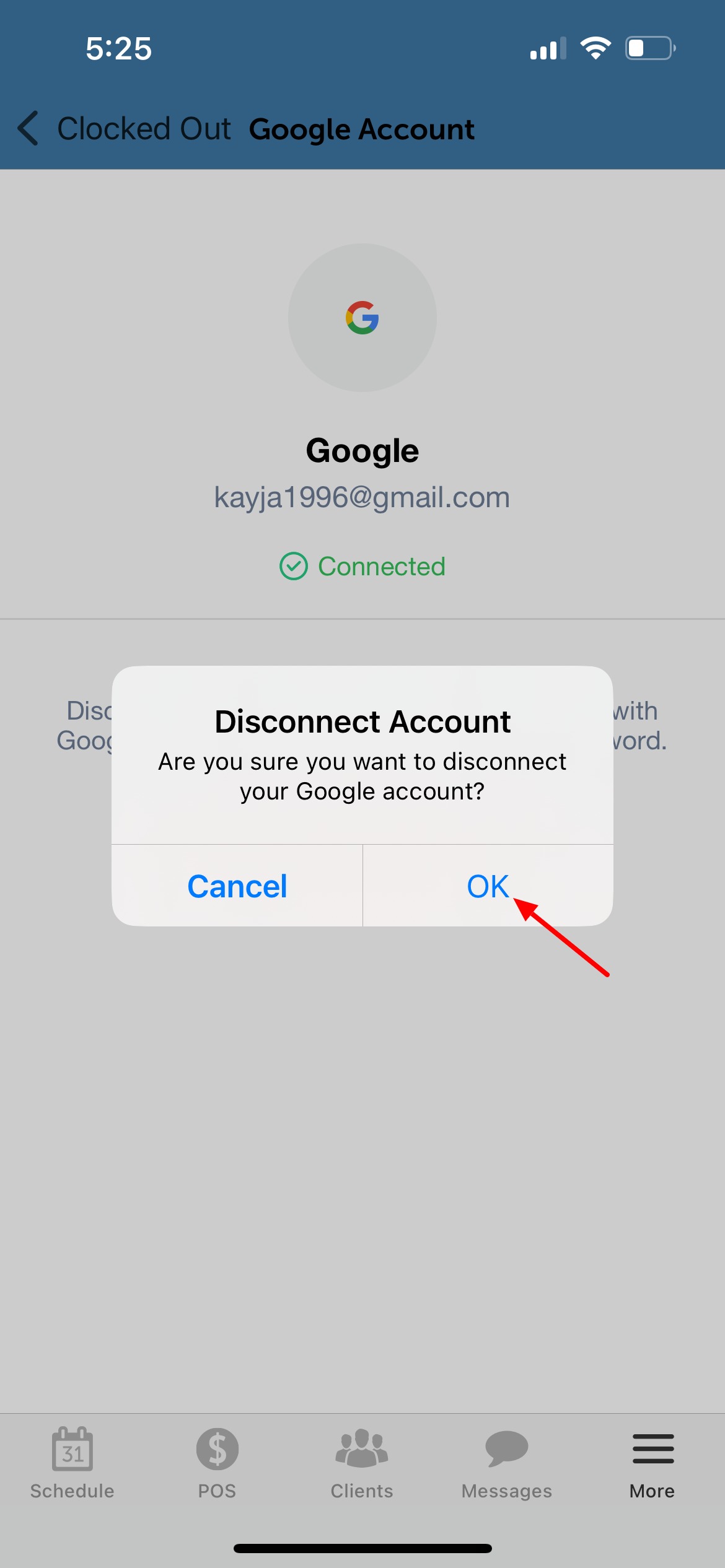
- Your social profile will then be successfully unlinked.
For more information, contact us at support@mytime.com.
Related Articles:
Installing MyTime on Scheduler App (Android and iOS)
Sign in as Staff Member on Web
Was this article helpful?
That’s Great!
Thank you for your feedback
Sorry! We couldn't be helpful
Thank you for your feedback
Feedback sent
We appreciate your effort and will try to fix the article