This article explains how account owners can add or update the payment method used for MyTime subscription charges and email/SMS overages.
Things to know:
- Only the account owner can add or update subscription payment methods.
- Franchise Billing: Payment methods must be updated on the account responsible for the fees:
- Parent Pays: Update the payment method on the parent account
- Child Pays: Update the payment method on the individual child account
- You may add both a credit card and a bank account to your MyTime account for your convenience
- Stripe offers two ways to register your sending account: Instant Verification and Manual Registration.
- Instant Verification: This method uses Stripe Financial Connections to authenticate directly with your bank via OAuth, making the account ready to use immediately.
- Manual Registration: This involves manually entering your routing and account numbers, followed by a micro-deposit verification process.
- Removing Accounts in Progress: You can remove a linked bank account while verification is still in progress. The "Remove bank account" option displays directly alongside "Complete verification" on the account profile.
- Confirmation & Reset: Removing an account requires confirmation. Once confirmed, the system clears the pending verification status and allows the customer to immediately add and verify a new bank account.
- Permanent Deactivation: Once an account is removed, it is permanently deactivated for payment processing. Late or delayed micro-deposit verifications from the bank cannot restore or reactivate a removed account.
- Error Handling: If an account removal fails due to a network or payment processor issue, an on-screen error message will display, allowing you to retry the action.
- While you can switch between payment methods at any time, you must designate one as your primary payment method for subscription billing to process successfully.
- The system will not automatically switch to an alternative payment method if your primary one fails. For example, if your primary method is a credit card and it is declined, the system will not attempt to charge your saved bank account, and vice versa.
- A 3% credit card convenience fee applies when using a credit card to pay for subscription charges and email/SMS overages
- You can avoid credit card surcharges entirely by enrolling in ACH (bank account autopay). ACH payments do not incur any additional processing fees.
Contents:
Add Bank Account
To add your bank account information, please follow the steps below:
1. Expand the arrow next to your name in the top right
2. Select My Account from the dropdown menu
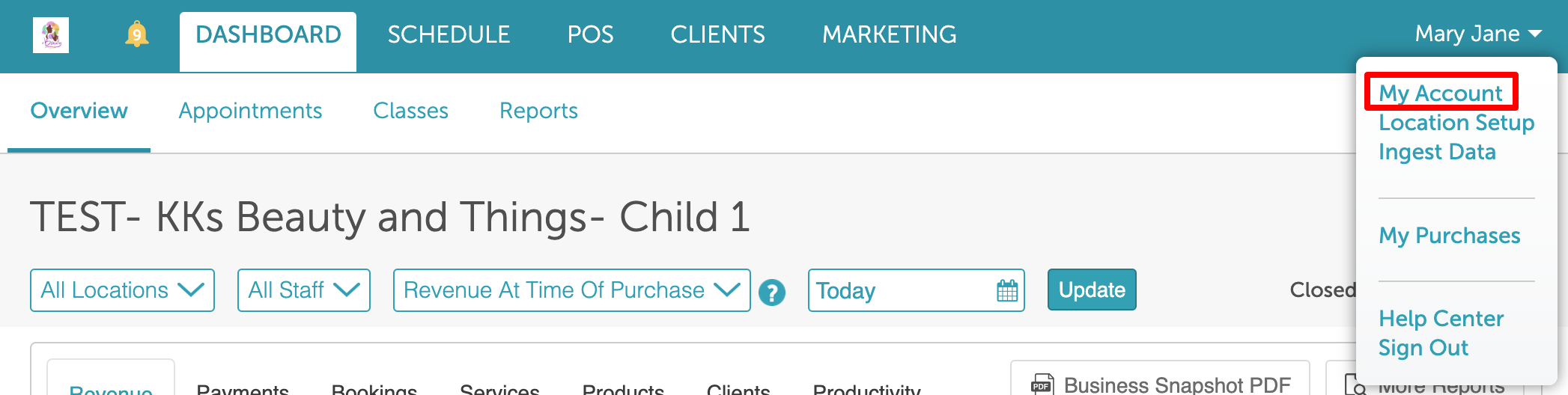
3. Under Payment Method, select the radio button for Pay from Checking Account (no fee)
4. Click on the +Add Bank Account link
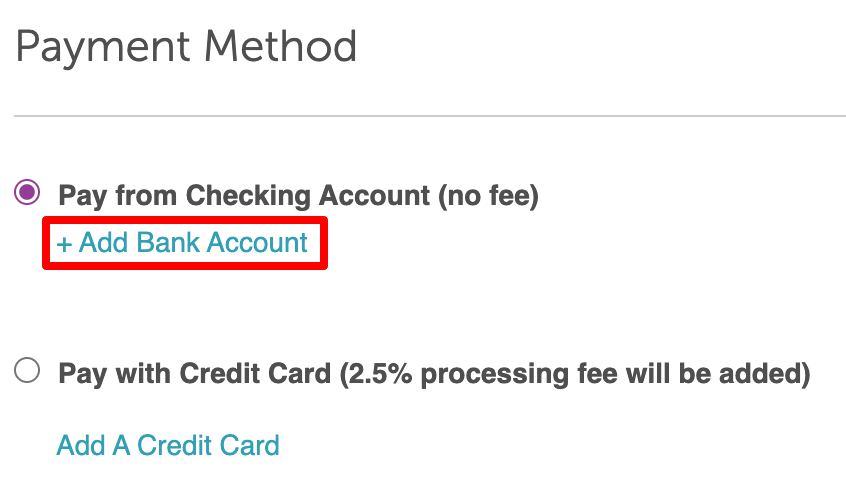
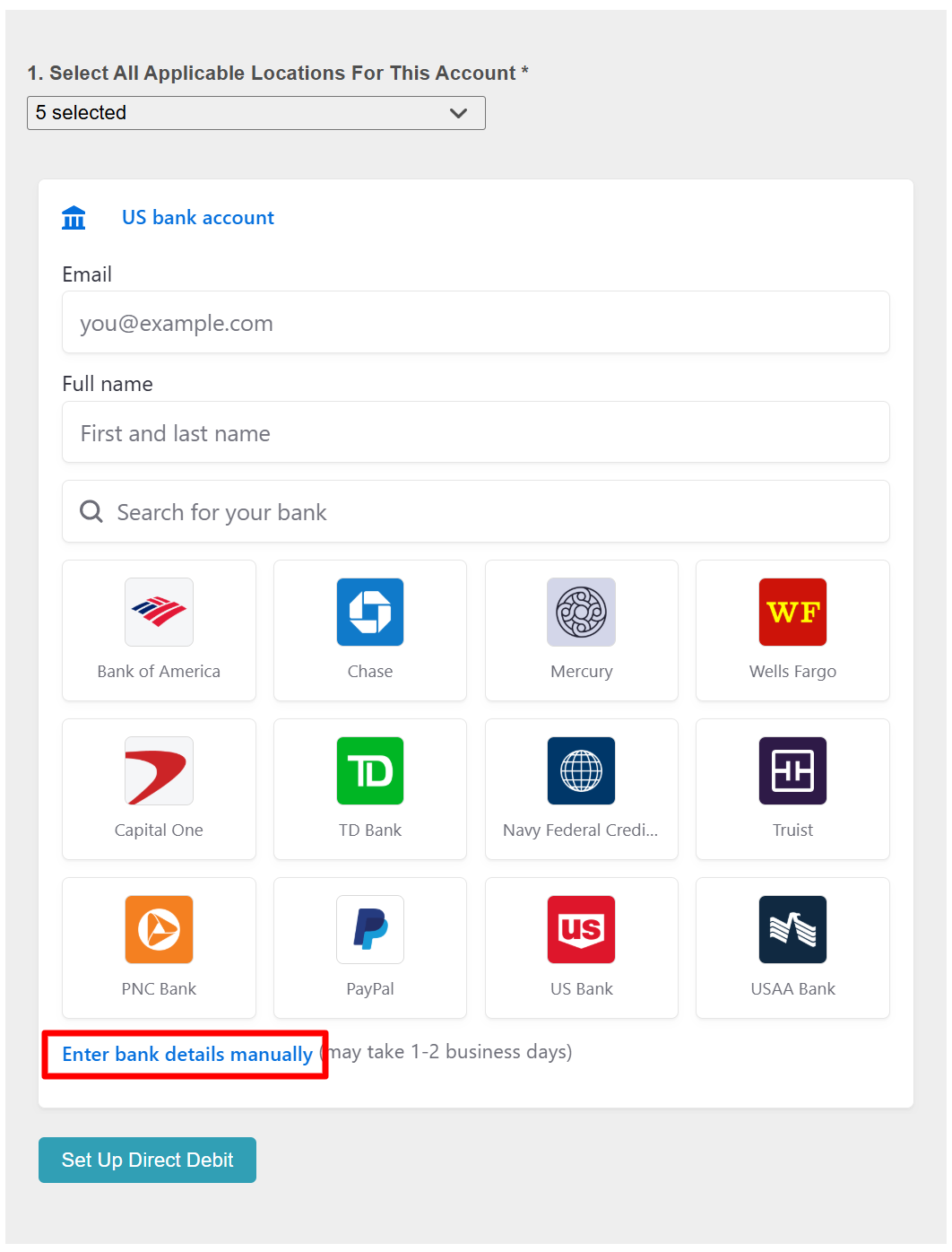
5. You can decide if you want to manually enter your bank details or connect your account for instant verification.
Manual Registeration
- Select the "Enter bank details manually" link
- Enter your routing and account numbers in the Stripe-hosted form
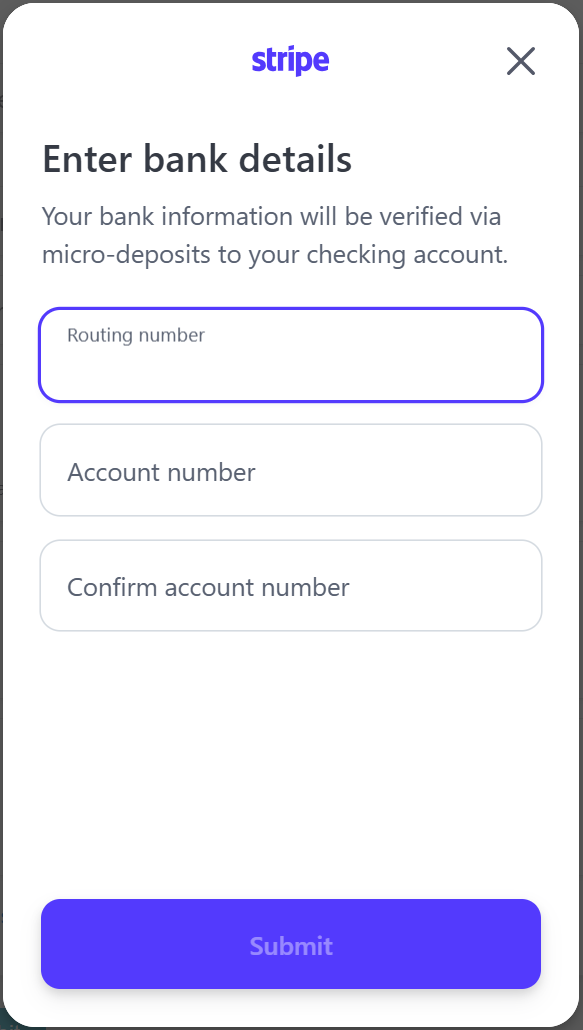
- After submitting, you will see the following message: “Next, finish up on MyTime to initiate micro-deposits. You can expect an email with instructions within 1–2 business days.”
- Select "Back to MyTime" to exit the Stripe form
- Enter your contact information and select 'Set Up Direct Deposit'
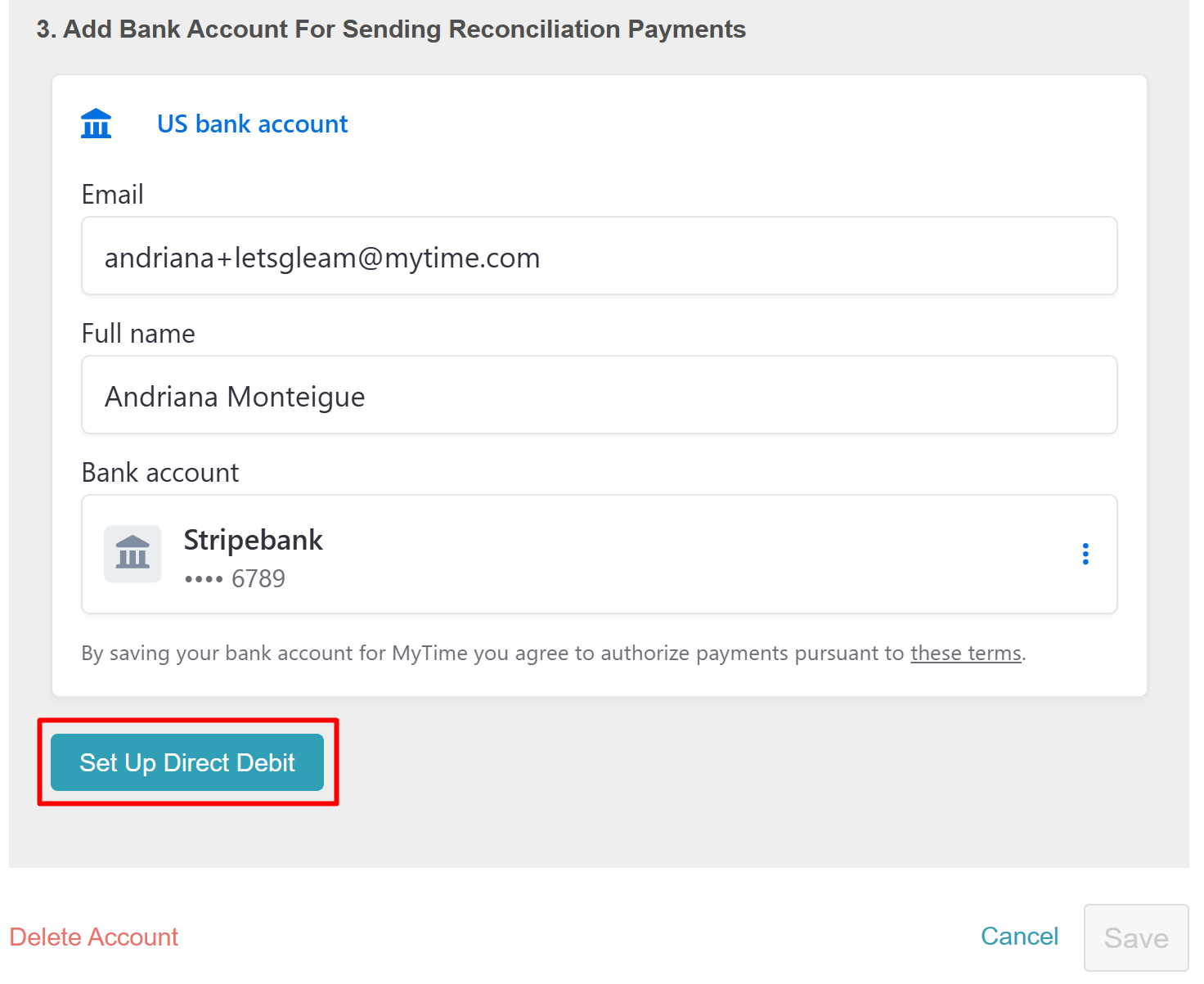
- A confirmation message will appear indicating that verification is in progress
- You will receive two small deposits from Stripe within 1-2 business days.
- Once you’ve received the deposits, navigate back to the 'My Account' page and click the "Complete Verification" link
- Enter the amounts for verification, and allow MyTime to electronically debit your account.
- If the amount you input matches the deposit, the account's status will be changed to "Verified"
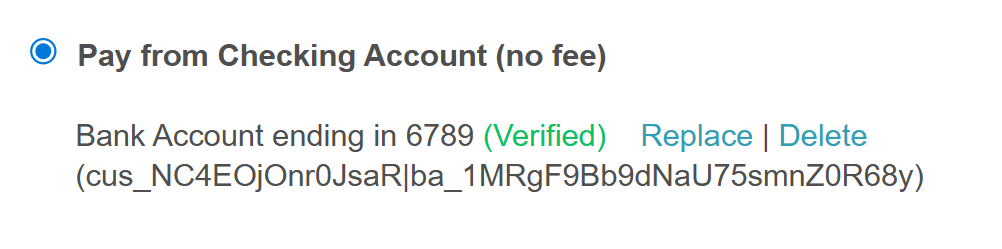
- Click 'Save Changes'
If you had already verified your bank account and then switched to credit card payment, you can switch back to your checking account without going through the verification process again.
Instant Verification
- Enter your email address and full name, then click on one of the bank icons below or use the search field to find your bank
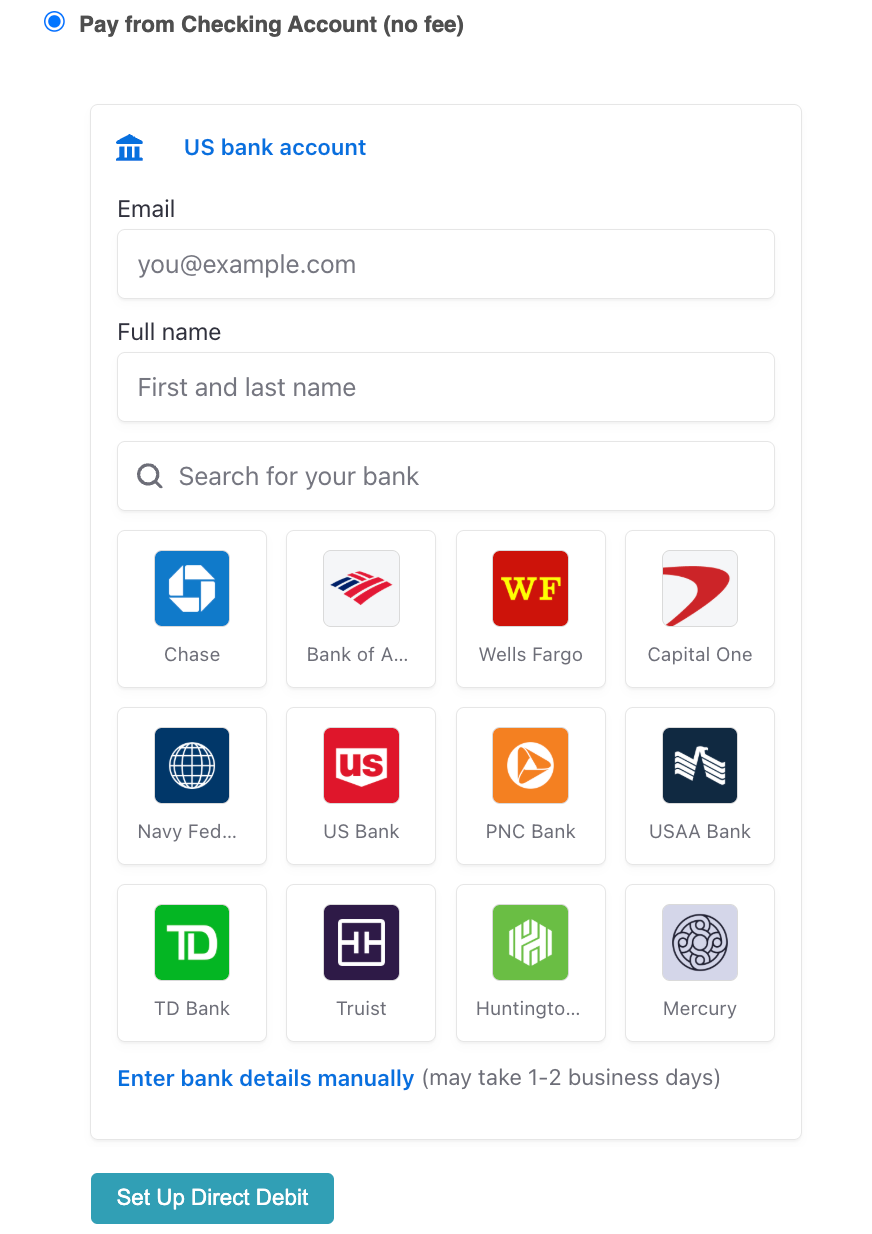
- Once you have made your selection, review terms and privacy policy, then select the 'Agree and Continue' button on the modal
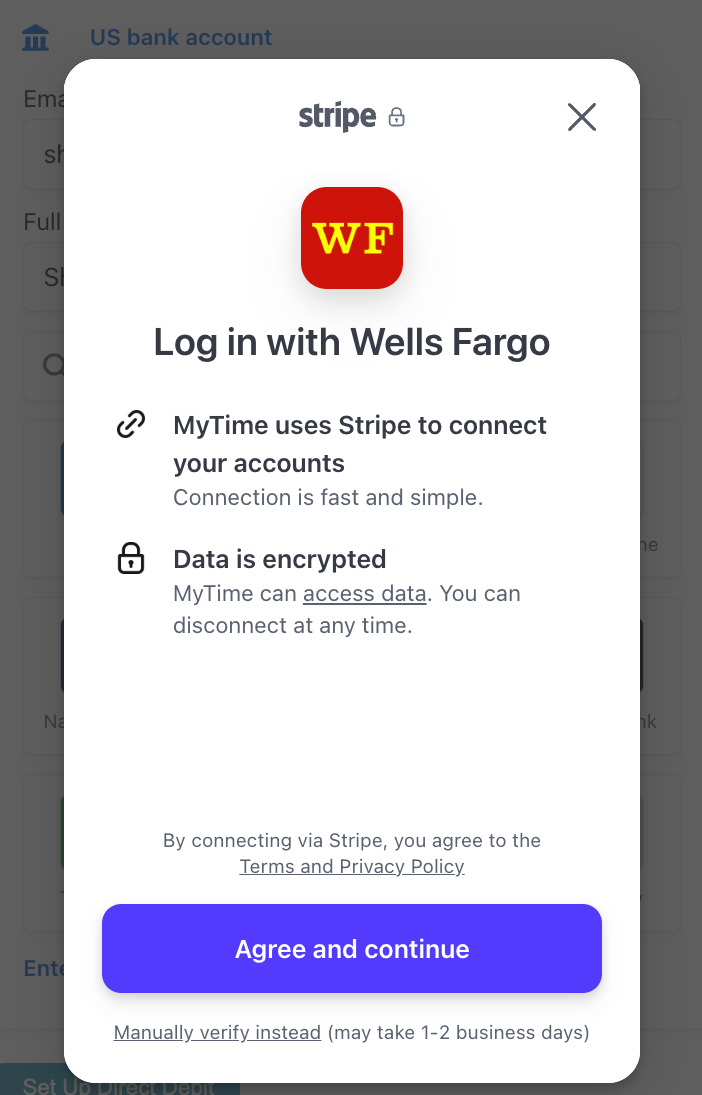
- Select 'Continue' to log in to your account
- You will be redirected to your bank's online login page to sign in
- Select the "Connect Account"
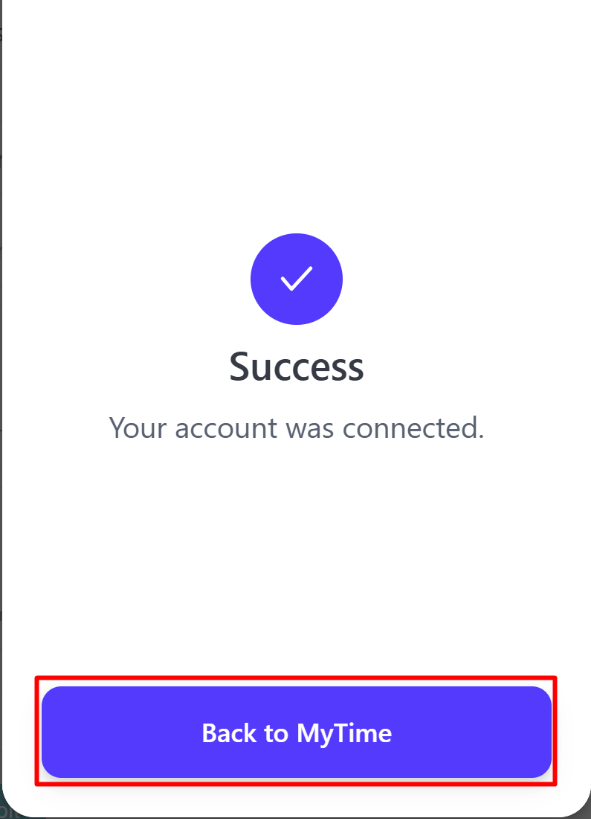
- On the success screen, tap the "Back to MyTime" button
- Tap the "Setup Direct Debit" button
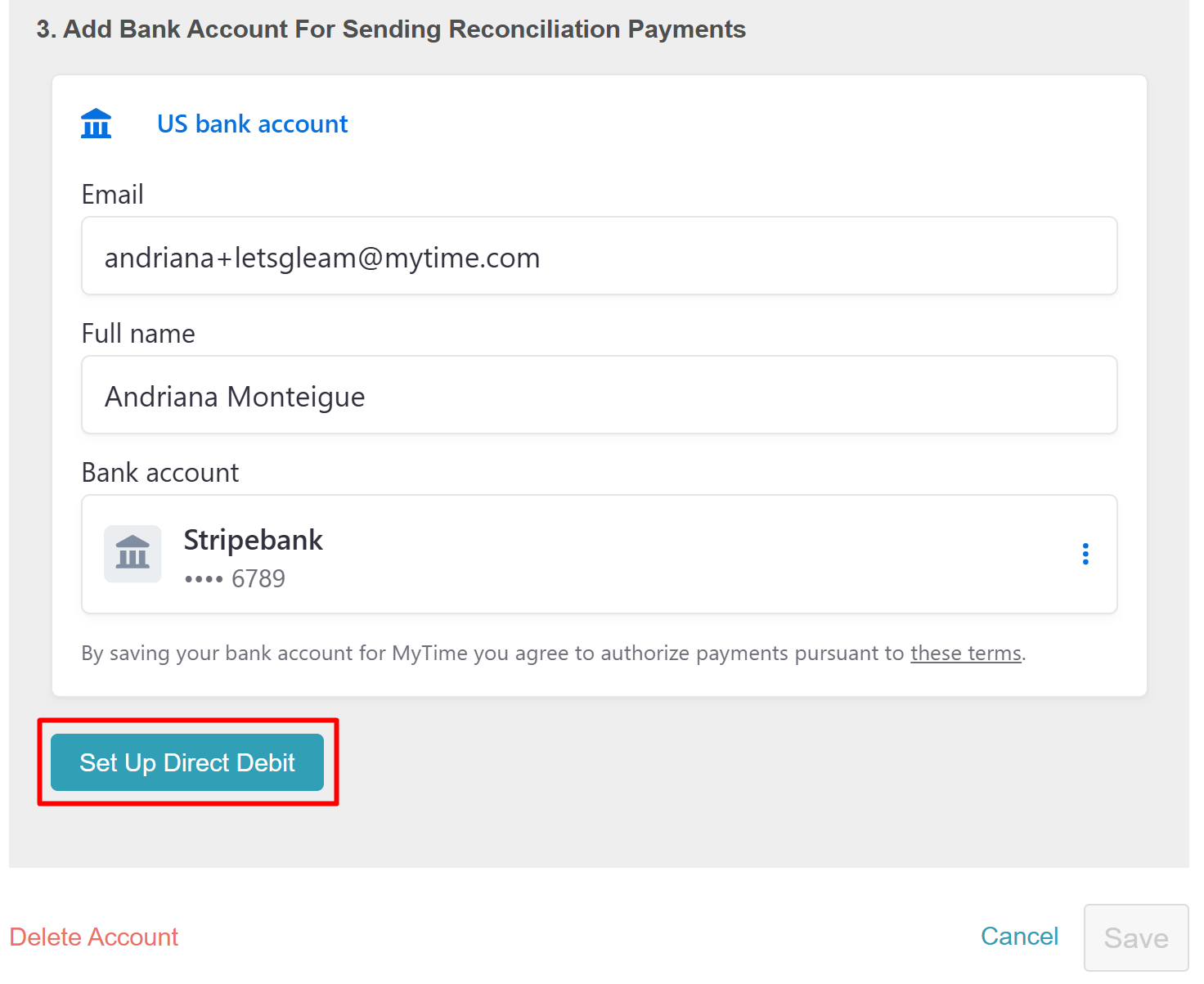
- The account's status will be changed to "Verified"
- Click 'Save Changes'
Add Credit Card
To add your credit card information, please follow the steps below:
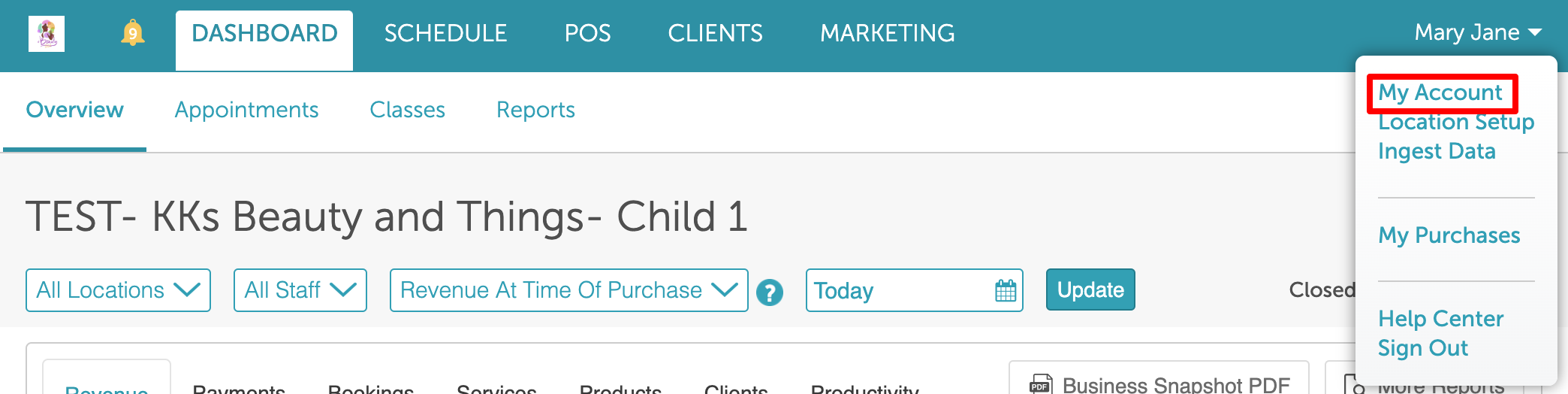
1. Expand the arrow next to your name in the top right
2. Select My Account from the dropdown menu
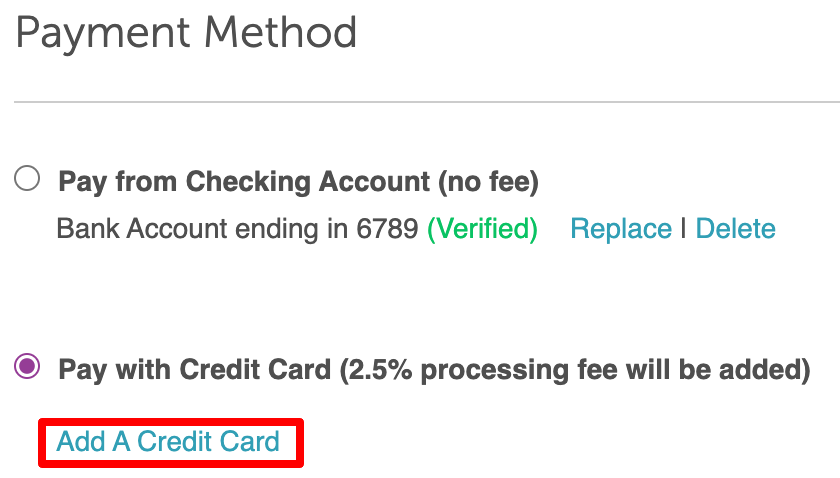
3. Under Payment Method, select the radio button for Pay with Credit Card (2.5% processing fee will be added)
4. Click on the +Add Credit Card link
5. Enter your card details 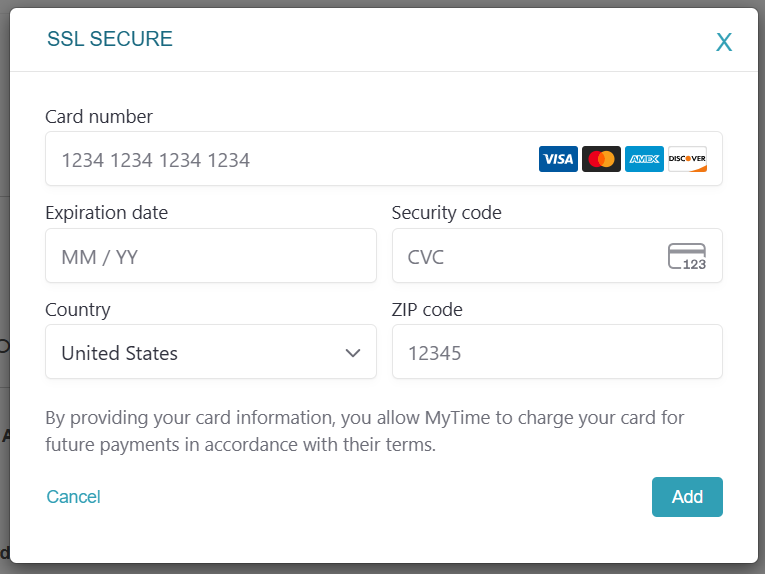
6. Save changes
If you have any questions, please contact our Support Team at support@mytime.com.
Related Articles:
Managing My Account Information
Was this article helpful?
That’s Great!
Thank you for your feedback
Sorry! We couldn't be helpful
Thank you for your feedback
Feedback sent
We appreciate your effort and will try to fix the article