This article provides step-by-step instructions to help you add bank account details to client profiles and enable bank accounts for membership payments.
Things to know:
- The ability to add bank accounts to client profiles is controlled by the "Accessing Client Records" access control setting.
- Bank transfer payments incur a processing fee, which is typically lower than credit card fees. To enable bank transfers and confirm your rate, contact support@mytime.com.
- This feature is available for accounts using Stripe and Global Payments in the US and Australia.
- Once a bank account is added, it can be used as a payment method for any transaction within MyTime POS.
- Membership Payments via Bank Transfers: The "Enable Membership Payment Using ACH" setting determines how memberships are charged:
- Disabled: Charges are processed via credit card
- Enabled: Charges are processed via bank account (ACH)
- If a client has multiple memberships, all charges are processed simultaneously using the same bank account on file.
- Bank transfer payments are not compatible with the "Retry Failed Payment" setting.
- Failed Bank Transfer Payments: If an bank transfer payment fails:
- No charge is completed
- The membership is marked as Failed Payment
- Benefits expire and credits become unusable
- The associated ticket remains open
- A staff member must manually collect payment
- Any credits issued during a failed ACH attempt are automatically expired.
- If some credits were used, they will be deducted from new credits once a successful payment is processed.
- When a bank transfer payment fails, the system automatically sends an ACH Failed Payment email to the client. At the same time, any staff members with Operational Alerts enabled will receive a notification.
- Client Bank Account Verification: You can view the real-time status of a client’s bank account verification directly on their profile. This allows staff to identify and resolve payment issues before a transaction is attempted.
- Verification Statuses:
- Pending (Orange): The verification process is underway.
- Message: "Bank account verification in progress Initiated on {Date}"
- Action: Click Complete Verification to confirm the micro-deposit amounts or enter the 6-character code from the client's bank statement.
- Failed (Red): The verification attempt was unsuccessful.
- Message: "Bank account verification failed"
- Action: Click the Add a Bank Account hyperlink. This opens the Setup Bank Account modal, allowing you to re-send the link so the client can enter their details again.
- Message: "Bank account verification failed"
- Pending (Orange): The verification process is underway.
- If bank transfer is disabled and payment is retried using a credit card, duplicate credits will not be issued.
- Clients will receive a "Membership Payment Failed" notification and can update their payment method using the link provided.
- Recurring membership charges will only be processed via bank transfer if the setting is enabled, regardless of how the initial purchase was made.
- Membership Backup Payment Settings:
- Prerequisite: Direct Debit must be enabled for your account. If Direct Debit is disabled, these settings and UI elements remain hidden, and default payment behaviors apply.
- Automated Backup Payment Method for Membership Failures:
- Setting Enabled: "If a membership payment fails, retry using the backup payment method on file"
- Automated Failover: When a client's recurring membership payment via bank account fails (whether instantly at checkout or days later following bank processing), the system automatically attempts to charge their saved backup card on file instead of suspending the account.
- Successful Charge Outcome: If the card charge succeeds, the membership remains active, benefits stay intact, the ticket is marked Paid, and the client receives a notification detailing the backup card charge.
- Multi-Membership Consolidation: If a client has multiple memberships renewing on the same date, the system consolidates the total balance into a single backup card charge rather than executing multiple individual transactions.
- Primary Method Protection: Utilizing a backup card does not overwrite the client's preferred payment method. Future billing cycles will continue attempting the primary bank account first.
- Fallbacks & Manual Retries:
- Declining Cards: If the backup card declines or no card exists on file, normal failure logic triggers (the membership suspends, benefits are revoked, and failure emails dispatch).
- Manual Staff Retries: Manual payment retries initiated by staff only attempt the selected bank account—they never automatically fail over to a card.
- Staff Retry Limits:
- Setting: "How many times can staff retry a failed bank payment before it is blocked?" (Default: Unlimited)
- Limit Thresholds: If configured to a numeric limit (e.g., 1, 2, or 3), selecting Reactivate on a suspended membership with a failing bank account will block further attempts once the limit is hit. A prompt will direct staff to update the payment method.
- Clearing Blocks: Switching the primary payment method to a valid card clears this block immediately. Memberships paid via card are never subject to bank retry limits.
- Concurrency Guardrail: Clicking Reactivate multiple times consecutively will reject the second attempt if a payment is currently in progress or if that exact payment method failed within the last 24 hours.
- Client Notifications for Automated Fallback Charges:
- Delivery Channels: Every automated fallback charge triggers both an email and an SMS notification to the client.
- Timing: Notifications dispatch immediately for both Instant Failures (rejected on the spot at checkout) and Delayed Bounces (when a pending ACH debit fails back days later).
- Duplicate Guardrail: Notifications are sent exactly once per fallback event to prevent duplicate messaging.
- Bank transfer payments are included in the Membership Payment Report
Contents:
- Add a Bank Account to a Client Profile
- Clients Submitting Bank Account Details
- Enabling Bank Accounts For Membership Payments & Recurring Charges On Client Profiles
- Payments for Memberships & Recurring Charges on Client Profiles
Add a Bank Account to a Client Profile
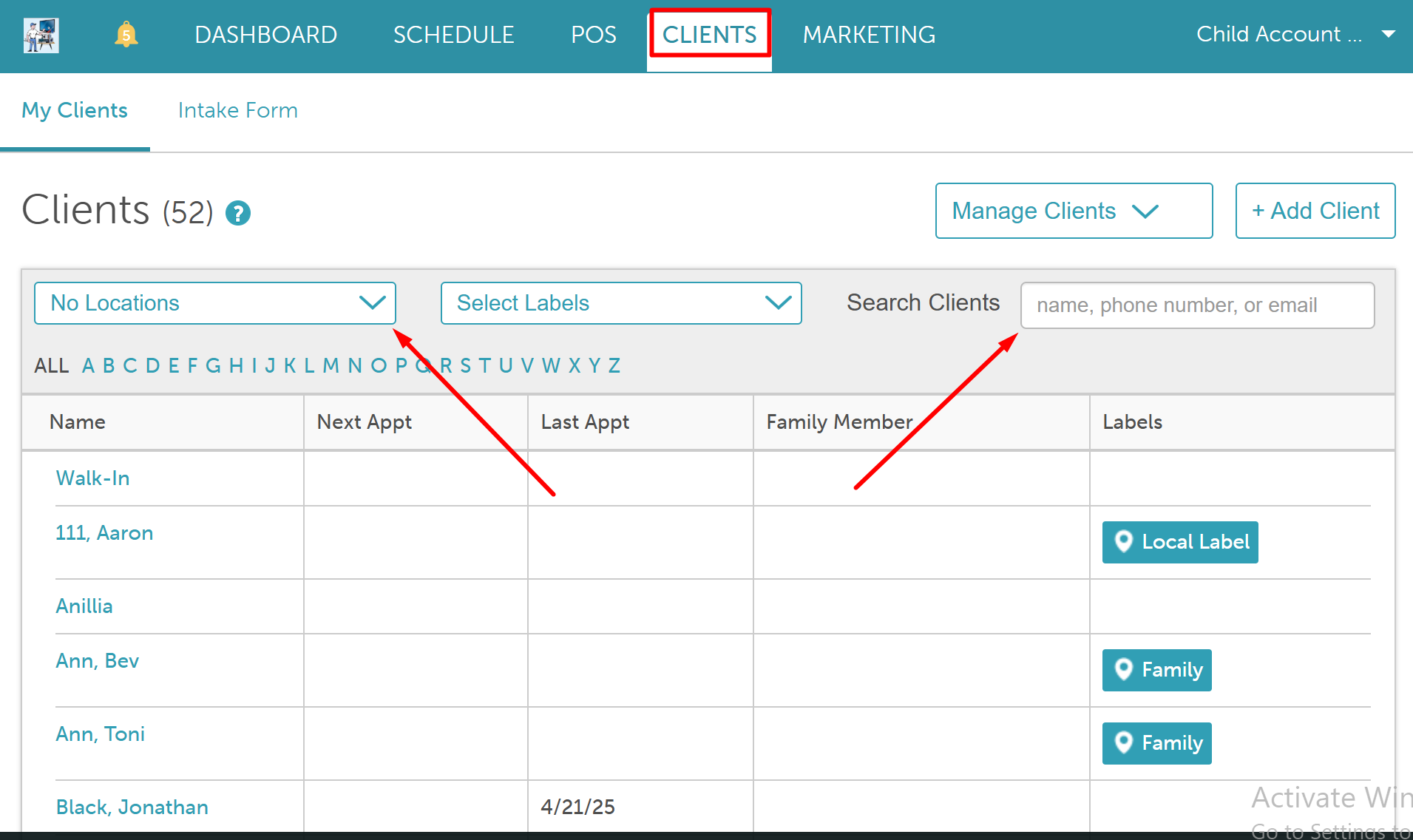
- Navigate to the Clients tab
- Use the location filter to select the desired location
- Search for the desired client and open their profile
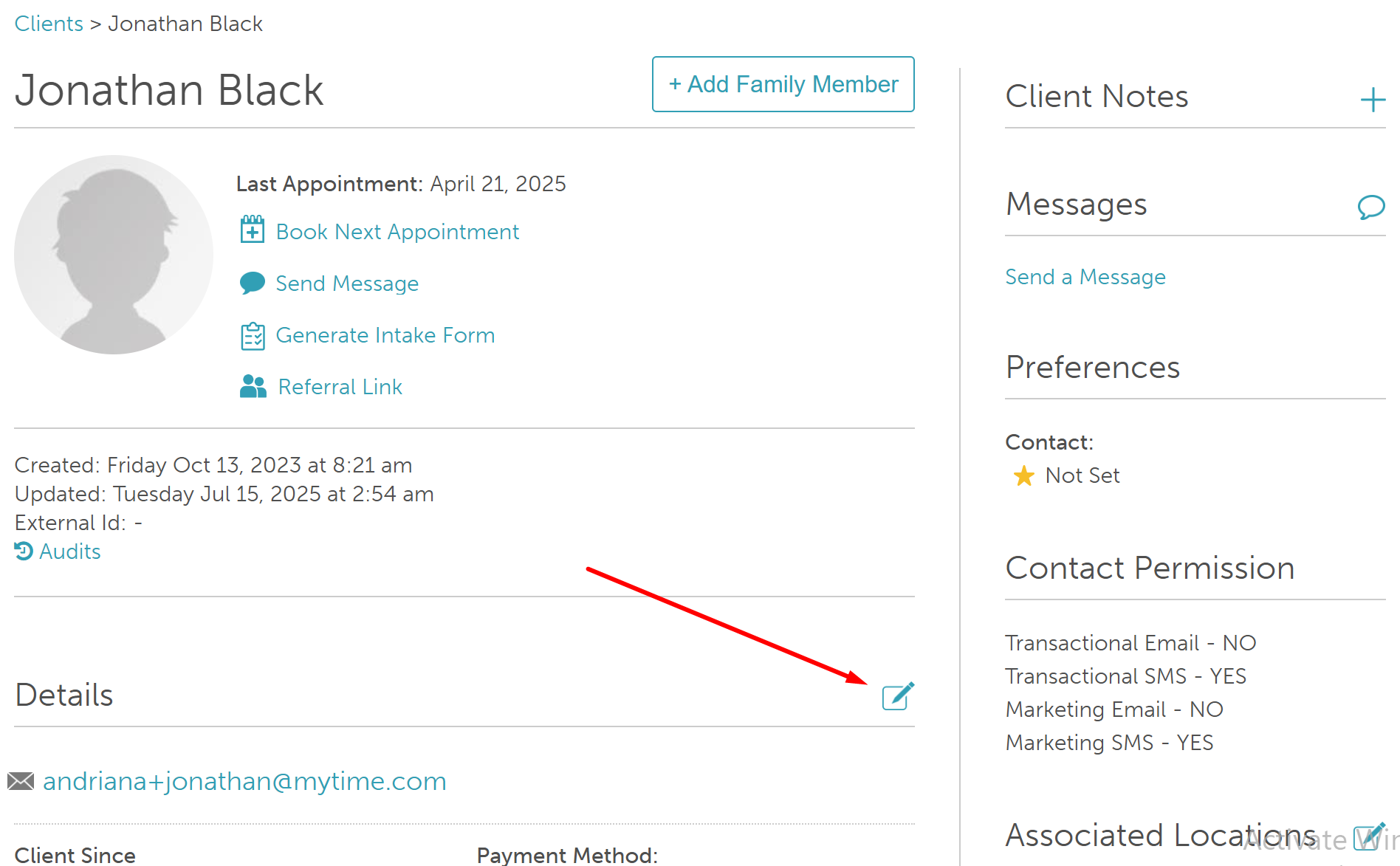
- In the "Details" section, click the edit icon
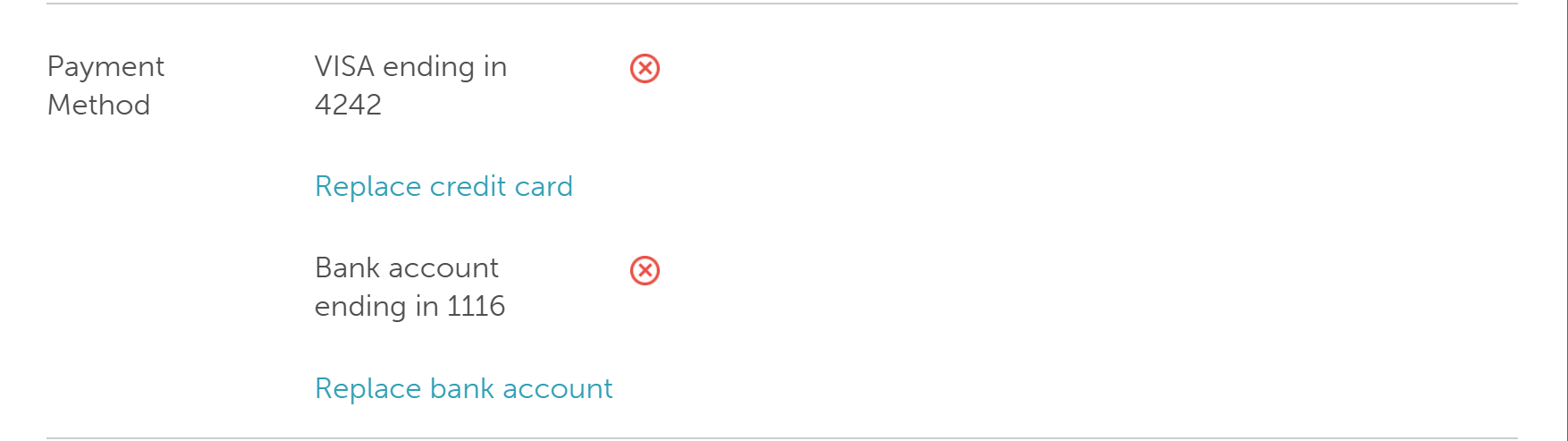
- Scroll to the 'Payment Method' section
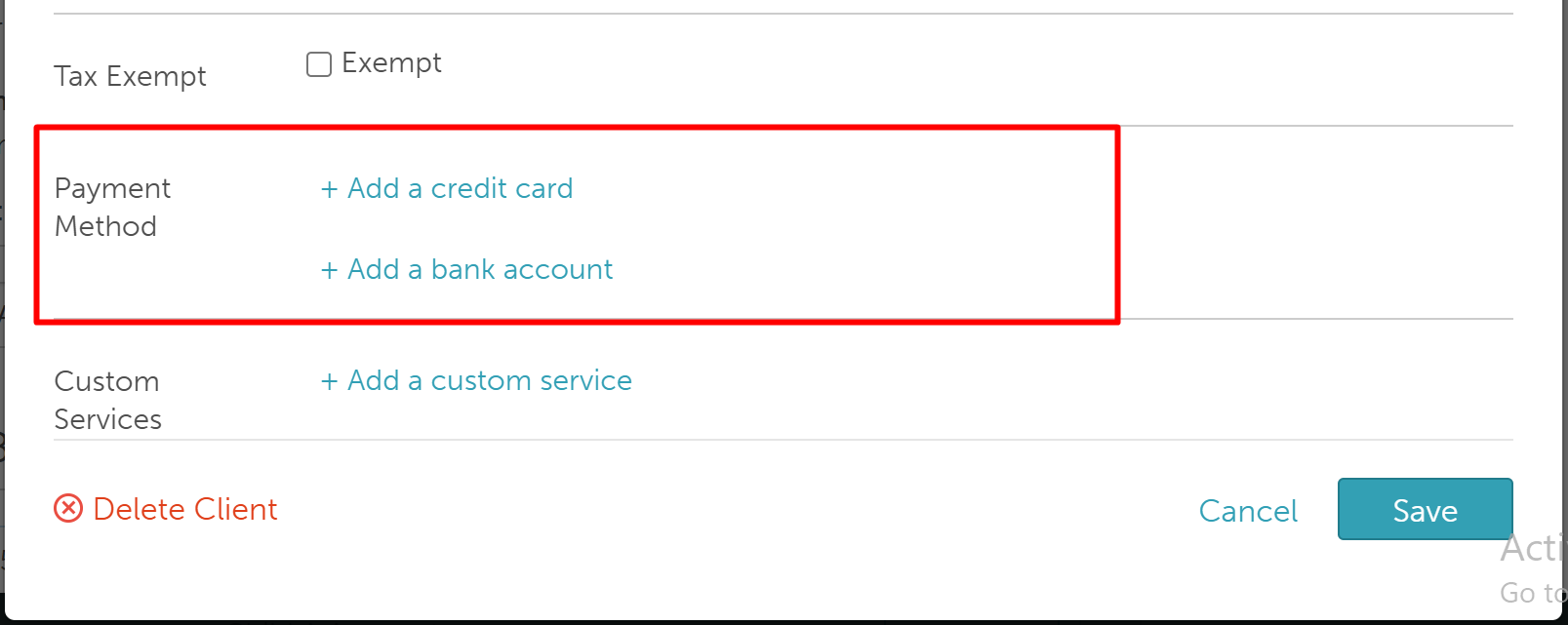
- Click "Add a bank account"
- In the Setup Bank Account modal, click Send and choose how to share the link with the client:
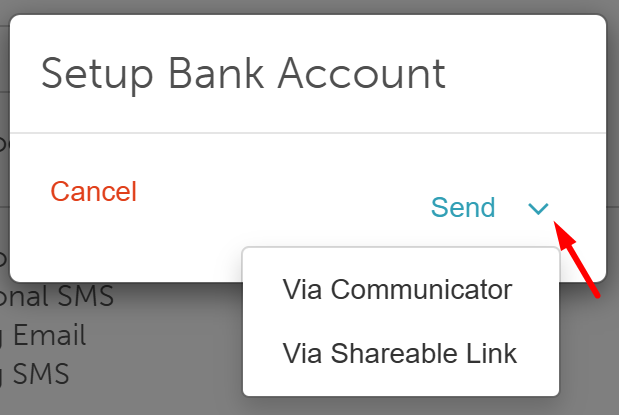
- Via Communicator: Opens Communicator and pastes a link you can send directly.
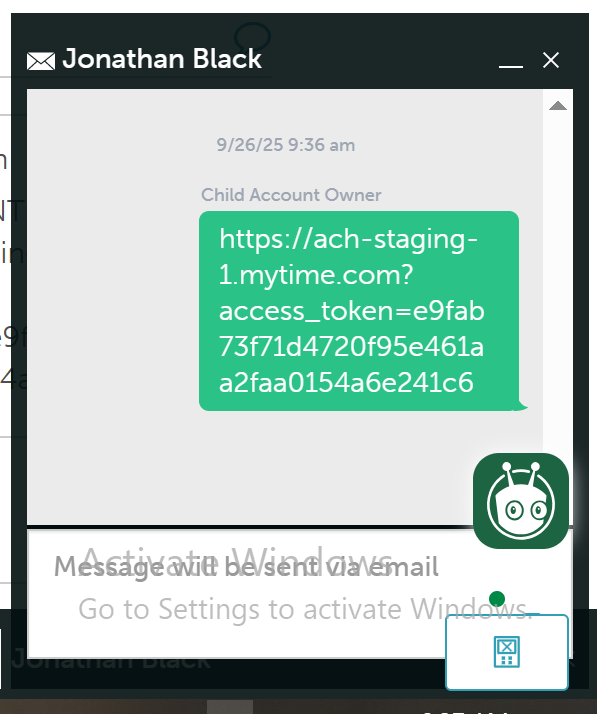
- Via Shareable Link: Copies the link to your device for manual sharing
- Via Communicator: Opens Communicator and pastes a link you can send directly.
- The client receives the link and is prompted to enter their bank details
Clients Submitting Bank Account Details
- Click the link received
- The email address of the account holder will be pre-filled by default and cannot be edited
- Enter the name of the account holder. > Click 'Add New bank Account'
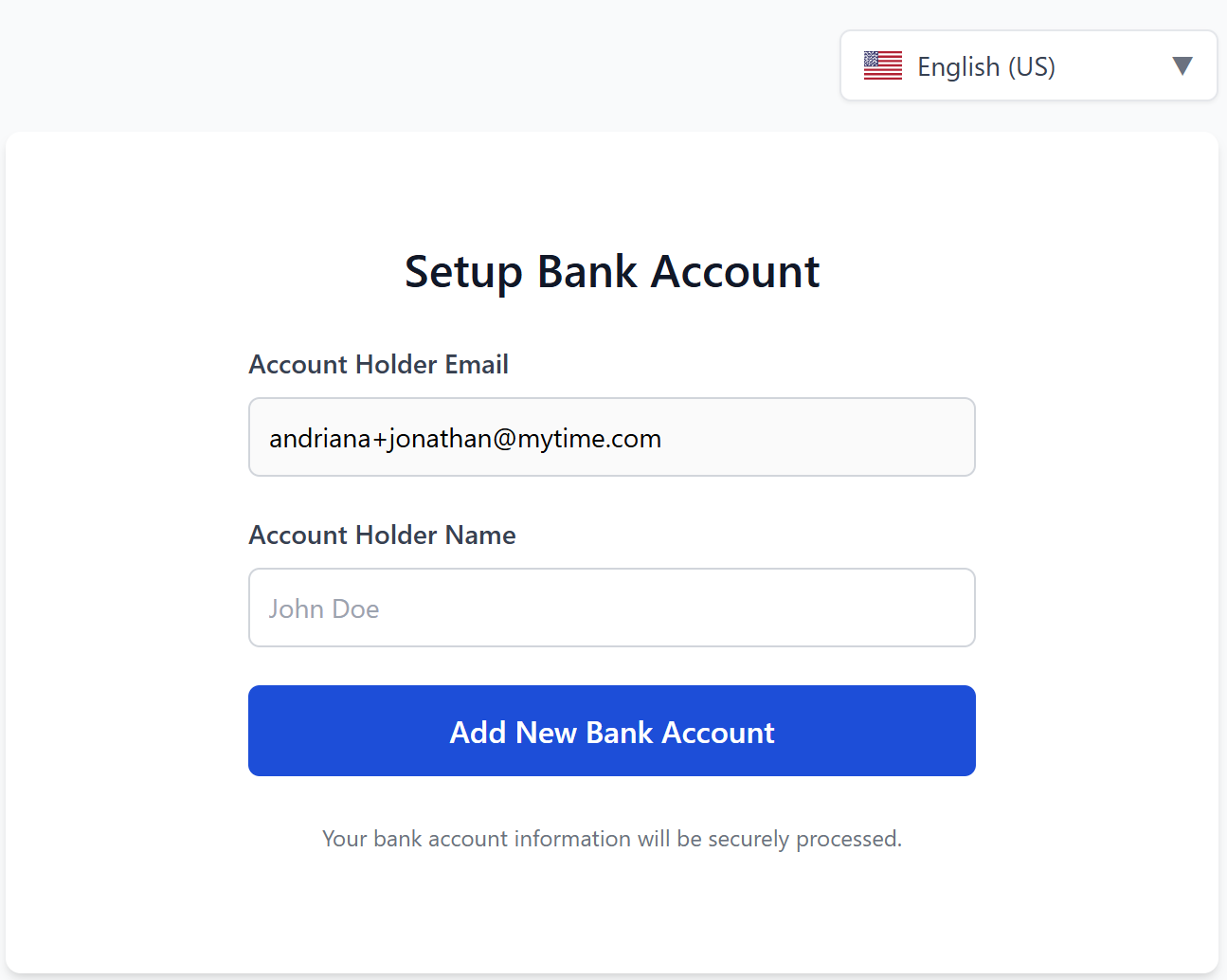
- Follow the steps and enter the information to add the account
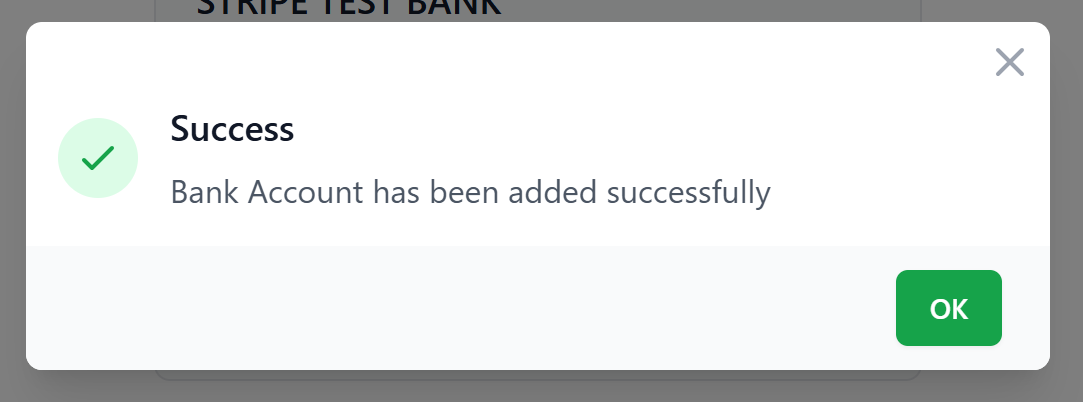
- Click 'OK' on the successful pop-up
- The bank account details will be saved and displayed
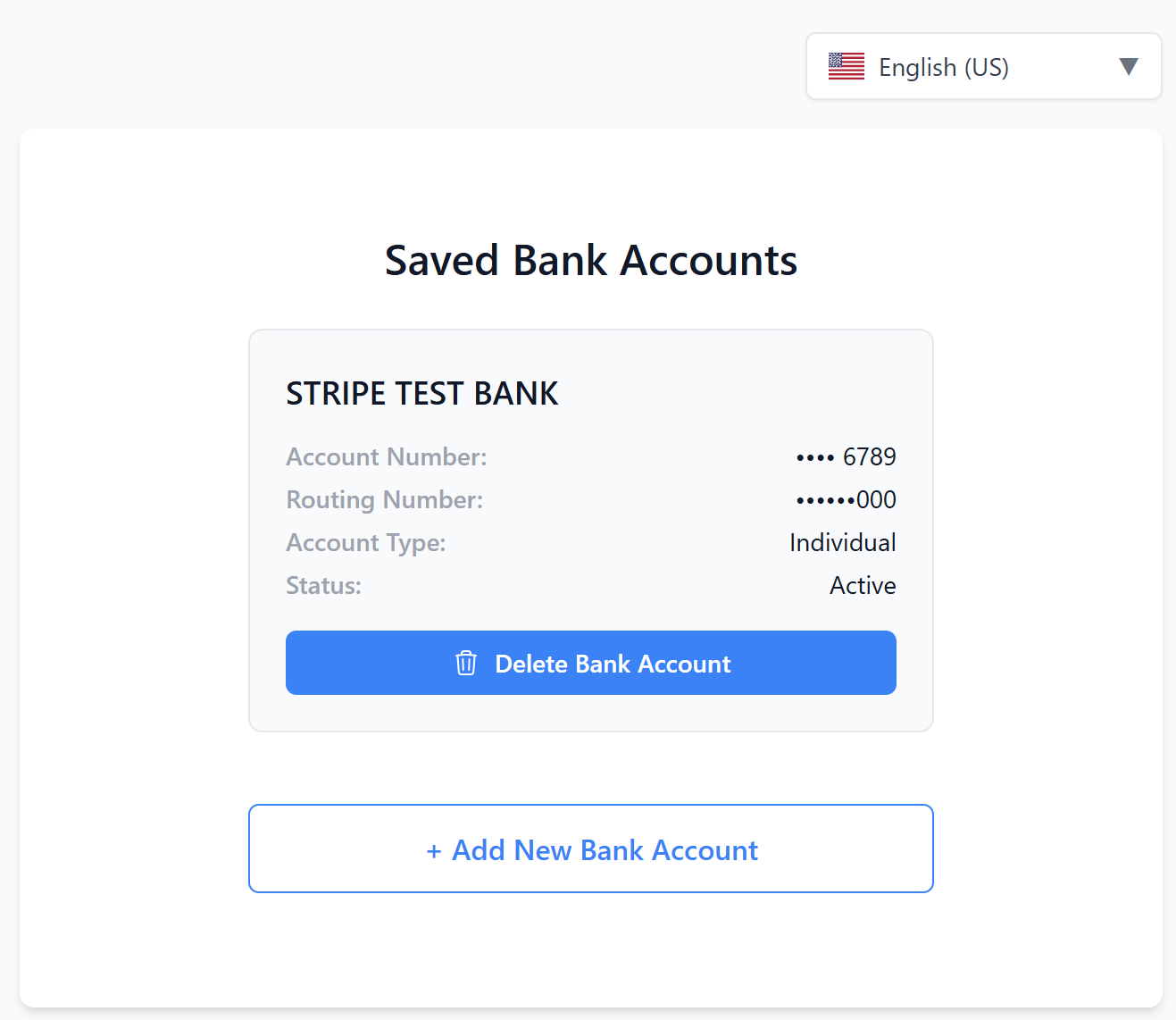
Once completed, the bank account details will be reflected on the client profile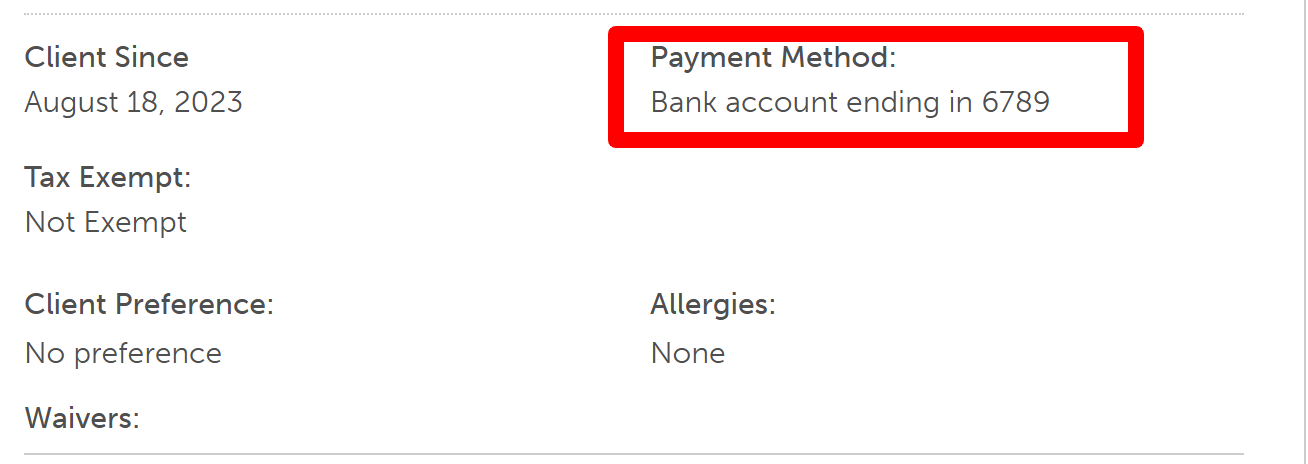
Enabling Bank Accounts For Membership Payments & Recurring Charges On Client Profiles
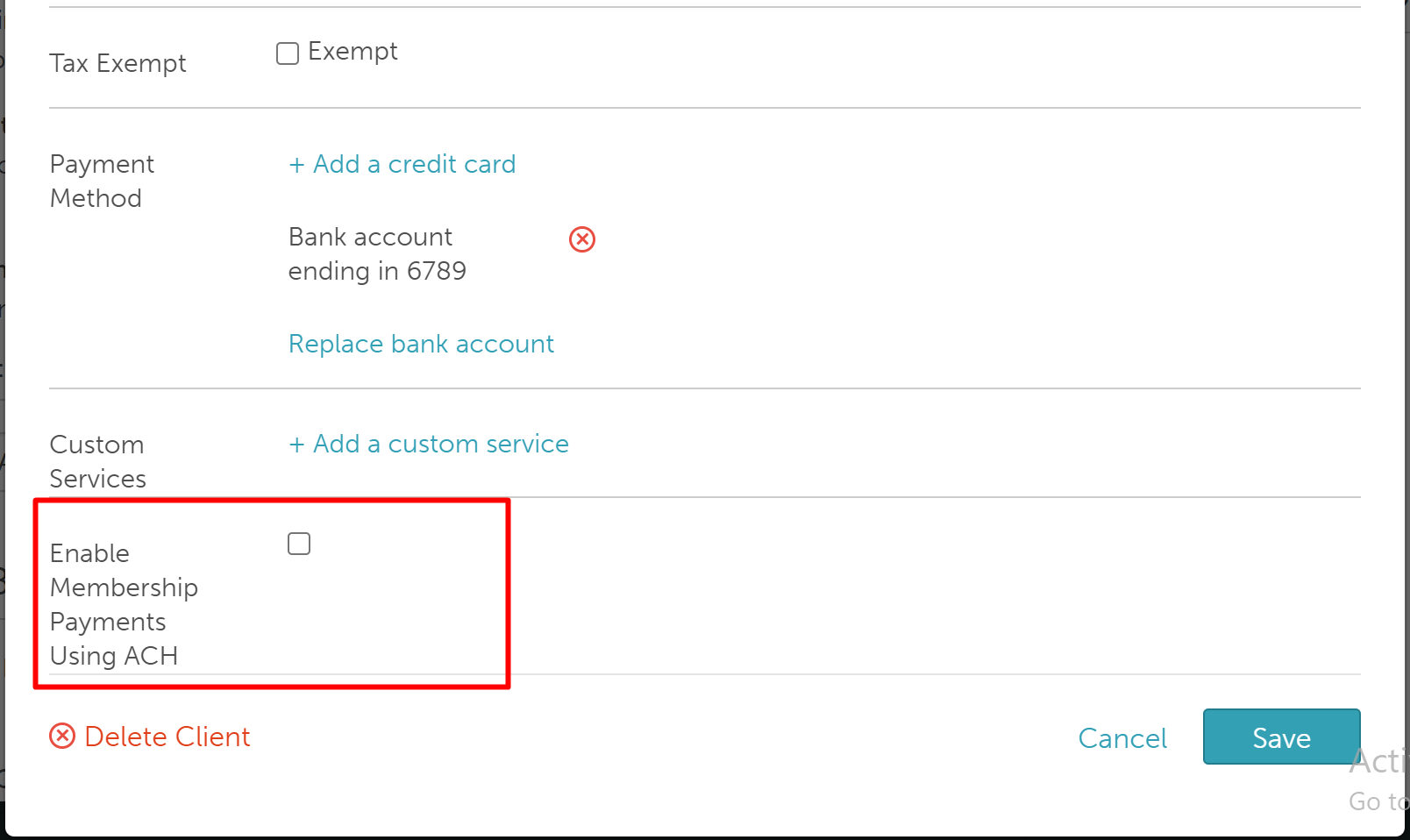
Once the bank account is added to the client profile, the option to use this account for membership payments and recurring charges will be visible. Checking this checkbox from the client profile will update the user profile on the My Account > Payment page.
Client Profile > Edit Details
Payments for Memberships & Recurring Charges on Client Profiles
You can view and manage payment methods for membership payments directly from the client profile.
To view and manage payment methods:
Navigate to the Clients tab.
Search for the desired client
Scroll to the Memberships section.
The Payment Method section will appear above the listed memberships, displaying the selected payment method for memberships
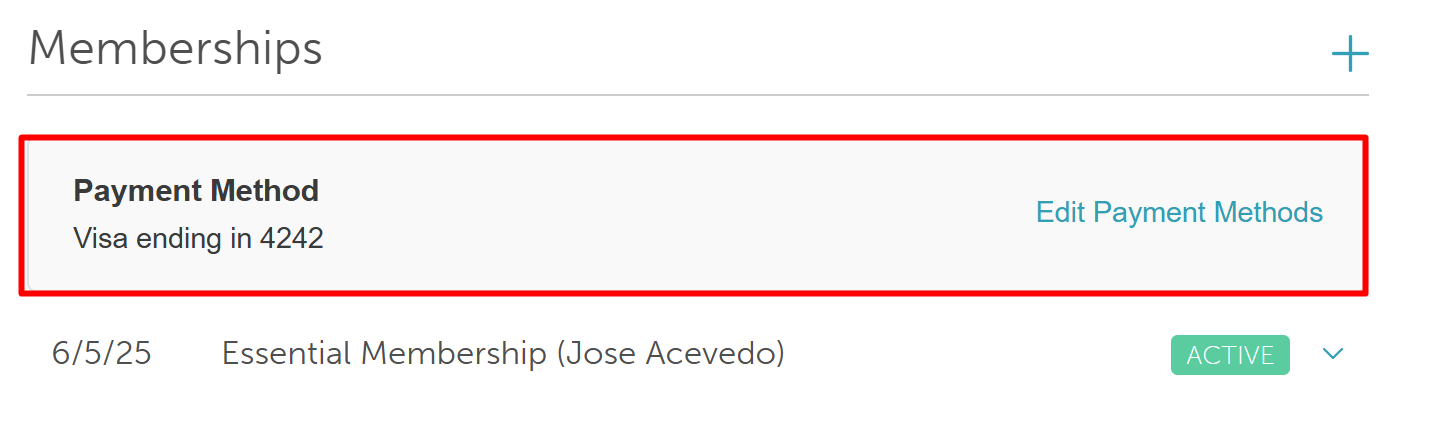
Click 'Edit Payment Methods' to open the Update Payment Method modal:
View all added payment methods, including credit cards and bank accounts, from the dropdown list
- Select/Change the payment method to be used for the membership.
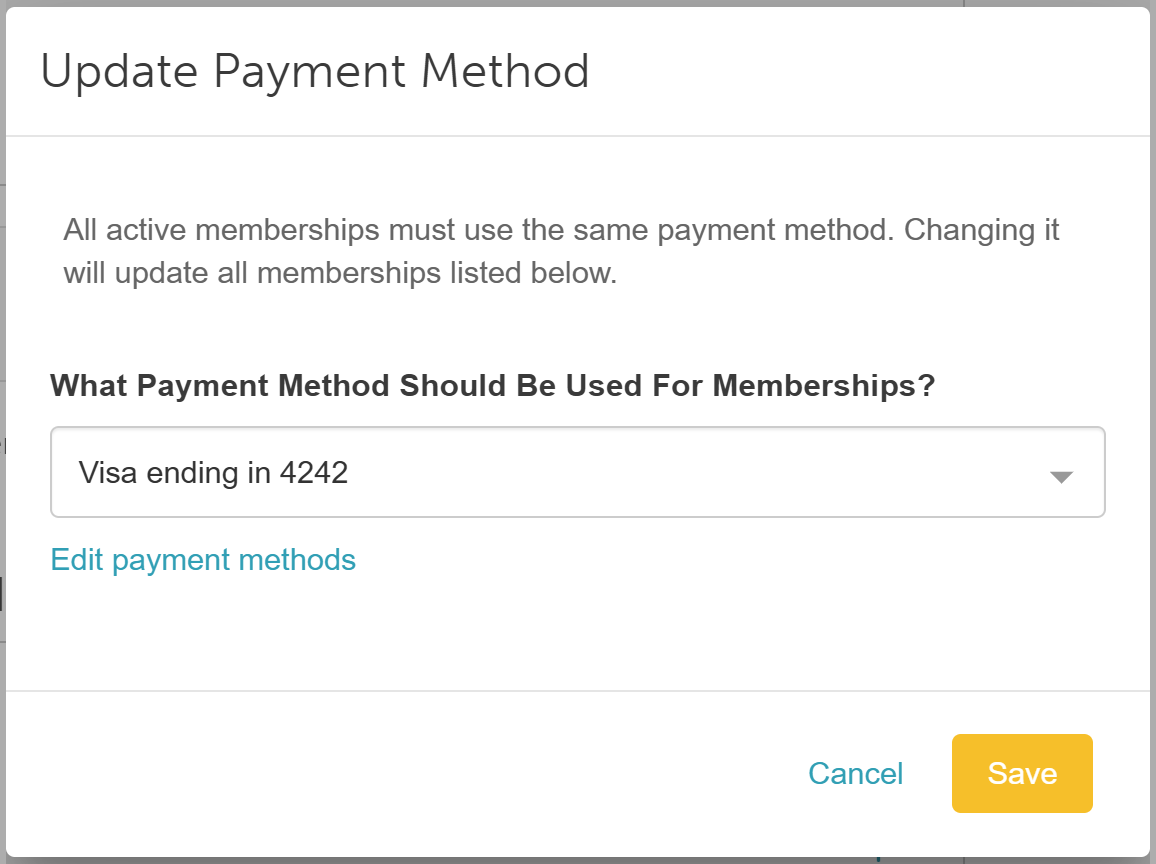
Click "Edit payment methods" below the dropdown to update existing payment methods or add new ones. This will open the "Edit Details" modal in the client editing screen, where you can manage credit card or bank account information in the Payment Method section.
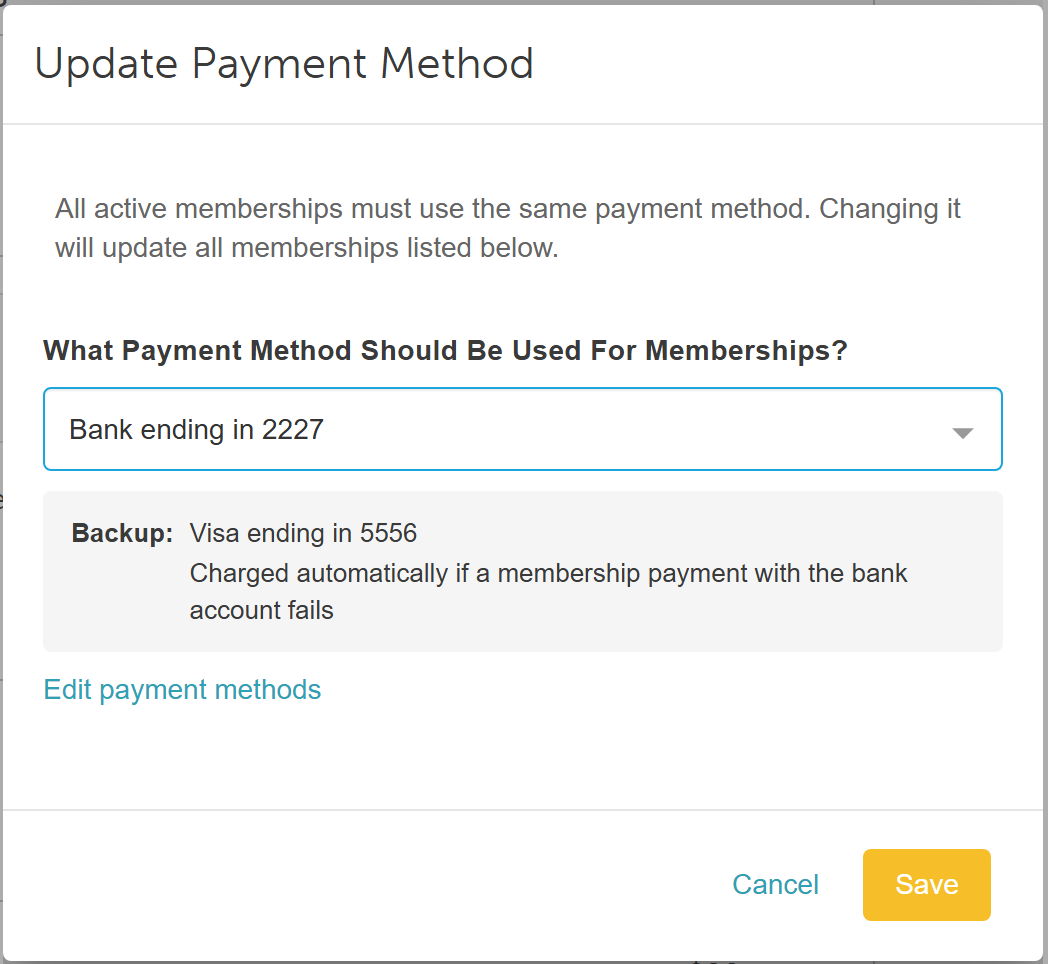
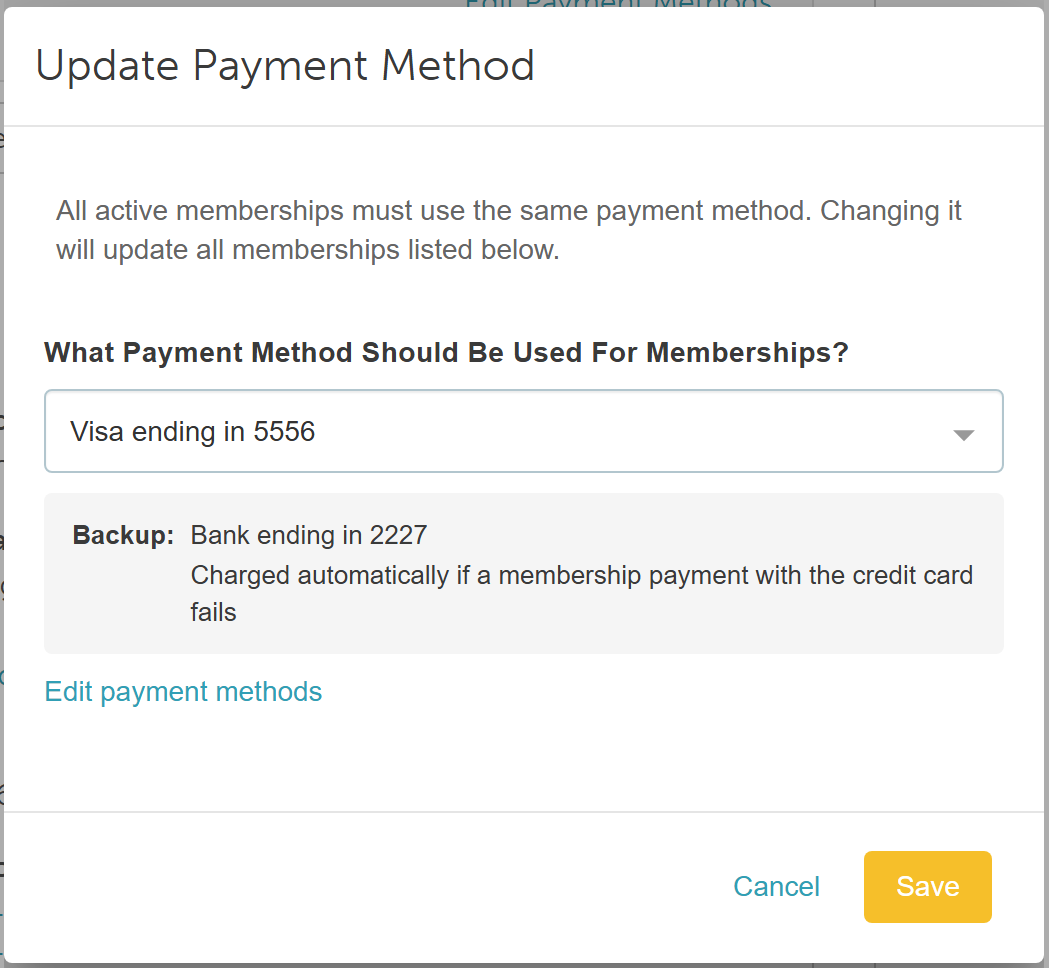
- When the "If a membership payment fails, retry using the backup payment method on file" setting is enabled, a grey dynamic indicator box appears directly below the primary payment selector on the client's profile:
- Primary Bank Account Selected: Displays the client's saved card details alongside the message: Charged automatically if a membership payment with the bank account fails
- Primary Card Selected: Displays the client's saved bank account details alongside the message: Charged automatically if a membership payment with the credit card fails
Related Articles:
Was this article helpful?
That’s Great!
Thank you for your feedback
Sorry! We couldn't be helpful
Thank you for your feedback
Feedback sent
We appreciate your effort and will try to fix the article