This article explains how clients can add their bank details from the My Account page on the booking widget and authorize businesses to use their bank account for membership payments and recurring fees.
Things to know:
- This feature is controlled by a hidden setting, which can only be activated by the MyTime team. To enable this feature, please contact support@mytime.com. Learn more here
- There is a fee associated with processing each ACH payment. These fees are generally lower than credit card processing fees. To enable ACH payments and confirm your specific ACH fee, please contact support@mytime.com.
- This feature is available for accounts using both Stripe and Global Payments as their payment gateway in the US and Australia.
- Location-Based ACH Account Management
- For franchise businesses, you can add and manage ACH bank accounts on a per-location basis directly from the booking widget or the express checkout link.
- Where to Find It: Once a specific location is selected, the option to add or manage a bank account will be displayed directly below the credit card management section.
- Dynamic Visibility: This section is managed dynamically. The bank account configuration fields will only appear if the chosen child location has ACH payment processing explicitly enabled.
- Note: If a child location does not have ACH enabled in their processing environment, this section will automatically remain hidden from the checkout link and widget for that specific site.
- Automated Membership Payment Configuration: When a client adds a bank account during a membership purchase flow (via a POS request link or booking widget checkout), the system automatically checks Enable Membership Payments Using ACH on their profile.
- Booking Widget Defaults: For clients paying for memberships via Direct Debit, the widget pre-selects their saved bank account at checkout instead of a card.
- Manual Overrides: If a staff member or client manually unchecks this setting, the system respects the manual preference and will not automatically re-enable it.
Contents:
- Adding Bank Accounts Online
- Enabling Bank Accounts for Memberships and Recurring Fees
- Checking Out Online With Bank Accounts
Adding Bank Accounts Online
To add their bank account details, clients should:
- Navigate to your booking page using the provided booking URL or the "Book" button on your website.
- Select a Location (if there are multiple locations)
- Sign in using their email and password, log in via a Facebook, Google, or Apple account, or create a new account
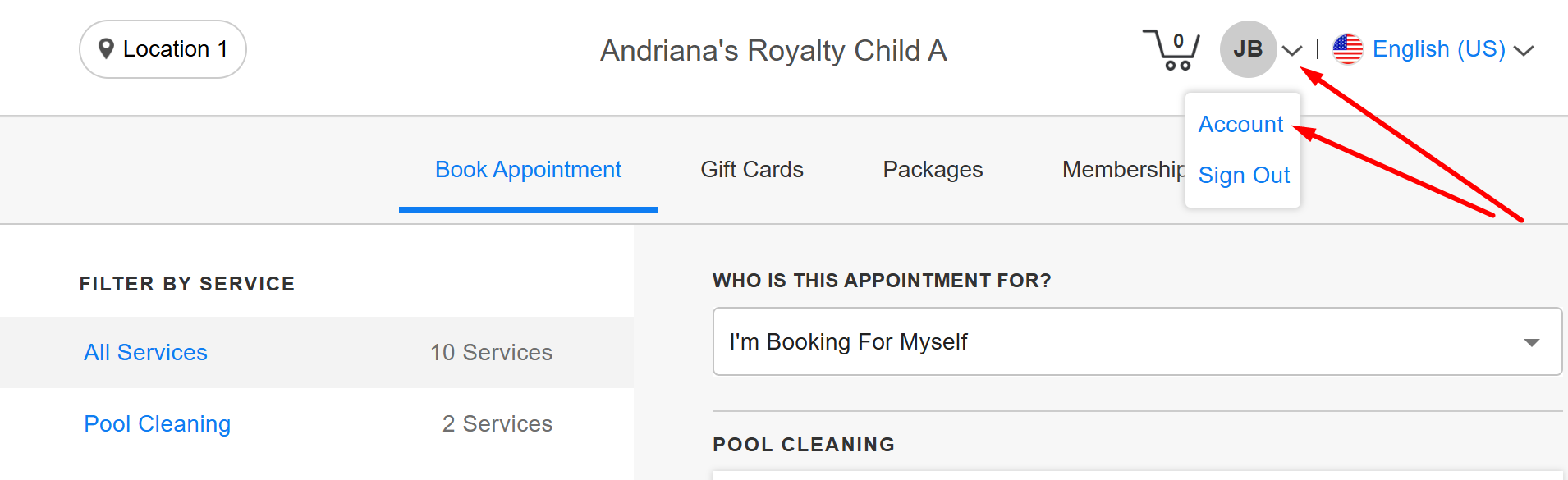
- Click the arrow next to their initials at the top and select My Account
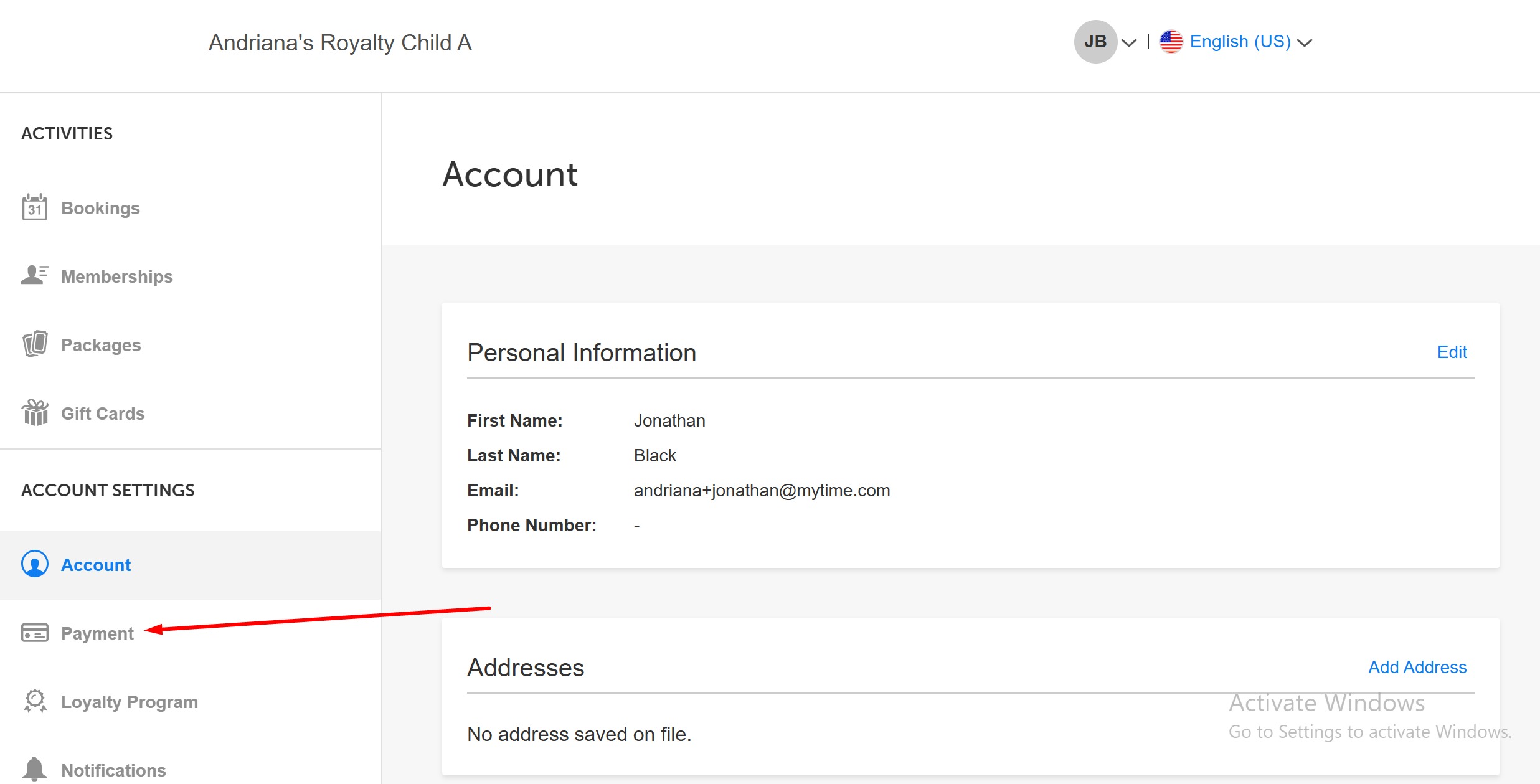
- In the left-hand panel, click Payment
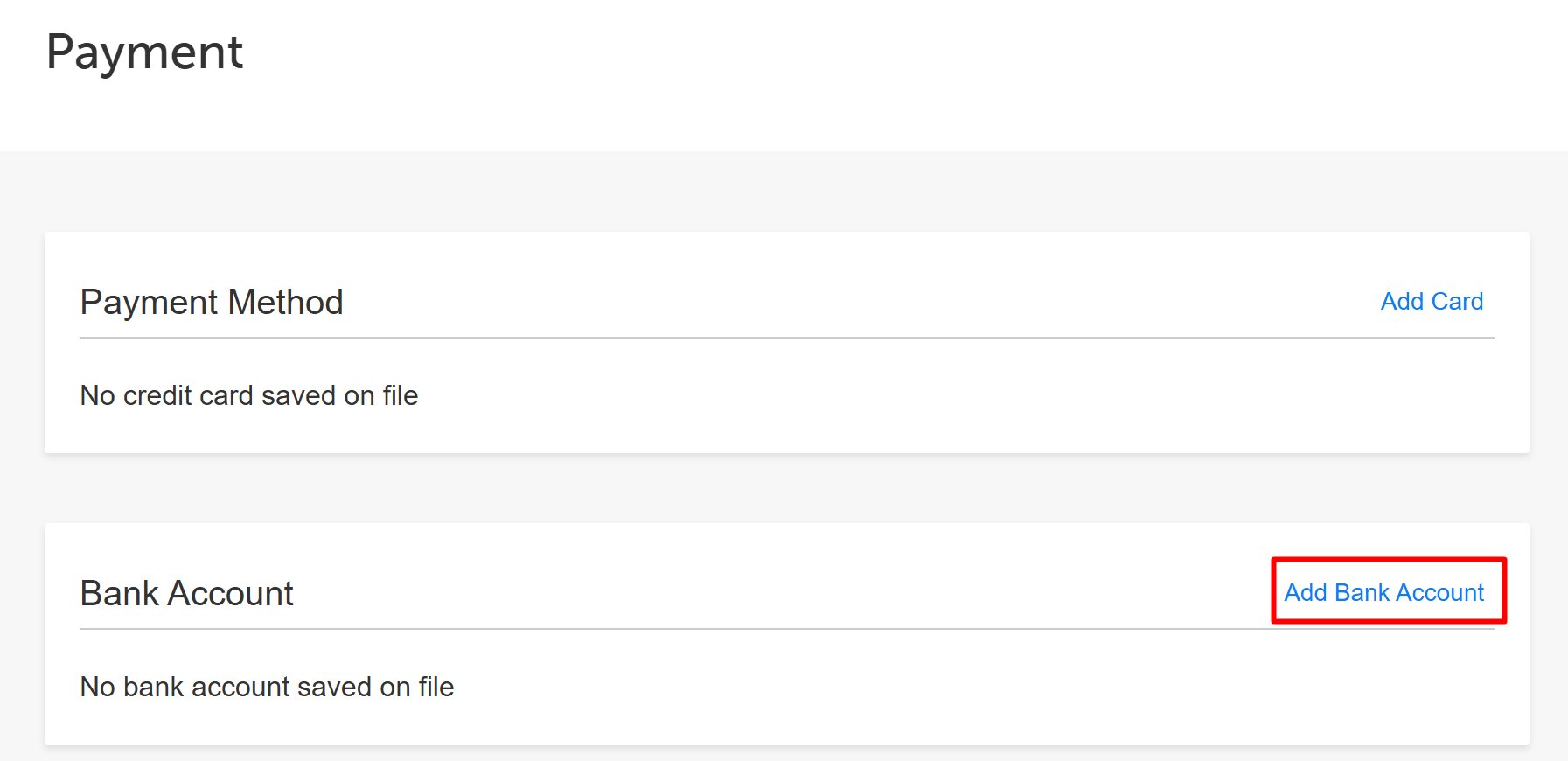
- Click 'Add Bank Account'
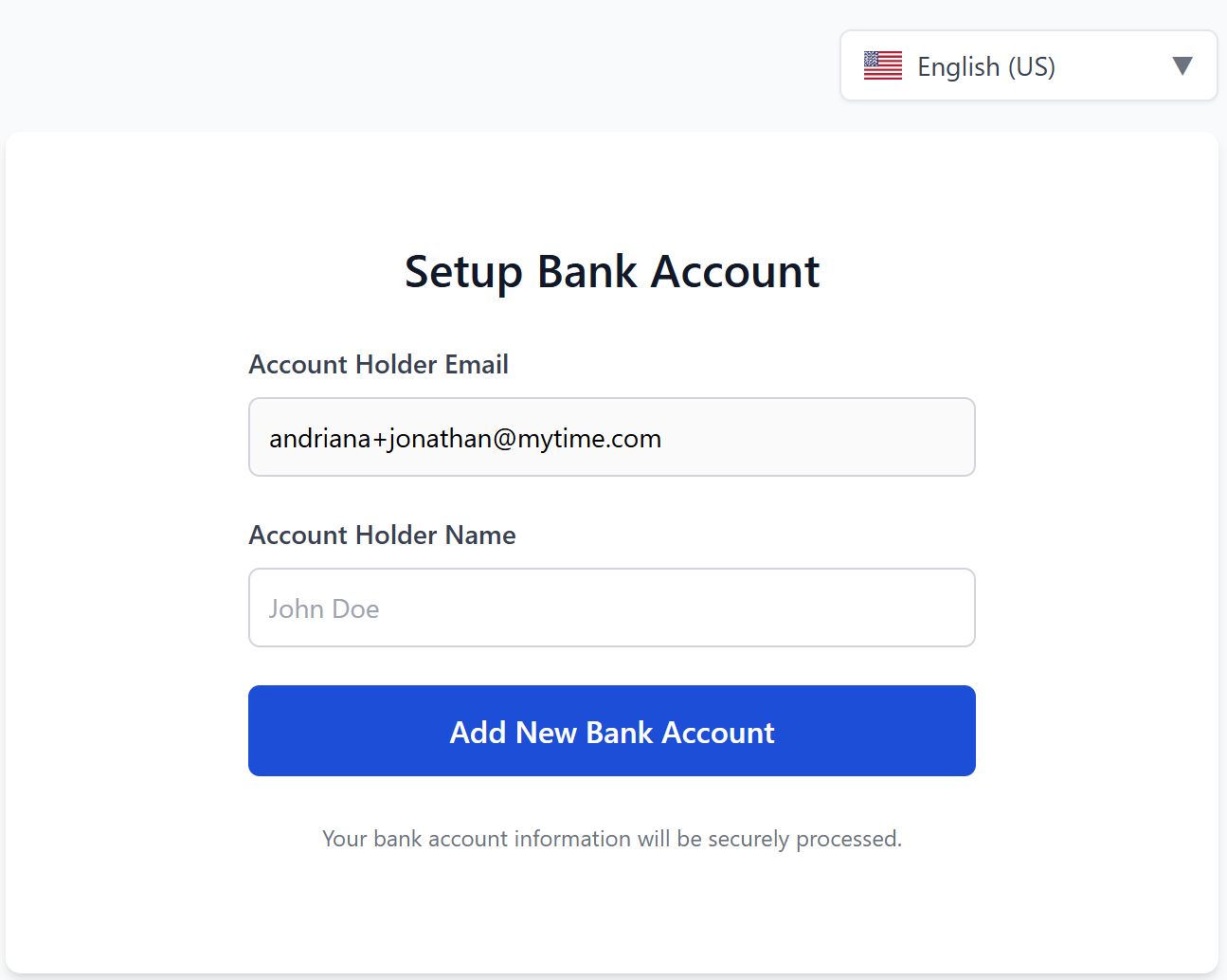
- The email address of the account holder will be pre-filled by default and cannot be edited.
- Enter the name of the account holder. > Click 'Add New bank Account'
- Follow the steps and enter the information to add the account
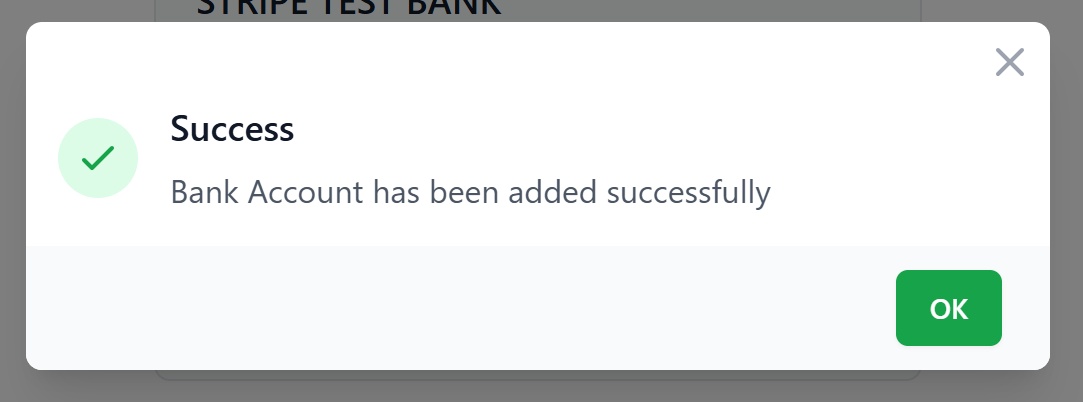
- Click 'OK' on the successful pop-up
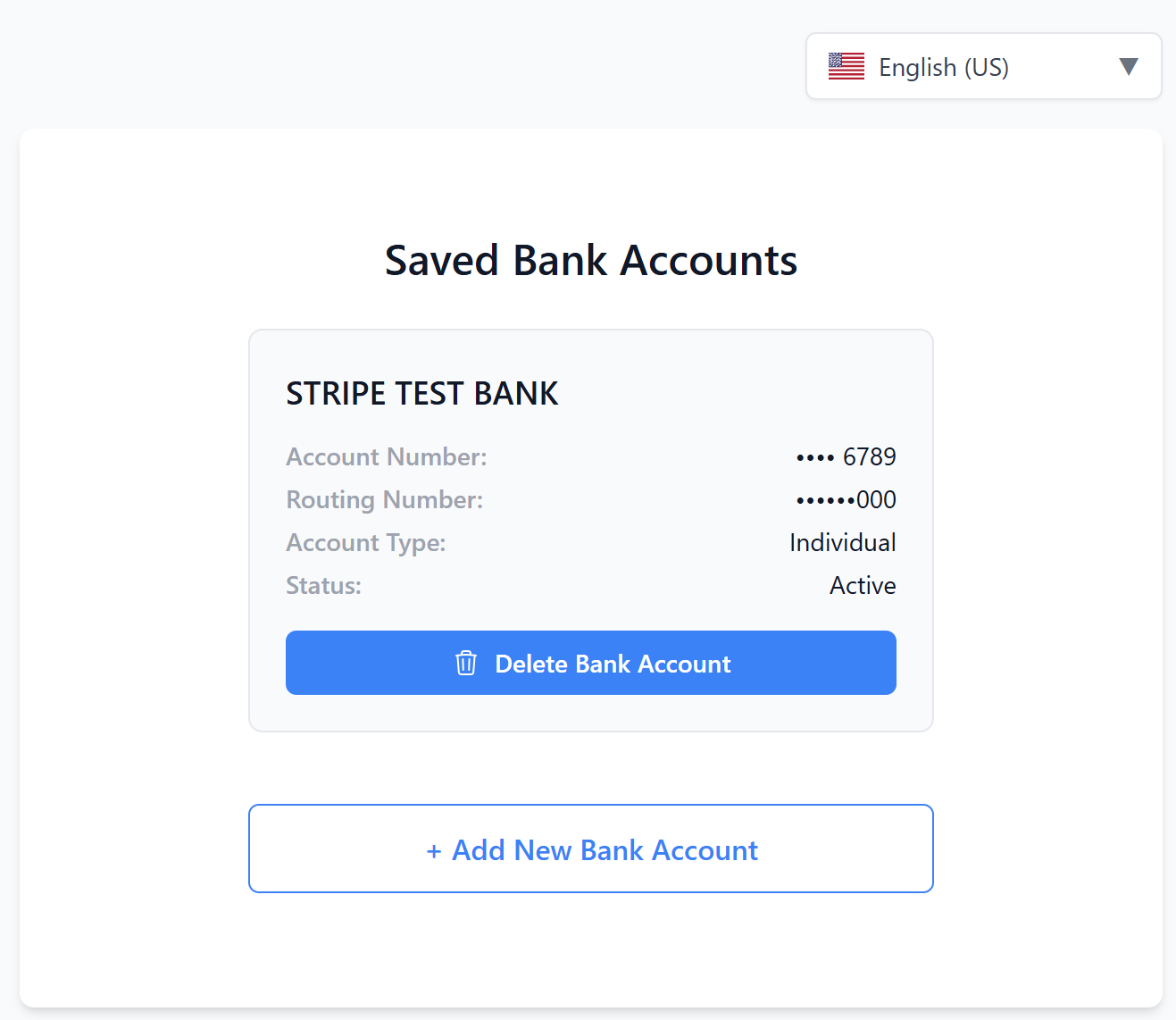
- The bank account will be displayed
- Once completed:
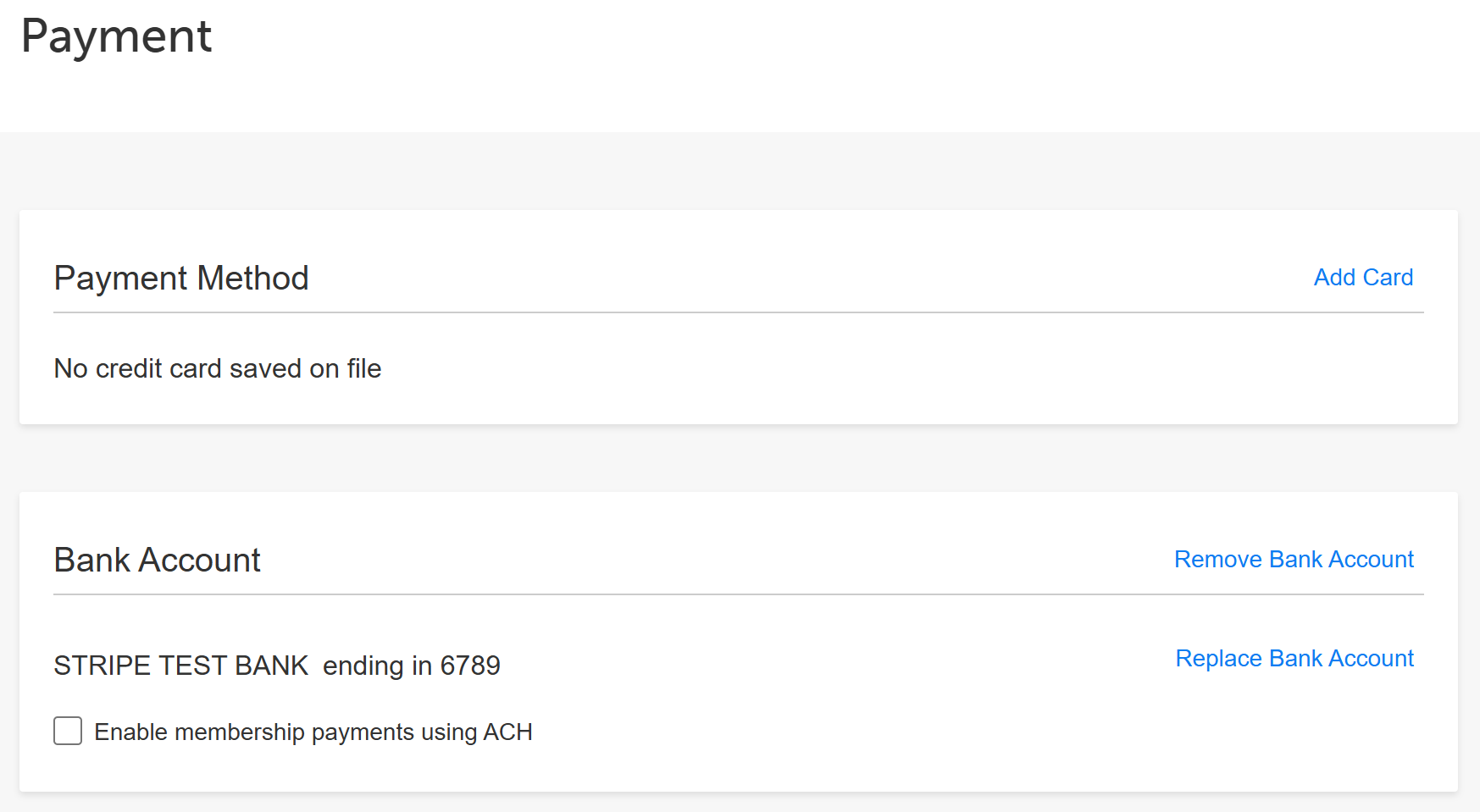
- The bank account details will be displayed under My Account > Payment.
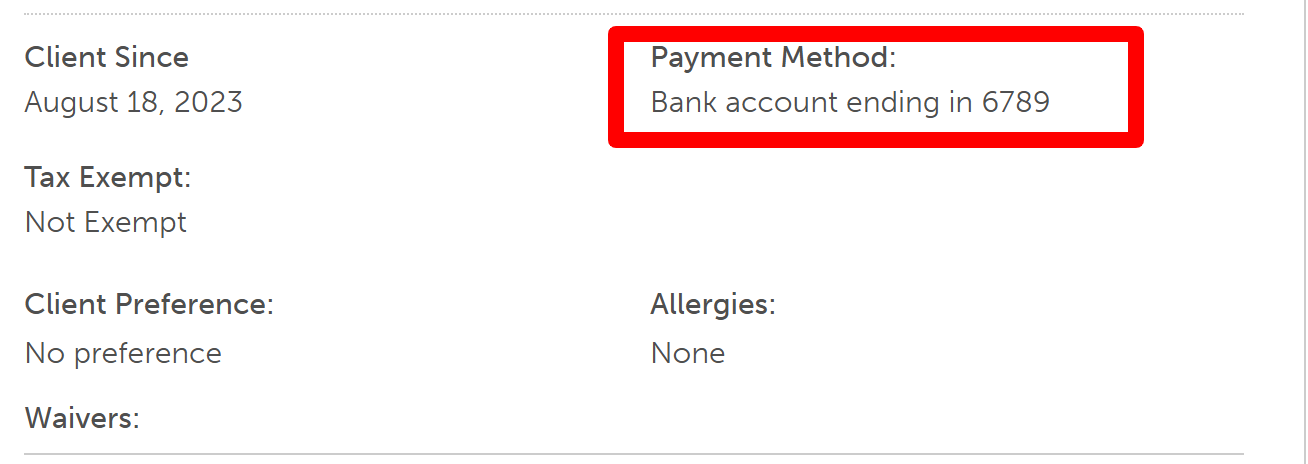
- The bank account details will also be reflected on the client profile in-store.
- The bank account details will be displayed under My Account > Payment.
Enabling Bank Accounts for Memberships and Recurring Fees
After a bank account is added online, clients will see the option to use this account for membership payments and recurring charges. 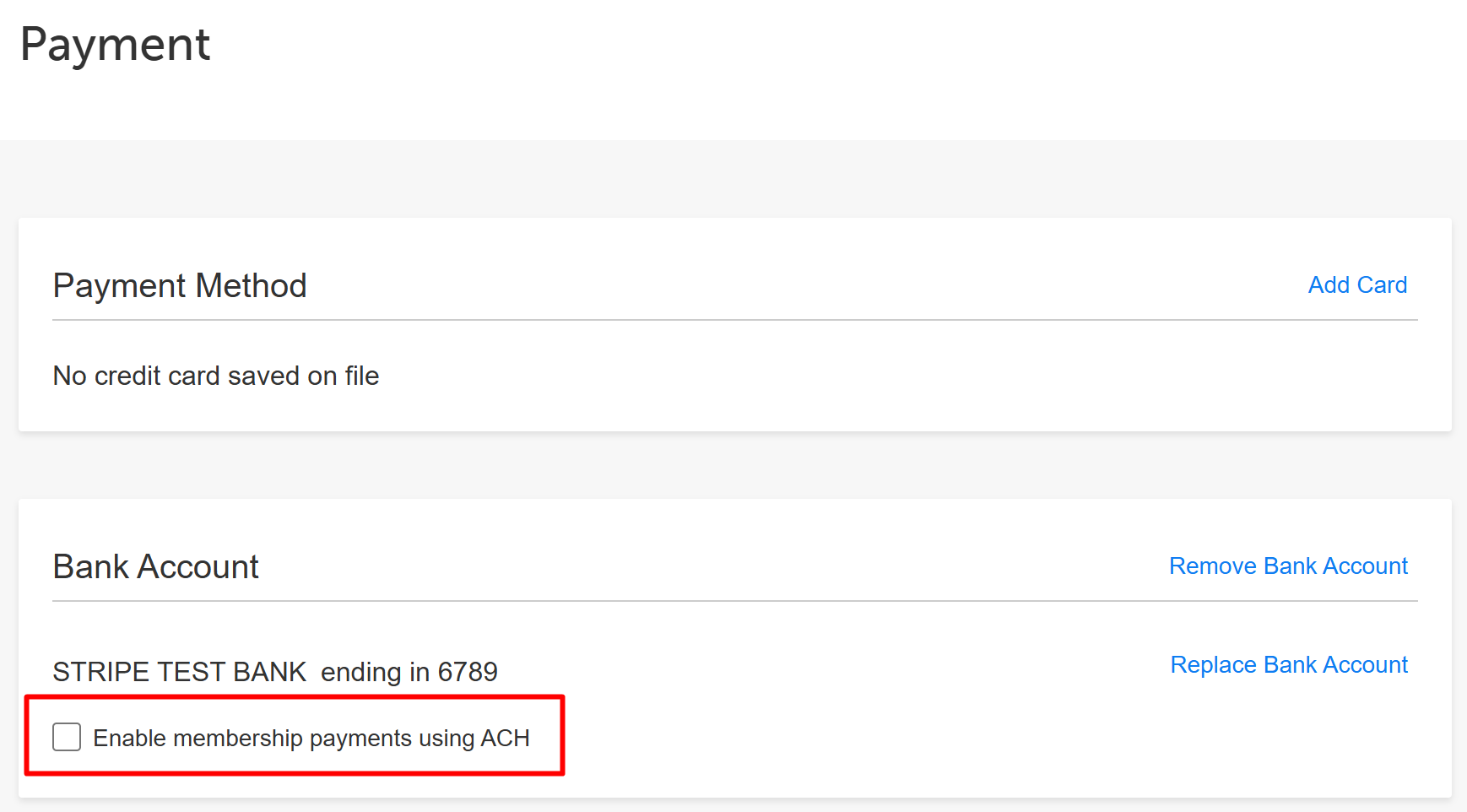
Checking this box in My Account > Payment updates the client profile in the business account.
Checking Out Online With Bank Accounts
Online checkout using a bank account is available only when purchasing memberships. Depending on how your booking widget is configured, memberships may appear as a standalone item, or clients may need to follow the steps below:
- Navigate to your booking widget
- Select the desired location (if the account has multiple locations)
- Select the Memberships tab, then click the "More" hyperlink to view the credits available with the membership
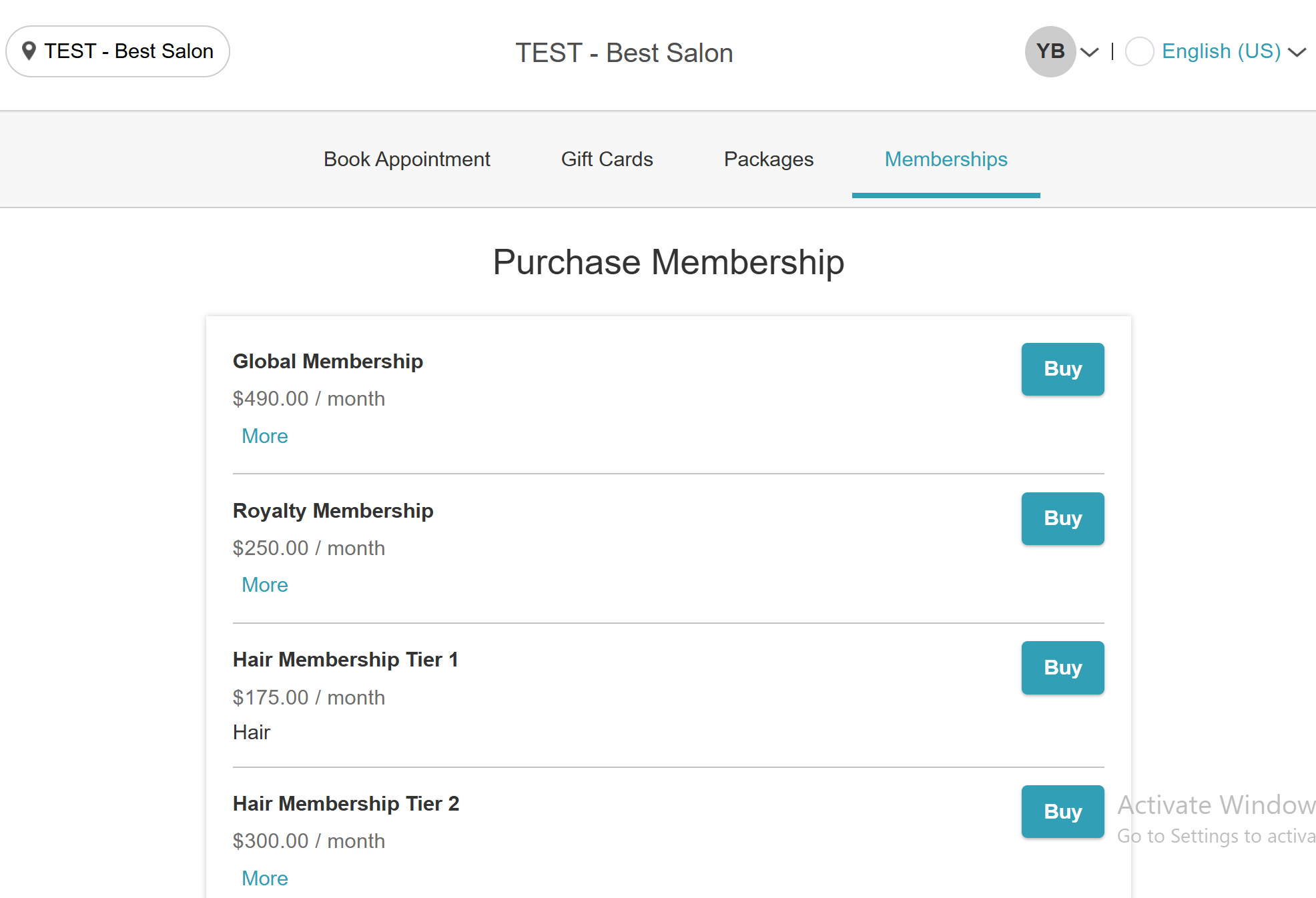
- Click on the "Buy" button next to the desired membership
- Sign in using their email and password, log in via a Facebook, Google, or Apple account, or create a new account
- The membership is added to the client’s cart, and they are redirected to the Checkout page.
- Review the membership details, including the membership name, billing frequency, start and end dates, price, and any required membership waivers.
- If the client wants to apply a promotion or gift card, it can be entered in the Apply Gift Card/Promo Code field. The promotion will be applied based on its configured benefits.
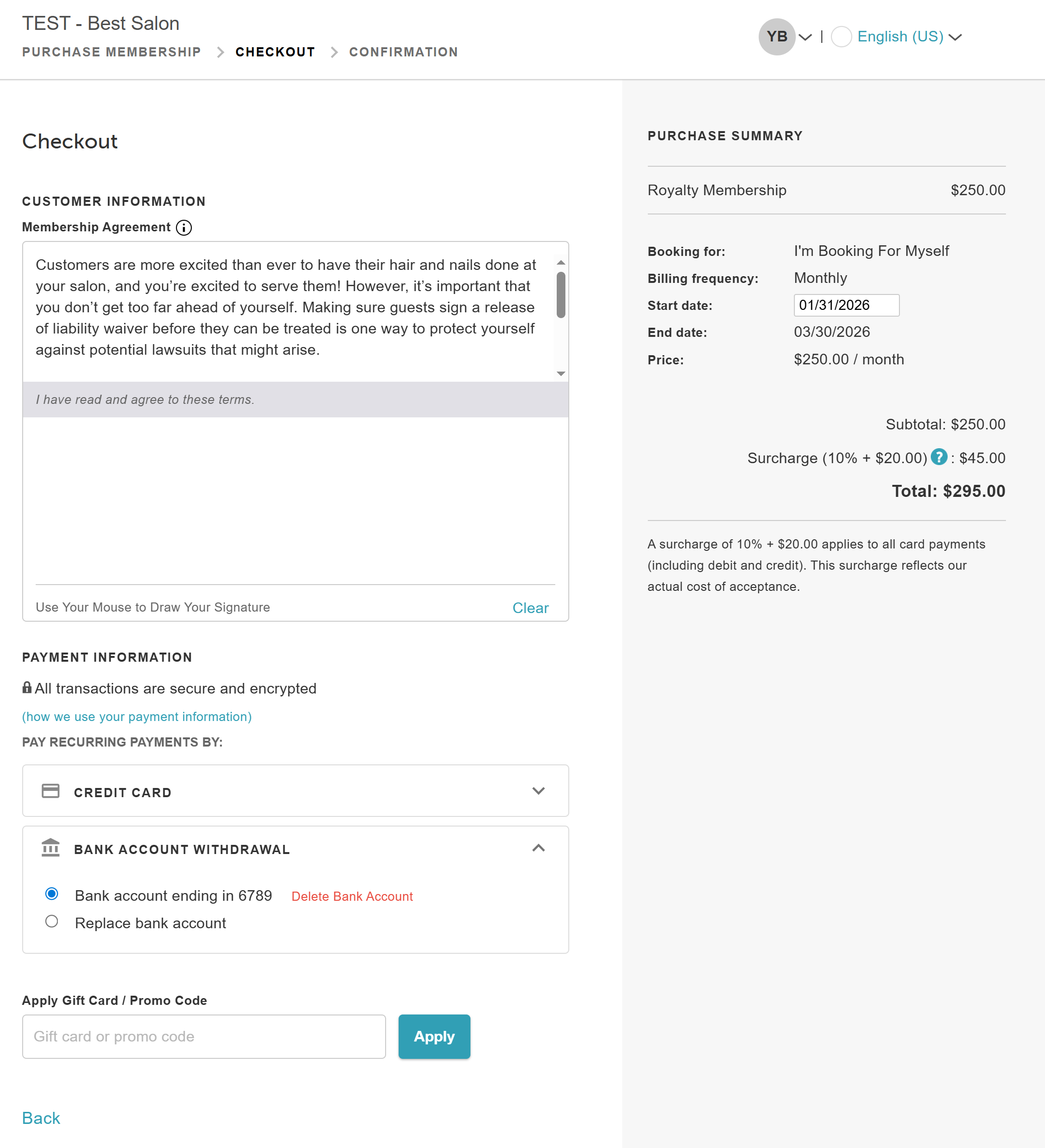
- In the Payment Information section, choose to pay with a credit card or a bank account. The saved bank account will be displayed, with the option to replace it if needed.
- Click Complete Purchase to finish the checkout.

Related Articles:
- Configure Bank Account for ACH Payments
- Configuring Bank Accounts on Client Profiles
- Accepting Bank Accounts via POS
Was this article helpful?
That’s Great!
Thank you for your feedback
Sorry! We couldn't be helpful
Thank you for your feedback
Feedback sent
We appreciate your effort and will try to fix the article