Clients can add their bank account on the MyTime booking widget to streamline payments for memberships and services. To ensure transparency, our system now provides real-time feedback through status banners if your bank account requires extra steps or fails verification
Things to know:
- This feature is controlled by a hidden setting that can only be activated by the MyTime team. To enable it, please contact support@mytime.com. Learn more here.
- There is a fee associated with processing each ACH payment. These fees are generally lower than credit card processing fees. To enable ACH payments and confirm your specific fee, please contact support@mytime.com.
- When a client adds a bank account, verification may not happen immediately. Depending on the bank's requirements or connection status, one of three color-coded banners will appear on the client's My Account > Payment page or during checkout:
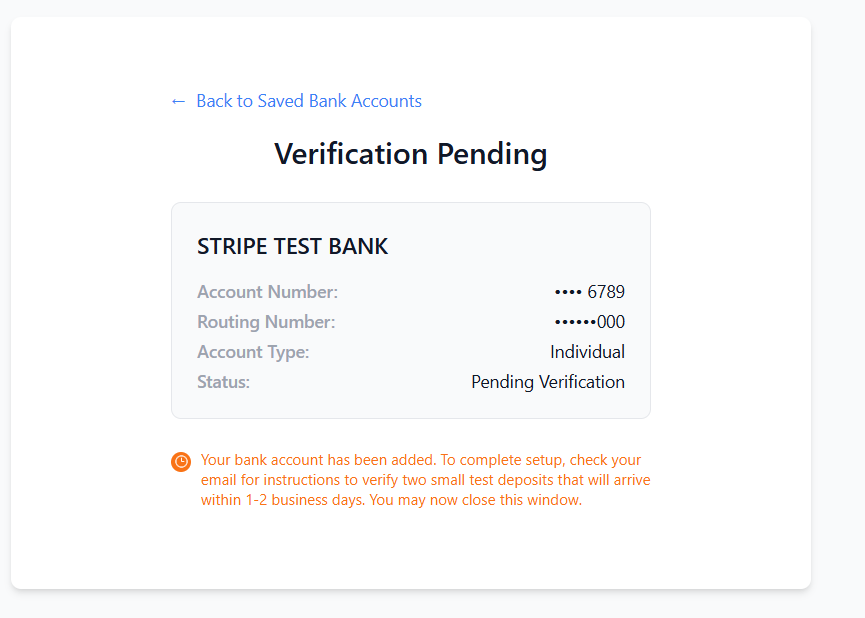
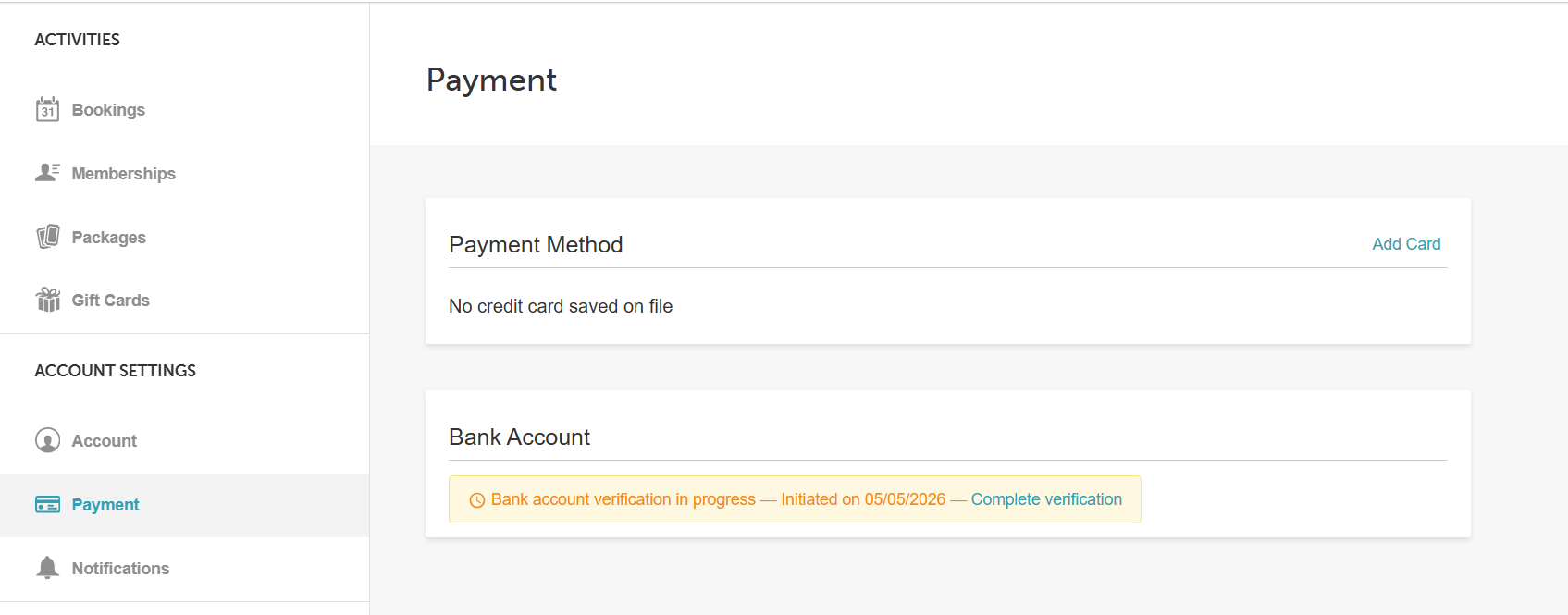
- In Progress (Pale Yellow Banner / Clock Icon): Appears when the bank is being verified (e.g., waiting on micro-deposits). Banner reads: "Bank account verification in progress."
- Incomplete (Pale Yellow Banner / Clock Icon): Appears if the client started adding a bank account but did not finish. Banner reads: "You still need to provide your bank account details."
- Failed (Pale Pink Banner / Error Icon): Appears if Stripe rejects the bank account. Banner reads: "Bank account verification failed — [Reason from Stripe]."
- These banners are only visible to logged-in clients. Guests checking out will not see these status messages.
- On the My Account page, In Progress banners display the date verification was initiated to help clients track the 1–2 day window (e.g., "Bank account verification in progress — Initiated on [Date]").
- When a client completes setup in a new browser tab and returns to the booking widget, the page reloads automatically to show the updated status.
- If a verification remains pending for more than 10 days, the banner will disappear and the client will need to restart the process.
To add their bank account details, clients should:
- Navigate to your booking page using the provided booking URL or the Book button on your website
- Select a location (if applicable)
- Sign in using their email and password, via Facebook, Google, or Apple, or create a new account
- Click the arrow next to their initials at the top and select My Account
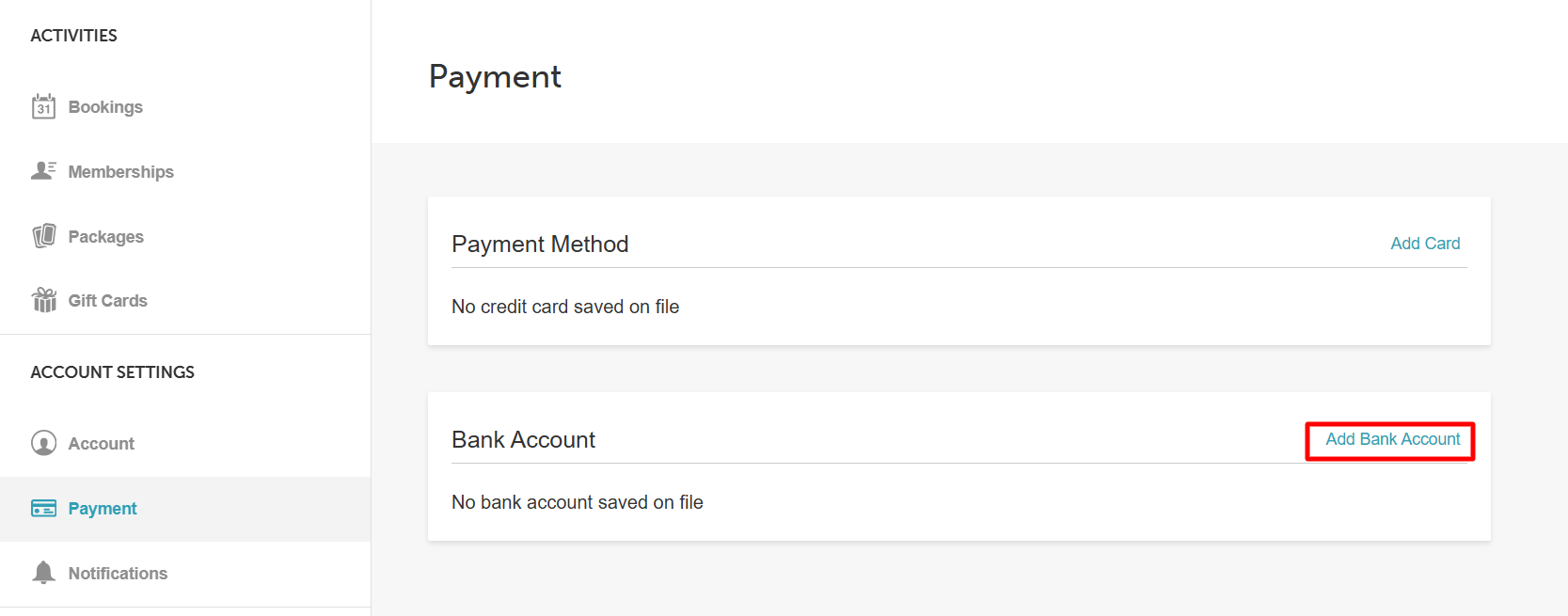
- Under the Bank Account section, select the Add Bank Account hyperlink
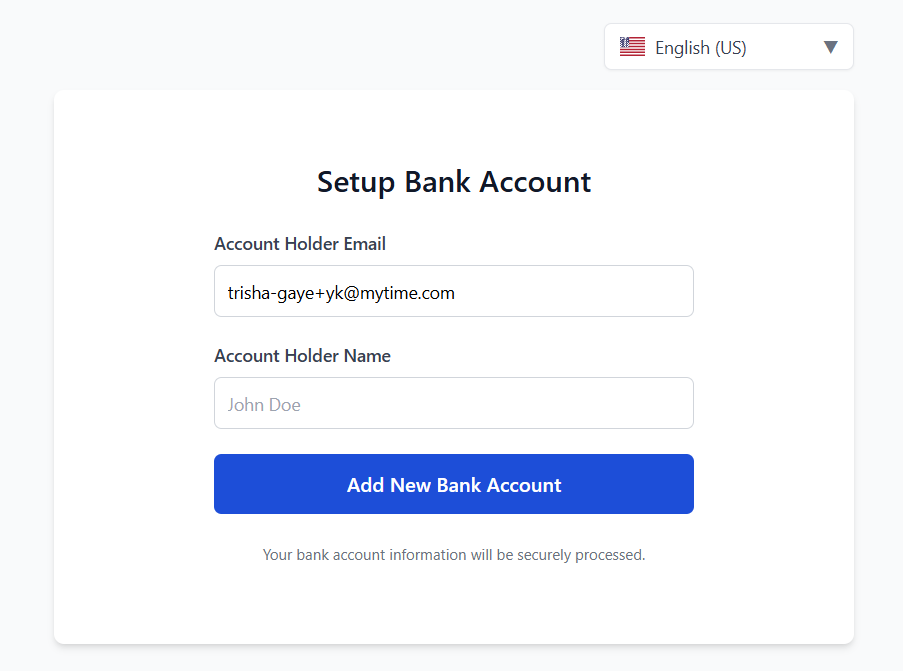
- In the new tab that opens, enter the client's name and email, then select Add New Bank Account
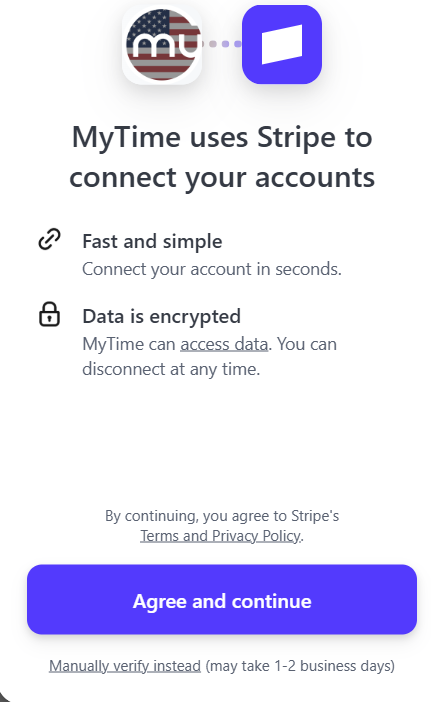
- Choose the desired bank
- Select the Manually Verify Instead hyperlink
- Enter the bank details and select Submit
- Select Done to return to MyTime
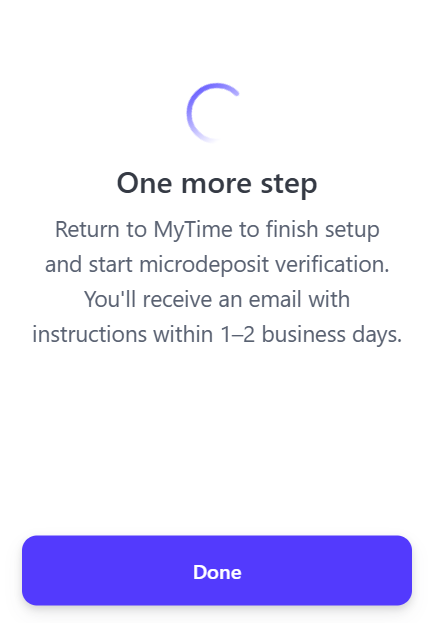
- Setup will complete and micro-deposit verification will begin
- To complete verification later, navigate to Account > Payment
FAQs
1. What does "Complete Setup" do?
If a client closes the setup tab before finishing, this link allows them to resume the same session without re-entering previously provided information.
2. Can a client replace their bank account?
Yes. If a verified bank account is already on file, the client can click Replace Bank Account to open the setup flow for a new account. The old account will be replaced once the new one is successfully verified.
3. What if a client sees "Unable to add a bank account"?
This message appears if the client's record cannot be located or the session is stale. Refreshing the page usually resolves the issue.
Related Articles:
Configuring a Bank Account to Receive ACH Payments
Configuring Bank Accounts Online
Managing Bank Accounts on Client Profiles
Was this article helpful?
That’s Great!
Thank you for your feedback
Sorry! We couldn't be helpful
Thank you for your feedback
Feedback sent
We appreciate your effort and will try to fix the article