Automated messages for leads are preconfigured communications that engage and nurture potential clients throughout their journey. These messages build relationships, deliver timely information, and guide leads toward booking—all without manual effort. They are automatically triggered by specific actions or behaviors, such as signing up through the booking widget. In this article, you’ll learn how to configure automated messages to streamline and improve your lead management process.
Things to know
- The ability to view and customize automated messages for leads is controlled by the "Accessing Automated Messages" access control setting.
- You can filter templates by category directly from the main page. Select a single category, such as Lead Notifications, or select multiple categories at once to narrow down your view and find exactly what you need without scrolling through the full list.
- Notifications sent to leads can be delivered via email and SMS, while notifications sent to staff are delivered only via email.
- Notification Requirements for Leads
- SMS Notifications: Clients must have a valid phone number on file and be single-opted in to receive transactional SMS.
- Email Notifications: Clients must have a valid email address on file and be opted in to receive transactional emails.
- Staff members who have not opted in to receive operations alerts via email will not receive:
- Drip rebooking reminders
- Notifications about leads
- To learn how to opt in to operations alerts via email, click here
- SMS Segment & Billing:
- SMS billing is calculated per segment, not per message.
- Each segment is billed individually
- Each recipient receives their own copy of the message
- Total cost = segments × recipients × rate. Example: 2-segment message sent to 50 recipients = 100 billable segments
- Learn more about SMS Segments & Billing here
- SMS Campaign Opt-Out Disclaimer: When configuring or sending an SMS campaign, an orange disclaimer note will appear directly below the text box as a reminder: "We automatically append "Reply STOP to Unsubscribe" to the message if the client has not received the disclaimer in the past 30 days. This counts against the message limit of 160 characters per SMS segment."
- Client Opt-Out Behavior: Clients can unsubscribe from SMS marketing messages at any time by replying with any of the following keywords:
`STOP`
`UNSUBSCRIBE`
`UNSTOP` (dependent on client's carrier)
Once a client unsubscribes, they will no longer receive SMS marketing messages from your business.
- A lead must have a location assigned on their profile in order to receive automated notifications and campaigns
- You can set notifications to trigger at the following intervals:
- Immediately
- After a selected number of hours
- Days
- Weeks
- Months
- To create a separate lead notification group, select + Add Another Group under the Lead Notification section.
- You can group lead notifications based on their origin (Source, Campaign, or Medium). This allows you to tailor your automated messages to how a lead was acquired. Example: A lead from a "Grand Opening" ad can receive a different automated response than one from a "Discount Grooming" ad.
- The “Lead Notification New Design” setting enhances lead management by allowing you to organize templates into clear, easy-to-follow sequences. Each notification group supports multiple steps, enabling you to create a sequence of messages sent at different intervals. For example, a single group can send a follow-up 1 day after a lead is created, followed by another message 14 days later.
- When the “Enable Drip Rebooking Reminder New Design” setting is enabled:
- Rebooking Reminders are moved to the Transactional tab.
- The Drip tab is renamed to Leads.
- Only Lead Notifications will be displayed under the Leads tab
- Automated text messages cannot be sent from the dedicated phone number because these are two-way messages. Since SMS messages don’t carry any metadata, MyTime needs to rotate phone numbers in order to determine which message someone is replying to.
- The delete option to the right of the lead notification template will only be visible for pre-saved templates after a change has been made and saved for that specific template.
- Clients associated with a specific location under a multi-location account will receive automated messages customized for that location. The From field and Reply-To name in these emails display the location’s nickname by default, as defined in Business Setup > Business Profile > Edit Location. For example, a business named Urban Spa has two locations: Downtown and Westside. If a client is associated only with the Westside location, any automated appointment reminders they receive will appear with the Westside location nickname. The name displayed in the "Sender Label" is determined based on the following hierarchy (order of priority):
- Location Nickname: If a nickname is configured for a specific location, this will always be the primary sender name.
- Reply-To Name: If no location nickname exists, the system will fall back to the Reply-To Name configured in your messaging settings.
- Company Name: If neither a nickname nor a Reply-To Name is found, the system will use your overall company name as the final fallback.
- The marketing editor automatically detects and retains line breaks and paragraph spacing when you paste content from external sources. This removes the need for manual reformatting and ensures your newsletters and SMS campaigns appear exactly as intended.
Contents:
- Configure Pre-Saved Automated Messages for Leads
- Configure New Automated Messages for Leads
- Adding a Pre-Saved Lead Automated Message to a Sequence
- Configuring a Lead Automated Message Sequence
Configure Pre-Saved Automated Messages for Leads
- Navigate to Marketing > Automated Messages
- Click the 'Leads' tab

- The "Lead Notification" Section will be visible
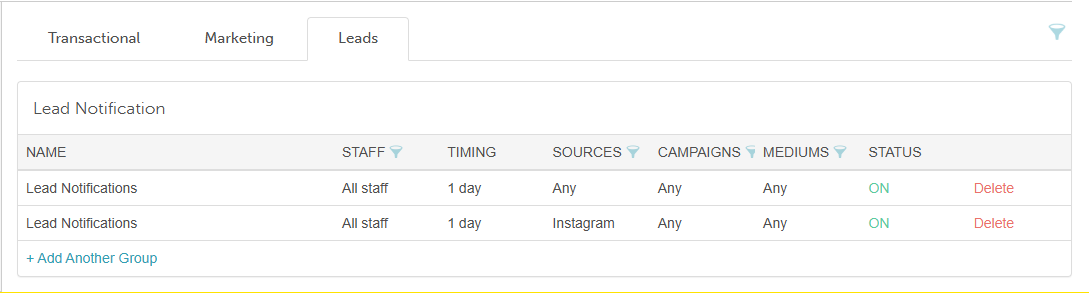
- Hover over the 'Lead Notifications' option and then click 'View'
- The Applies To section allows you to filter templates within a group by specific criteria, such as source, campaign, and medium. Note: If you modify these settings within an individual template, the group filters will automatically update to match your selections.
- On the 'Lead Notification' page, you will find two pre-saved templates:
- Lead Notification for leads
- Follow up with Leads for staff members
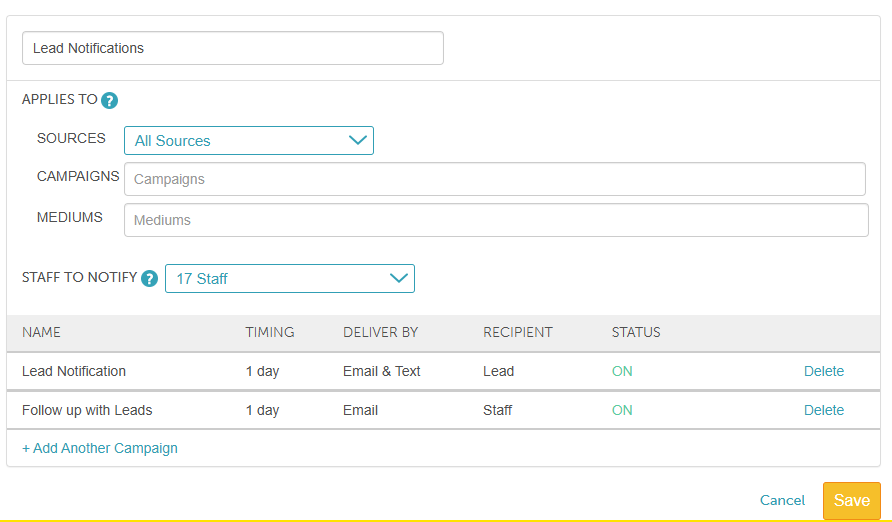
- Hover over either template and then click 'View' to customize it according to your preferences. Click Save once your changes are complete.
Configure New Automated Messages for Leads
- Navigate to Marketing > Automated Messages
- Click the 'Leads' tab

- Hover over the 'Lead Notifications' option and then click 'View'
- On the 'Lead Notification' page, click the "+ Add Another Campaign" option
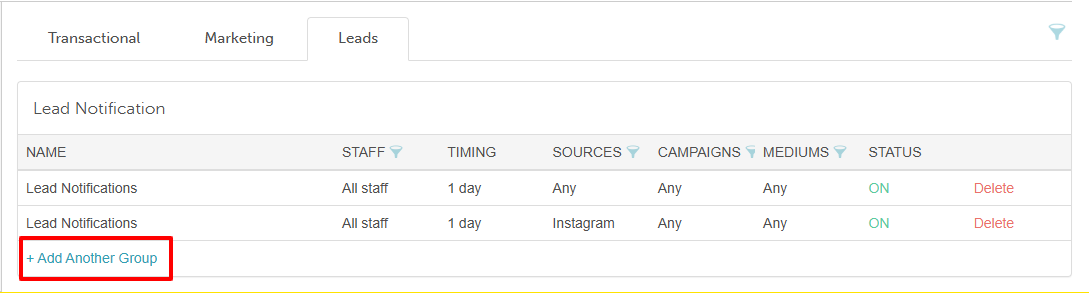
- From the 'Notification Type' dropdown in the pop-up, choose whether the notification is for leads or staff members
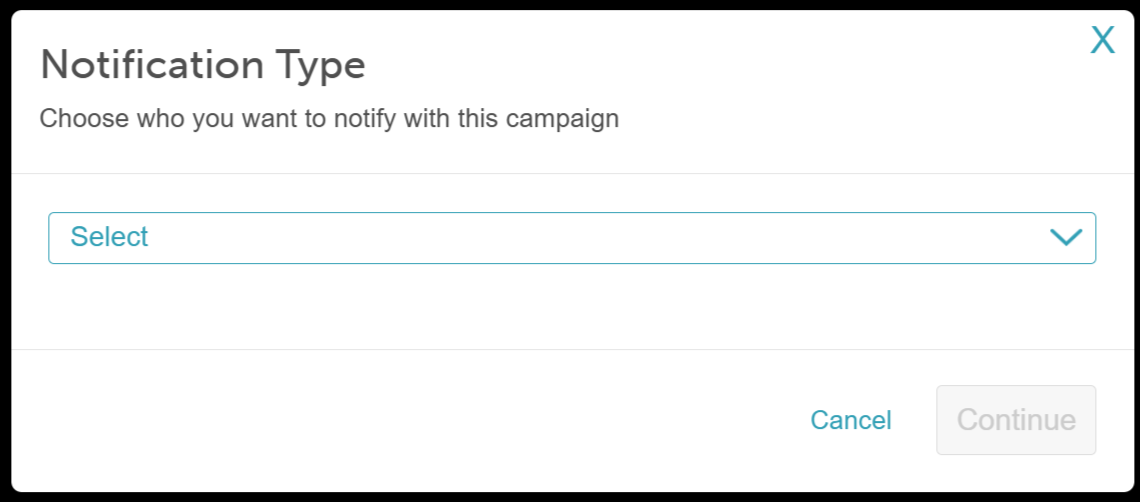
- If 'Lead' is selected, the "Send a reminder to encourage leads to book" notice will appear.
- If 'Staff' is selected, the "Alert staff when leads have not booked" notice will appear.
- Click 'Continue' to proceed
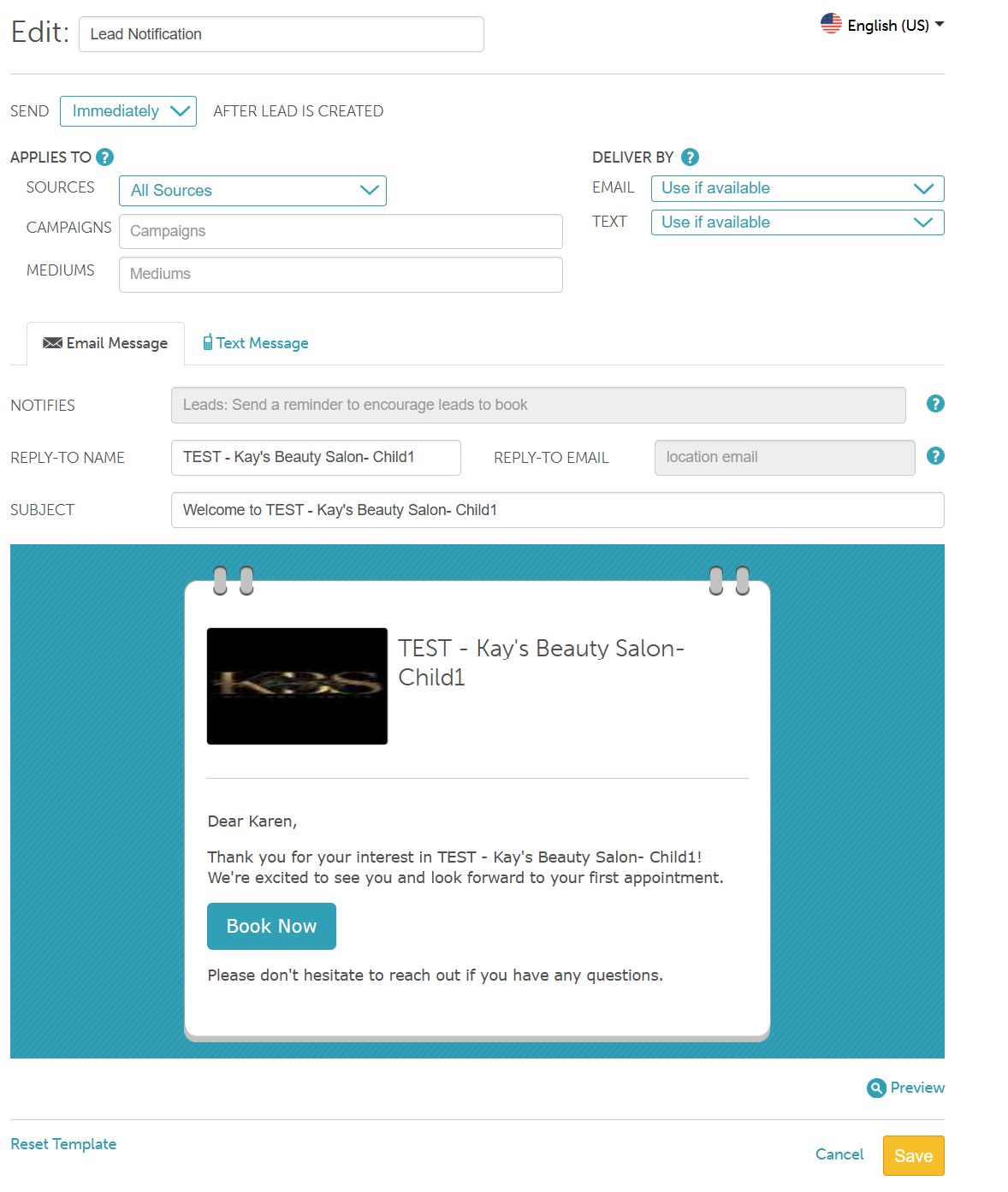
- Customize the template by editing:
- Edit: Change the template's name if desired.
- Send X After Lead is Created: Choose when the notification should be sent after a lead is created. Notifications can be sent immediately or after a specified delay.
- Applies To: In this section, you can customize notifications to target all lead sources, campaigns, and mediums, or restrict them to specific ones.
- Sources: Use this dropdown to select specific platforms or origins (e.g., Facebook, Google) that should trigger the automated message.
- Campaigns: Enter specific campaign names to target leads generated from a particular marketing campaign.
- Mediums: Enter the marketing medium (e.g., email, paid advertisement, social media) used to acquire the lead.
- Staff to Notify Options: When the "Allow selecting which staff receive lead notifications" hidden setting is enabled, a Staff to Notify dropdown will appear when editing or configuring Staff Follow-Up notifications. This lets you select specific recipients instead of automatically notifying the entire team.
- Staff to Notify Options:
- Location Email: Sends the notification to the email address listed under Business Setup > Business Profile > Edit Location. (Unchecked by default)
- Individual Staff Members: Allows you to select specific team members from a list.
- All Staff: Sends the notification to every staff member assigned to the location.
- Important: Staff members must have "Receive operation alerts" enabled in their user profile to receive notification emails. Staff members who are unselected—or who do not have operation alerts turned on—will not receive notifications.
- Delivery By: You can specify a fallback delivery method (email, SMS, push notification) when the primary method is unavailable.
- Use if available: This is the primary method that will be attempted first
- Use if other methods not available: This method will be attempted if the primary option is unavailable (because contact information is not on file or the user opted out)
- Never Use: This method will not be used, even if none of the other options are available
- Delivery methods configured before February 3, 2025 (when fallback delivery methods were introduced) will have the following default selections:
- For enabled delivery methods, the 'Use if available' option will be selected
- For disabled delivery methods, the 'Use if others are not available' option will be selected
- Reply-to name: The business name displayed when clients reply to an auto-email (set in your business profile).
- Reply-To-Email: By default, this is set to the location's email address configured under Business Setup > Business Profile > Edit Location.
- If no email is configured for the location, the system will use the location's owner's email address instead.
- If the "Use a specific reply-to-email for outbound emails" hidden setting is enabled, the system will use the email address entered in the "Reply-To-Email for Outbound Emails" field
Subject: The subject that will appear when the client receives the message.
To edit the body of the email:
Hover over the highlighted sections
Click on the edit icon
Use the editor to design your template. Hover over each icon for a description. Advanced users can insert HTML for a more customized appearance.
Save
Adding a Pre-Saved Lead Automated Message to a Sequence
Once the hidden setting is enabled, simply:
- Navigate to Marketing > Automated Messages
- Click the Leads tab

- Select your desired lead notification
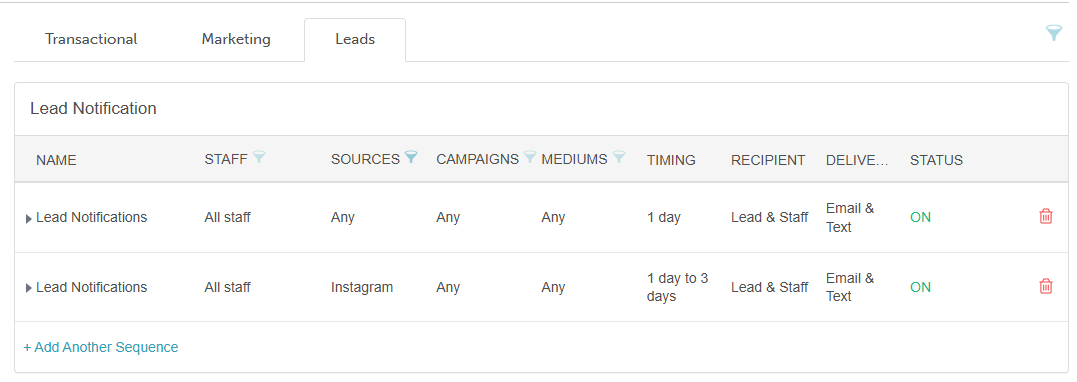
- Click + Add Another Step
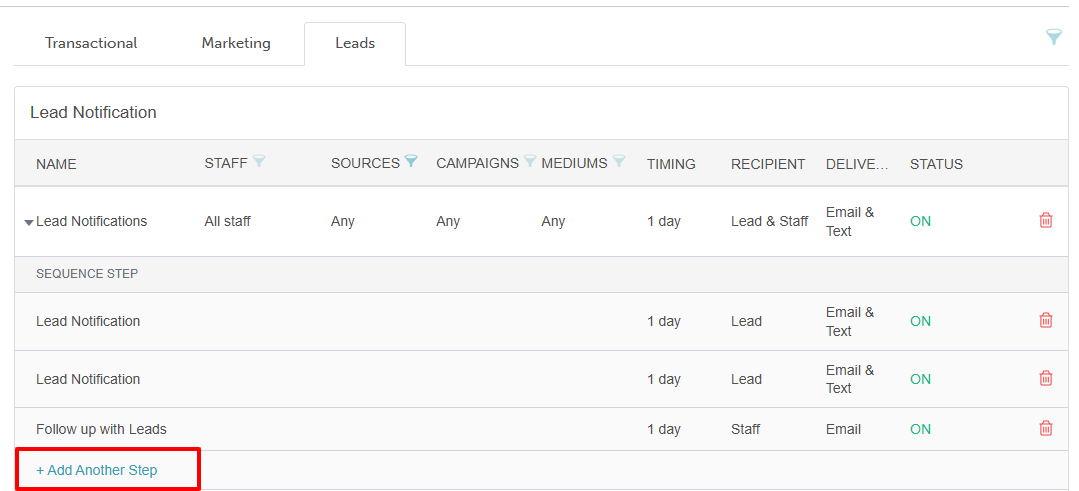
- Select one of the following options:
- Lead: The "Send a reminder to encourage leads to book" notice will appear
- Staff: The "Alert staff when leads have not booked" notice will appear

- Click Continue
- Customize the notification settings according to your preferences
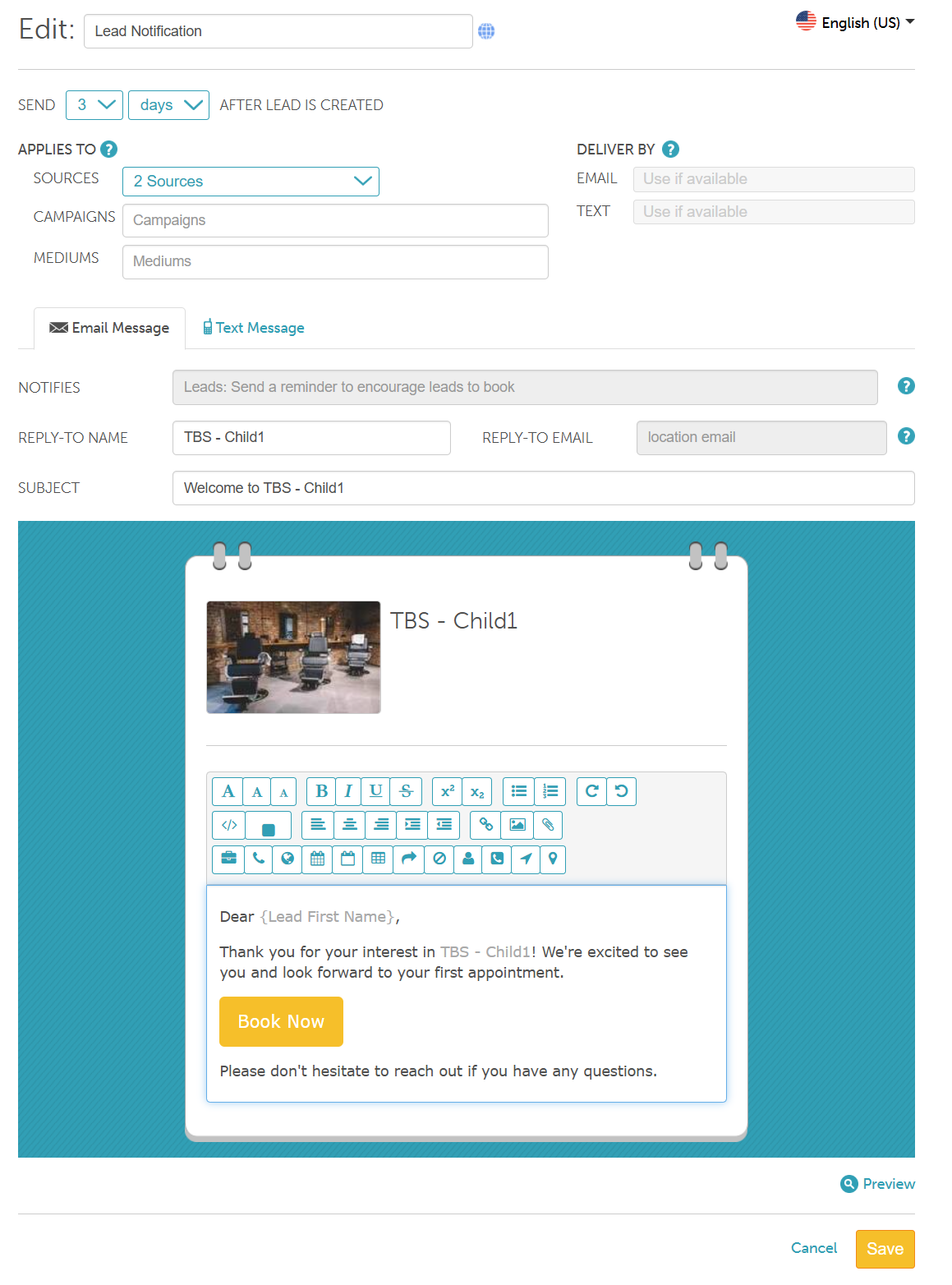
- Save the template
Configuring a Lead Automated Message Sequence
- Navigate to Marketing > Automated Messages
- Click the Leads tab

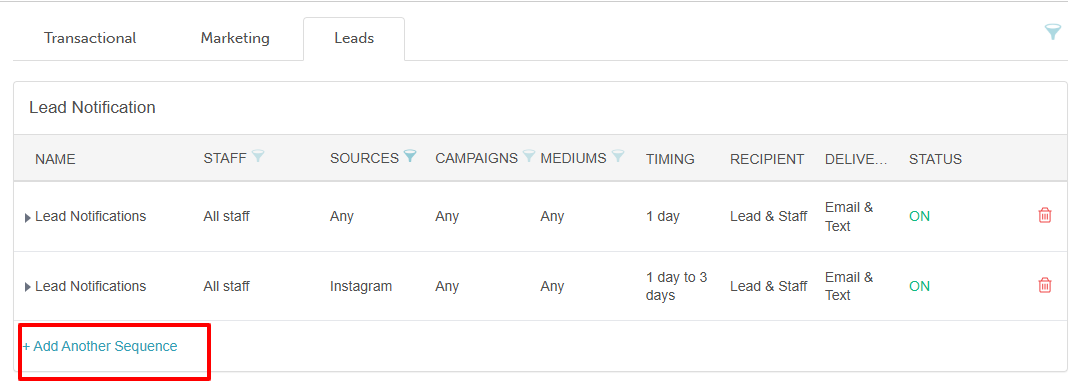
- Click + Add Another Sequence
- Edit the sequence name if desired
- In the Applies To section, target specific leads by selecting your desired criteria:
- Sources: Select the specific platform or origin (e.g., Facebook, Google) that should trigger the message
- Campaigns: Enter specific campaign names to target leads from a particular marketing effort
- Mediums: Enter the marketing medium (e.g., email, paid ad, social media) used to acquire the lead
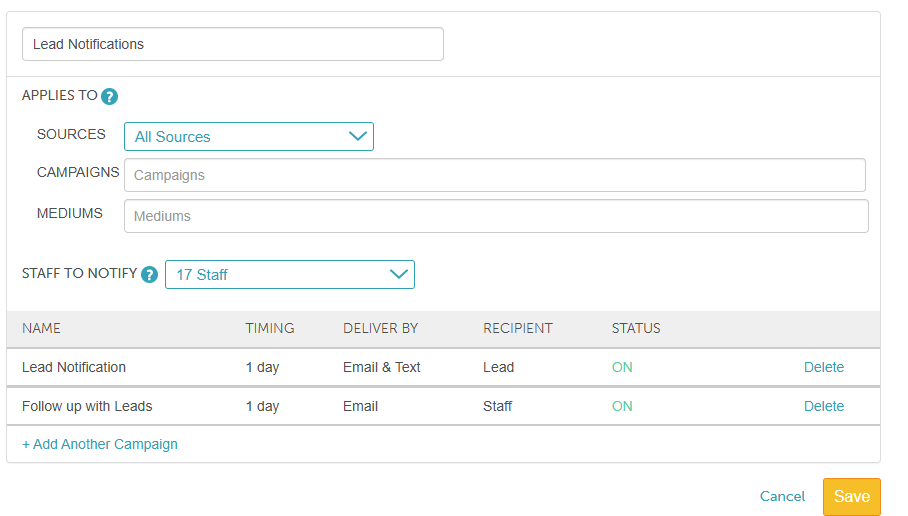
- For accounts with the "Allow selecting which staff receive lead notifications" hidden setting enabled, the Staff to Notify dropdown lets you select specific recipients for Staff Follow-Up notifications rather than alerting the whole team. Note: Selected staff must have "Receive operational alerts" enabled in their user profile to receive emails.
- Select the type of lead notification you want to configure:
- Lead Notification — sent to leads
- Follow Up with Leads — sent to staff members
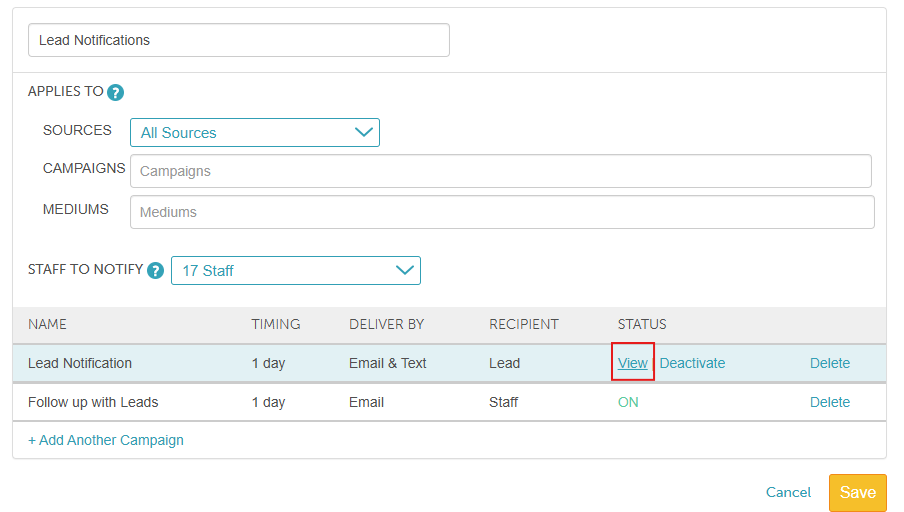
- Hover over the desired notification and click View
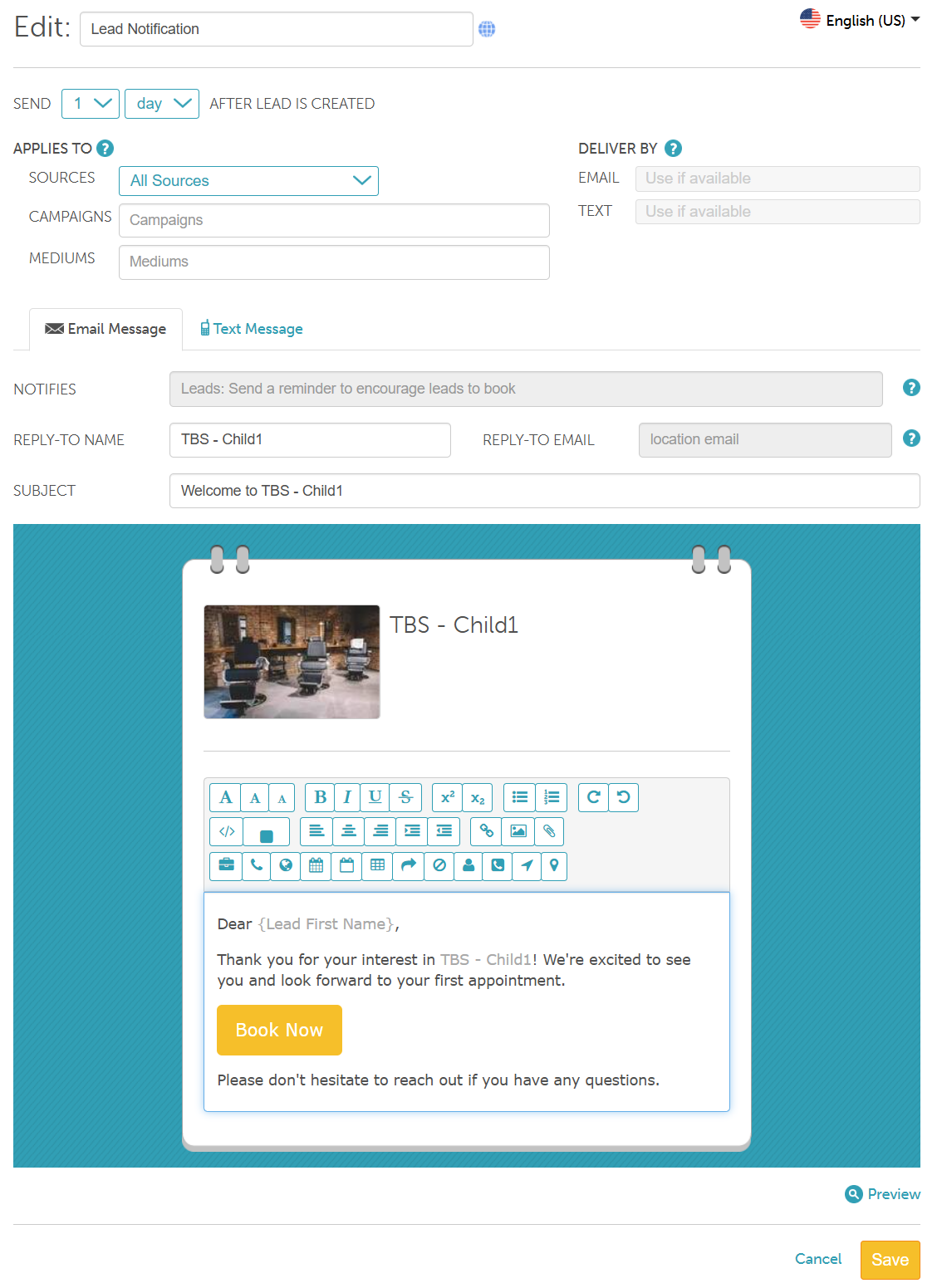
- Customize the template using the following settings:
- Edit: Change the template's name if desired.
- Send X After Lead is Created: Choose when the notification should be sent after a lead is created. Notifications can be sent immediately or after a specified delay.
- Applies To: In this section, you can customize notifications to target all lead sources, campaigns, and mediums, or restrict them to specific ones.
- Sources: Use this dropdown to select specific platforms or origins (e.g., Facebook, Google) that should trigger the automated message.
- Campaigns: Enter specific campaign names to target leads generated from a particular marketing campaign.
- Mediums: Enter the marketing medium (e.g., email, paid advertisement, social media) used to acquire the lead.
- Staff to Notify : When the "Allow selecting which staff receive lead notifications" hidden setting is enabled, a Staff to Notify dropdown will appear when editing or configuring Staff Follow-Up notifications. This lets you select specific recipients instead of automatically notifying the entire team.
- Staff to Notify Options:
- Location Email: Sends the notification to the email address listed under Business Setup > Business Profile > Edit Location. (Unchecked by default)
- Individual Staff Members: Allows you to select specific team members from a list.
- All Staff: Sends the notification to every staff member assigned to the location.
- Important: Staff members must have "Receive operation alerts" enabled in their user profile to receive notification emails. Staff members who are unselected—or who do not have operation alerts turned on—will not receive notifications.
- Delivery By: You can specify a fallback delivery method (email, SMS, push notification) when the primary method is unavailable.
- Use if available: This is the primary method that will be attempted first
- Use if other methods not available: This method will be attempted if the primary option is unavailable (because contact information is not on file or the user opted out)
- Never Use: This method will not be used, even if none of the other options are available
- Delivery methods configured before February 3, 2025 (when fallback delivery methods were introduced) will have the following default selections:
- For enabled delivery methods, the 'Use if available' option will be selected
- For disabled delivery methods, the 'Use if others are not available' option will be selected
- Reply-to name: The business name displayed when clients reply to an auto-email (set in your business profile).
- Reply-To-Email: By default, this is set to the location's email address configured under Business Setup > Business Profile > Edit Location.
- If no email is configured for the location, the system will use the location's owner's email address instead.
- If the "Use a specific reply-to-email for outbound emails" hidden setting is enabled, the system will use the email address entered in the "Reply-To-Email for Outbound Emails" field
Subject: The subject that will appear when the client receives the message.
To edit the body of the email:
Hover over the highlighted sections
Click on the edit icon
Use the editor to design your template. Hover over each icon for a description. Advanced users can insert HTML for a more customized appearance.
Save
For more information, contact us at support@mytime.com or (385) 233-6964.
Related Articles:
Was this article helpful?
That’s Great!
Thank you for your feedback
Sorry! We couldn't be helpful
Thank you for your feedback
Feedback sent
We appreciate your effort and will try to fix the article