Our Lead Management module is designed to help you capture customer leads and convert them into paying clients. It allows you to collect and track leads within MyTime’s CRM, nurture them through emails, text messages, and phone calls, and monitor their status and conversion rates throughout the process.
Key Features:
- Lead Nurturing: Engage leads through automated emails, text messages, and staff follow-up reminders for phone calls.
- Automatic Conversion: Effortlessly convert leads into clients when they book an appointment.
- Performance Tracking: Analyze lead sources, conversion rates, and client lifetime value for actionable insights
Things to know:
- The Lead Management module is a paid add-on. To add this module, contact your account manager or email support@mytime.com.
- Once the Lead Management module is purchased, you can add and manage leads by navigating to Clients > My Leads.
- The ability to create leads is governed by the "Accessing Client Records" access control setting.
- For family member or pet businesses, you can add family members or pets directly to lead profiles.
- For family member/pet business, you can add family members or pets to lead profiles.
- The Lead Source feature helps track where leads are generated (e.g., in-store visits, booking widget, Facebook). This feature requires the “Track Client Source” setting to be enabled at both the parent and child levels for franchise businesses.
- For franchise businesses, the Lead Source custom field is managed strictly at the parent account level. Child accounts can select from the established options but cannot add, edit, or delete them.
- You can restrict how data is entered into the Lead Source custom field by enabling the 'Is Read Only' toggle.
- Disabled (Off): The field remains open, allowing you to manually enter and save any source information.
- Enabled (On): The field is restricted. You will not be able to type in new information, but you can select from a list of pre-saved options.
- In the Schedule and POS, leads are searchable using the search box and are clearly marked with a [Lead] label for easy identification.
- You can send messages to leads through the Communicator and also schedule appointments for them.
- Leads cannot be merged with clients
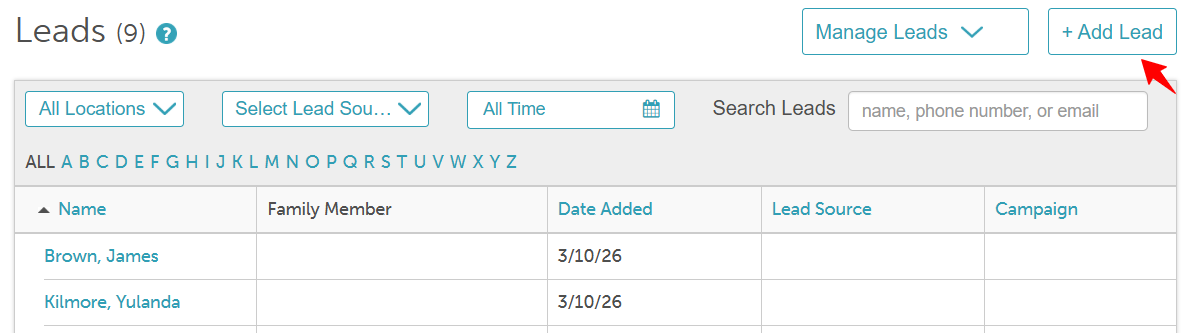
- The Leads tab provides a quick, high-level overview of your potential clients without needing to open individual profiles.
- Lead Source: Shows the original source or origin of each individual lead.
- Campaign: Displays which specific marketing campaign generated the lead.
- Date Added: Shows exactly when the lead was created, whether it was entered in-store or online.
- Filtering by Source: Use the Lead Source filter at the top of the page to quickly isolate and organize leads from a specific origin.
- Sorting Columns: You can sort most columns in alphabetical, chronological, or numerical order by clicking the column header (toggling between ascending and descending). Note: The Family Member/Pet column is currently the only column that cannot be sorted.
- The date filter allows you to view leads based on when they enter your system. While the filter stays on All Time by default, you can adjust the timeframe to isolate leads captured during a specific week, month, or custom date range. This helps you track the immediate impact of recent marketing campaigns and manage your follow-up pipeline more efficiently.
- There are three methods to convert leads into clients.
- Converting a Lead from the Lead Profile – Select Convert to Client to change the profile type.
- Automatic Conversion After Scheduling an Appointment – By default, a lead is automatically converted into a client once an appointment has been scheduled.
- Conversion After Appointment Completion– A lead can also be converted once the appointment is marked completed. This option is controlled by a hidden setting that must be enabled by the MyTime team. To activate it, contact support@mytime.com.
- Learn more about lead conversion here.
Contents:
- Adding Lead Profiles Manually
- Adding Family Members/Pets to Lead Profiles Manually
- Enabling & Managing Lead Sources
Adding Lead Profiles Manually
- Navigate to the Clients tab
- Select the My Leads hyperlink
- Select the +Add Lead button
- Enter as much information about the lead as necessary, including their associated location, name, phone number, email, birthday, contact permissions, etc:
- Click "Save"
- Once saved, the lead profile will be accessible under the "My Leads" tab

Adding Family Members/Pets to Lead Profiles Manually
- Navigate to the Clients tab
- Select the My Leads hyperlink
- Open the desired lead profile
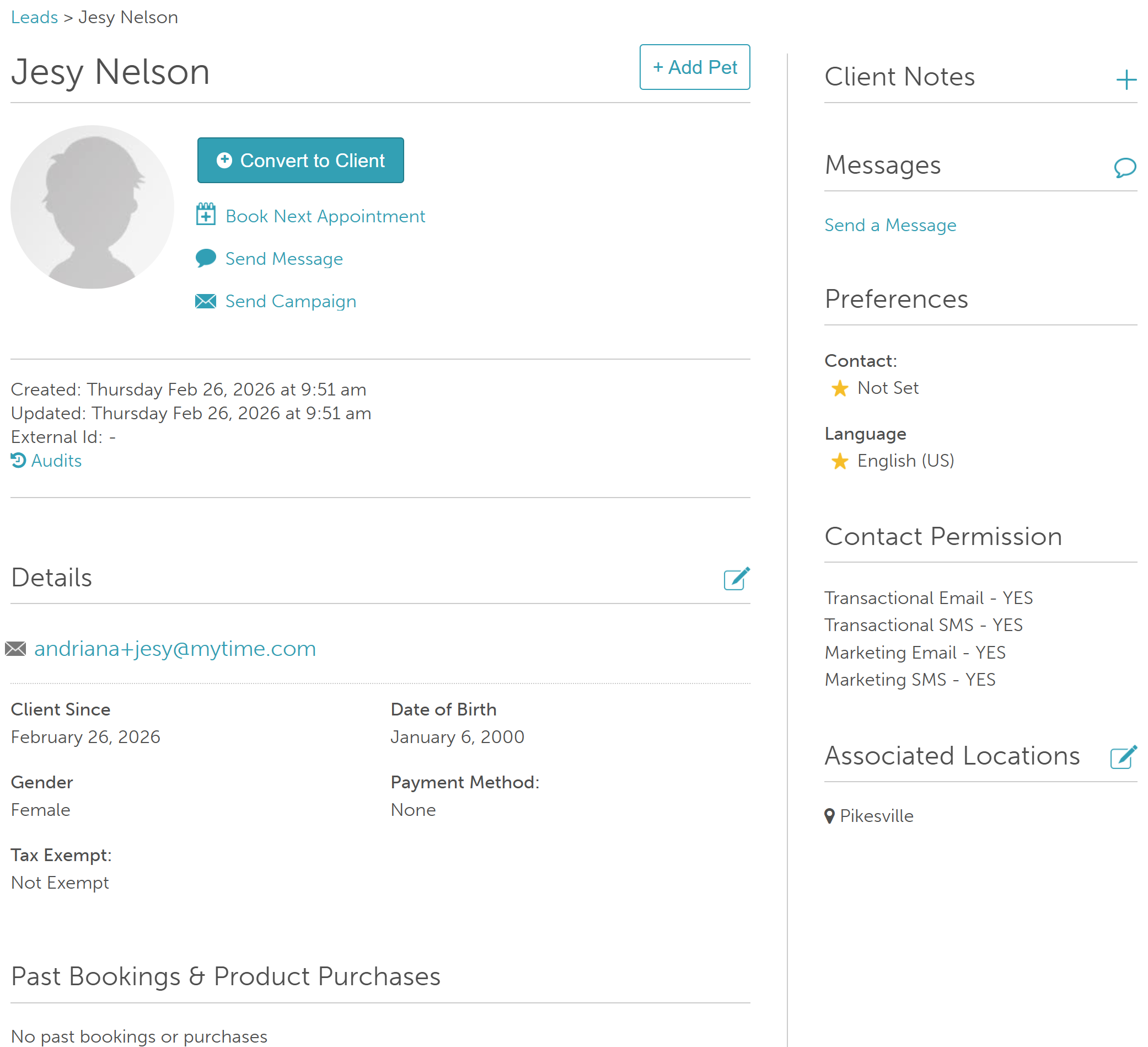
- You can then add family members/pets to lead profile by clicking '+Add Pets'/'+Add Family Members'

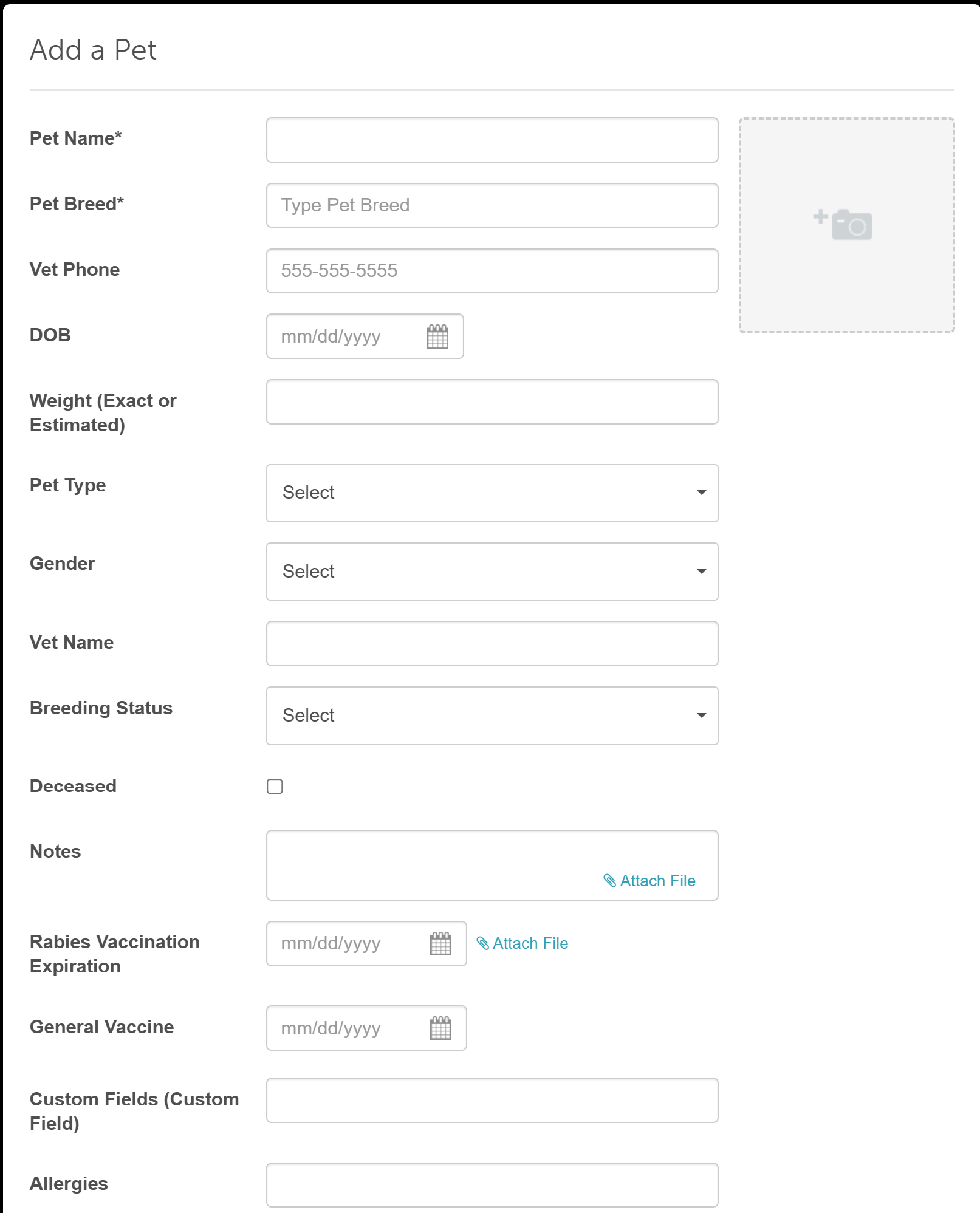
- Complete the family member/pet fields
- Click Save
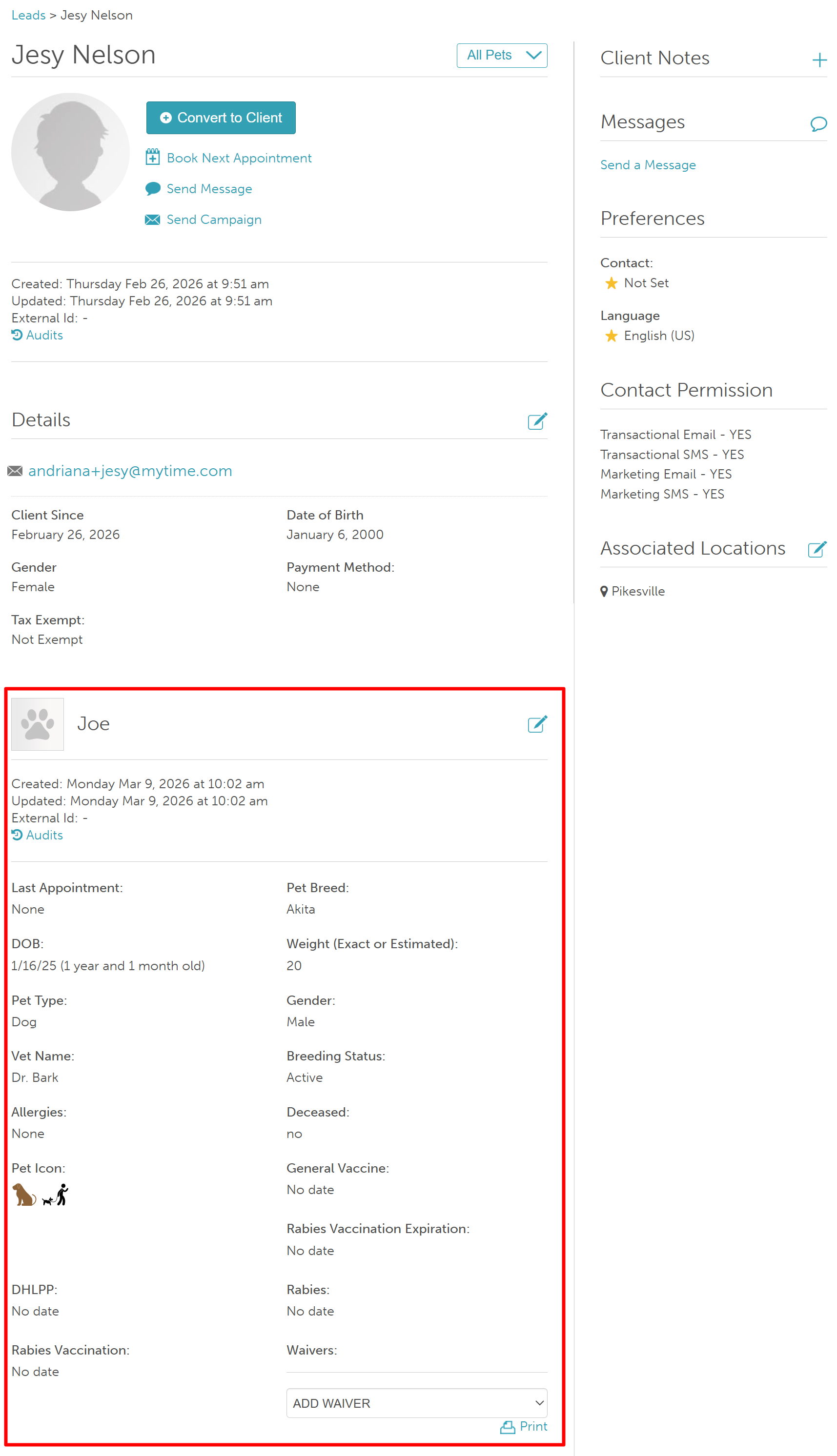
- Once saved, the new pet or family member will appear on the lead profile.
Enabling & Managing Lead Sources
Lead Source configuration in Settings is only available at the parent level. Child accounts cannot manage lead sources from Settings. To manage lead sources, the Track Client Source setting must first be enabled:
- Navigate to Business Setup > Settings > Clients
- Enable the Track Client Source toggle
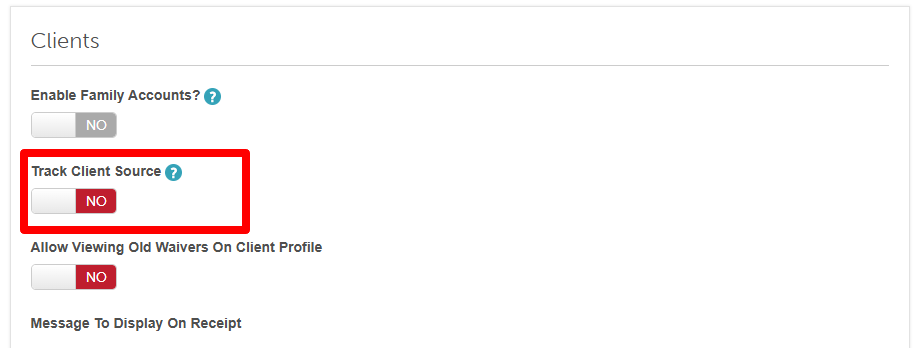
- The Lead Sources management panel will appear directly below the toggle
- From the Lead Sources panel, you can:
- Add new lead sources
- Edit existing lead source names
- Delete lead sources that are no longer needed
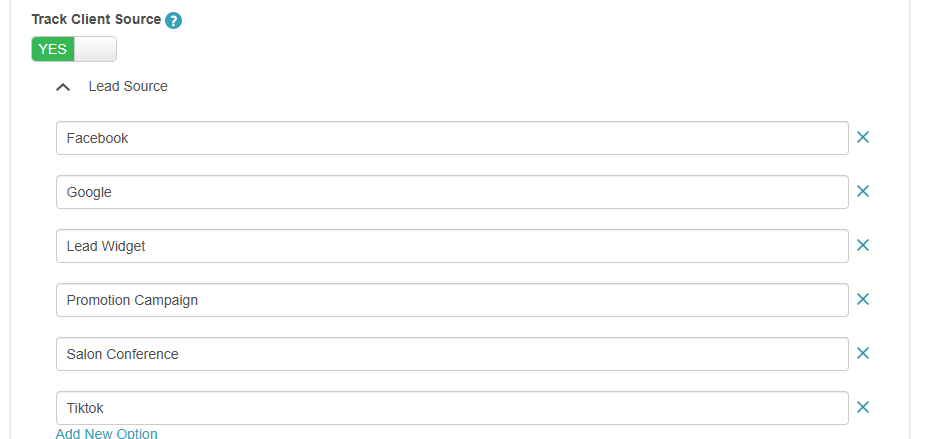
Tip: Lead sources can also be added on the fly when creating or editing a Client Profile, or directly through the Lead Widget.
For more information, contact us at support@mytime.com.
Related Articles:
Was this article helpful?
That’s Great!
Thank you for your feedback
Sorry! We couldn't be helpful
Thank you for your feedback
Feedback sent
We appreciate your effort and will try to fix the article