This article walks you through how to add a photo to a pet profile on the scheduler app, along with requirements and where the photo will be displayed.
Things to know:
- The ability to add images to pet profiles is controlled by the “Accessing Client Records” access control setting
- In-store staff can add photos to pet profiles on both the web and the Scheduler App
Clients cannot upload or update pet photos through the guest app or the online booking widget
In the app, pet photos are visible only on the pet profile
Only one photo can be added to a pet profile at a time. However, the photo can be deleted or replaced as needed
Supported image formats include JPEG, JPG, PNG, and GIF
For best results, use a landscape image that is at least 800 pixels wide and under 5 MB in size
To add a photo to a pet profile on the scheduler app:
- Launch the MyTime Scheduler app on your device
- Choose your login method:
- Standard: Enter your registered email address and password, then tap 'Sign In'
- Social Login: Select 'Continue with Google' or 'Continue with Apple' to use your existing credentials for a faster login experience. For detailed instructions, learn more here
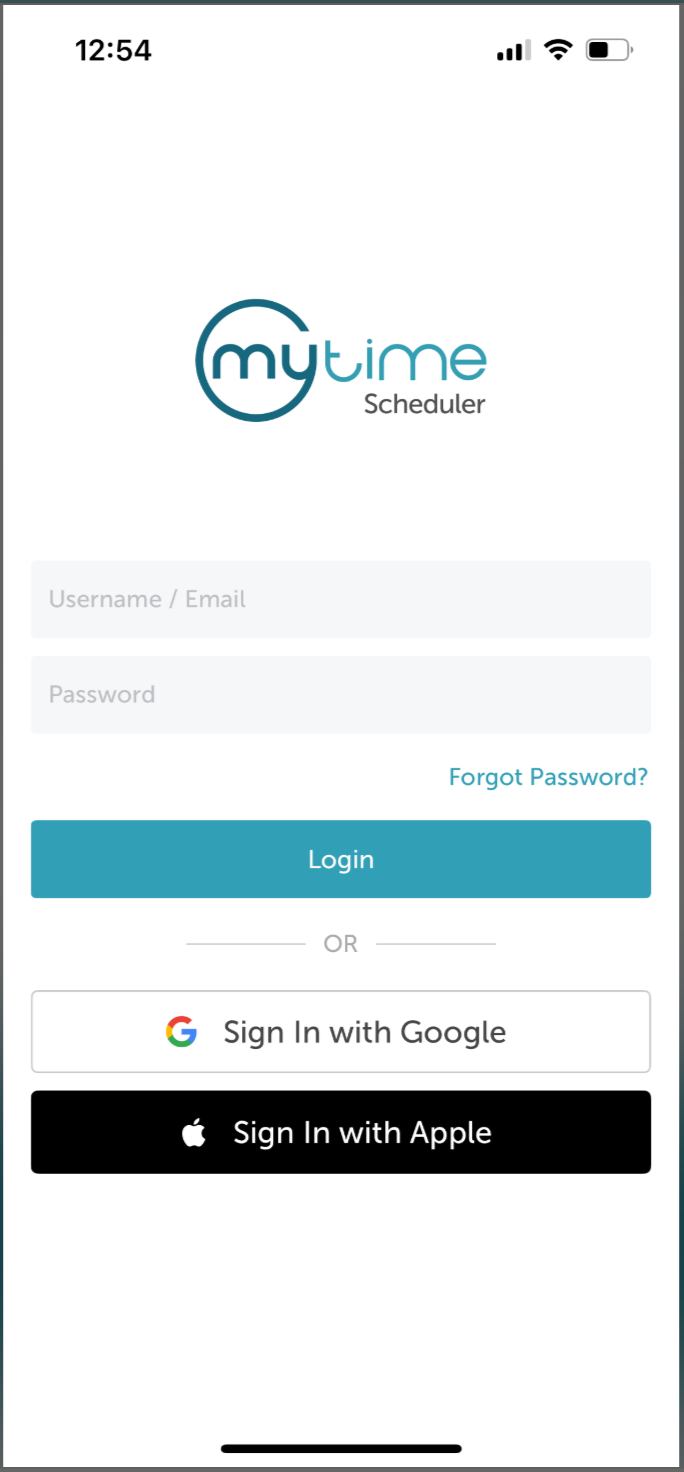
- After signing in, you will be directed to the Schedule by default
- Select the Clients icon at the bottom of the screen
- Search for the client by entering their name in the search field, or select them from the list.
- In the Client’s Pets section, select the pet you want to update
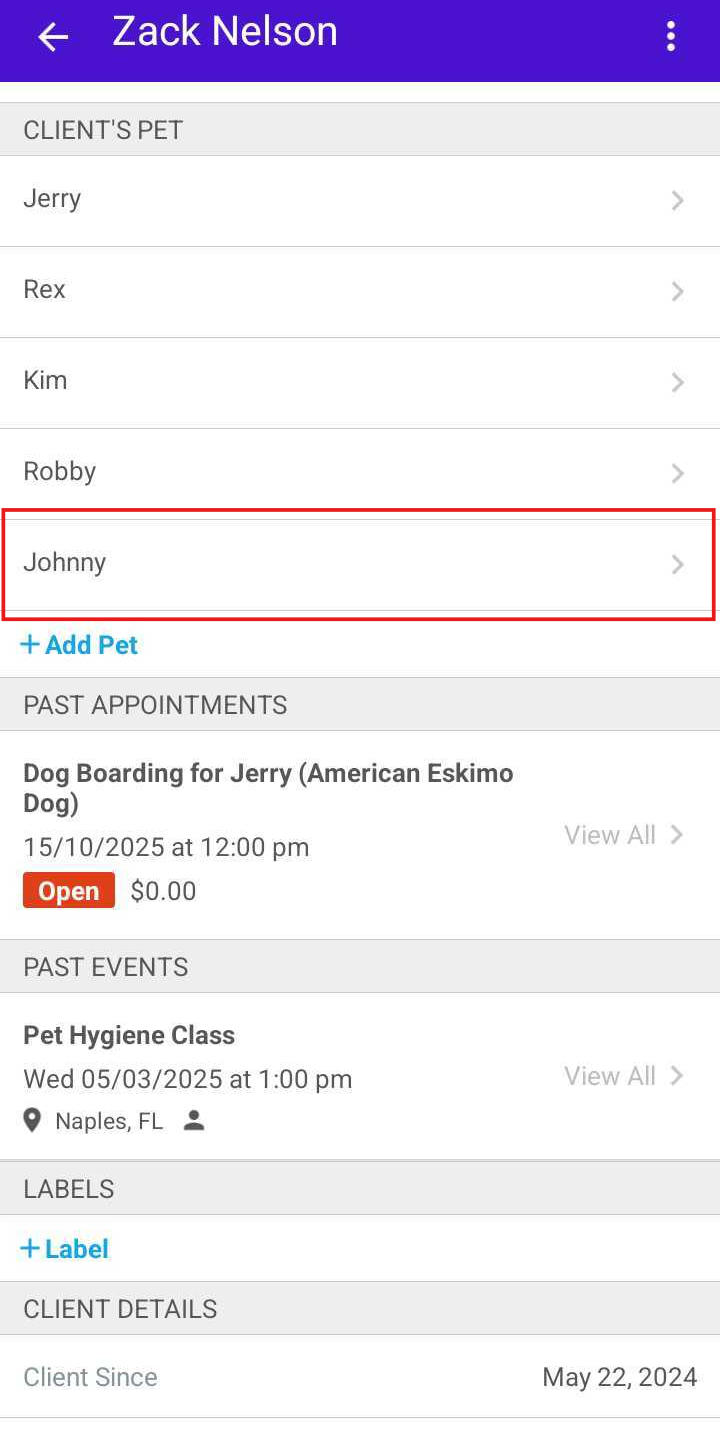
- Tap Edit
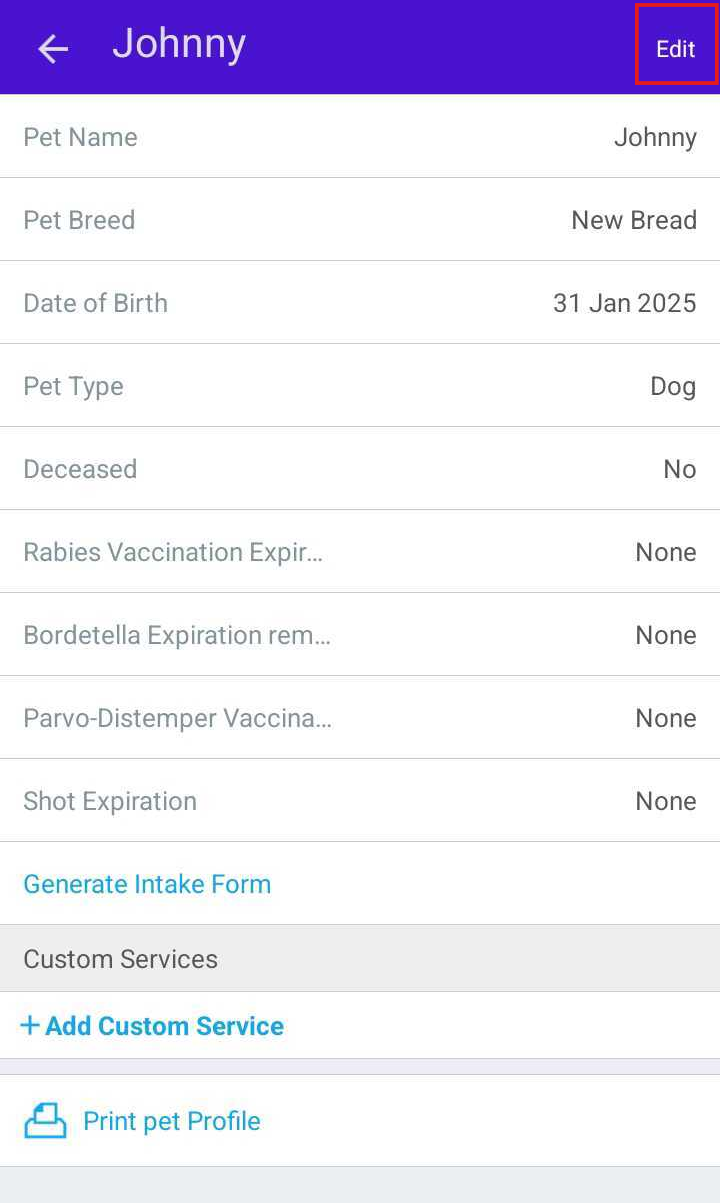
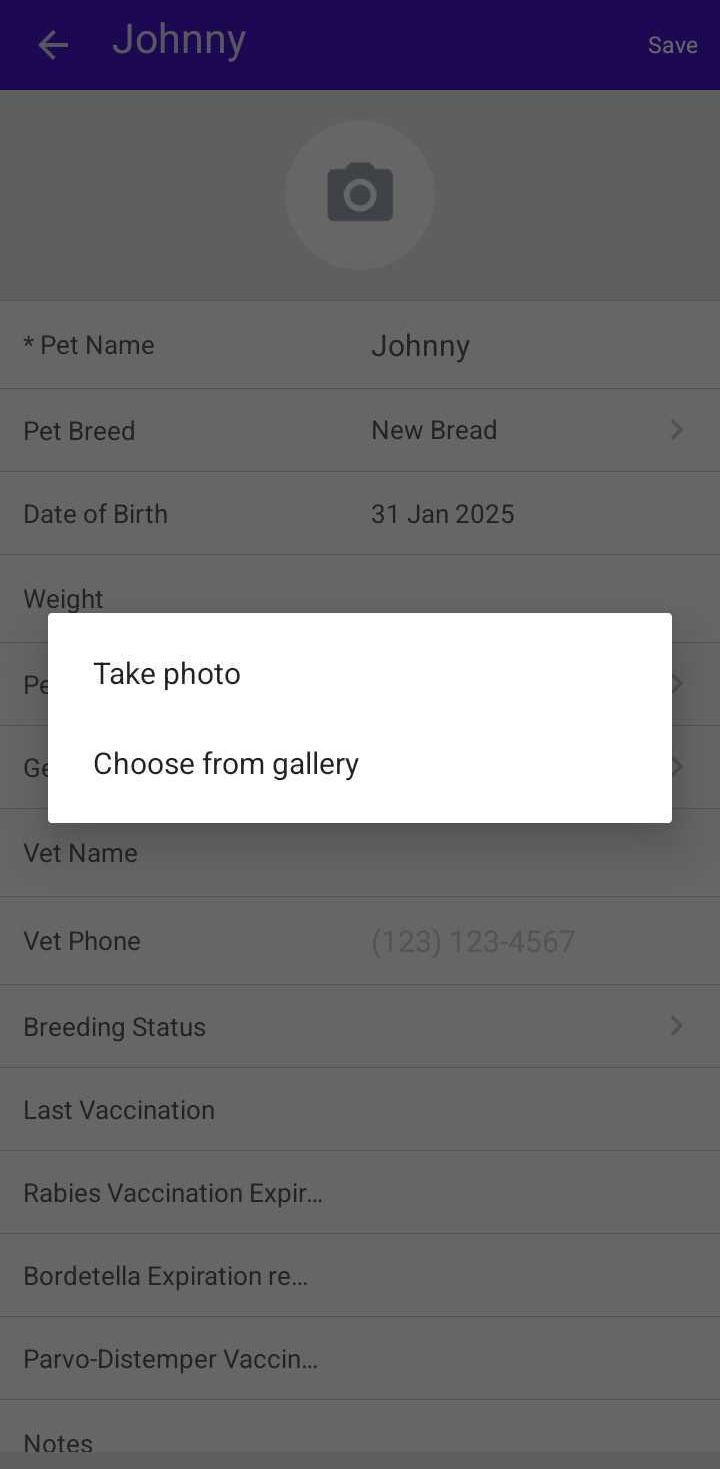
- Tap the camera icon
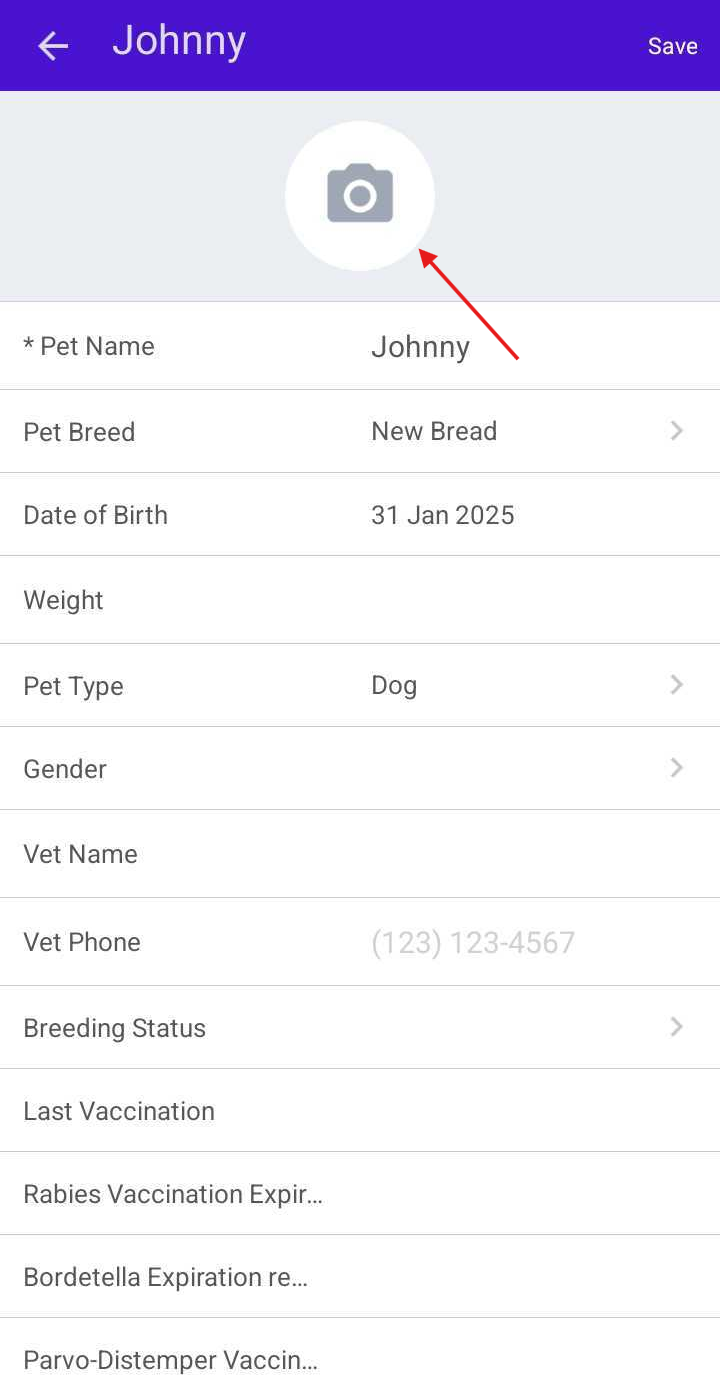
- Take a photo or choose one from your gallery
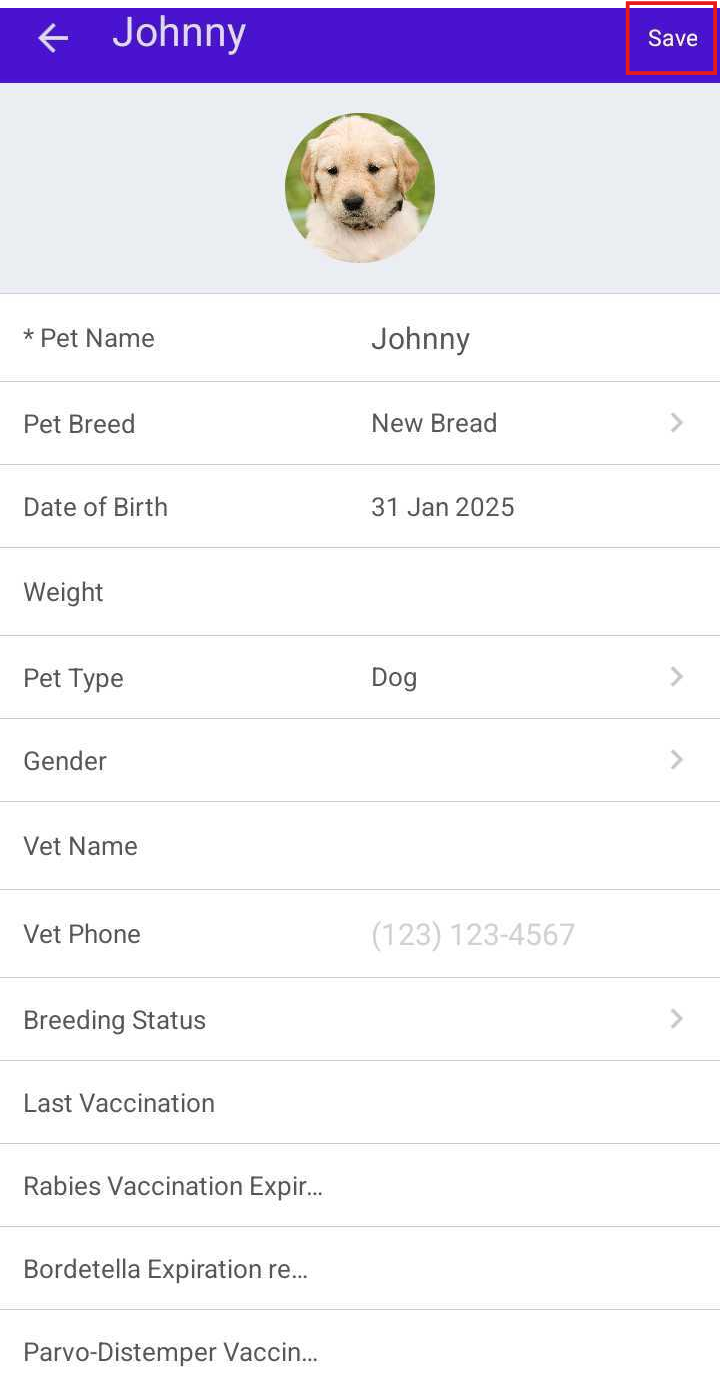
- Tap Save to apply the changes
Related Article
Manage Pet Profile on Guest App
Was this article helpful?
That’s Great!
Thank you for your feedback
Sorry! We couldn't be helpful
Thank you for your feedback
Feedback sent
We appreciate your effort and will try to fix the article