In this article, we will guide you through the steps to delete pets on the scheduler app.
Things to know:
- The ability to delete pets is governed by the “Deleting Clients” access control setting.
- When a pet is deleted, past appointments are retained, but any future appointments associated with that pet are automatically canceled.
- Once a pet profile is deleted, it cannot be reactivated. A new profile must be created instead.
- Historical data for a deleted pet can still be reviewed in reports and on past appointments. However, in reports, the Pet Name column will display “No Name” instead of the original name.
- Deleted pets will still appear on the client profile, but will be greyed out and labeled “(deleted)”.
- Automated notifications and campaign messages will not be sent for deleted pets—only active pets will receive communications.
- Packages:
- Packages configured for an individual pet and previously assigned to that pet are not lost. These benefits remain active on the account; however, they become unassigned and cannot be accessed or redeemed until they are reassigned to another pet. Example: Sarah has a client profile with two pets, Sam and Rex. Rex has a “10-Pack Grooming Membership” assigned to his profile. If Rex’s profile is deleted, the package remains active in the system but becomes unassigned. To use the remaining credits, the package must be reassigned to Sam or another pet.
- Memberships:
- Memberships assigned specifically to the deleted pet will be canceled and removed from membership reports.
- Memberships configured for all pets will remain active, and the benefits can be used by other pets on the account.
- When attempting to delete a pet with an active membership, the following warning message will appear: “This pet has an active membership. Are you sure you want to delete this pet and terminate the membership?”
To delete a pet on the scheduler app, simply follow these steps:
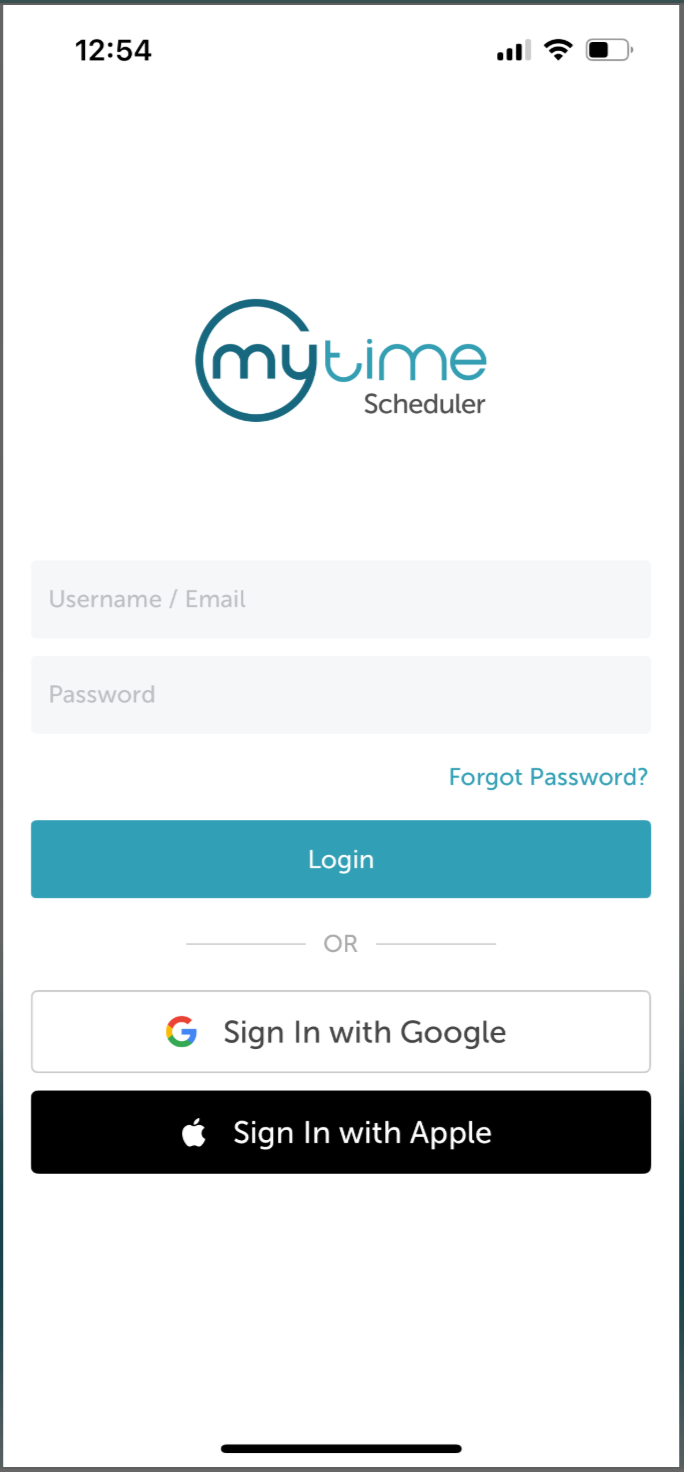
- Launch the MyTime Scheduler app on your device
- Choose your login method:
- Standard: Enter your registered email address and password, then tap 'Sign In'
- Social Login: Select 'Continue with Google' or 'Continue with Apple' to use your existing credentials for a faster login experience. For detailed instructions, learn more here
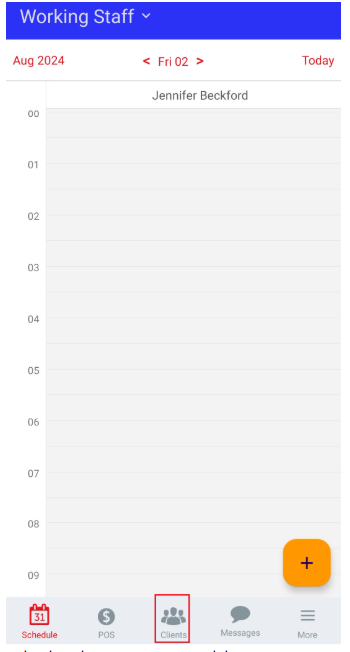
- Once signed in, you will be directed to the schedule by default
- Select "Clients" at the bottom of the screen
- Type in the name of the client in the search bar that has the pet you want to delete
- When the client's name appears in the search results, click on it to open their profile
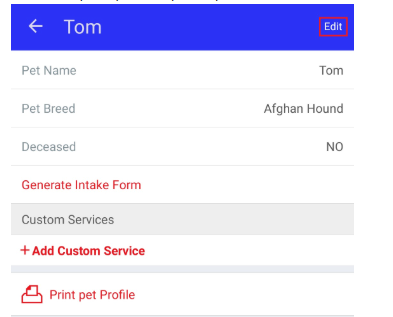
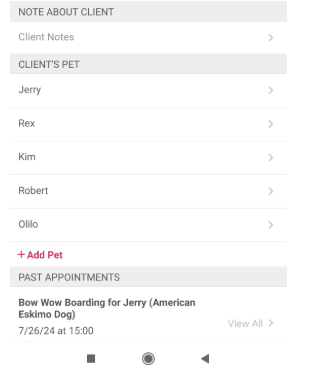
- In the client's profile, navigate to the "Client's Pet" section and tap on the name of the pet you wish to delete
- When the pet's profile opens up, click on "Edit"
- Scroll to the bottom of the page and click on "Remove"
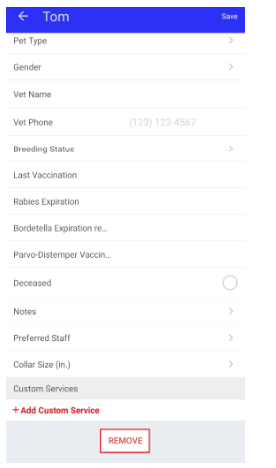
- The pet will be deleted and will no longer be visible on the client's profile.


By following the steps provided in this article, you will be able to successfully delete pets in the scheduler app.
For more information, contact us at support@mytime.com.
Related Articles:
Sign in as Staff Member on Web
Scheduling Appointments on Scheduler App
Sync External Calendar on Scheduler App
Was this article helpful?
That’s Great!
Thank you for your feedback
Sorry! We couldn't be helpful
Thank you for your feedback
Feedback sent
We appreciate your effort and will try to fix the article