The Custom Pet Icons feature on the Scheduler App allows you to assign specific visual markers to pet profiles. This helps staff quickly identify important attributes, behaviors, or needs of appointment attendees at a glance.
Things to Know:
- Once custom icons are configured on the web, they will be available for use. However, they are not applied automatically; you must manually select the appropriate icons when editing a pet's details.
- Each pet profile can be associated with multiple icons, allowing you to represent a diverse range of attributes (e.g., "Senior Pet," "Aggressive," and "Medical Needs") on a single profile.
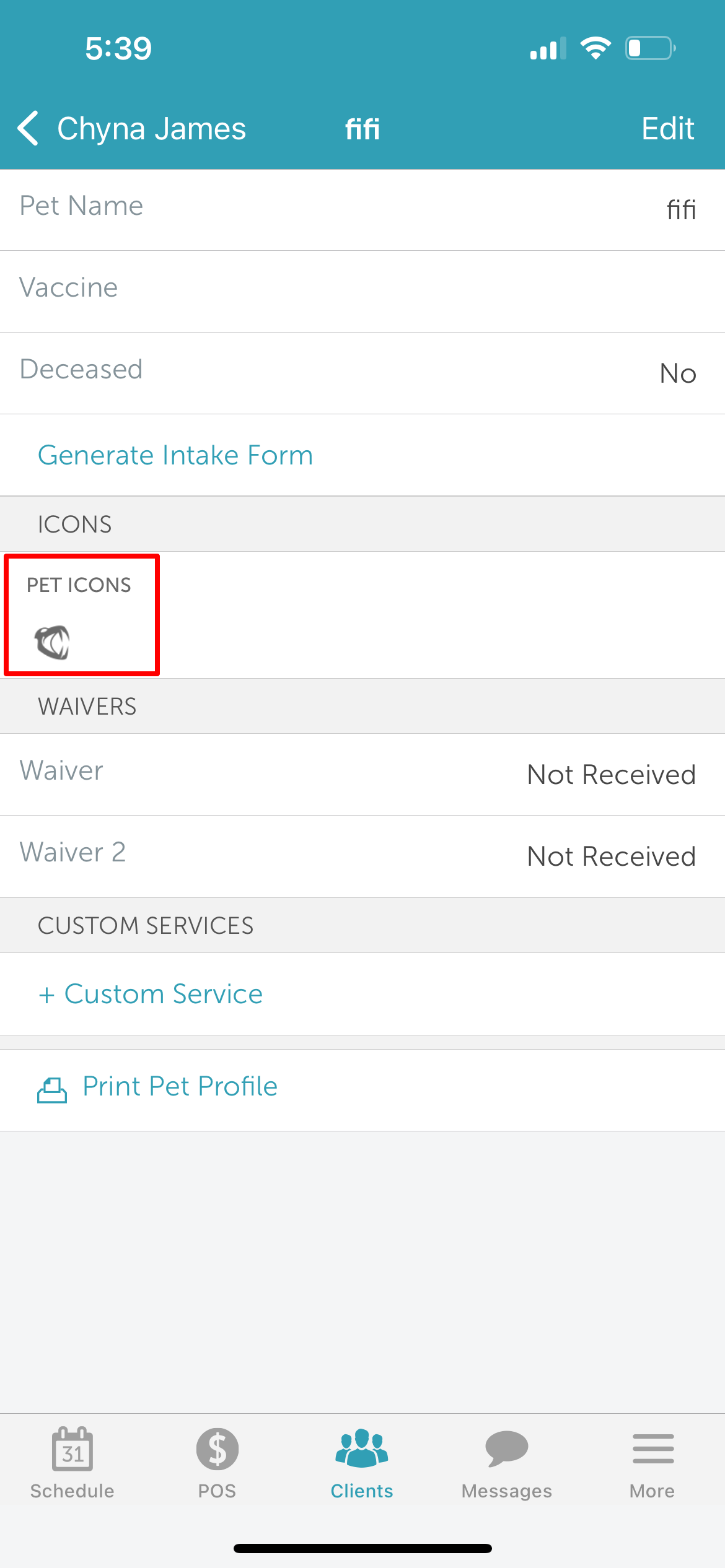
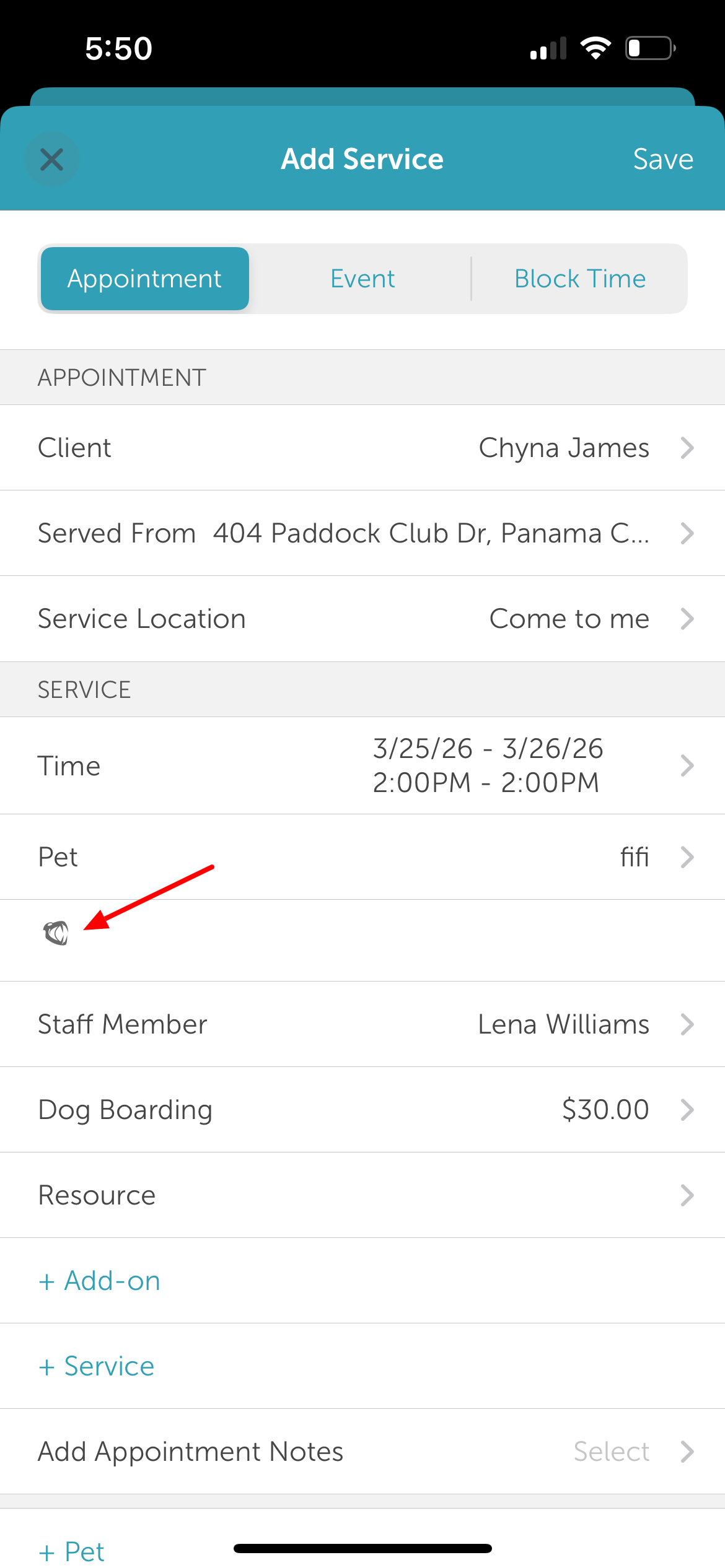
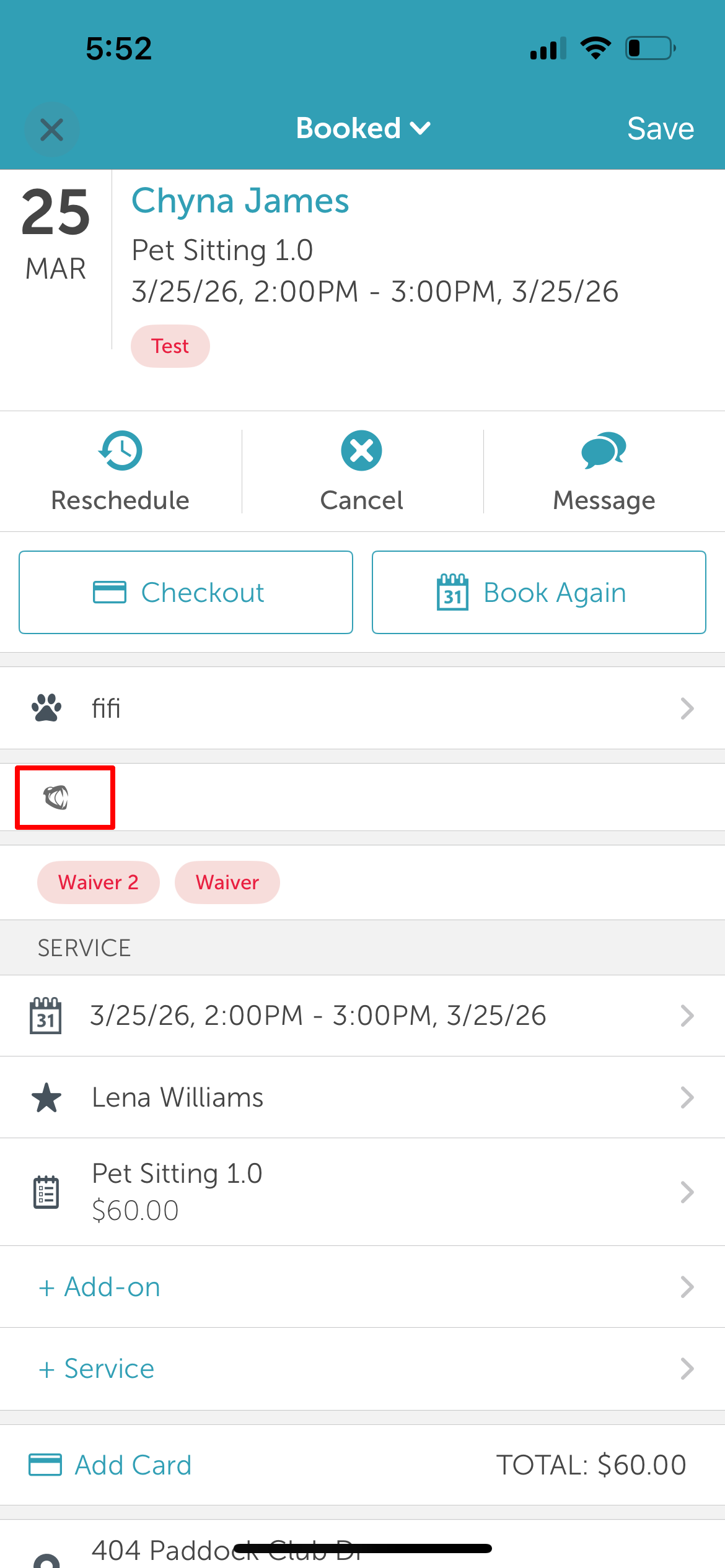
- Once assigned, these icons will appear in the pet profile, appointment modal and appointment tile.
Contents:
Add Icons to Pet Profiles
To add icons on pet profiles:
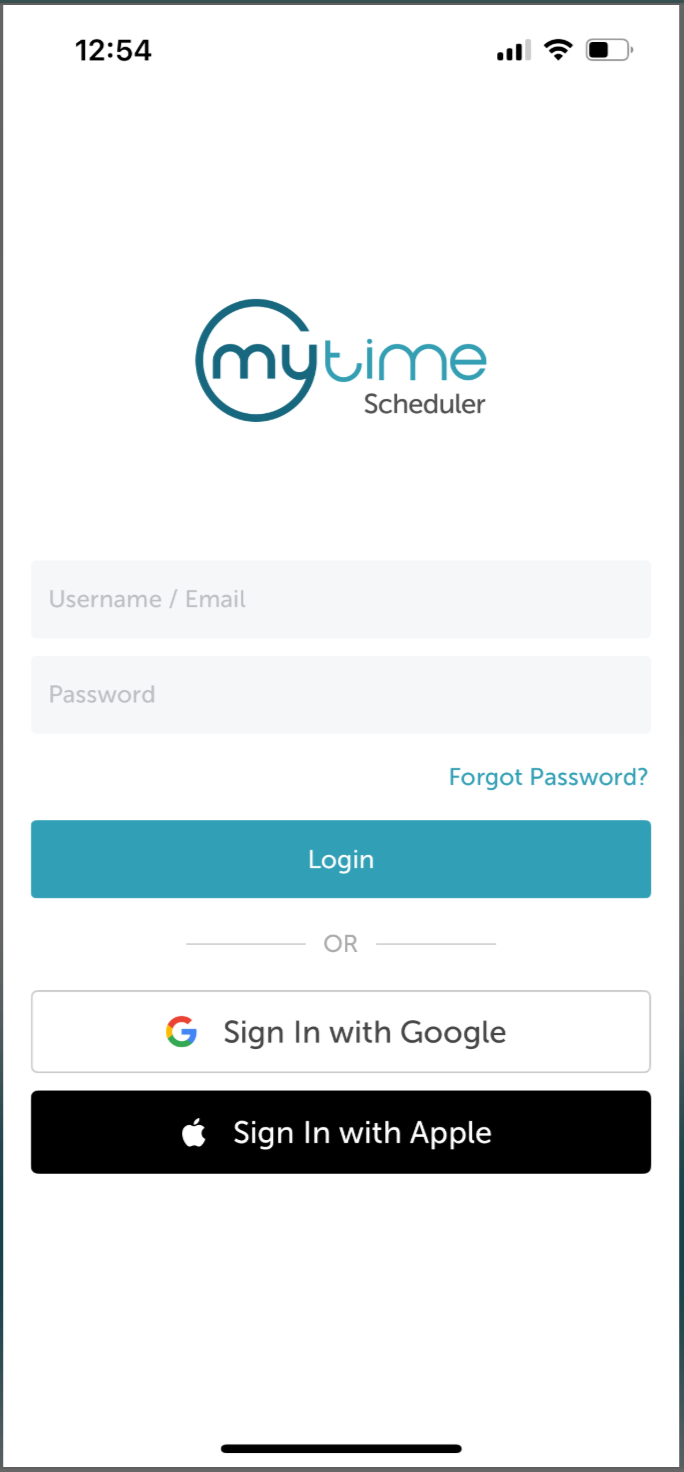
1. Launch the MyTime Scheduler app on your device
2. Choose your login method:
- Standard: Enter your registered email address and password, then tap 'Sign In'
- Social Login: Select 'Continue with Google' or 'Continue with Apple' to use your existing credentials for a faster login experience. For detailed instructions, learn more here
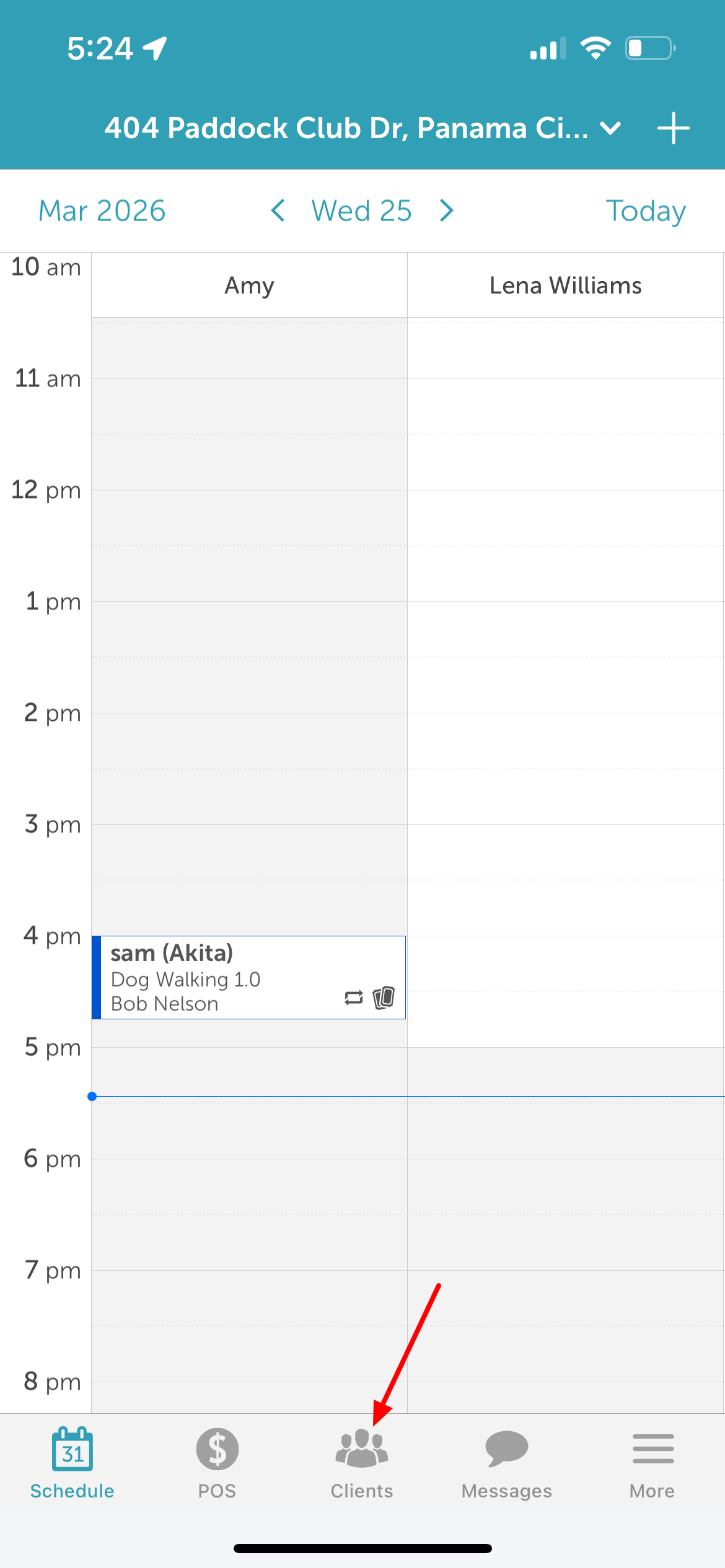
3. Tap the Clients icon at the bottom of the screen
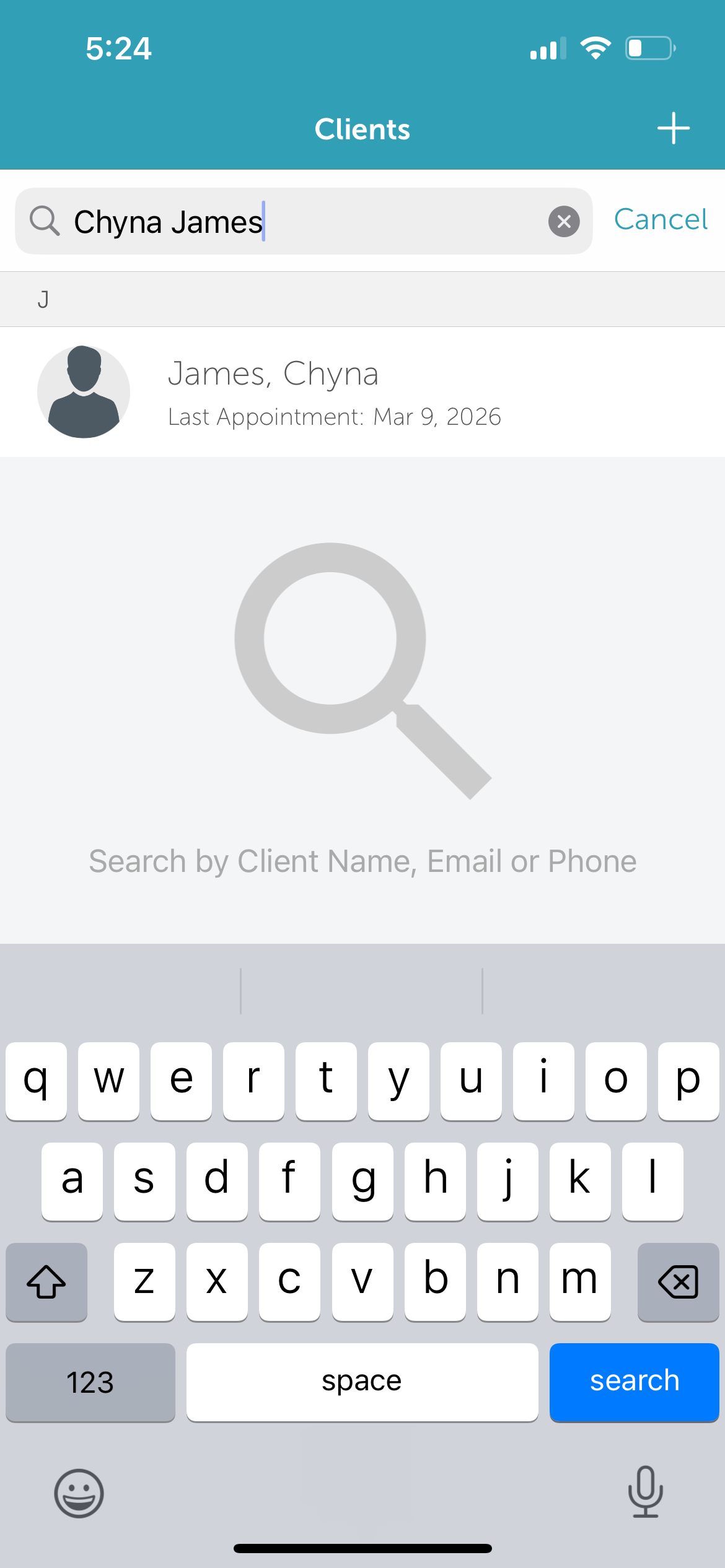
4. Search for and select the desired client
5. Once the client's profile is open
6. Tap on the pet you wish to update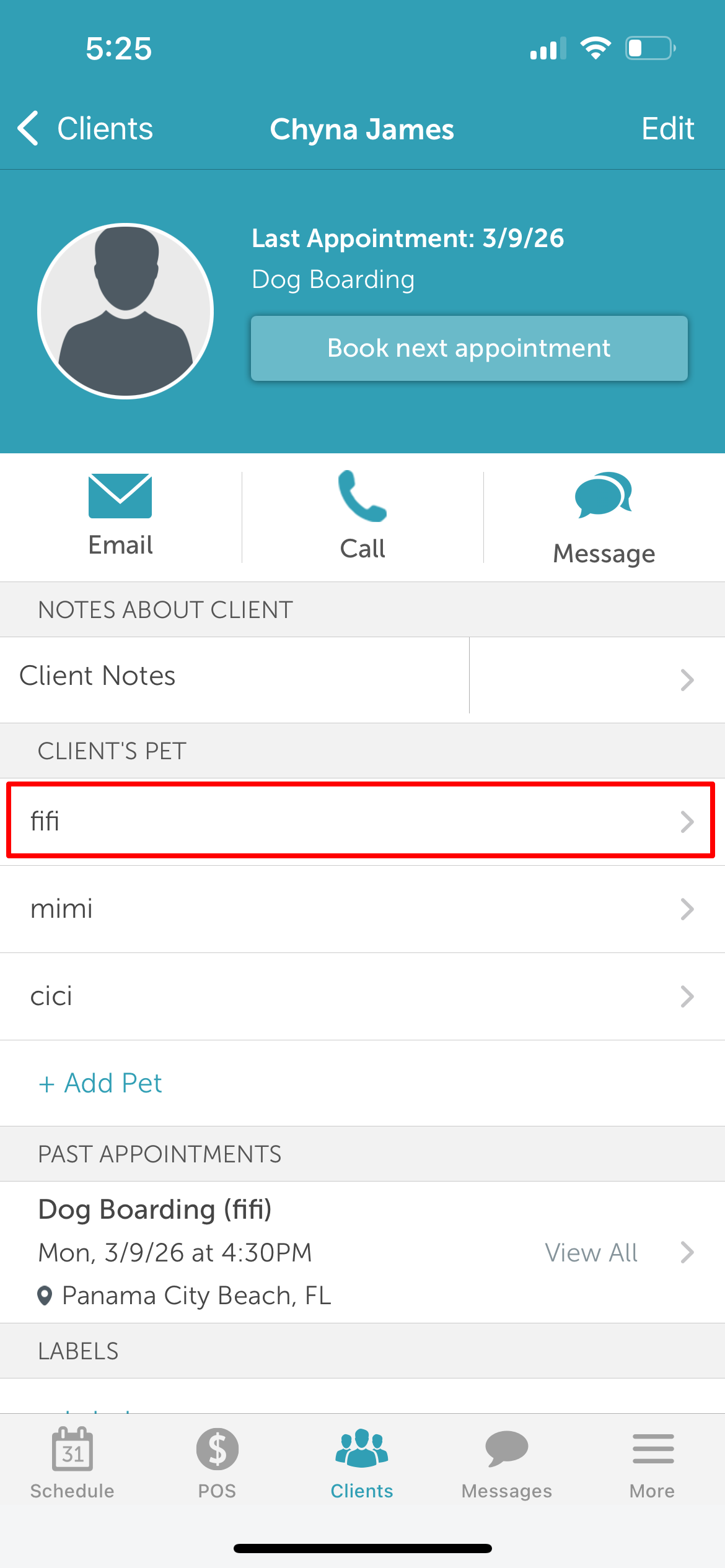
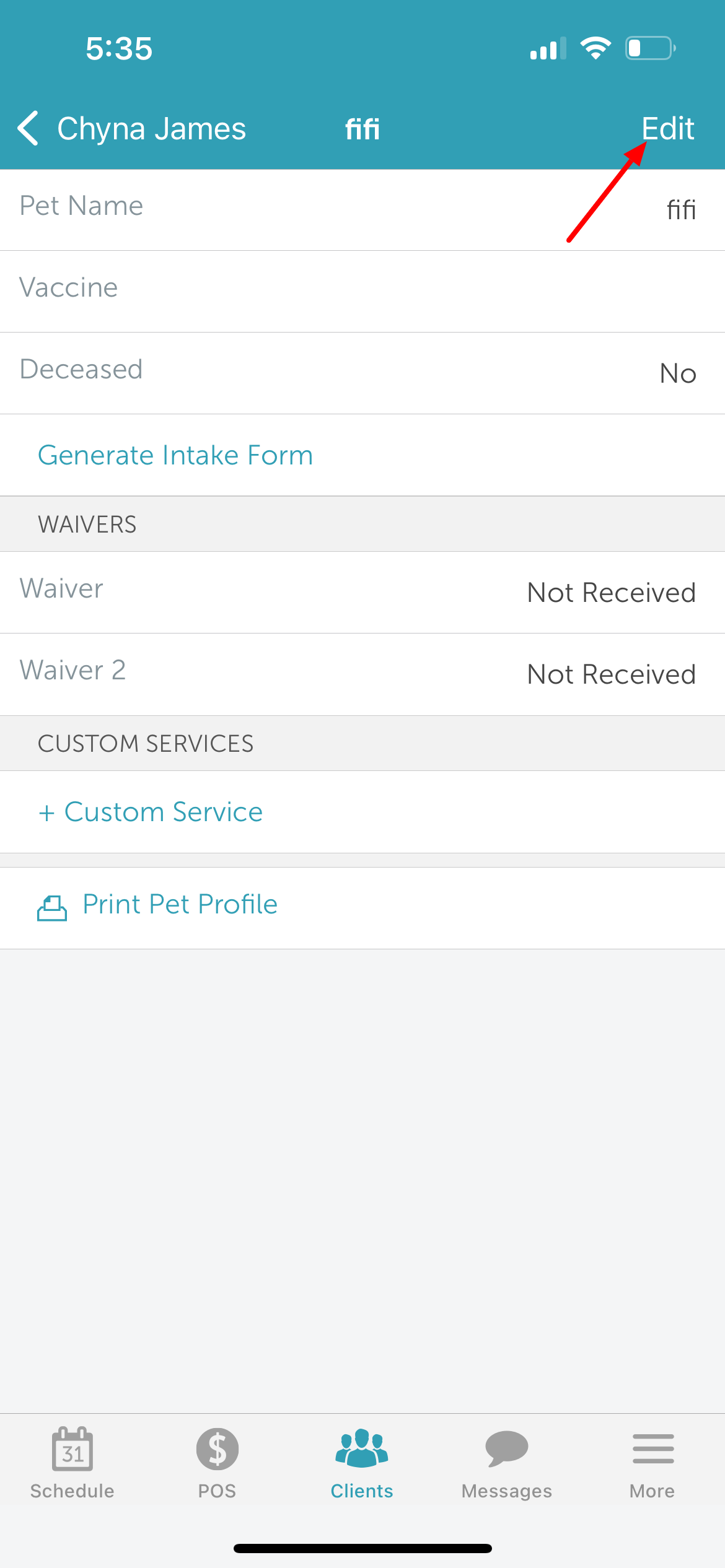
7. Tap "Edit" in the top right corner of the pet's profile
8. Scroll down to the Icons section and tap to select the preferred icon(s) you wish to add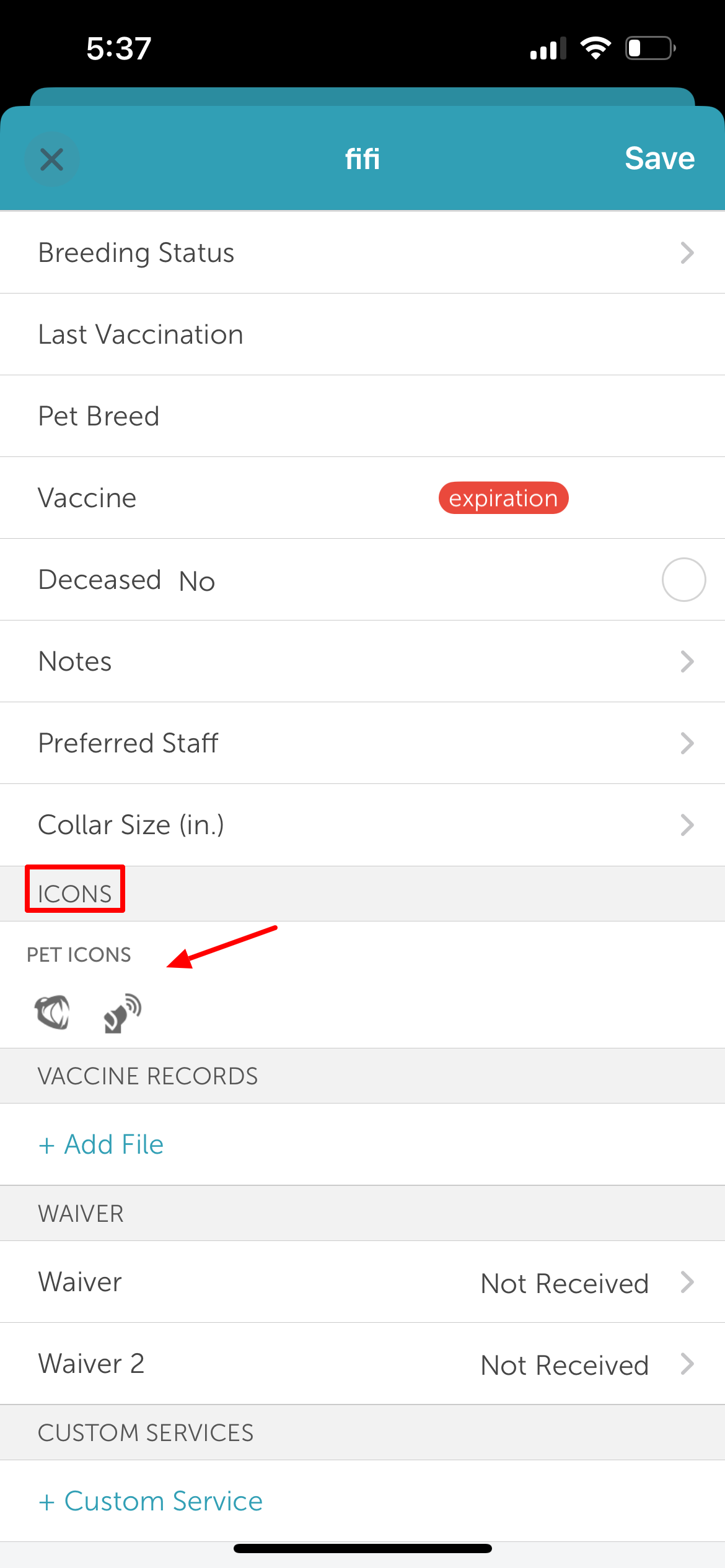
9. Tap 'Save' in the top right corner 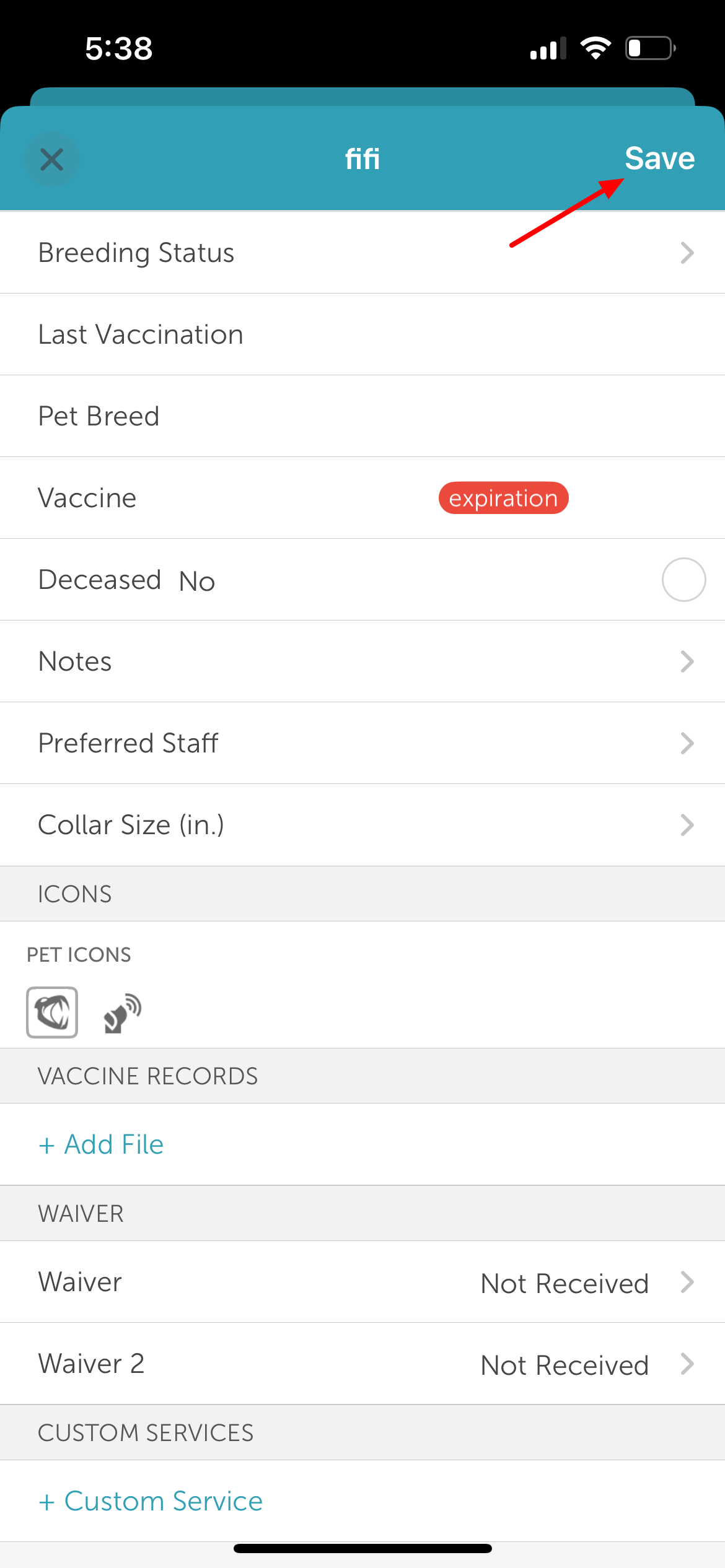
10. Once saved, the selected icons custom field will be prominently displayed on the pet profile
View Icons on Scheduler
Add Service Modal
Appointment Modal
For more information, contact us at support@mytime.com.
Related Articles:
Installing MyTime on Scheduler App (Android and iOS)
Signing into MyTime on Scheduler App (Android and iOS)
Was this article helpful?
That’s Great!
Thank you for your feedback
Sorry! We couldn't be helpful
Thank you for your feedback
Feedback sent
We appreciate your effort and will try to fix the article