If there is missing information on a client’s pet profile, you can generate the intake form and have the client's pet complete it in person or before they come in for their appointment. In this article, we will discuss generating pet intake forms on the scheduler app.
Things to know:
- The ability to generate pet intake forms on the scheduler app is governed by the 'Accessing Client Records' permission.
- Intake forms can be generated and either opened in-store or shared electronically with clients.
- If a custom field on an intake form is marked as required, the system will require that information before saving.
- You can access or distribute the intake form using the Generate or Share buttons:
- Generate: Opens the form immediately in a new tab for on-site completion
- Share: Creates a unique link to send via text, email, or third party apps for remote completion
- Information entered in the pet intake forms will be stored on the pet's profile
- Intake forms created on client profiles and sent via email can be hidden from the Marketing > Campaigns > Sent tab. However, you can still view the sent campaigns in the “Campaigns Received” section of the client’s profile. The option to hide one-off intake forms from the Marketing > Sent tab is controlled by the company setting "Hide one-off manual campaigns from Sent tab in Marketing Module".
Contents:
How to Generate an Intake Form In-Store
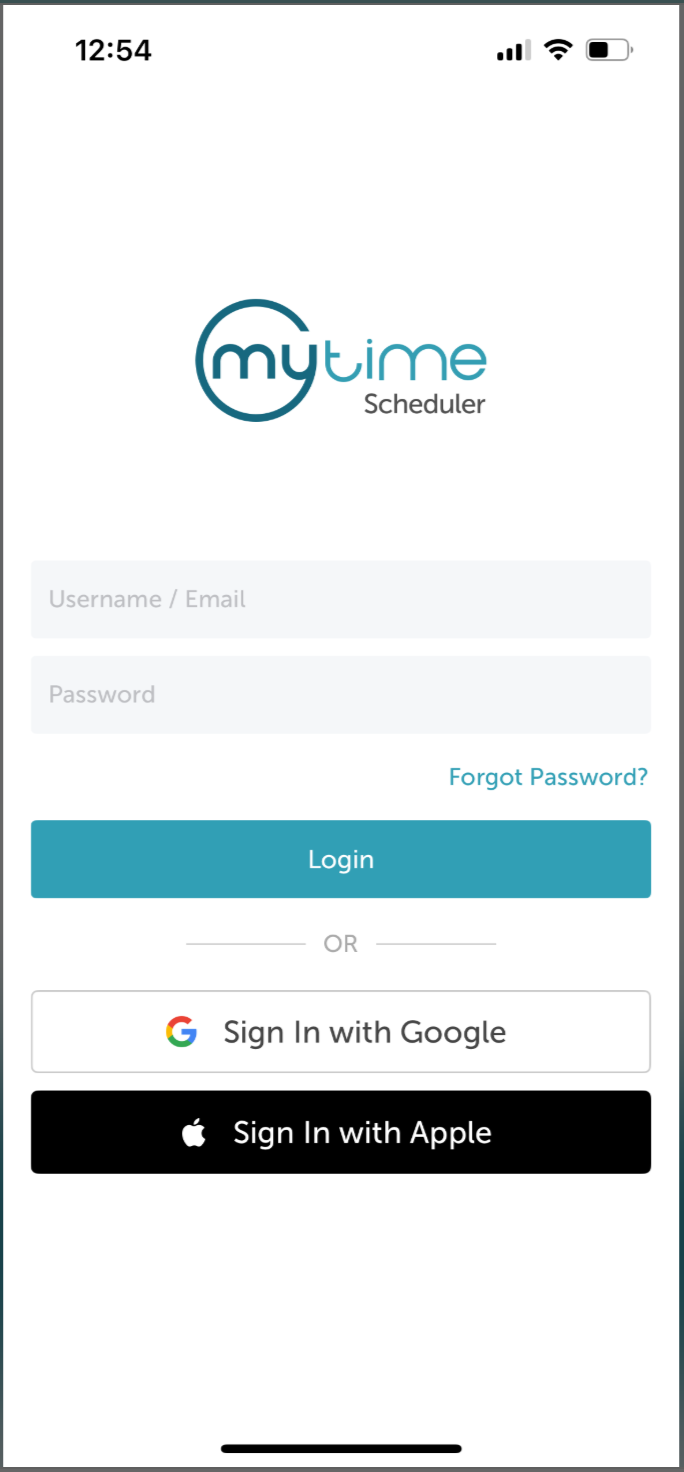
- Launch the MyTime Scheduler app on your device
- Choose your login method:
- Standard: Enter your registered email address and password, then tap 'Sign In'
- Social Login: Select 'Continue with Google' or 'Continue with Apple' to use your existing credentials for a faster login experience. For detailed instructions, learn more here
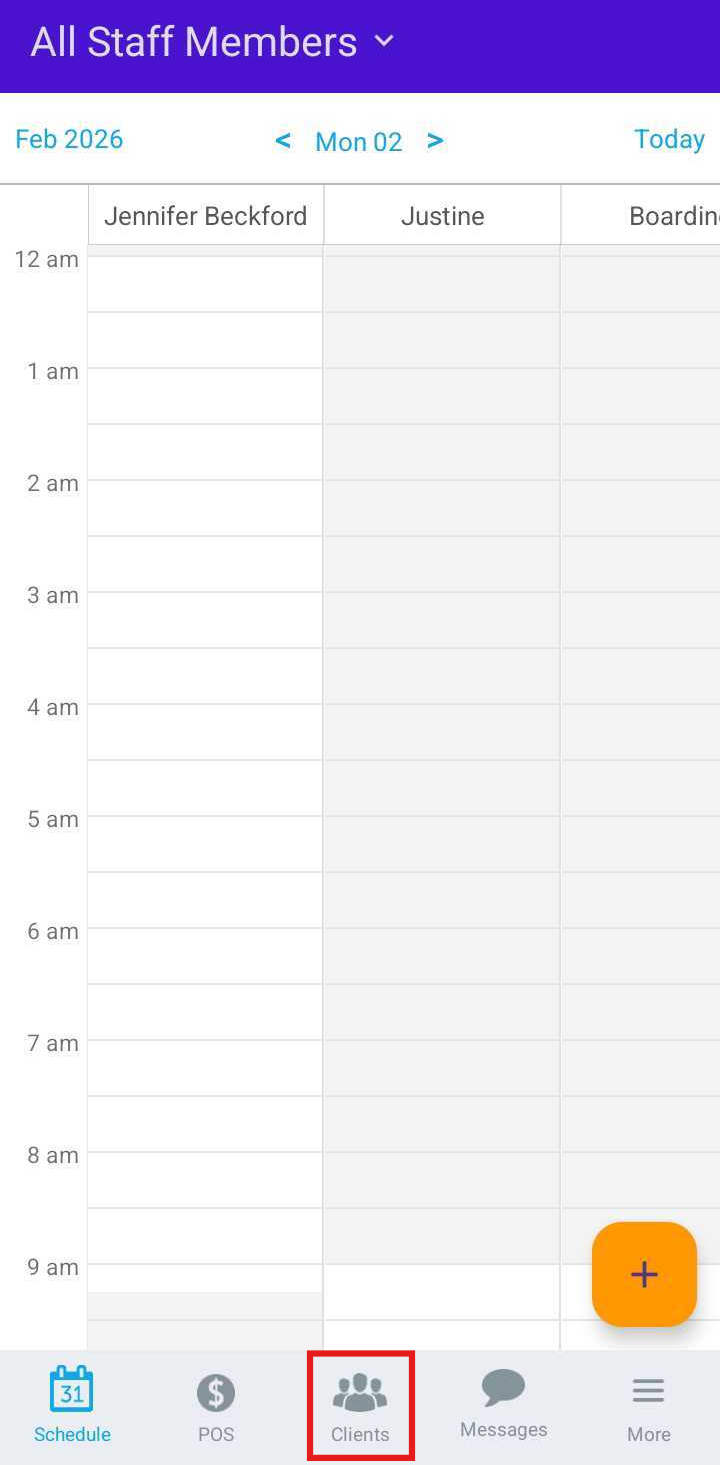
- After signing in, you will be directed to the Schedule by default
- Tap the Clients icon at the bottom of the screen
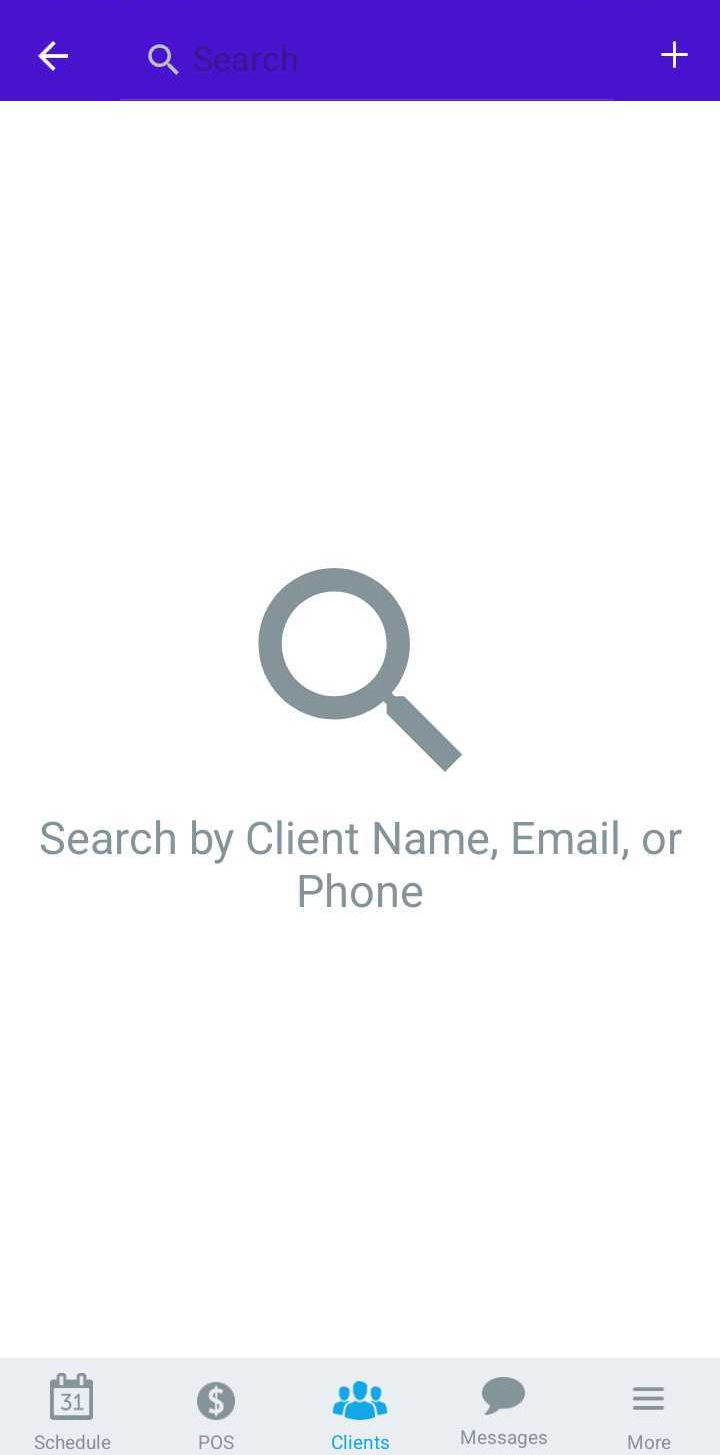
- Search for the client by typing their name in the Search field, or select the client from the client list
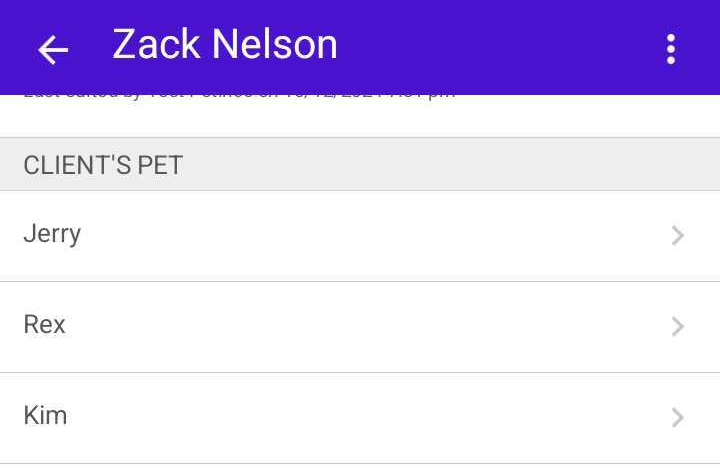
- In the Client’s Pet section, select the pet who will complete the intake form
- Scroll to the Generate Intake Form link
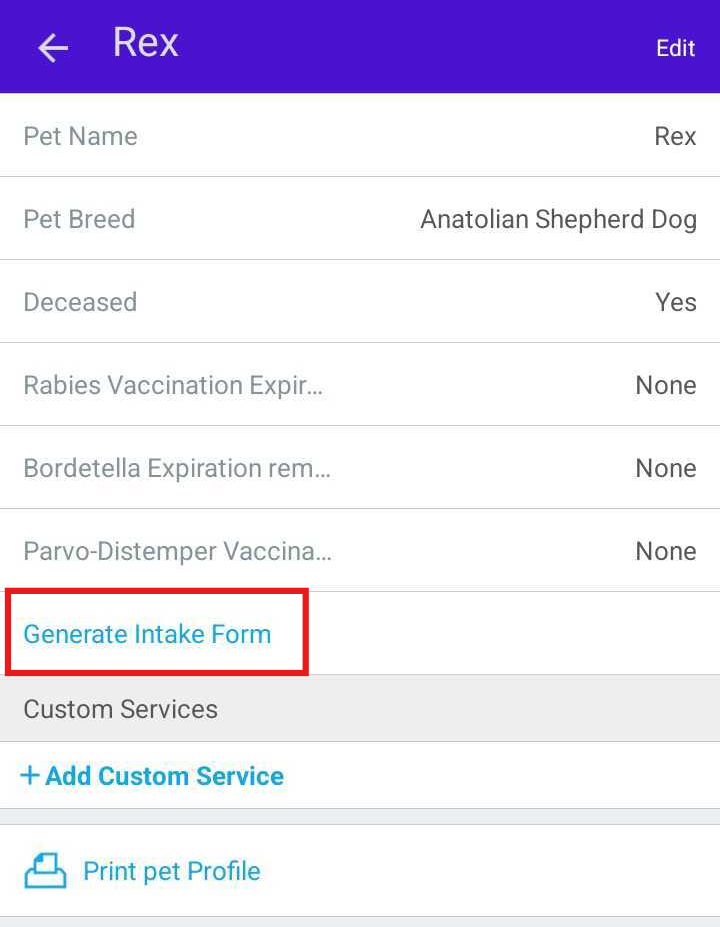
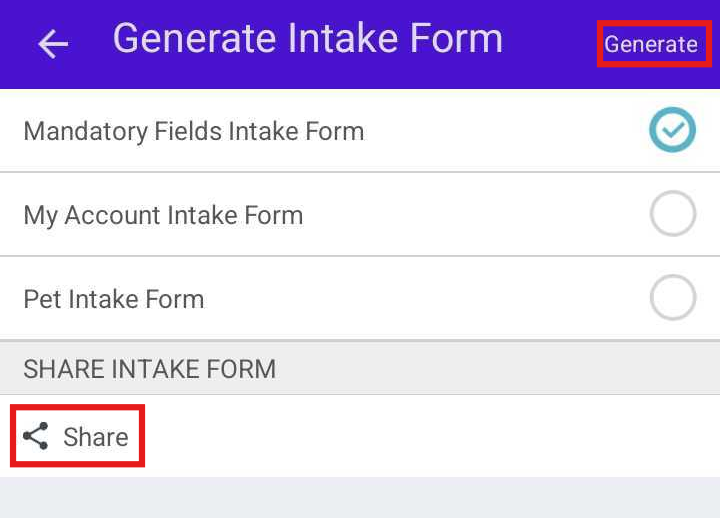
- Choose one of the following options:
- Generate: Opens the form in a new browser tab, ideal for clients completing the form in-store
- Share: Creates a unique link you can send to the client via text, email, or third-party apps
What Happens After Completion
Once the form is completed and submitted, a confirmation message will appear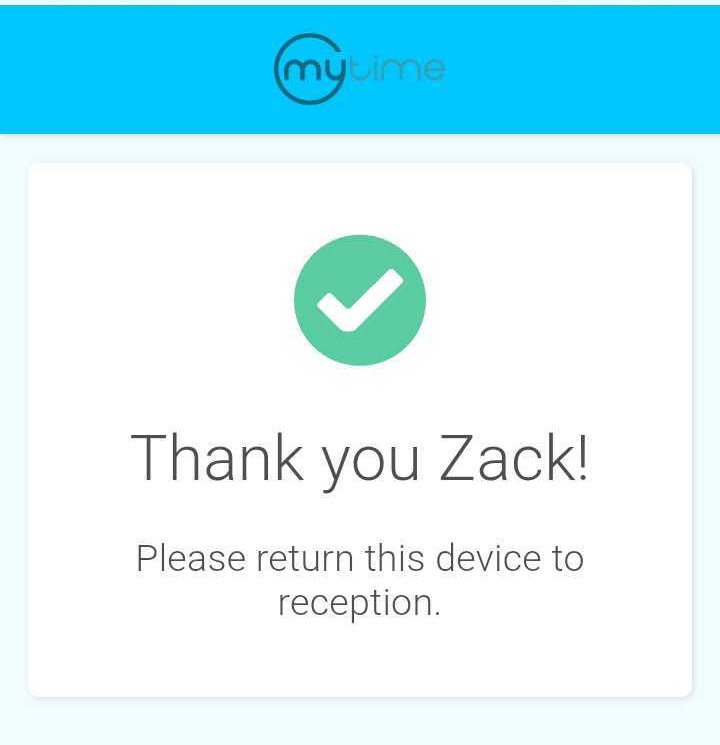
The submitted responses will be saved to the client’s profile, replacing any previously submitted intake form.
For more information, contact us at support@mytime.com or (385) 233-6964.
Related Articles:
Installing MyTime on Scheduler App (Android and iOS)
Was this article helpful?
That’s Great!
Thank you for your feedback
Sorry! We couldn't be helpful
Thank you for your feedback
Feedback sent
We appreciate your effort and will try to fix the article