You can generate the employee intake form from appointment modals so staff members can input the necessary information that is required for each appointment. In this article, we will walk through the steps to configure and generate employee intake forms.
Things to know:
- The ability to generate an appointment intake form is governed by the Accessing Appointments Staff Intake Forms access control setting
- To have appointment forms displayed on the scheduler app, they first need to be created on the web. Learn about creating appointment intake forms here
- When a new appointment is scheduled for an existing client, the custom field values from their previous appointment are automatically pre-filled.
- When an appointment is marked as completed, any custom fields associated with that appointment will be locked into "read-only" mode. This means that users can view the information but can't make any further modifications to that specific appointment.
To generate an appointment intake form, simply:
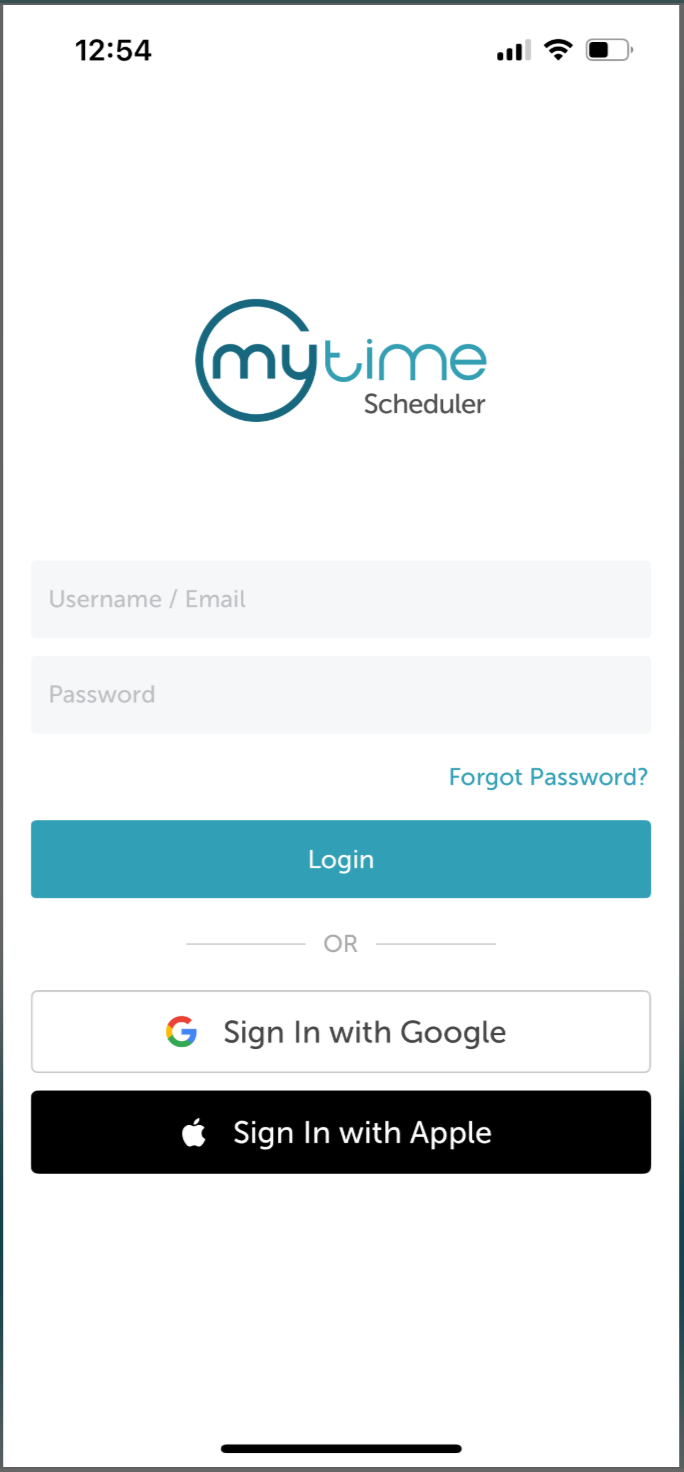
- Launch the MyTime Scheduler app on your device
- Choose your login method:
- Standard: Enter your registered email address and password, then tap 'Sign In'
- Social Login: Select 'Continue with Google' or 'Continue with Apple' to use your existing credentials for a faster login experience. For detailed instructions, learn more here
- Schedule an appointment and save it
- Reopen the booked appointment
- Scroll to the Appointment Intake section
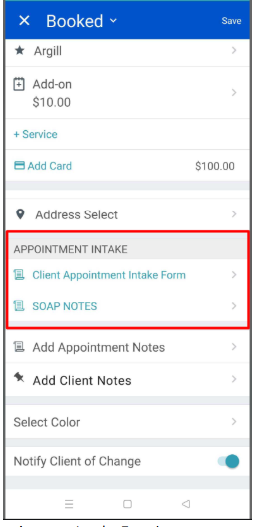
- Tap Client Appointment Intake Form to open it
- Choose one of the following options:
- Generate: Opens the intake form in the browser on your mobile device. You can then hand the device to the client to complete the form.
- Share: Sends the intake form to the client via email, WhatsApp, or another supported method.
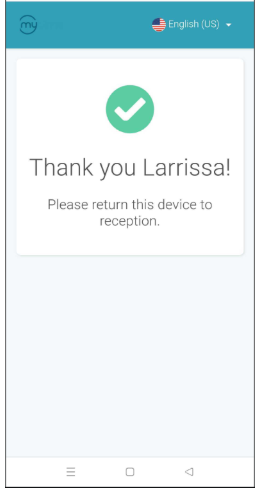
- After the client completes the form, a confirmation message will be displayed
- Return to the appointment modal and tap Save
For more information, contact us at support@mytime.com or (385) 233-6964.
Related Articles:
Installing MyTime on Scheduler App (Android and iOS)
Signing into MyTime on Scheduler App (Android and iOS)
Creating Appointment Intake Forms
Generating Appointment Intake Forms
Creating Employee Intake Form (SOAP Notes)
Generating Employee Intake Forms on Scheduler App
Generating Employee Intake Form (SOAP Notes)
Scheduling Appointments for Clients
Was this article helpful?
That’s Great!
Thank you for your feedback
Sorry! We couldn't be helpful
Thank you for your feedback
Feedback sent
We appreciate your effort and will try to fix the article