You can generate the employee intake form from appointment modals so staff members can input the necessary information that is required for each appointment. In this article, we will walk through the steps to configure and generate employee intake forms.
Things to know:
- To have employee intake forms displayed on the scheduler app, they first need to be created on the web. Learn about creating employee intake forms here
- Employee intake forms are not displayed on the booking widget
- When logged in as an owner, you'll have visibility of all employee intake forms on the appointment modal. However, for any other role, only the employee intake forms configured specifically for their role will be visible.
- Owners of child companies will have access to all employee intake forms created both at the parent level and the child level.
- Employee intake forms are service-specific, meaning appointments that include services that were not assigned to the employee intake form will not display the form whenever the hyperlink on the appointment modal is accessed
- Staff members accessing intake forms not assigned to their role will not see the form displayed
- Employee intake forms will remain editable until they are marked as completed. Once marked as completed, they can no longer be edited. If an employee intake form hyperlink contains multiple forms, staff members can mark one form as completed while the others remain editable.
- Custom fields added to both client intake forms and employee intake forms will be synchronized, ensuring that changes made in one form are reflected in the other. For example, if the "Current Skin Status" custom field is included in both the client and employee intake forms, and the client completes that field before the staff member, the answer will automatically appear in the employee intake form.
- Each time a client or staff member edits a custom field value, it overrides the previous value. This means that the most up-to-date information is stored in the custom field. This is particularly useful for keeping records current and accurate.
- Once an employee intake form is saved, only the completed fields will be displayed
- After the employee intake form is marked as completed, any incomplete custom fields will be listed at the bottom of the form, along with a message stating: "The following custom fields were not filled out when the form was completed: {List of incomplete custom fields}."
- Staff members must have the “Accessing Appointments Staff Intake Forms” access control enabled, and the intake form must be configured for their specific role. Without both, they will be able to generate the form but will not be able to view any of its data
- The ability to view employee intake forms history is currently not available on the scheduler app
To generating an employee intake forms:
- Launch the MyTime Scheduler app on your device
- Choose your login method:
- Standard: Enter your registered email address and password, then tap 'Sign In'
- Social Login: Select 'Continue with Google' or 'Continue with Apple' to use your existing credentials for a faster login experience. For detailed instructions, learn more here
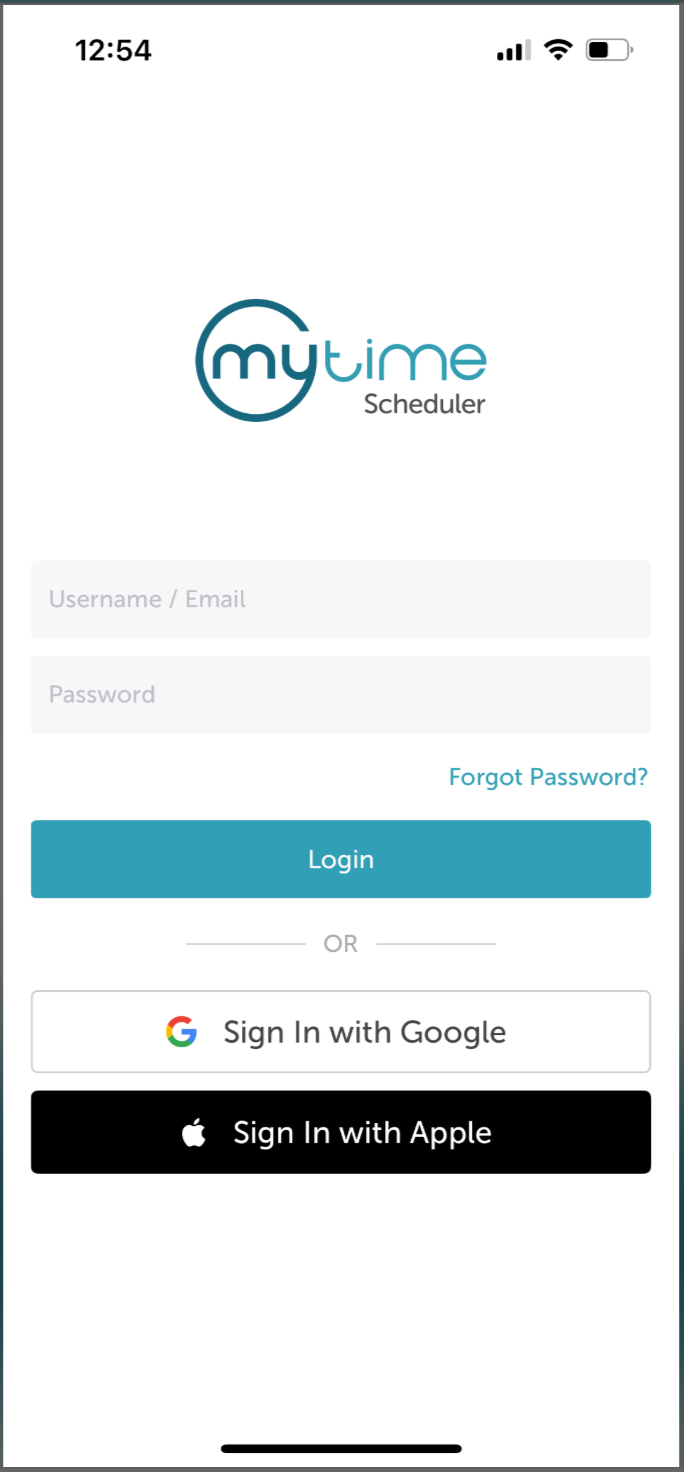
- After signing in, you will be directed to the Schedule by default
- Locate and open the desired appointment
- Scroll to the Appointment Intake section
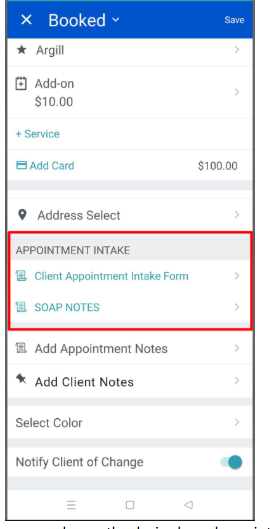
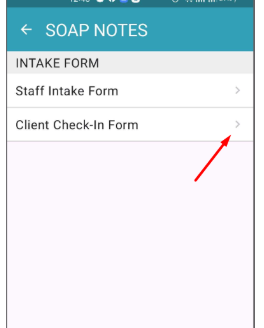
- If multiple forms are available, select the desired employee intake form
- Complete the form
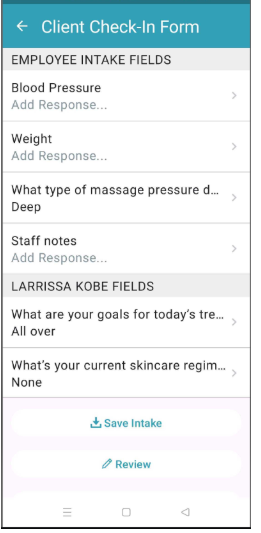
- Once submitted, the form will become read-only
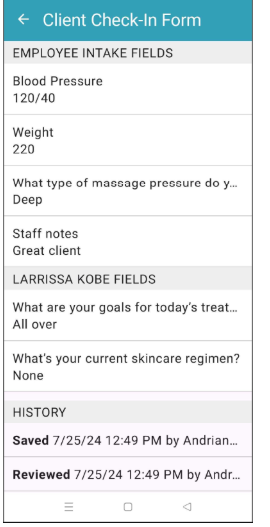
- Navigate back to the appointment modal and click Save
For more information, contact us at support@mytime.com or (385) 233-6964.
Related Articles:
Installing MyTime on Scheduler App (Android and iOS)
Signing into MyTime on Scheduler App (Android and iOS)
Was this article helpful?
That’s Great!
Thank you for your feedback
Sorry! We couldn't be helpful
Thank you for your feedback
Feedback sent
We appreciate your effort and will try to fix the article