Appointment intake forms allow you to collect specific client information directly from an existing appointment. This article covers how to generate these forms while in-store.
Things to know:
- The ability to generate appointment intake forms is controlled by the “Accessing Appointments Staff Intake Forms” access control setting
- All appointment intake forms you create will appear in the Select an Intake Form dropdown, even if they are not assigned to the service selected for the appointment
- Any waiver custom field added to an appointment intake form will appear in the Notes section of the appointment modal
- If the “Enable Employee Appointment Intake Forms” setting is enabled, waiver custom fields will only appear if they are added to an employee intake form
- When a new appointment is scheduled for an existing client, custom field values from the client’s previous appointment are automatically pre-filled
To generate an intake form from the schedule:
- Navigate to the Schedule and filter by the desired location and date
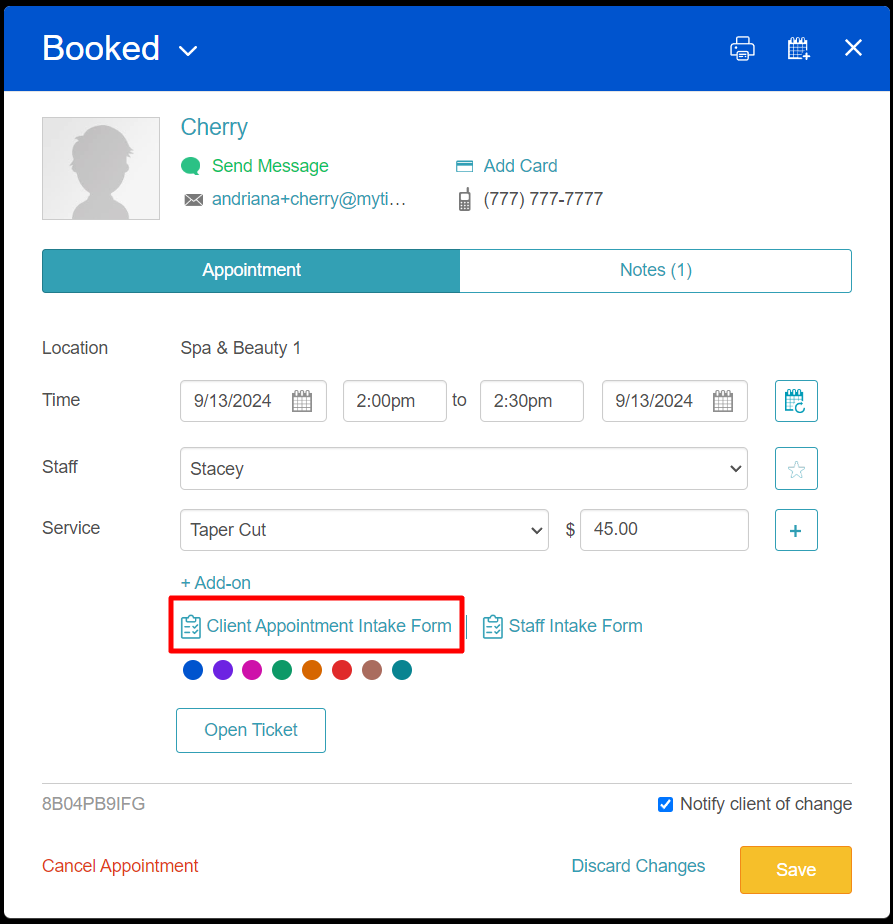
- Open the specific appointment
- Click the Client Appointment Intake Form link
- Select an intake form from the dropdown menu
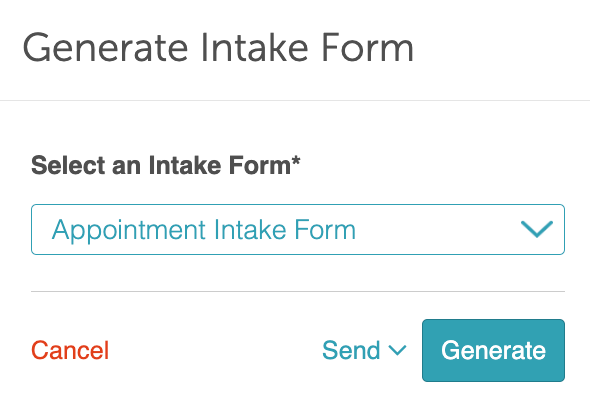
- Choose how you want to deliver the form:
- Click Generate to open the form immediately in a new browser tab
- Use the Send dropdown to share the form via email, Communicator, or a shareable link
Appointment Intake Form Generated in Browser

Once completed, the successful confirmation message will appear

For more information contact us at support@mytime.com or (385) 233-6964.
Related Articles:
Creating Custom Appointment Fields
Was this article helpful?
That’s Great!
Thank you for your feedback
Sorry! We couldn't be helpful
Thank you for your feedback
Feedback sent
We appreciate your effort and will try to fix the article