MyTime's intake form features provide businesses with a versatile tool to collect essential information, enhance client experiences, and streamline their operations, catering to a range of business types and needs. In this article, we will walk through how to create pet intake forms.
Things to know:
- The ability to create and customize intake forms is controlled by the “Manage Client Setup” access control setting.
- Pet intake forms can include custom client and pet fields. Learn how to create custom fields here.
- You can create and manage multiple intake forms, which can be associated with different services, classes, or memberships.
- For an intake form to appear online, it must be associated with a service, class, or membership.
- Descriptions can be added to custom fields and will display both in-store and online, directly before the associated field.
- Intake Form Field Requirements
Field requirements can be configured using the following options for online bookings or purchases:
- Not Required
- Required for both new and existing clients
- Required for new clients only
- Required for existing clients only
- Note: This is different from marking a custom field as required during field creation. If a field is marked as required in the custom field setup, it will automatically be added and required on the mandatory intake form.
- To get the most out of your intake forms, it is important to understand the difference between these two settings:
- “Ask Every Time” (Visibility): This ensures the field appears every time the form is presented to the client. However, it does not force them to provide a new response; they can leave it as-is or skip it if they’ve answered it previously.
- “Required” (Enforcement): This forces the client to provide an answer before they can submit the form.
- Important: If you want a client to provide a fresh answer every single time they visit, you must enable both toggles. If only "Ask Every Time" is on, the field is visible but remains optional.
- Each time a client submits a new intake form, the previous version is overwritten to ensure only the most up-to-date information is stored.
- Information collected on the pet intake form is stored on the pet's profile
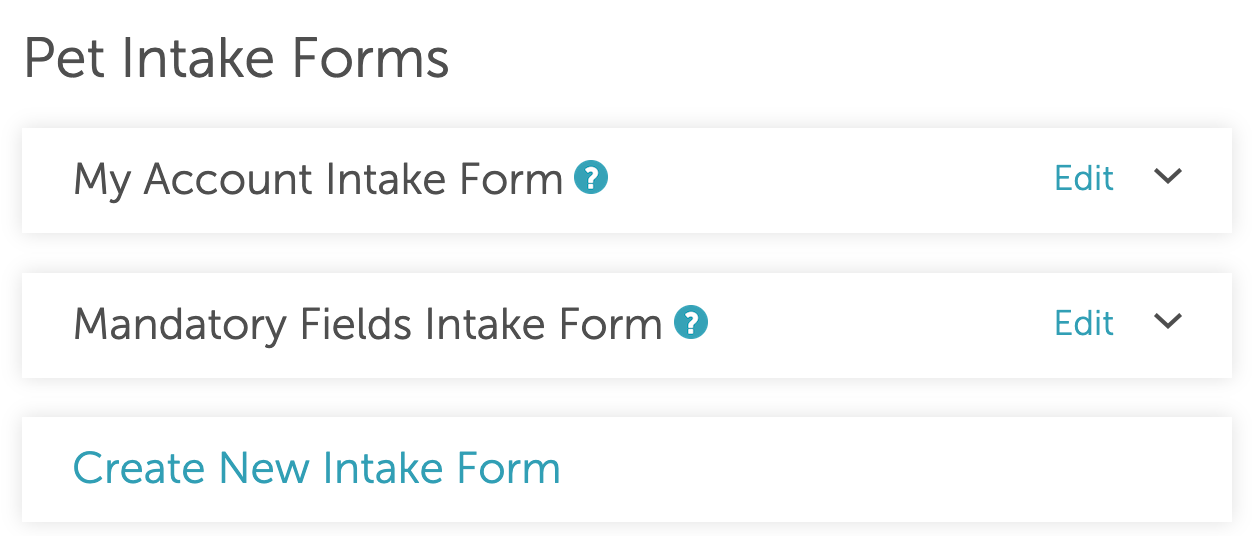
- The Pet Intake Form section displays the following forms by default:
- My Account Intake Form - This intake form is available in the My Account section of the booking widget. While it comes pre-configured, it can be customized by adding expiration reminder custom fields, with or without file upload requirements. This allows clients to independently upload and manage important documents such as vaccination records, license renewals, and other time-sensitive information.
- Mandatory Intake Form - This is a mandatory intake form that applies to all services and contains all required custom fields such as pet's name and any field that was marked as required during creation. Additional custom fields can be added if desired.
- Intake Form Link Expiration
- The ability to configure expiration for intake form links is controlled by the "Enable Intake Form Expiration" hidden setting. To enable this feature, please contact MyTime Support at support@mytime.com.
- You can set a specific window between 1 and 99 days for each form or leave the field blank if you prefer they never expire.
- Entering "0" or any number higher than "99" will trigger a "Must be between 1 and 99 days" error.
- The expiration period begins the moment a link is generated, whether it is sent via email/SMS or generated in-store
- Once a link expires, it is immediately blocked. If a client attempts to submit a form after it has expired, the submission will fail with an error message: "Sorry, this intake form has expired." Please ask the business to send you a new one."
- Sending a new link to a client resets the expiration window, providing them with the full duration of your configured timeframe.
- The intake form expiration setting is not retroactive and only applies to forms sent after the feature is enabled. For example, if you send a form on Monday while the setting is off, that link will remain active indefinitely, even if you turn on a 2-day expiration limit later that Wednesday. The new expiration rules will only affect forms sent from Wednesday onward; original links sent before the change will not be affected and will stay active until completed.
Contents:
How to Create a Pet Intake Form
After you’ve created custom fields, you can add them to your intake form. To create a pet intake form, follow these steps:
- Navigate to the Clients tab
- Click the Intake Form button at the top of the screen.
- In the Pet Intake Form section, click Create New Intake Form
- Enter a name for the form (e.g., “Pet Intake Form”)
- In the field labeled “Expire intake form X days after sending,” enter the number of days the form should remain active (e.g., “7”). Note: If this field is left blank, the form will not expire.
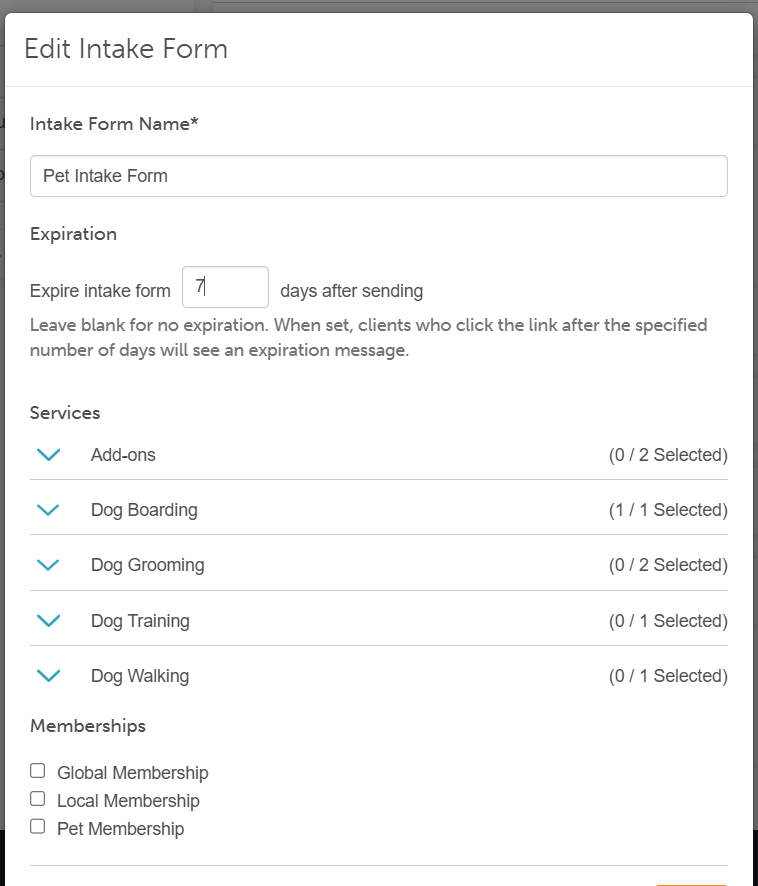
- Choose the services, classes, or memberships that should be associated with this intake form.
- Click Save
Adding Fields to the Intake Form
- On the left side of the screen, you'll see a list of custom pet fields and default fields. Place a checkmark (or tick) next to the fields that you want to include on your intake form.
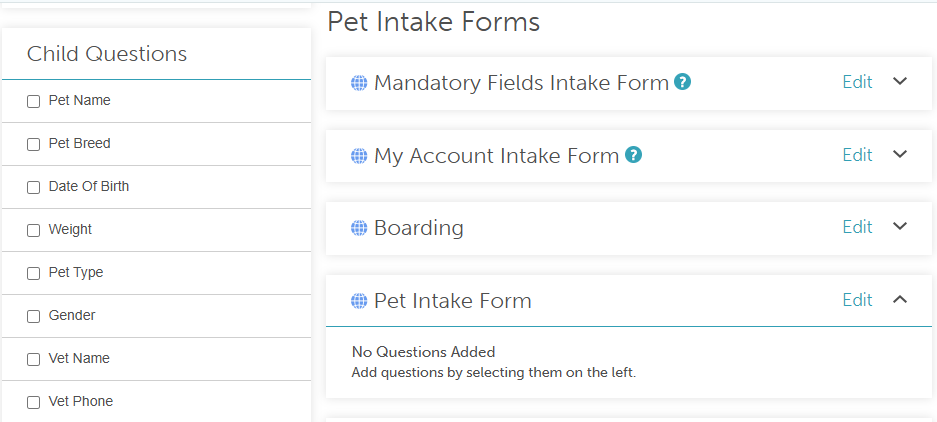
- After placing checkmarks next to the custom fields and default fields you want to include on the intake form, those selected fields will appear in the "Pet Intake Form" section.
- Once the custom fields are added, you can expand them to add a description per field by clicking the dropdown arrow to the left
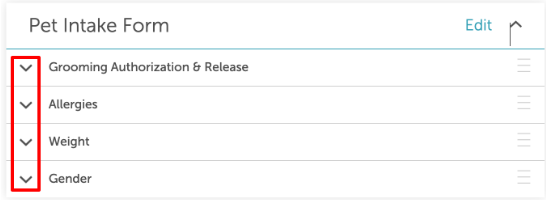
- Add your description, state if it should be required, and decide if it should be asked every time
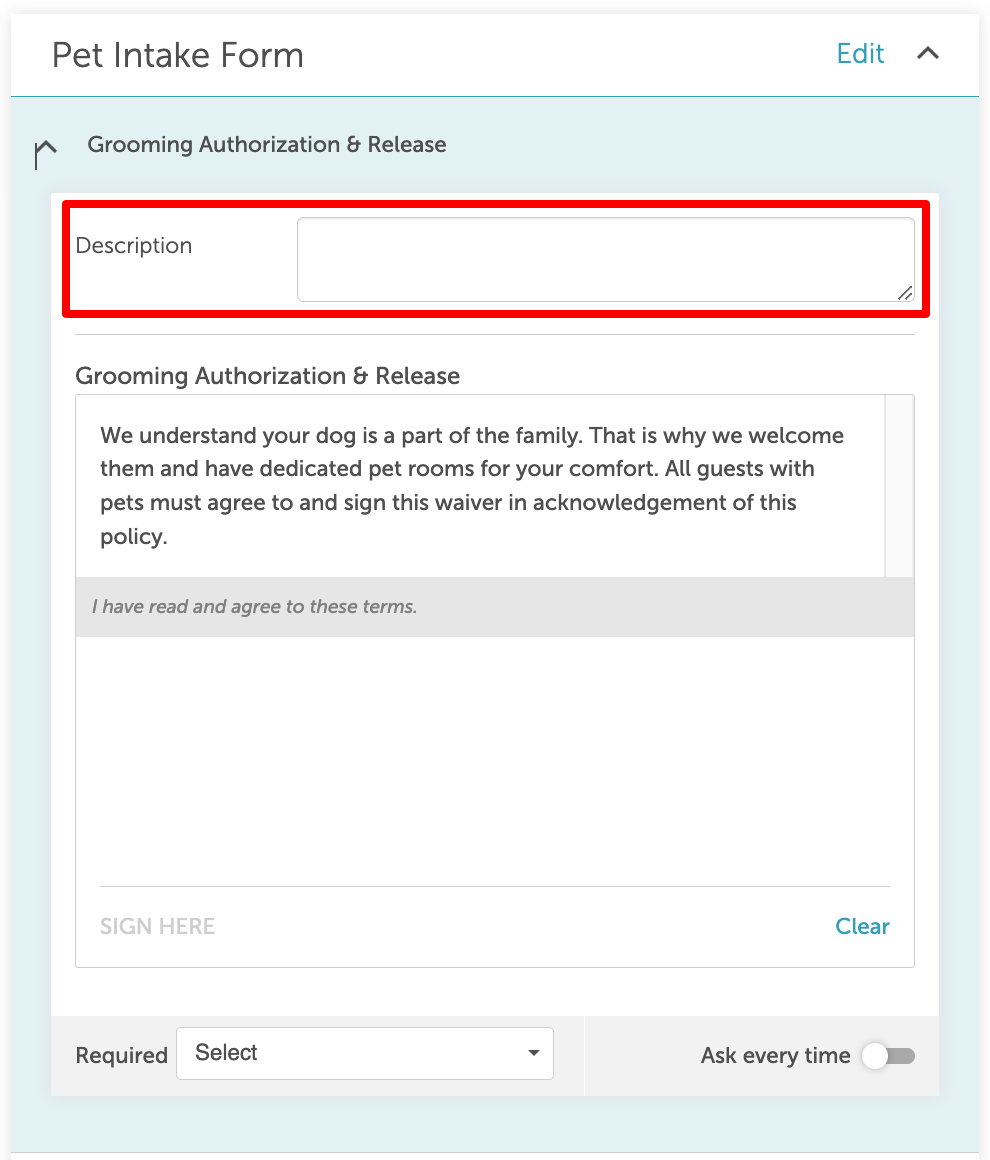
- The description will be added automatically to the intake forms
For more information contact us at support@mytime.com or (385) 233-6964.
Related Article:
Was this article helpful?
That’s Great!
Thank you for your feedback
Sorry! We couldn't be helpful
Thank you for your feedback
Feedback sent
We appreciate your effort and will try to fix the article