Post-class notifications are automated messages sent to clients after their class session concludes. The messages confirm the completion of the visit and provide the following:
- A link to easily rebook their next appointment
- A link to their invoice, allowing them to view details or take any necessary action
This article will guide you through customizing your Post-Class notification templates.
Things to Know:
- The ability to view and customize post-class notifications is controlled by the "Accessing Automated Messages" access control setting.
- Post-class notifications are triggered only after the scheduled end time of the class session has passed. This prevents messages from being sent prematurely while the class is still in progress.
- Notifications can be sent immediately after the class ends or scheduled for a specific delay (up to 99 hours, days, weeks, or months).
- You can create multiple templates to target specific classes. While all classes are included by default, you can easily limit a notification to only apply to certain classes.
- If a class is not selected in any active template, the system will not send a post-class notification for that specific session.
- Note that while the content and settings are fully customizable, the name of the template cannot be edited.
- A default post-class notification template always exists. This ensures your clients still receive a confirmation even if all other custom templates are deleted.
- Notification Requirements:
- SMS: Clients must have a valid phone number and be opted-in to transactional SMS.
- Email: Clients must have a valid email address and be opted-in to transactional emails.
- Push: Requires the custom MyTime Guest App installed on the client's device.
- SMS Segments & Billing
- SMS billing is calculated per segment, not per message.
- Each segment is billed individually
- Each recipient receives their own copy of the message
- Total cost = segments × recipients × rate. Example: 2-segment message sent to 50 recipients = 100 billable segments
- Learn more about SMS Segments & Billing here
- SMS Campaign Opt-Out Disclaimer: When configuring or sending an SMS campaign, an orange disclaimer note will appear directly below the text box as a reminder: "We automatically append "Reply STOP to Unsubscribe" to the message if the client has not received the disclaimer in the past 30 days. This counts against the message limit of 160 characters per SMS segment."
- Client Opt-Out Behavior: Clients can unsubscribe from SMS marketing messages at any time by replying with any of the following keywords:
`STOP`
`UNSUBSCRIBE`
`UNSTOP` (dependent on client's carrier)
Once a client unsubscribes, they will no longer receive SMS marketing messages from your business.
- Franchise accounts with global marketing enabled:
- If the hidden setting Allow Child Accounts to Edit Global Automated Marketing Templates is enabled, edits at the child account only apply to that child.
- Child-level notifications will respect class selections at that level.
- Clients associated with a specific location under a multi-location account will receive automated messages customized for that location. The From field and Reply-To name in these emails display the location’s nickname by default, as defined in Business Setup > Business Profile > Edit Location. For example, a business named Urban Spa has two locations: Downtown and Westside. If a client is associated only with the Westside location, any automated class notifications they receive will appear with the Westside location nickname. The name displayed in the "Sender Label" is determined based on the following hierarchy (order of priority):
Location Nickname: If a nickname is configured for a specific location, this will always be the primary sender name.
Reply-To Name: If no location nickname exists, the system will fall back to the Reply-To Name configured in your messaging settings.
Company Name: If neither a nickname nor a Reply-To Name is found, the system will use your overall Company Name as the final fallback.
To customize post-class message templates, simply:
- Navigate to Marketing > Automated Messages
- Scroll to the Post-Class Message template
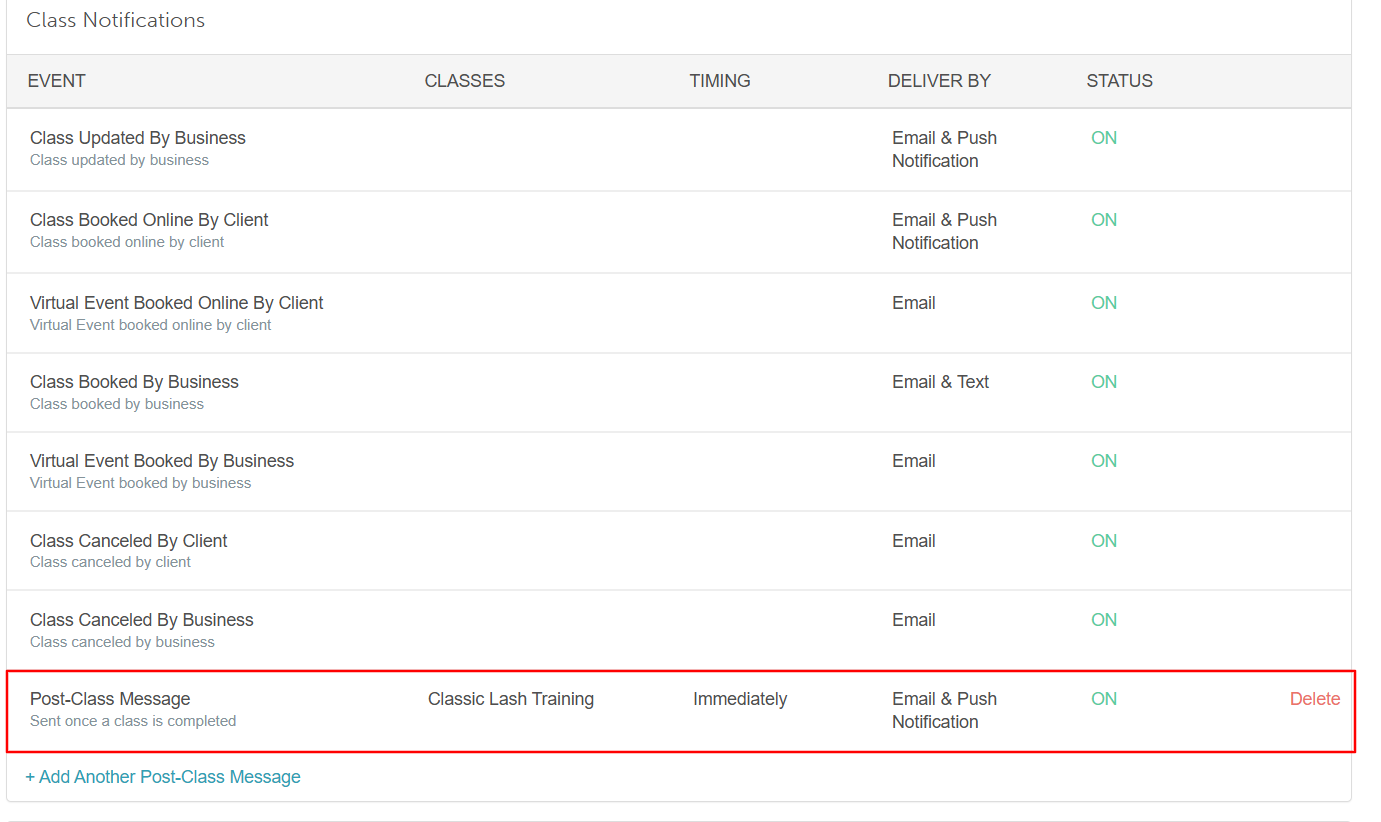
- Hover over the template's status and select 'View'

- From here, you can edit the following:
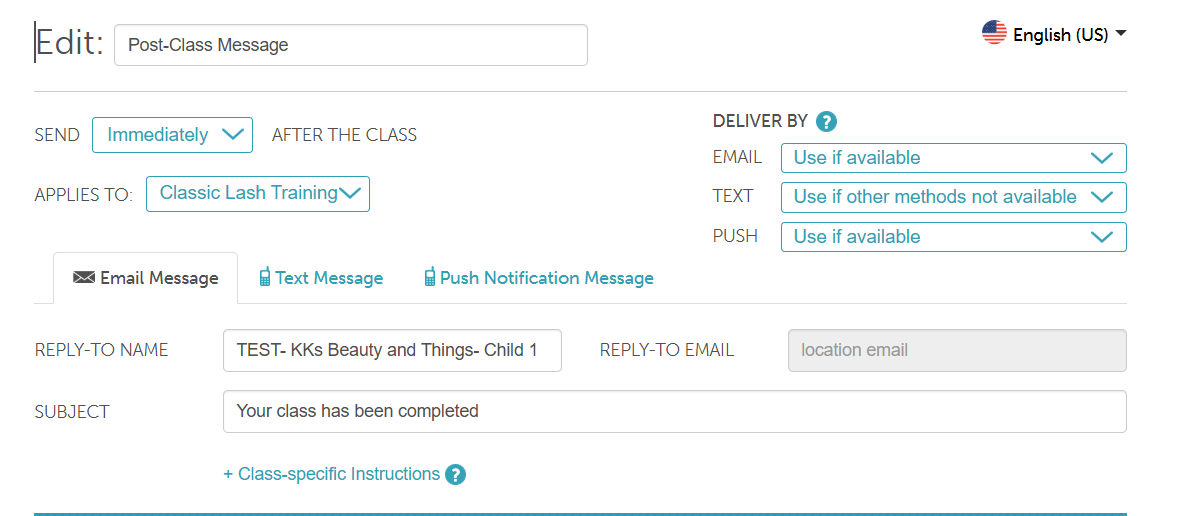
- Send X After the Class: Specify when the notification is sent—either immediately after the class session ends or after a set number of hours (up to 99), days (up to 99), weeks (up to 99), or months (up to 99).
- Applies To: Select the specific class(es) that will trigger this notification
- Delivery By: You can specify a fallback delivery method (email, SMS, push notification) when the primary method is unavailable. Learn more here
- Use if available: This is the primary method that will be attempted first
- Use if other methods not available: This method will be attempted if the primary option is unavailable (because contact information is not on file or the user opted out)
- Never Use: This method will not be used, even if none of the other options are available
- Reply-to name: This is the name that appears when clients reply to an automated email. By default, it is pulled from the business name set on the Business Profile page
- Reply-To-Email: By default, this is set to the location's email address configured under Business Setup > Business Profile > Edit Location.
- If no email is configured for the location, the system will use the location's owner's email address instead.
- If the "Use a specific reply-to-email for outbound emails" hidden setting is enabled, the system will use the email address entered in the "Reply-To-Email for Outbound Emails" field
- Subject: The subject line of the email as it will appear in the client’s inbox
- Class-Specific Instructions: Add unique instructions for each of your classes. These will be included in the email, SMS, or push notifications sent to clients for those specific classes. Learn more here.
- Body: Customize the actual message content
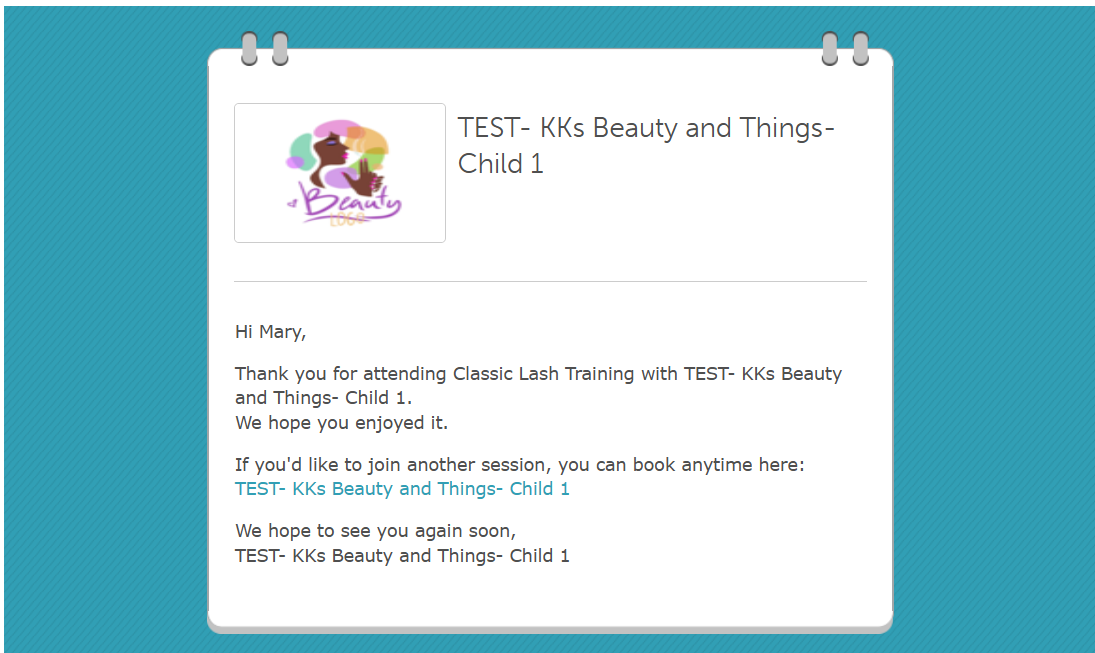
- Save
To customize an additional post-class message, click on the +Add Another Post-Class Message hyperlink. You can then set up the template by referring to the information provided above. 
For more information, contact us at support@mytime.com or (385) 233-6964.
Related Articles:
Class Specific Instructions For Automated Messages
Was this article helpful?
That’s Great!
Thank you for your feedback
Sorry! We couldn't be helpful
Thank you for your feedback
Feedback sent
We appreciate your effort and will try to fix the article