MyTime allows you to send automated messages as push notifications, in addition to email and SMS. These notifications are delivered through the MyTime Guest App, helping reduce SMS fees while offering a faster and more direct way to reach clients.
Things to know:
- The ability to configure push notifications is controlled by the Accessing Automated Messages access control setting.
- To use push notifications, the MyTime Guest App must be added to your plan. Please contact support@mytime.com for assistance. Additional charges apply.
- If the Guest App is not active on your account, the push notification option will be disabled.
- Push notifications can only be sent to clients who have the MyTime Guest App installed on their mobile devices.
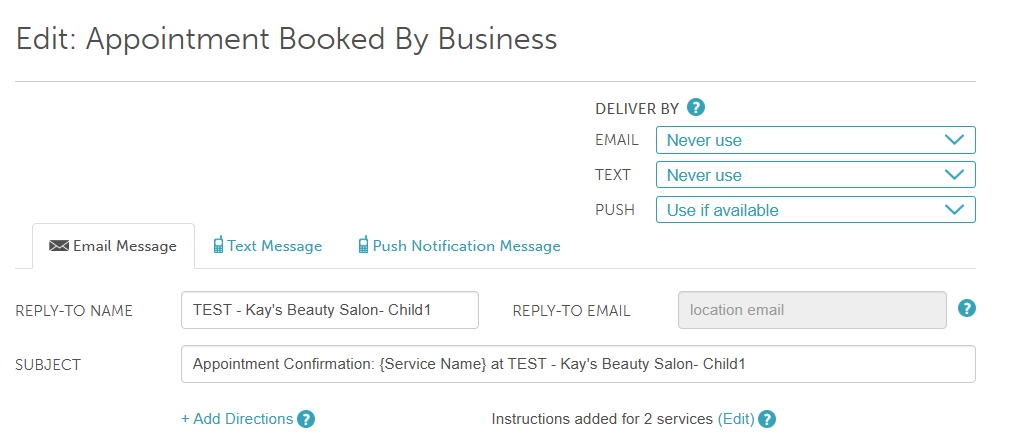
- The push notification option appears in the Deliver By dropdown menu for automated marketing templates that use SMS.
- Push notifications are not available for automated marketing templates that require a client reply (for example, the Request Review template).
- You can specify a fallback delivery method (email, SMS) when the primary method is unavailable.
- Use if available: This is the primary method that will be attempted first
- Use if other methods are not available: This method will be attempted if the primary option is unavailable (because contact information is not on file or the user opted out)
- Never Use: This method will not be used, even if none of the other options are available
To configure push notifications:
- Go to Marketing > Automated Messages
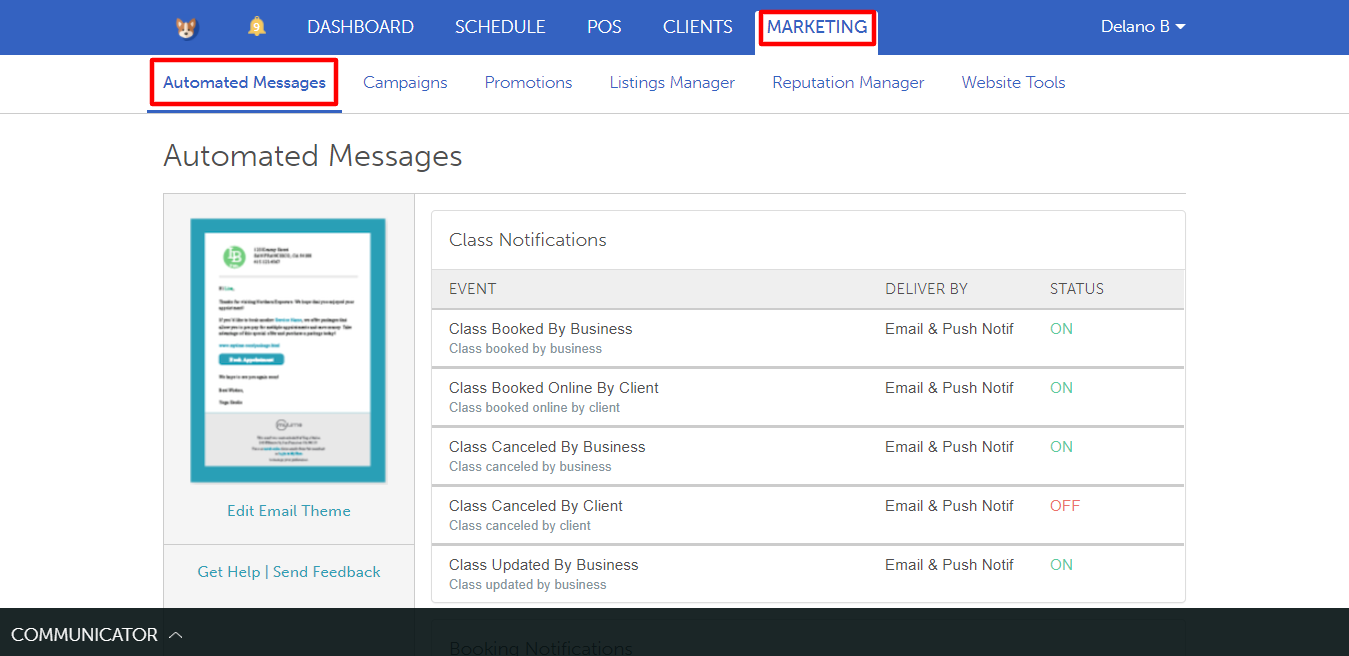
- Select any template where SMS is used
- In the Deliver By dropdown menu, select Use if available for push notifications
- Edit the content (if needed)
- Save your changes
In the example below, push notifications were enabled for the Booked by Business template. This means that whenever the business books an appointment for a client, they will receive a push notification through the Guest App (if installed and signed in).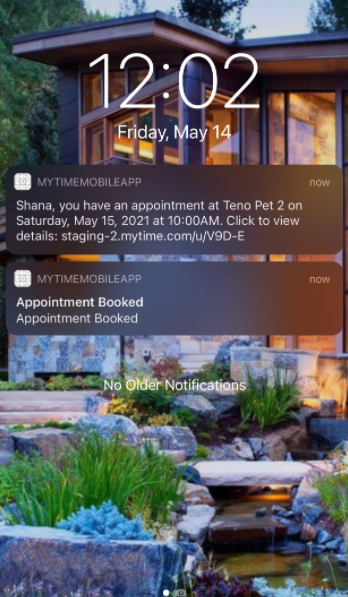
Related Article
- Transactional vs Marketing Automated Messages
- Customizing Automated Messages
- Global Automated Message
- Automated Message Template Icons
- Activate/Deactivate Automated Messages
- Fallback Delivery Method for Automated Messages
- Configure Pre-Appointment/Pre-Class Reminder Notifications
- Configure Appointment Confirmation Notification
- Configure Appointment Review Notification
- Configure Class Review Notification
- Configure Pre-Appointment/Pre-Class Reminder Notifications
- Configure Expiration Reminder Notifications
- Configure Package Notifications
- Configure Package Expiration Reminder Notifications
- Configure Membership Notifications
- Configure Consent for Membership Renewal Notifications
- Configure Rebooking Reminders
- Configure Post-Appointment Notifications
- Opting In and Out From Marketing and Transactional Notifications
Was this article helpful?
That’s Great!
Thank you for your feedback
Sorry! We couldn't be helpful
Thank you for your feedback
Feedback sent
We appreciate your effort and will try to fix the article