In this article, we'll outline the steps your clients need to follow to book multi-client appointments using your guest app.
Things to Know:
- Online booking must be enabled
- A staff member must be assigned to a service and work hours must be set
- A client must either sign in with their current MyTime account, Facebook, or Apple login, or create a new one.
- When a client starts the booking flow from the home screen by tapping “Book Appointment,” our app automatically pre-selects a default location for clients to make booking as fast as possible. Clients can still easily change the selected location at any time before completing their booking.
- For Returning Clients: The app automatically pre-selects the location from their most recent past completed appointment.
- If a Past Appointment Was Canceled: The app will skip it and look further back to pre-select the location from their last non-canceled past appointment.
- For New Clients (No Past History): If a client has never visited a location, or if all of their past appointments were canceled, no location will be pre-selected. They will be prompted to choose a location from the full list.
- If a client has no past appointment history but has upcoming appointments booked, the app will pre-select the location of the last booked appointment.
- Example:
- July 13: A client books an appointment at Location A for July 16.
- July 14: They open the app to book a second appointment for August 2. Location A will be pre-selected.
- If they manually switch that second appointment to Location B during booking, then Location B will become the new pre-selected default the next time they open the booking flow.
- For details on configuring multi-client services, learn more here.
- If the email address entered for an additional client is not already in the MyTime database, a new client profile will be created. If the email matches an existing client, the appointment will be scheduled under that existing profile.
- Clients can book both individual and multi-client services in a single transaction. During checkout, all selected services are grouped together for convenience. For example, a couple's massage that requires two guests can be booked together with a single-guest service such as a haircut or sauna.
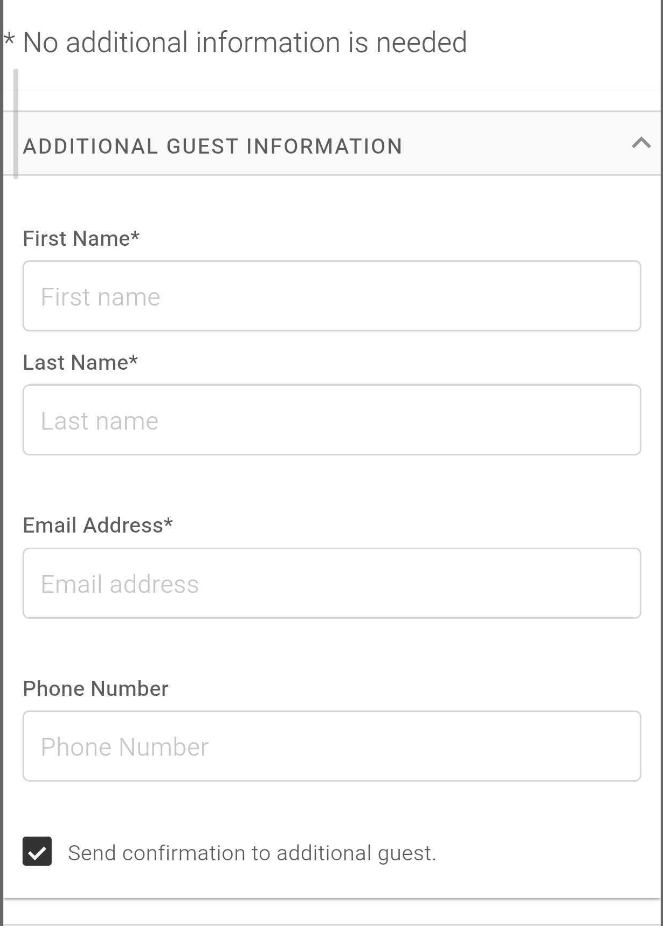
- When a multi-client service is included, the Additional Guest Form must be completed for every participant before the booking can be completed.
- When a multi-client service is included, the Additional Guest Form must be completed for every participant before the booking can be completed.
- The confirmation page, My Account, and checkout page will display information for both the main and additional clients. All clients will receive automated booking emails unless the Send confirmation to additional client option is unchecked.
- Canceling the appointment will cancel it for both the main and additional clients.
- By default, the Book Again button prefills details from previous appointments. A hidden setting can disable this automatic prefilling. To enable this setting, contact support@mytime.com.
- Using the Book Again button will not prefill additional client details in the new appointment modal.
- Booking Appointments with Add-On Services
- Accounts with Multi-Staff Appointments Feature Enabled:
- If a staff member is selected for the core service and "No Preference" is chosen for the add-on, the same staff member will be assigned to both.
- If "No Preference" is selected for both the core service and add-on, the system will assign the same staff member to both services. However, if the assigned staff member is not eligible to perform the add-on service, a different staff member will be assigned to the add-on.
- Accounts with Multi-Staff Appointments Feature Disabled:
- If "No Preference" is selected, the system will automatically assign the same staff member to both the core service and the add-on.
- If the selected staff member cannot perform both the core service and the add-on, the option to select an add-on will not be visible.
- If “Can customers book a specific staff member?” is enabled and prefill is not disabled:
- If the previous appointment was booked with a specific staff member, the Book With field shows that staff member.
- If the previous appointment used No Preference, the system applies round-robin logic and displays No Preference.
- Examples:
- Last appointment with Staff B → Book With: Staff B
- Last appointment with No Preference → Book With: No Preference
- Behavior When Prefill Is Disabled: The "Book With" field always displays "No Preference," regardless of the previous booking.
- An error message stating “Time is no longer available” may appear if:
- Another appointment has been booked at the same time.
- The staff member’s working hours have changed.
The selected time slot is no longer available for the chosen staff member.
- If the setting "Accept online payments through MyTime?" is configured to either "Yes, require online payment to book online" or "Let clients choose whether to pay online or in person," and the client opts to pay online, the following will occur:
- When an appointment requiring a deposit is booked online, the client's card on file will be charged for the deposit, and a hold will be placed on the card for the remaining balance.
- If the hold amount cannot be charged successfully, the location manager will be notified that the pre-authorization attempt failed and will need to collect the remaining balance from the client at the time of the appointment. Learn more about payment authorization here
- A ticket is automatically generated once the appointment is booked online.
- No Preference option on guest app:
- When a client books an appointment online and selects the "No Preference" option, the system uses a round-robin mechanism to assign a staff member to the service. Learn more here.
- If the "Can customers book a specific staff member?" setting is disabled, the "Book With" section will be hidden. In this case, appointments will be booked as if "No Preference" was selected, meaning the round-robin assignment will apply.
- If a client selects a specific staff member, only the services that can be performed by that staff member will be visible.
- When the "If a client fails to cancel an appointment in advance, should MyTime charge them?" setting is enabled:
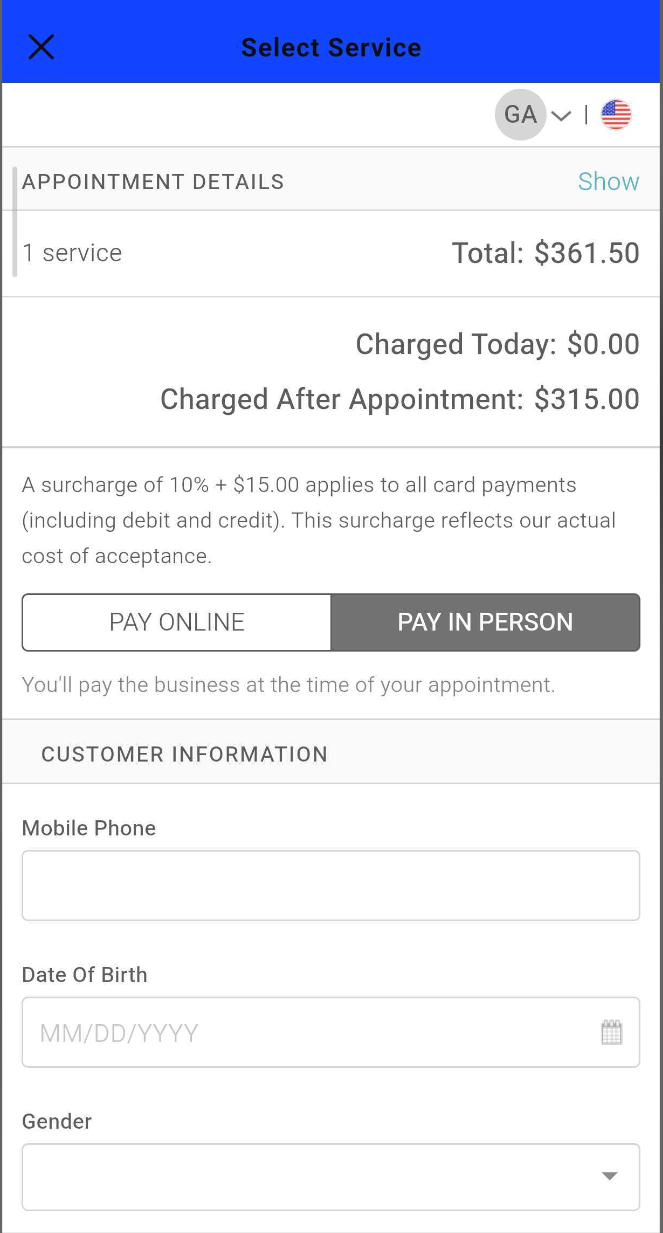
- The checkout page will display two fields:
- "Charged Today": The amount due at the time of booking.
- "Charged After the Appointment": The remaining balance to be charged after the appointment.
- No Deposit Required: Example: For a $180 service with no deposit:
- Charged Today: $0.00
- Charged After the Appointment: $180.00
- The checkout footer will clearly indicate that no payment is due at the time of booking.
- Deposit Required: Example: For a $180 service with a $50 deposit:
- Charged Today: $50 (Deposit)
- Charged After the Appointment: $130 (Remaining balance)
- The checkout footer will display the "Charged Today" amount ($50).
- The checkout page will display two fields:
- If the Setting is Disabled:
- Only the "Total" field will be displayed on the checkout page.
- The checkout footer will not be shown.
- When a client books an appointment, they will receive a notification listing all the services they have scheduled.
- Booked in-store: The Booked by Business notification is sent.
- Booked online: The Booked by Client notification is sent.
- For mobile businesses, services that are unavailable at the selected location are hidden in the online booking widget. When clients choose “In-Store,” any services offered only at the client’s location are not shown. Similarly, selecting “At Your Location, up to X mile(s)” hides services that are available only in-store.
Clients can book appointments for multiple people by following these steps:
- Download the guest app from either the Google Play Store (for Android users) or the Apple Store (for iOS users)
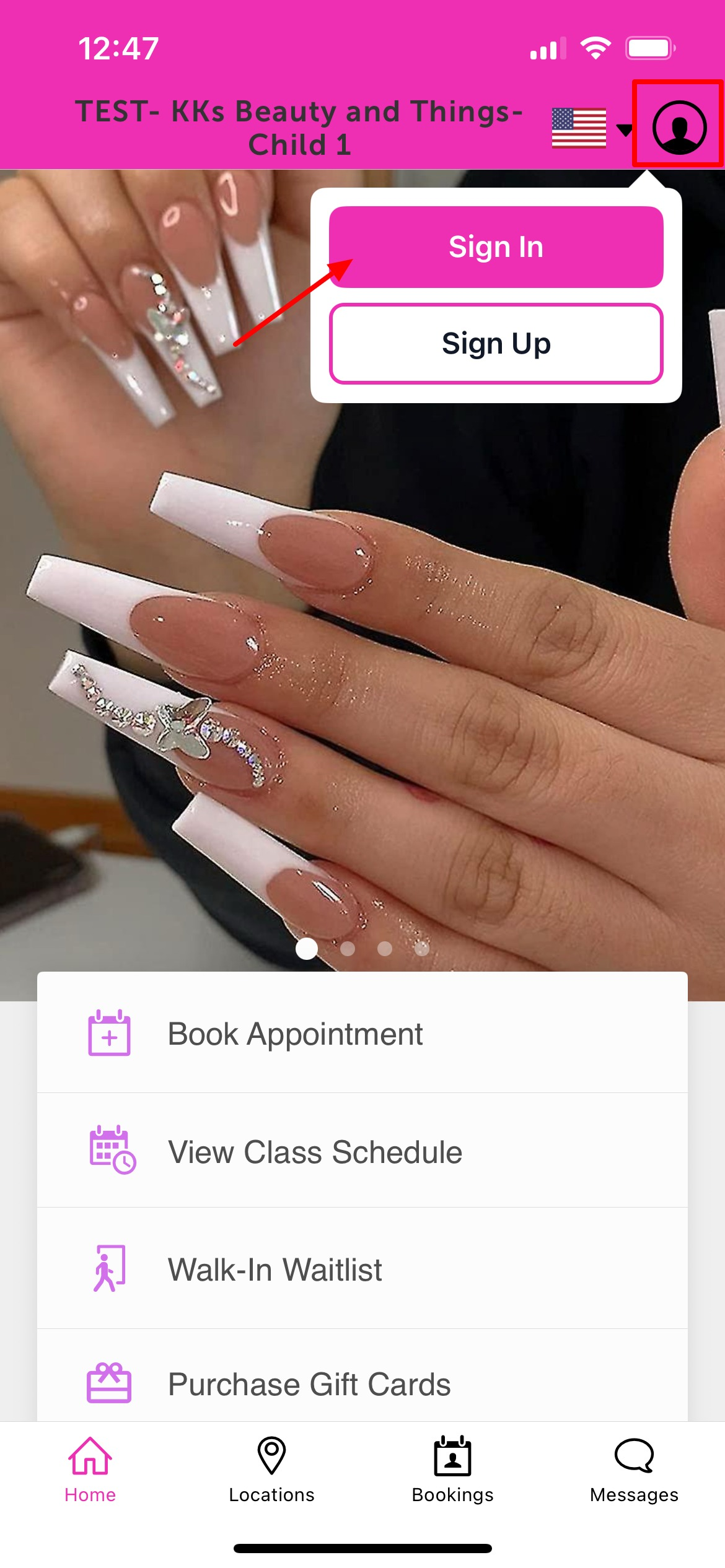
- Upon downloading, navigate to the home screen and tap on the account icon located in the top right corner, tap sign in
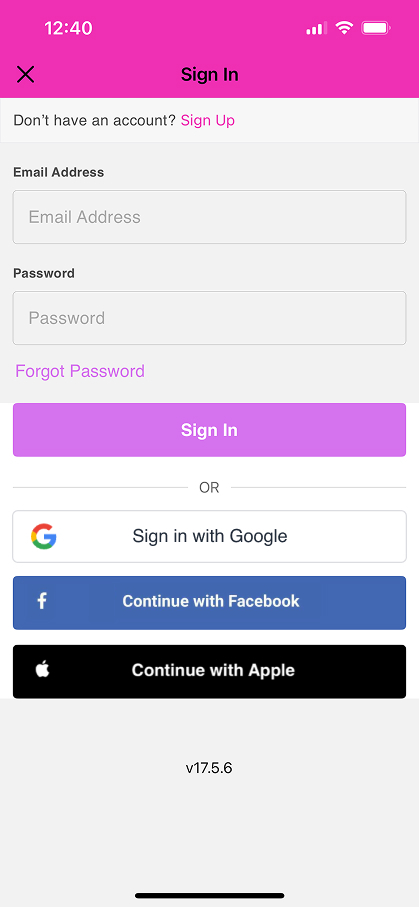
- Choose their login method:
- Standard: Enter their registered email address and password, then click 'Sign In'.
- Social Login: Select 'Continue with Google,' 'Continue with Apple,' or 'Continue with Facebook' to use their existing social media credentials.
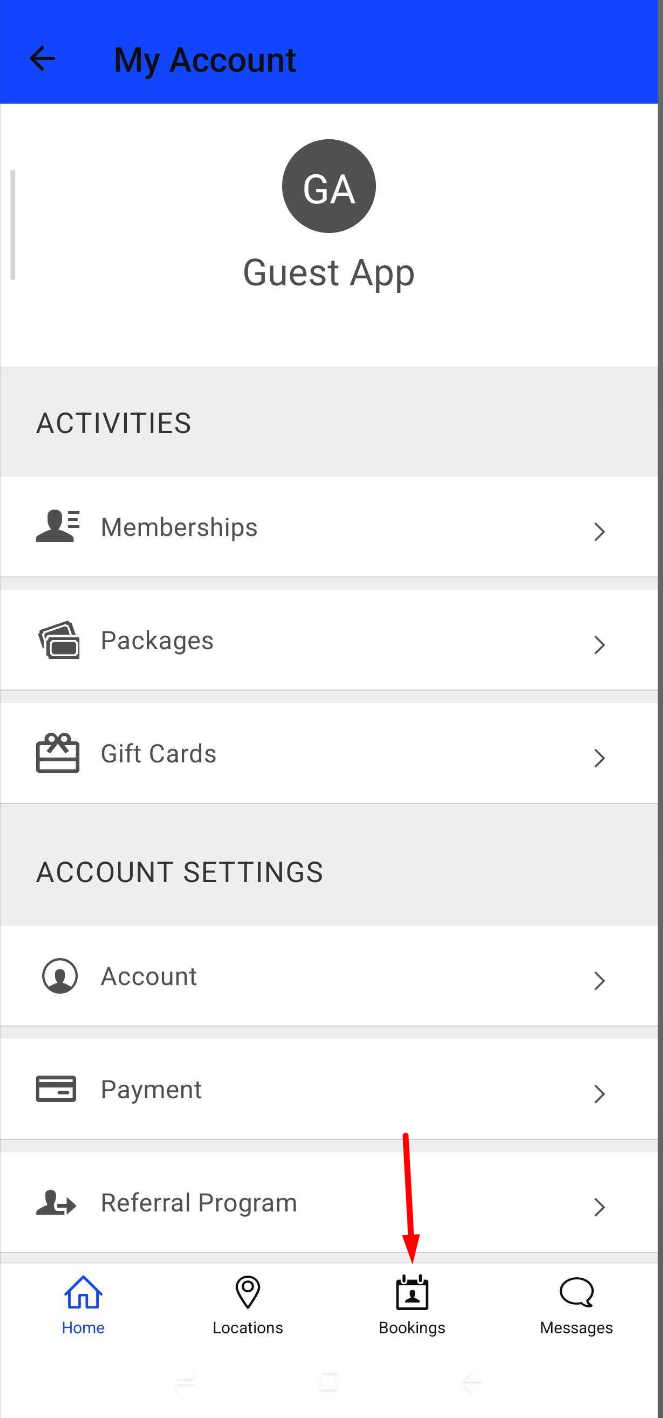
- After signing in, clients will be directed to the My Account page
- Tap the Booking icon at the bottom of the screen to access the booking page
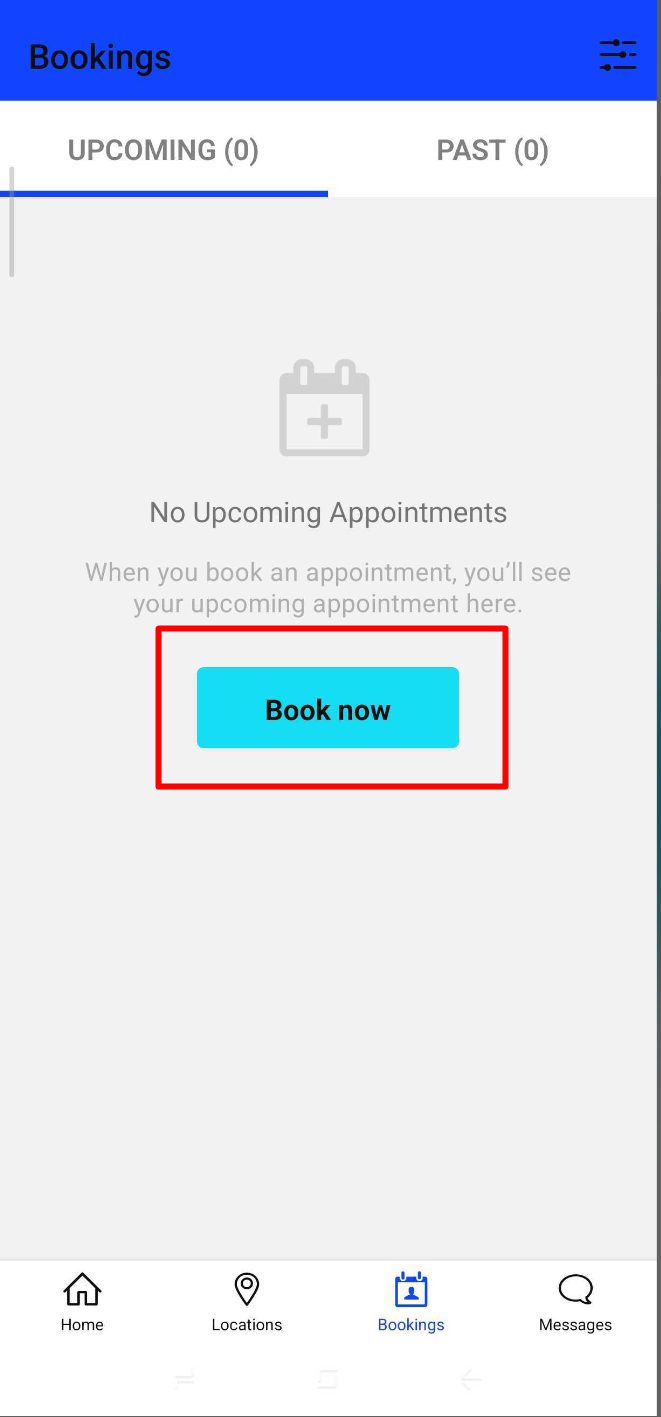
- Tap "Book Now"
- Select the desired location (if the account has multiple locations)
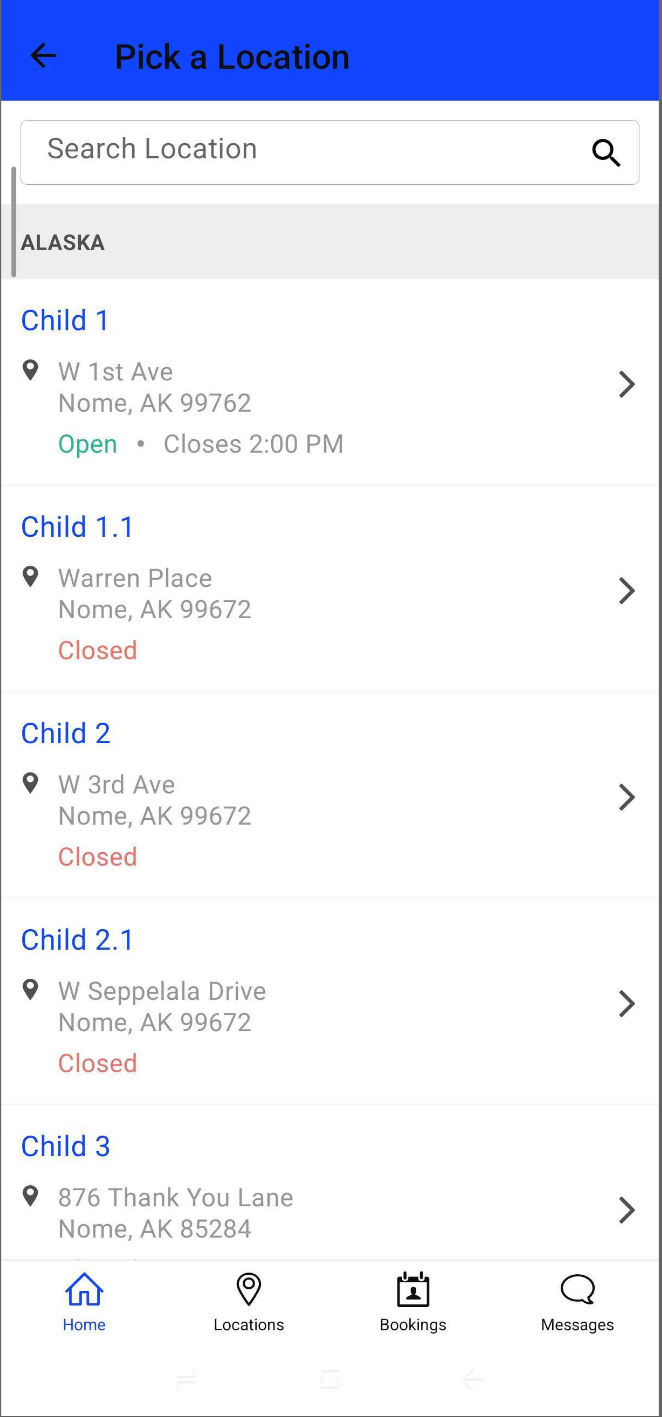
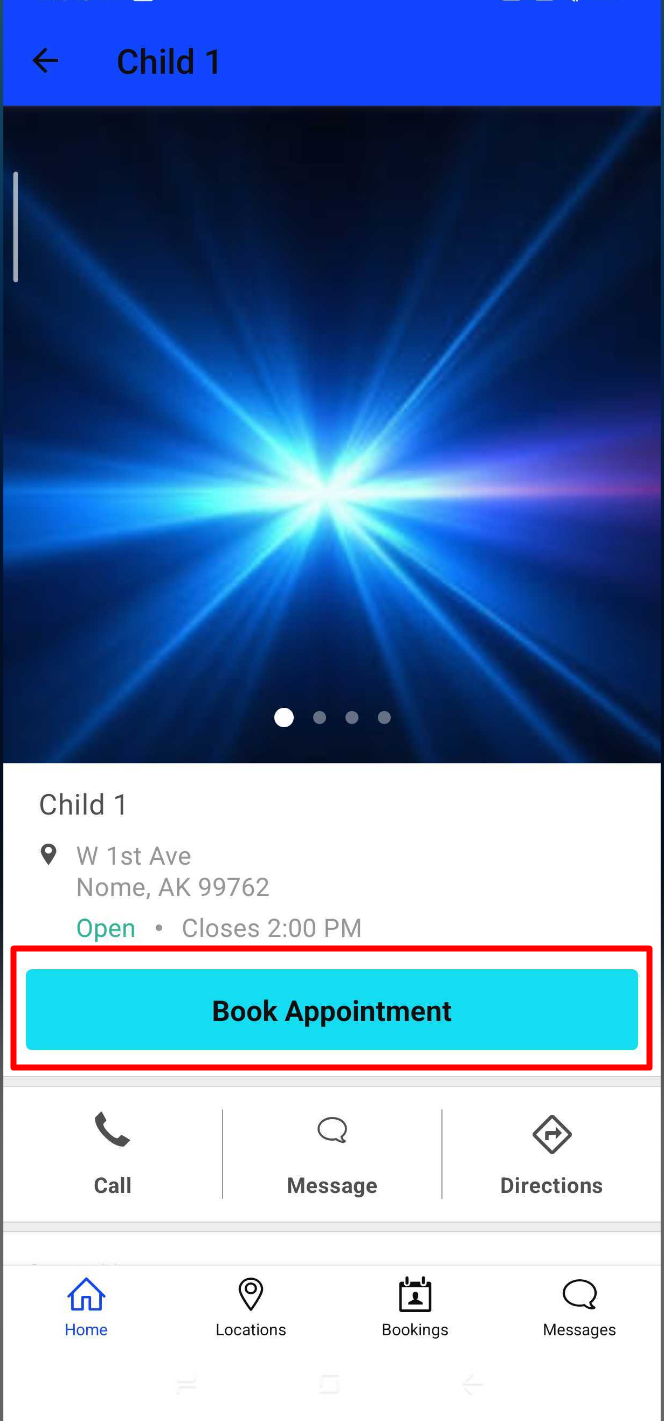
- Tap "Book Appointment"
- Browse available services or use the filter option to narrow results by staff member or service category
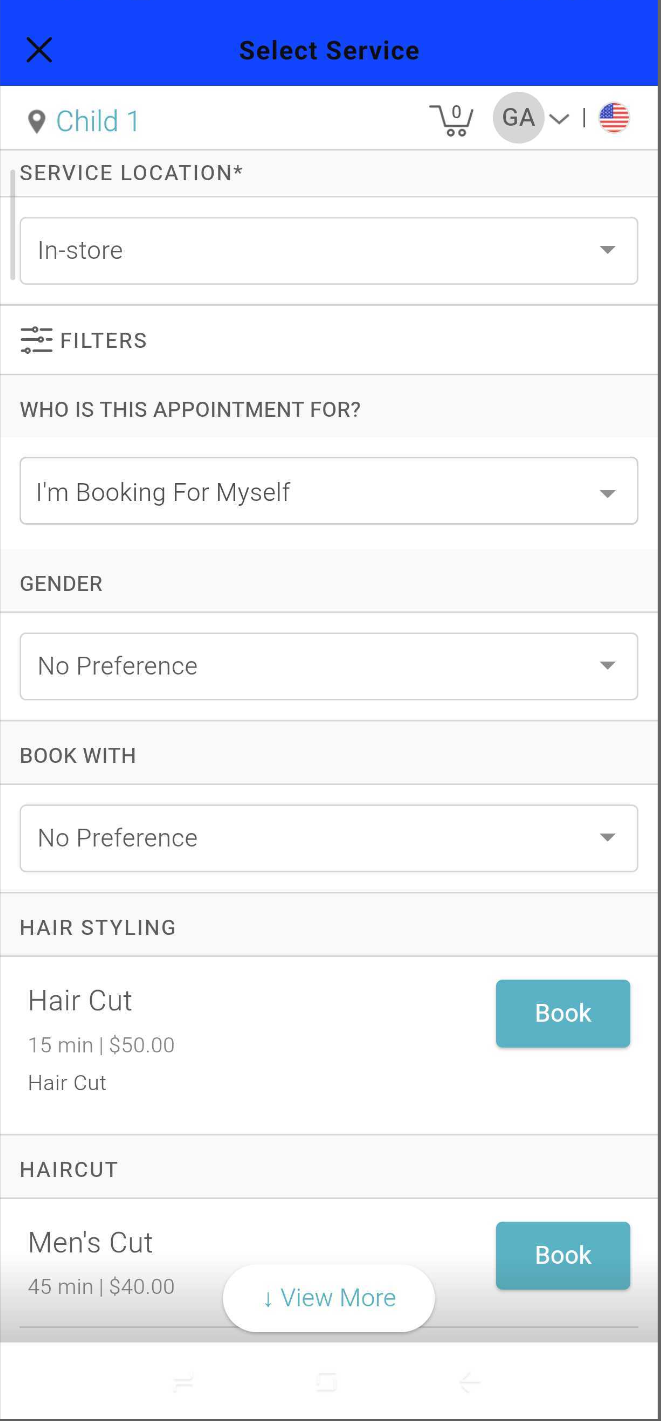
- Tap "Book" next to the desired service
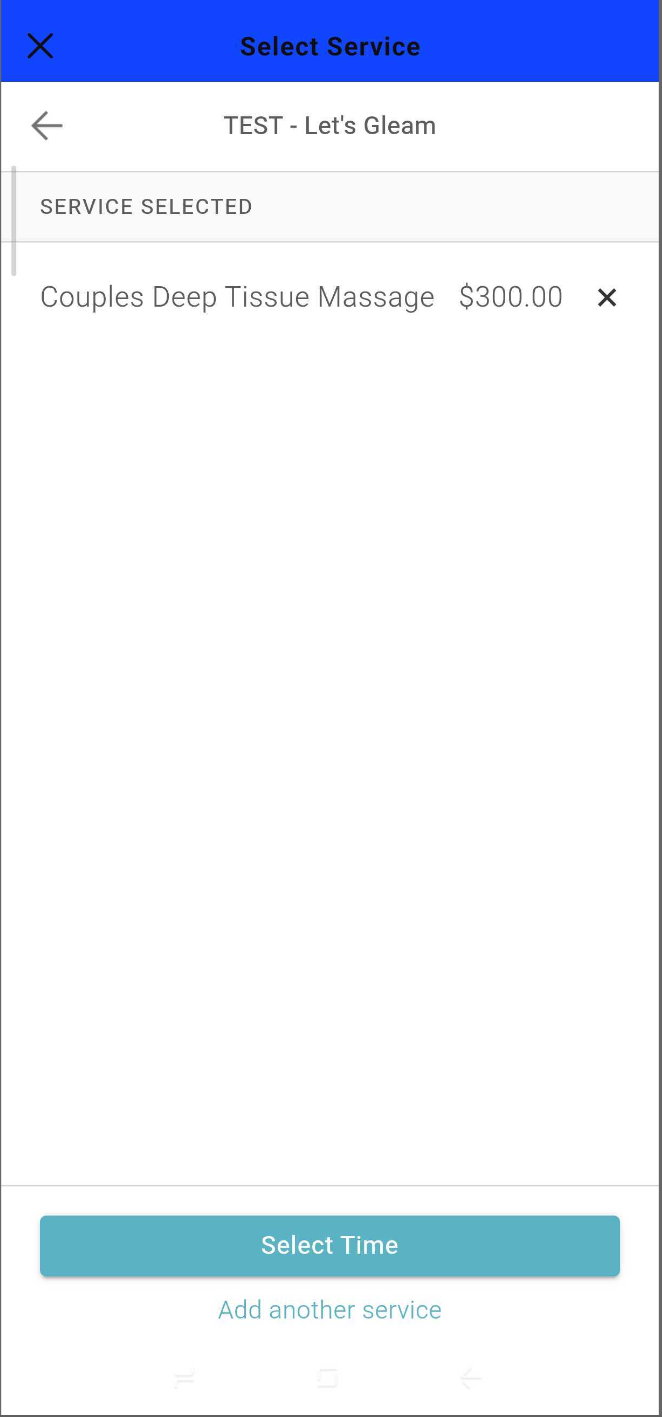
- To add additional services, tap Add another service. Otherwise, tap Select Time to continue.
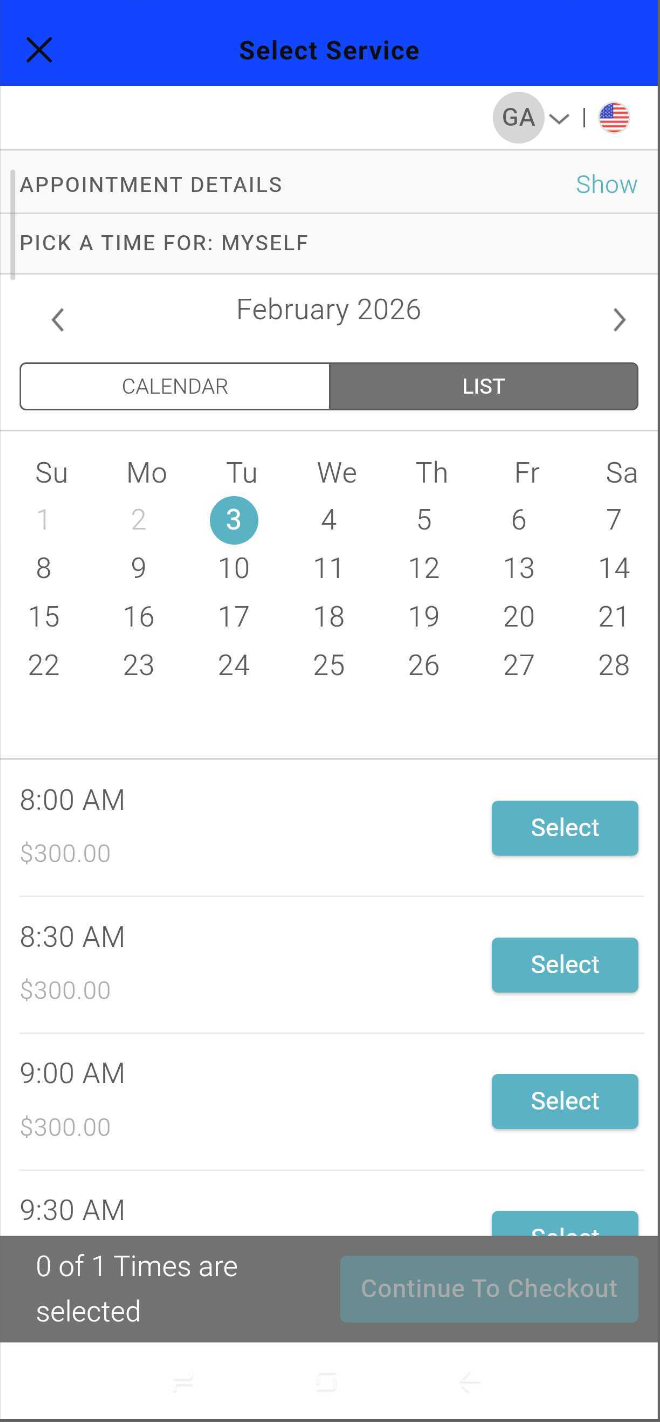
- Choose a date and time for the appointment
- On the checkout page:
- Complete the intake form and enter additional client details.
- First and last name, email address, and phone number are required.
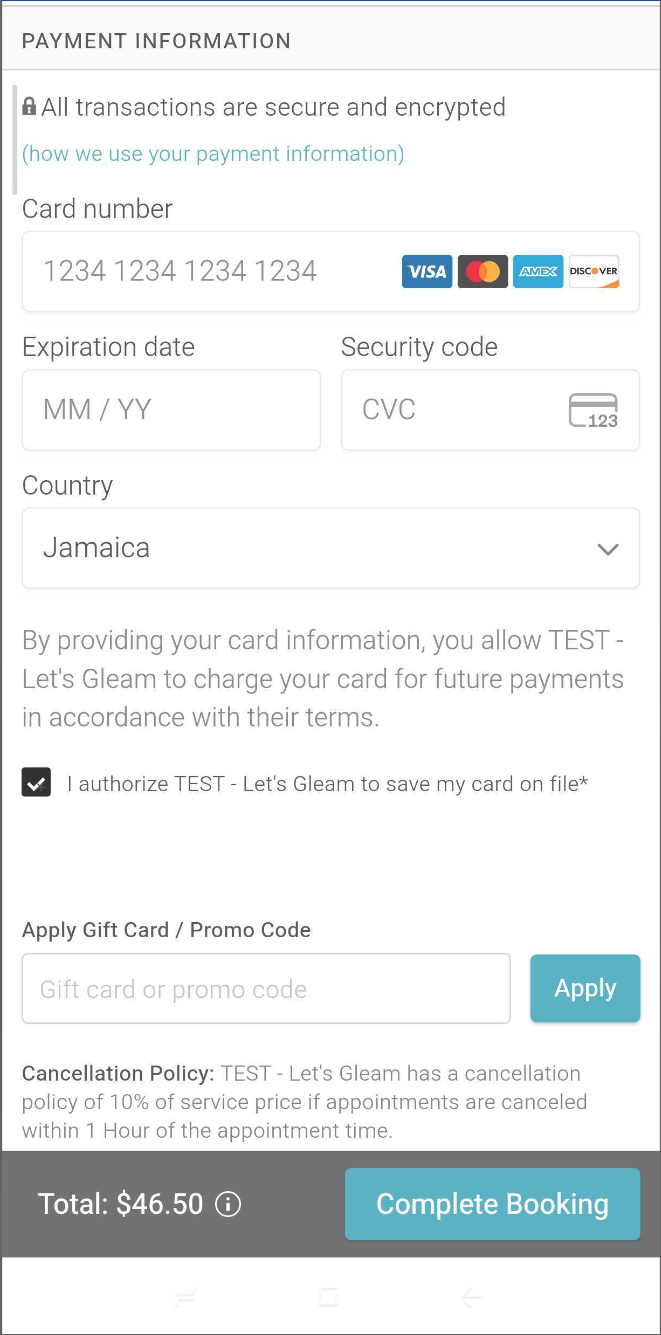
- Enter payment information, if applicable.
- Complete the booking.
- The booking confirmation page will appear once the appointment is successfully booked.
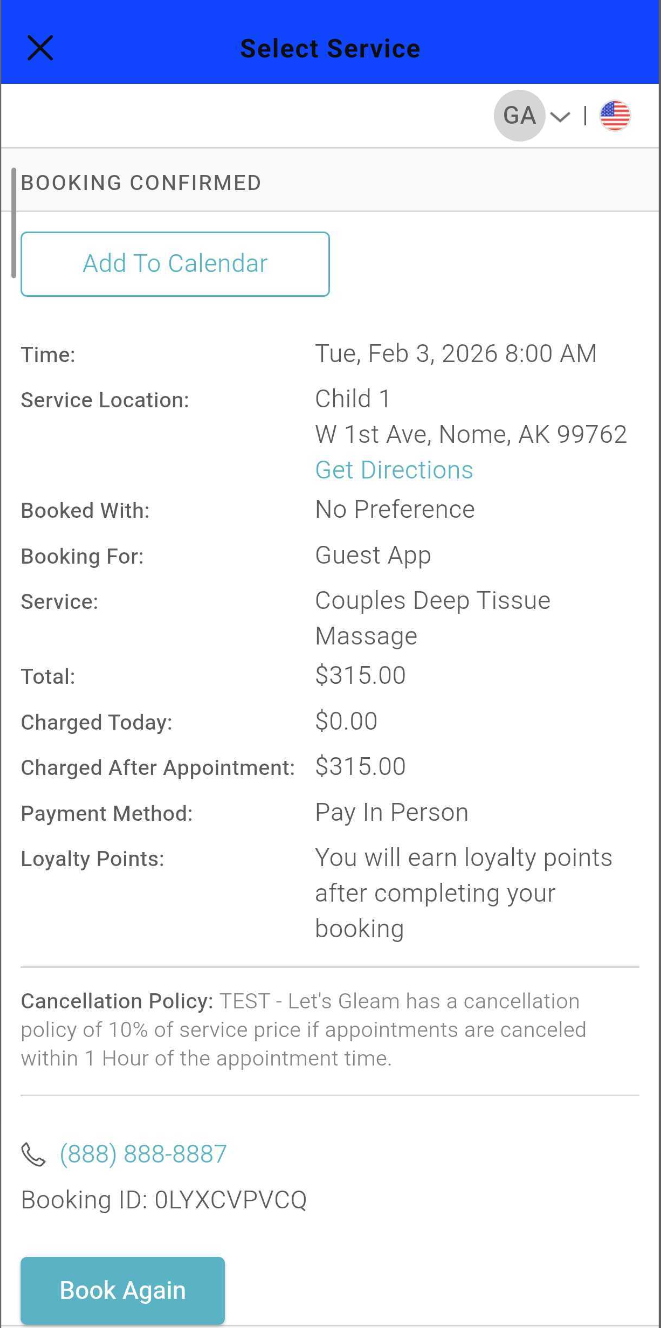
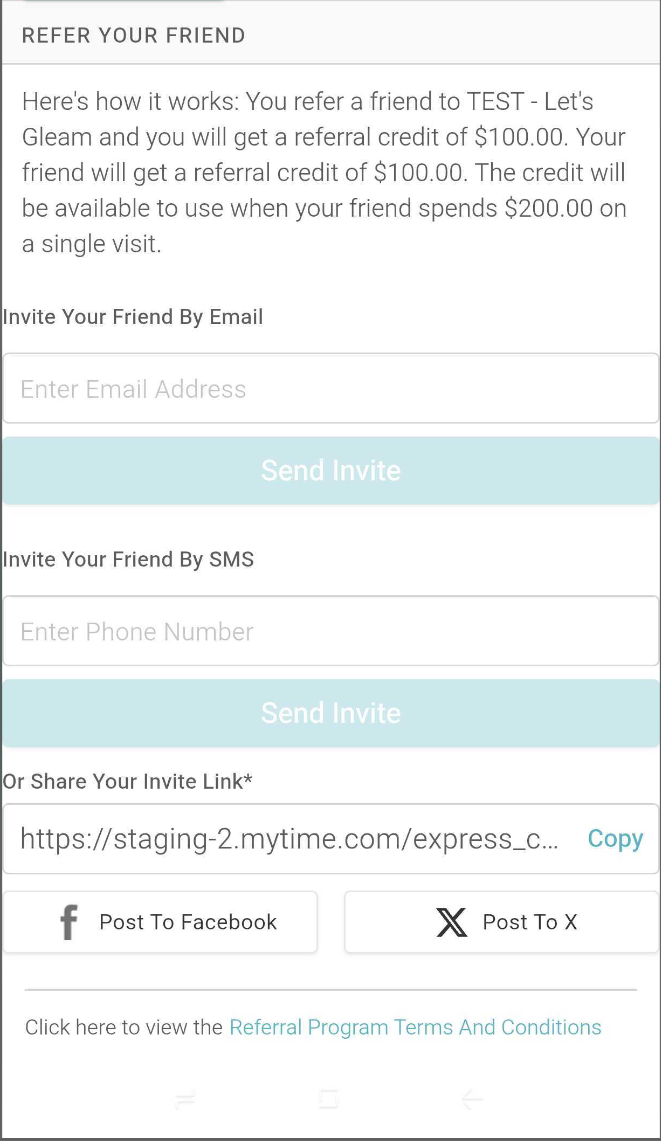
Once the appointment is booked, the client can:
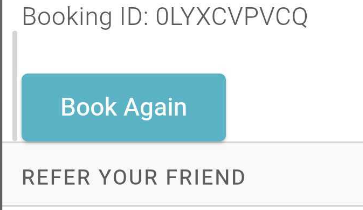
- To book another appointment for the same service, use the Book Again button to navigate to the Time Picker
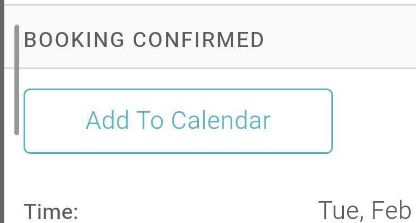
- Add the booked appointment to your personal Google, Outlook, or Apple calendar.
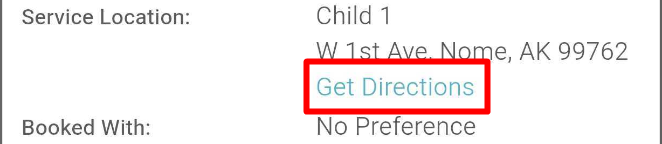
- To obtain directions to the business, clients can utilize the "Get Directions" link
For more information, contact us at support@mytime.com.
Related Articles
Account Management on Guest App
Purchasing Packages on the Guest App
Purchasing Memberships on the Guest App
Was this article helpful?
That’s Great!
Thank you for your feedback
Sorry! We couldn't be helpful
Thank you for your feedback
Feedback sent
We appreciate your effort and will try to fix the article