Clients can purchase packages via the consumer app which is similar to the way they would purchase them via the widget.
Things to know:
To configure your account for package purchases, learn more here
For accounts with the family member feature enabled, clients can purchase multiple packages in different quantities online, as long as the packages are configured for all family members. This feature is controlled by a hidden setting that can only be activated by the MyTime team. To enable this setting, please contact our Support Team at support@mytime.com. Please note that if the "Can only be purchased once per client" option is selected during package setup, clients will not be able to purchase multiple quantities.
- If a client is not signed into their account during checkout to complete a purchase, they will be prompted to log in. If they do not have an account, they can click the "Sign Up" link to create one.
- For businesses that do not have Strong Customer Authentication (SCA) enabled, clients purchasing packages on the guest app can choose not to save their card information. To opt out, they simply need to uncheck the box next to "I authorize X Company to save my card on file.
- If the “Default Commissionable Employee for Product and Prepaid Sales” company setting is configured as either “Logged in user” or “In-House Sale,” any package purchased through your custom guest app will display “In-House Sale” in the “Sold By” field on the ticket.
- Defined-Term Packages: The package end date will only be displayed on the checkout and confirmation pages if the package is configured with a specific, defined term.
- Indefinite Packages: If the package is configured as an indefinite package, no end date will appear on either page.
To purchase packages on the guest app, clients can:
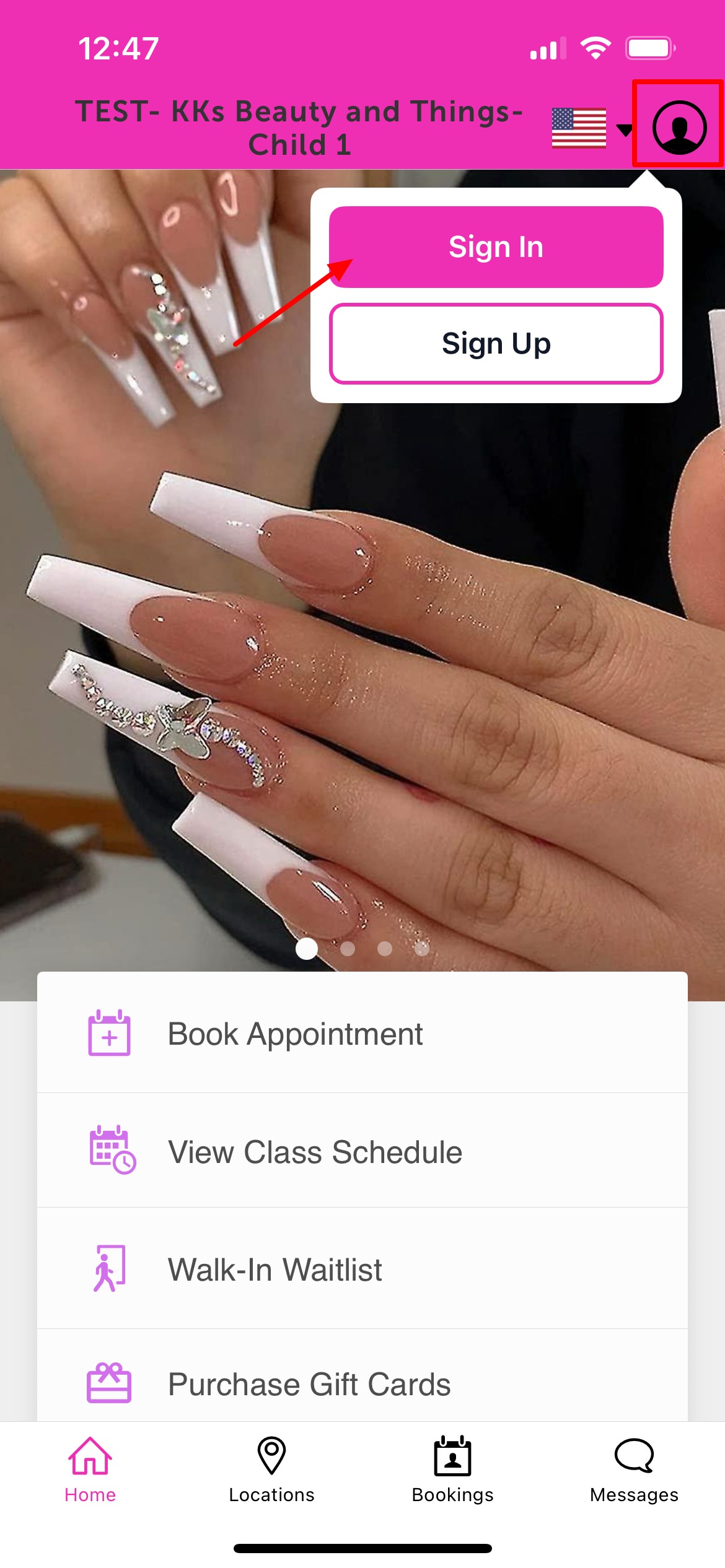
2. Upon downloading, navigate to the home screen and tap on the account icon located in the top right corner, tap sign in
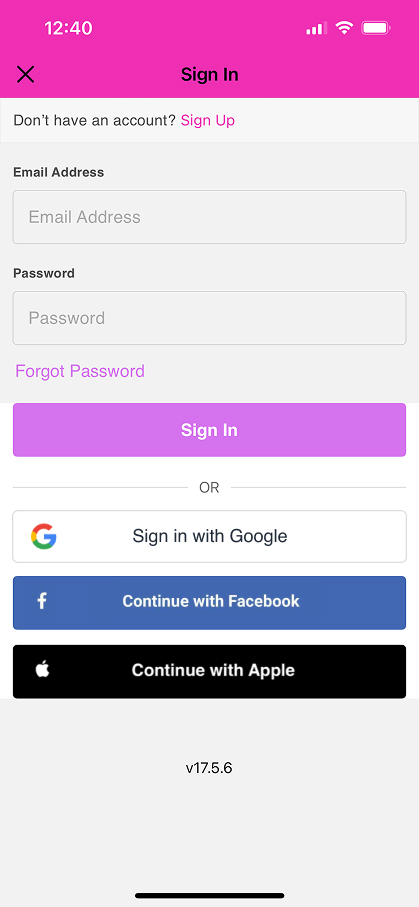
 3. Choose their login method:
- Standard: Enter their registered email address and password, then click 'Sign In'.
- Social Login: Select 'Continue with Google,' 'Continue with Apple,' or 'Continue with Facebook' to use their existing social media credentials.
4. Once signed in, they will be redirected to the home screen. Select the Purchase Package button 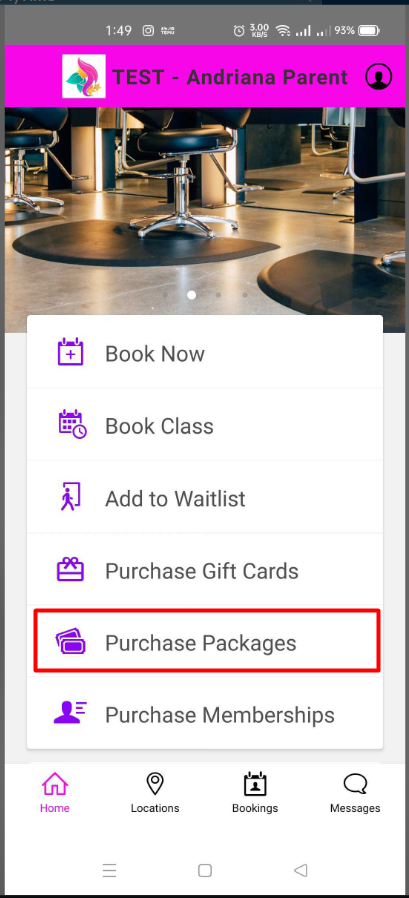
5. Select the purchase location 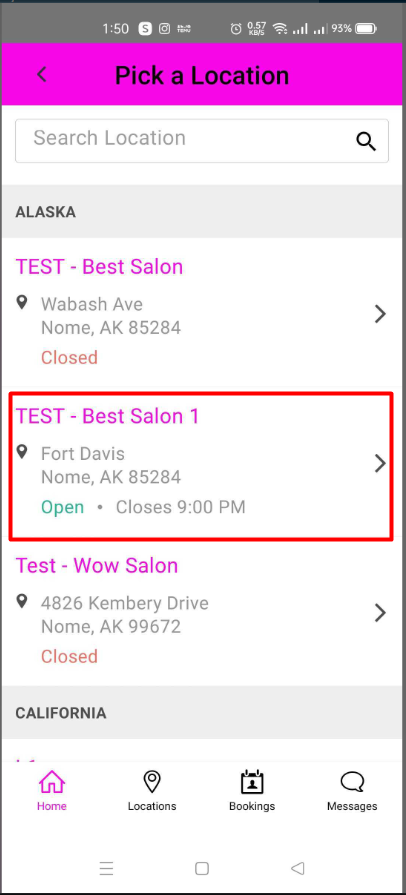
6. For individual packages, click the "Buy" button. For packages configured for all family members or pets (for pet merchants), clients will have the option to specify the quantity they wish to purchase 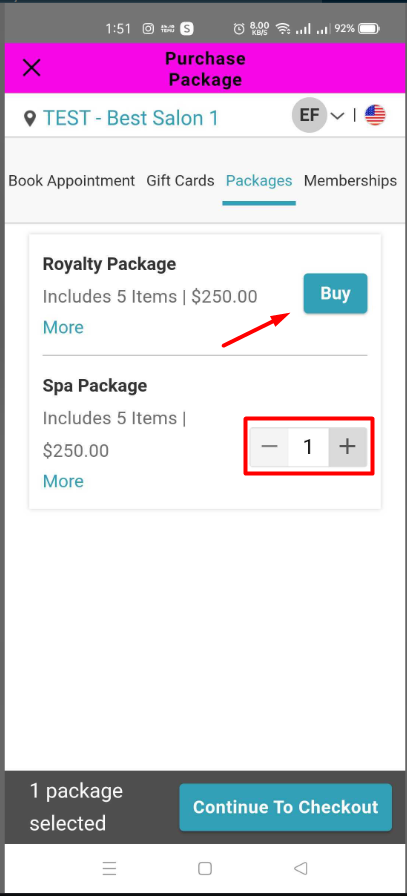
7. Enter card details and tap on the “Complete Purchase" button 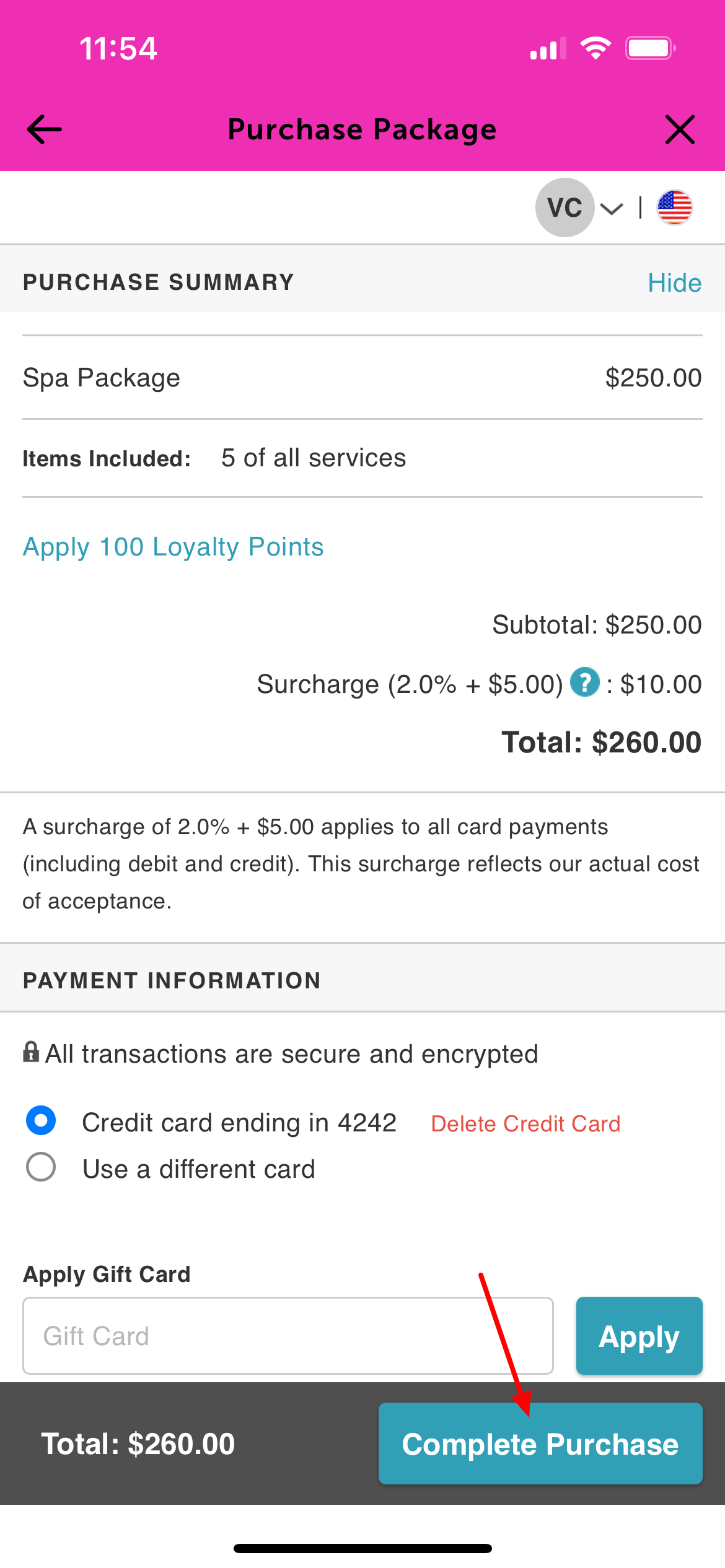
8. The confirmation page will display all the package details 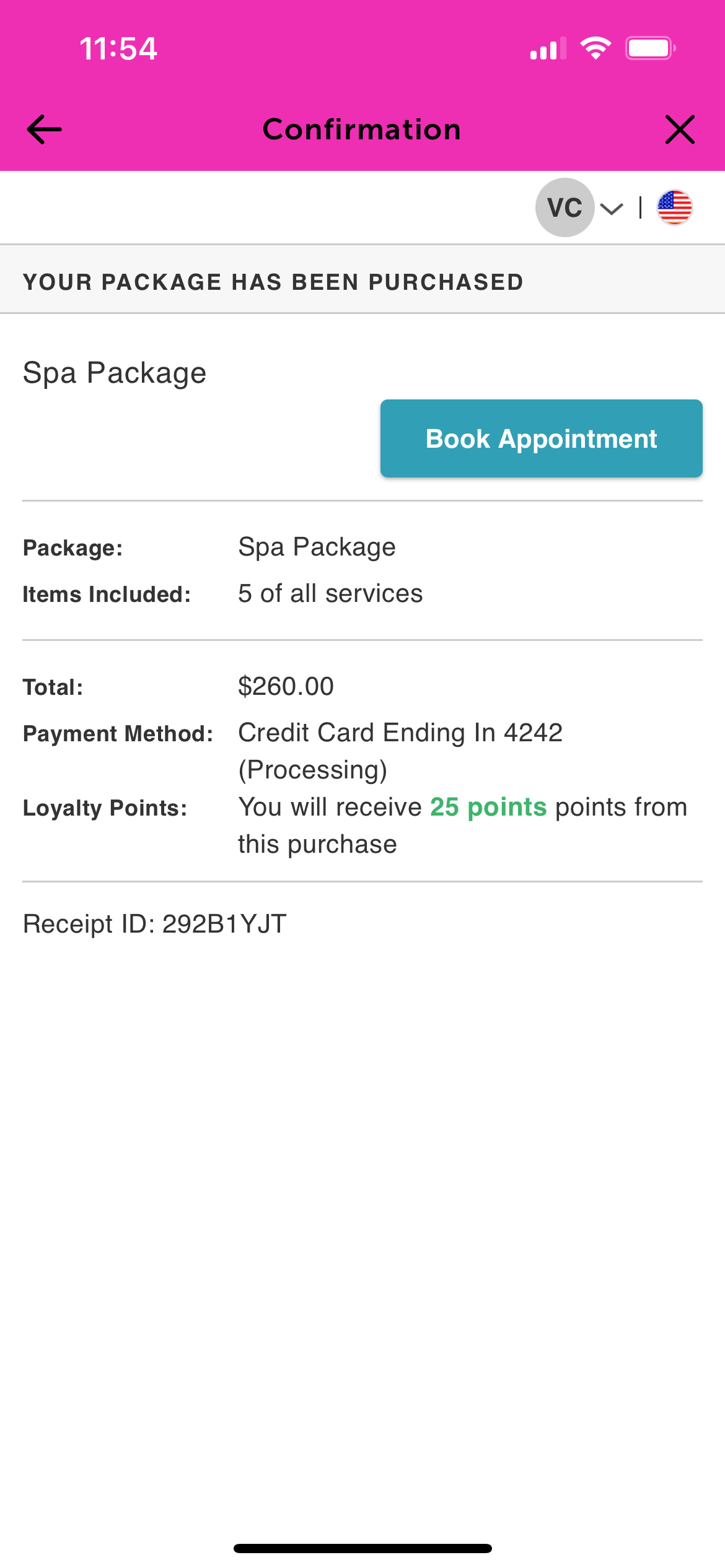
Was this article helpful?
That’s Great!
Thank you for your feedback
Sorry! We couldn't be helpful
Thank you for your feedback
Feedback sent
We appreciate your effort and will try to fix the article