Multi-client services allow you to schedule and manage appointments that involve multiple clients simultaneously. This feature is ideal for services such as couples massages or any service where multiple clients participate together. This article explains how the feature works and outlines the steps to schedule these appointments in-store.
Things to know:
- The ability to create multi-client services is controlled by the "Accessing Services Menu" access control setting.
- Enabling the "Group Booking by Resource" feature will override the "Multi-Client" feature.
- Client Limits: You can add multiple clients to an appointment up to the maximum configuration set for that service. For example, if a "Couples Massage" is set to four clients, the scheduler allows you to enter details for the primary client and three additional clients.
- Profile Matching: If an email address entered for an additional client is not in your database, a new client profile is automatically created. For existing clients, the system will locate and link their current profile.
- Family Accounts: Family member accounts have the option to book services for family members and additional clients.
- Staff Notifications: When a multi-client service is scheduled, the names of all participating clients will appear in the appointment notifications sent to staff members.
- Client Notifications: Each client on the appointment will receive a booking notification if the "Send confirmation to additional client" checkbox is selected.
- Swapping Clients: You can change an additional client through the appointment modal after scheduling. The appointment will automatically transfer to the newly added client’s profile and be removed from the original client's profile.
- Cancellations: Canceling the appointment cancels it for both the primary client and all additional clients.
- Book Again Restriction: Using the "Book Again" option on the booking widget's confirmation page or the in-store appointment modal will not prefill the additional client details from the previous appointment.
- For multi-client appointments, confirmation emails are automatically sent in each client's saved preferred language rather than a single default language.
- The setup option displayed in the top-right user menu depends on how you access the account and your assigned role:
- When navigating from the Parent Account (Location Management tab):
- Admin: Displays Business Setup when viewing the location account.
- Login As: Displays Location Setup when viewing the location account.
- When logged in directly at the Location Level:
- Location Owners & Location Managers: Display Location Setup.
- Service Providers & All Other Roles: Display Profile Setup.
- The ability to create multi-client services is not available on the Scheduler App.
To configure multi-client services:
- Navigate to Business Setup / Location Setup > Services
- Click 'Edit' to open the service modal

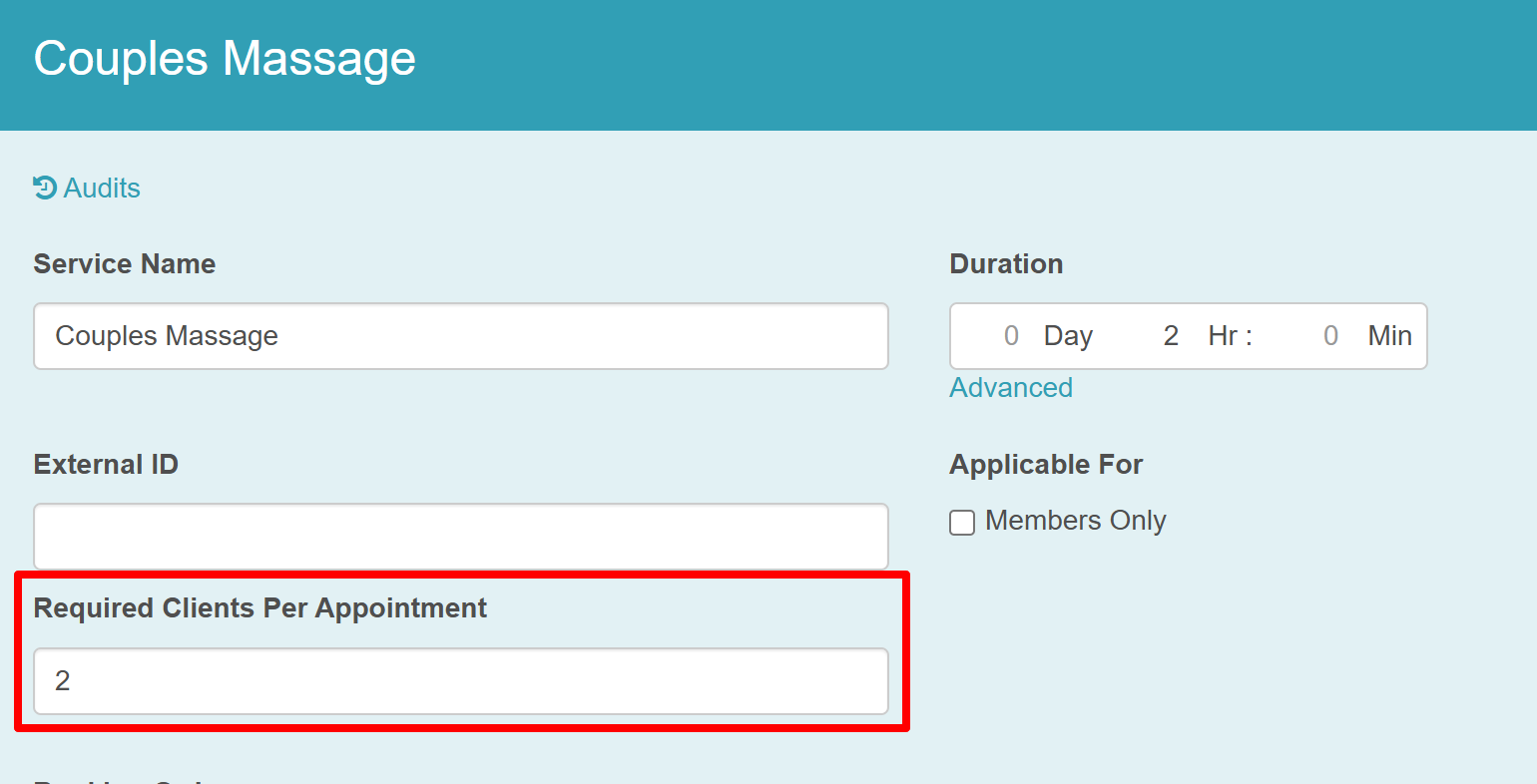
- On the 'Add Service" modal, the "Required Clients Per Appointment" field will be visible. Here, you can enter the number of clients that can be booked for this service at once.
- Save changes
For more information, contact us at support@mytime.com or (385) 233-6964.
Related Article:
- Creating Services
- Global Services
- Multi-Staff Services
- Schedule Multi-Client Appointment on Scheduler App
- Booking Multi-Client Appointments Online
- Revenue and Compensation for Multi-Client Services
Was this article helpful?
That’s Great!
Thank you for your feedback
Sorry! We couldn't be helpful
Thank you for your feedback
Feedback sent
We appreciate your effort and will try to fix the article