Family members linked to existing memberships can be switched to another family member. This article will provide step-by-step instructions on how to change the associated family member for an existing membership on the scheduler app.
Things to Know:
- The ability to change the associated family member on a membership is governed by the "Accessing Membership" access control setting.
- Changing associated family member is only possible for memberships where the "Valid For" setting in the membership template is set to "Individual Family member"
- If a membership was purchased for Family Member A and a membership credit was used for an appointment for Family Member A:
- Changing the membership owner to Family Member B will not impact historical data
- Reports will continue to show that the membership credit was used
- The appointment for Family Member A will still display the 'Available in Membership' label
- By default, membership credits expire one year after issuance
- For indefinite memberships, you can establish a custom expiration period either within the membership template or directly on the client profile.
To change the associated family member for an existing membership:
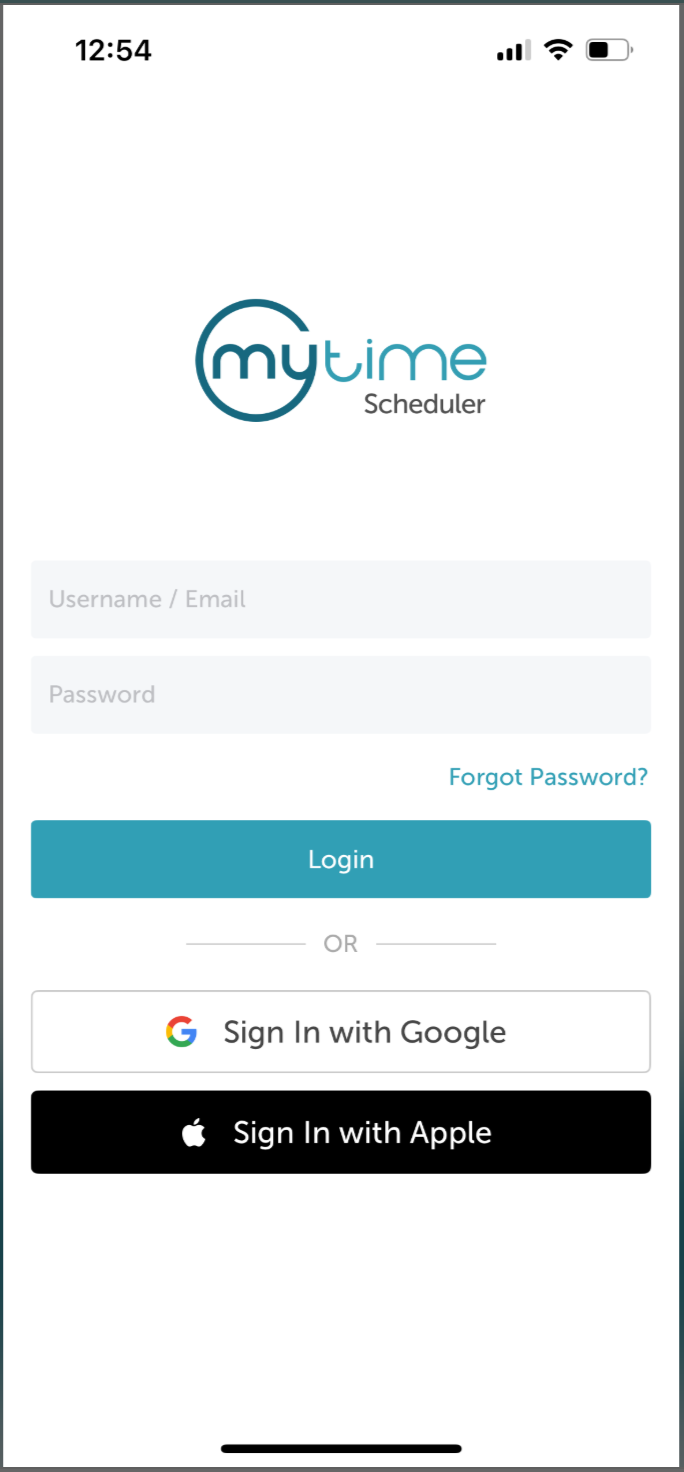
1. Launch the MyTime Scheduler app on your device
2. Choose your login method:
- Standard: Enter your registered email address and password, then tap 'Sign In'
- Social Login: Select 'Continue with Google' or 'Continue with Apple' to use your existing credentials for a faster login experience. For detailed instructions, learn here
3. After signing in, you will be directed to the Schedule by default
4. Tap the Clients icon located at the bottom of the screen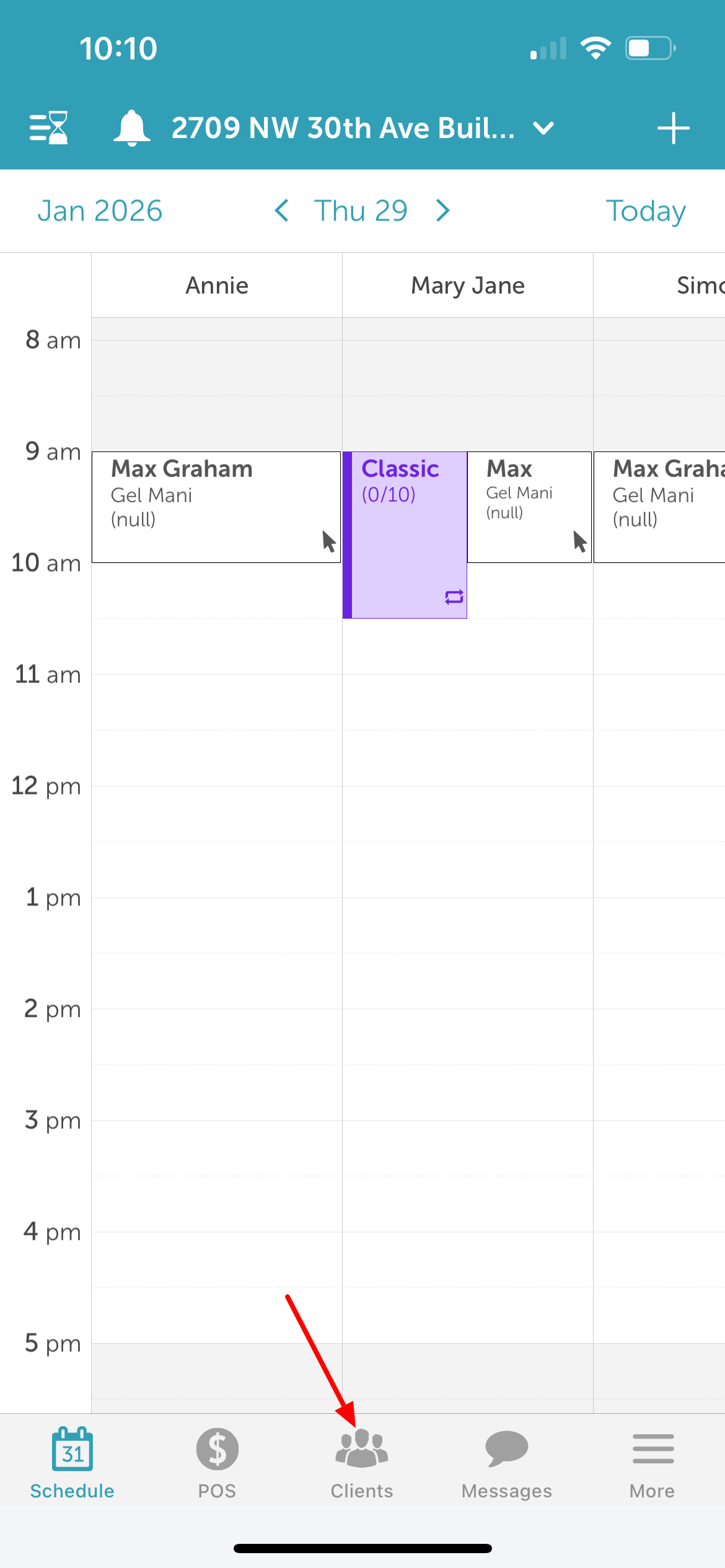
5. Type the client’s name in the Search field, or select the client from the client list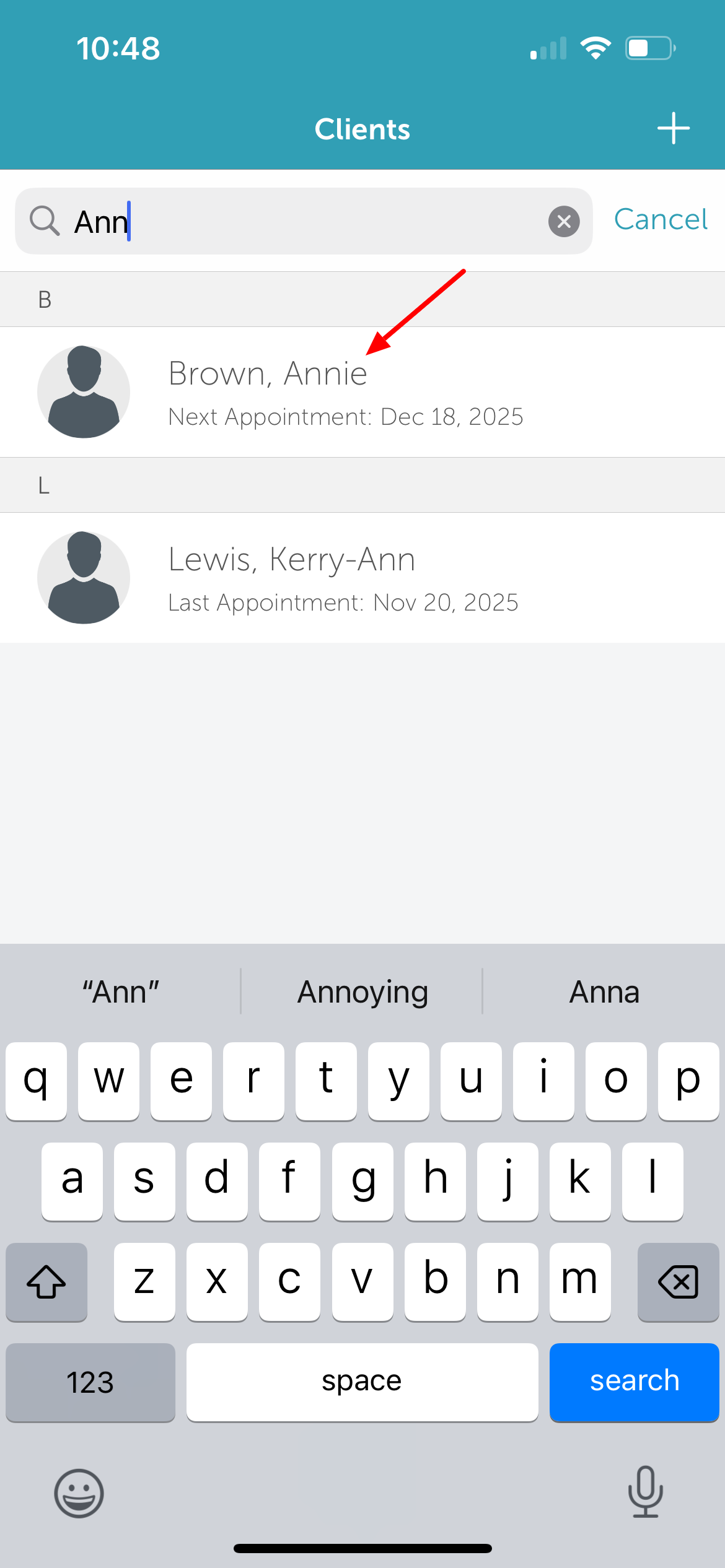
6. Navigate to the 'Memberships Purchased' section
7. Select the membership for which you want to update the associated family member 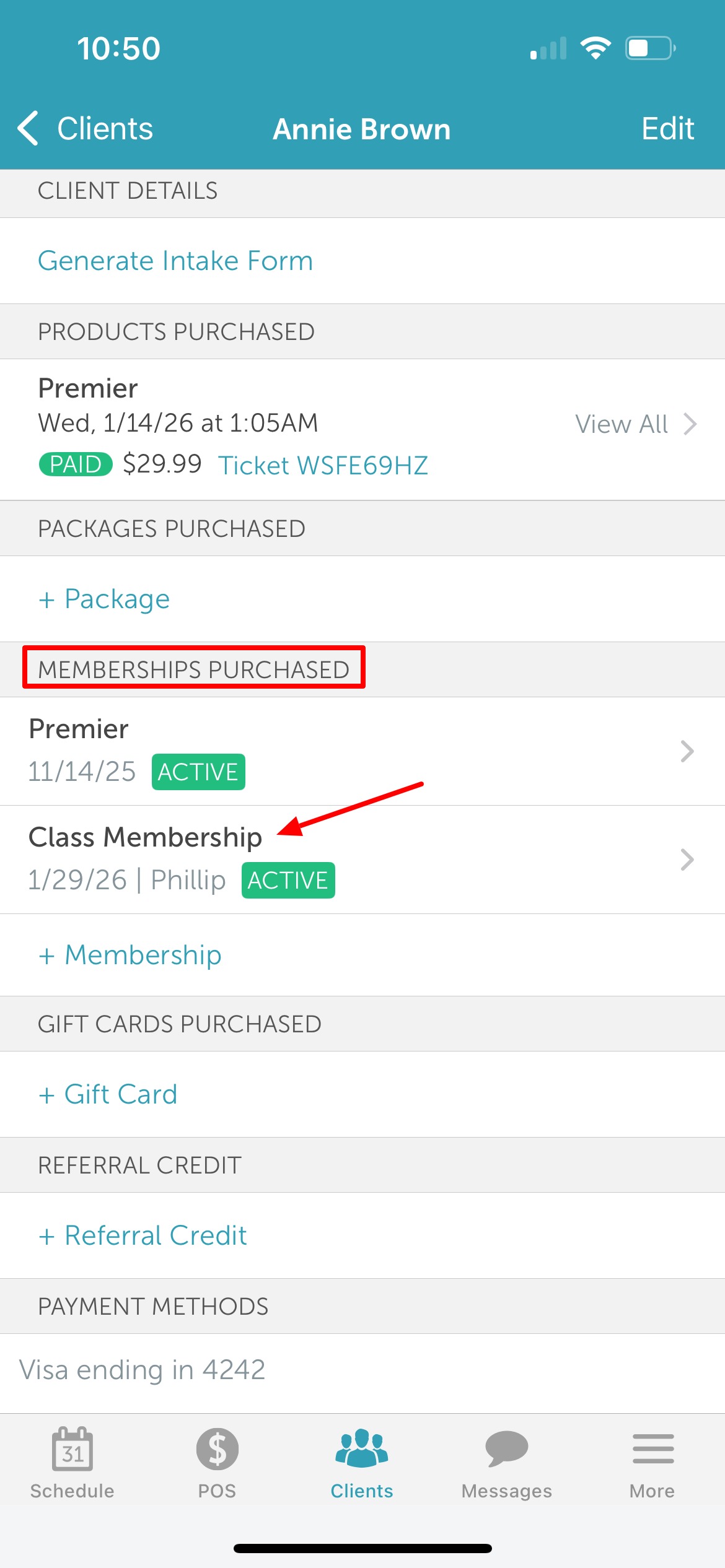
8. Tap the 'Member' field 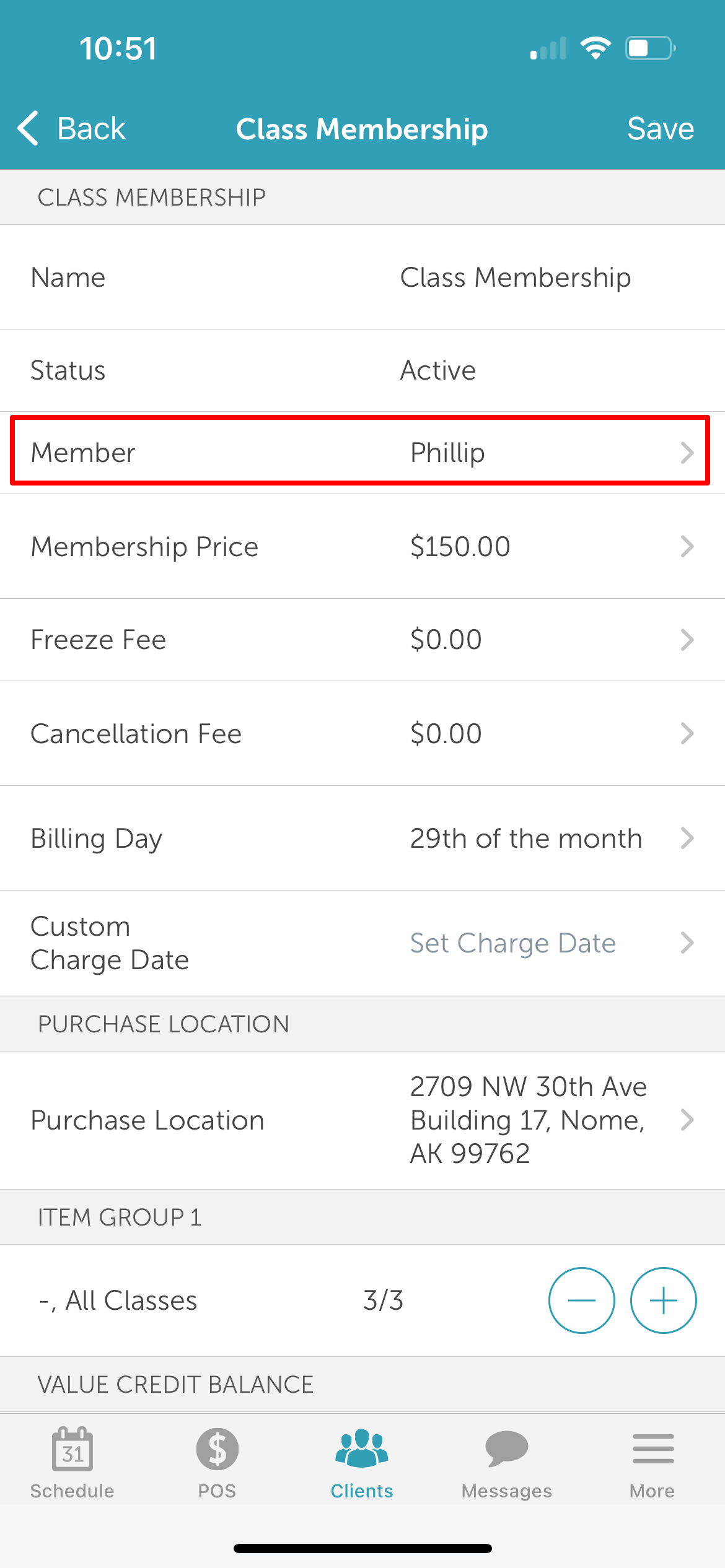
9. Select the desired family member or tap the '+' icon in the top right corner to add a new family member 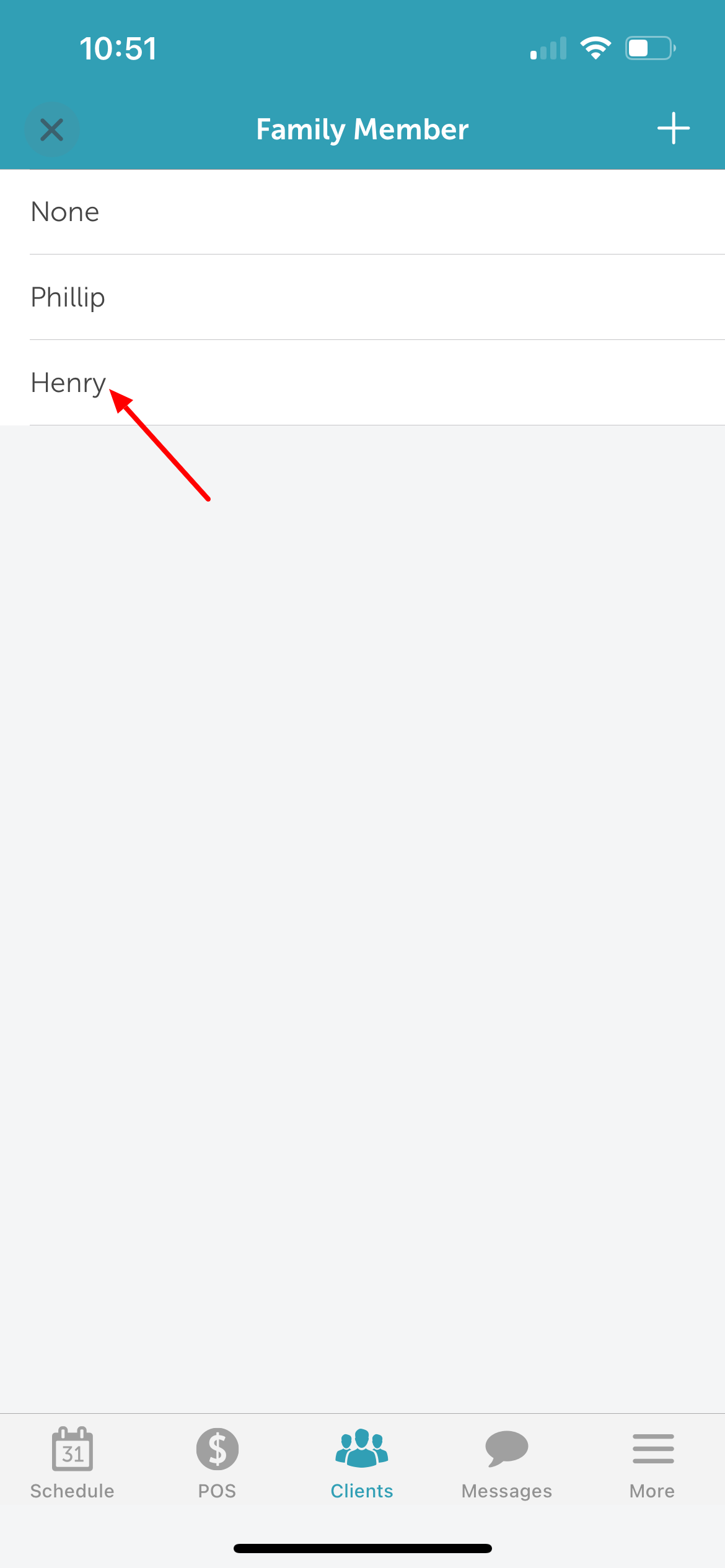
10. Confirm that the Member field displays the updated family member
11. Tap 'Save' at the top right corner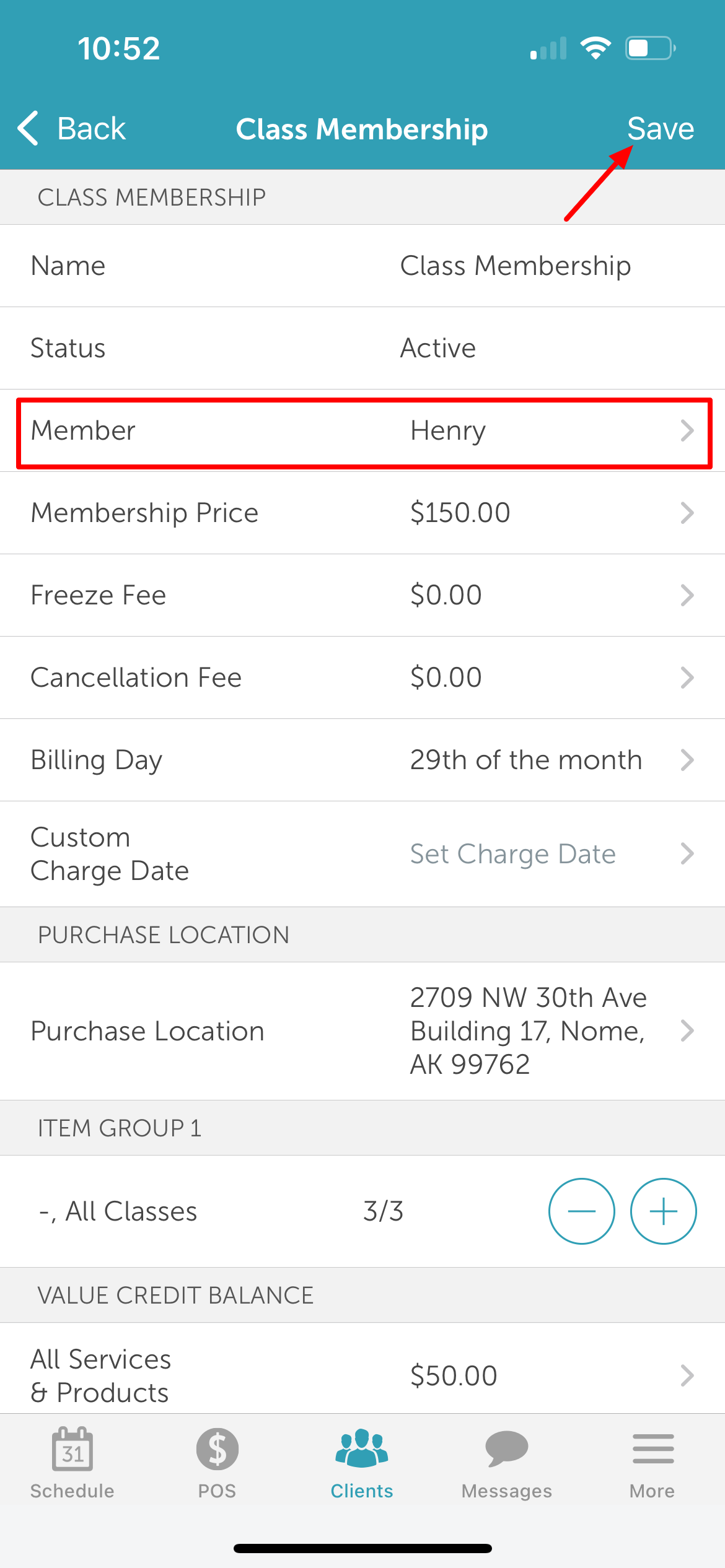
Once saved, the membership will be updated on the client profile with the new family member assignment.
Related Articles
Installing MyTime on Scheduler App (Android and iOS)
Signing into MyTime on Scheduler App (Android and iOS)
Adding Family Member on Scheduler App
Deleting Family Members on Scheduler App
Selling Memberships for Family Members in POS on Scheduler App
Was this article helpful?
That’s Great!
Thank you for your feedback
Sorry! We couldn't be helpful
Thank you for your feedback
Feedback sent
We appreciate your effort and will try to fix the article