Family member notes serve as a means for staff members to communicate among themselves, enhancing the provision of exceptional and personalized service to individuals. These notes offer insights into the preferences of family members.
Things to Know:
- The family member notes section comprises a single note field, editable as needed, accessible from either their profile or an appointment modal. With each modification, the system automatically logs the timestamp of the last change and identifies the staff member who made the adjustments.
- Family member notes will be showcased as pinned notes on the appointment modal, positioned below the family member's name within the appointment details section, and also featured on the notes page.
- For clients with multiple family members, each note will be shown under the corresponding profile.
Contents:
Adding Family Member Notes
To add family member notes:
- Launch the MyTime Scheduler app on your device
- Choose your login method:
- Standard: Enter your registered email address and password, then tap 'Sign In'
- Social Login: Select 'Continue with Google' or 'Continue with Apple' to use your existing credentials for a faster login experience. For detailed instructions, learn more here
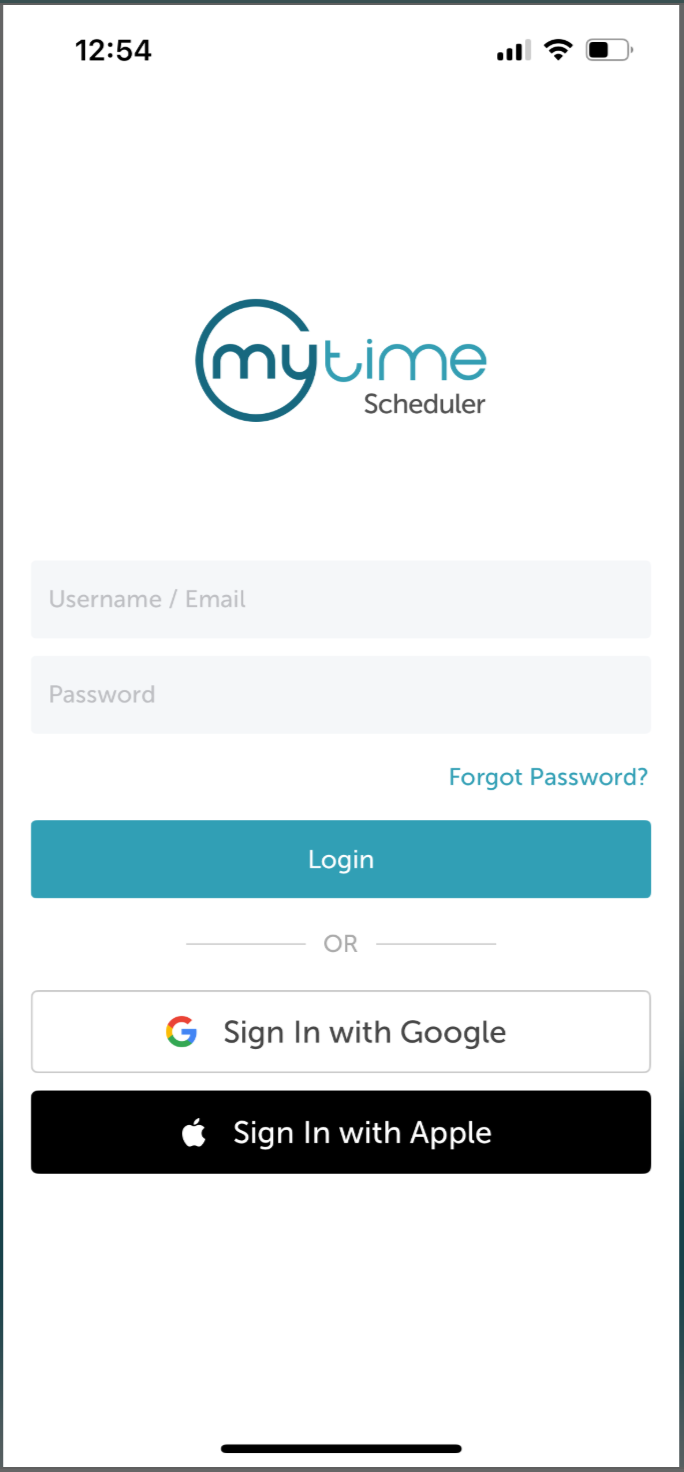
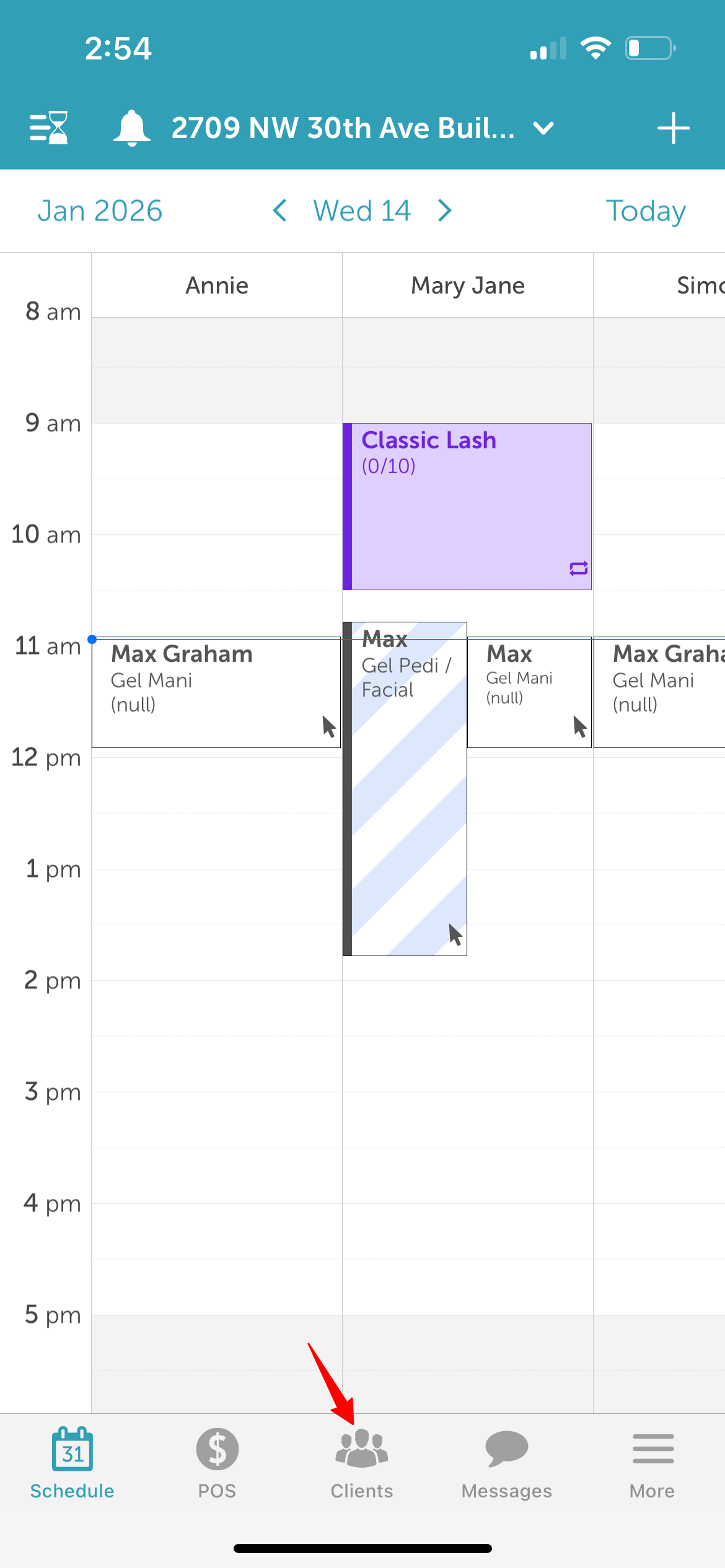
- Once signed in, you will be directed to the schedule by default
- Choose the Clients icon located at the bottom of the screen
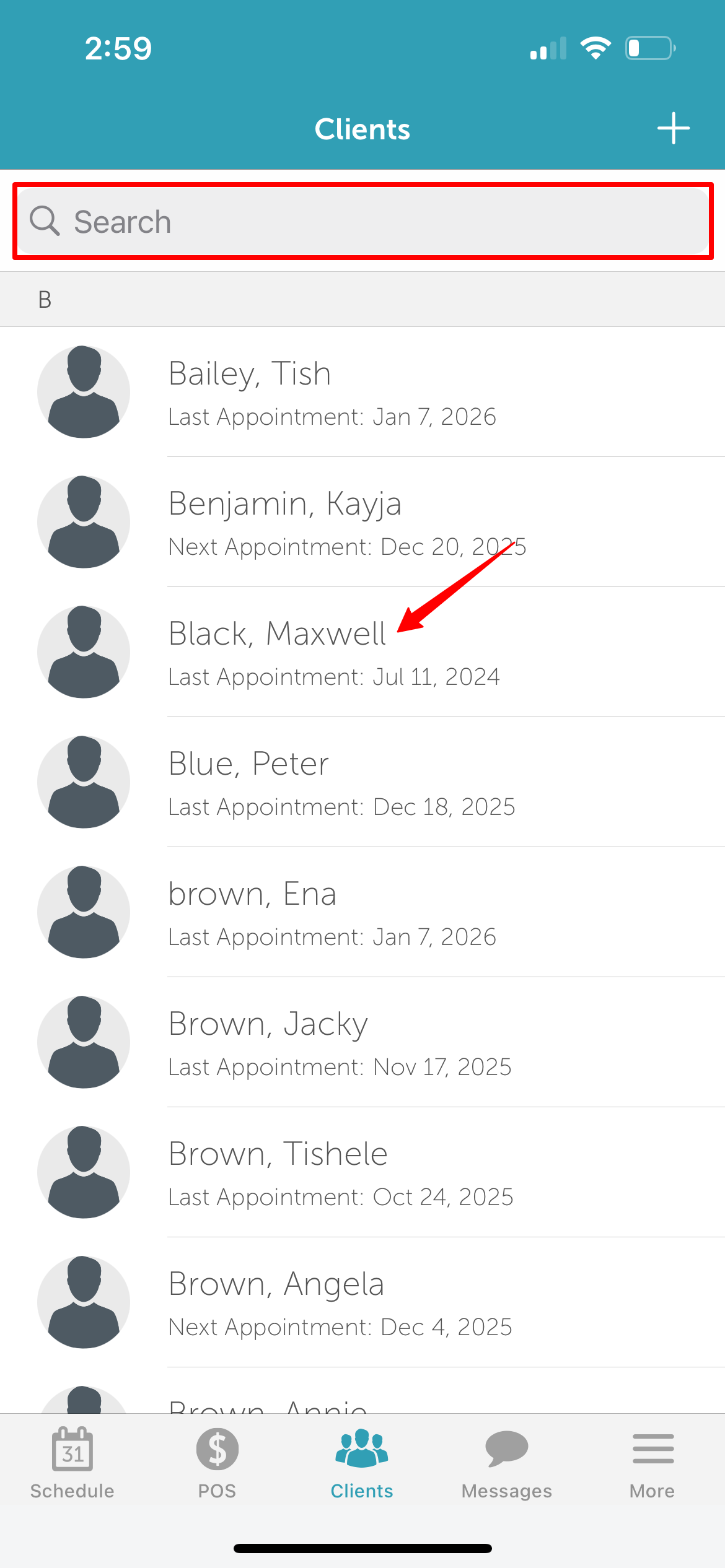
- Type the client’s name in the Search field or select the client from the client list
- From the Client's family member section, select the family member you want to add a note to
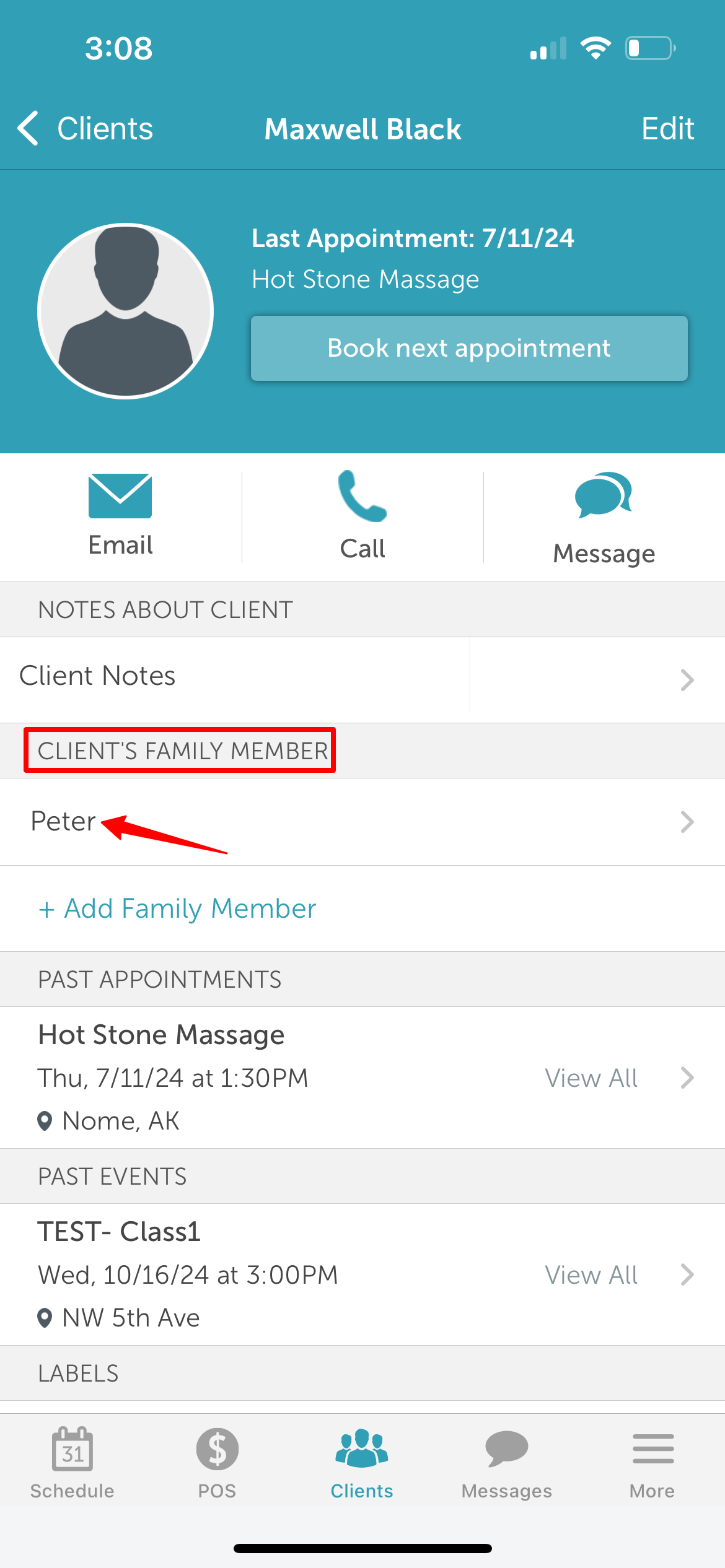
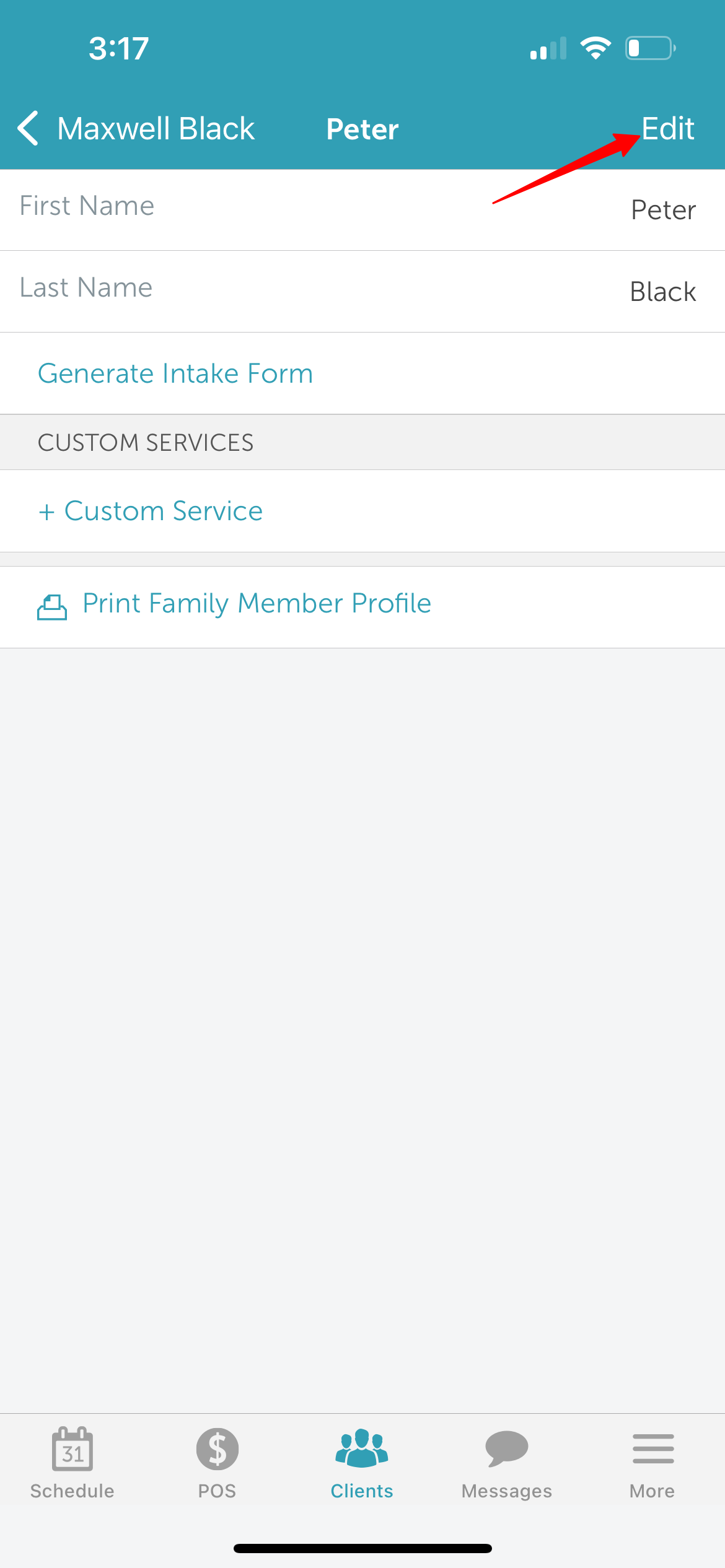
- On the family member’s profile, select Edit at the top right of the screen
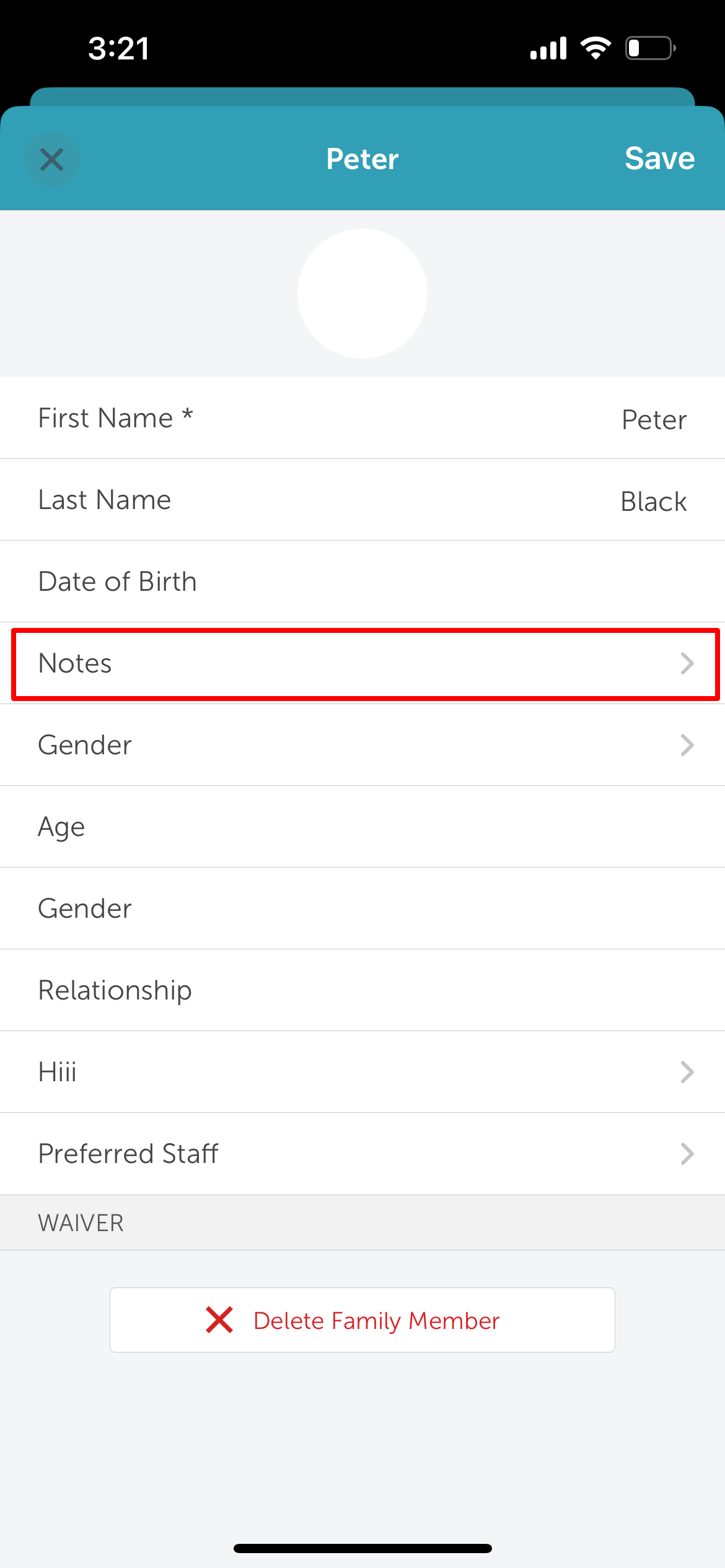
- Navigate to the Notes section on the family member profile
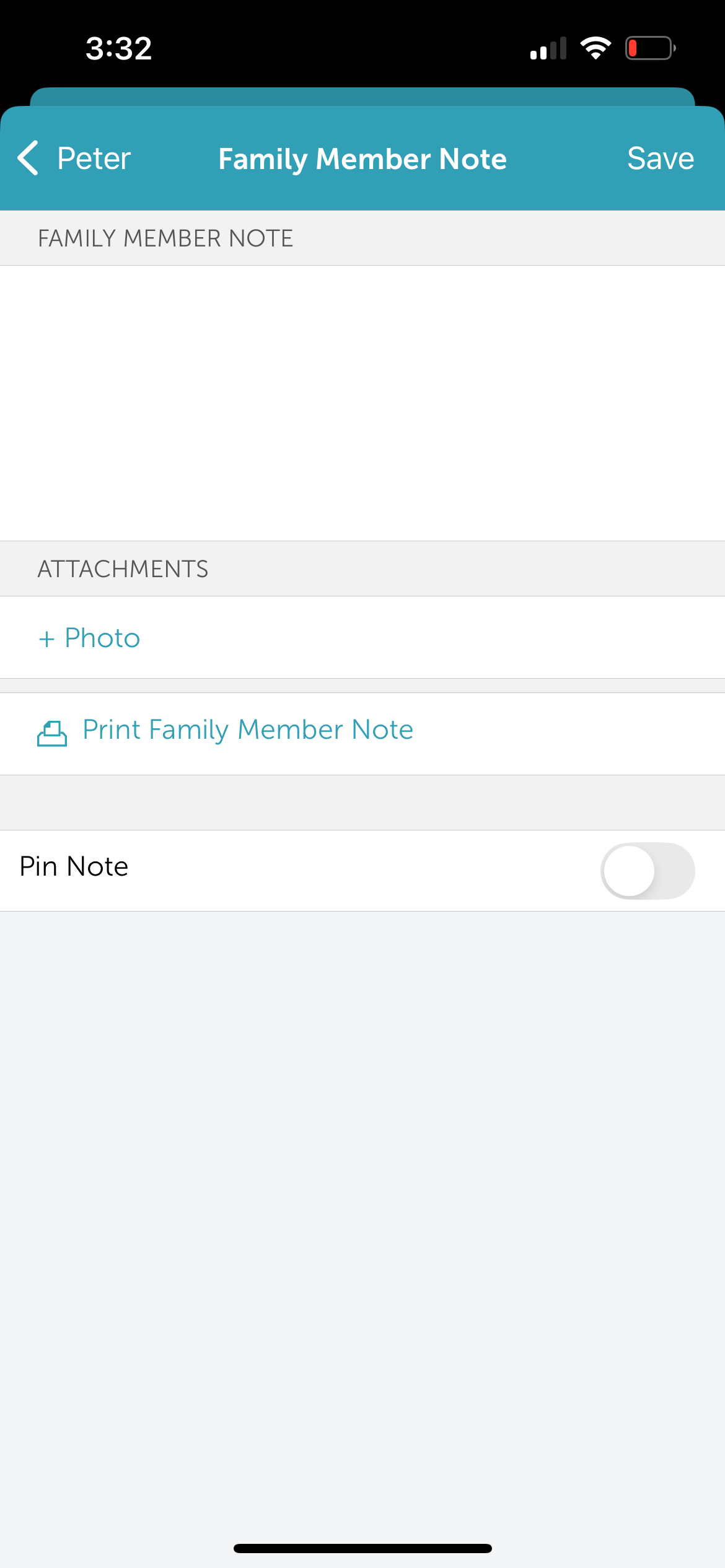
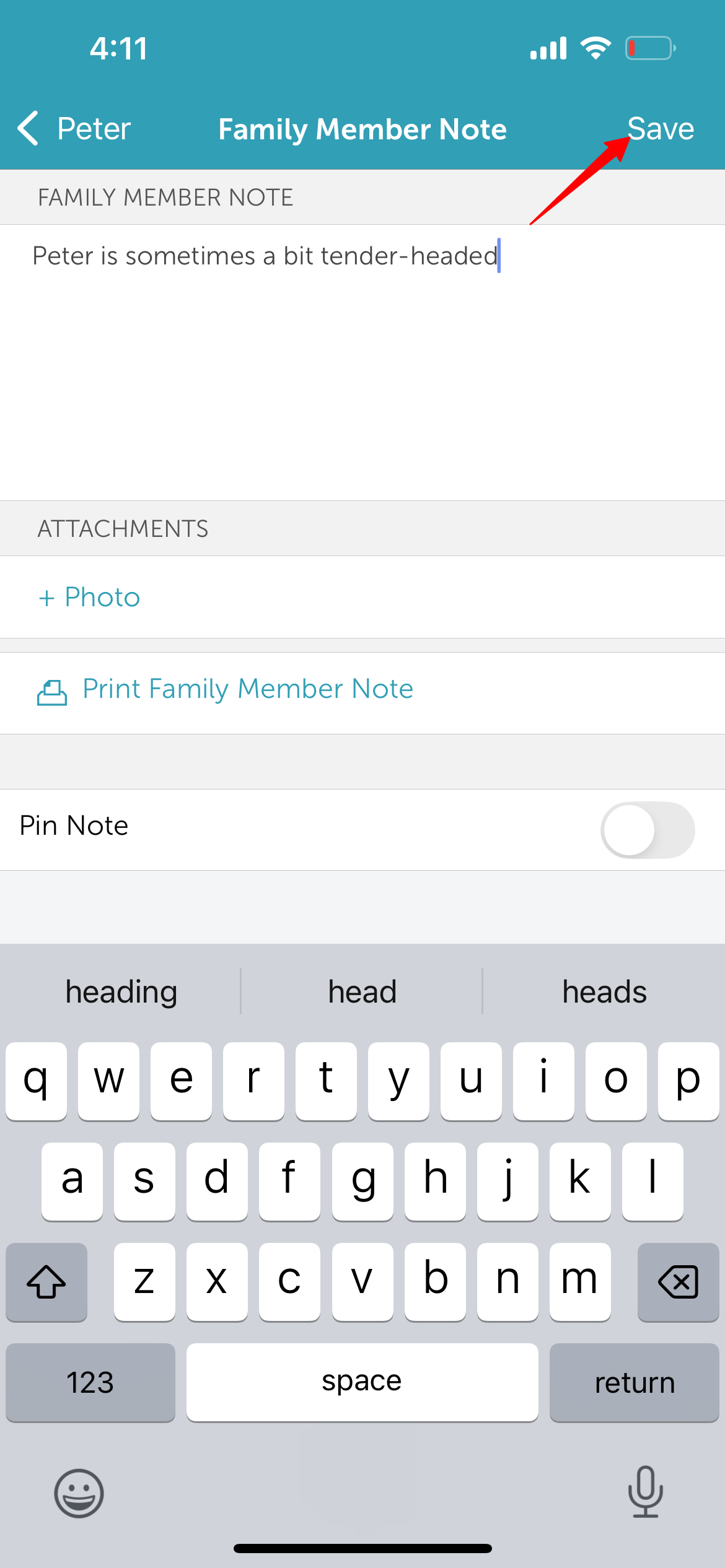
- On the family member Note screen
- Type the desired note in the family member Note field
- Select + Photo to add images
- To print the note, click Print family member Note
- To pin the note, toggle the Pin Note button
- Click Save at the top right of the screen
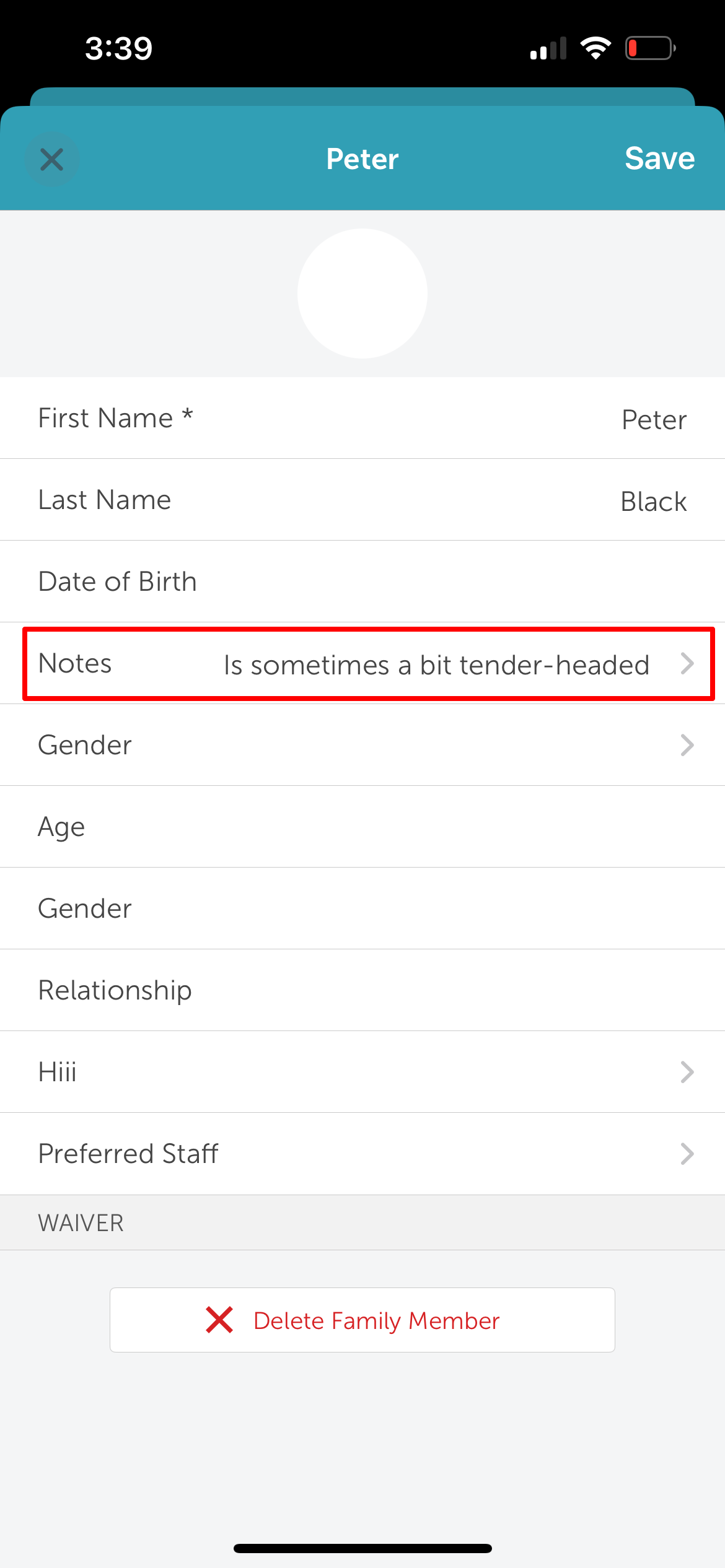
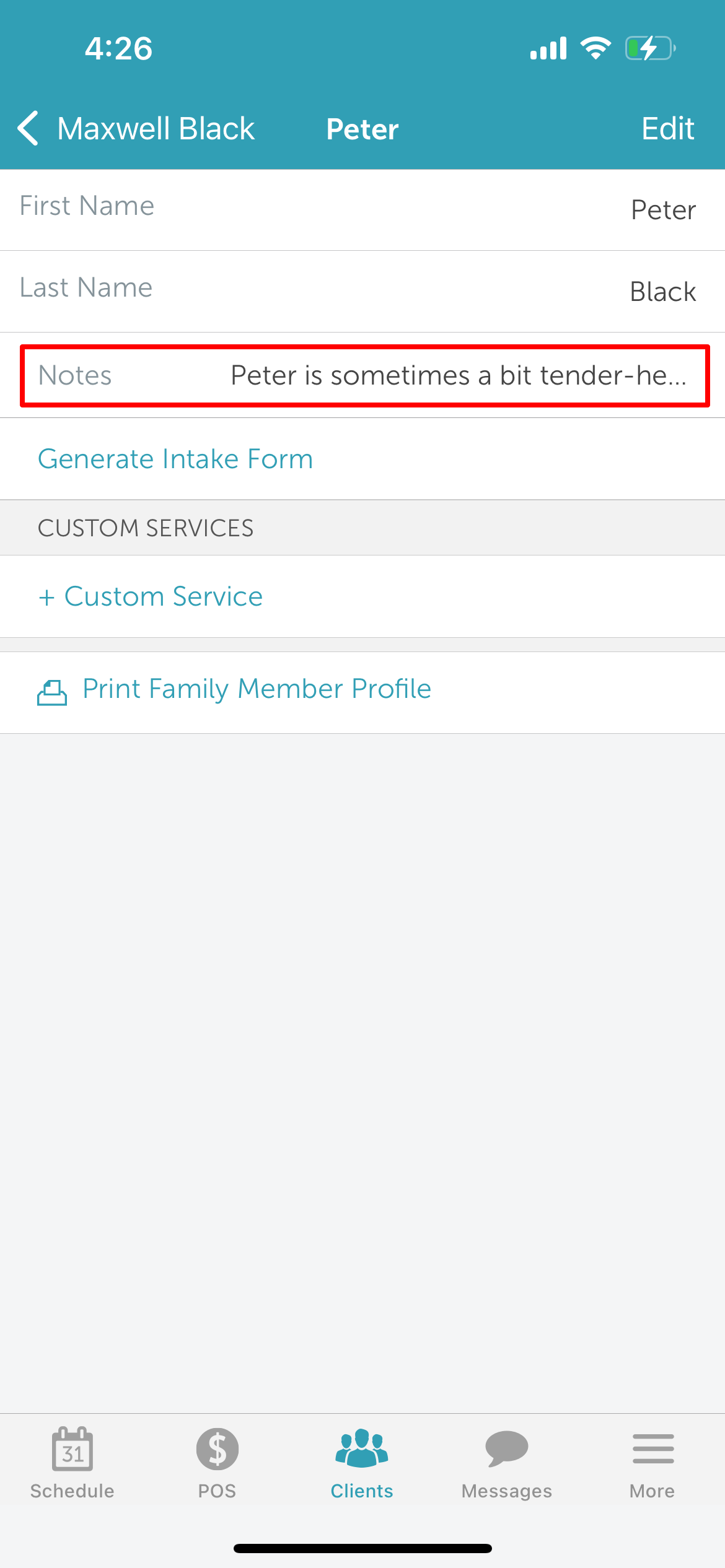
- Once saved, the note will be visible in the Notes section on the family member profile
Editing Family Member Notes
To edit family member notes:
- From the pet profile, select the note to open the Pet Note screen
- Make the necessary changes and click Save at the top of the screen
- The updated note will appear in the Notes section on the pet profile
For more information contact us at support@mytime.com.
Related Articles:
Installing MyTime on Scheduler App (Android and iOS)
Signing into MyTime on Scheduler App (Android and iOS)
Deleting Family Members on Scheduler App
Adding Family Member on Scheduler App
Scheduling Appointment for Family Members on the Scheduler App
Was this article helpful?
That’s Great!
Thank you for your feedback
Sorry! We couldn't be helpful
Thank you for your feedback
Feedback sent
We appreciate your effort and will try to fix the article