Credit card surcharging allows businesses to pass payment transaction fees to customers who pay with a credit or debit card. This feature helps offset processing costs while maintaining a smooth, customer-friendly checkout experience. This article explains how it applies during payments and refunds.
Things to know:
This feature is currently available to businesses that have a Stripe or Global payment account.
Contents:
Taking Payment With Credit Card Surcharges
Once surcharges are configured, they are automatically applied when clients pay via credit and/or debit cards, depending on the configuration.
- Navigate to POS > New Ticket
- If multiple locations exist, filter by the desired location
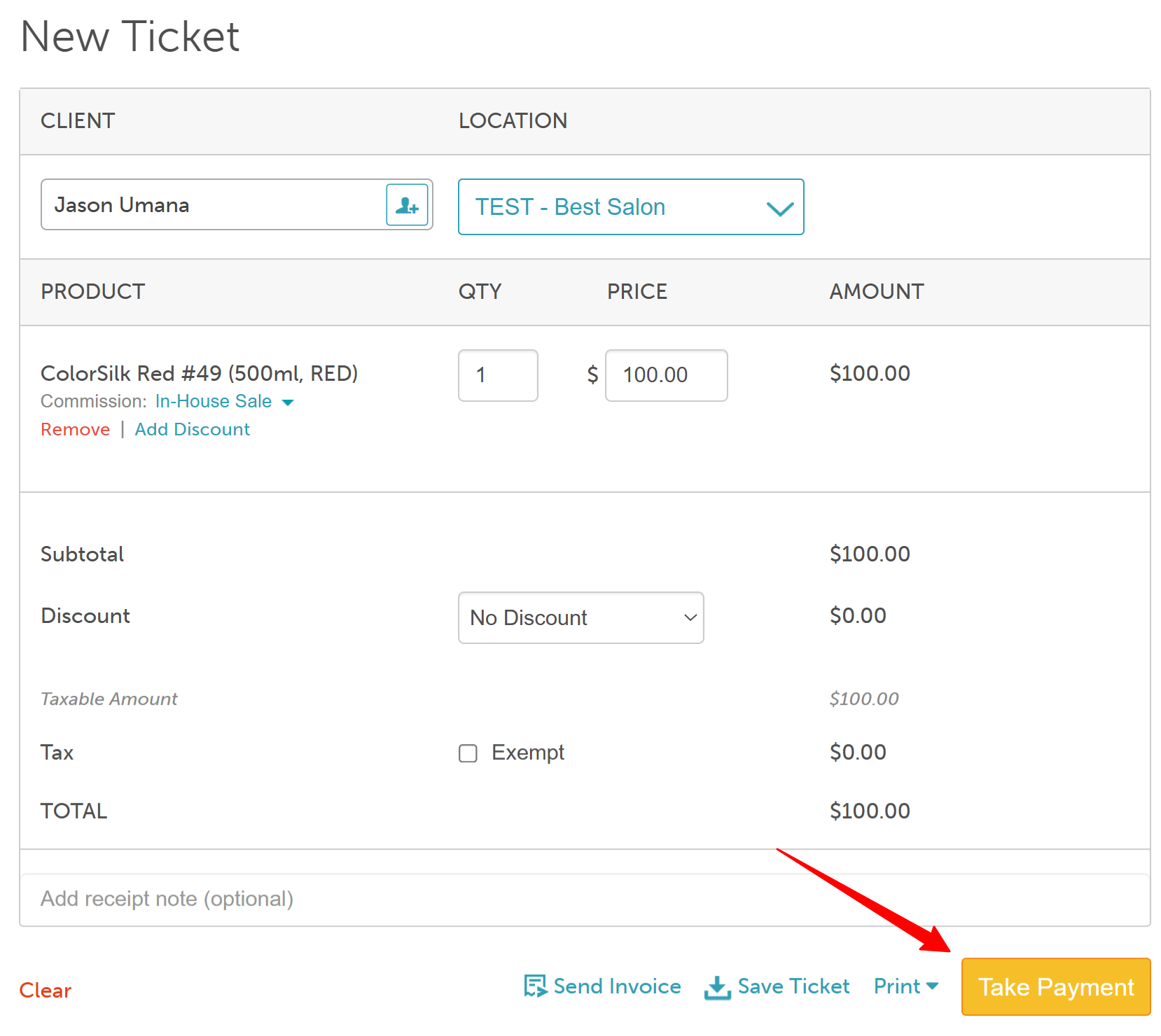
- Under the Services tab, add an appointment to the ticket, or add a class under the Classes tab, or add a product, gift card, membership, or package under the Products tab
- Click 'Take Payment'
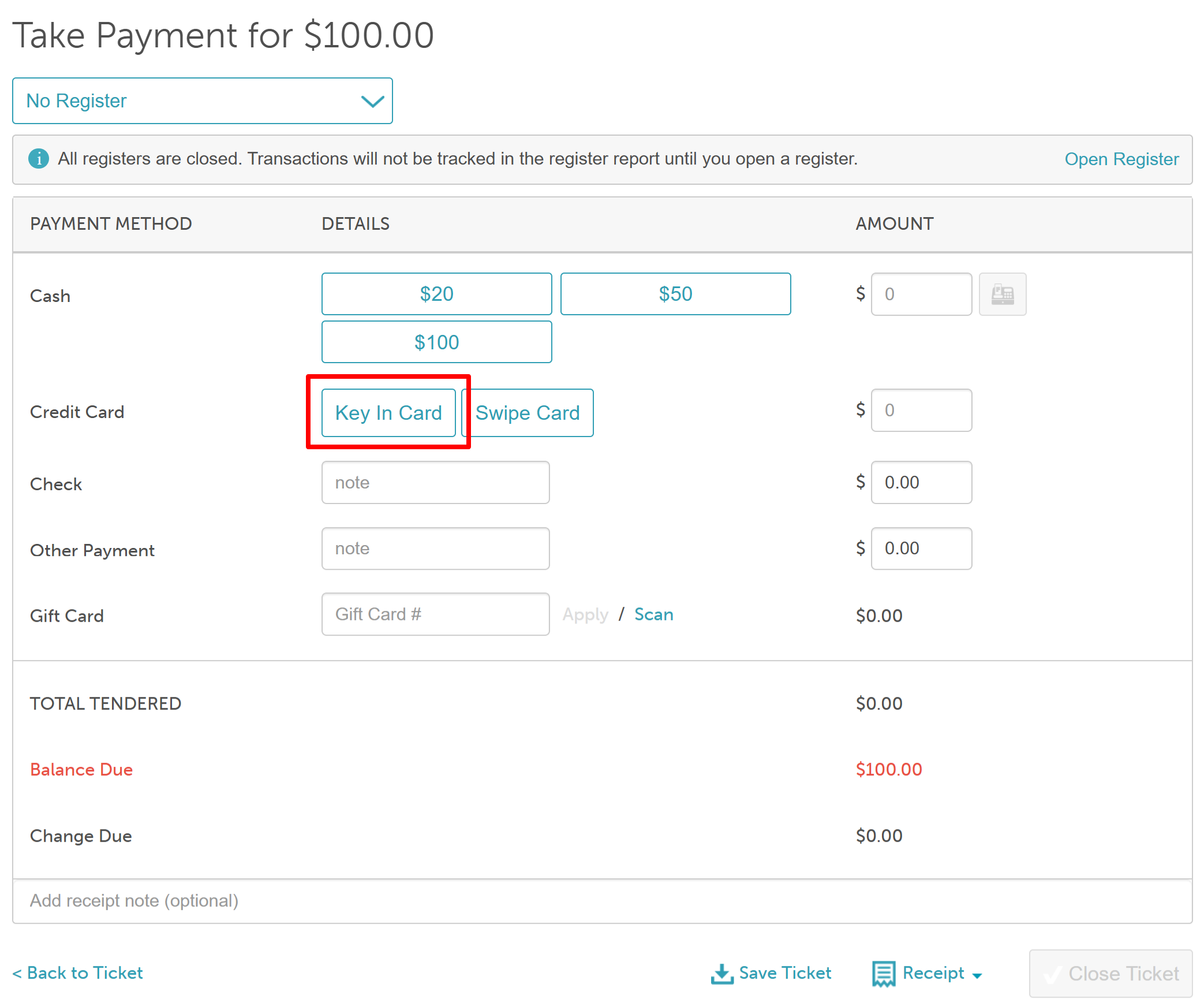
- Select the card payment method, such as:
- Swipe
- Tap
- Keyed-in card entry
- Card on file
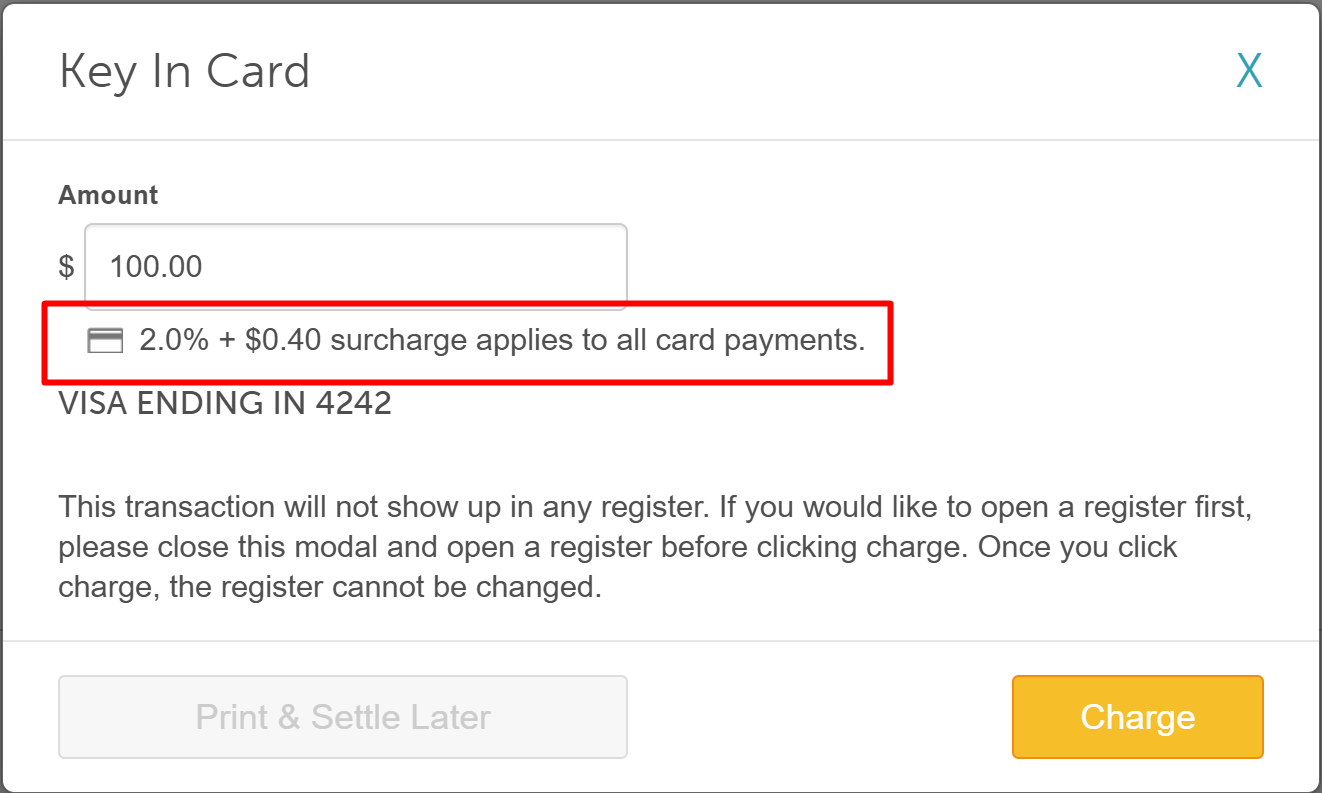
- The surcharge value will be displayed. Click Charge (or the applicable confirmation button based on the selected method) to complete the transaction
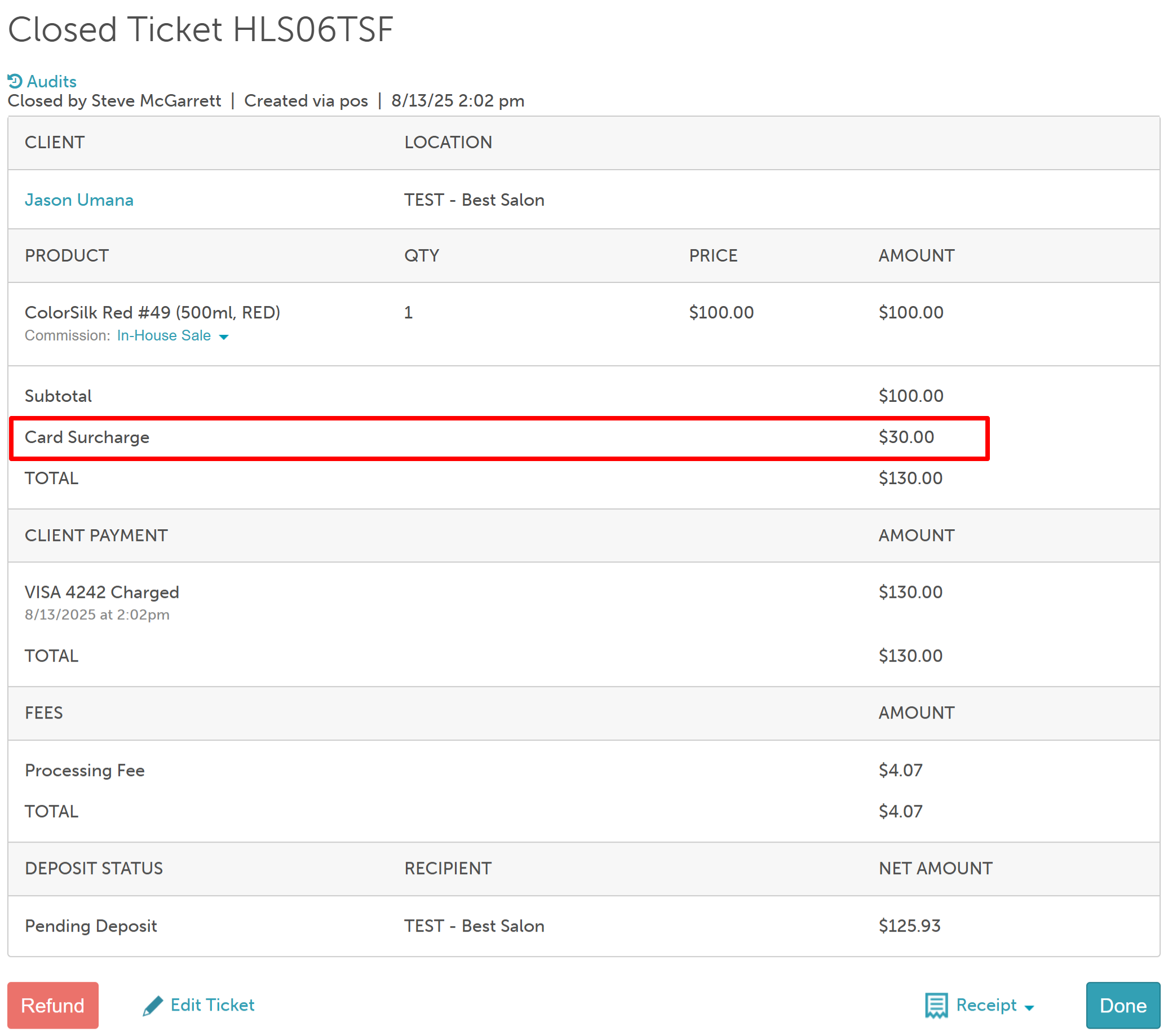
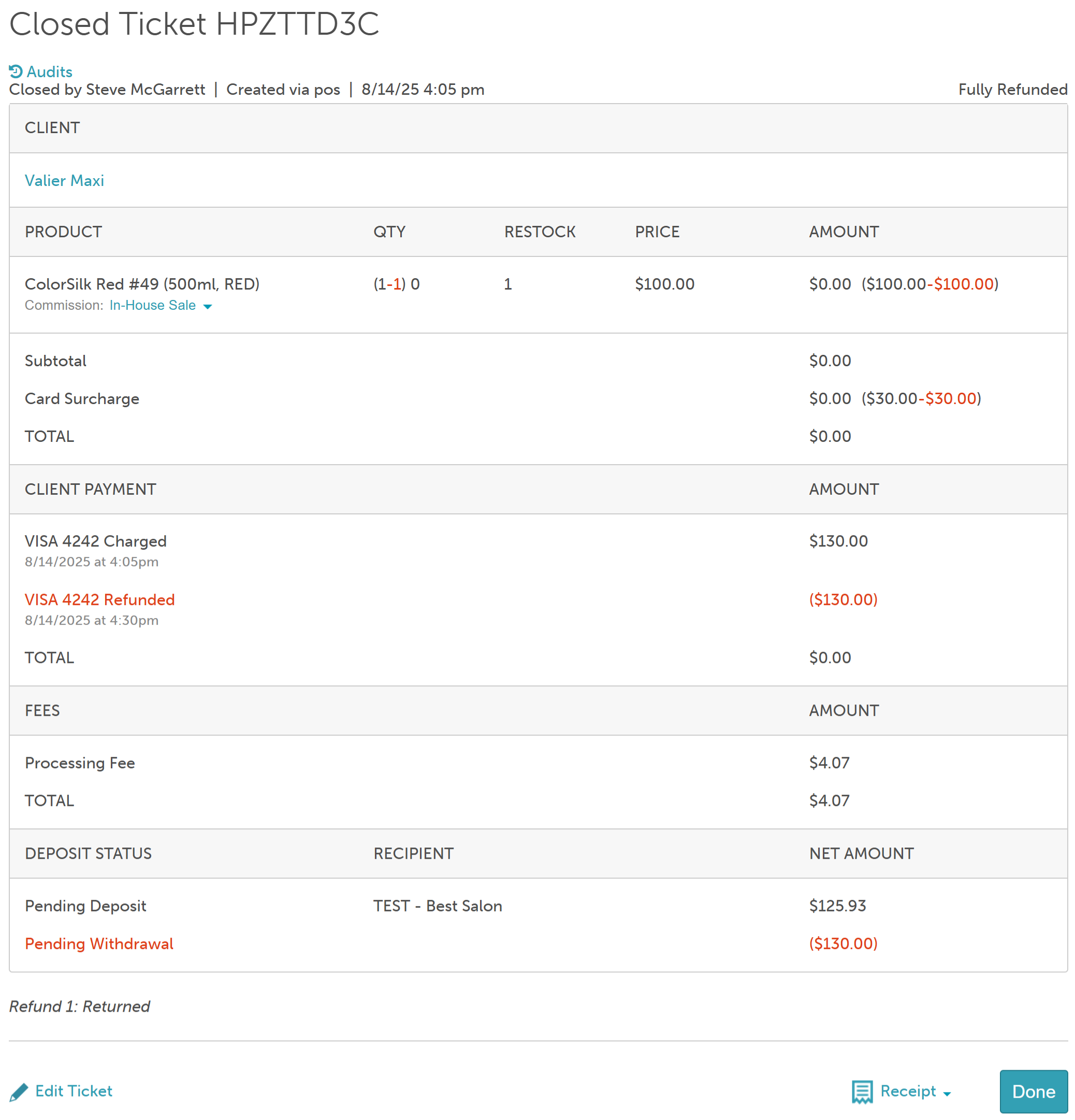
- Once the ticket is closed, surcharge details will also be visible on the closed ticket
Refunding Tickets With Credit Card Surcharges
- Navigate to POS > Closed Tickets
- Locate and open the desired closed ticket
- Click "Refund" at the bottom of the screen
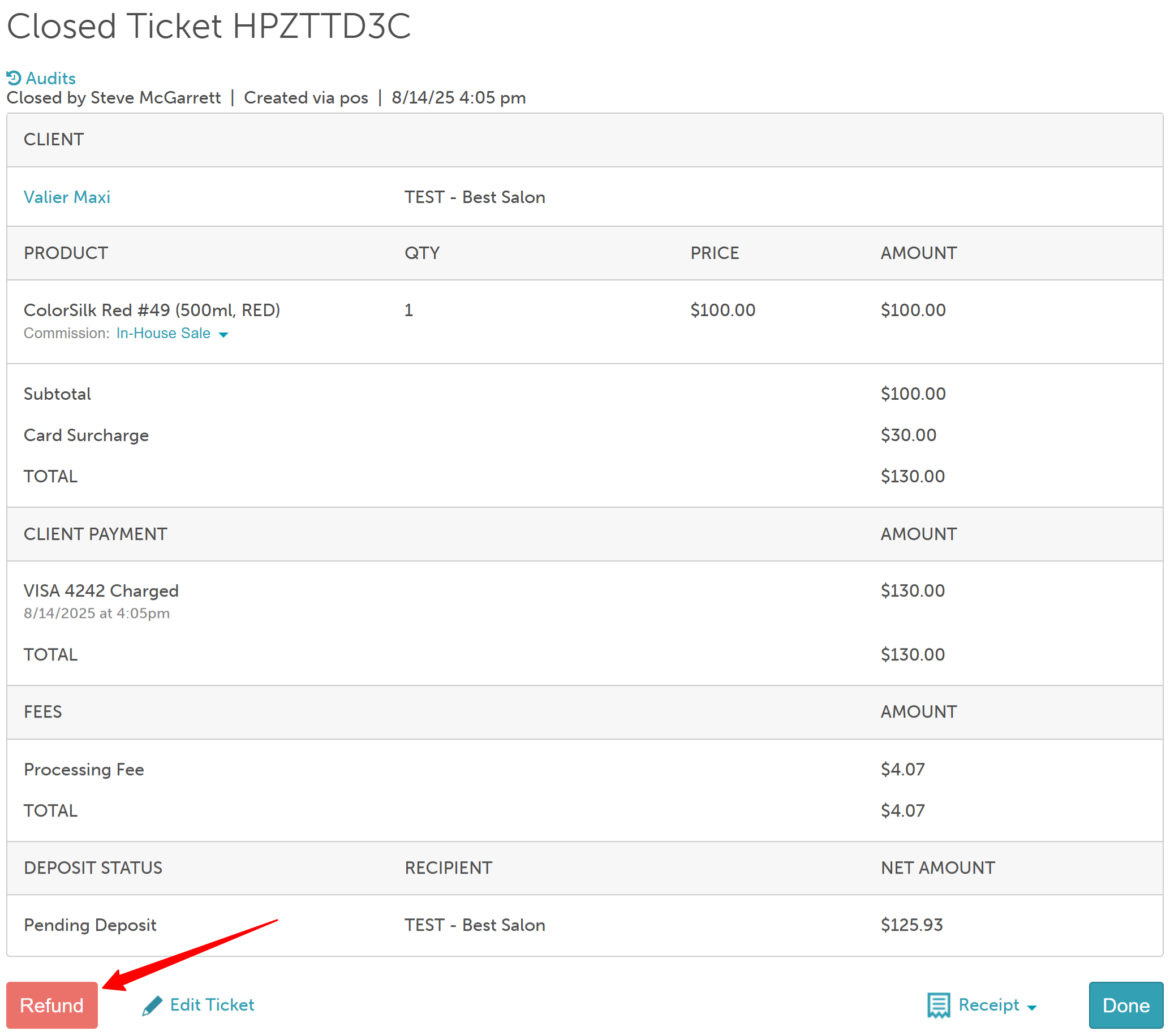
- Select the items to refund by checking the corresponding boxes
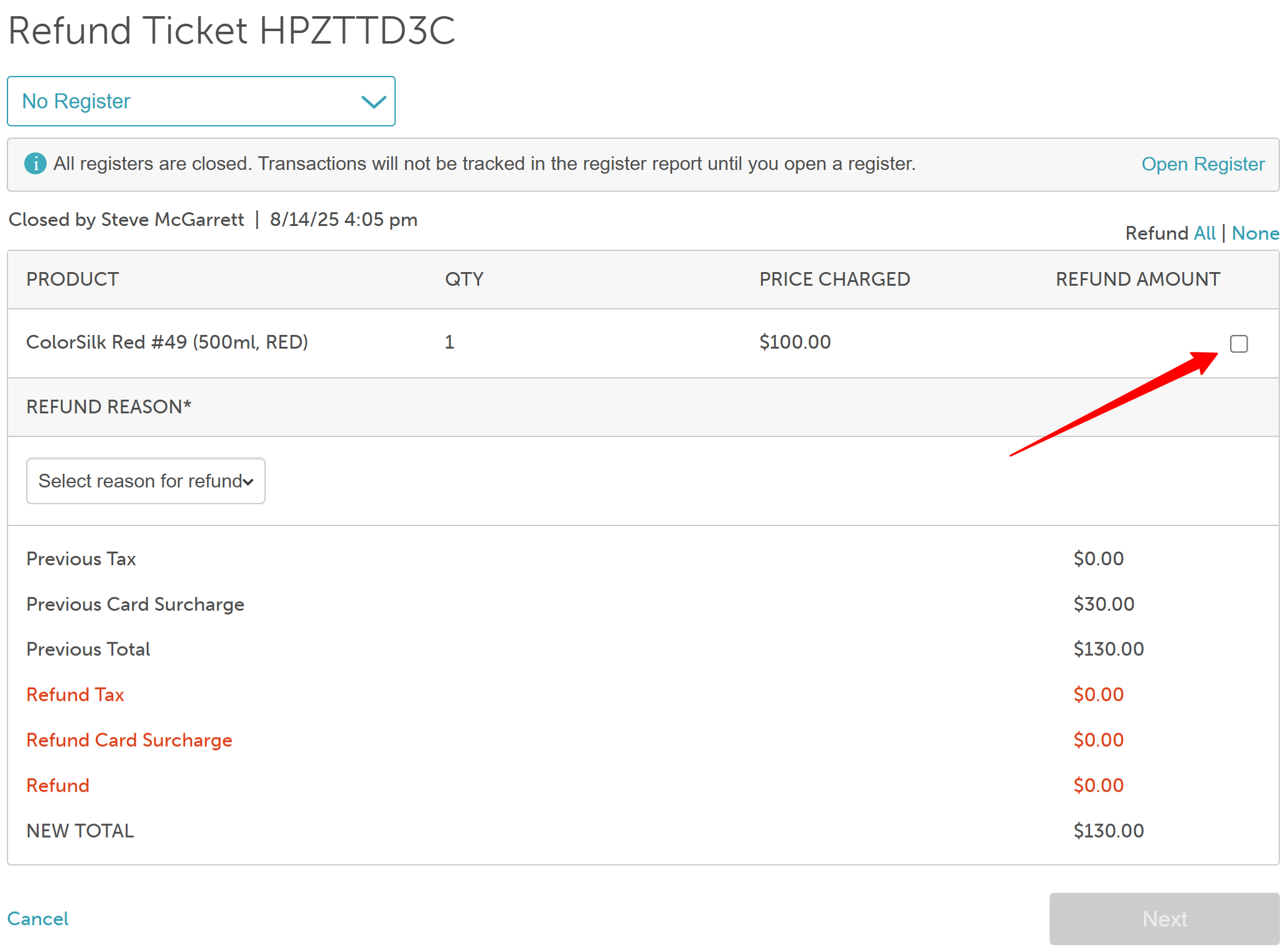
- Choose a full or partial refund.
- Select a refund reason (if configured) and click 'Next'
- The surcharge amount will be displayed below the refund box, and the total including the surcharge, will be shown at the bottom
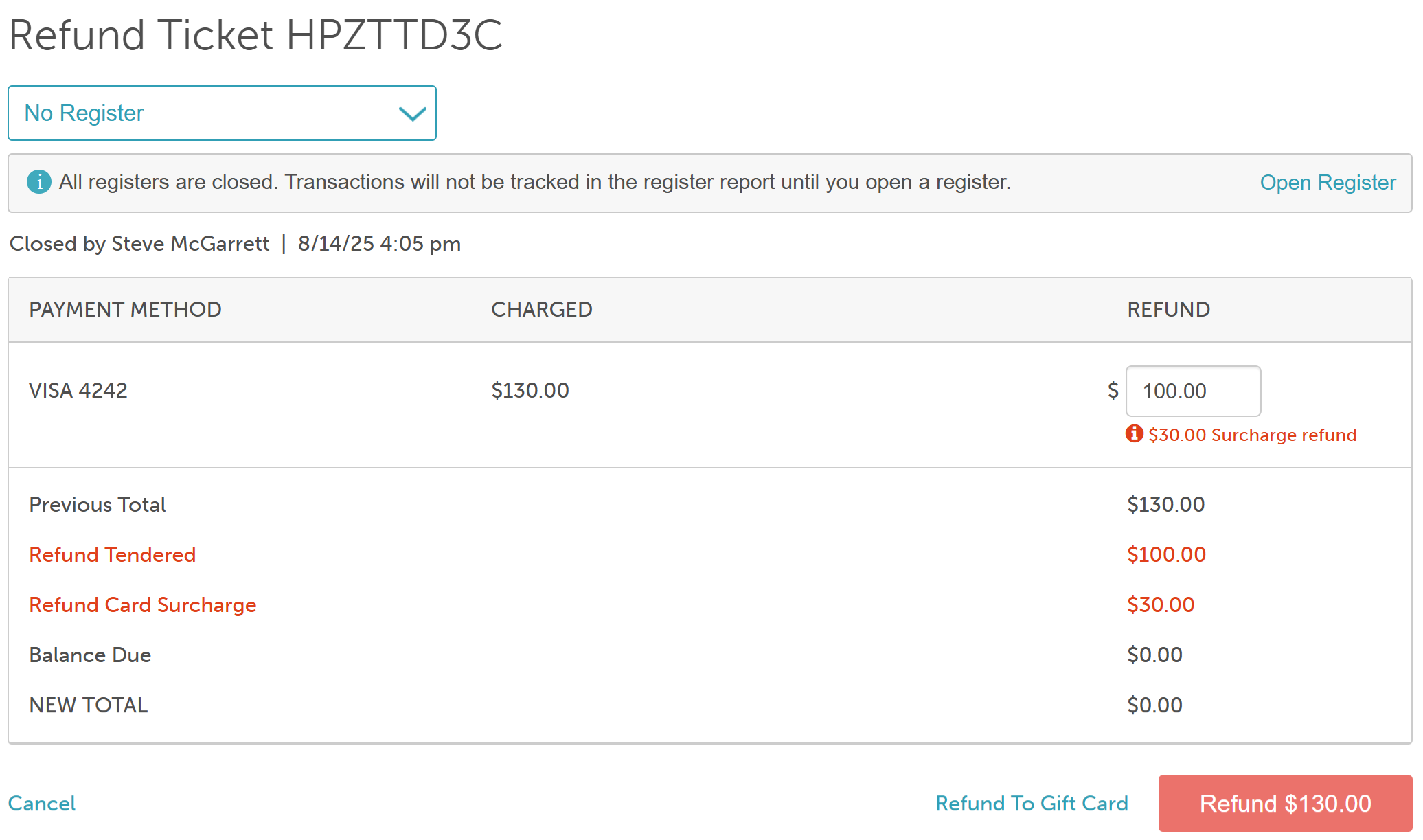
- Select the 'Refund' button to complete the process
- Click 'Done'
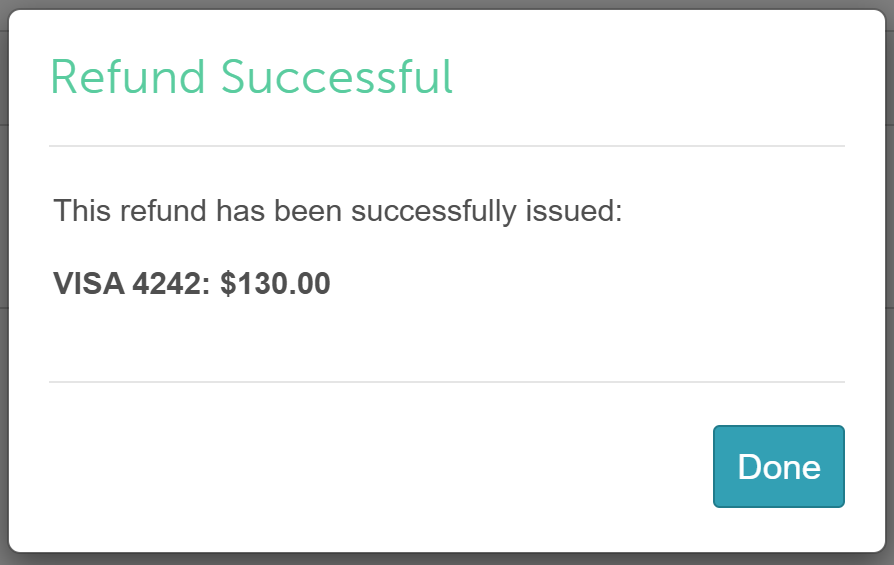
- You will then be directed to the ticket view, where refund details will be displayed
For more information, contact us at support@mytime.com or (385) 233-6964.
Related Articles:
Credit Card Surcharge Display for Online Bookings and Purchases
Displaying Credit Card Surcharges on Payment Terminals
Was this article helpful?
That’s Great!
Thank you for your feedback
Sorry! We couldn't be helpful
Thank you for your feedback
Feedback sent
We appreciate your effort and will try to fix the article