Credit card surcharging allows businesses to pass payment transaction fees to customers who pay with a credit or debit card. This feature helps offset processing costs while maintaining a smooth, customer-friendly checkout experience. This article explains how surcharging works and how to configure it.
Things to know:
- The ability to configure credit card surcharges is controlled by the 'Accessing Account Settings' access control permission.
- Surcharging is available to businesses that have a Stripe or Global Payments (TSYS) account. Global Payments (TSYS) users must complete an enrollment form 30 days before enabling the surcharge feature. To access the enrollment form, click here.
- Credit card surcharging is strictly governed by state regulations and card-network rules, so activation requirements vary depending on your payment processor:
- Global Payment Accounts: Surcharging requires a brief review and approval step. When you enable the feature in your settings, an activation request is automatically submitted to our team. Once the MyTime team reviews and approves your request, the option to set your surcharge rate will become available.
- Stripe Accounts: You can enable surcharging directly from your settings without additional approval (subject to state eligibility). Once you turn on the setting, you will immediately be able to set your surcharge rates
- Surcharge Rules & Compliance:
- Surcharge rules can be configured by location, card type, and transaction type (card-present, card-not-present, or all transactions).
- Surcharge rates are capped at a maximum of 3%. If you attempt to enter a surcharge rate outside the permitted range, the system will display the following error: “Surcharge percentage rate must be between 0.1% and 3%.
- Card network rules explicitly prohibit applying a surcharge to any portion of a transaction that represents a gratuity or tip.
- Complying with card brand rules, as well as local, state, and federal laws, is solely your responsibility. You must strictly adhere to card brand rules to prevent costly non-compliance violations. See the attached Card Brand Rule Reminders and Violation Updates (PDF) for full compliance details.
- A surcharge cannot be charged alongside a service fee or convenience fee. These are separate payment programs governed by distinct rules.
- Disclosure Requirements: You are legally required to clearly disclose your intent to surcharge as well as the exact fee amount. The following disclosure rules apply:
- Prominent Signage: Disclosures must be clearly visible at:
- The physical entrance of your business location
- The point of purchase or checkout counter
- The customer's transaction receipt
- Clear Terms: Disclosures must state the exact dollar amount or percentage and explicitly clarify that the surcharge is assessed by the merchant and applies to credit card transactions only.
- Transaction Cancellation: Customers must always be permitted to cancel the transaction without penalty after the surcharge amount is disclosed to them.
- Prominent Signage: Disclosures must be clearly visible at:
- Prohibited States & Jurisdictions: Surcharging is currently legally prohibited in certain U.S. states. You may not apply surcharges if operating in or processing transactions from:
- Connecticut
- Maine
- Massachusetts
- Oklahoma
- (Note: State regulations are subject to change. Always verify current local laws before enabling surcharges.)
- Location Management:
- Surcharges can be configured for specific locations or location groups. Note: Surcharging by location groups requires the "Enable Surcharge for Location Groups" company setting to be enabled. Once active, configured location groups will appear in your location filter.
- Surcharge settings apply exclusively at the child account level. Enabling Card Surcharging turns on the feature for all locations under that account. You cannot turn off the surcharging capability for specific locations, though you can choose not to assign an active surcharge rule to them.
- When you assign a surcharge rule to a Location Group, that rule automatically applies to every location in the group. If you uncheck a location from a selected Location Group:
- The group itself will automatically deselect.
- The surcharge rule will convert into individual location rules, applying only to the remaining checked locations.
- Example: If you have a "West Coast" Location Group containing three locations: California, Oregon, and Washington
- Applying to the full group: Select the West Coast group. A 3% surcharge rule will instantly apply to Downtown, Uptown, and Airport.
- Excluding a location: If you uncheck California, the West Coast group automatically deselects. The system updates the 3% surcharge rule to apply exclusively as individual rules for Oregon and Washington
- When you assign a surcharge rule to a Location Group, that rule automatically applies to every location in the group. If you uncheck a location from a selected Location Group:
- When creating a new location using the template copier, all existing surcharge configurations are automatically copied over to the new location.
- Deleting a location automatically removes its associated surcharge configuration.
- If all locations assigned to a specific surcharge rule are deleted, the surcharge rule itself is permanently deleted.
- Regional & Gateway Restrictions
- You have the option to configure different surcharges for different regions. This ability is controlled by the 'Separate Surcharges for EFTPOS and International Cards (AU Only)' hidden setting that can only be enabled by the MyTime team. To enable this setting, please contact support@mytime.com.
- Australia (AU) Only Features: The EFTPOS, card type, and region filters are available only for AU locations.
- Non-AU Locations: For businesses outside of Australia (e.g., the USA), selections are limited. Only the credit card option is available, while debit, EFTPOS, and both options are disabled.
- You have the option to configure different surcharges for different regions. This ability is controlled by the 'Separate Surcharges for EFTPOS and International Cards (AU Only)' hidden setting that can only be enabled by the MyTime team. To enable this setting, please contact support@mytime.com.
- POS Accounting (POSA): Surcharge fees are fully tracked in POS Accounting.
- In POSA, surcharges are generated as a separate line item within the journal response.
- Surcharges appear under the dedicated item type
surcharge_item, allowing you to easily map these fees to the correct account class in your accounting software.
- The Business Snapshot report may display an effective credit card surcharge rate that appears slightly lower than your configured rate (for example, displaying 2.59% instead of your set 3.00%).
- Individual Tickets: Surcharges are calculated and applied correctly at your exact configured rate on every transaction.
- Report Summaries: Minor discrepancies in the overall report percentage occur due to rounding calculations or timing differences in how transaction totals are grouped.
- The setup option displayed in the top-right user menu depends on how you access the account and your assigned role:
- When navigating from the Parent Account (Location Management tab):
- Admin: Displays Business Setup when viewing the location account.
- Login As: Displays Location Setup when viewing the location account.
- When logged in directly at the Location Level:
- Location Owners & Location Managers: Display Location Setup.
- Service Providers & All Other Roles: Display Profile Setup.
Contents:
- Enable Credit Card Surcharging (Stripe)
- Enable Credit Card Surcharging (Global Payment)
- Credit Card Surcharges For All Regions
- Credit Card Surcharges for Different Regions
Enable Credit Card Surcharging (Stripe)
- Navigate to Business Setup / Location Setup > Settings
- Scroll to the POS section
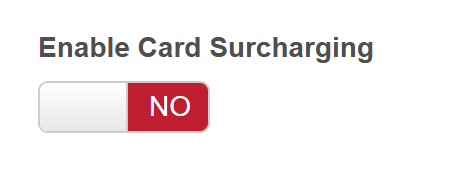
- Locate the 'Enable Card Surcharging' setting and toggle it to 'Yes'
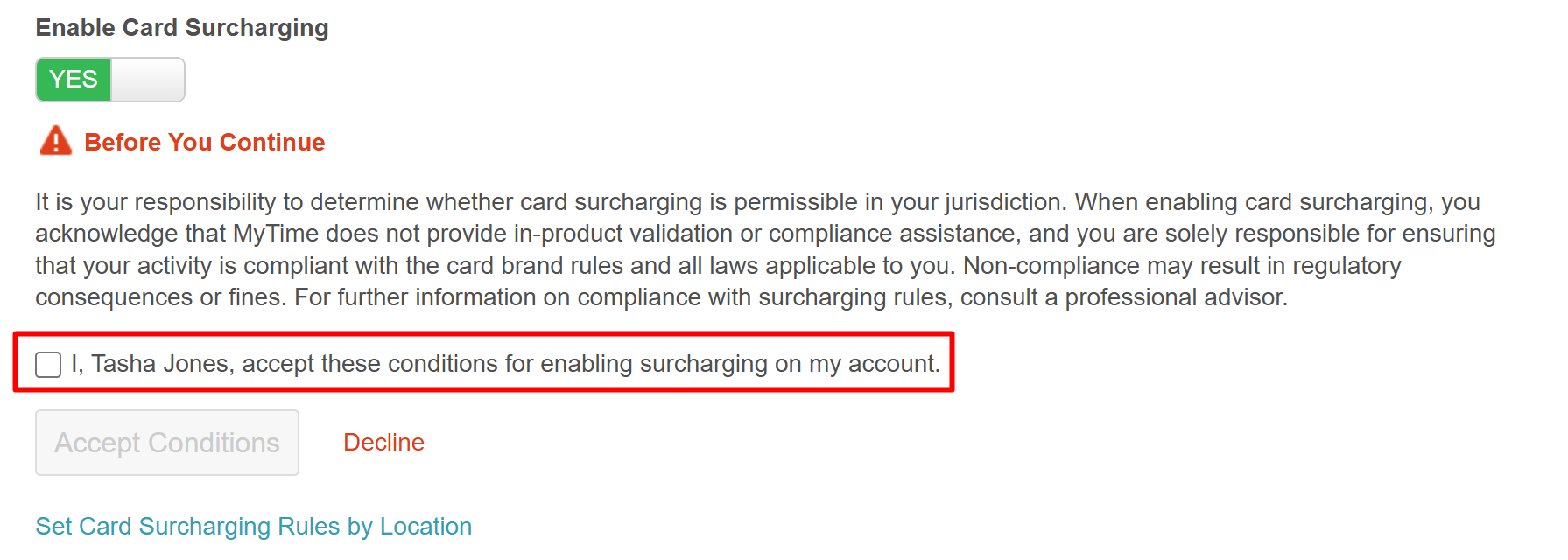
- Review the terms and conditions and accept them by checking the checkbox
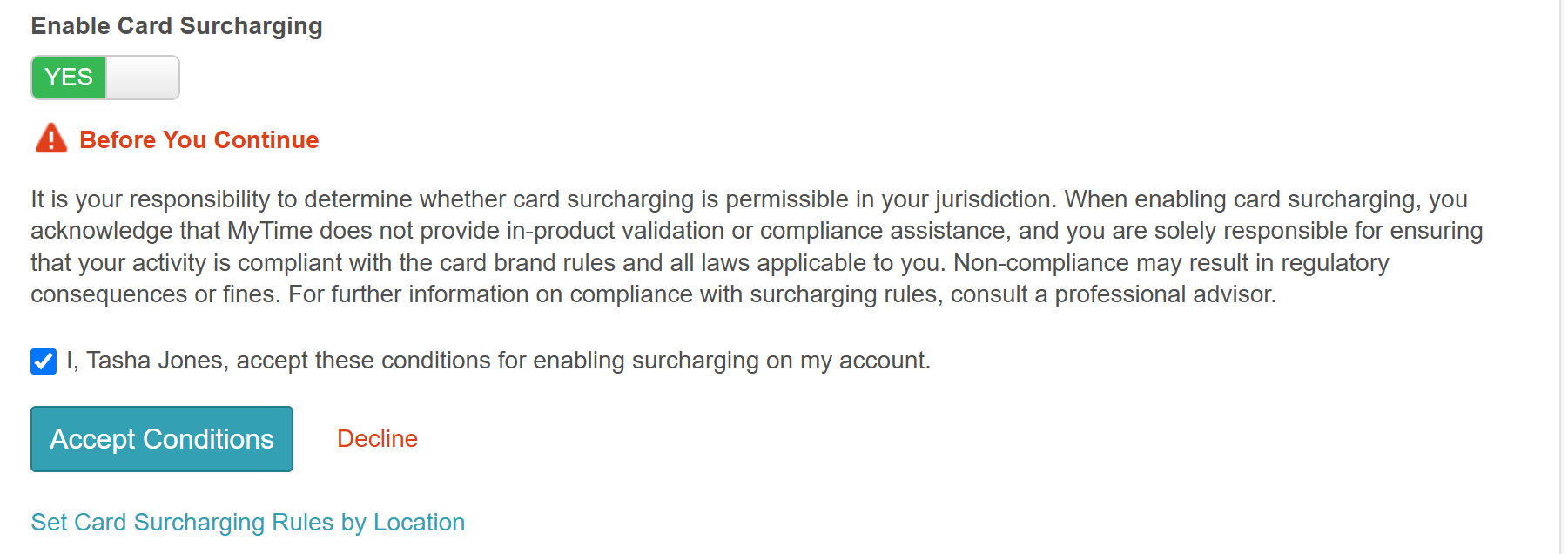
- Click the "Accept Conditions" button to proceed
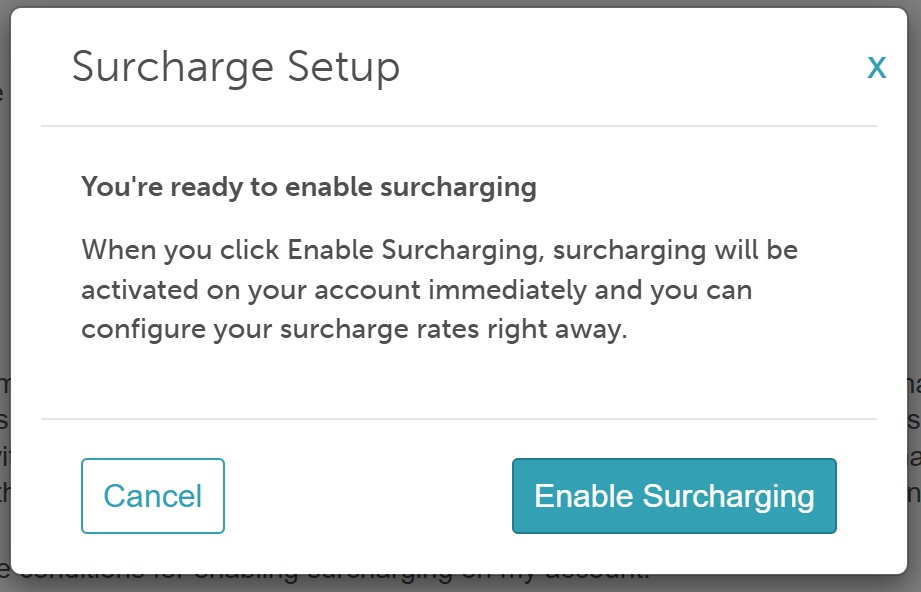
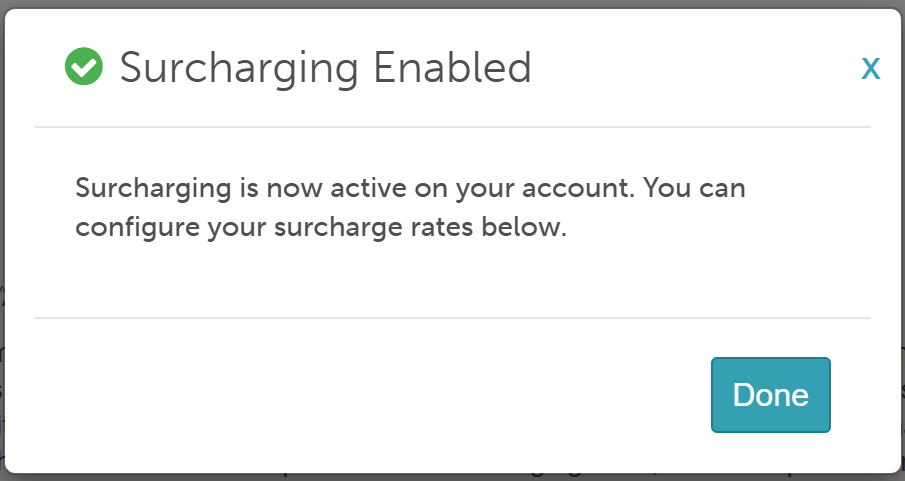
- A Surcharge Setup modal will appear, click 'Enable Surcharging'
- Click 'Done' on the confirmation modal
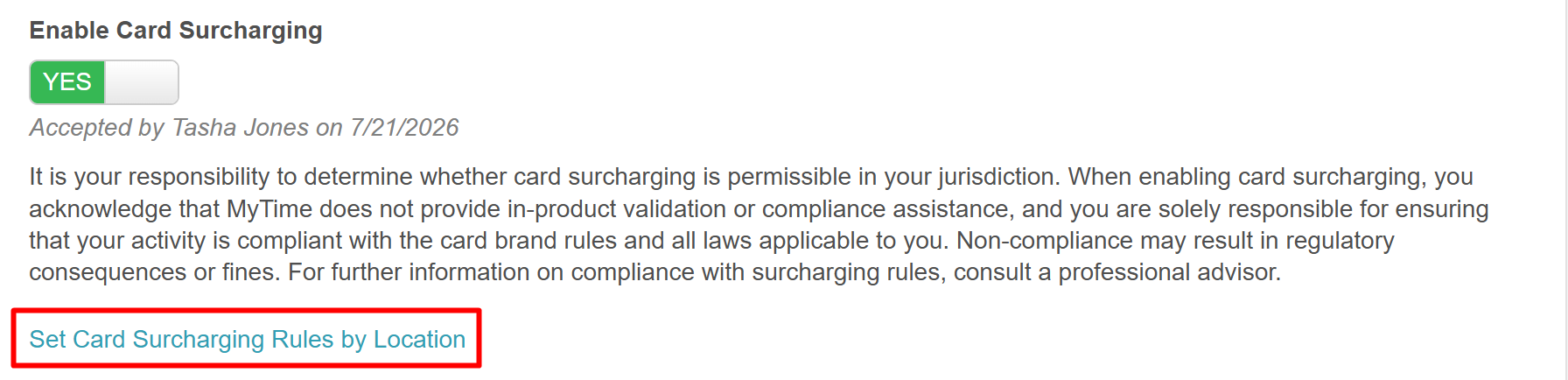
- Once accepted, the staff member's name and date of acceptance will be displayed on the screen
- Click Set Card Surcharging Rules by Location to expose the configuration fields below
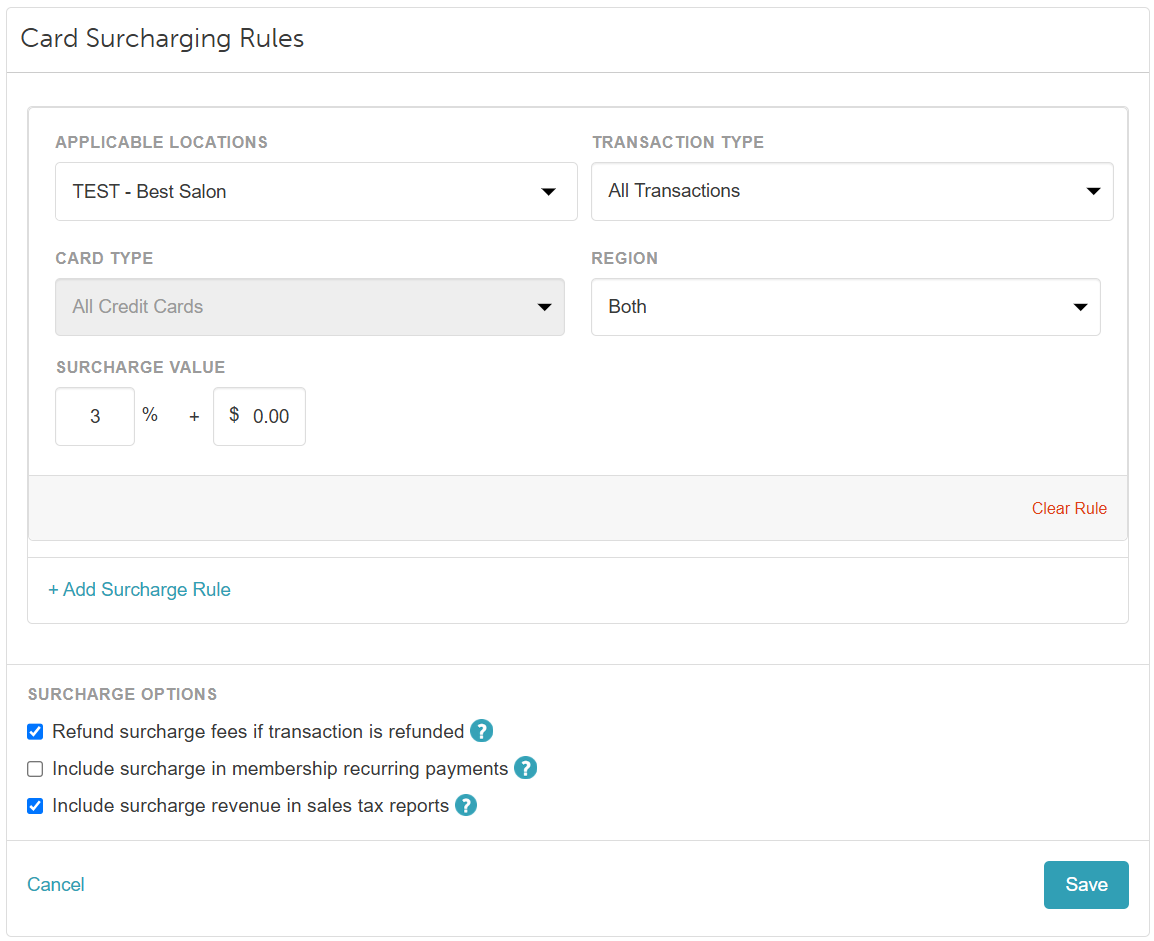
- Set the surcharging rules for each location. Follow the steps listed for different or all regions below
Enable Credit Card Surcharging (Global Payment)
Global Payment accounts require activation from the MyTime team before they are able to configure the accounts. To get started, follow these steps:
- Navigate to Business Setup / Location Setup > Settings
- Scroll to the POS section
- Locate the 'Enable Card Surcharging' setting and toggle it to 'Yes'
- Review the terms and conditions and accept them by checking the checkbox
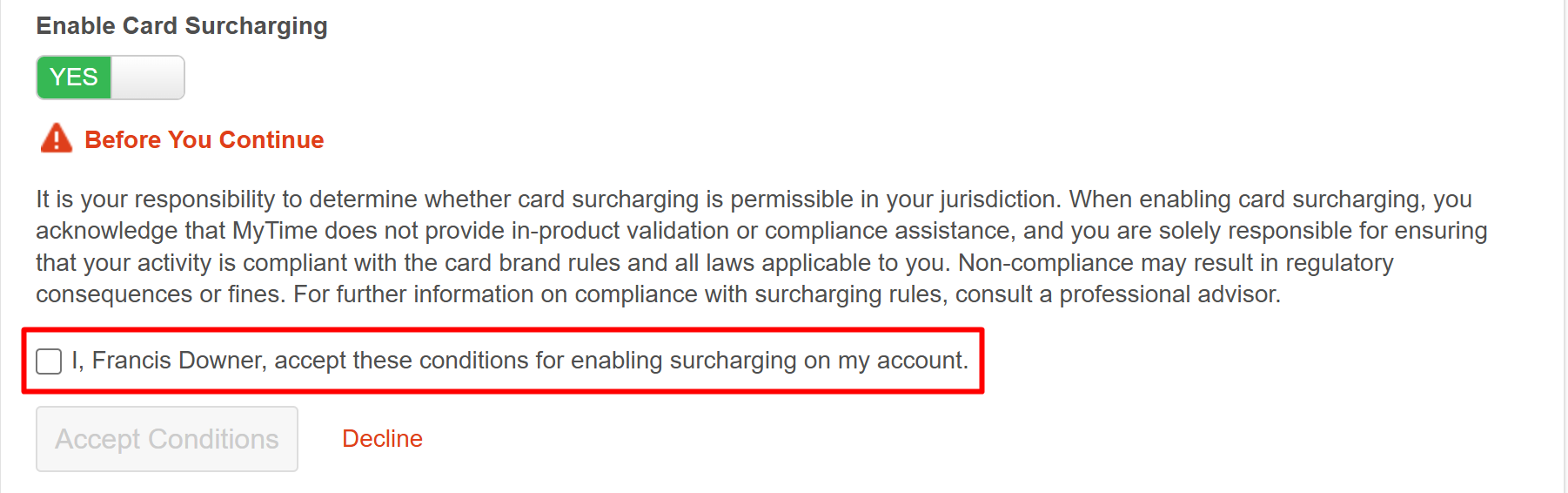
- Click the "Accept Conditions" button to proceed
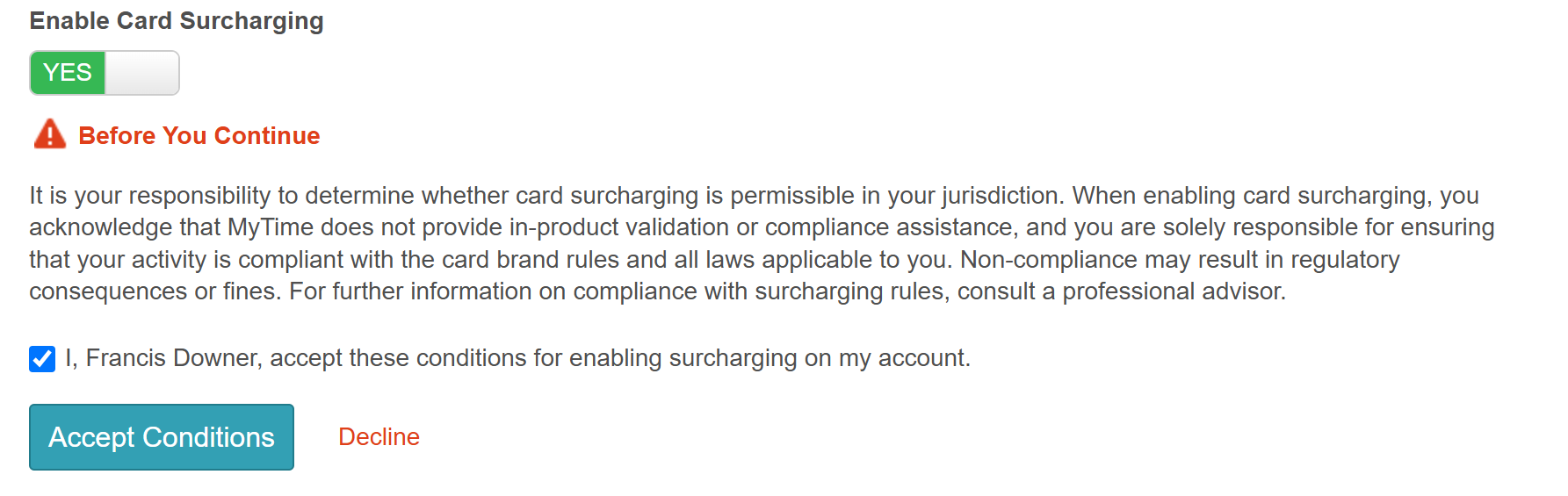
- Once accepted, a Surcharge Setup modal appears with a Request Activation button > Click "Request Activation"
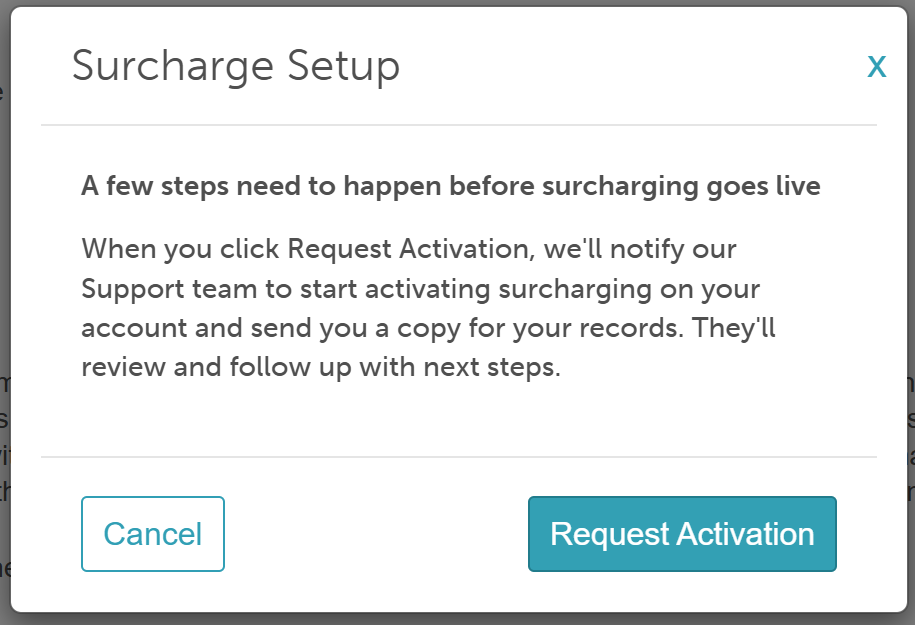
- This will notify MyTime's Support and show a Request Sent confirmation > Click 'Done'
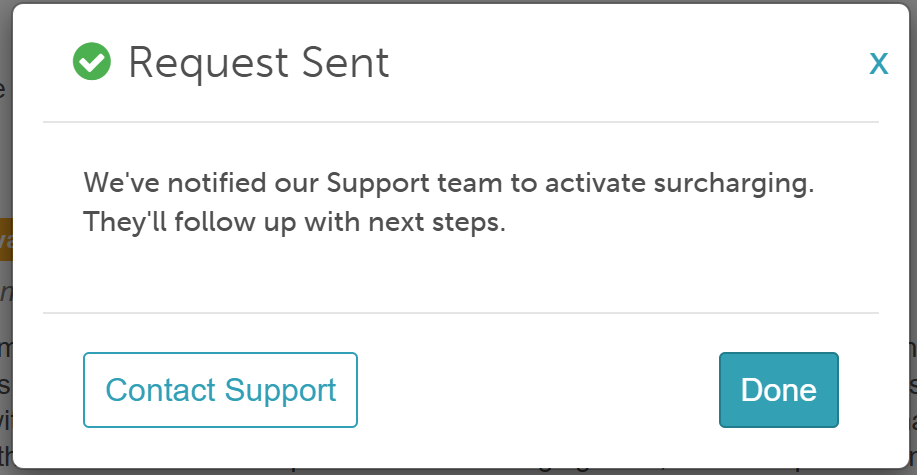
- The setting then displays a "Pending Approval From MyTime" badge, and the surcharge rate configuration stays hidden until the account is approved. The staff member's name and date of acceptance will be displayed on the screen

- Once accepted, the Set Card Surcharging Rules by Location hyperlink will be displayed; click to expose the configuration fields below
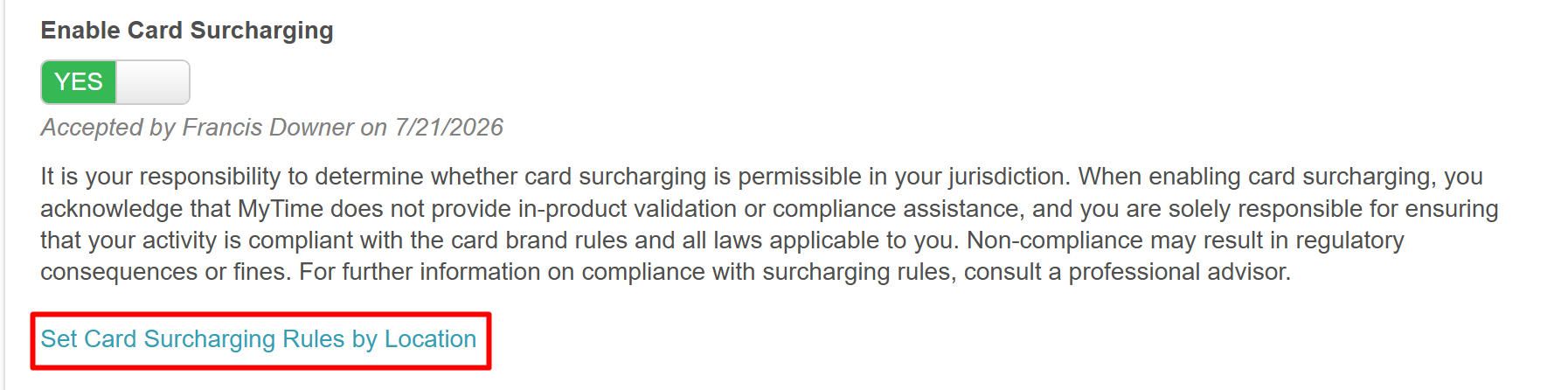
- Set the surcharging rules for each location. Follow the steps listed for different or all regions below
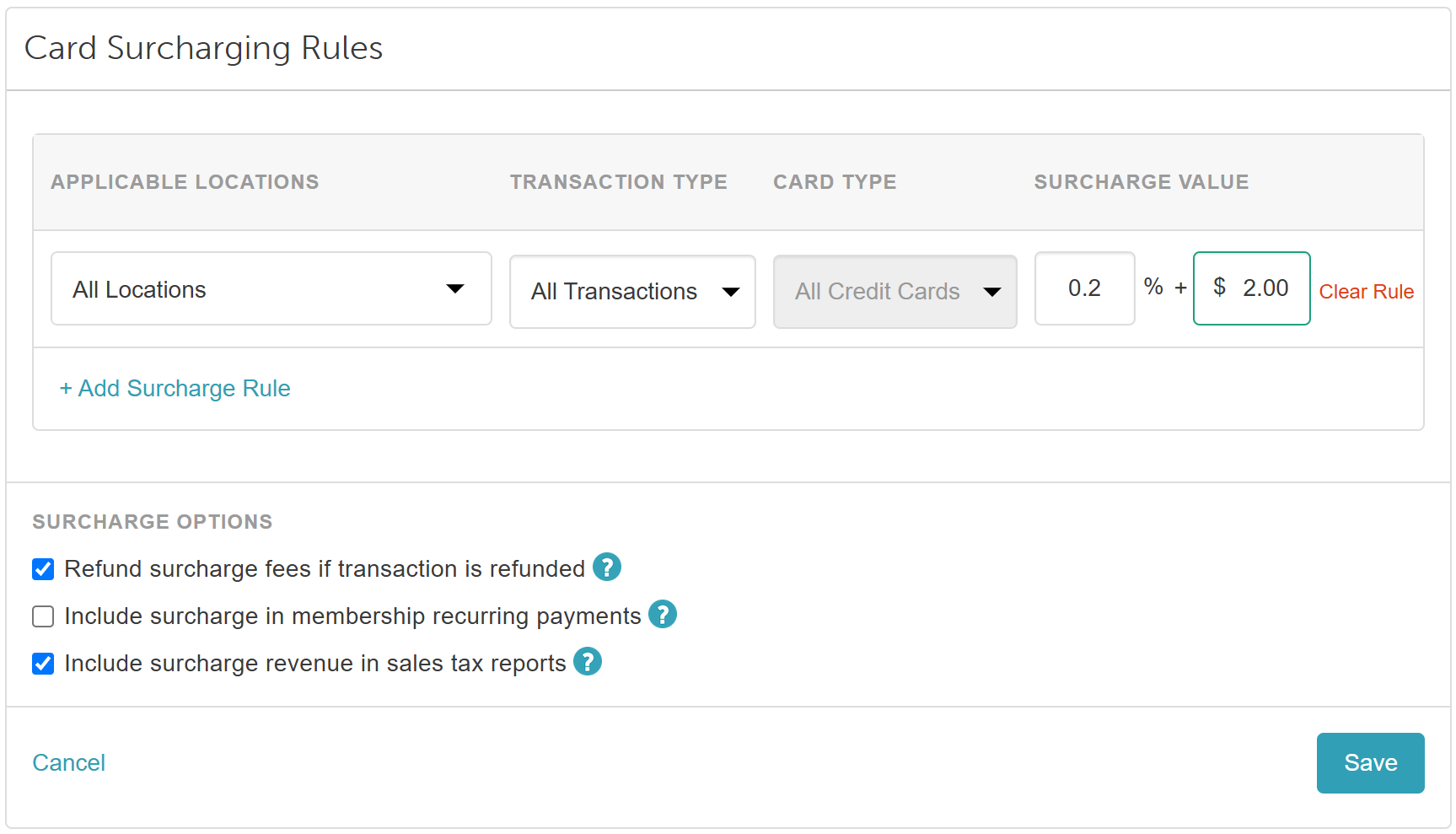
Credit Card Surcharges For All Regions
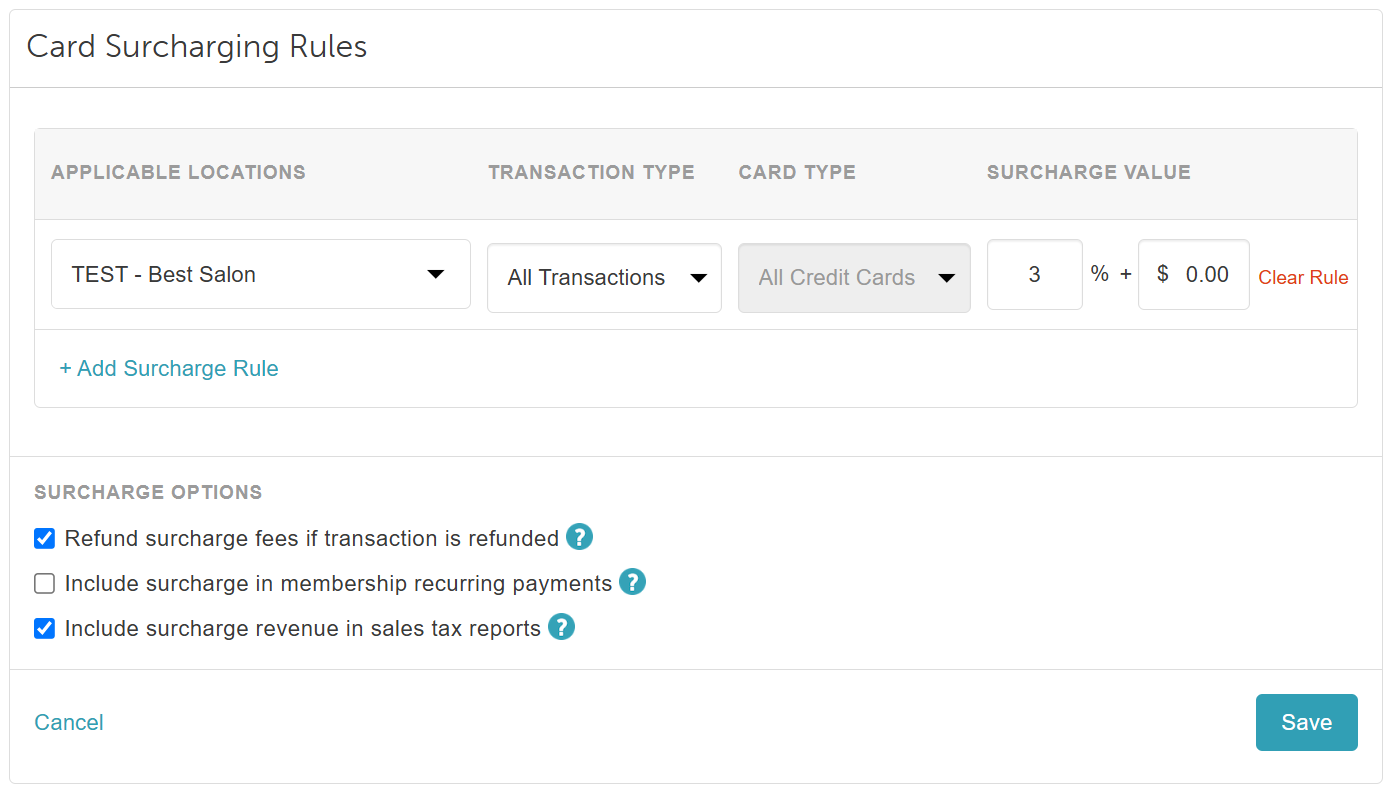
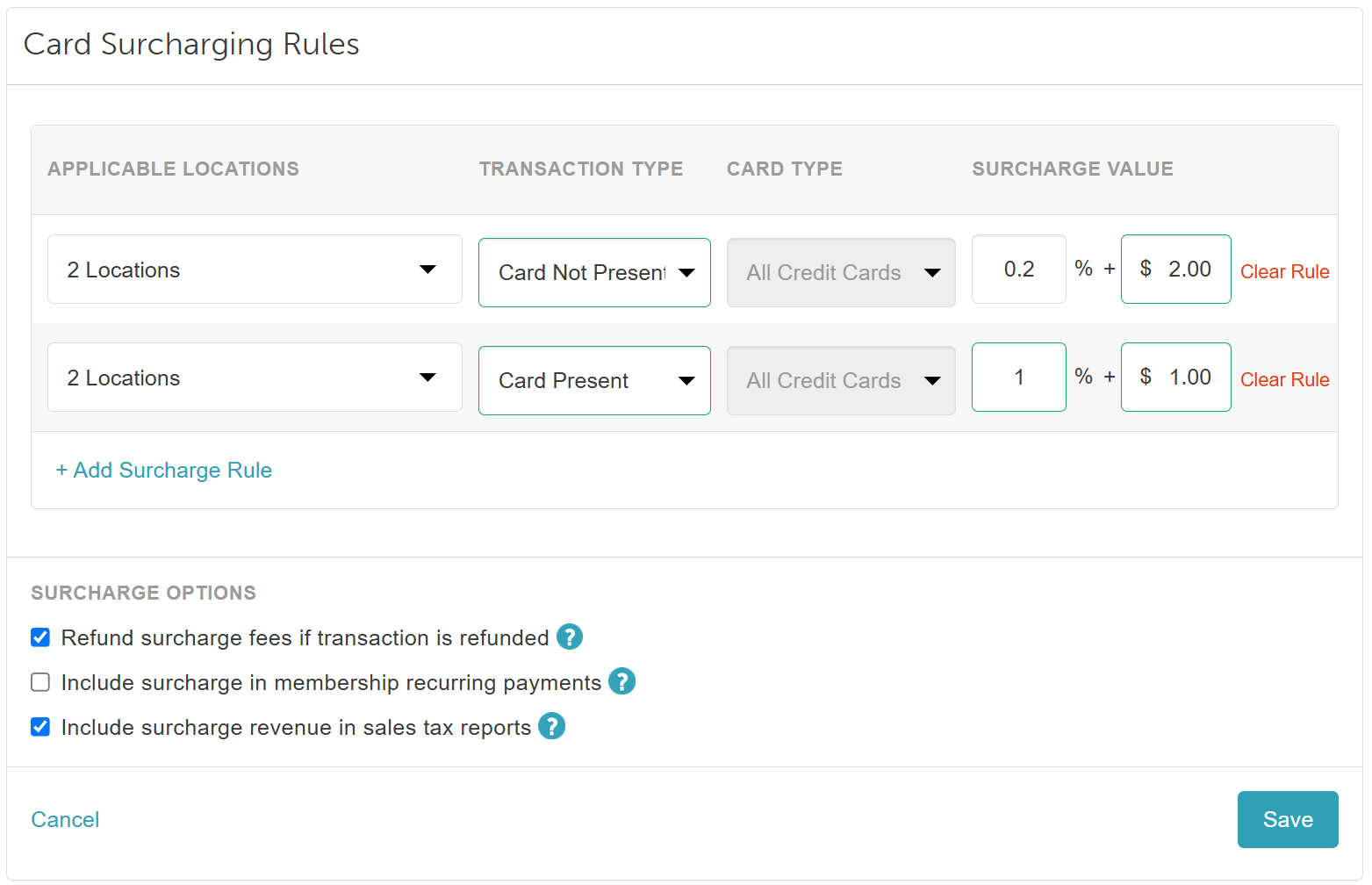
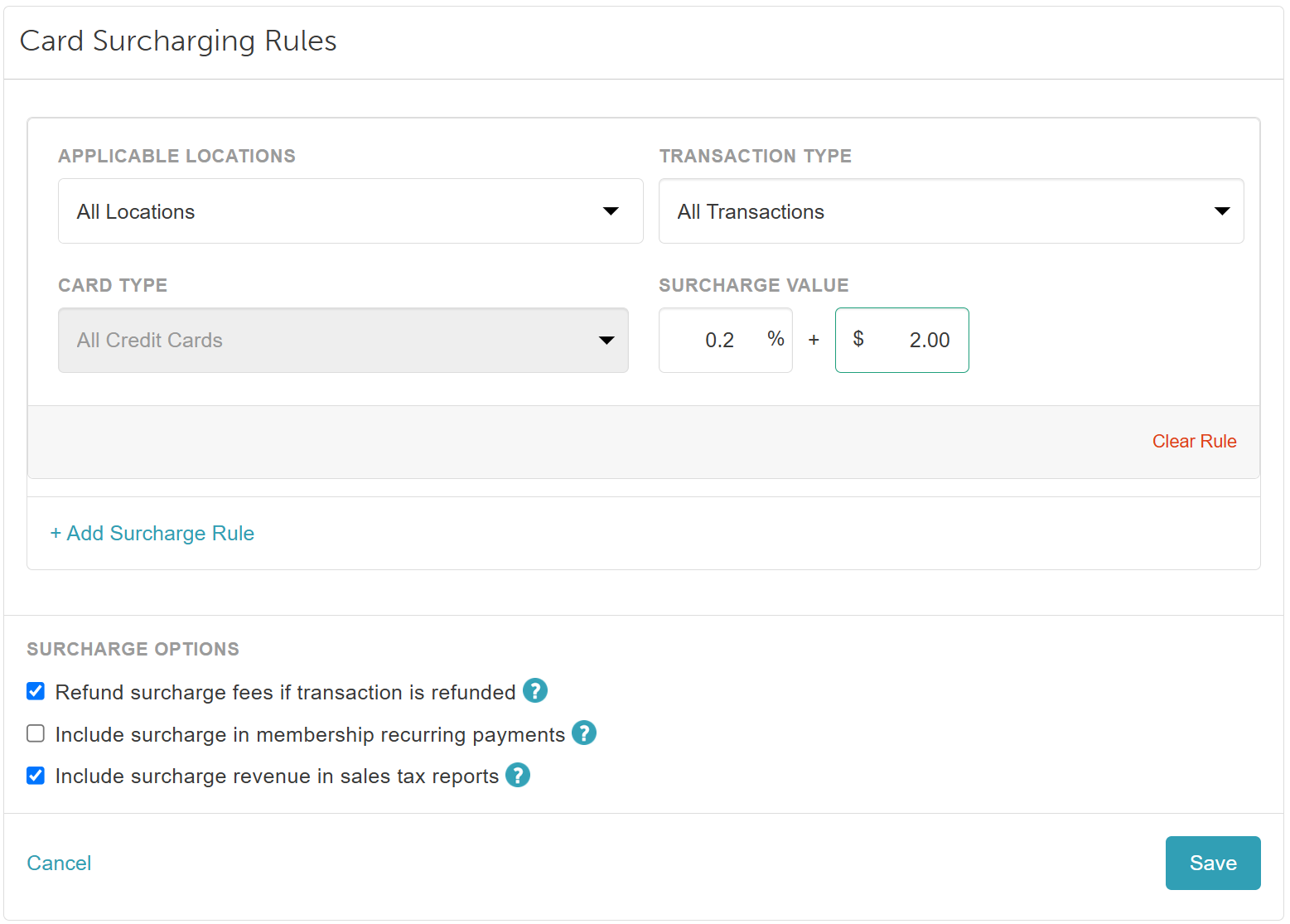
- Applicable Locations: Select the locations or location groups for the surcharge (If the "Enable Surcharge for Location Groups" setting is enabled.
- Transaction Type: Choose one of the following options:
- Card Not Present: Applies the surcharge to cards entered using the Key In Card method in-store or for online payments.
- Card Present: Applies the surcharge to cards that are swiped or tapped.
- All Transactions: Applies the surcharge to both card-present and card-not-present transactions.
- Card Type: Select from "All Debit Cards," "All Credit Cards," or "All Cards."
- If only credit or debit is selected, an additional surcharge can be added for the opposite card type.
- If All Cards is selected, no additional surcharges can be added for the same location.
- For Global Payment accounts, only the "All Credit Cards" option is available.
- Surcharge Value: Configure the surcharge percentage (0–3%) and/or flat dollar amount (0–3%). Values above 3% display a warning.
- Include Surcharges in Refunds: When enabled, surcharges are refunded along with the original payment. Percentage-based surcharges are refunded on a prorated basis, while flat surcharges are refunded in full.
- Include Surcharge in Membership Recurring Payments: When enabled, surcharges are applied to membership recurring charges. Only one surcharge is applied per ticket, even if multiple memberships are billed on the same ticket.
- Include Surcharge Revenue in Sales Tax Reports: By default, the "Include surcharge revenue in sales tax reports" setting is enabled (checked). Because surcharge taxation rules vary by region, you can adjust this setting to match your local jurisdiction’s requirements.
- When Enabled (Default):
- Surcharge tax is calculated and estimated for your account.
- The CC Surcharge, Surcharge Tax, and Tax to Remit columns will appear in your Sales Tax Collected report.
- When Disabled:
- Surcharge tax will no longer be calculated or estimated.
- The CC Surcharge, Surcharge Tax, and Tax to Remit columns will be hidden from the Sales Tax Collected report.
- Important — Tax Compliance: Surcharge taxation laws vary significantly by state and local jurisdiction. Always consult a certified tax professional or accountant to determine whether your business is required to collect and remit sales tax on credit card surcharge revenue.
- + Add Surcharge Rule: Add additional surcharging rules for unselected locations. If all locations are already selected, the applicable location field will display "No Locations."
Stripe Accounts
Global Payment Accounts
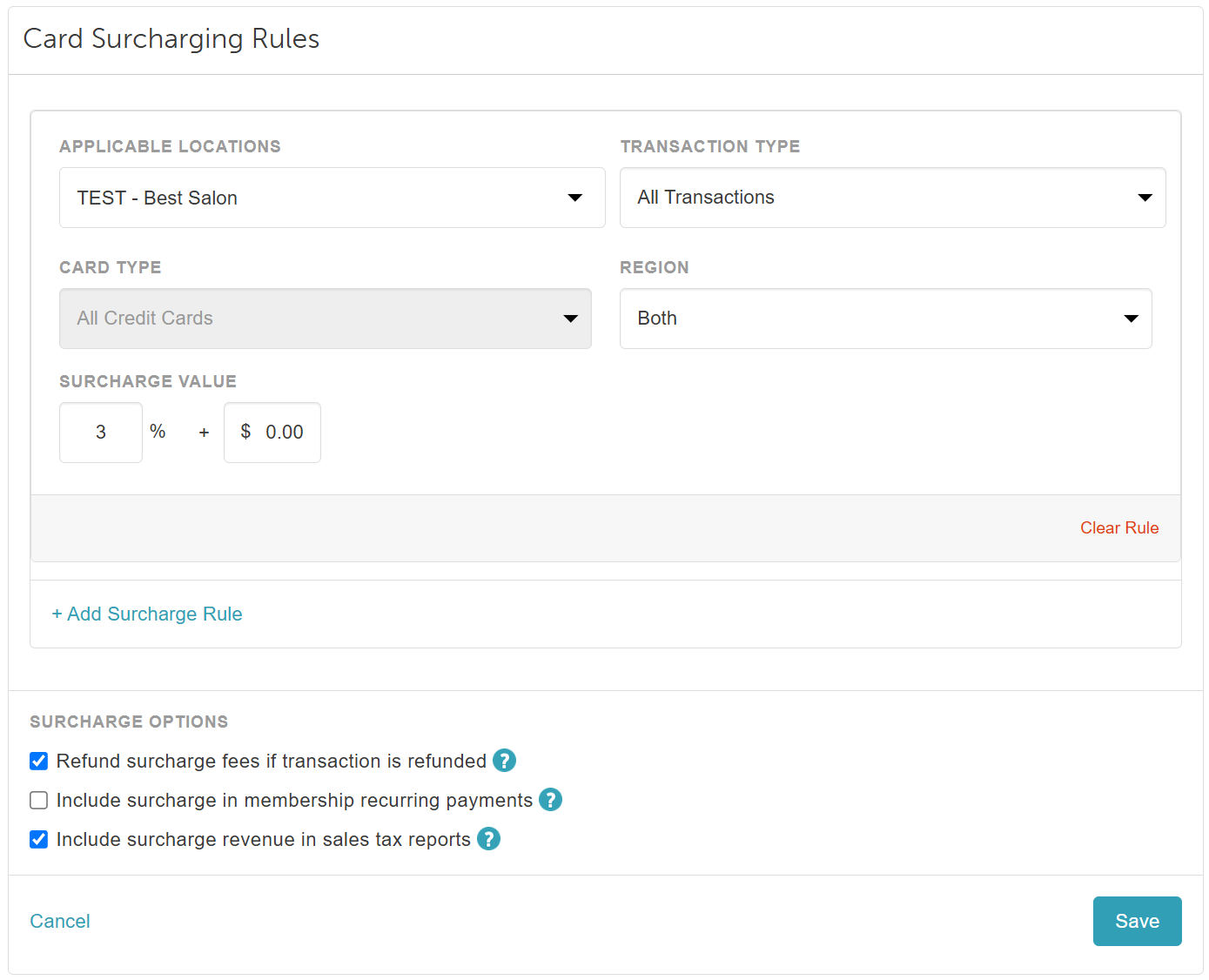
Credit Card Surcharges for Different Regions
If the "Separate Surcharges for EFTPOS and International Cards (AU Only)" hidden setting is enabled, you will be able to configure surcharge(s) for different regions. Configure your surcharges using the option below:
- Applicable Locations: Select the locations or location groups for the surcharge (If the "Enable Surcharge for Location Groups" setting is enabled).
- Transaction Type: Choose one of the following options:
- Card Not Present: Applies the surcharge to cards entered using the Key In Card method in-store or for online payments.
- Card Present: Applies the surcharge to cards that are swiped or tapped.
- All Transactions: Applies the surcharge to both card-present and card-not-present transactions.
- Card Type: Select from "All Debit Cards," "All Credit Cards," or "All Cards."
- If only credit or debit is selected, an additional surcharge can be added for the opposite card type.
- If All Cards is selected, no additional surcharges can be added for the same location.
- For Global Payment accounts, only the "All Credit Cards" option is available.
- Please Note: For non-Australian accounts, only the 'All Credit Card' option is selectable, while Australian accounts will have all options selectable.
- Region (Stripe payment accounts only): Select the applicable region:
- Domestic: Applies to cards issued in the same country as the business
Note: For AU locations, selecting EFTPOS will automatically lock the region to Domestic
International: Applies to cards issued outside the business’s country
Both: Applies to both domestic and international cards
- Domestic: Applies to cards issued in the same country as the business
- Surcharge Value: Configure the surcharge percentage (0–3%) and/or flat dollar amount (0–3%). Values above 3% display a warning.
- Include Surcharges in Refunds: When enabled, surcharges are refunded along with the original payment. Percentage-based surcharges are refunded on a prorated basis, while flat surcharges are refunded in full.
- Include Surcharge in Membership Recurring Payments: When enabled, surcharges are applied to membership recurring charges. Only one surcharge is applied per ticket, even if multiple memberships are billed on the same ticket.
- + Add Surcharge Rule: Add additional surcharging rules for unselected locations. If all locations are already selected, the applicable location field will display "No Locations."
Stripe Accounts
Global Payment Accounts
Once your surcharge(s) are configured, click 'Save' in the surcharge section, then scroll to the bottom of the settings page and click 'Save' once more.
For more information, contact us at support@mytime.com or (385) 233-6964.
Related Articles:
Processing and Refunding Credit Card Surcharges in POS
Credit Card Surcharge Display for Online Bookings and Purchases
Displaying Credit Card Surcharges on Payment Terminals
Was this article helpful?
That’s Great!
Thank you for your feedback
Sorry! We couldn't be helpful
Thank you for your feedback
Feedback sent
We appreciate your effort and will try to fix the article