Multi-staff services involve multiple staff members working together on a single service, such as a full grooming session that requires both a bather and a groomer, a couples massage with two massage therapists, or a mani-pedi performed simultaneously by a manicurist and a pedicurist. In this article, we will guide you through the process of checking out multi-staff services.
Things to know:
- The ability to check out multi-staff services is governed by "Creating Tickets" access control.
- Appointments without an associated ticket will show the "Create Ticket" button in the appointment modal, while appointments with an open ticket will display the "Open Ticket" button.
- To learn how to configure multi-staff service, please click here.
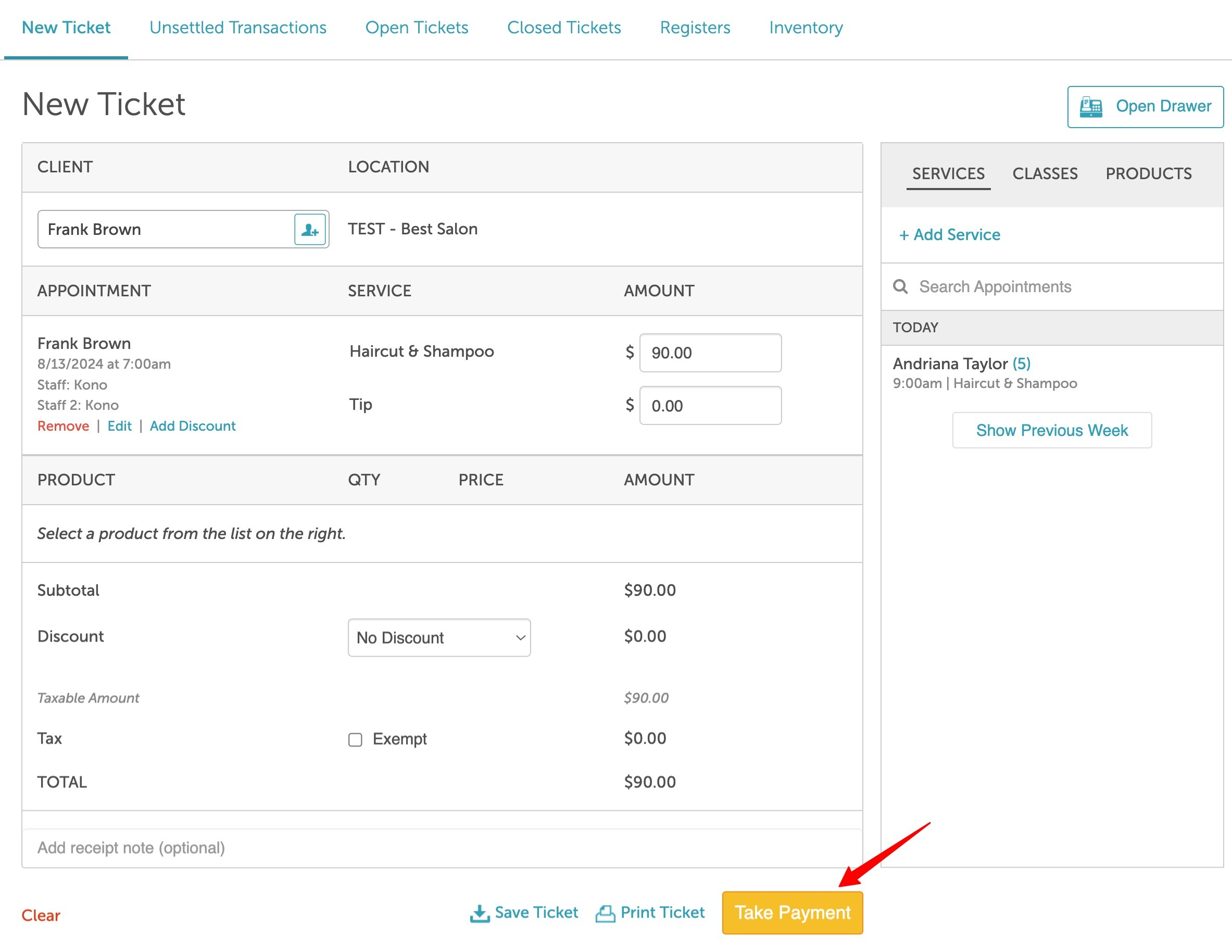
- When checking out multi-staff services, all assigned staff members will be visible on the ticket.
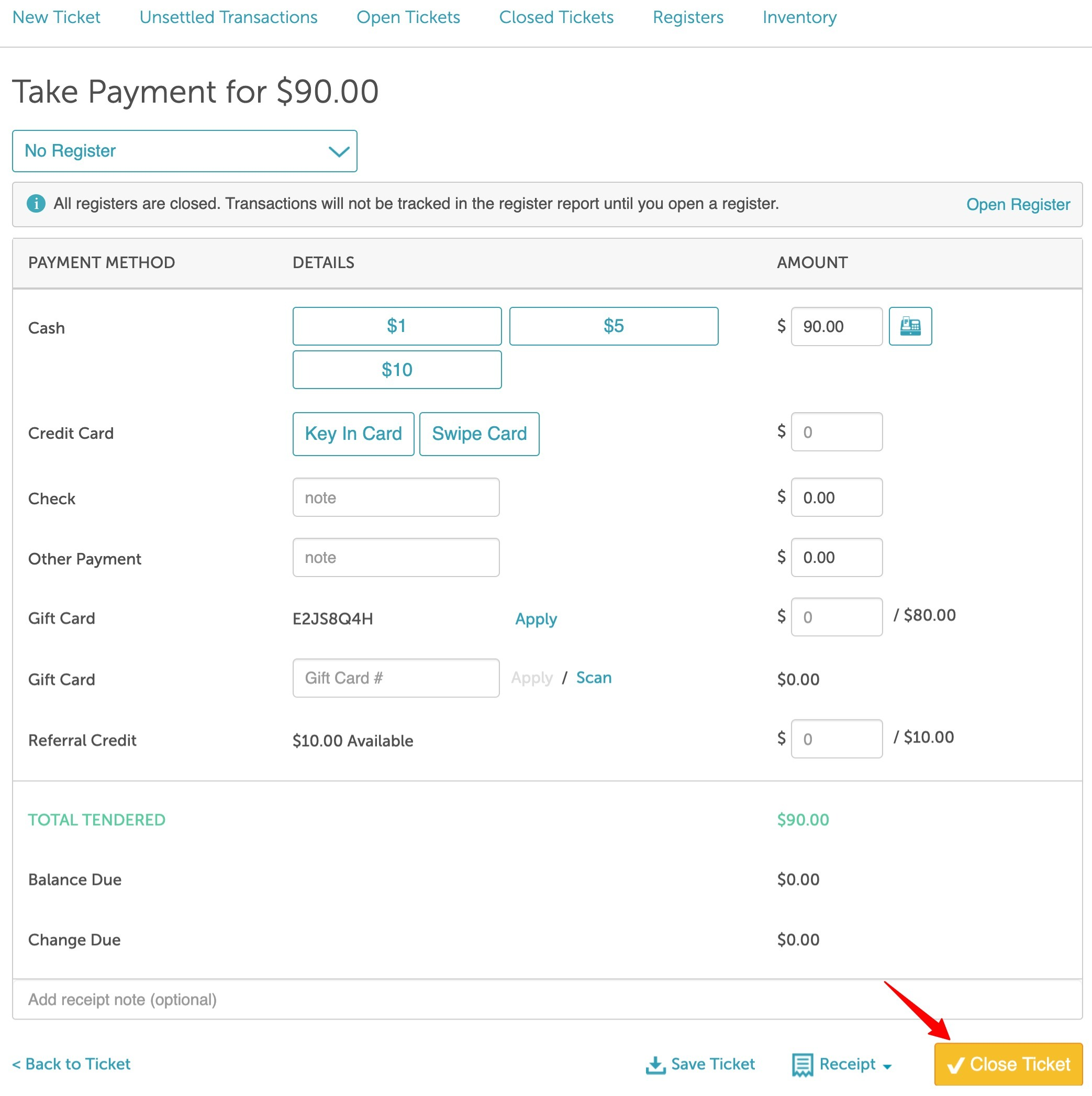
- You can hide the "Key In Card" option on the "Take Payment" screen in POS. This feature is controlled by a hidden setting that can only be configured by the MyTime team. To enable it, please contact support@mytime.com.
- The locations shown in the location dropdown when creating a new ticket (to schedule an appointment) in POS are dependent on the following:
- Create Tickets for Their Location(s) and Block for All Locations access control enabled
- If the staff member is assigned to only one location, only that location will appear
- If the staff member is assigned to multiple locations:
- All associated locations will be displayed in the location filter
- The default location will be the one they last filtered to
- They can choose a different location if needed
- Block/Create Ticket for Their Location(s) and Create Ticket for All Locations in POS access control enabled
- All locations will be displayed in the location filter
- The default location will be the one the staff member last filtered to
- Automated Voiding for Canceled Authorization Holds: The system automatically releases the hold and voids the transaction behind the scenes the moment an appointment is canceled. This enhancement applies universally across both Stripe and Cloud9 processing environments.
- Automatic Ticket Removal: When a client has a future appointment and you process a credit card in POS using "Print & Settle Later," the ticket securely moves to the Unsettled Transactions tab. If that appointment is later canceled via the Scheduler:
- The system instantly communicates with your payment gateway (Stripe or Cloud9) to fully void and cancel the authorization hold.
- The ticket is immediately deleted from your Unsettled Transactions tab. If no other pending balances remain, the screen will display: "No unsettled transactions match your filters."
- Restoring "No-Show" Appointments: If you previously marked an appointment as a no-show but later changed its status back to "Showed Up" from the Scheduler:
- The appointment slot will return to your calendar normally.
- Because the original authorization hold was already securely voided at the gateway level upon cancellation, the financial hold will not be automatically reinstated. Staff will simply need to open the POS ticket and authorize or swipe the card again when the client arrives.
- Handling Multi-Appointment Tickets: If a client has a single ticket containing multiple appointments, but an authorization hold was placed specifically for only one of them, canceling just that single appointment will release the hold and remove the ticket from your 'Unsettled Transactions' list without disrupting or modifying the remaining appointments on the calendar.
- By default, payment buttons may lack visual prominence, making it difficult for staff to quickly identify the primary payment method. This can lead to selecting incorrect options or improper transaction processing. You can request a layout change that reorders the buttons and highlights the primary action in blue for better visibility.
- Default Display:
- No Card on File: [Key In Card] [Swipe Card]
- Card on File: [Visa ****1234] [Key In Card] [Swipe Card]
- Enhanced Display (High Visibility):
- No Card on File: [Swipe/Tap Card] (Highlighted) [Manual Entry]
- Card on File: [Visa ****1234] (Highlighted) [Swipe/Tap] [Manual Entry]
- Important: This is controlled by a hidden setting that must be enabled by the MyTime team. If you would like to switch to the high-visibility payment buttons, please contact us at support@mytime.com
- Default Display:
- Unsuccessful Payment Visibility: To provide better clarity during checkout, the 'Take Payment' and 'Closed Ticket' pages display unsuccessful transactions. This includes payments that have failed, been declined, or canceled. Each failed transaction displays:
- Card brand and last four digits
- A red status badge indicating the result (Failed, Declined, or Cancelled)
- The transaction amount shown in red with parentheses (e.g., ($50.00))
- An expandable caret (⌄) is available next to the card details. When selected, it reveals additional information such as:
- Error type
- Error code
- Payment gateway (e.g., Stripe, Cloud9)
- This allows staff to quickly identify the reason for the failure and take appropriate action.
- Error type
- Example: Declined Card
If a client attempts to pay $120.00 but the transaction is declined, the ticket will display:
Visa •••• 4240 [Declined] ($120.00) >
Expanding the caret will show:
Type: card_error
Code: insufficient_funds
Gateway: Stripe
On the Take Payment page, a "Max" button is available next to the Other Payment field. Clicking this button automatically fills the field with the remaining balance due. Example: If a client’s total is $100 and $60 has already been paid by credit card, clicking "Max" will automatically enter the remaining $40 in the Other Payment field.
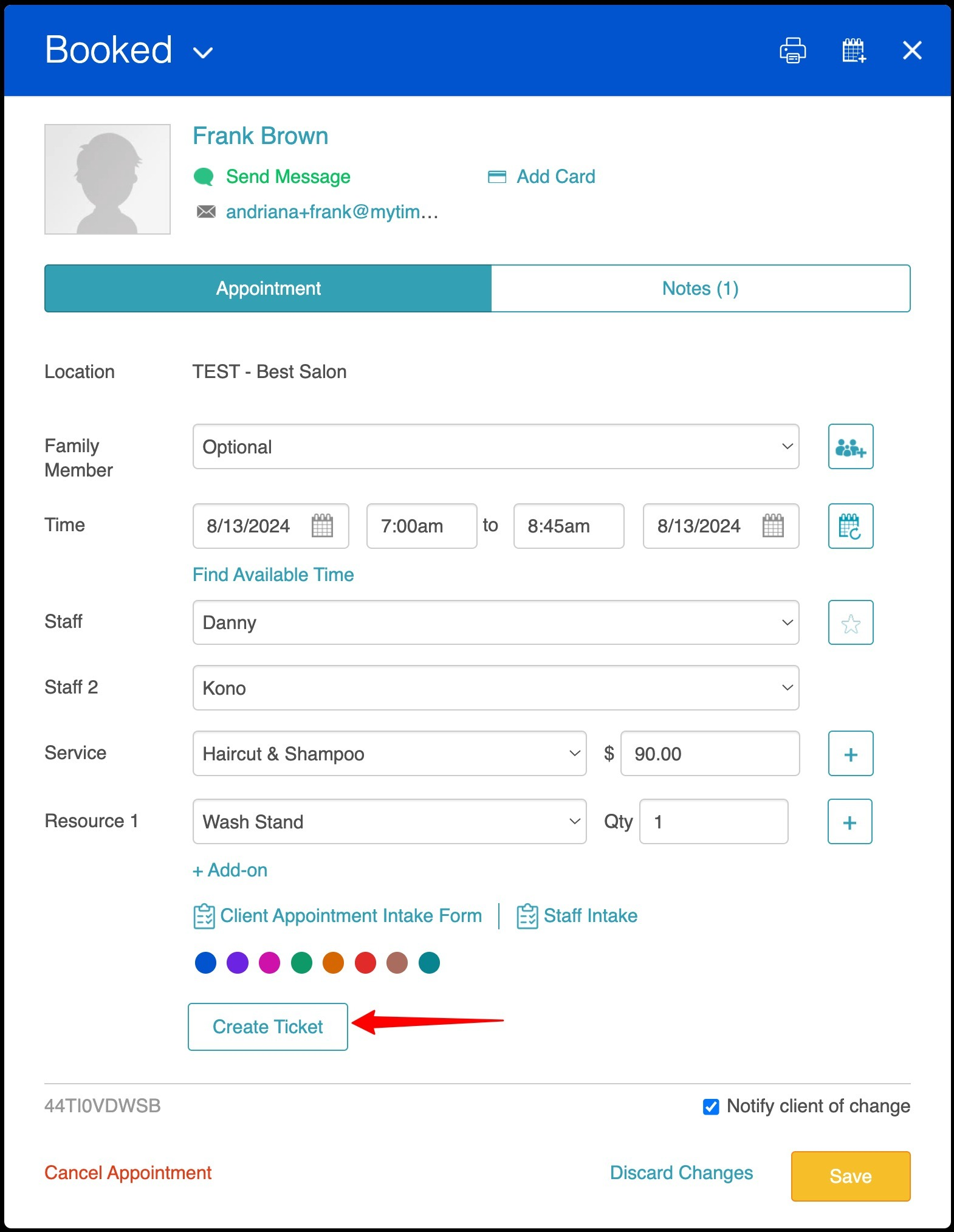
To check out multi-staff services, simply:
- Open a booked appointment
- Click the "Create Ticket" button
- You will be directed to POS to complete the checkout > Click the "Take Payment" button
- Take payment for the ticket > Close the ticket
For more information, contact us at support@mytime.com or (385) 233-6964.
Related Articles:
Was this article helpful?
That’s Great!
Thank you for your feedback
Sorry! We couldn't be helpful
Thank you for your feedback
Feedback sent
We appreciate your effort and will try to fix the article