MyTime allows you to download global inventory as a complete, consolidated file containing all inventory items across every location. Exporting global inventory provides comprehensive data—including external IDs—for all products, enabling you to review details and use the Ingest feature to update inventory as needed. This article will walk you through the steps to export your global inventory.
- The ability to export the inventory is governed by the "Accessing Inventory Details" access control setting.
- Inventory Export Formats:
- Excel Spreadsheet: The default format for exporting inventory data.
- Zip File: Available through the Allow exporting inventory for all locations in ingest data format hidden setting that must be enabled by the MyTime team. To activate this option, contact our Support Team at support@mytime.com
- Large Inventory Handling:
- If the export takes more than 60 seconds to process, it will automatically time out. When this happens, a download link will be sent to the logged-in user’s email address
- When exporting inventory via a zip file, you can include products that are not assigned to any brand by selecting the 'None' option for the brand filter
- The exported file includes complete inventory data for all locations, including external IDs, making it suitable for bulk updates using the Ingest feature
CONTENTS
Exporting Global Inventory via Excel Spreadsheet
From the parent account:
1. Navigate to Inventory > Current Inventory

2. Click the Export link at the bottom right of the page

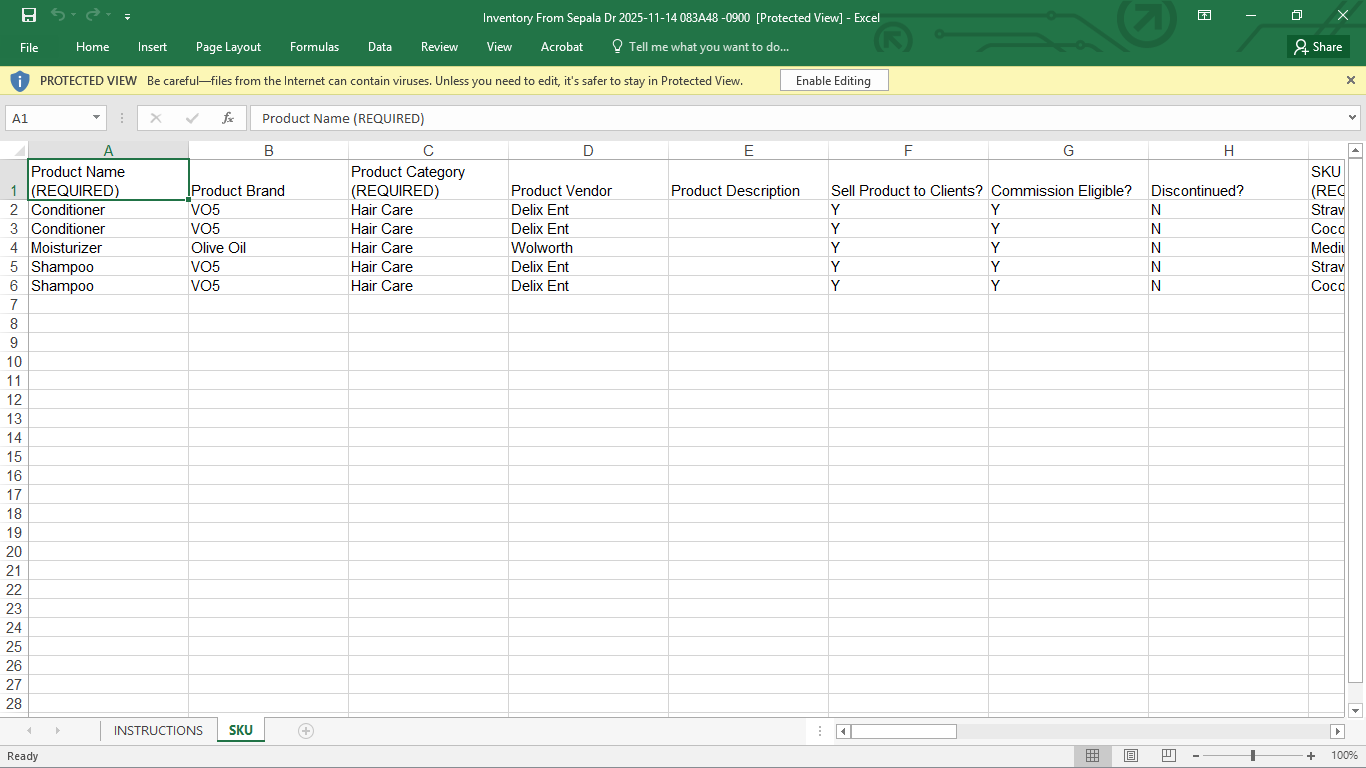
3. An excel spreadsheet with your current inventory will be downloaded to your device
4. Click to open the Excel spreadsheet to view the exported inventory. You can review and make adjustments to your inventory as needed
Exporting Global Inventory via Zip File
Once the hidden setting is enabled:
1. Navigate to Inventory > Current Inventory
2. Select the "Export" hyperlink at the bottom of the page

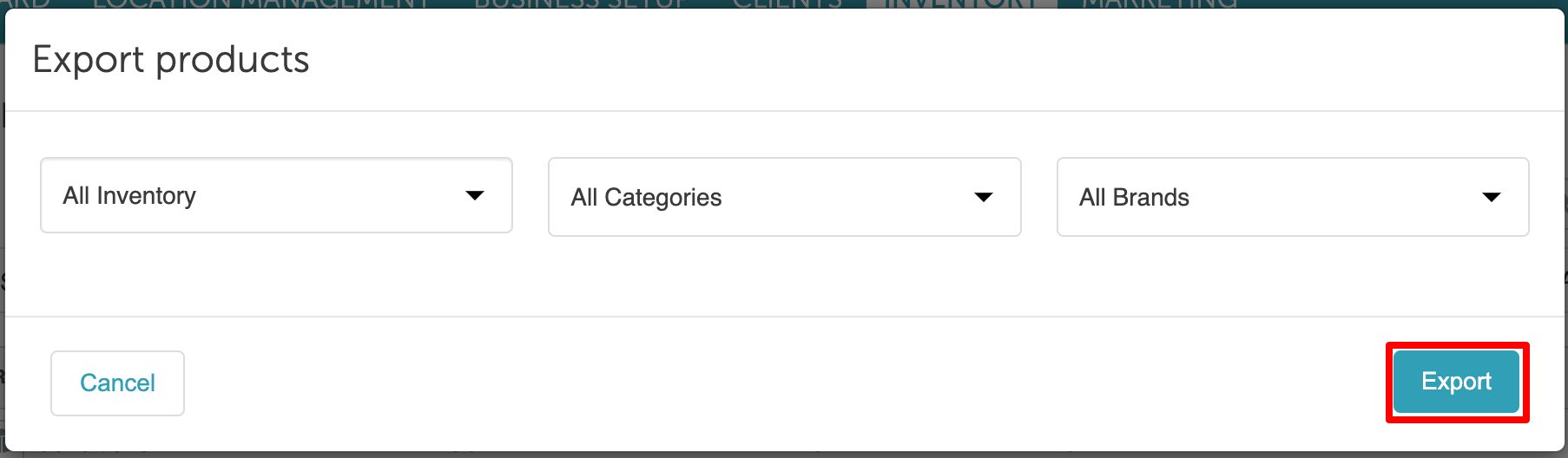
3. A pop-up will appear, allowing you to select specific categories and brands to include in the inventory export. Click 'Export'
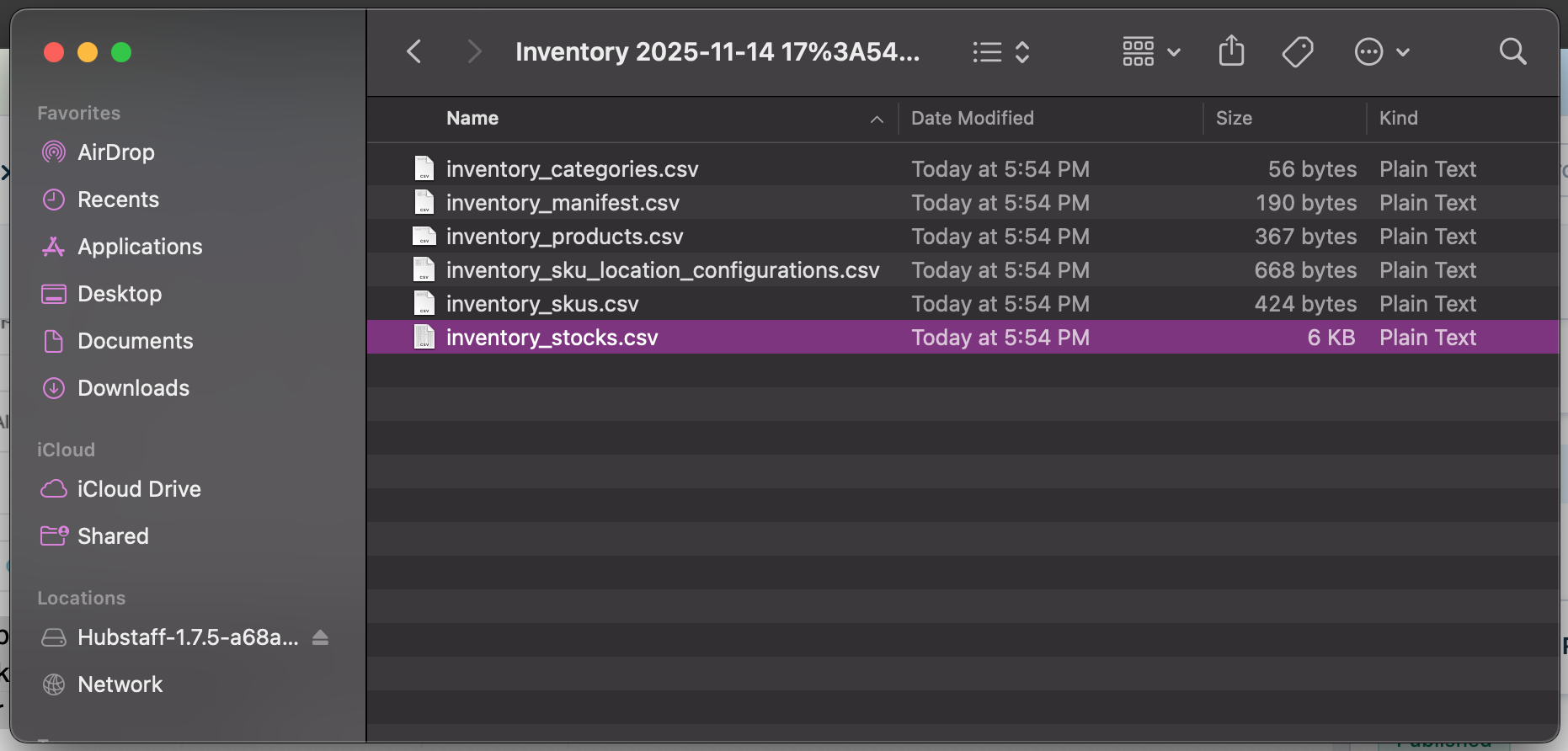
 4. A zip file will be downloaded to your device with multiple CSV files
5. Click to open the zip file to view the exported inventory. You can review and make adjustments to your inventory as needed.
For more information contact us at support@mytime.com.
Related Articles
Updating Products via Inventory Spreadsheet
Adding Products Manually to Inventory
Adding Products to Inventory on Scheduler App
Updating Product Price, Cost and Quantity via CSV File (Ingest Data)
Updating Product Name, Brand or Category via CSV Files (Ingest Data)
Deleting SKUs via CSV File (Ingest Data)
Was this article helpful?
That’s Great!
Thank you for your feedback
Sorry! We couldn't be helpful
Thank you for your feedback
Feedback sent
We appreciate your effort and will try to fix the article