At MyTime, you can create employee titles at the parent account level. These titles become available to select on staff profiles across both the parent and child accounts. Setting up employee titles is the first step in configuring service pricing and duration by title.
Things to Know
- The global database for titles must be enabled on the parent and child accounts. This is controlled by a hidden setting that can only be enabled by the MyTime team. Please contact our support team at support@mytime.com.
- The ability to manage staff titles is governed by the "Accessing Staff & Availability" and "Manage Employee Titles" access control settings.
- Global employee titles are created at the parent level
- Once created, these titles can be assigned to staff profiles at both the parent and child level.
- Titles created at the parent level are available for viewing and use across all child accounts.
- At the child level, global employee titles are marked with a globe icon. Titles created locally at the child level will not display an icon.
- You can configure service prices based on staff titles. For franchise businesses, the "Service Pricing & Duration by Title/Location Group" setting is managed on the Business Setup > Settings page on the parent account. This setting is inherited by all child accounts and cannot be modified at the child level. Learn more here.
To create global employee titles:
- From the parent account, navigate to Business Setup, and select the Staff tab
- Select the 'Manage Titles' option at the bottom of the screen
- The "Manage Titles" modal will open, allowing you to add as many employee titles as you wish
- To add a new title, click on the "+Add New Title" hyperlink
- A field will appear for you to enter the title
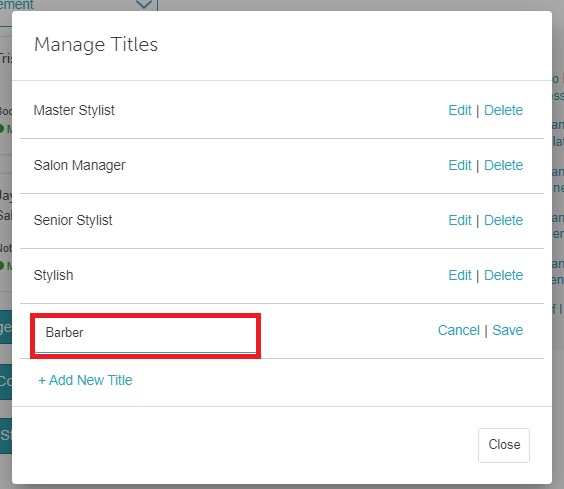
- Once you have entered the title, click "Save"
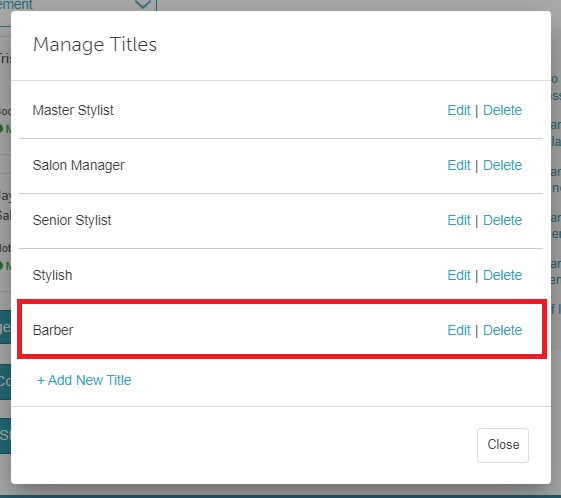
- Once saved, the title will be visible in the "Manage Titles" list as a title you can use for a staff member. You can also edit or delete it the existing ones.
- When selecting a title for a staff member, the title dropdown menu will display all the titles you have added to the account, and you can select the appropriate title for the staff member.
- Once you select a title from the dropdown, scroll down to the bottom of the screen and click 'Save.'


By following these steps, you will be able to create global employee titles successfully.
For more information, contact us at support@mytime.com or (385) 233-6964.
Related Articles:
Was this article helpful?
That’s Great!
Thank you for your feedback
Sorry! We couldn't be helpful
Thank you for your feedback
Feedback sent
We appreciate your effort and will try to fix the article