Businesses with multiple franchise locations use global products to automate and standardize their inventory management procedures. Global products can only be created at the parent level and then shared with franchisees. This streamlines the process by eliminating the need to add identical products to each franchise's inventory individually, thereby saving time and effort.
Things to know:
- The global database for inventory must be enabled on the parent and child accounts. This is controlled by a hidden setting that can only be enabled by the MyTime team. Please contact our support team at support@mytime.com.
- Global products are marked with a global icon beside them, whereas products added at the child level are identified by a local icon.
- When a product is added to any child location, it will automatically be added—along with its SKU—to all locations under the parent account. Note: The price, cost, minimum, and maximum values can be configured for individual locations.
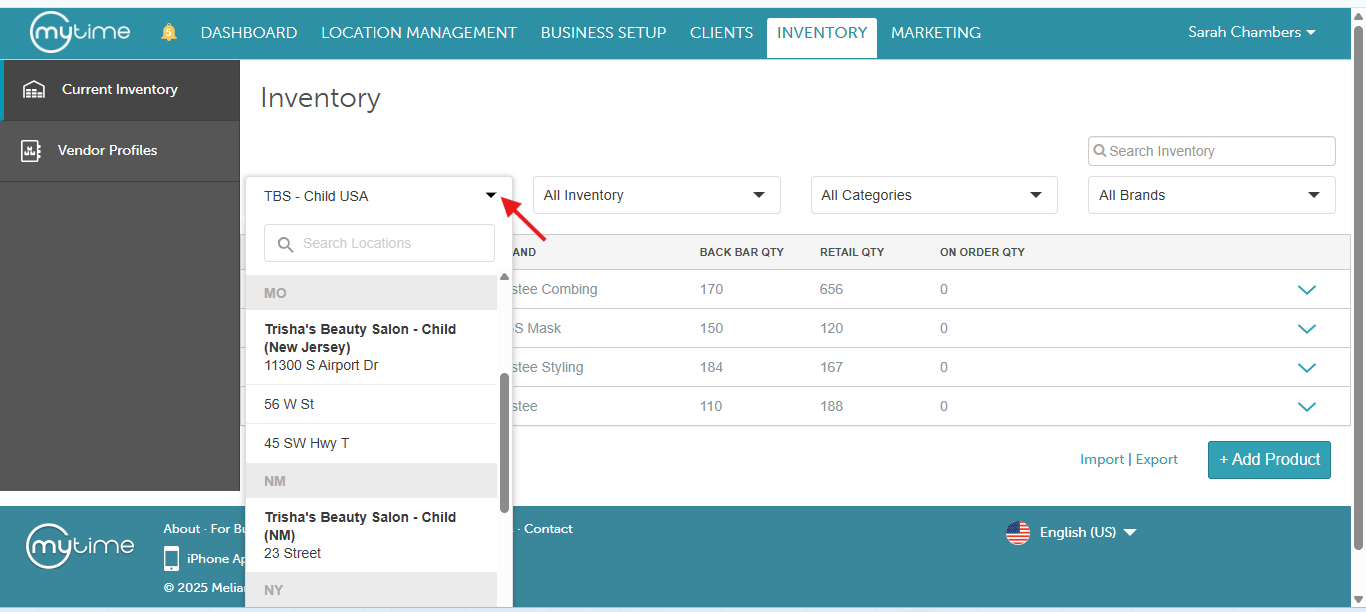
- The Inventory page offers several filters to help you quickly find and review inventory by location, stock status, category, and brand. Below is an explanation of how each filter works:
- Location Filter
- Allows you to select one location or one location group at a time.
- Use this filter to view inventory details for a specific location or a group of locations.
- Inventory Filter: This helps control which products are displayed based on stock status:
- All Inventory: Displays all products added to the selected location, whether they are currently in stock or not.
- In Stock at this Location: Displays only products that are currently in stock (either in back bar or retail) at the selected location.
- Carried at This Location: Shows all products currently available at the selected location.
- Not Carried at This Location: Displays products that have been added to the location but currently have no stock in either back bar or retail.
- Out of Stock at This Location: Displays all products currently out of stock at the selected location.
- Category Filter: Allows you to filter by all categories or narrow results by selecting a specific category.
- Brand Filter: Allows you to filter by all brands or narrow results by selecting a specific brand.
- When filtering for "Out of Stock," products with an "On Order Quantity" will still be included and not excluded from the results.
- To prevent product creation while still allowing the removal of a SKU from being carried at a location, set the access controls as follows:
- Inventory Details: View
- Inventory Quantity: Edit
- Inventory Cost: Edit
- Inventory Price: Edit
- You can include external IDs for your Stock Keeping Units (SKUs) in MyTime, this is controlled by a hidden setting that can be enabled by our Support Team at support@mytime.com.
- When the hidden setting to align manufacturer SKU # with external IDs is enabled, the following behaviors come into play:
- SKU external ID will automatically be set to the same value as the manufacturer SKU # when saved
- The system will only save the external ID if a manufacturer SKU # is present. If there is no manufacturer SKU #, the external ID will not be saved.
- At the child level, you cannot delete a global product or modify its details, such as the product name, brand, and other specifics. However, you can adjust the product price, cost, back bar quantity, retail quantity, minimum desired stock, and maximum desired stock if your access permissions allow it.
- Global products can only be deleted from the parent account
- If location groups are created at the parent level, they can be used to efficiently add or update products across multiple locations simultaneously. Any updates made at the location group level, such as changes to a product name or price, are automatically applied to all locations within that group, ensuring consistency throughout.
- Managing Online Product Visibility
- Within the Edit Product Details modal, you can control the visibility of your SKUs on your e-commerce storefront using the Sell Online toggle.
- When the "Sell Online" box is checked, the product automatically syncs to Shopify and becomes available for purchase.
- When unchecked, the product is immediately removed from your Shopify storefront.
- For businesses utilizing global inventory, the ability to manage this setting is determined by the product’s classification:
- Global Products: Controlled at the parent level.
- Local Products: Controlled at the child level.
- This feature is available only to accounts with Shopify Integration enabled.
From the parent account:
- Navigate to the Inventory
- Select the location or location group where the product should be available for purchase
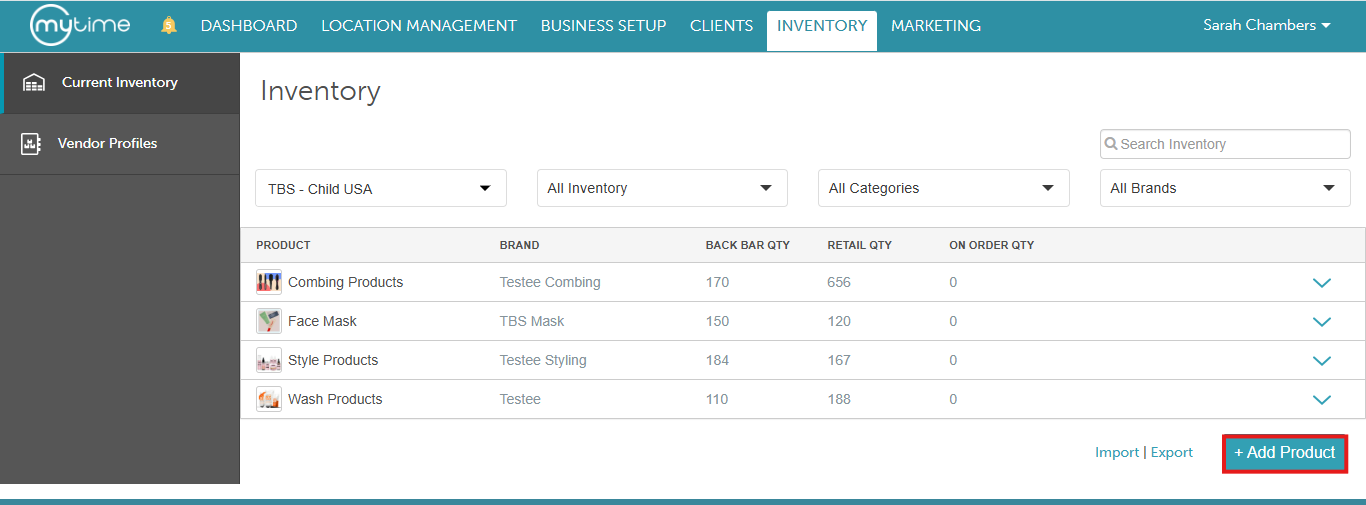
- Select the "Add product" button at the bottom-right corner of the page
- Enter the product details:
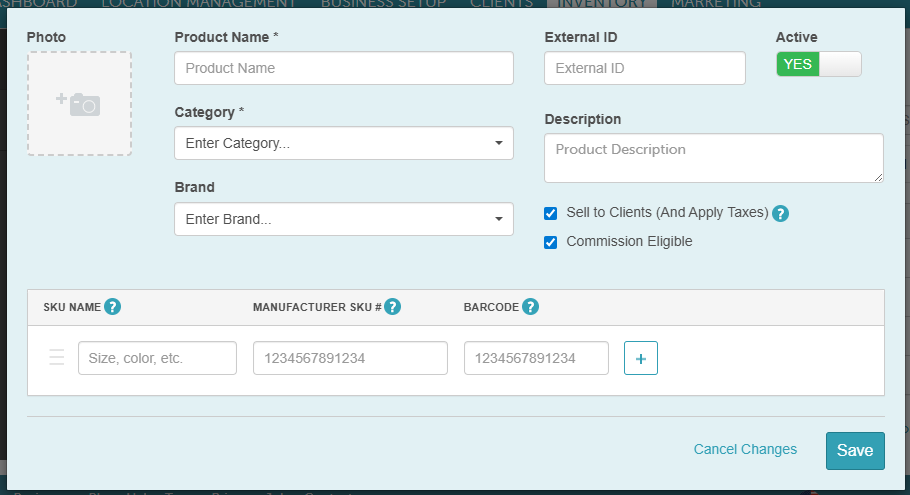
- Photo: You can add an image of the product
- Product Name: The product name that the SKU corresponds to. This field is required.
- Category: The category associated with the product. This field is required.
- Brand: Brand of the product
- External ID: The external ID is a product identifier that you create when creating your products. Adding an external ID will make it easier to identify your products and be useful when updating or adding products using Ingest data. This ID will also be displayed on inventory exports.
- Active: Can this product be ordered?
- Description: Text description of the product, often provided by the manufacturer
- Sell to Clients (And Apply Taxes): Should this product be sold to customers via the POS?
- Commission Eligible: Can this product be applied towards retail commissions? Select Yes if an employee is entitled to commission on selling this product. Else, select No.
- SKU Name: The name of the specific SKU you sell. It can include size, color, flavor, etc.
- SKU #: The unique stock-keeping unit associated with the specific version of the product
- Barcode: The number appearing directly below the barcode image on the SKU. You can use UPC or EAN format.
- Save
- You will be taken back to the main inventory page. From there, you can enter the product's selling price, cost, back bar quantity, retail quantity, minimum desired stock, and maximum desired stock by clicking on the "Add to Inventory" option
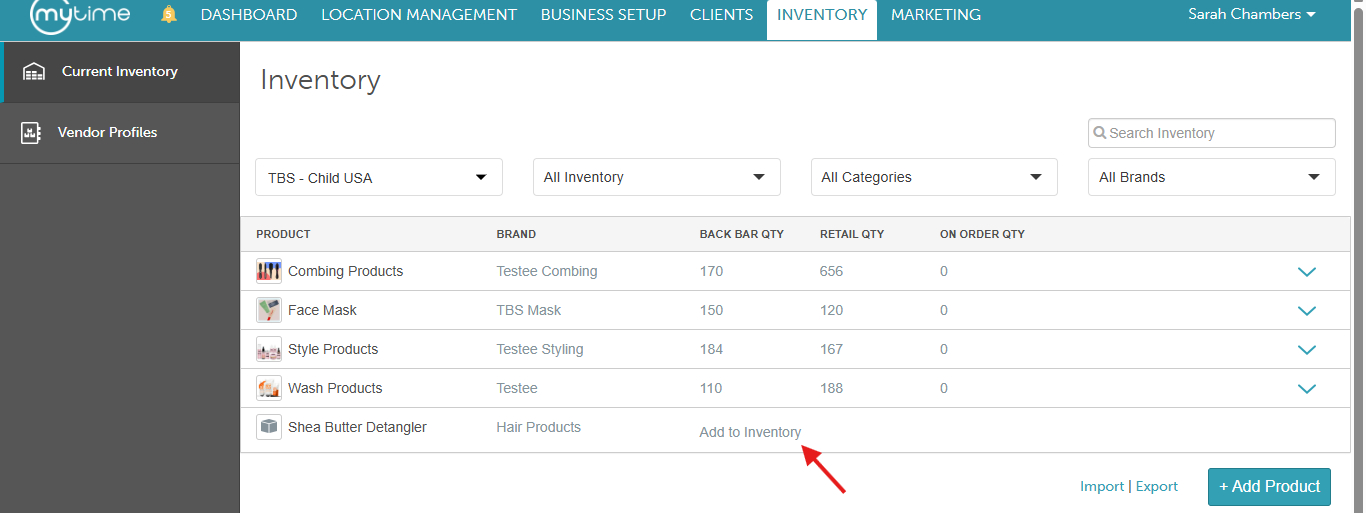
- Click the "Add to Inventory" link to expose the following:
- Price: The price paid by the client for the SKU
- Cost: The price paid to the vendor for the SKU
- Backbar Quantity: The current stock of the back bar product. The back bar refers to products a staff member uses at a salon or business.
- Retail Quantity: The current stock of the retail product
- On Order Quantity: This field is not editable. This displays quantities from a Purchase Order in ordered status. Learn more about On Order Quantity here.
- Min: The quantity at which you want to be alerted to re-order on MyTime. The alerts will appear in the notification bell when you log into the MyTime website or Scheduler App and also be sent to location managers (if configured).
- Max: The quantity of each SKU you want to maintain; used to calculate the reorder
amount
- Once you've entered the information for the inventory, select "Save"

From the franchise account, you will see the products being displayed with the global icon: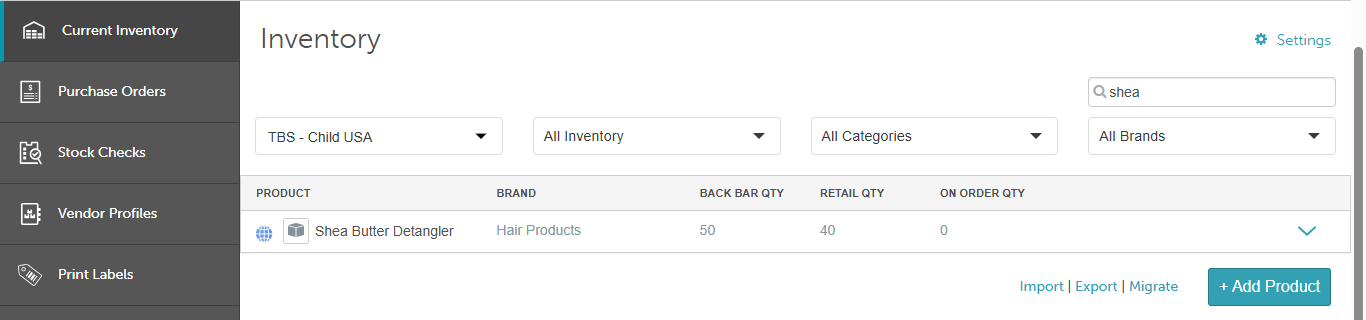
You can repeat the steps above to manually add additional products.
If you have any questions, please contact our Support Team at support@mytime.com.
Related Articles:
Was this article helpful?
That’s Great!
Thank you for your feedback
Sorry! We couldn't be helpful
Thank you for your feedback
Feedback sent
We appreciate your effort and will try to fix the article