Effectively managing your inventory is essential for smooth business operations. MyTime simplifies this process by allowing you to add new products in bulk using a spreadsheet at the global (parent) level. Once added, these products automatically appear in all franchise (child) accounts, ensuring consistency and reducing manual setup. In this article, we’ll guide you through the step-by-step process of adding products globally.
Things to know:
- The ability to import products to the inventory is governed by the "Accessing Inventory Details" access control setting.
- During import, MyTime uses specific spreadsheet columns referred to as "matchers" to identify products. A product is matched using a combination of the following three fields:
- Name
- Category
- SKU Name
- These fields must be entered correctly and in the proper order for the import to succeed.
- If you change any of the matching fields (Name, Category, or SKU Name) for an existing product, MyTime will create a new product instead of updating the existing one.
- During the import process, the location you select determines where the product is stocked. Other child locations will see the product listed in their inventory catalog, but it will appear with an "Add to Inventory" option because it is not stocked at those locations.
- Example: If a parent account has three child accounts franchise A, B, and C—and you import a product while franchise A is selected:
The product and SKU will be visible at franchise A, B, and C.
The product will be stocked at franchise A.
At franchises B and C, the product will appear as not stocked and will require selecting the "Add to Inventory" option to set quantities before it can be sold.
- Example: If a parent account has three child accounts franchise A, B, and C—and you import a product while franchise A is selected:
- Managing Existing SKUs during Import in MyTime: The radio buttons at the bottom of the page allow you to specify how existing SKUs are handled:
- Update Existing Inventory: If selected, existing SKUs that are not on the import sheet will not be deleted.
- Overwrite and replace inventory: If selected, the process becomes more comprehensive. Before selecting this option, carefully review and verify the details you intend to overwrite, as the changes will be propagated to all instances of the product across all locations associated with the account.
- Only existing SKUs will be updated or removed.
- Existing SKUs not present on the import sheet will be removed from the inventory.
- For each product name on the import sheet, it is crucial to include the quantity of each SKU Name/SKU Number associated with that product.
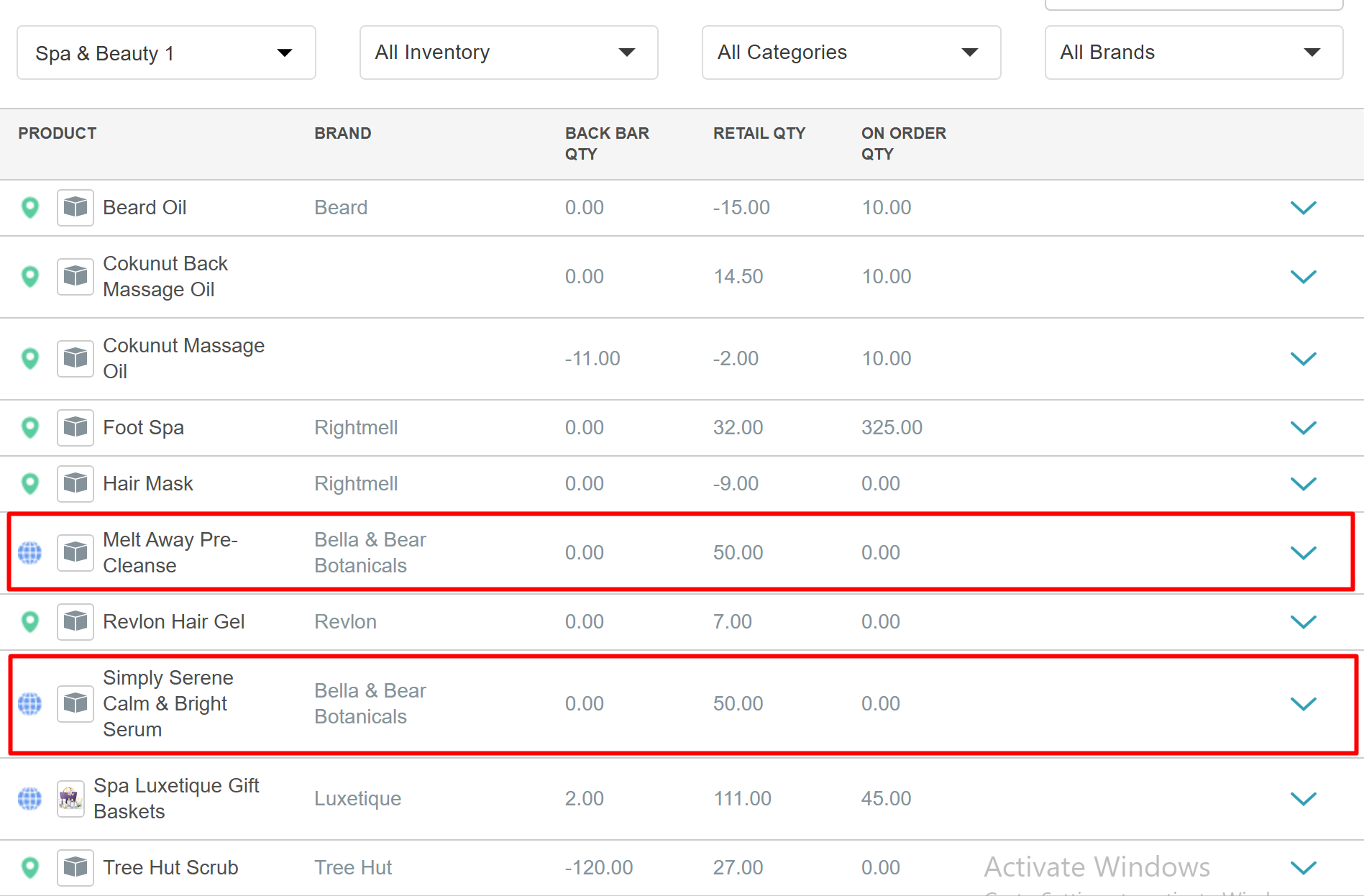
- At the child location level, products are visually differentiated using icons:
- A globe icon indicates a global product created at the parent level and shared across all locations.
- A local (location-specific) icon indicates a product created and used only at that specific location.
Contents
- Importing Global Products via Inventory Spreadsheet
- Inventory Spreadsheet Column Descriptions
- Importing Global Products via CSV Files (Ingest Data)
Importing Global Products via Inventory Spreadsheet
From the parent level:
- Navigate to Inventory

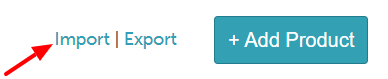
- Select the Import link at the bottom right of the page
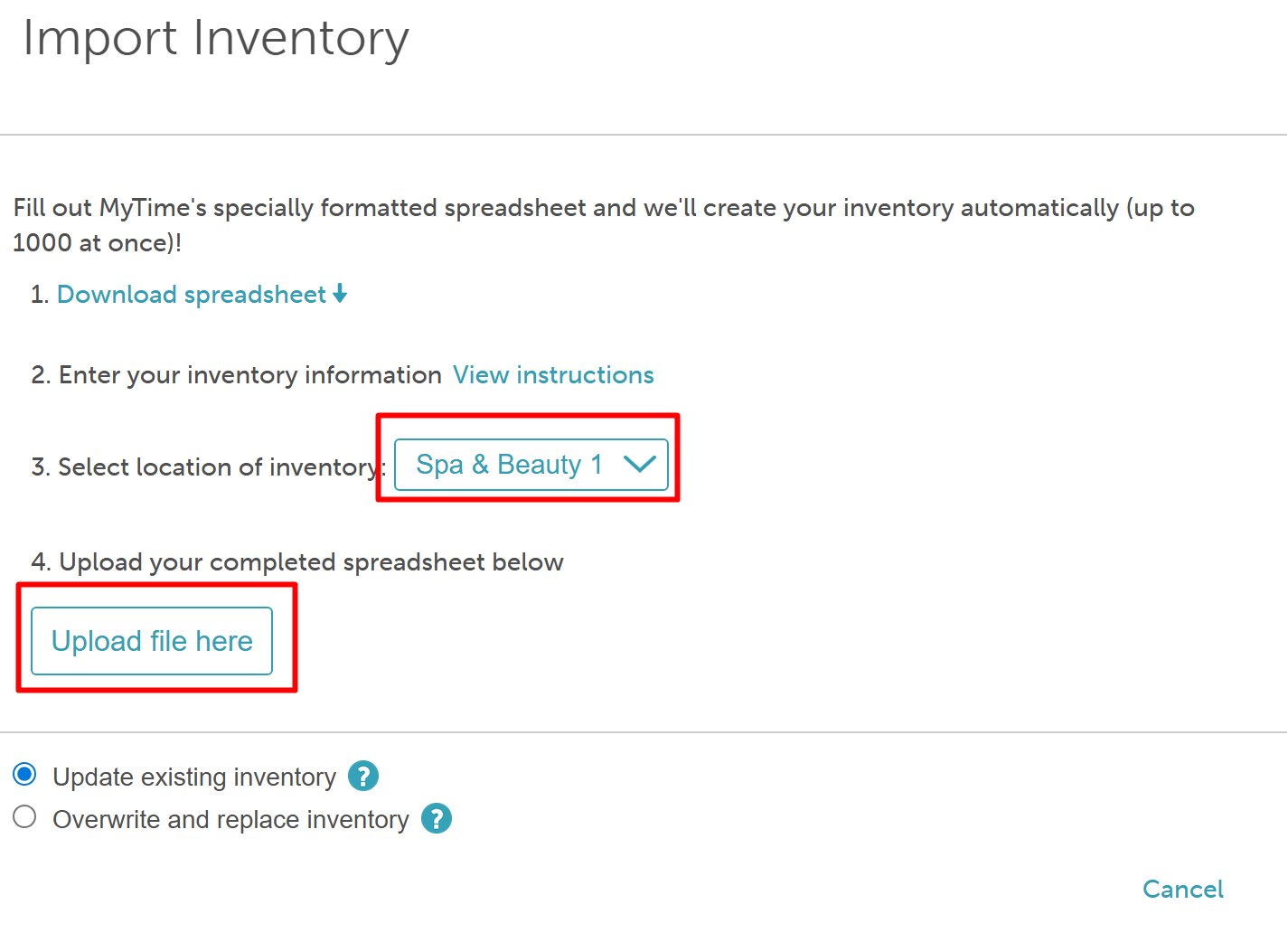
- The Import Inventory page below will appear; select Download spreadsheet

- The first tab of the Excel document (labeled INSTRUCTIONS) explains how to enter your inventory.
- Use the second tab (labeled SKU) to enter your inventory information

- When you are finished entering your inventory information into the MyTime Inventory Spreadsheet, make sure to save the Excel file
- Next, return to the Import section of the Inventory page, select the location, then the Upload button
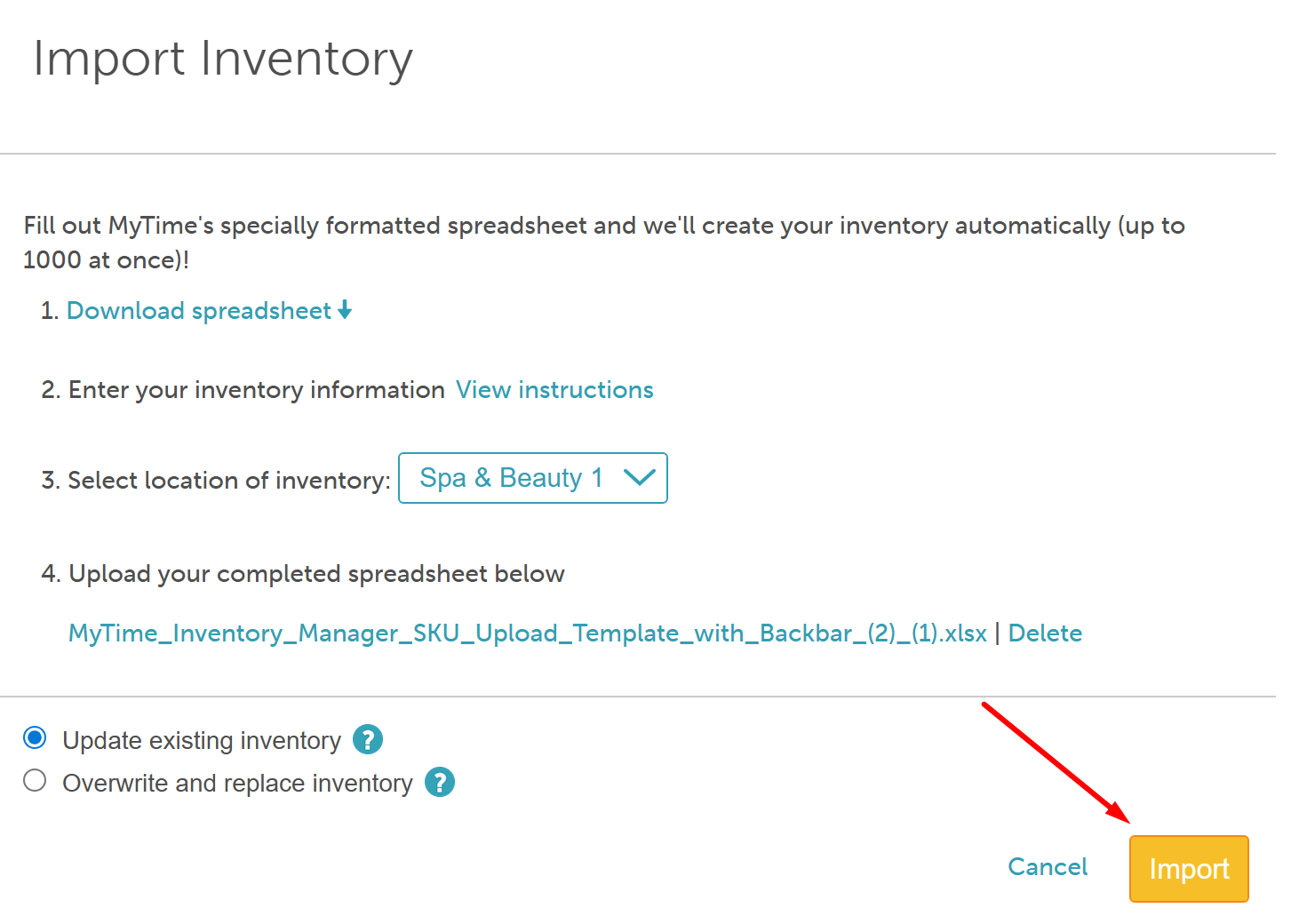
- When your file is uploaded, select Import
Your products are now added and will appear in your Inventory section at the parent and child levels.
Parent Level
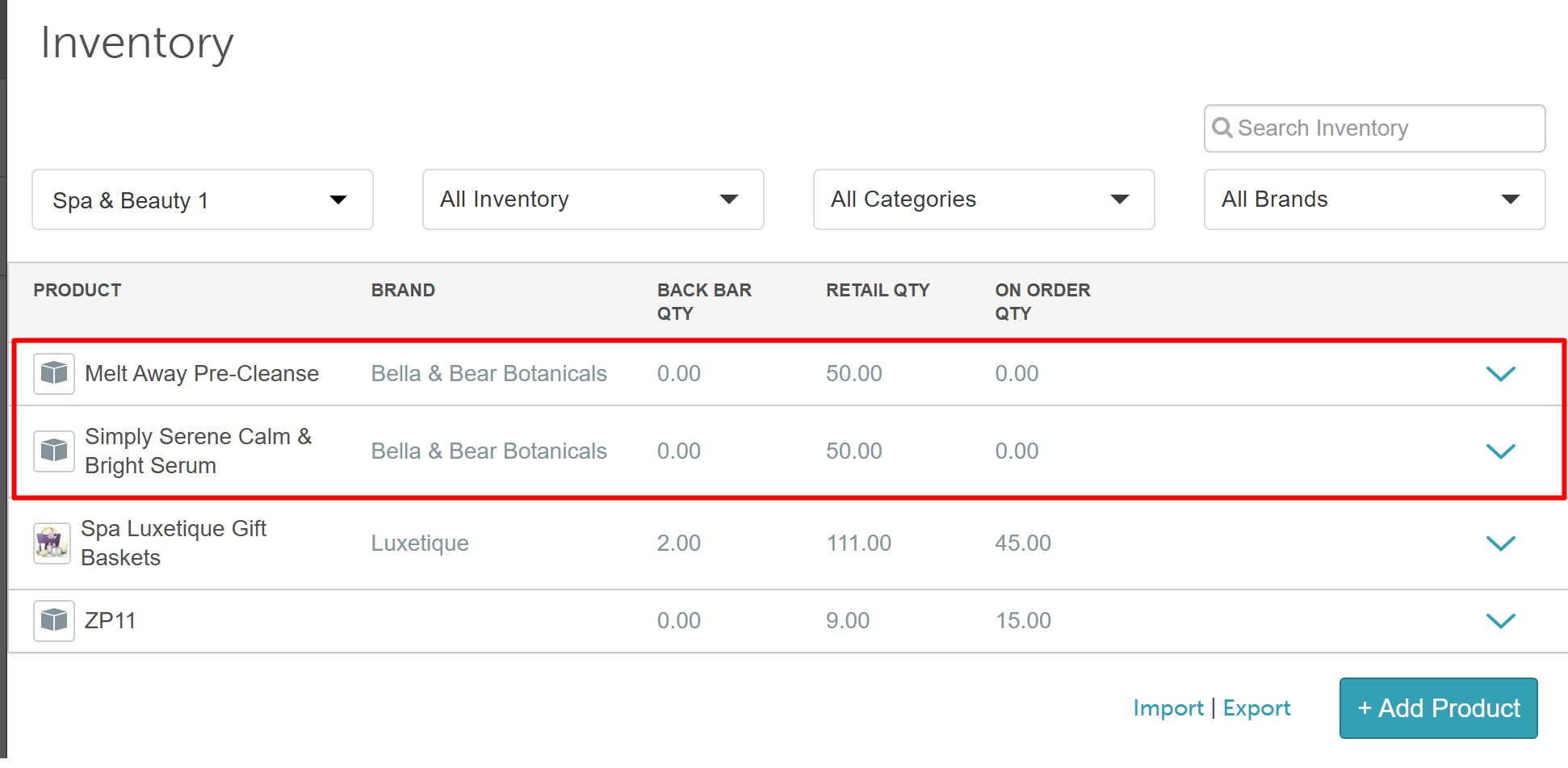
Child Level
Inventory Spreadsheet Column Descriptions
Column | Description |
Product Name | This field is required and is a matcher. Enter the product name that this SKU corresponds to. |
Product Brand | Brand of the product |
Product Category | This field is required and is a matcher. Category associated with the product; you can add multiple categories, just separate them using a comma. |
| Product Vendor | The vendor responsible for supplying the product. |
| Description | The description for the product. |
Sell Product to Clients? | Indicate if this product be sold to customers via the POS by entering 'Y' for yes and 'N' for no. Taxes will be applied. |
Commission Eligible? | Indicate if this product can be applied to retail commissions by entering 'Y' for yes and 'N' for no. |
| Discontinued? | Indicate if this product should be ordered by entering 'Y' for yes and 'N' for no. |
| SKU Name | This field is required and is a matcher. The full name of the SKU |
| SKU Number | The unique stock-keeping unit associated with the specific version of a product |
Vendor SKU Number | The Product Number the vendor assigned to the SKU, if different than the Manufacturer’s SKU number |
| Min | The quantity at which you want to be alerted to re-order on MyTime |
| Barcode | The number appearing directly below the barcode image on the SKU. You can add multiple barcodes, just separate them using a comma. |
Max
| The quantity of each SKU you want to maintain is used to calculate the reorder |
| Price | This field is required. The price paid by the client for the SKU |
| Cost Basis | This field is required. The price paid to the vendor for the SKU |
| Expiration Date | The expiration date of SKUs (leave blank if this does not apply) |
Current Retail Stock
| The current retail stock at the time the report was exported from MyTime |
| Current Back Bar Stock | The current back bar stock at the time the report was exported from MyTime |
| New Batch Date Added | The date the new batch was added to your inventory. |
| New Retail Batch Quantity | The quantity of retail SKUs that you are stocking as part of a new batch or shipment (you must use this if the cost or expiration date differs from previous batches). Note if this column is used, the Current Stock column will be ignored. |
New Back Bar Batch Quantity | The quantity of back bar SKUs that you are stocking as part of a new batch or shipment (you must use this if the cost or expiration date |
| New Cost Basis | The cost of SKUs in the new batch |
| New Expiration Date | The expiration date of SKUs in the new batch (leave blank if this does not apply) |
| Retail Enabled | Indicates the SKU can be a retail item |
| Back Bar Enabled | Indicates the SKU can be a back bar item |
| Delete Product and all its SKUs? | Indicate if the product and all its SKUs should be deleted by entering 'Y' for yes and 'N' for no. |
Importing Global Products via CSV Files (Ingest Data)
Things to know:
- The ability to create new products via ingest data is governed by the 'Accessing Ingest Data' access control setting.
- This feature is controlled by a hidden setting that only the MyTime team can enable. To enable the hidden setting, please contact our support team at support@mytime.com.
- The attached file is a general zip template that can be edited and used to create new products via Ingest Data.
From the parent level:
- Download and open the attached zip file template in this article
- This file will include 3 CSV sheets:
- inventory_products: This contains the new products that should be created.
- inventory_skus: This contains the SKUs that should be created for the new products.
- inventory_manifest: This contains the files you want us to process and their types.
- On the inventory_products CSV sheet, enter the following information:
Column Description product_id The external ID that will be assigned to the product and displayed on the 'Edit Product Details' modal under POS > Inventory 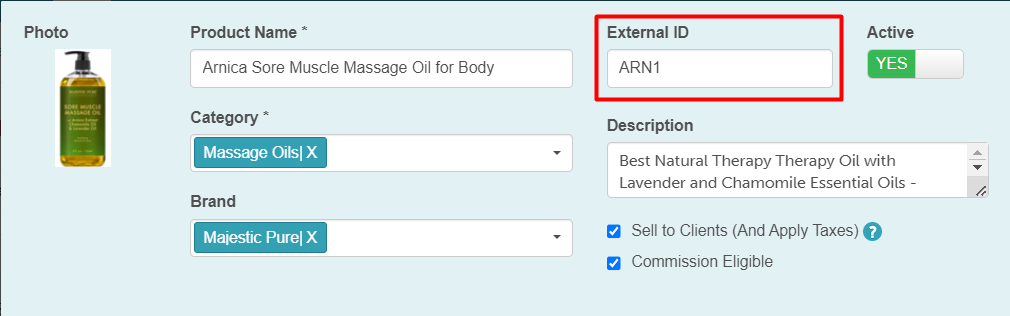
name The name of the product category The product category that will be assigned to the product 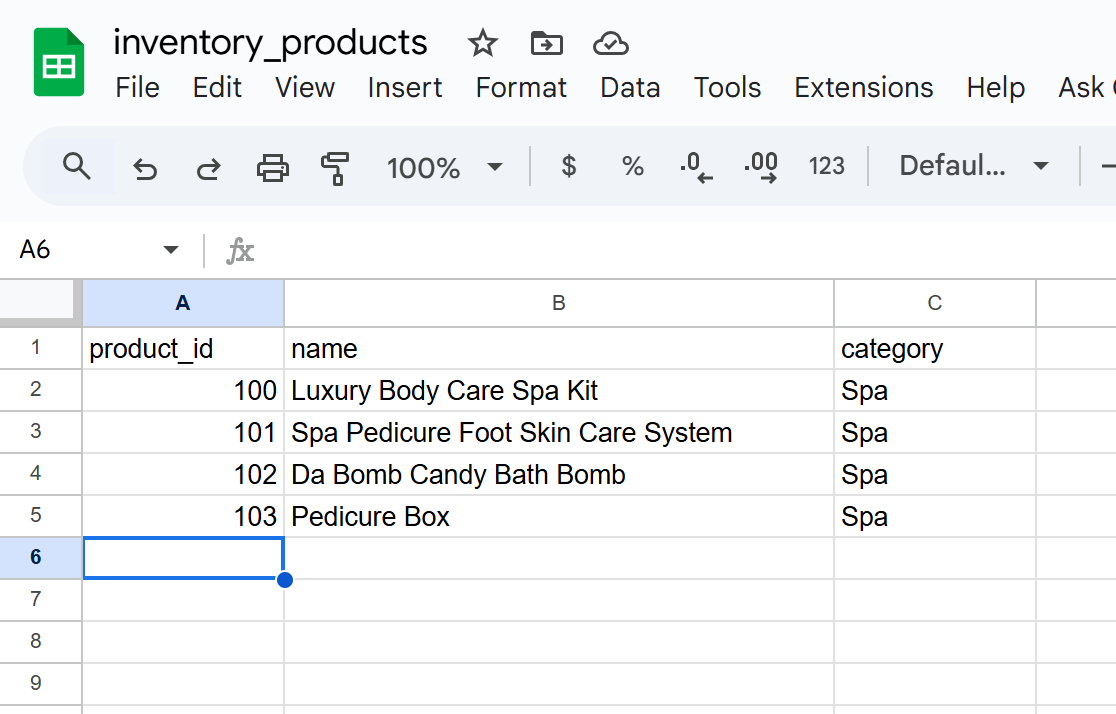
- On the inventory_skus CSV sheet, enter the following information:
Column Description product_id The external ID assigned to the product. This should match the ID entered on the inventory_products CSV sheet name The name of the SKU assigned to the product 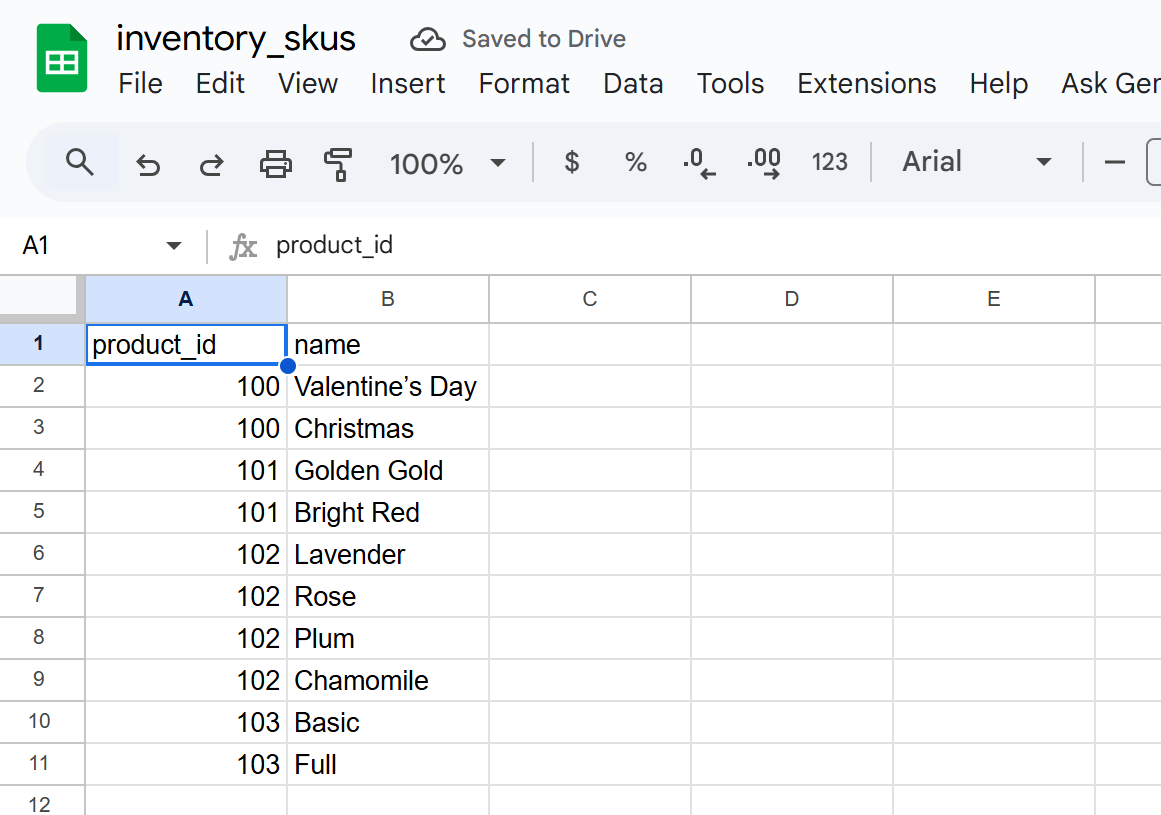
- On the inventory_manifest CSV sheet, enter the following information. The information below has to be identical when entered into the CSV sheet
name The name of the product brand The product brand assigned to the product 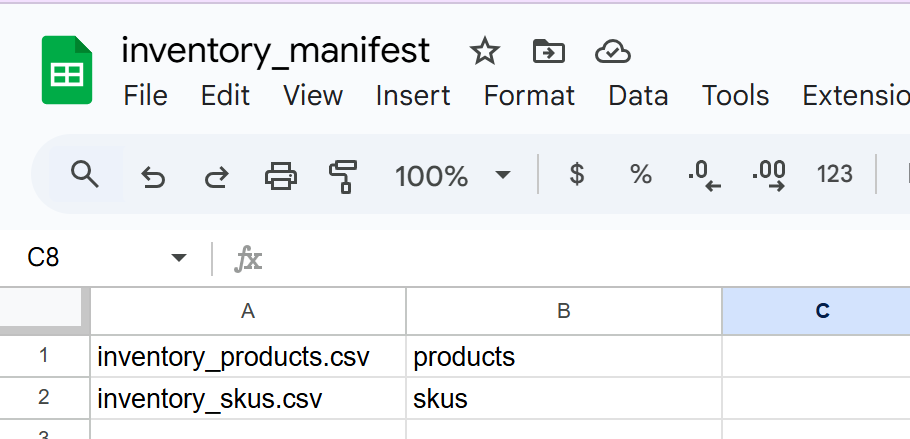
- Once all CSv sheets are completed, download them as a CSV file
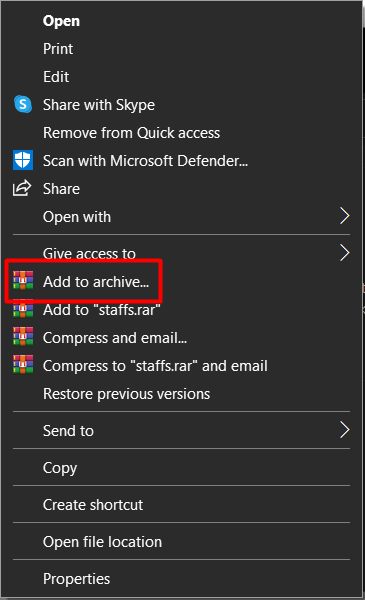
- Create a zip file with all 3 CSV files. To zip your files:
- Highlight all 3 CSV files, then right-click on any of the files
- Choose the Compress or Archive option
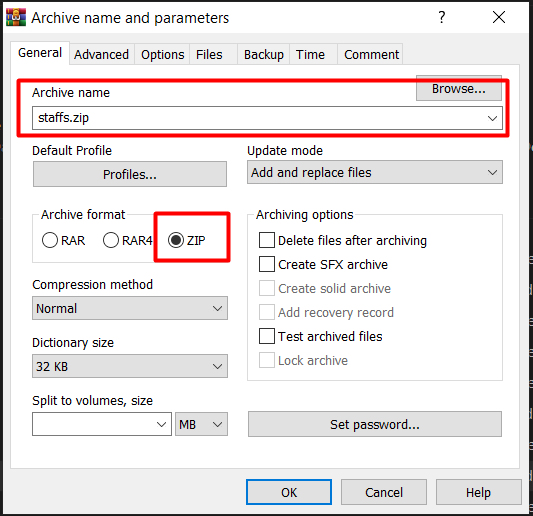
- Name your file, for example, inventory_product_creation
- When the parameter pops up, select ZIP for the format type. Please remember where you are saving your ZIP file and note that your modal may appear differently based on your system.
- In MyTime, go to Inventory
- Click 'Import' at the bottom right-hand corner of the page
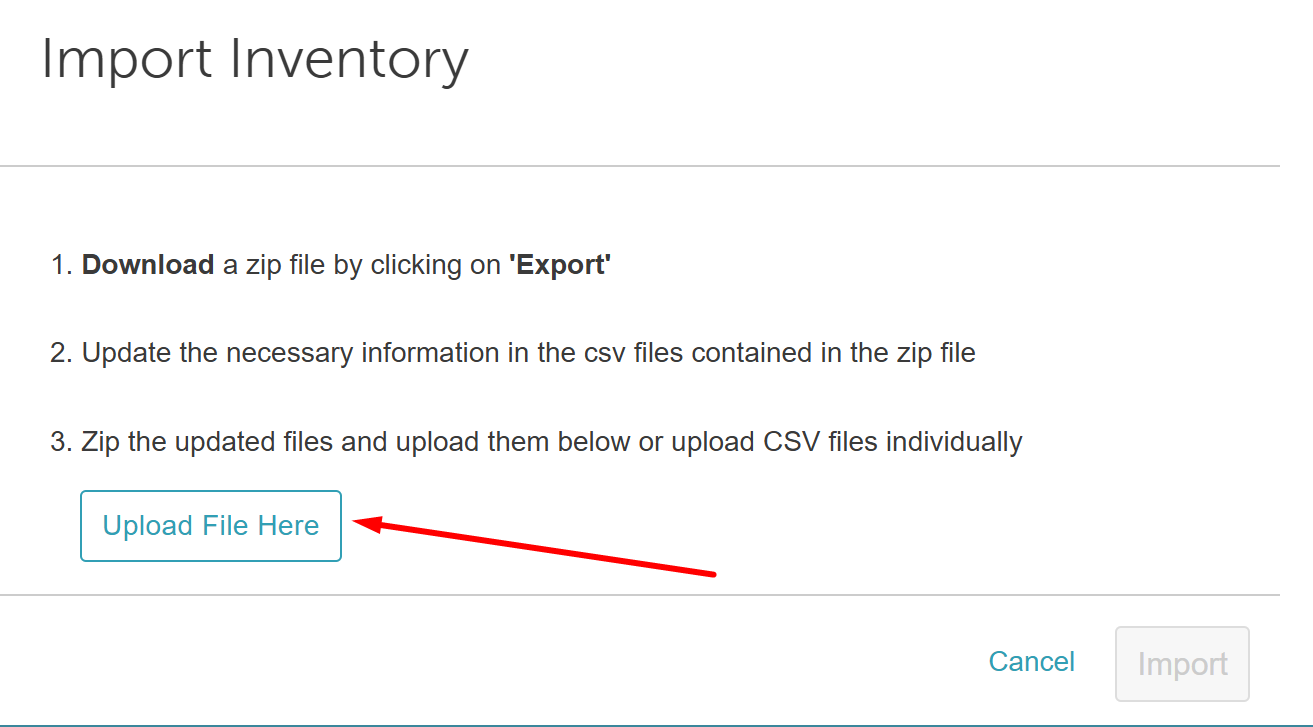
- Click 'Upload File Here' on the import Inventory page
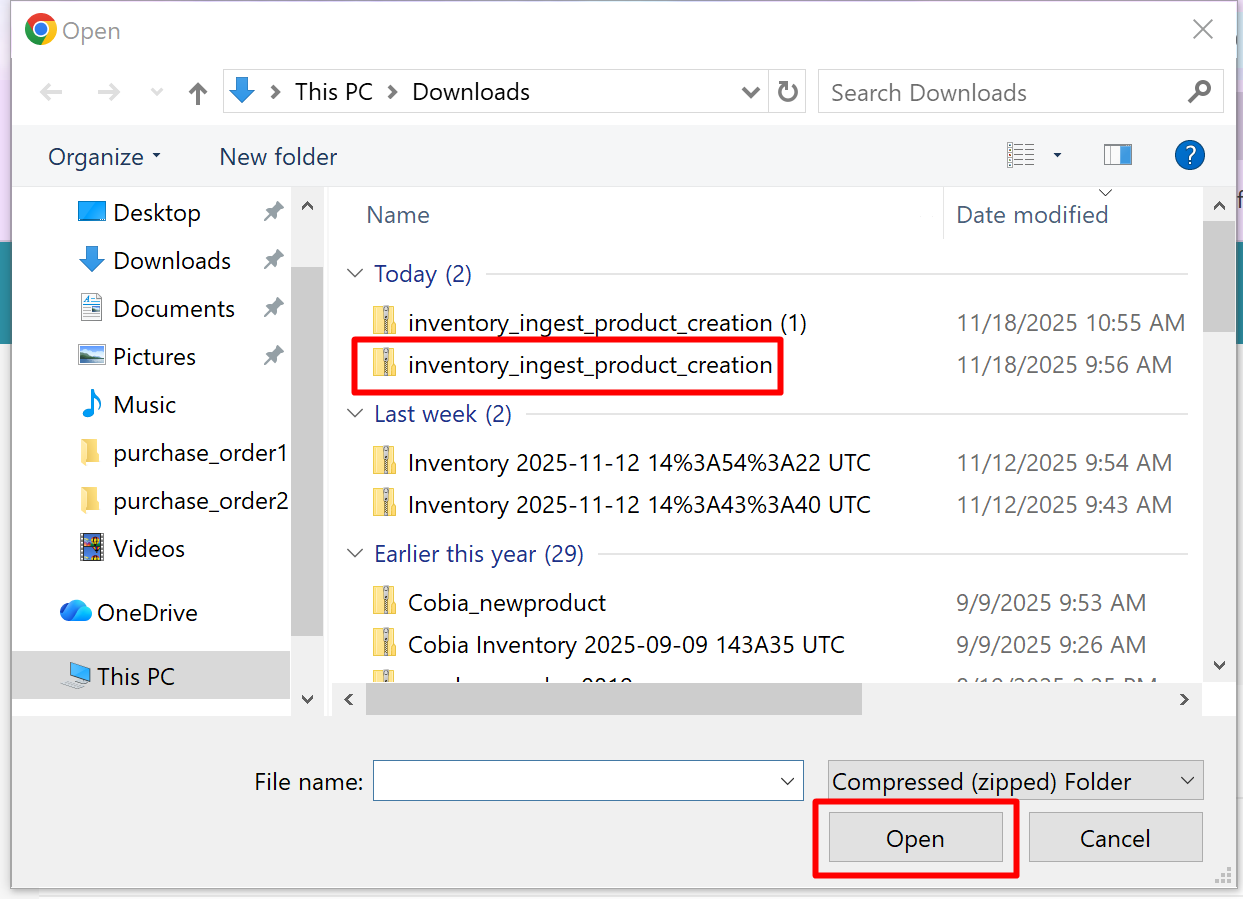
- Choose the zip file that you have saved on your computer, then click Open
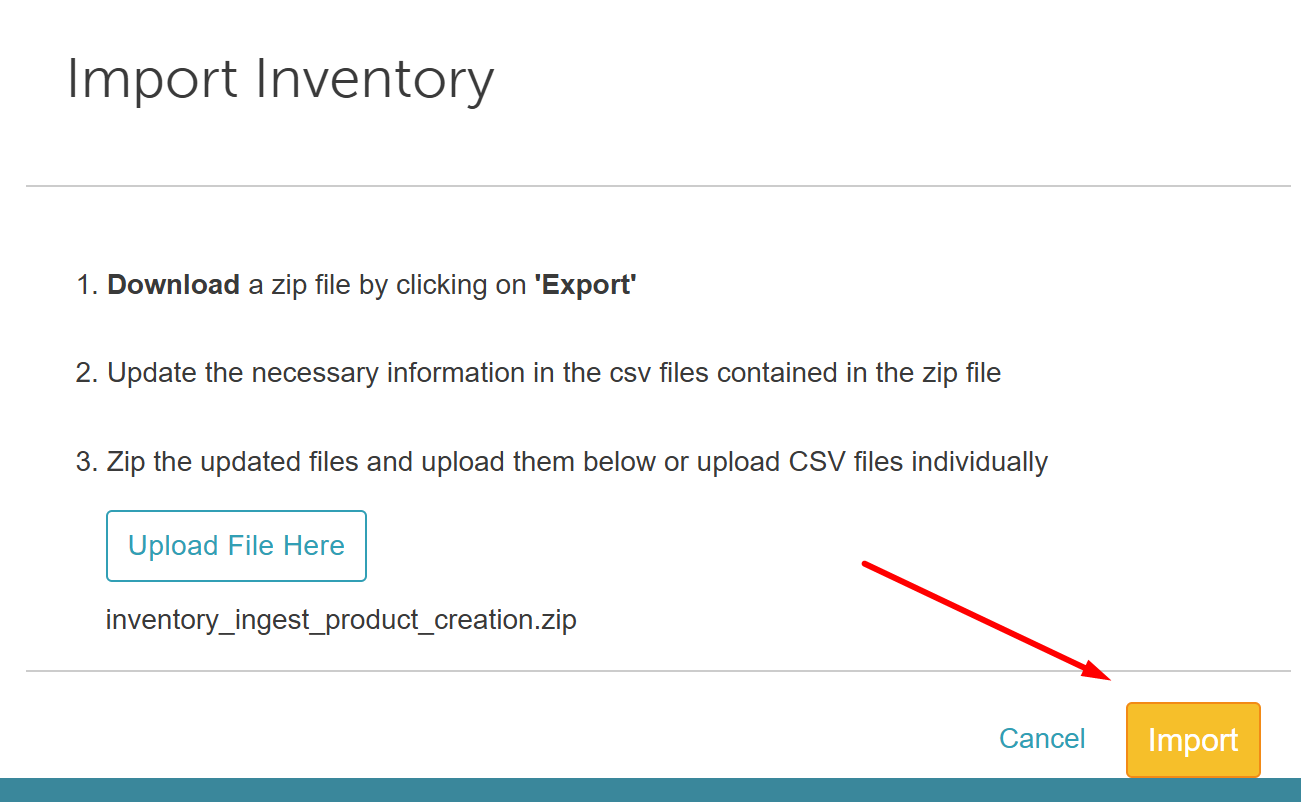
- Click 'Import'
- The page will be directed to the Processed Batches page; the file will appear below with a start date and time, along with the status
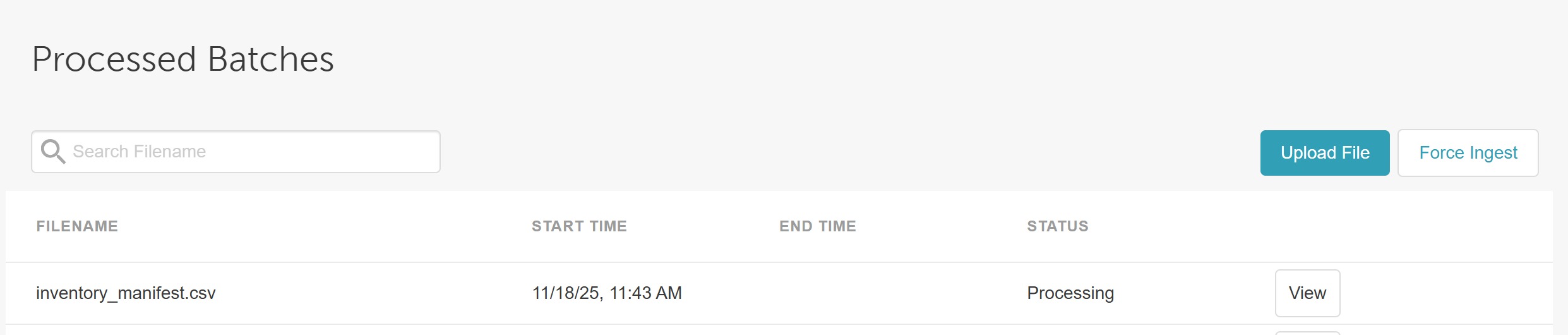
- Once completed, an end time will be displayed and the status changed to 'Finished'

Congratulations! You have successfully created your new product. You can navigate to Inventory to view the changes.
When opened, the product's new SKUs and category will be displayed 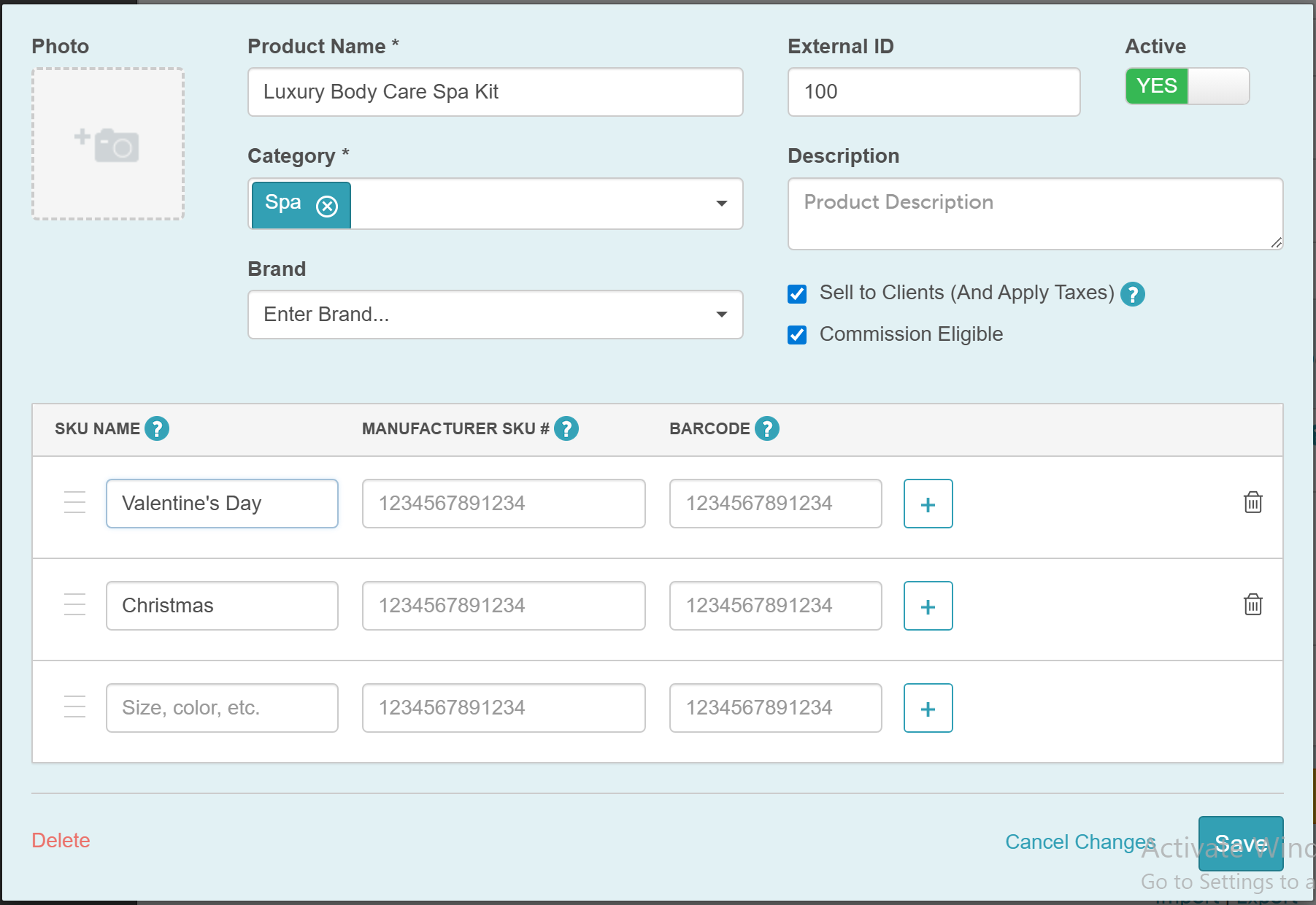
Next, you will need to update your products. You can do this by following the steps here
If you have any questions about adding products to Inventory, contact our Support Team at support@mytime.com.
Related Articles
Adding Global Products Manually
Was this article helpful?
That’s Great!
Thank you for your feedback
Sorry! We couldn't be helpful
Thank you for your feedback
Feedback sent
We appreciate your effort and will try to fix the article