In this article, we will walk through the steps to create new inventory products using CSV files.
Things to know:
- The ability to create new products via ingest data is governed by the 'Accessing Ingest Data' access control setting.
- This feature is controlled by a hidden setting that only the MyTime team can enable. To enable the hidden setting, please contact our support team at support@mytime.com.
- The attached file is a general zip template that can be edited and used to create new products via Ingest Data.
To create new products and their SKUs via ingest data:
- Download and open the attached zip file template in this article
- This file will include 3 CSV sheets:
- inventory_products: This contains the new products that should be created.
- inventory_skus: This contains the SKUs that should be created for the new products.
- inventory_manifest: This contains the files you want us to process and their types.
- On the inventory_products CSV sheet, enter the following information:
Column Description product_id The external ID that will be assigned to the product and displayed on the 'Edit Product Details' modal under POS > Inventory 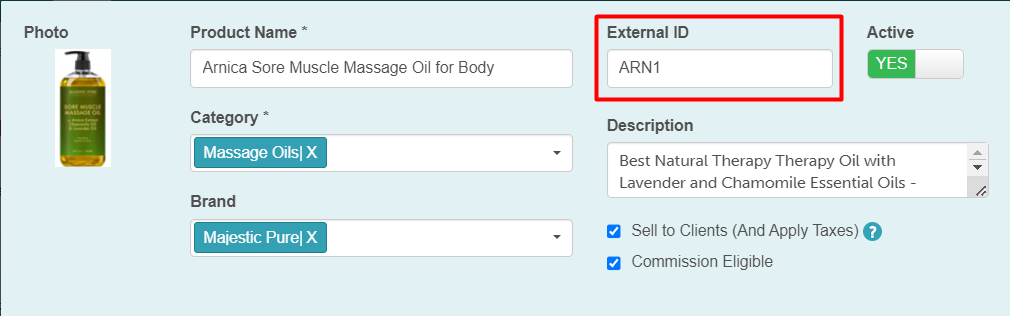
name The name of the product category The product category that will be assigned to the product 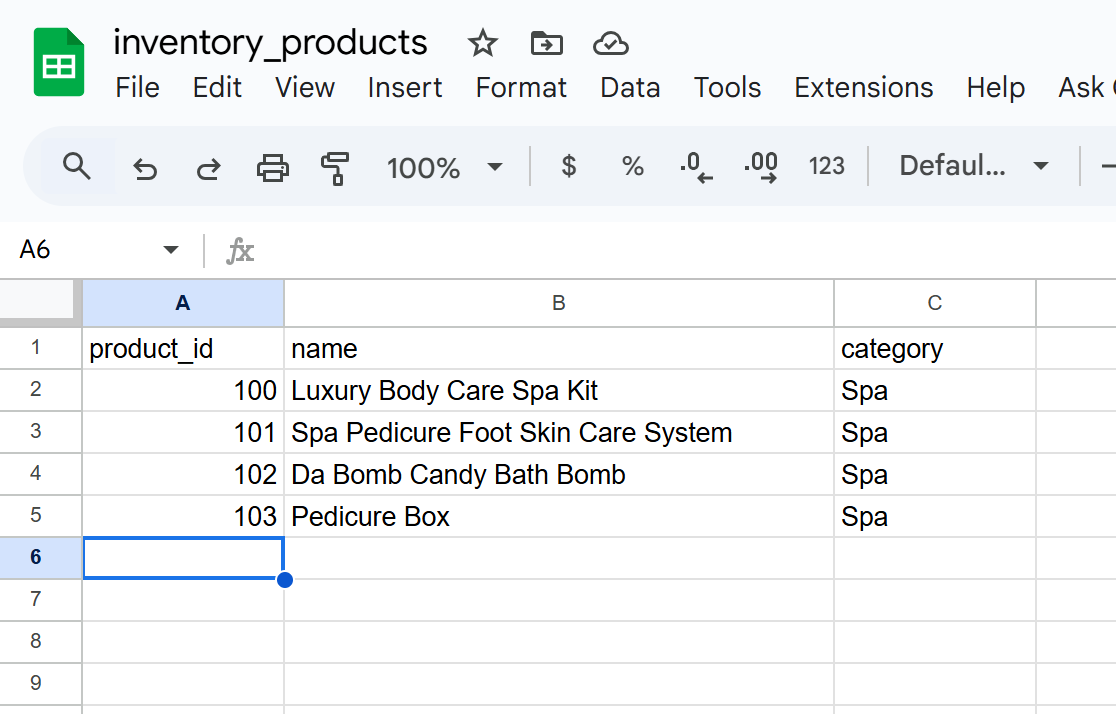
- On the inventory_skus CSV sheet, enter the following information:
Column Description product_id The external ID assigned to the product. This should match the ID entered on the inventory_products CSV sheet name The name of the SKU assigned to the product 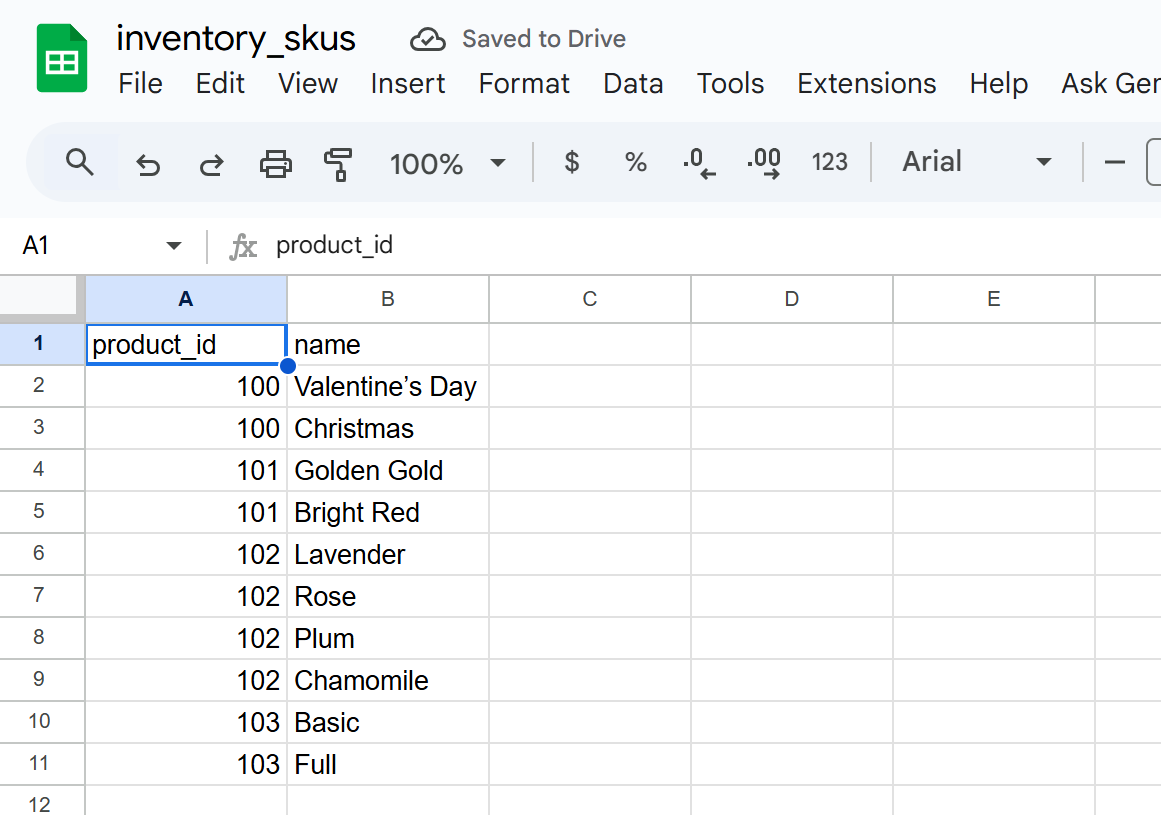
- On the inventory_manifest CSV sheet, enter the following information. The information below has to be identical when entered into the CSV sheet
name The name of the product brand The product brand assigned to the product 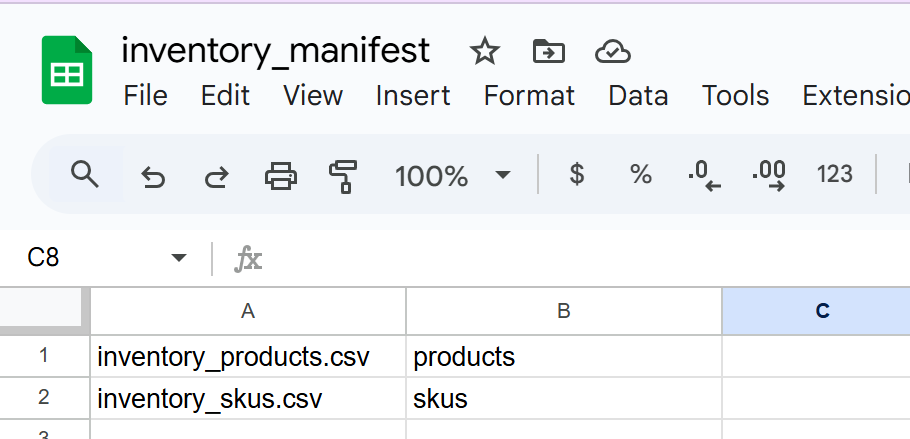
- Once all CSv sheets are completed, download them as a CSV file
- Create a zip file with all 3 CSV files. To zip your files:
- Highlight all 3 CSV files, then right-click on any of the files
- Choose the Compress or Archive option
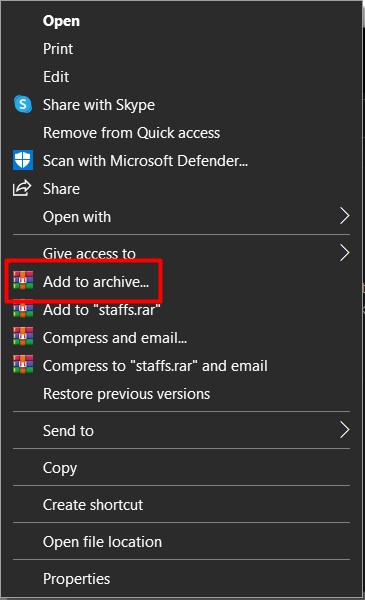
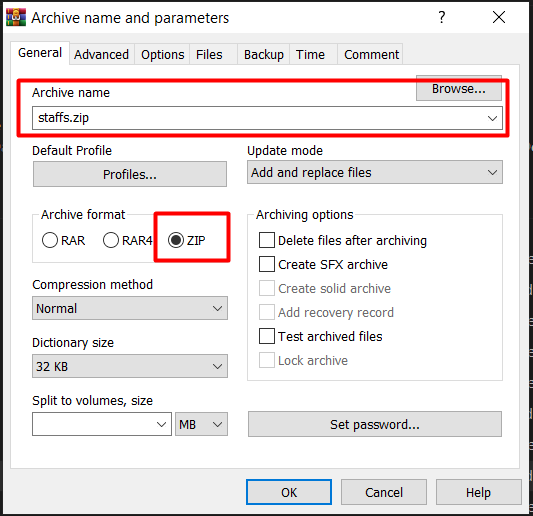
- Name your file, for example, inventory_product_creation
- When the parameter pops up, select ZIP for the format type. Please remember where you are saving your ZIP file and note that your modal may appear differently based on your system.
- In MyTime, navigate to POS > Inventory
- Click 'Import' at the bottom right-hand corner of the page

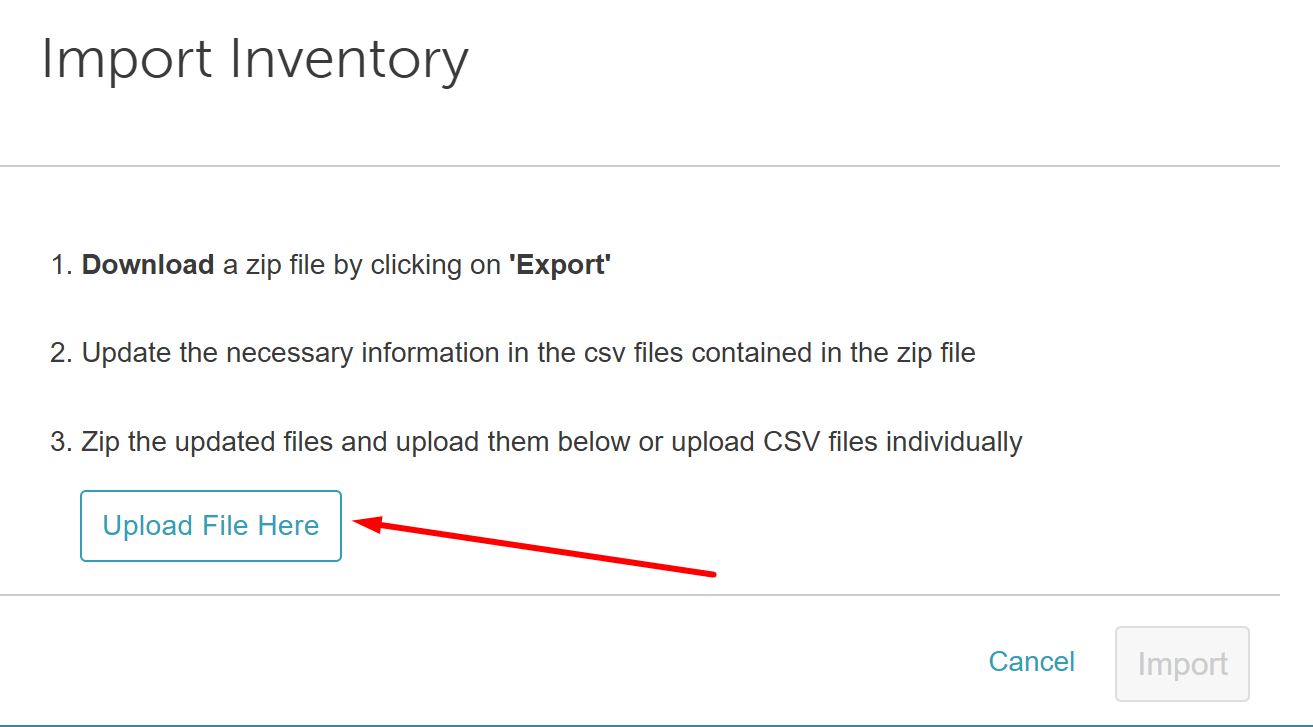
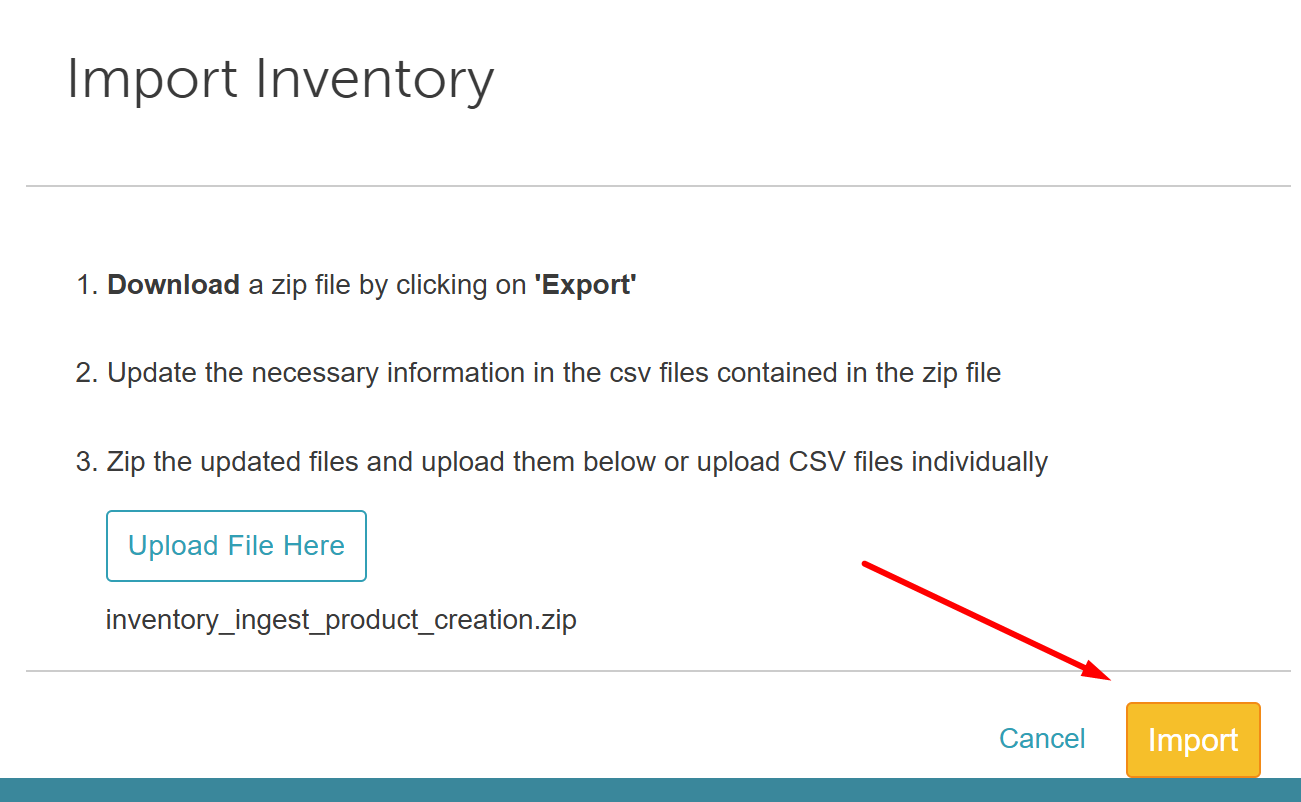
- Click 'Upload File Here' on the import Inventory page
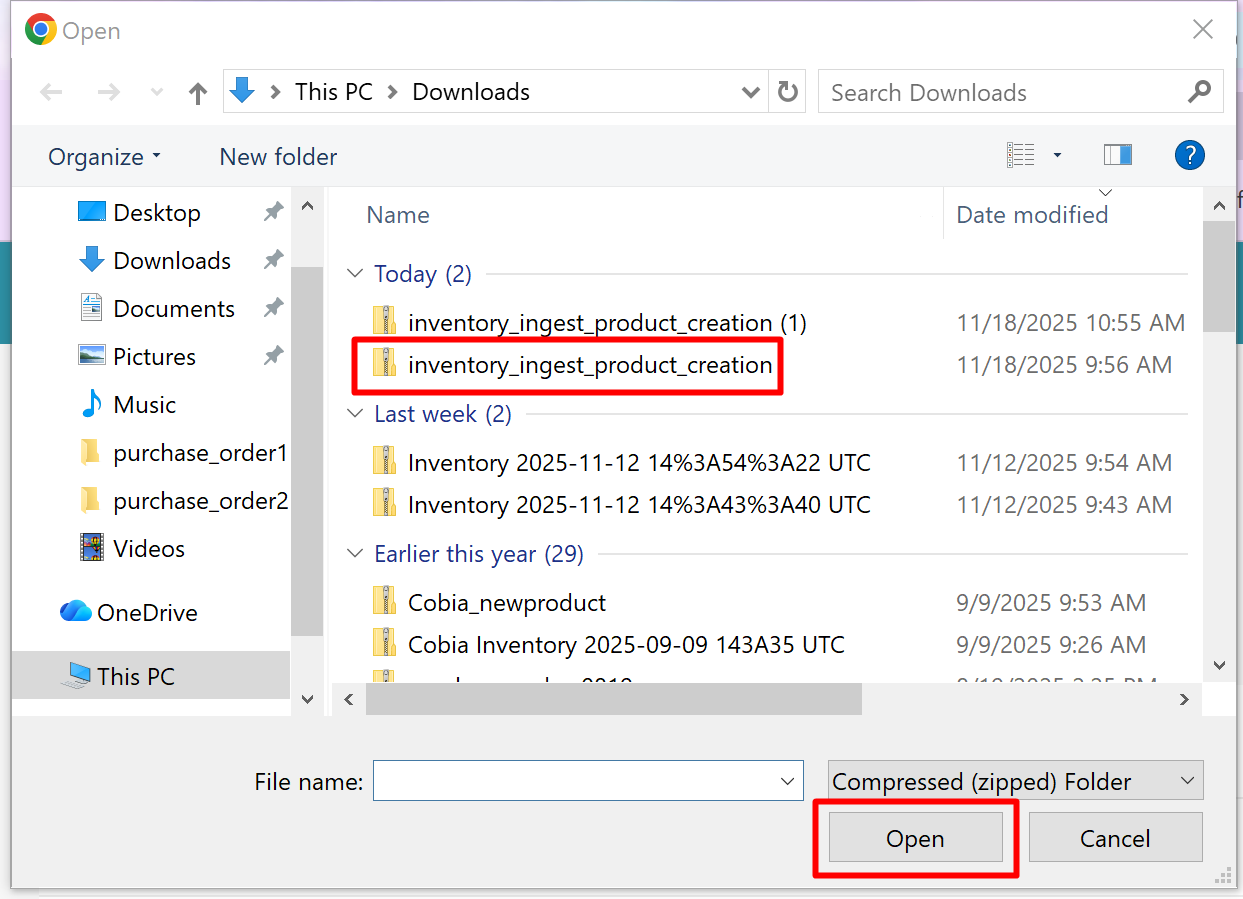
- Choose the zip file that you have saved on your computer, then click Open
- Click 'Import'
- The page will be directed to the Processed Batches page; the file will appear below with a start date and time, along with the status
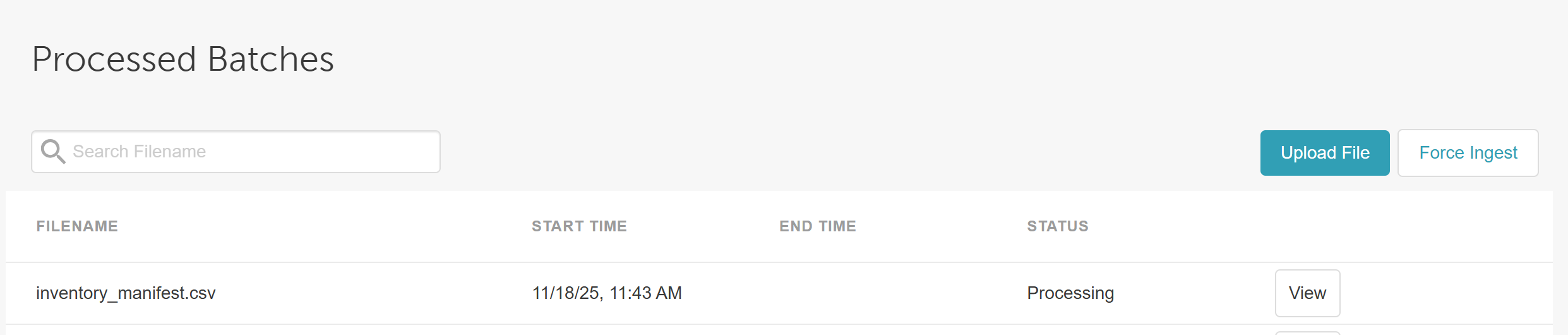
- Once completed, an end time will be displayed and the status changed to 'Finished'

Congratulations! You have successfully created your new product. You can navigate to POS > Inventory to view the changes.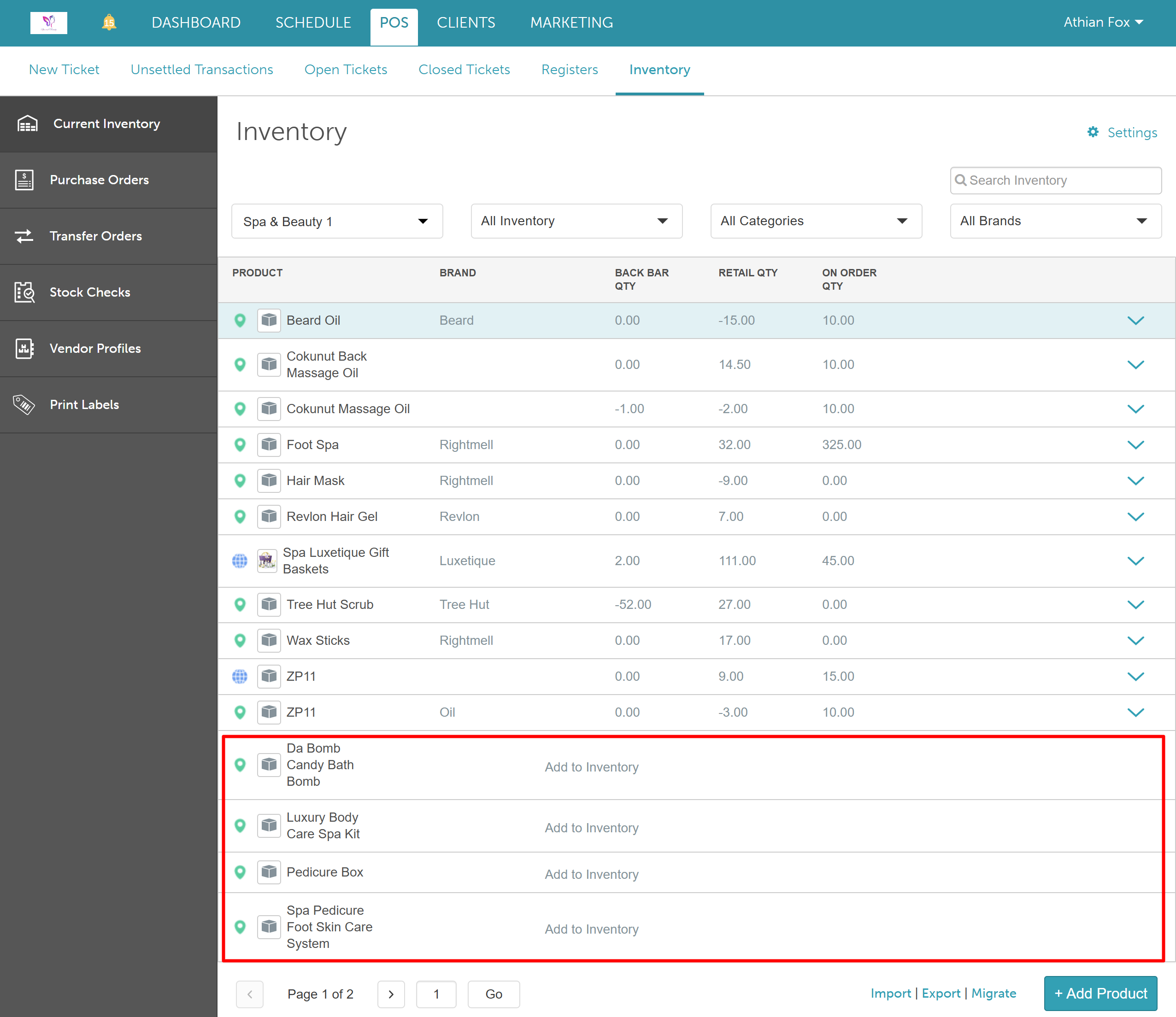
When opened, the product's new SKUs and category will be displayed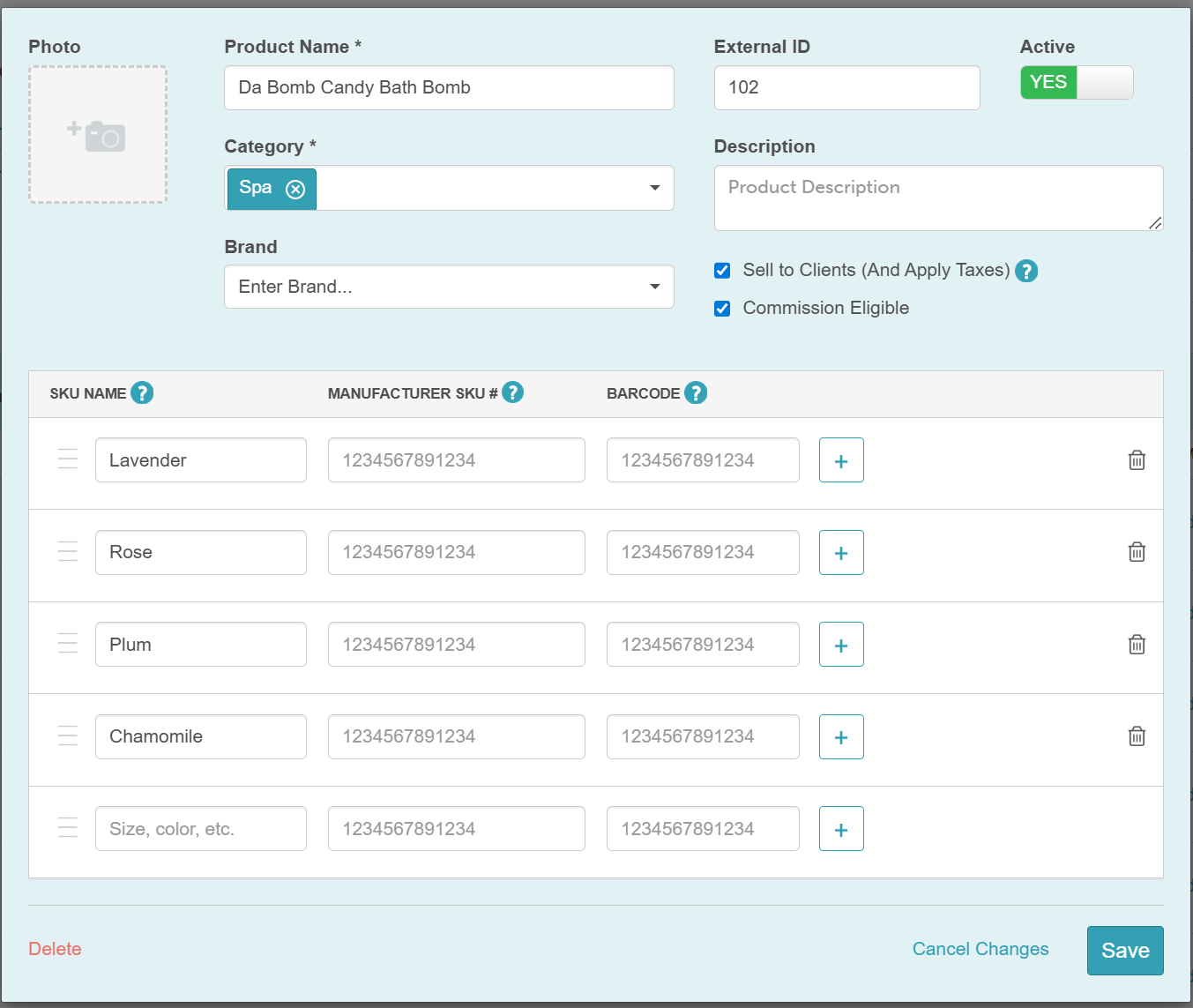
Next, you will need to update your products. You can do this by following the steps here
For more information, contact us at support@mytime.com.
Updating Product Name, Brand or Category via CSV Files (Ingest Data)
Updating Vendor Cost via CSV Files (Ingest Data)
Updating Product Price, Cost and Quantity via CSV File (Ingest Data)
Importing Purchase Orders via CSV File (Ingest Data)
Was this article helpful?
That’s Great!
Thank you for your feedback
Sorry! We couldn't be helpful
Thank you for your feedback
Feedback sent
We appreciate your effort and will try to fix the article