This article will guide you through the steps to add funds to an existing gift card using the POS.
Things to Know:
- The ability to reload gift cards in POS is controlled by the "Creating Tickets" access control setting.
- If the “Enable Gift Card Expiration” setting is active:
- Newly purchased gift cards will display an “Expires” field when reloading the card in POS.
- You can edit the expiration date during the reload process. When a gift card is reloaded, the updated balance is automatically reflected in the Gift Card section of the client’s profile. If a gift card was not previously assigned to a recipient, it will remain unassigned after reloading until a recipient is manually added.
- The Gift Card Balances report:
- Displays the current balance for each gift card.
- Shows an “Add Recipient” link in the Recipient column for unassigned gift cards.
- The Gift Card Activity report records each reload as “Purchase” under the Activity column.
- By default, payment buttons may lack visual prominence, making it difficult for staff to quickly identify the primary payment method. This can lead to selecting incorrect options or improper transaction processing. You can request a layout change that reorders the buttons and highlights the primary action in blue for better visibility.
- Default Display:
- No Card on File: [Key In Card] [Swipe Card]
- Card on File: [Visa ****1234] [Key In Card] [Swipe Card]
- Enhanced Display (High Visibility):
- No Card on File: [Swipe/Tap Card] (Highlighted) [Manual Entry]
- Card on File: [Visa ****1234] (Highlighted) [Swipe/Tap] [Manual Entry]
- Important: This is controlled by a hidden setting that must be enabled by the MyTime team. If you would like to switch to the high-visibility payment buttons, please contact us at support@mytime.com
- Default Display:
To reload a gift card:
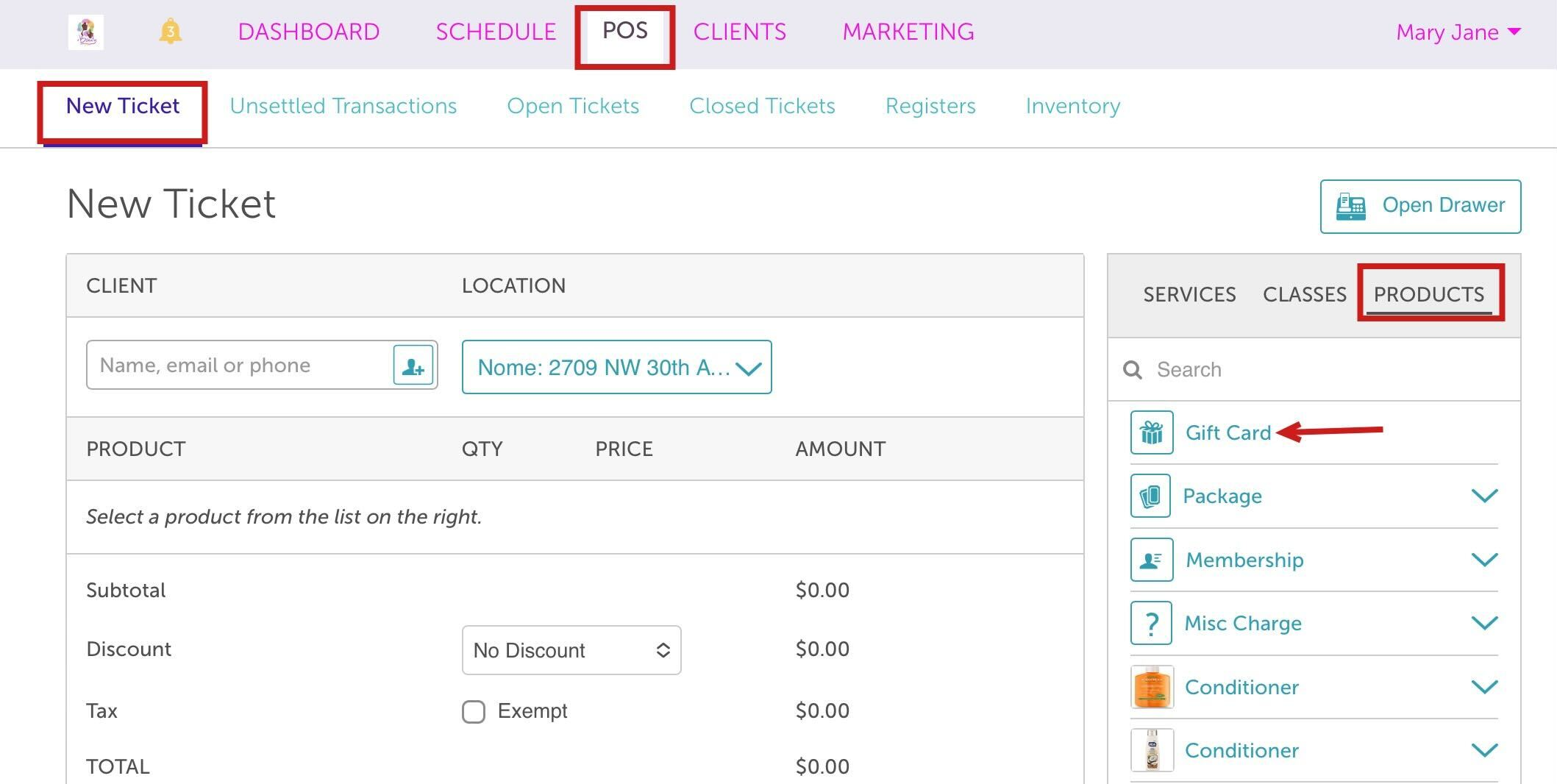
- Navigate to POS > New Ticket
- Select the Products tab on the right sidebar
- Choose Gift Card
- A Gift Card modal will appear
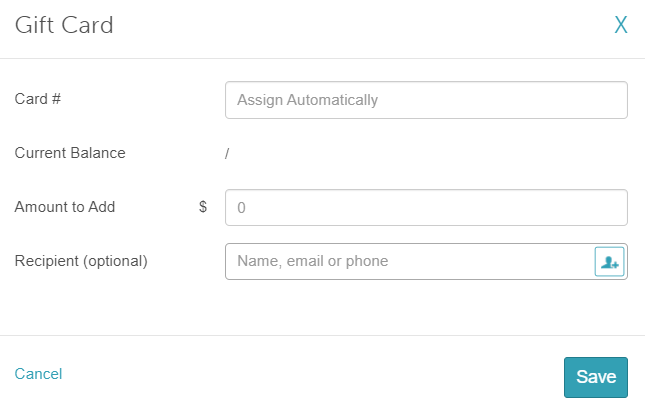
- In the "Amount to Add" field, enter the dollar amount you want to add to the existing card.
- In the "Card #" field, enter the existing gift card number
- To verify the current balance before reloading, click "Check Balance"
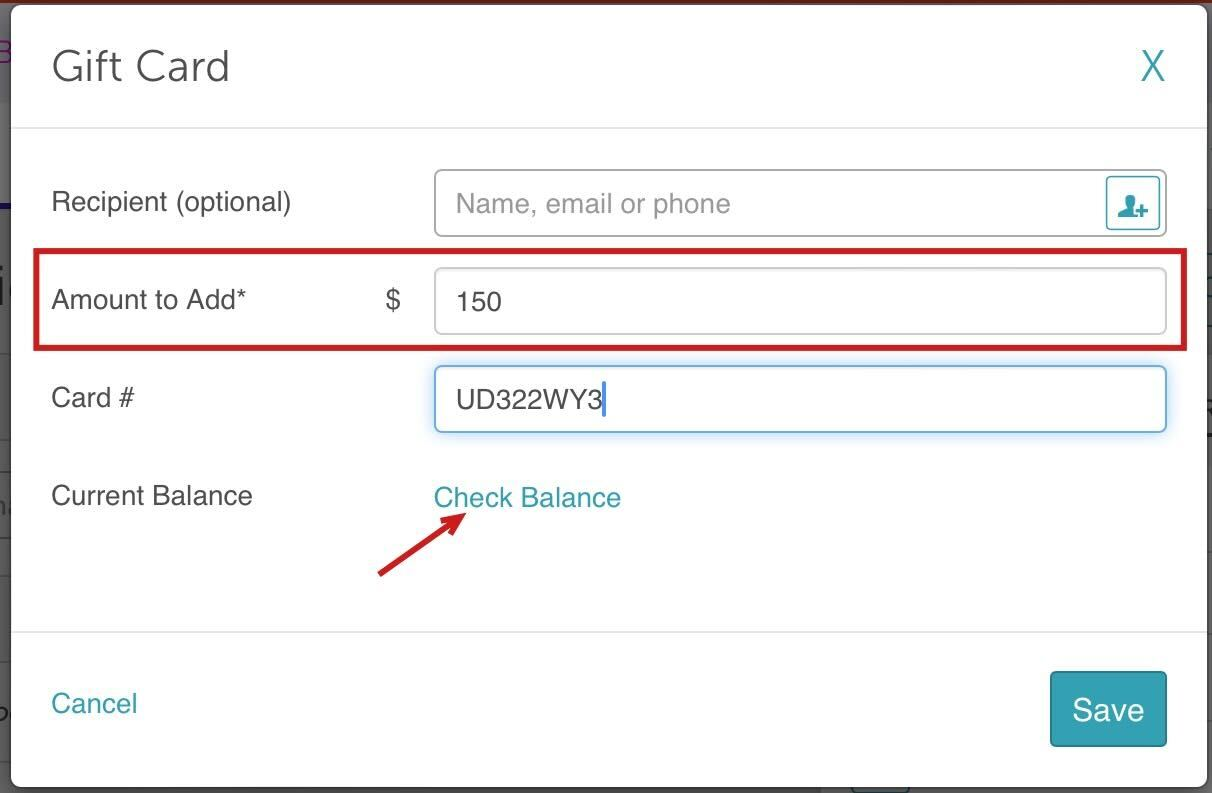
- The current balance will be displayed
- The Recipient field will auto-populate if a recipient was assigned during the initial purchase or added later in the report. If no recipient was assigned before reloading, a recipient can be added at that time.
- Save
- Add the Client
- Take Payment and close the ticket
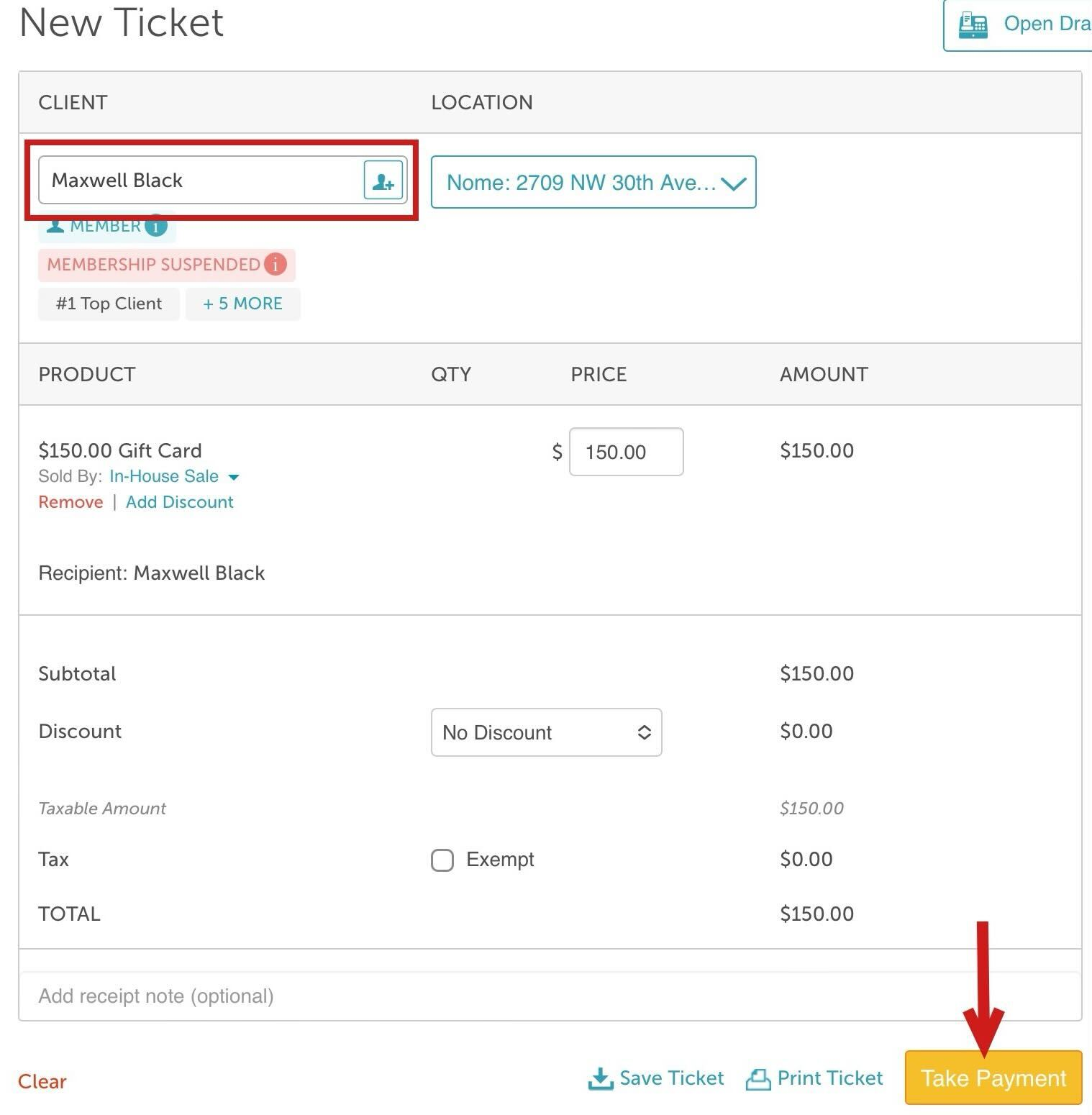

Once the ticket is closed, a confirmation message will appear at the top of the page.
The updated gift card balance will then be displayed in the Gift Cards section of the client’s profile.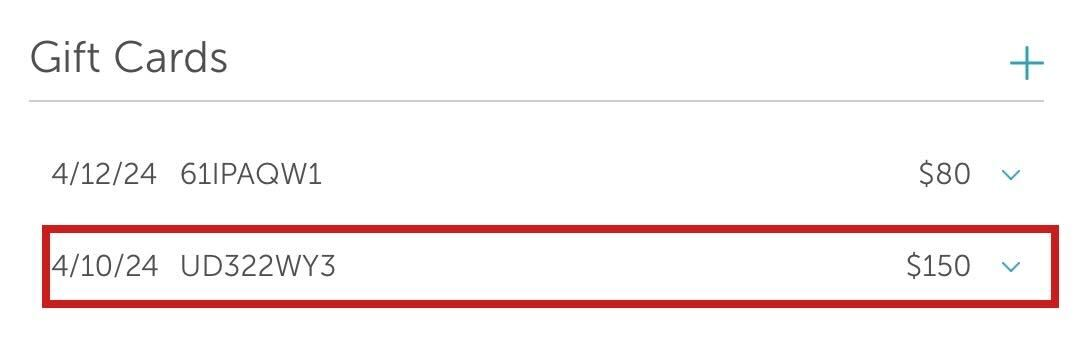
For more information contact us at support@mytime.com.
Related Articles:
- Gift Card Settings
- Gift Card Expiration
- Adding Gift Cards Manually on Client Profile
- Editing Gift Cards in the Client Profile
- Gift Card Audit Trail
- Importing Gift Cards
- Selling Electronic Gift Cards in POS
- Redeeming Gift Cards In-store in POS
- Sell & Redeem Gift Cards via Ingenico Credit Card Terminals
- Purchasing Gift Cards Online
- Redeeming Gift Cards Online
Was this article helpful?
That’s Great!
Thank you for your feedback
Sorry! We couldn't be helpful
Thank you for your feedback
Feedback sent
We appreciate your effort and will try to fix the article