At MyTime, you can mark a staff member as "Preferred" on a pet profile to help ensure pets are consistently booked with their favorite groomer or service provider. This preference is visible when scheduling in-store appointments and can be set manually or updated automatically based on booking behavior.
Things to know:
- The ability to mark a staff member as preferred on the pet profile is controlled by the "Accessing Client Records" access setting.
- If a client has multiple pets, each pet can have its own preferred staff member.
- When a staff member is marked as "Requested" during appointment booking, they are automatically saved as the preferred staff member—either on the pet profile or the client profile, depending on whether a pet is selected.
- In-Store Appointments
- If a staff member is marked as Requested and a specific pet is selected → the staff member is saved as Preferred on the pet profile.
- If a staff member is marked as Requested but no pet is selected → the staff member is saved as Preferred on the client profile.
- If no staff is marked as Requested → no Preferred staff is assigned.
Contents
- Manually Marking a Staff Member as Preferred on a Pet Profile
- Automatically Updating a Staff Member as Preferred on a Pet Profile
Manually Marking a Staff Member as Preferred on a Pet Profile
- Launch the MyTime Scheduler app on your device
- Choose your login method:
- Standard: Enter your registered email address and password, then tap 'Sign In'
- Social Login: Select 'Continue with Google' or 'Continue with Apple' to use your existing credentials for a faster login experience. For detailed instructions, learn more here
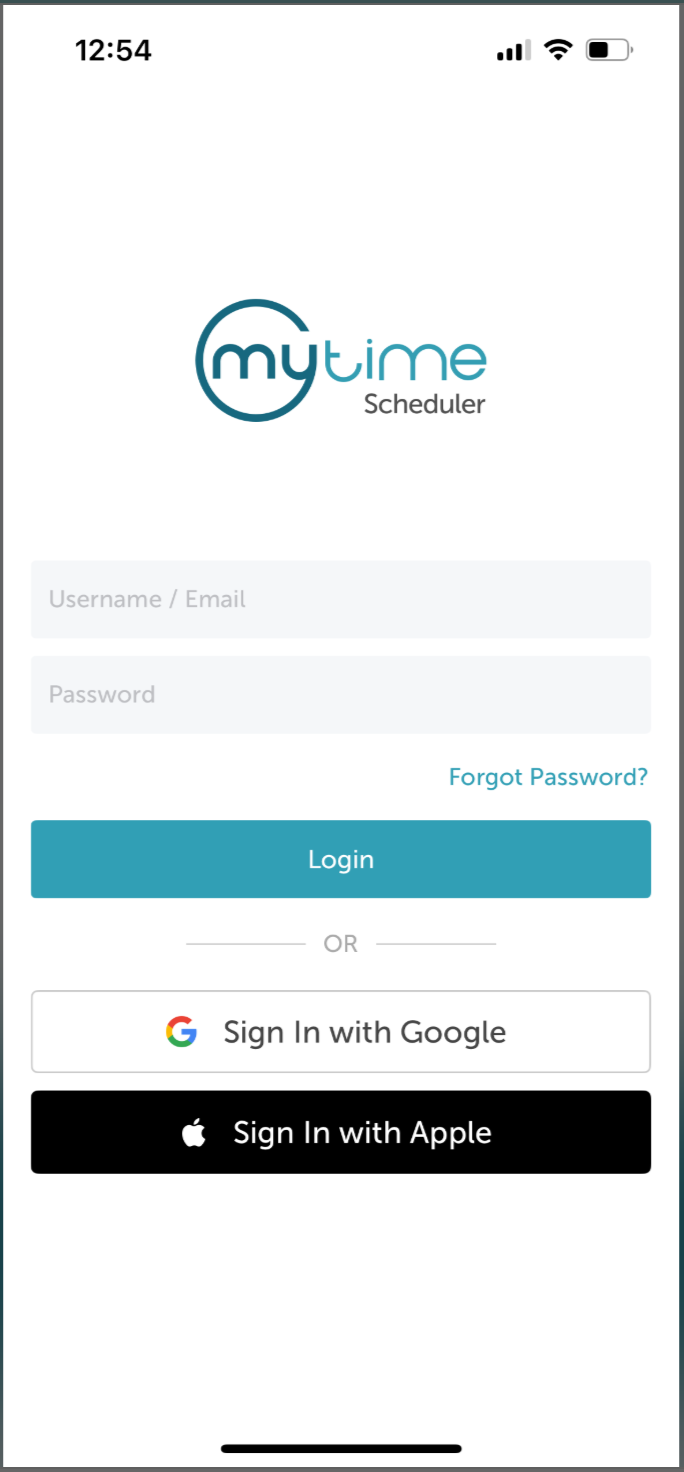
- After signing in, you will be directed to the Schedule by default
- Tap the Clients icon at the bottom of the screen
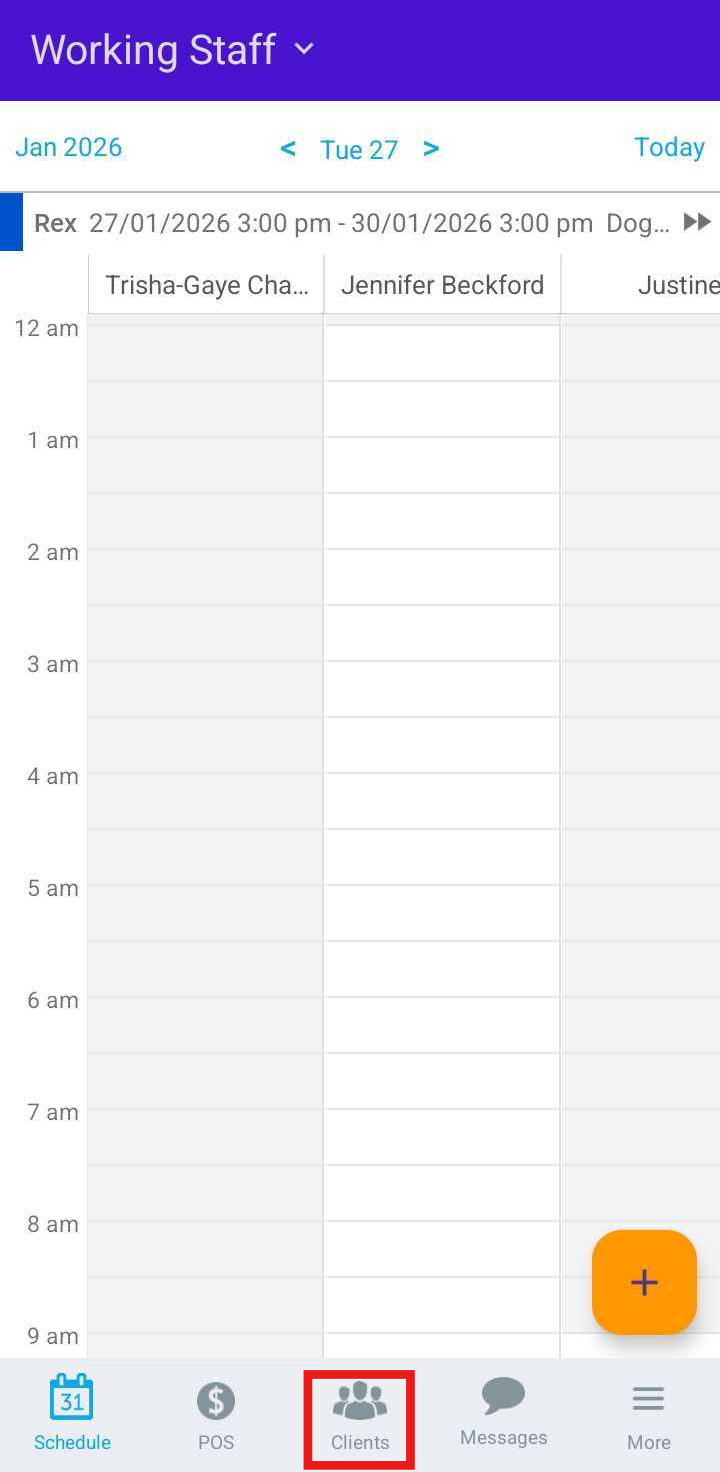
- Search for the client by typing their name in the Search field, or select the client from the client list.
- In the Client’s Pet section, select the pet you want to update
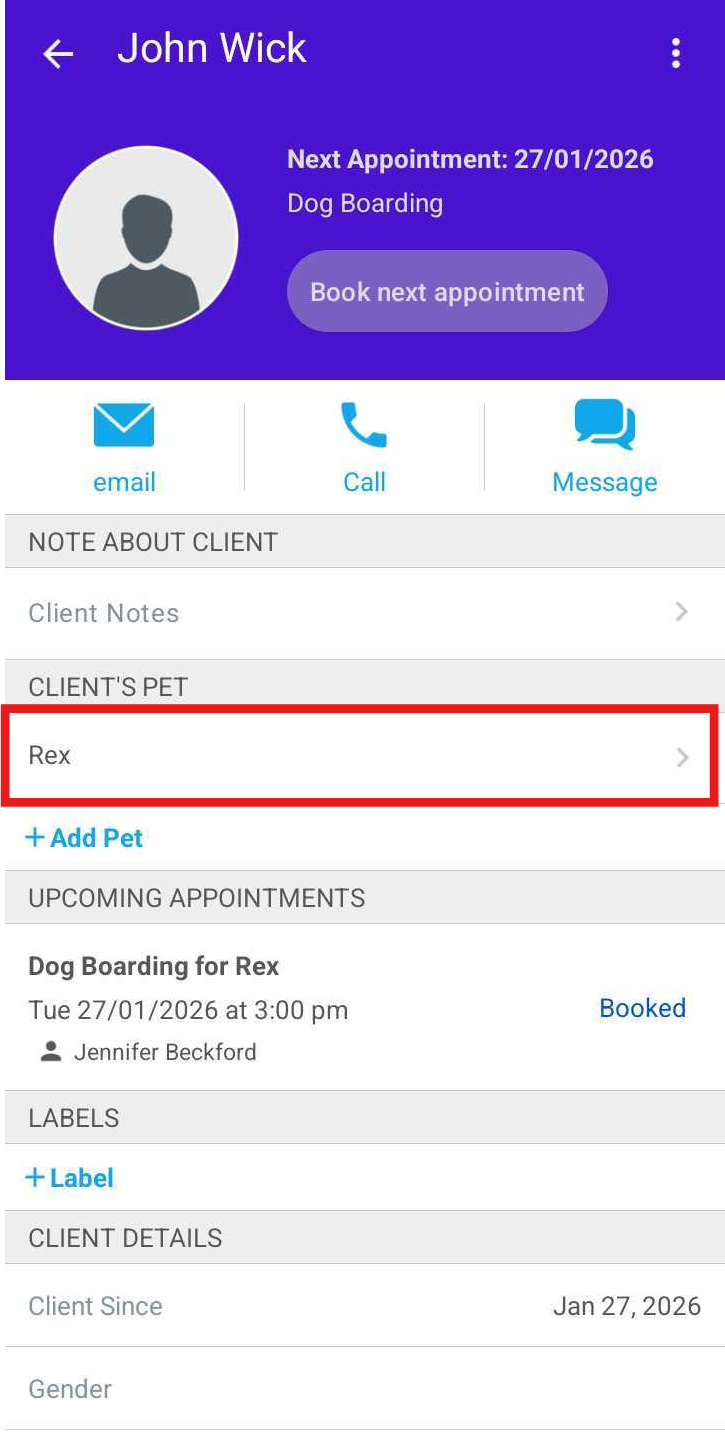
- Tap Edit
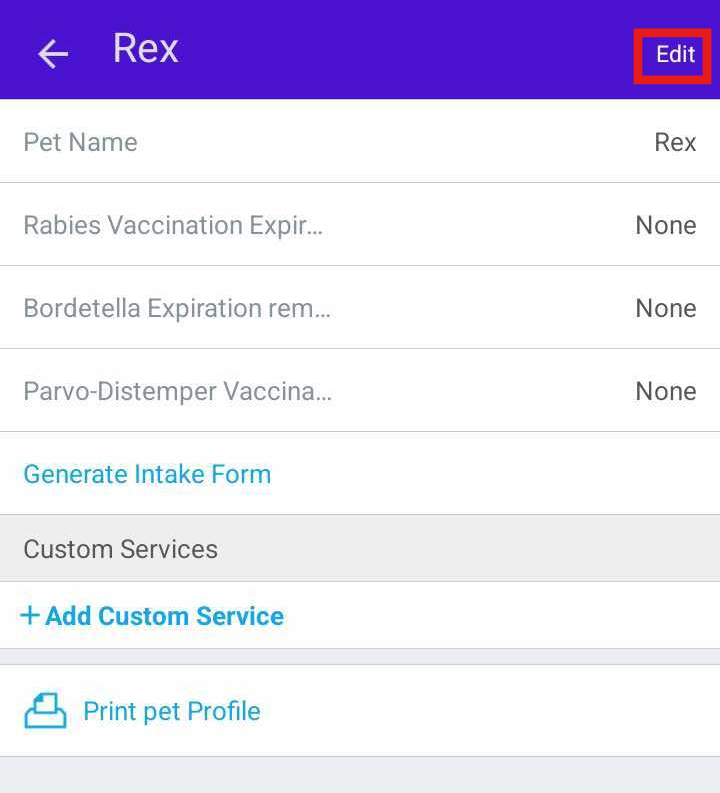
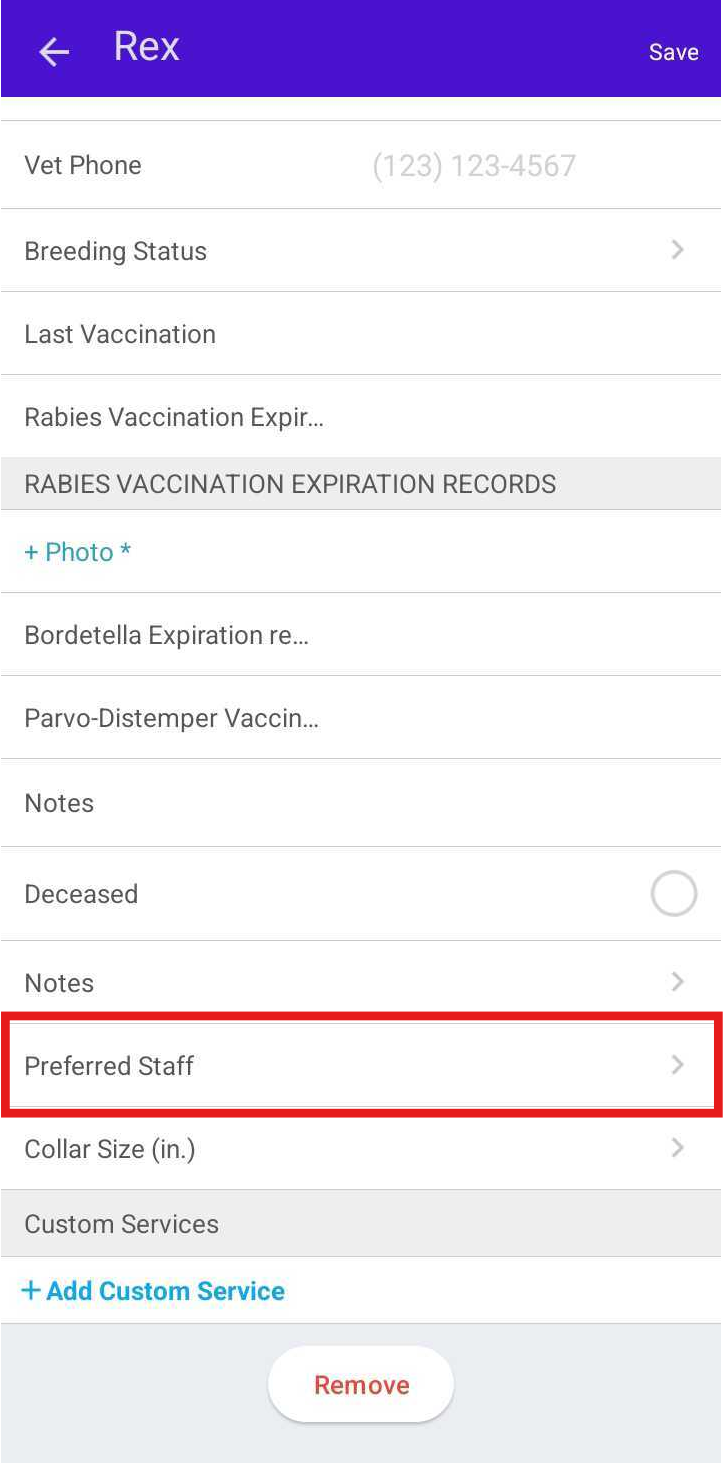
- Scroll to the Preferred Staff field and tap it
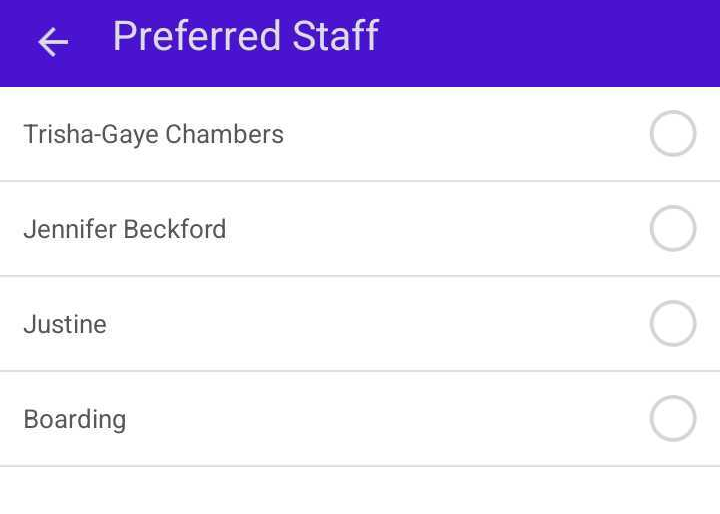
- Select the desired staff member
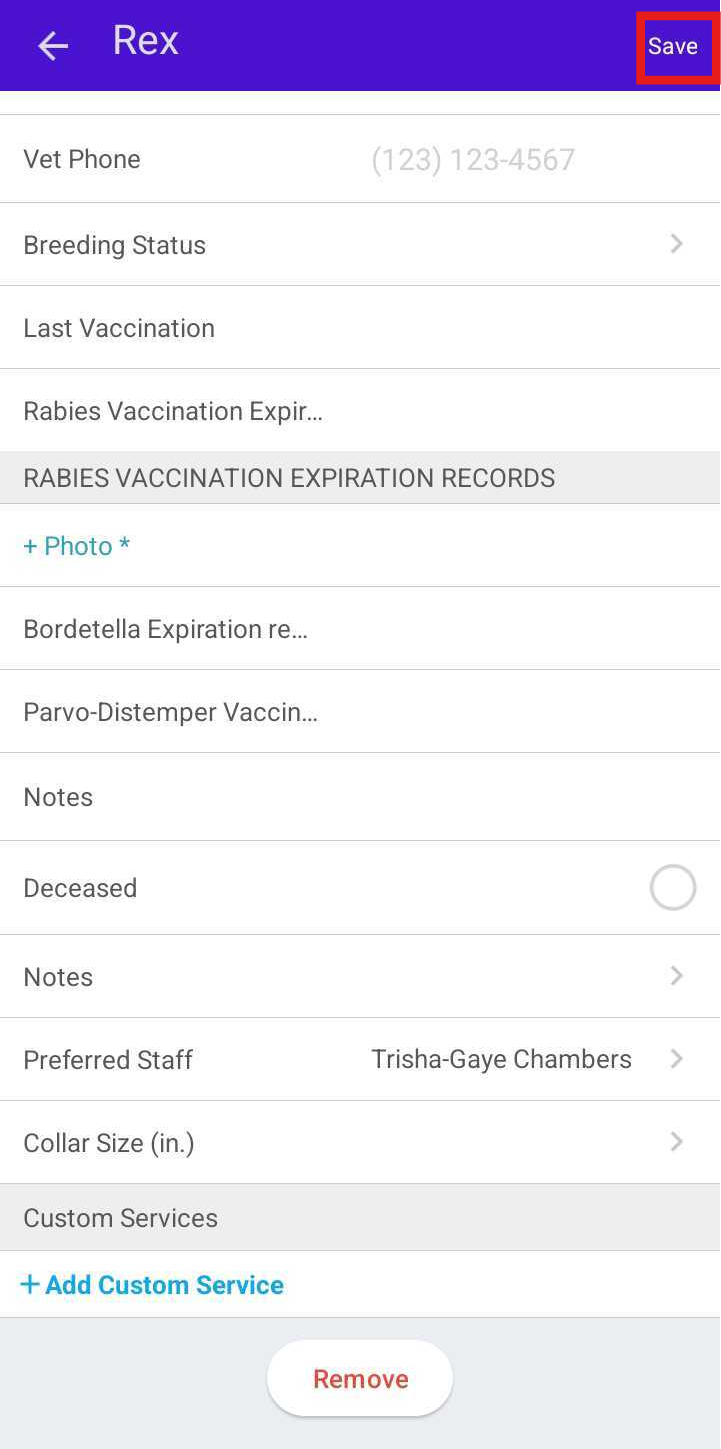
- Tap Save
The selected staff member will now appear as Preferred on the pet’s profile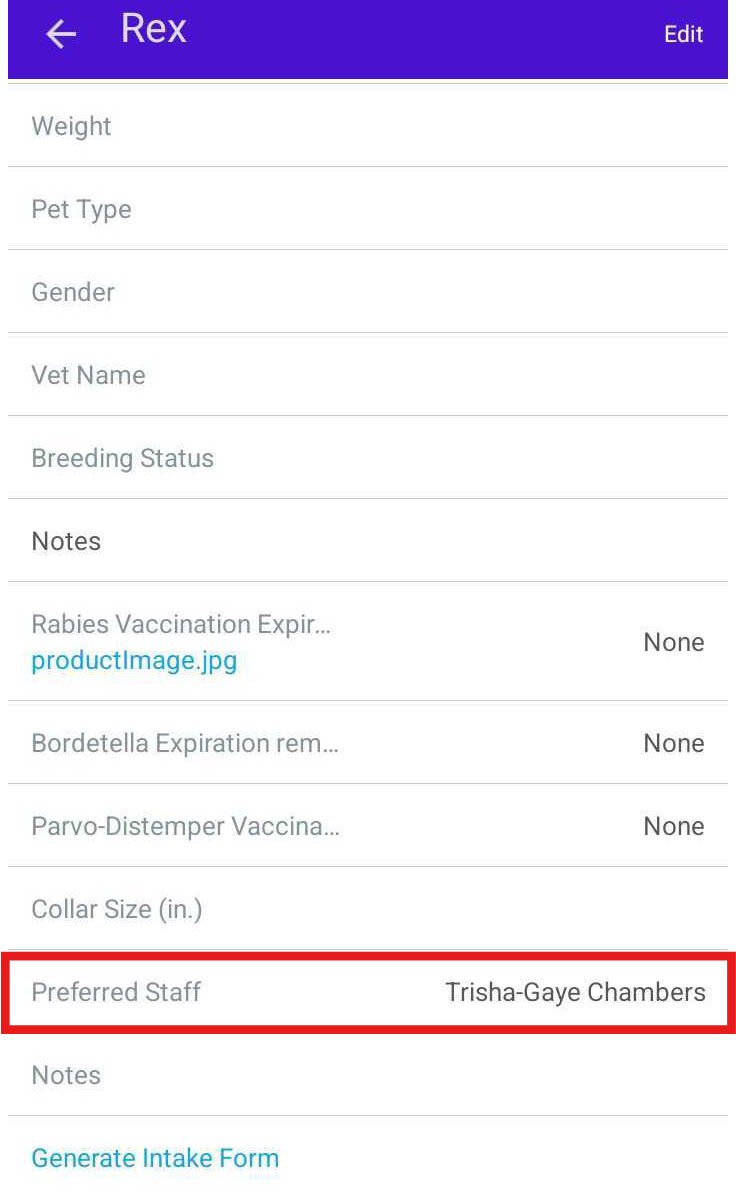
Automatically Updating a Staff Member as Preferred on a Pet Profile
- Launch the MyTime Scheduler app on your device
- Choose your login method:
- Standard: Enter your registered email address and password, then tap 'Sign In'
- Social Login: Select 'Continue with Google' or 'Continue with Apple' to use your existing credentials for a faster login experience. For detailed instructions, learn more here
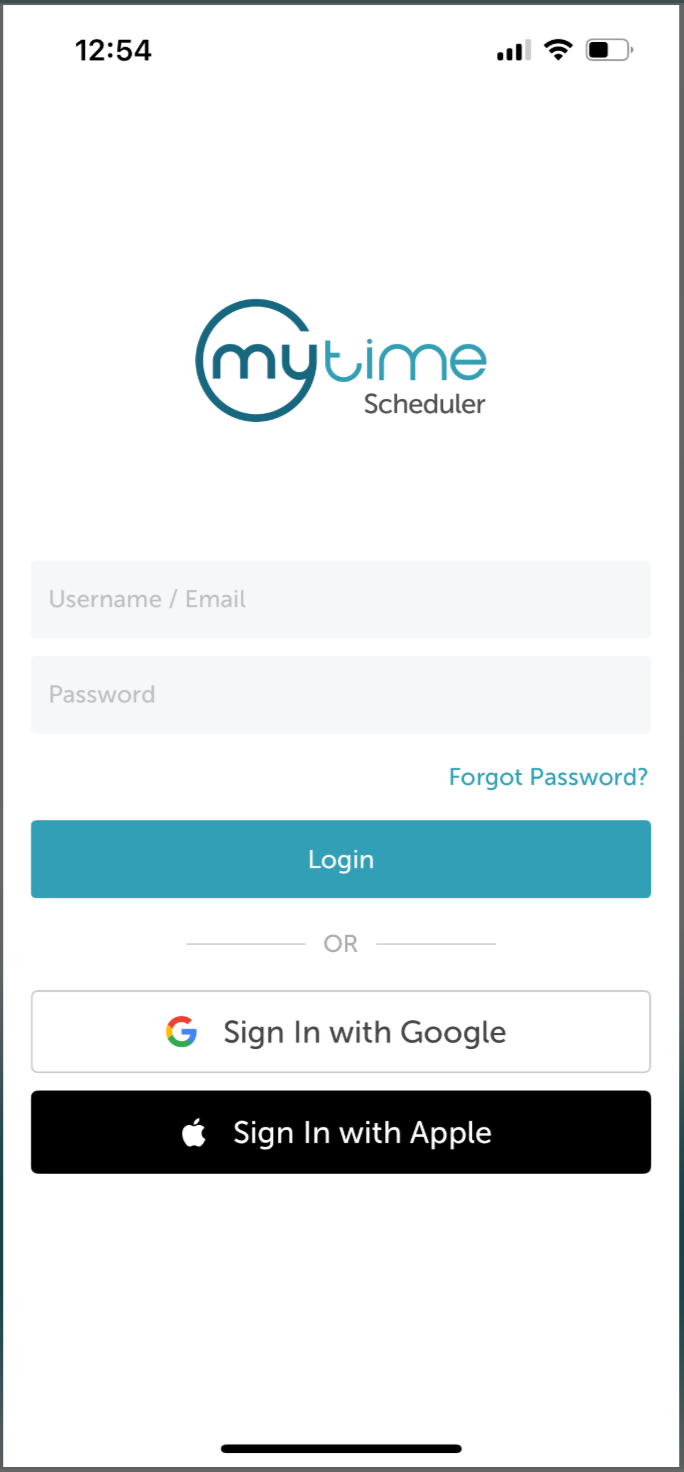
- After signing in, you will be directed to the Schedule by default
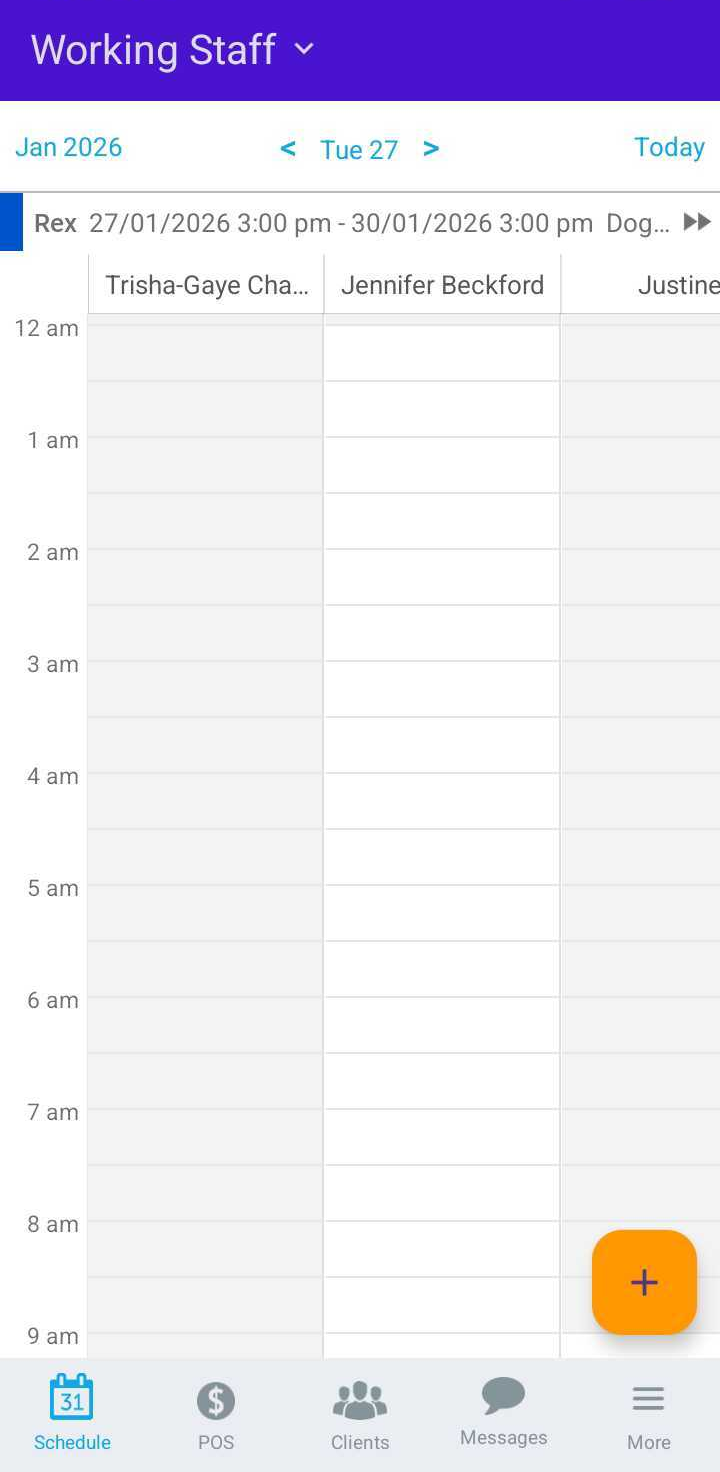
- Filter to the appropriate location and staff member. Learn more here
- Tap the desired time slot under the preferred staff member or tap the ( + ) icon in the bottom-right corner to open the New Event modal
- Add the client to the appointment
- Tap the Pet field to select the desired pet, or use the ( + ) icon to add a new pet. If there is only one pet on the account, this field will auto-populate
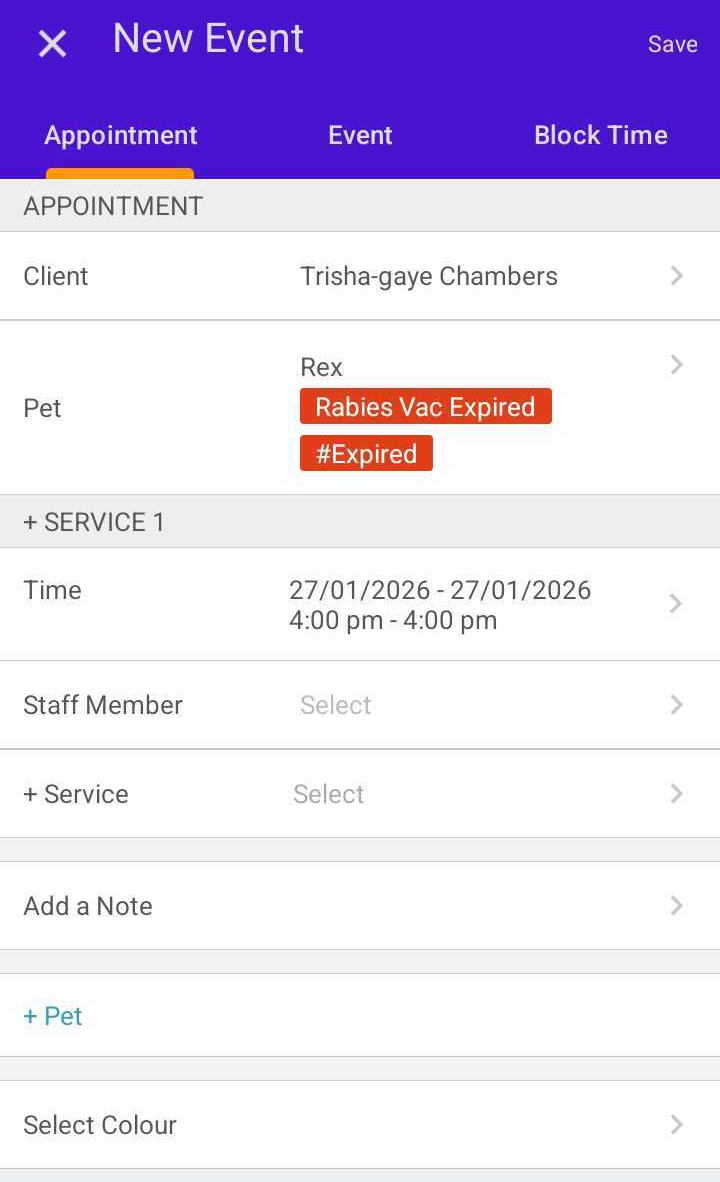
- The date and time will auto-fill based on the selected time slot or current schedule. You can adjust these after selecting a service
- Select a staff member
- Select a service
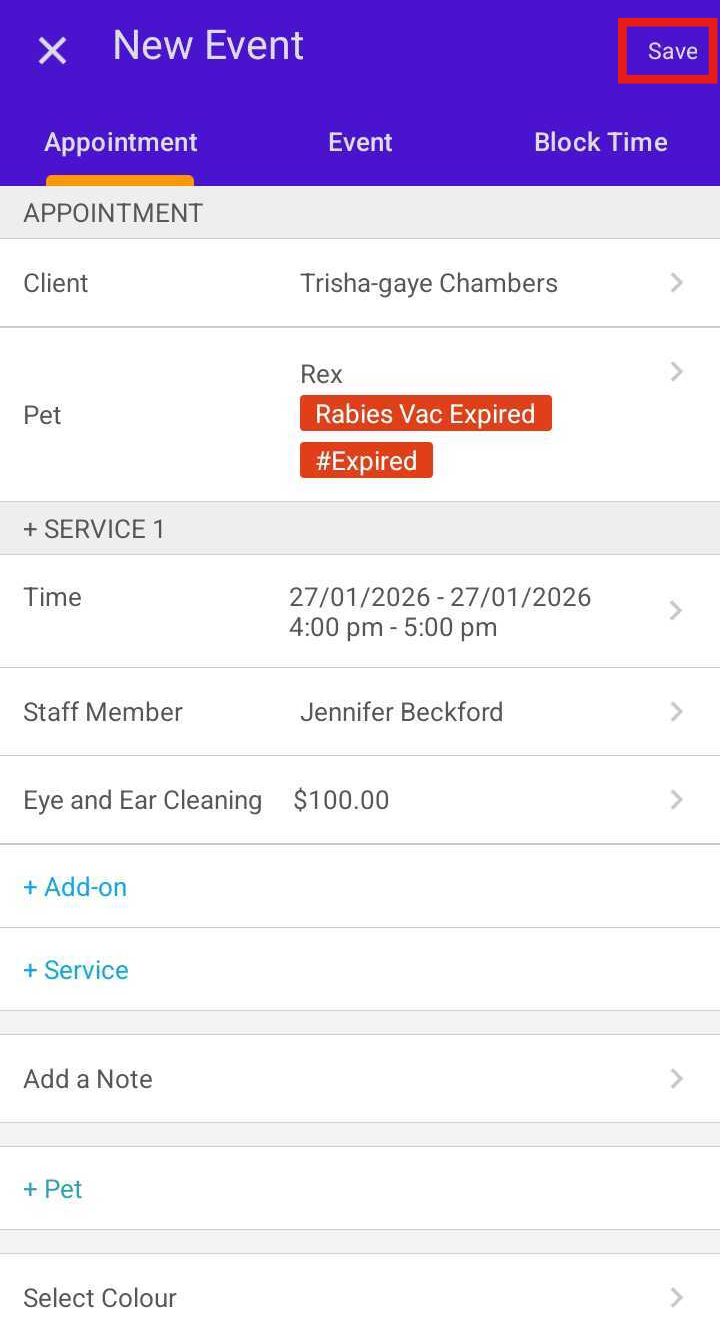
- Tap Save to create the appointment
- Locate and open the appointment
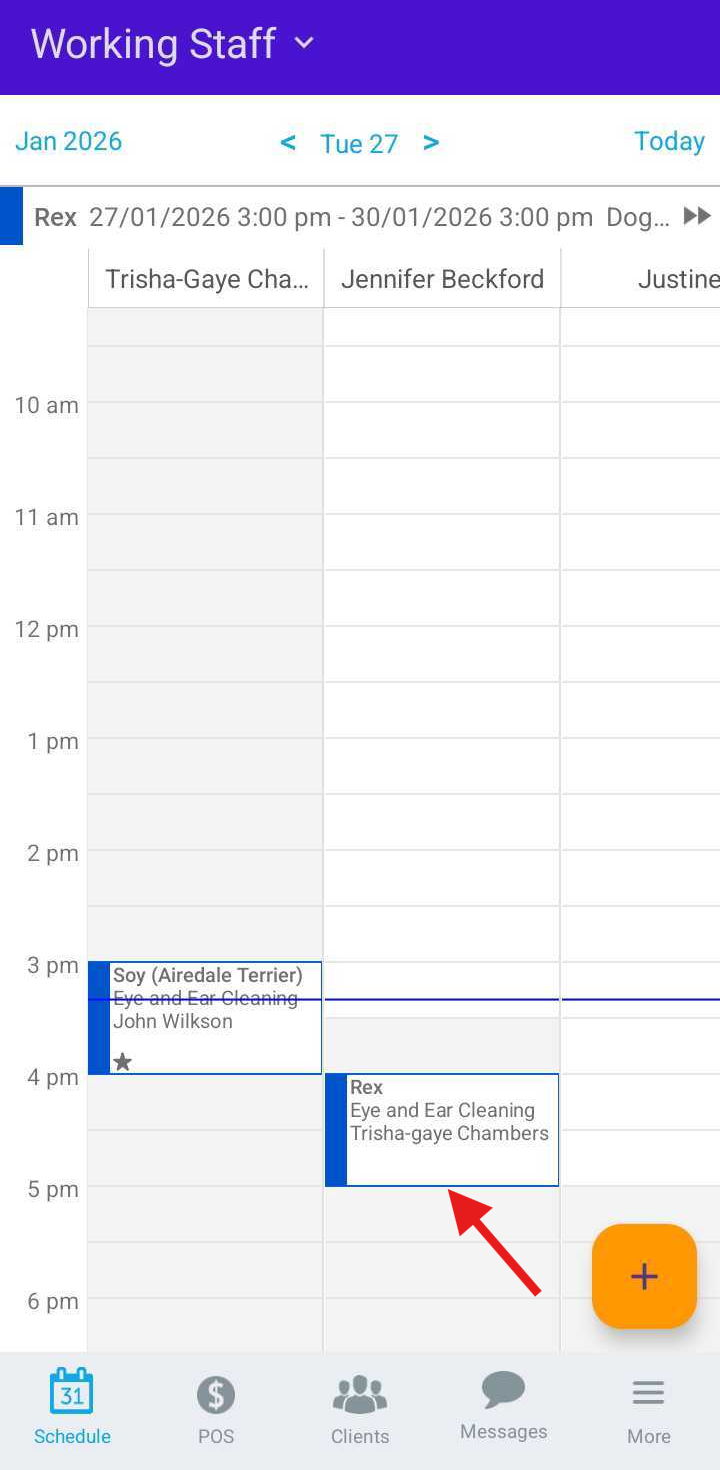
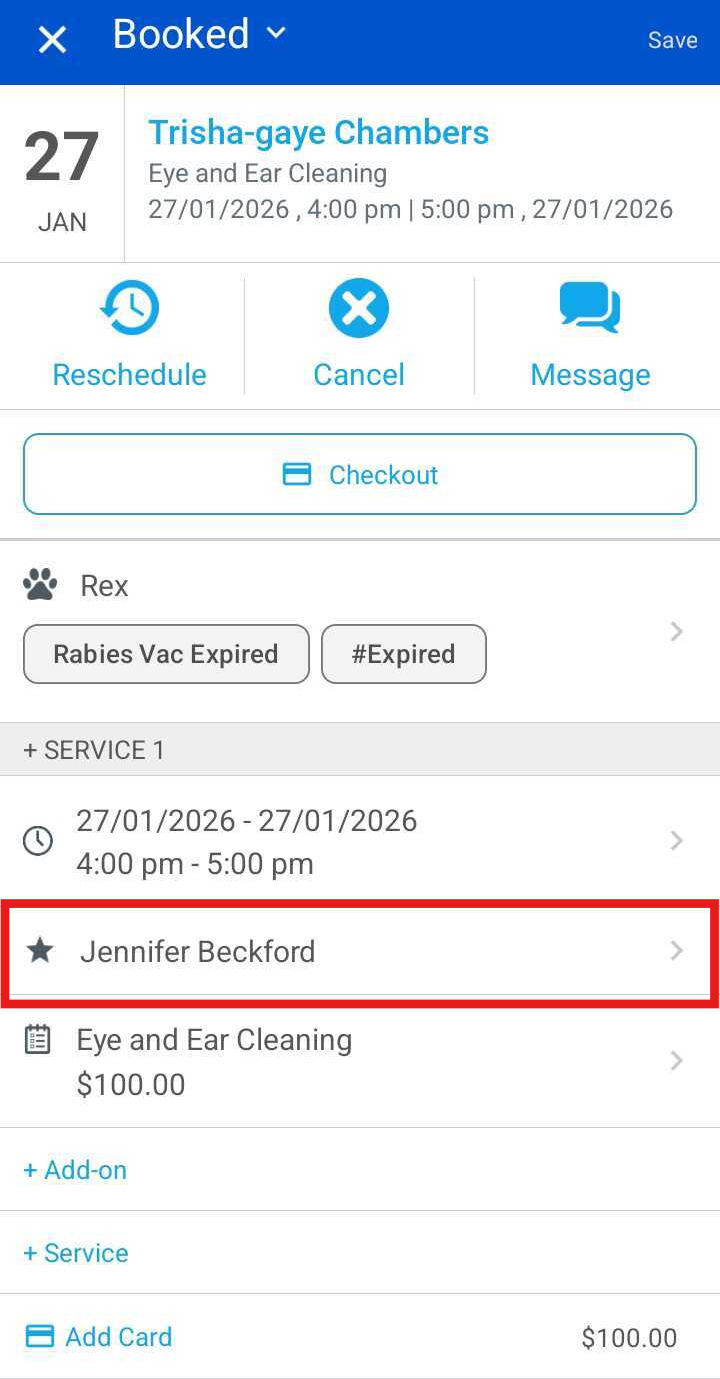
- Scroll to the Staff field
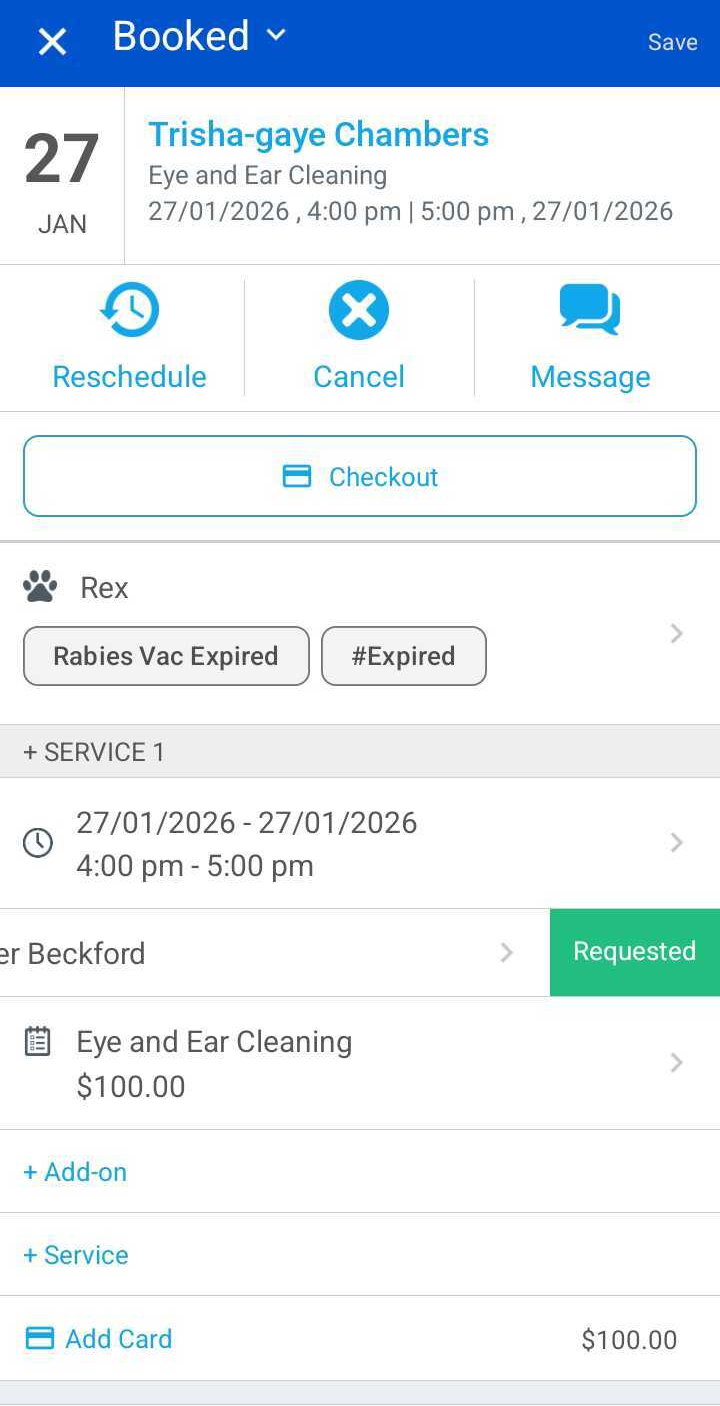
- Swipe the staff member's name to the left to reveal the Requested option. Tap Requested
- Tap Save
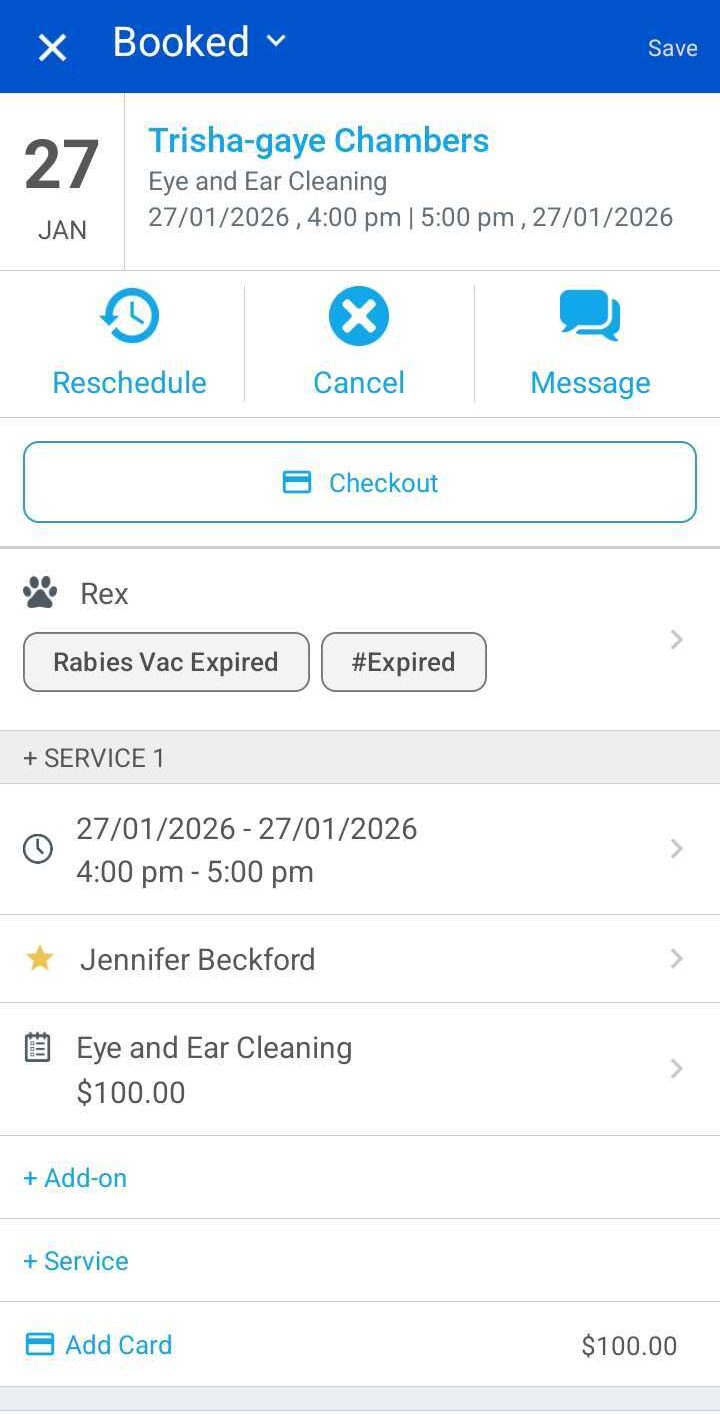
The selected staff member will automatically be saved as Preferred on the pet’s profile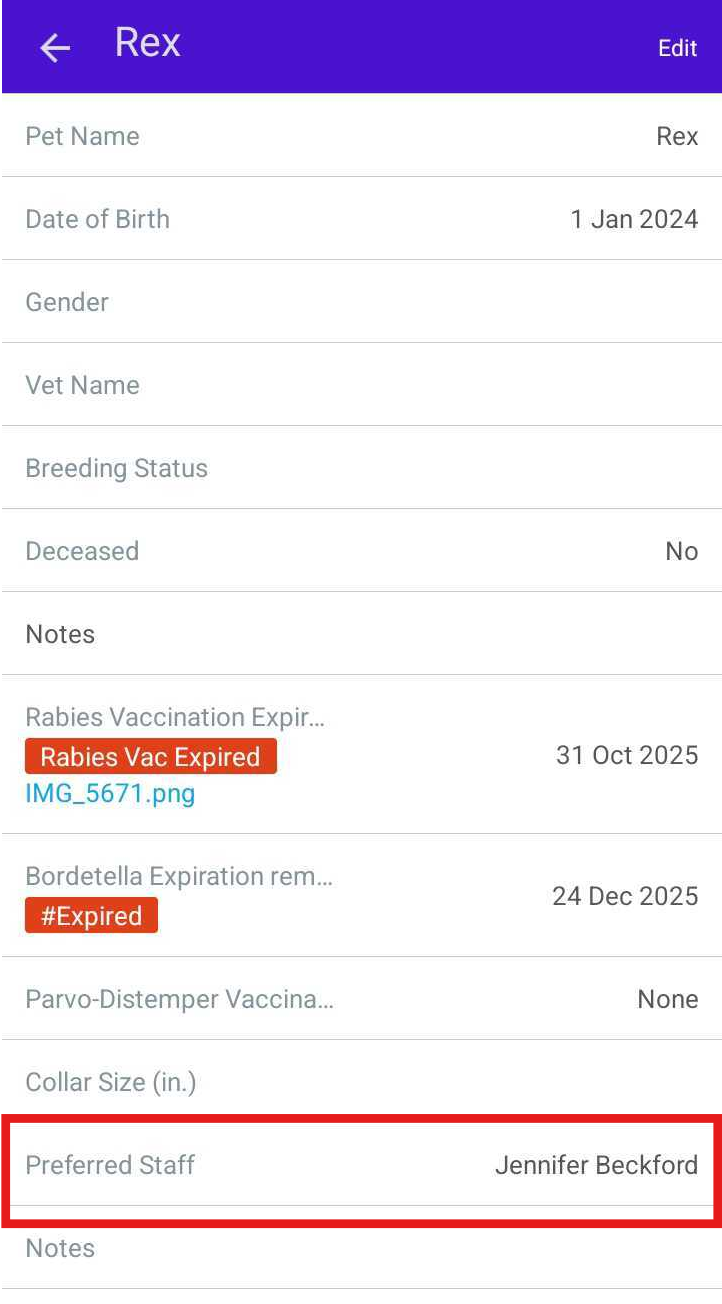
For more information, contact us at support@mytime.com.
Related Articles:
Installing MyTime on Scheduler App (Android and iOS)
Signing into MyTime on Scheduler App (Android and iOS)
Marking a Staff Member as Preferred on a Pet Profile
Marking a Staff Member as Preferred on a Client Profile
Was this article helpful?
That’s Great!
Thank you for your feedback
Sorry! We couldn't be helpful
Thank you for your feedback
Feedback sent
We appreciate your effort and will try to fix the article